Home & browsing flow · Kitchen Stories · Android
Kitchen Stories home & browsing screens
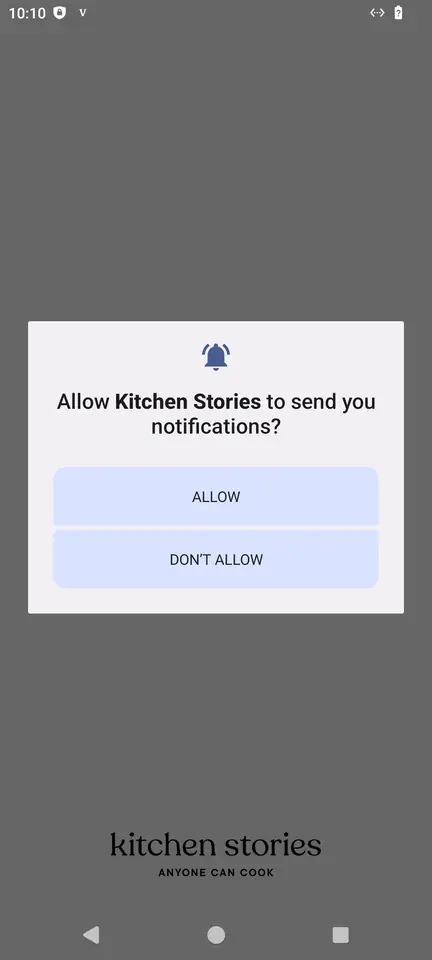
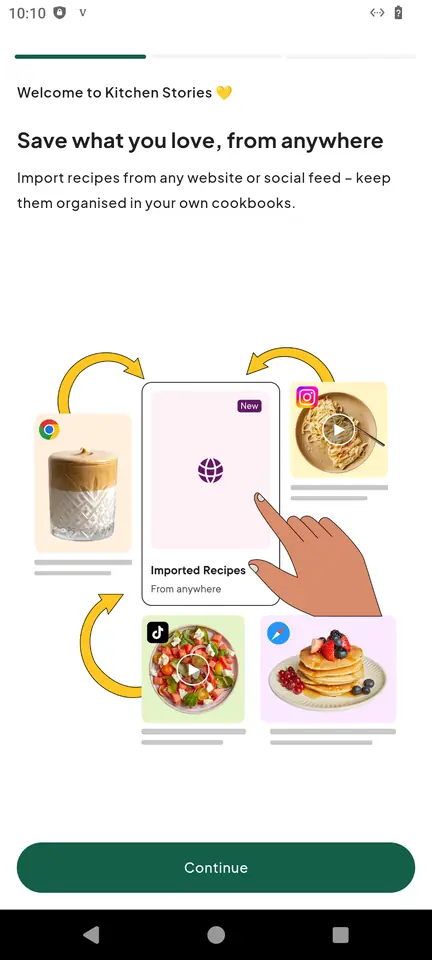
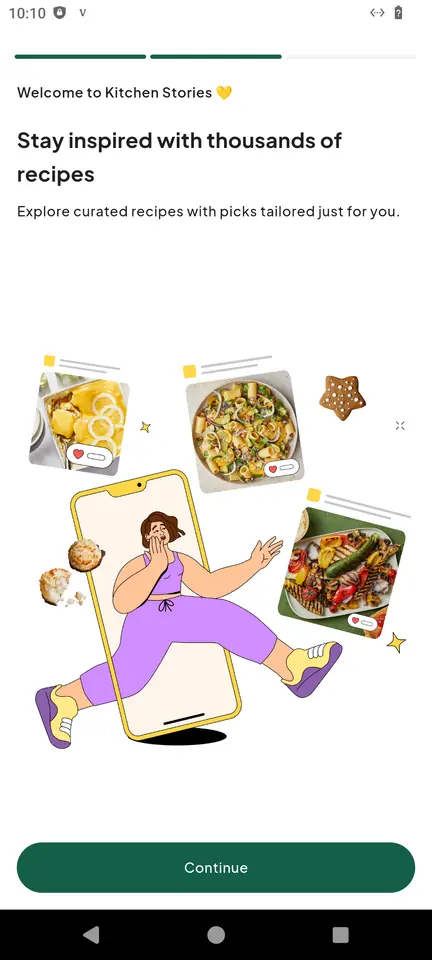
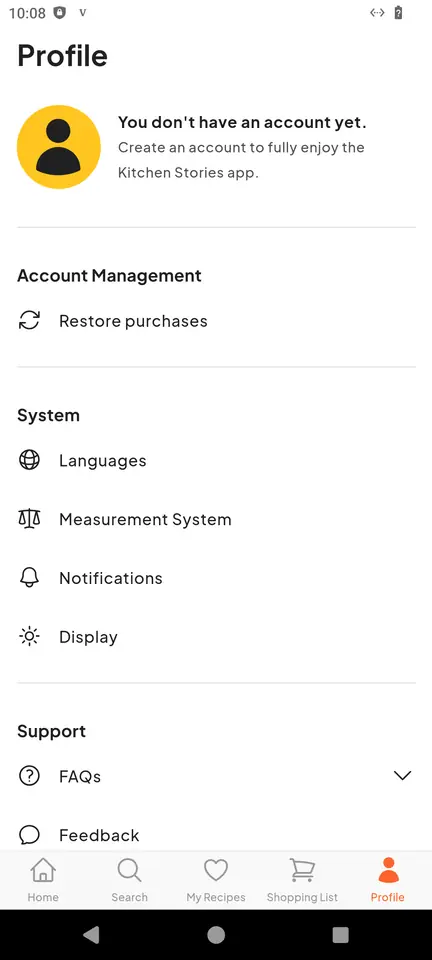
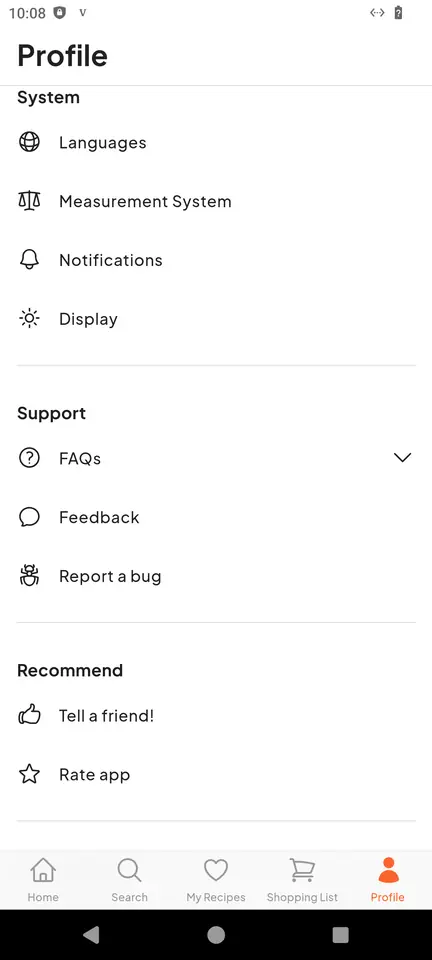
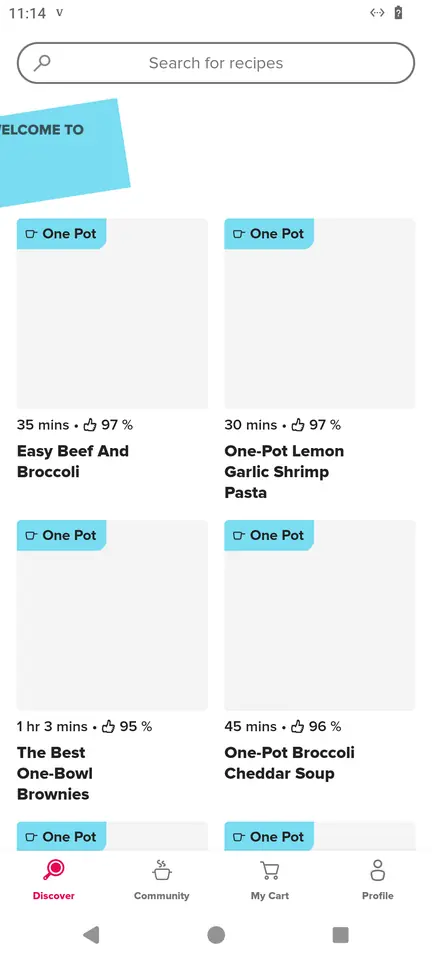
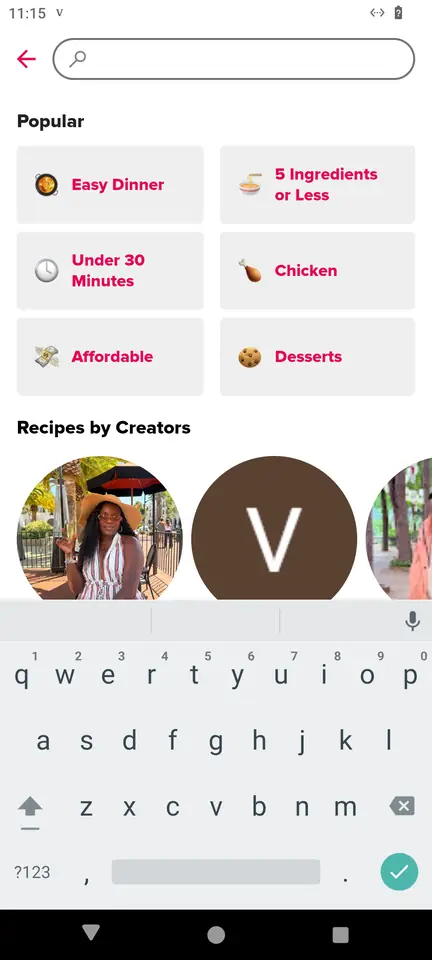
Every screen of Kitchen Stories's home & browsing screens on Android, in order: 4 steps, recorded on a real device. Kitchen Stories's home & browsing flow walks through 4 screens, including “Hungry?”, “Tap the heart on a recipe card or page…” and “Shopping List”. Along the way it stops for an account ask at step 3.
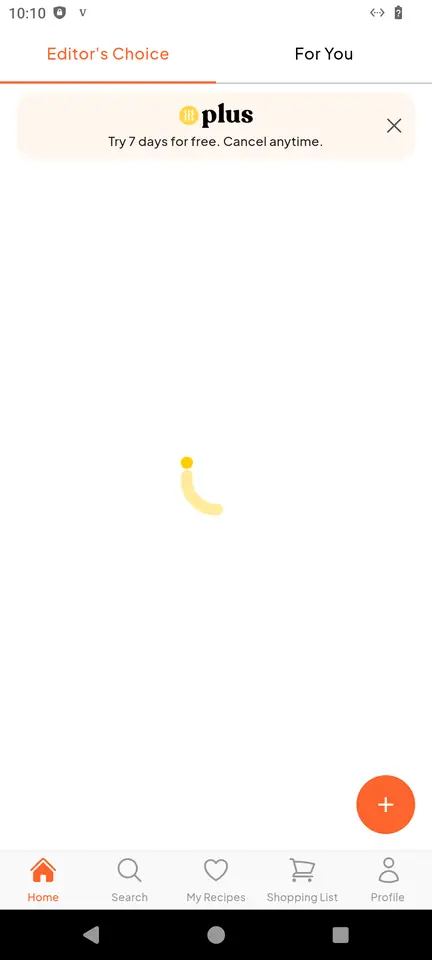 01 Home & browsing
Editor's Choice Tab 1 of 2 — For You Tab 2 of 2
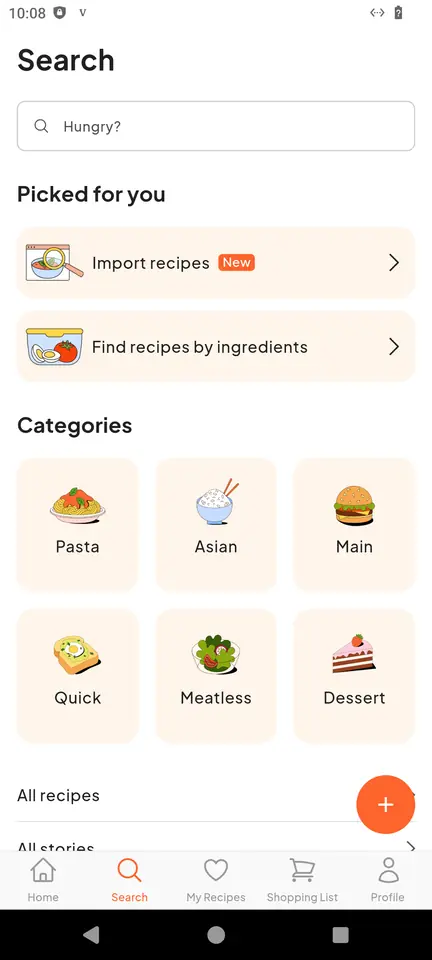 02 Home & browsing
Search — Hungry?
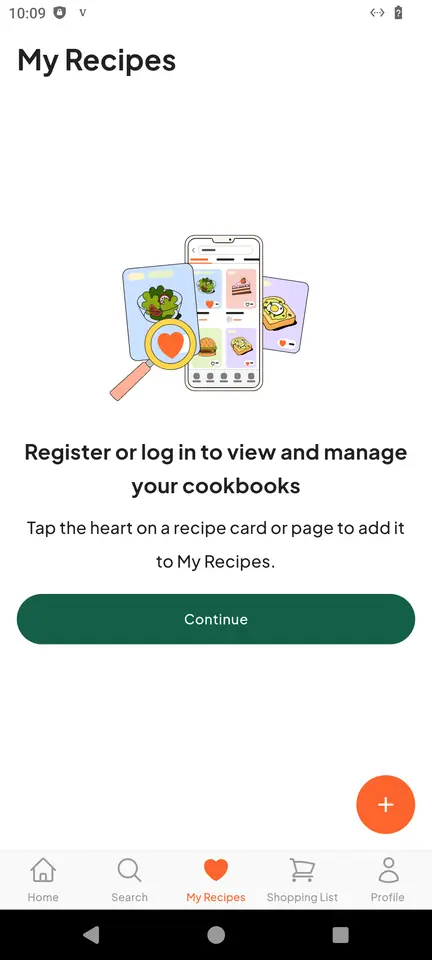 03 Home & browsing
My Recipes — Register or log in to view and manage your cookbooks
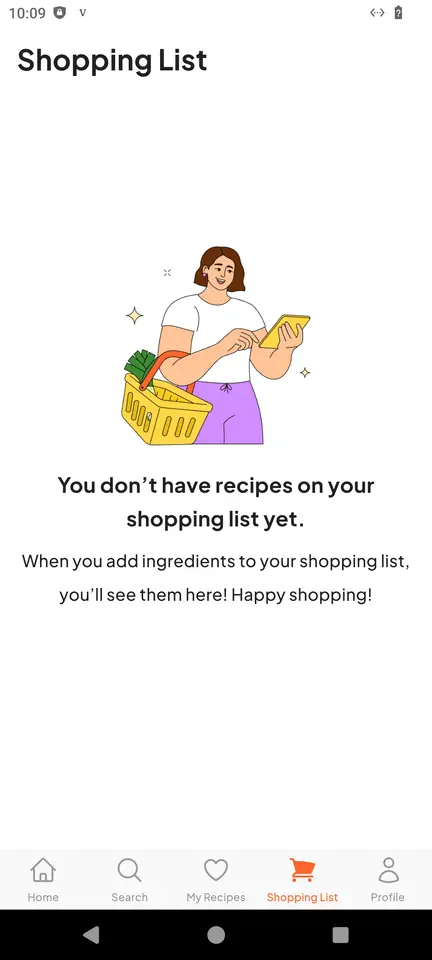 04 Home & browsing
Shopping List — You don’t have recipes on your shopping list yet.
What Kitchen Stories's home & browsing screens does
- 4 screens in order, opening on “Editor's Choice Tab 1 of 2” and ending at “Shopping List”.
- Leads with a free offer: “Try 7 days for free. Cancel anytime.”.
Captured on a real Android device · last updated 2026-11-14