Productivity app UI design: 50 Android apps, 351 screens
Productivity and tool apps help people get work done — notes, expenses, research and AI search, field counting. Their UI is utilitarian: fast capture, clear structure and as few steps as possible between opening the app and the task. Below: 50 productivity & tools apps we captured on a real Android device, 65 full flows and what their screens are built from.
Productivity & tools apps in the library
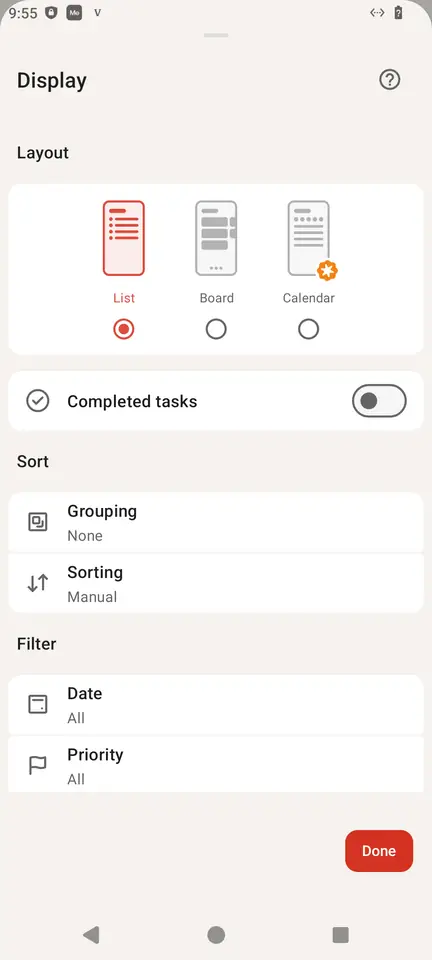
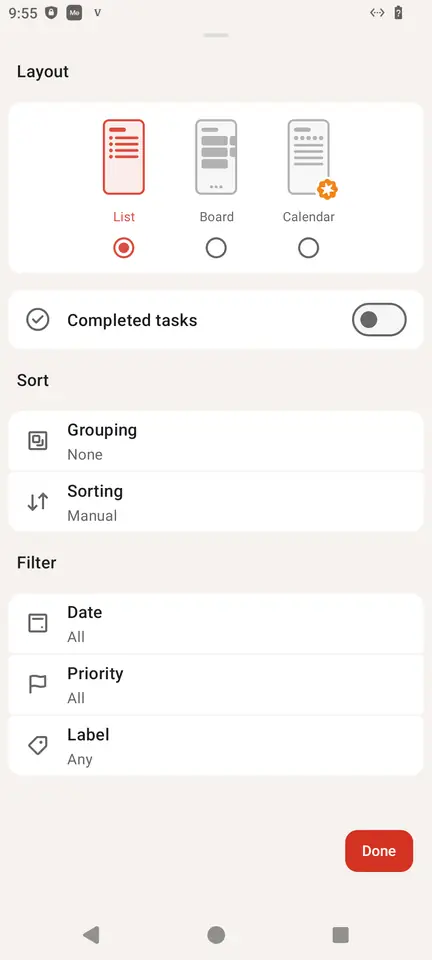
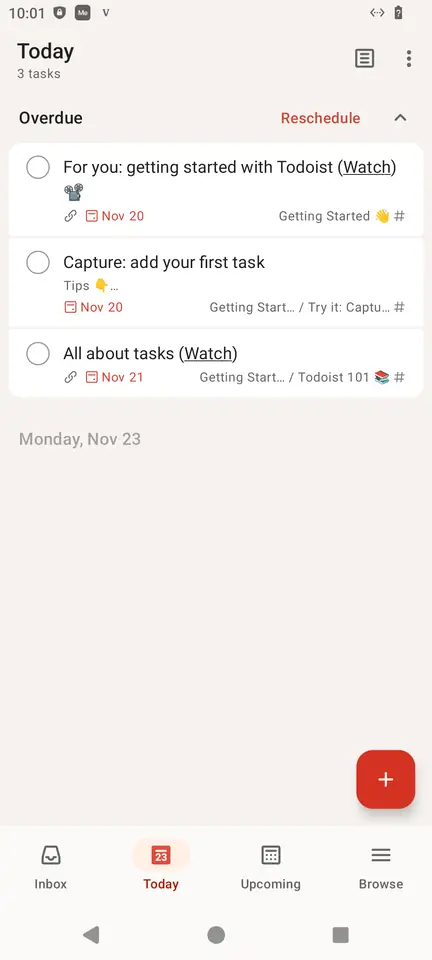
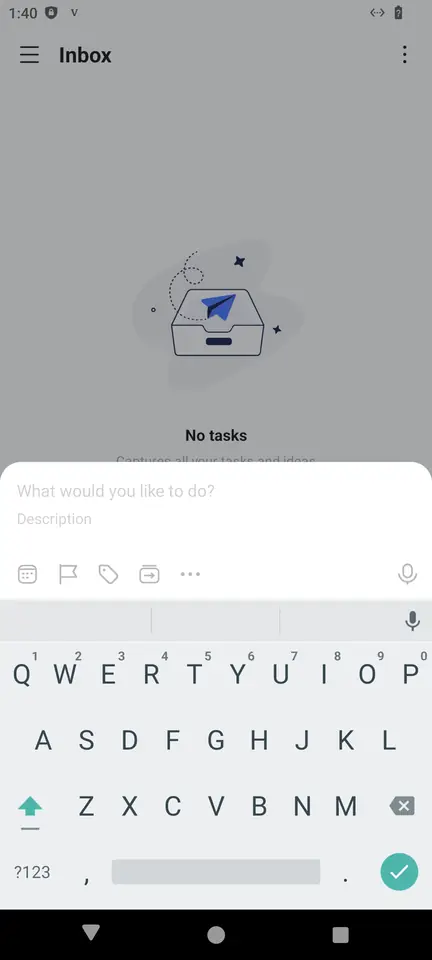
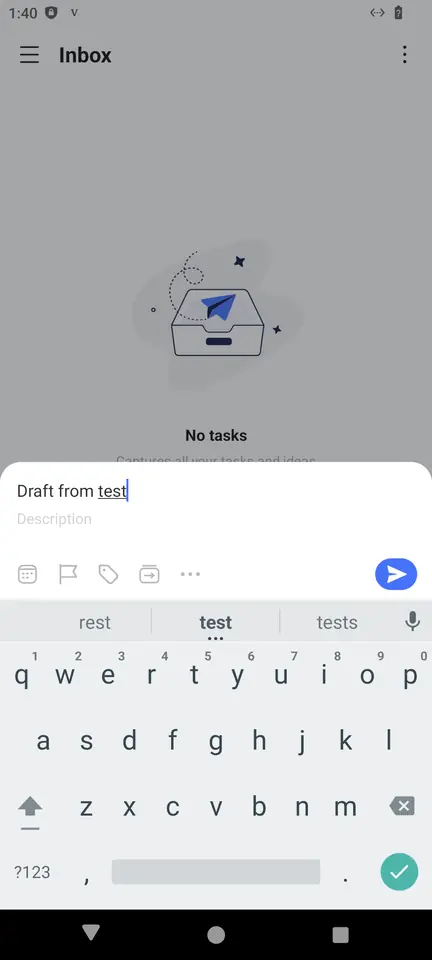
Todoist
30 screens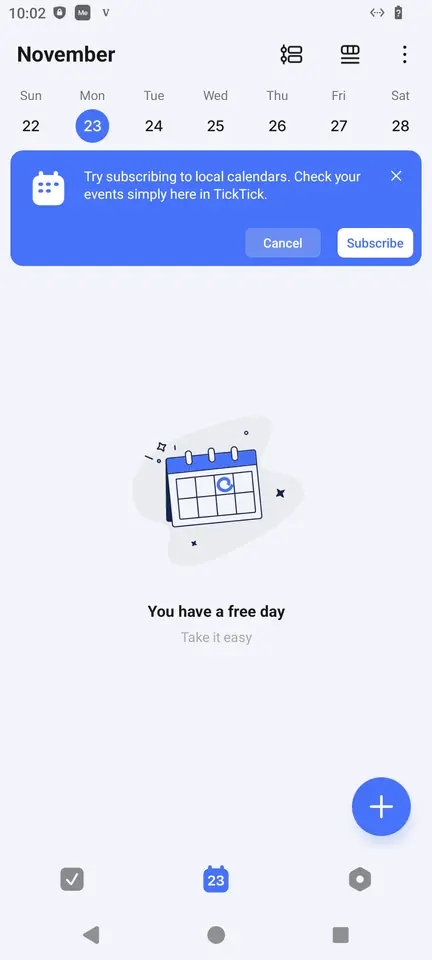
TickTick
21 screens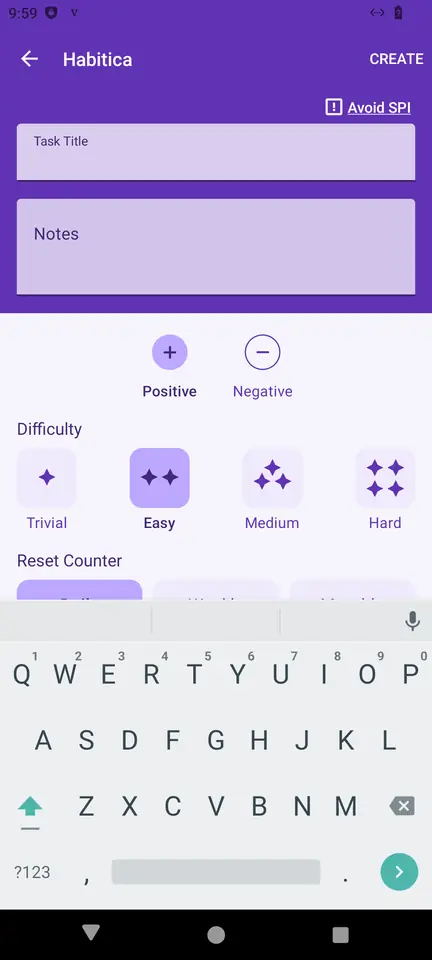
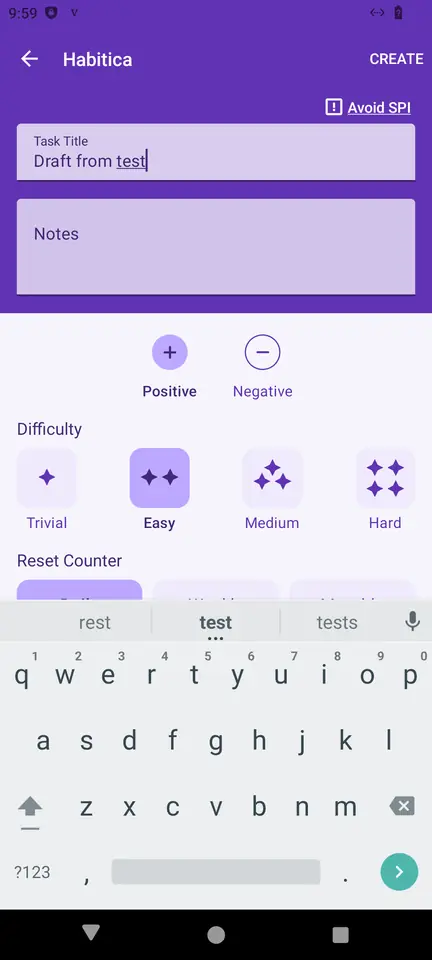
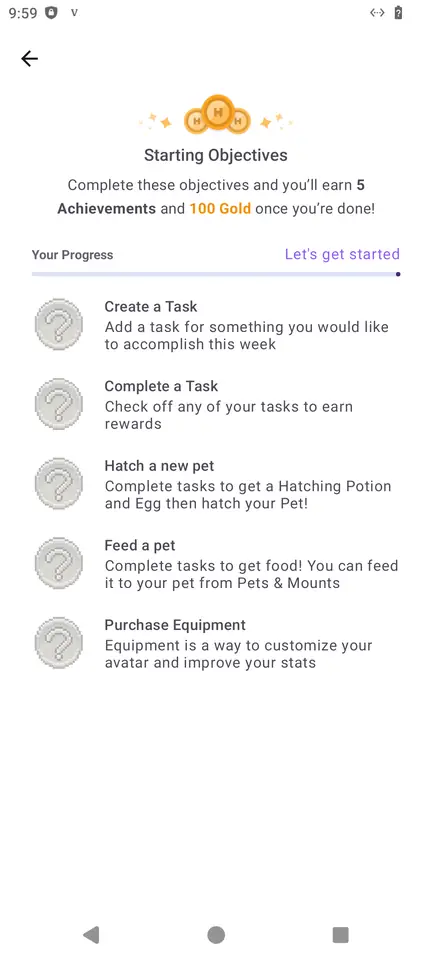
Habitica
18 screens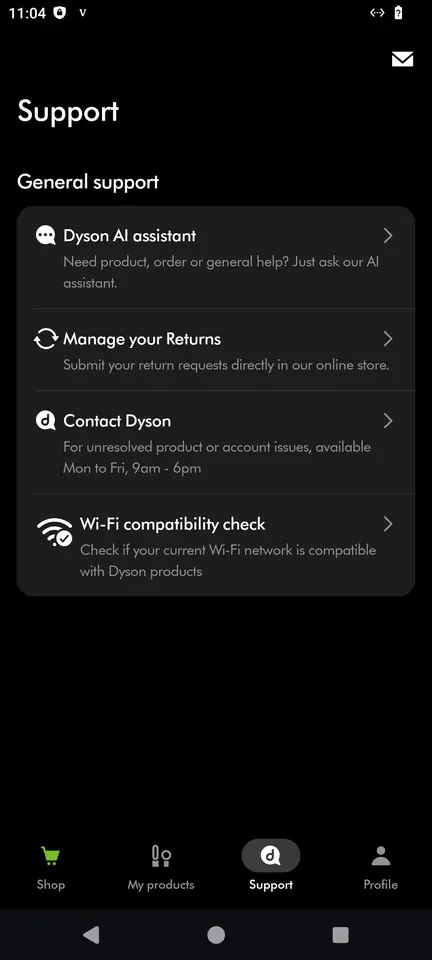
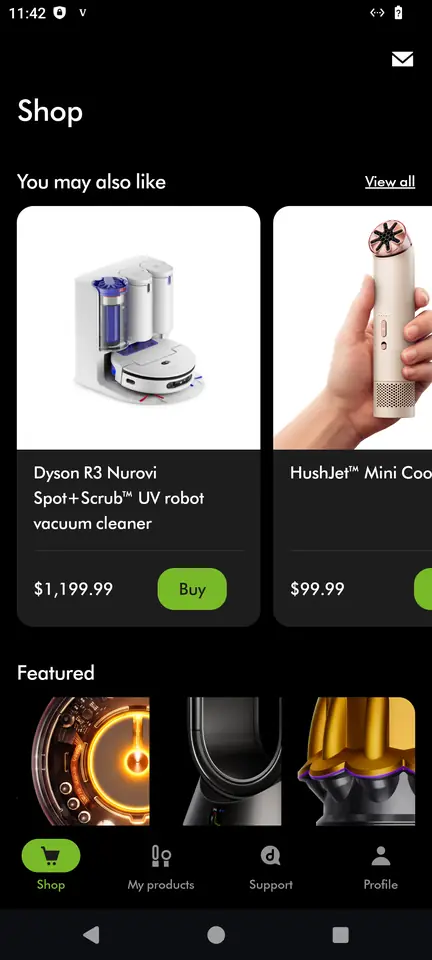
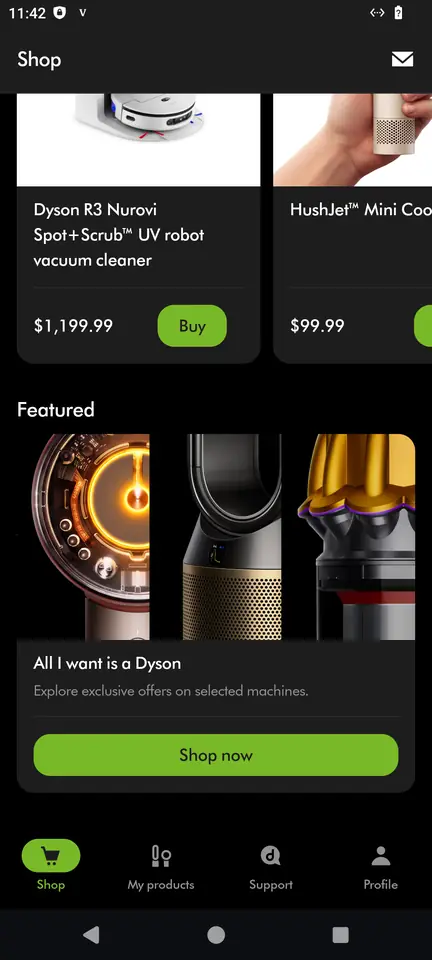
MyDyson
18 screens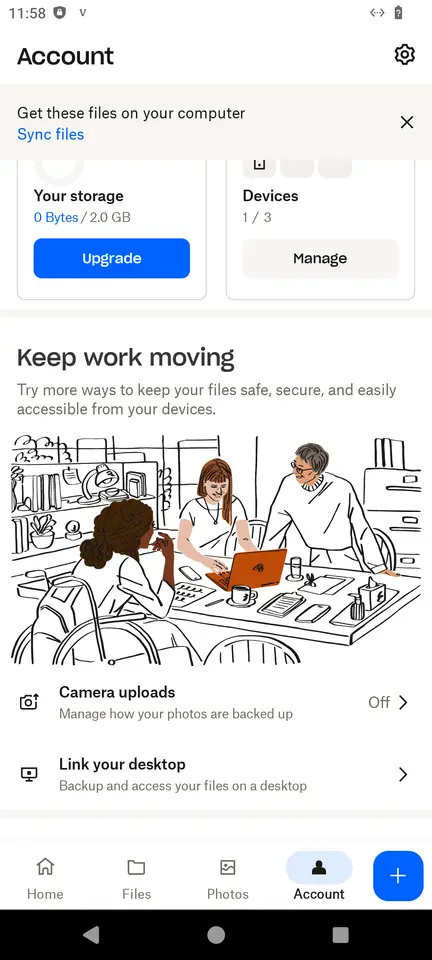
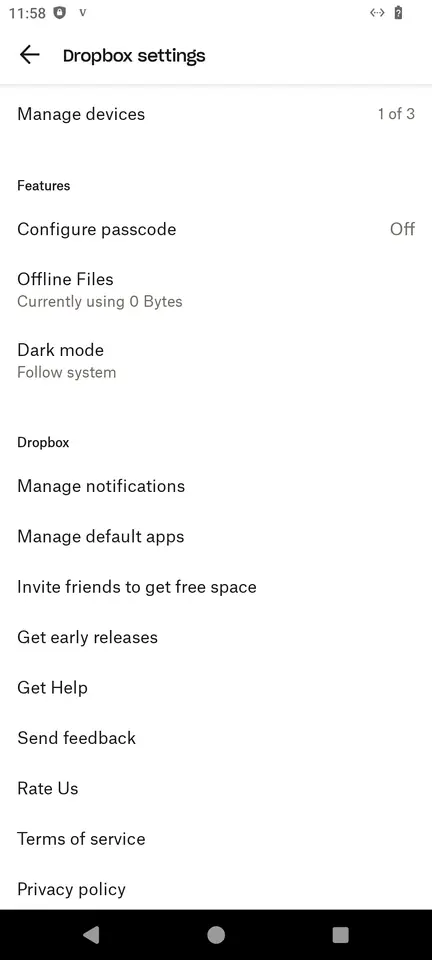
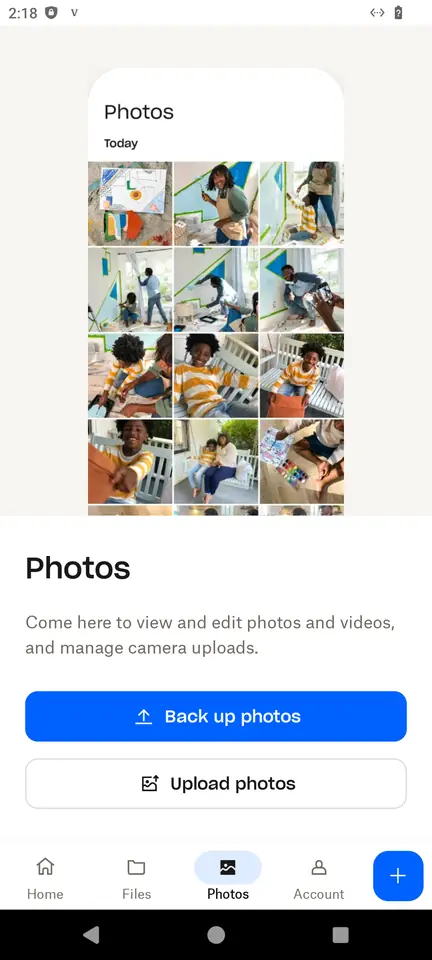
Dropbox
16 screens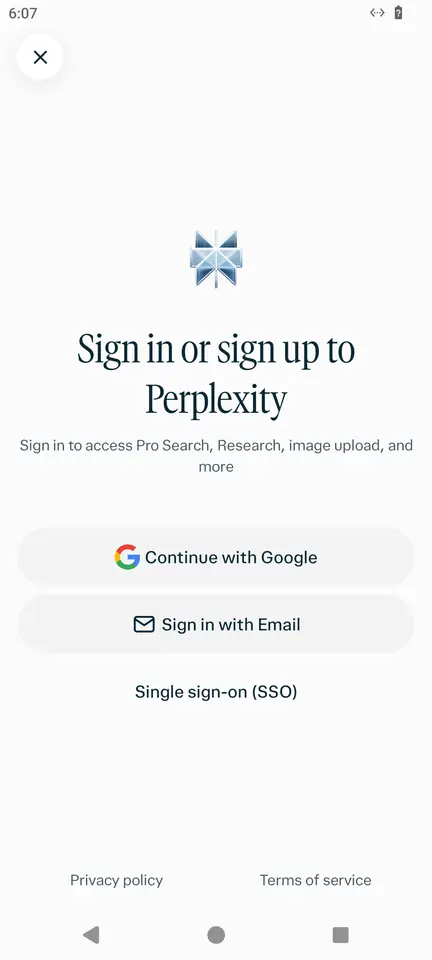
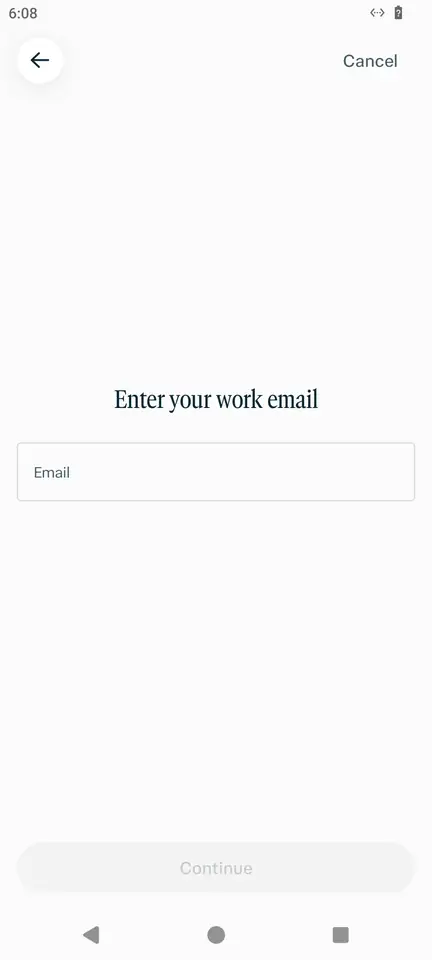
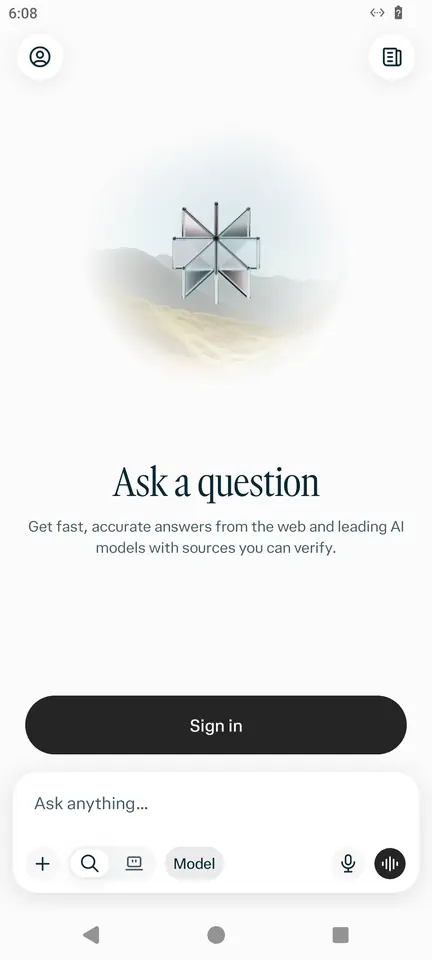
Perplexity
15 screens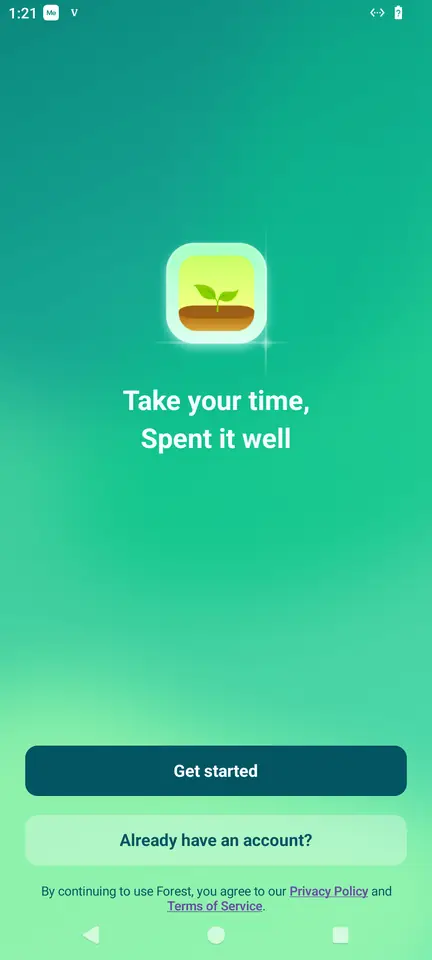
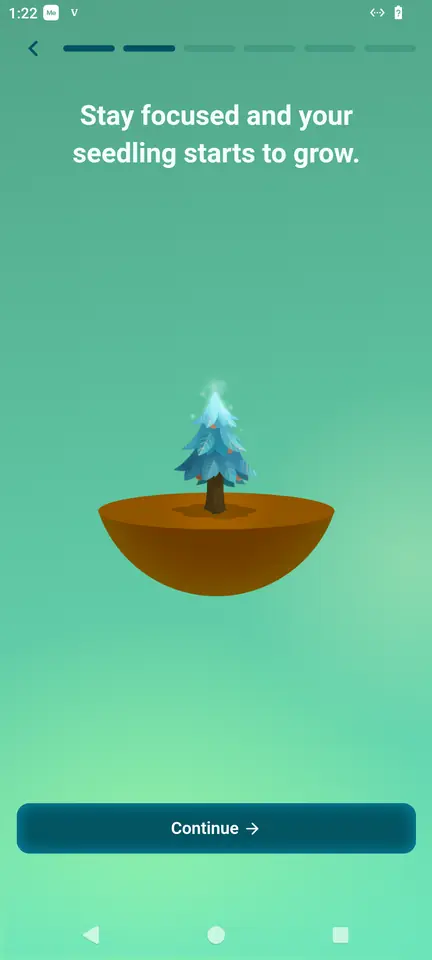
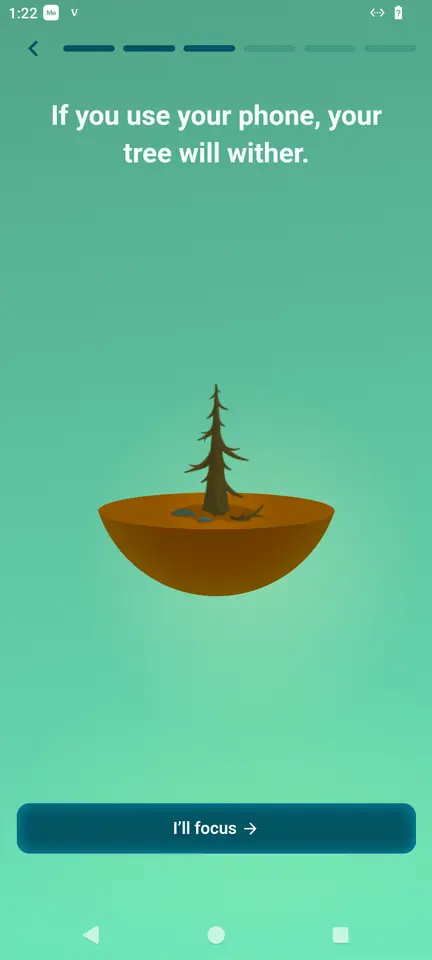
Forest
13 screens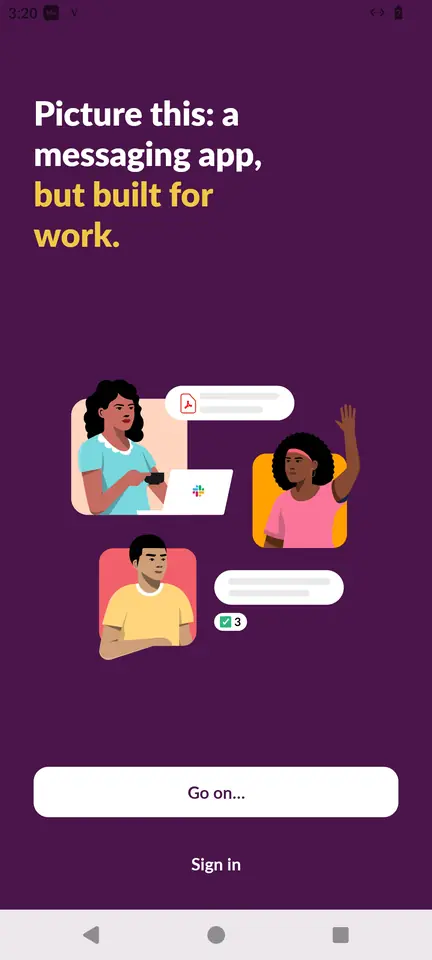
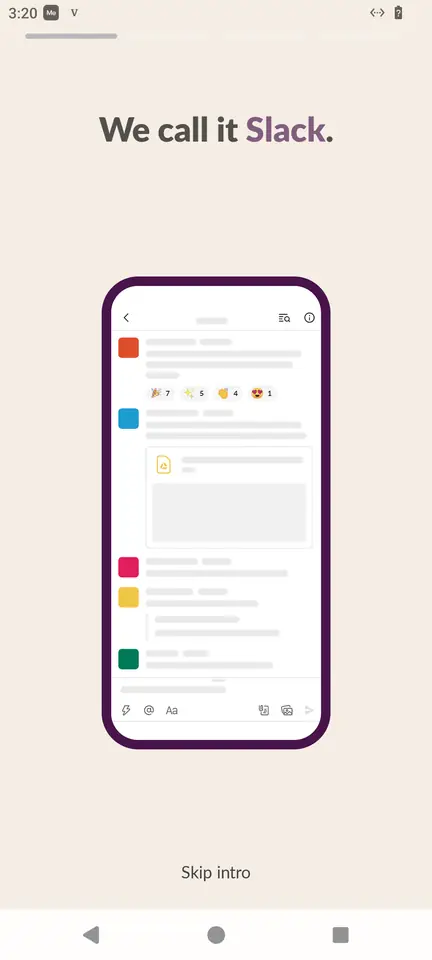
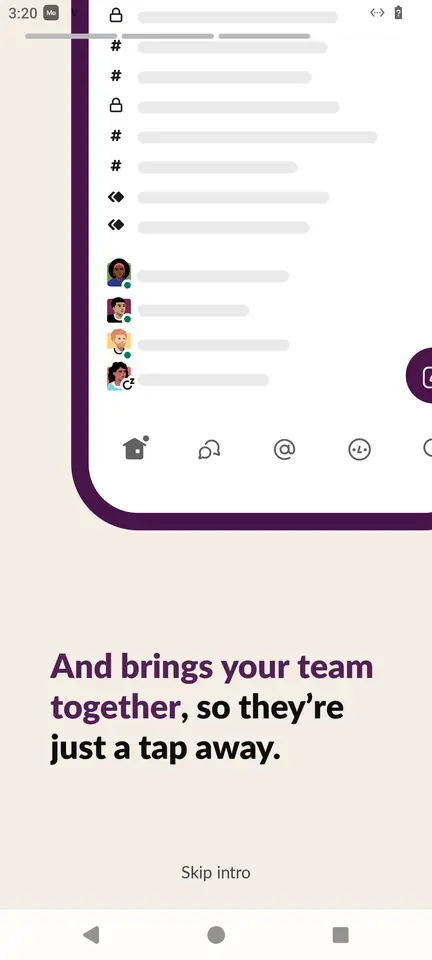
Slack
13 screens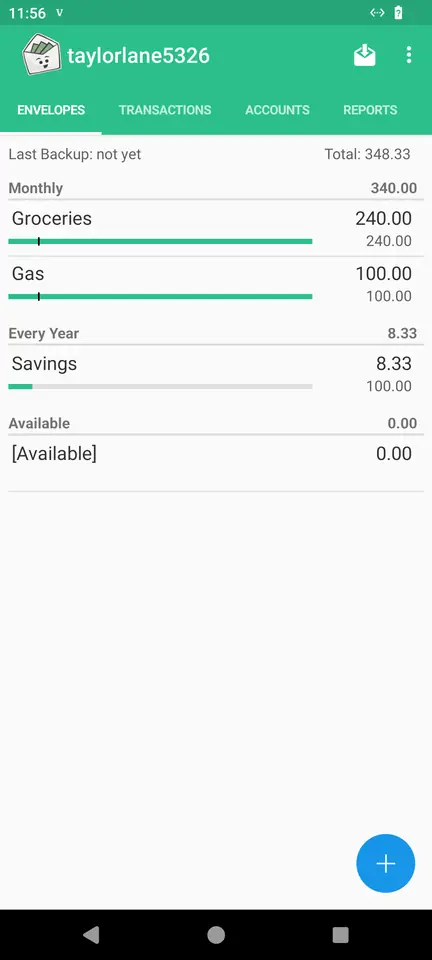
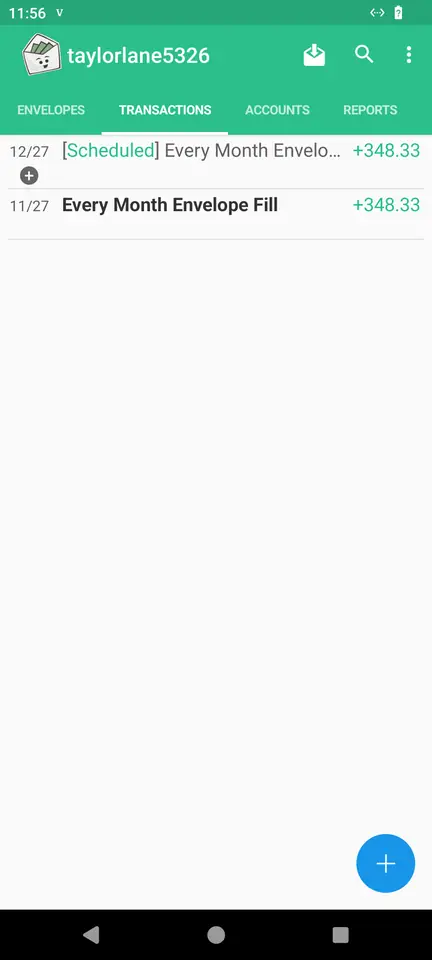
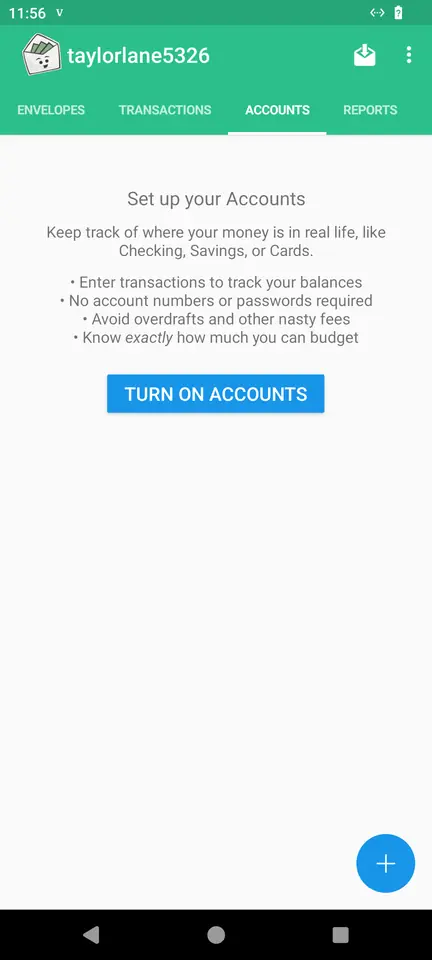
Goodbudget
12 screens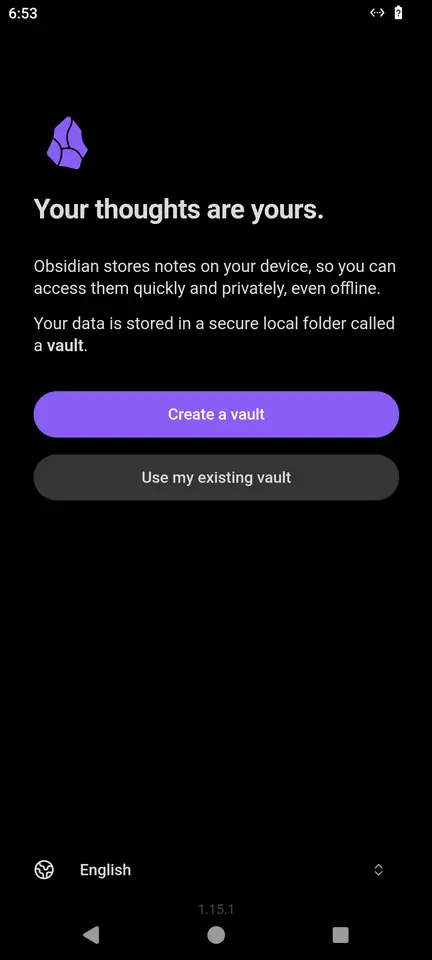
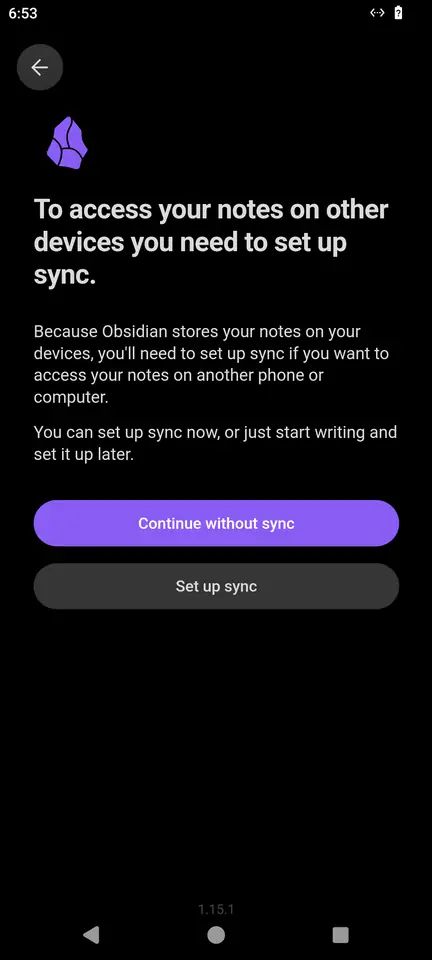
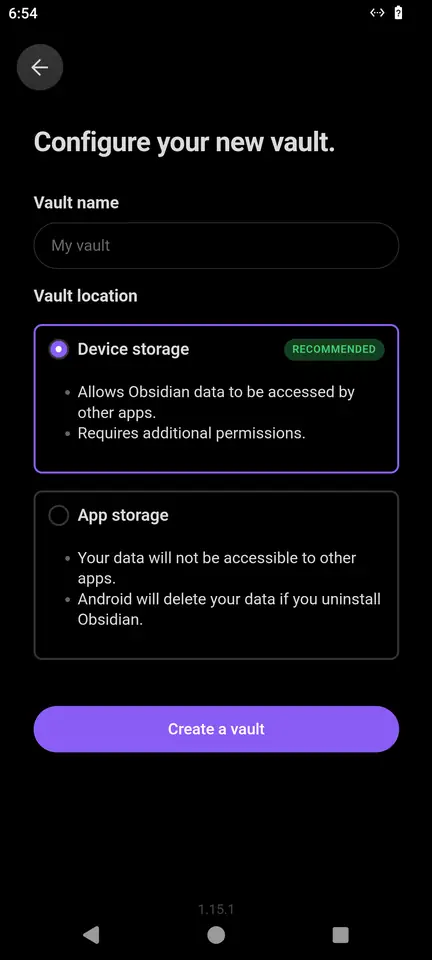
Obsidian
12 screens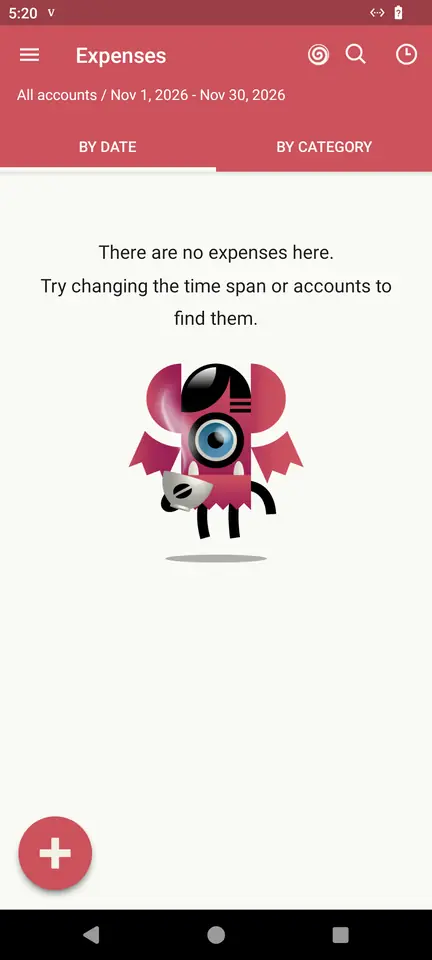
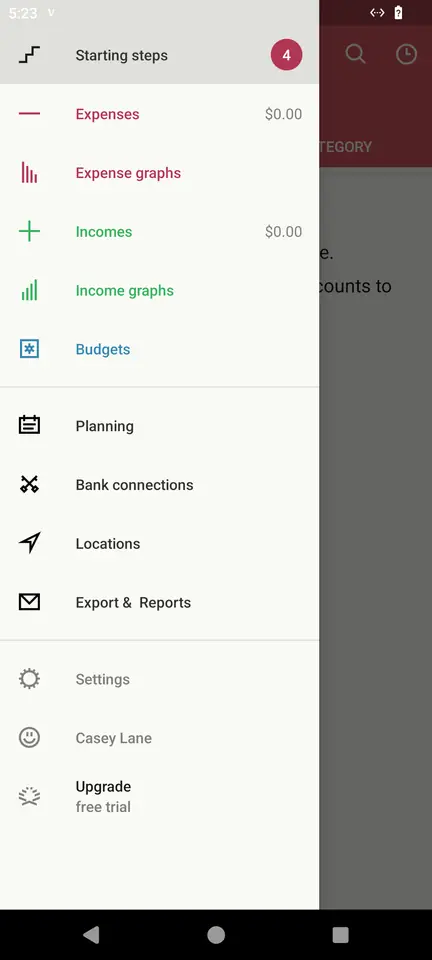
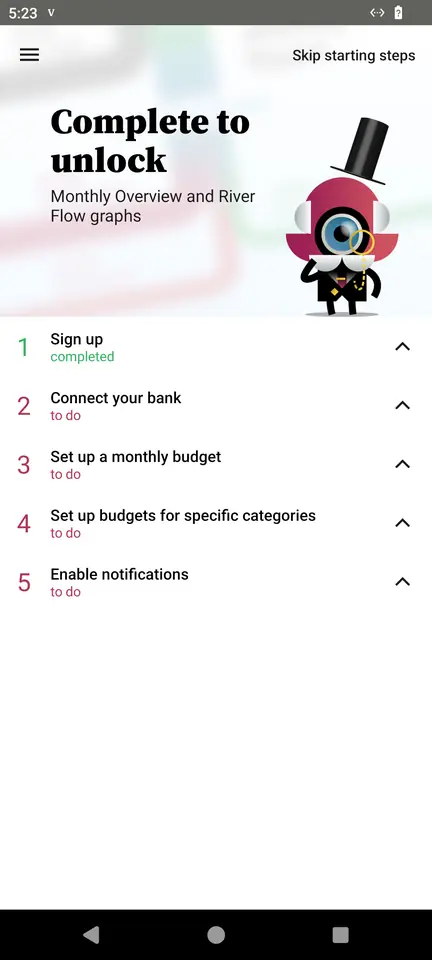
Toshl Finance
12 screens
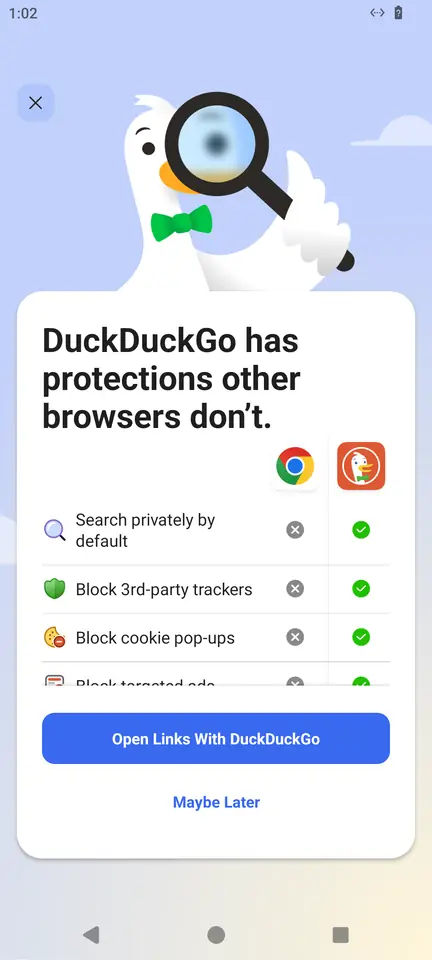
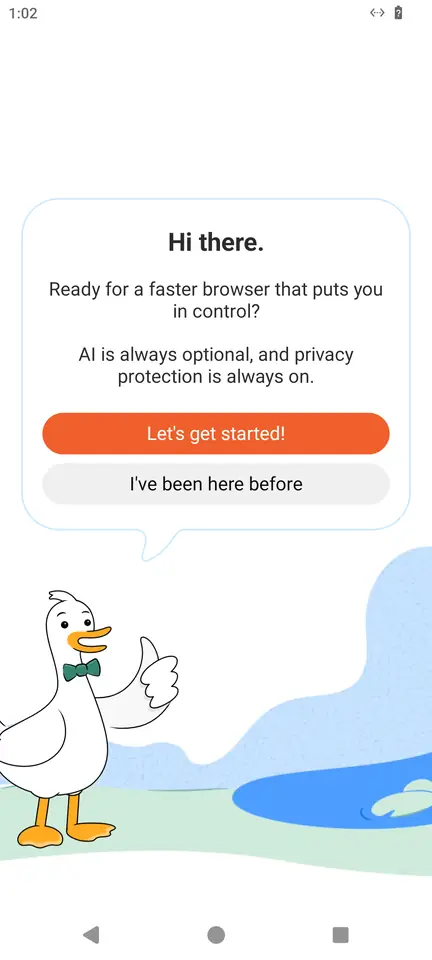
DuckDuckGo
9 screens
Splitwise
9 screens
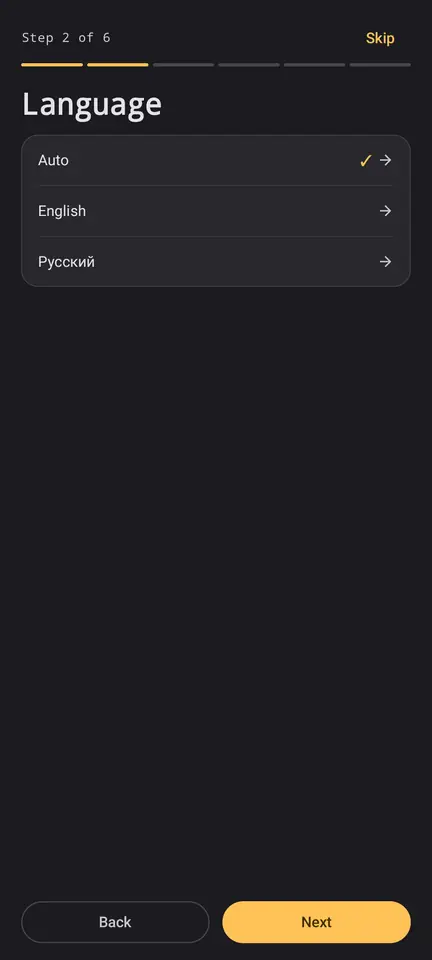
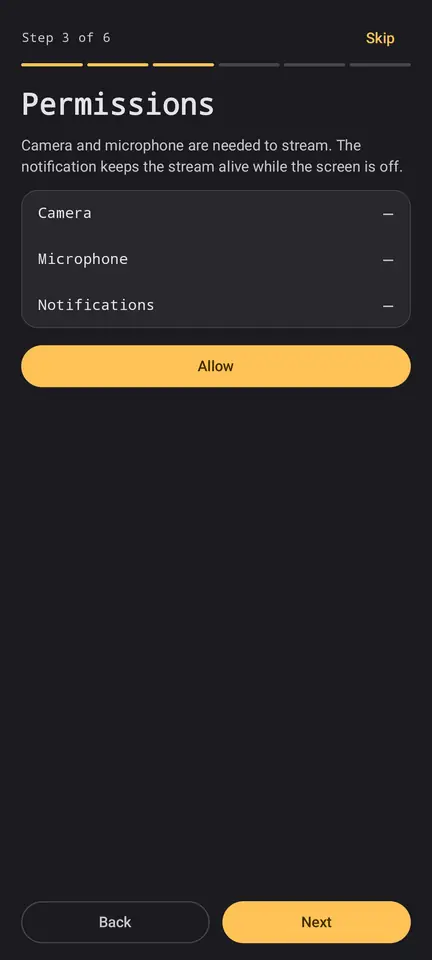
Brix
8 screens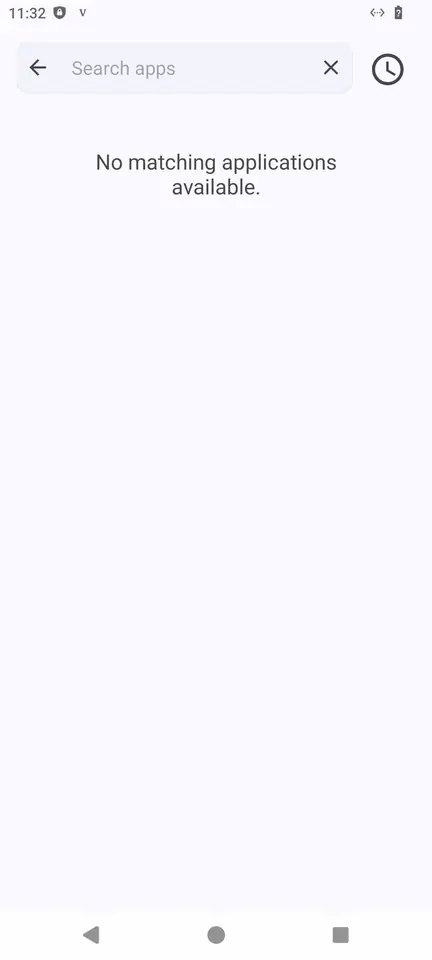
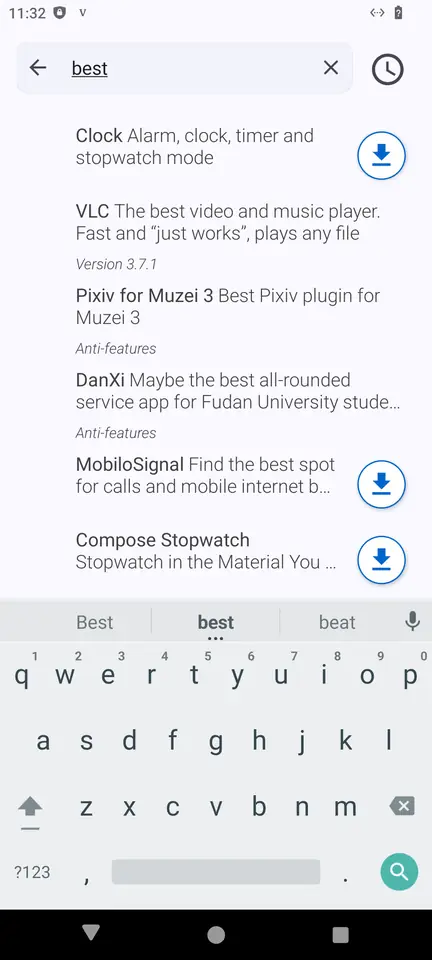
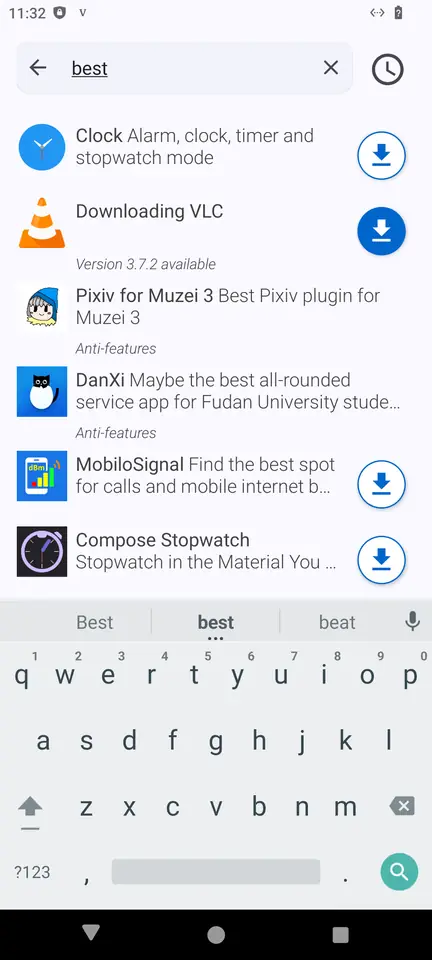
F-Droid
8 screens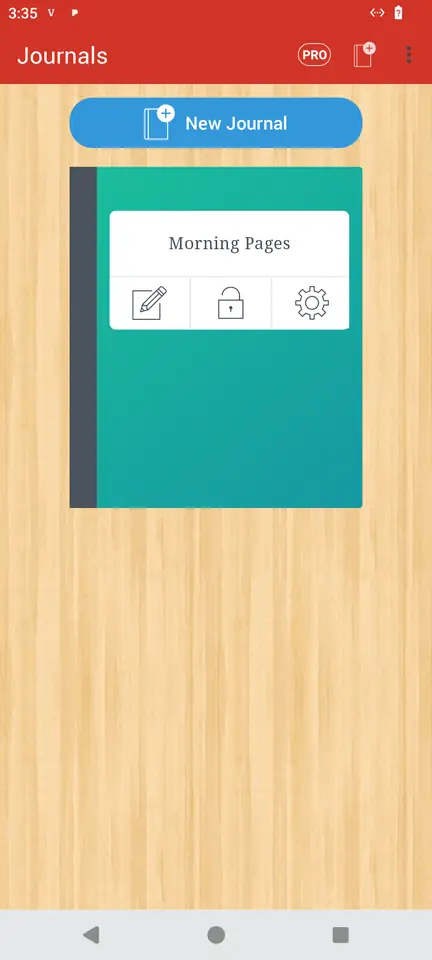
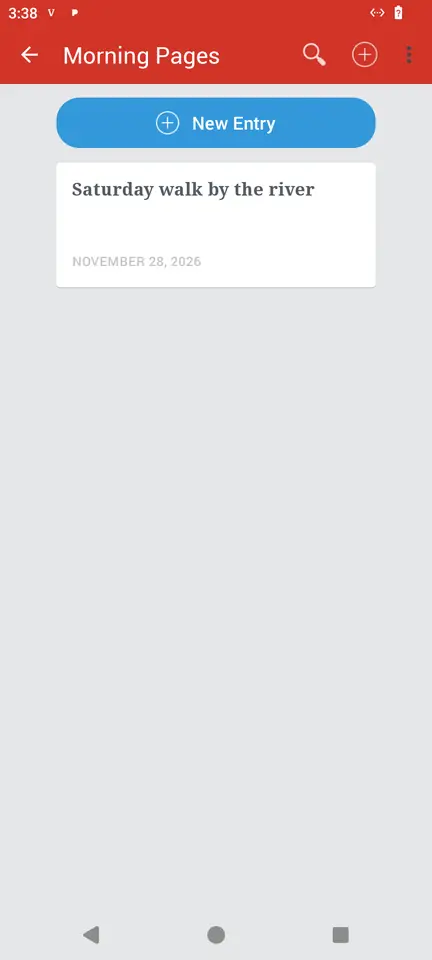
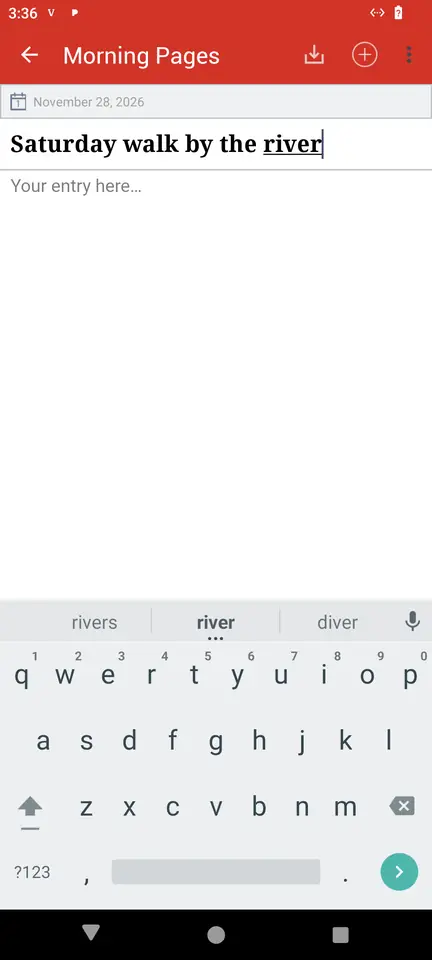
Penzu
8 screens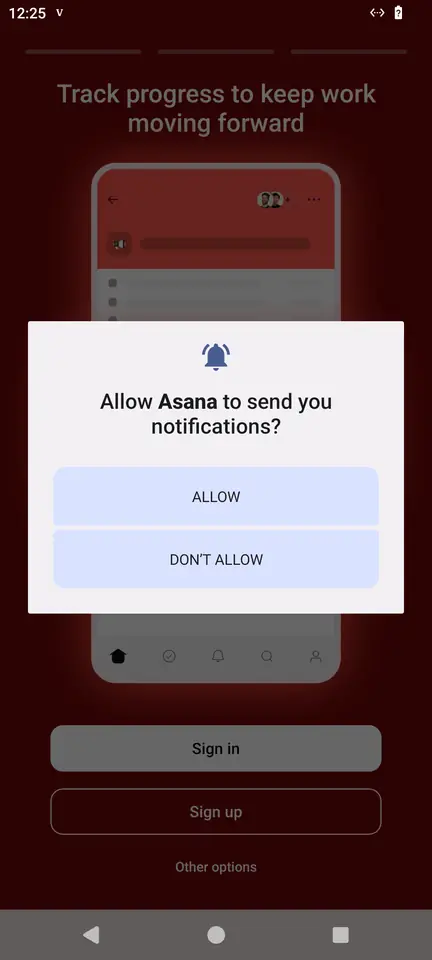
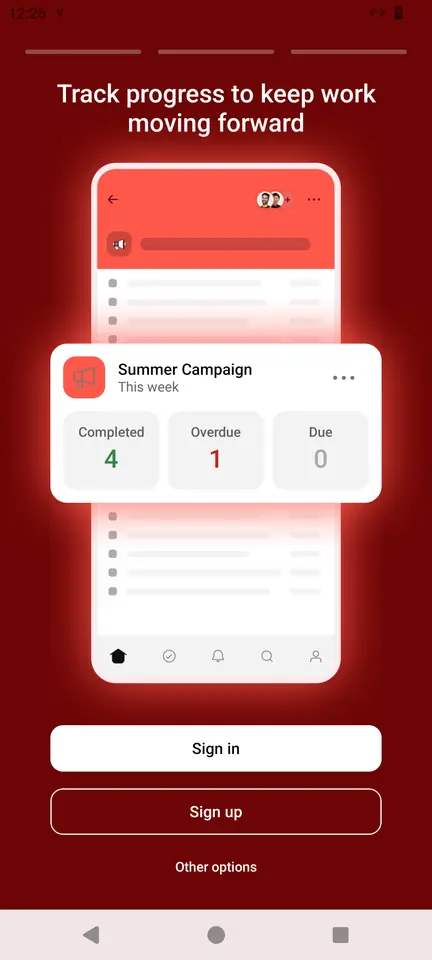
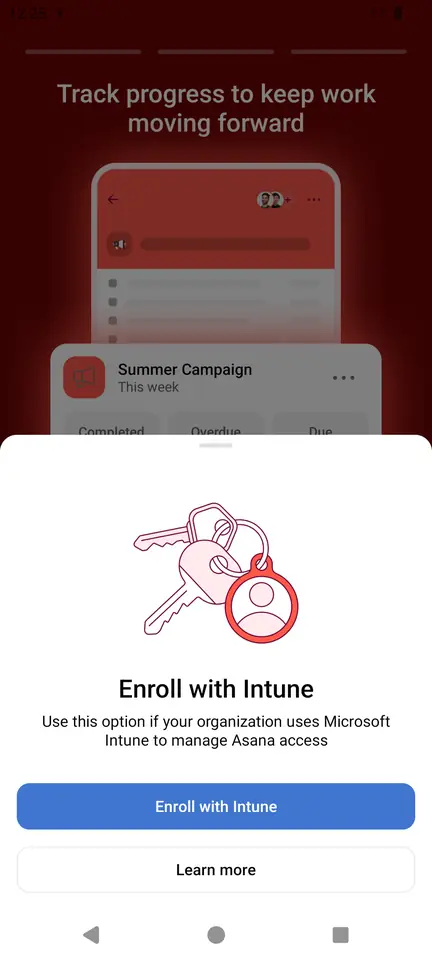
Asana
7 screens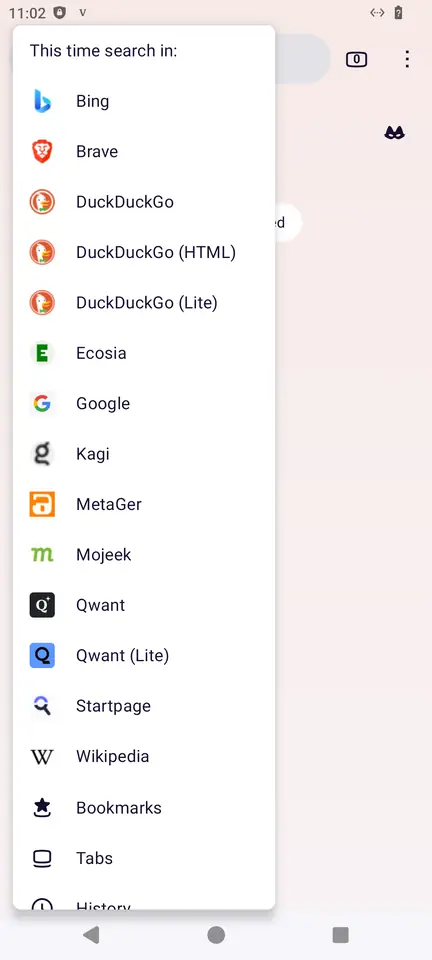
Fennec F-Droid
7 screens
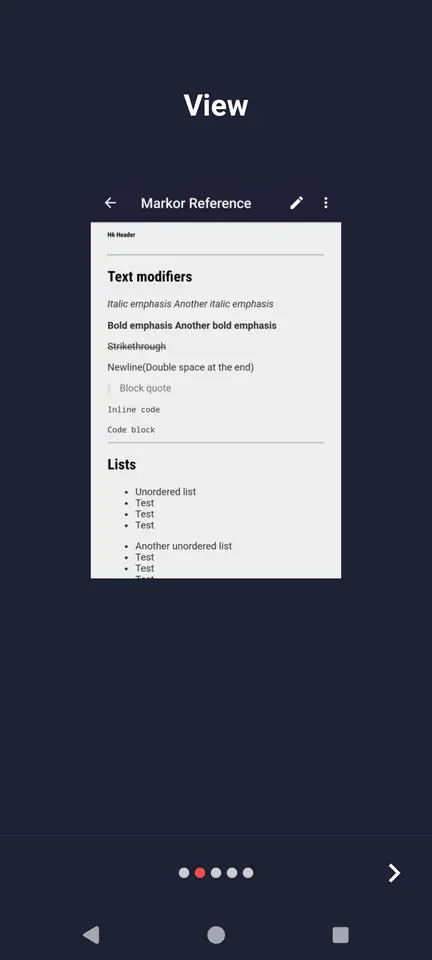
Markor
7 screens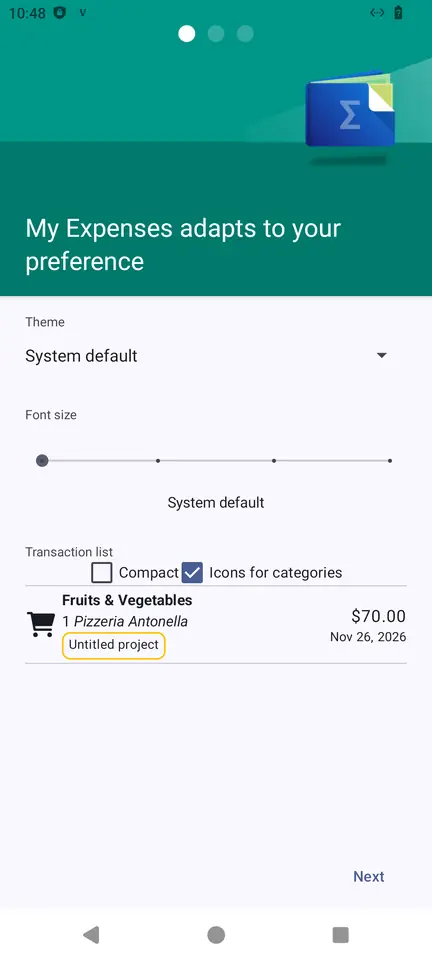
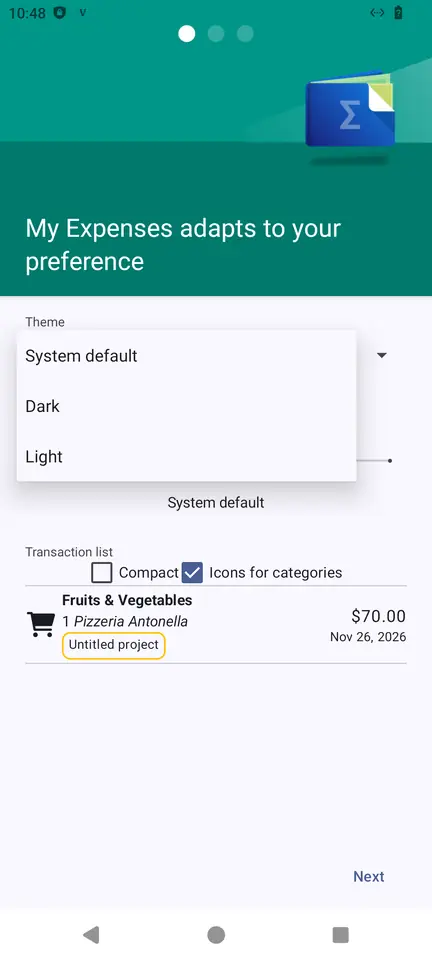
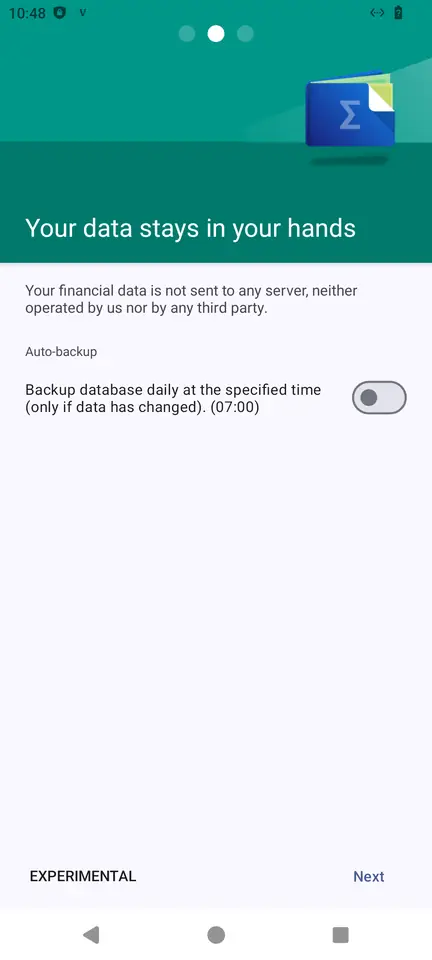
My Expenses
7 screens
Omni Notes
7 screens
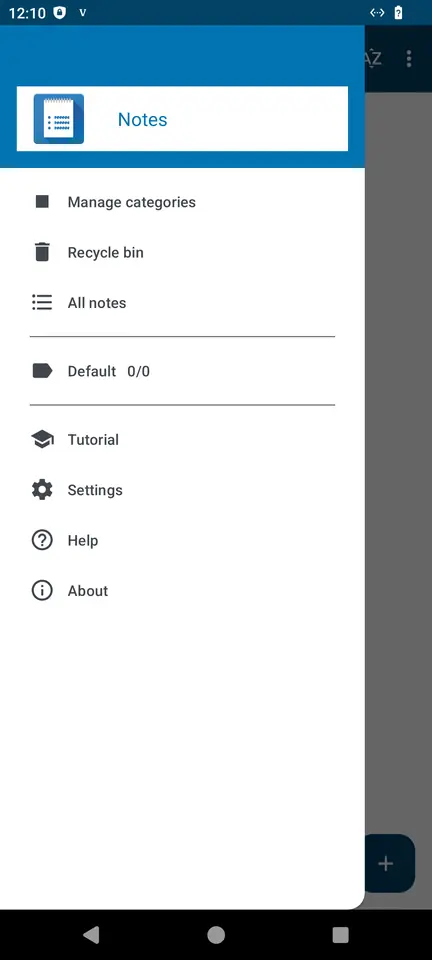
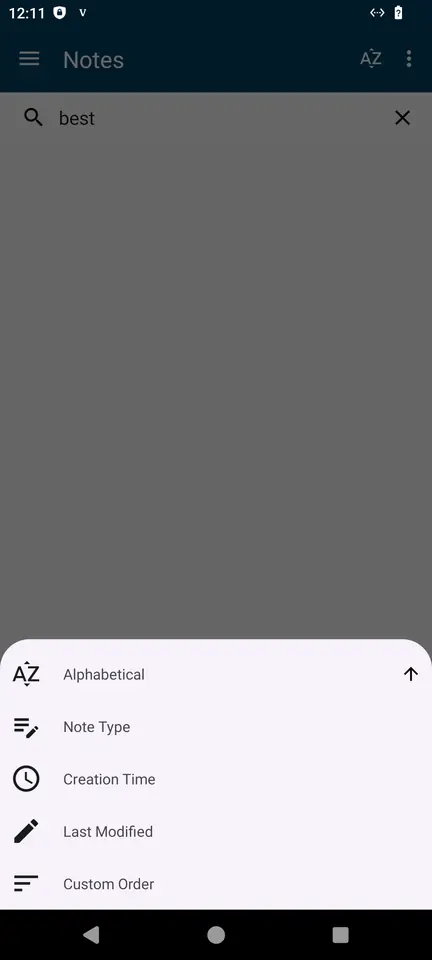
Privacy Friendly Notes
7 screens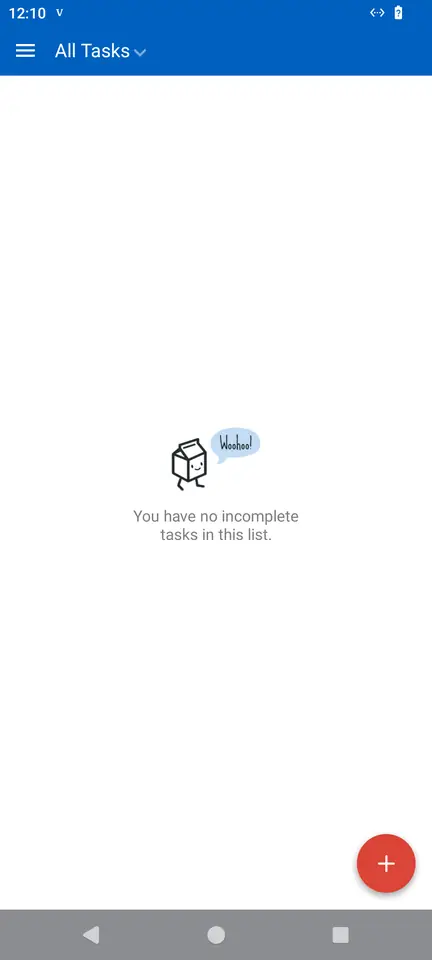
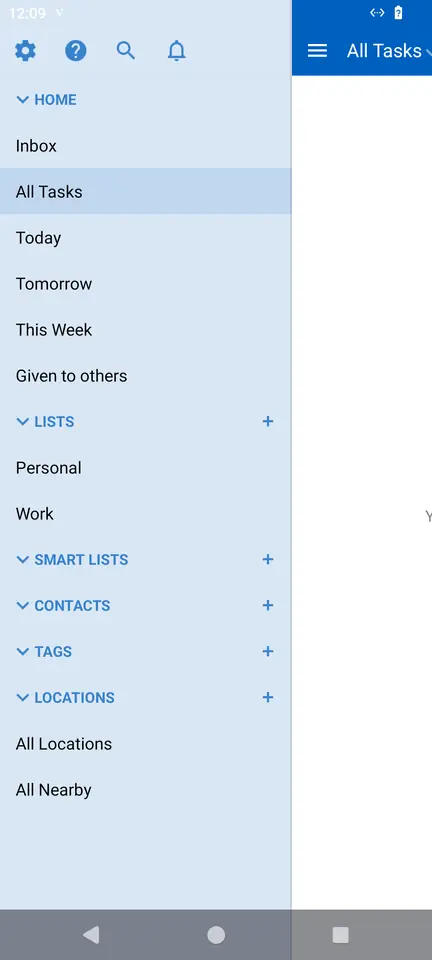
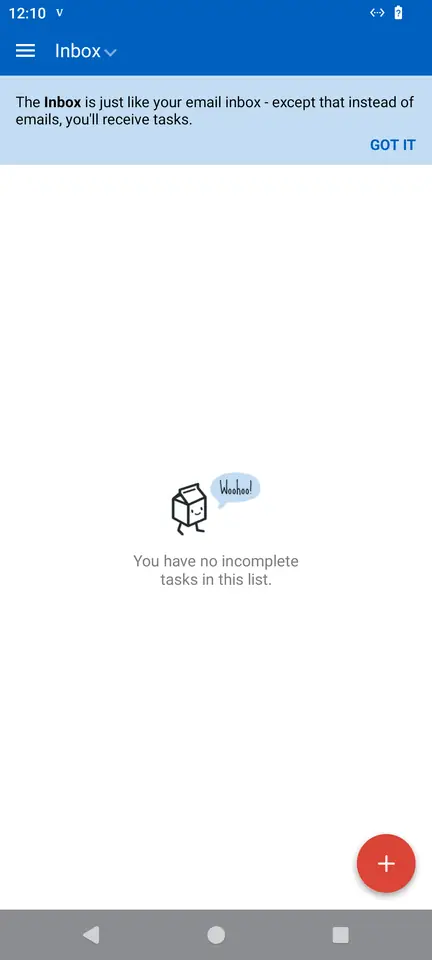
Remember The Milk
7 screens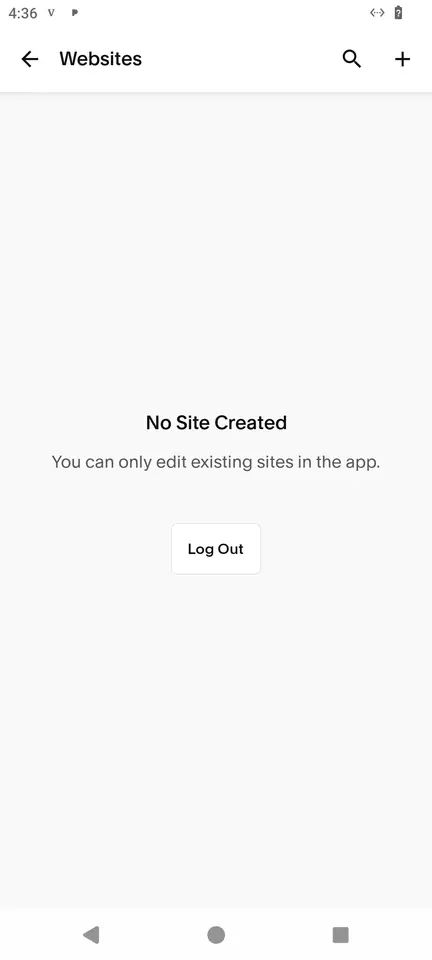
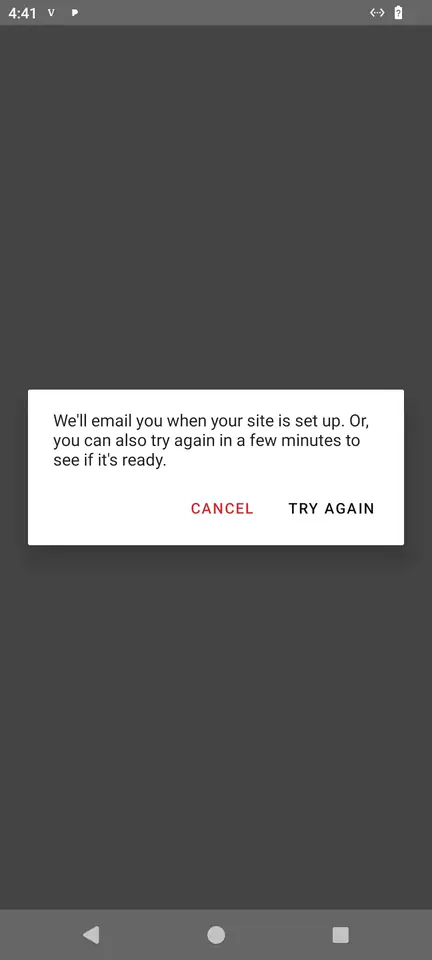
Squarespace
7 screens
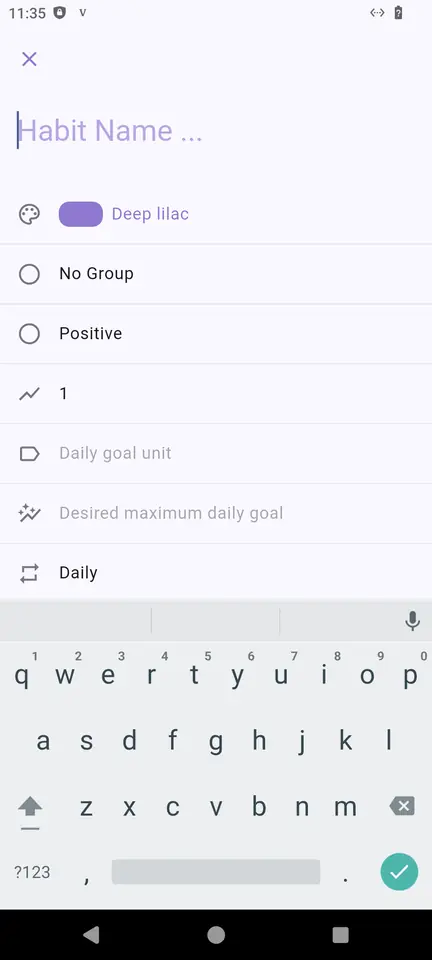
Mhabit
5 screens
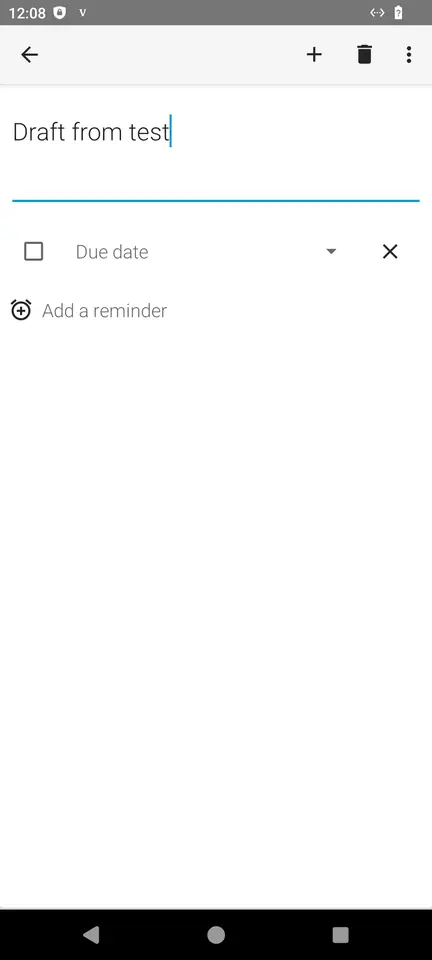
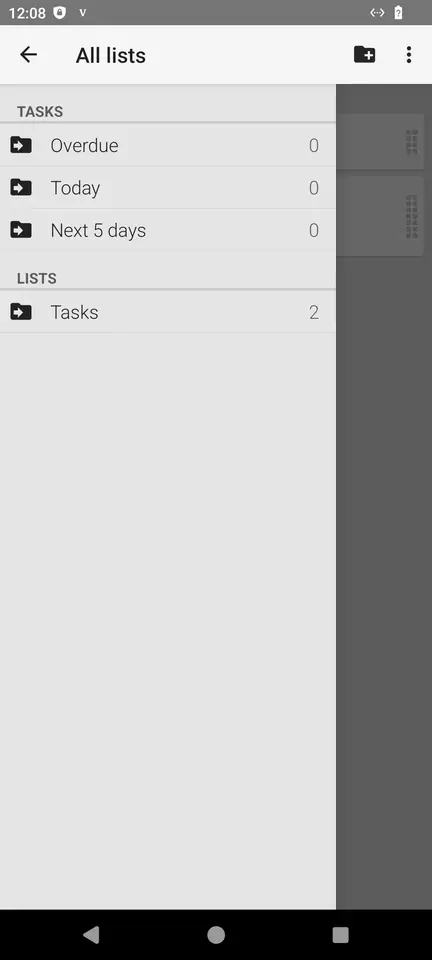
NoNonsense Notes
5 screens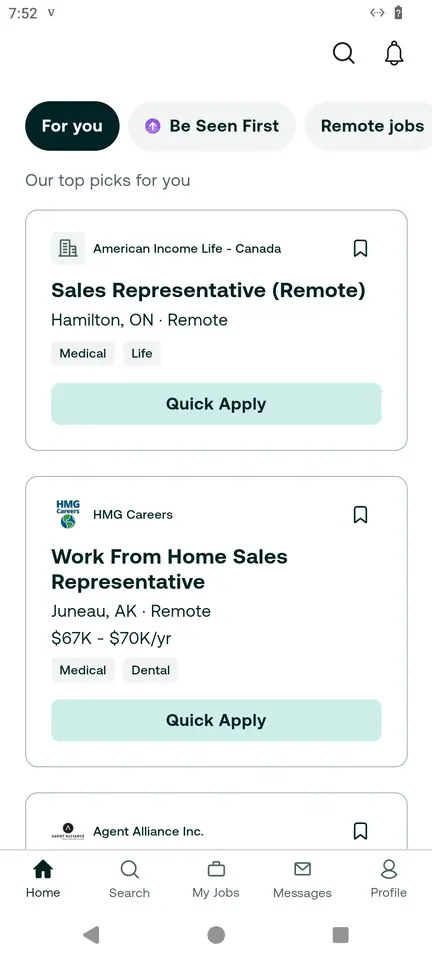
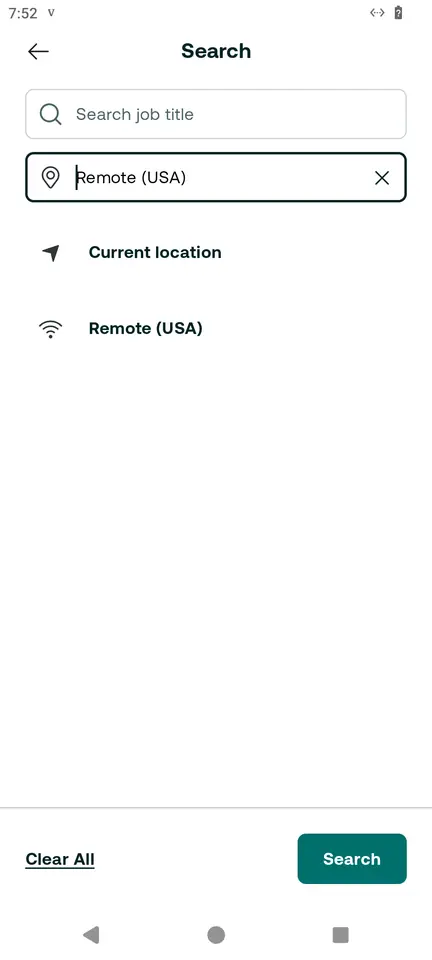
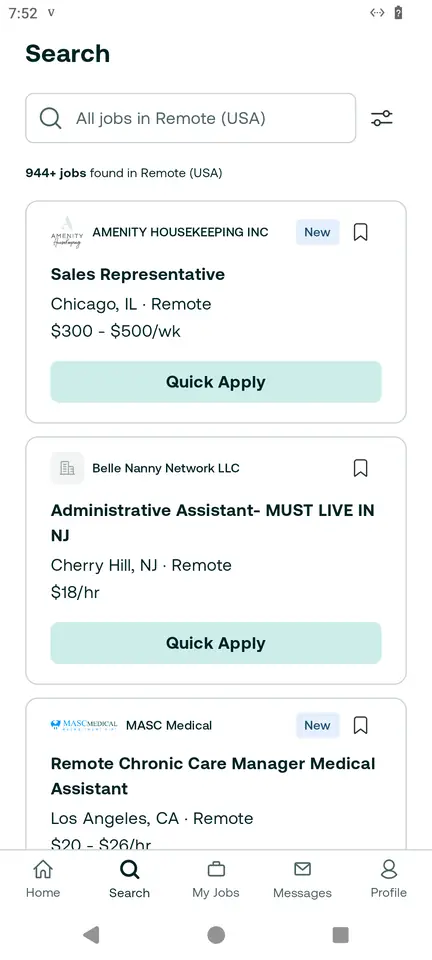
ZipRecruiter
5 screens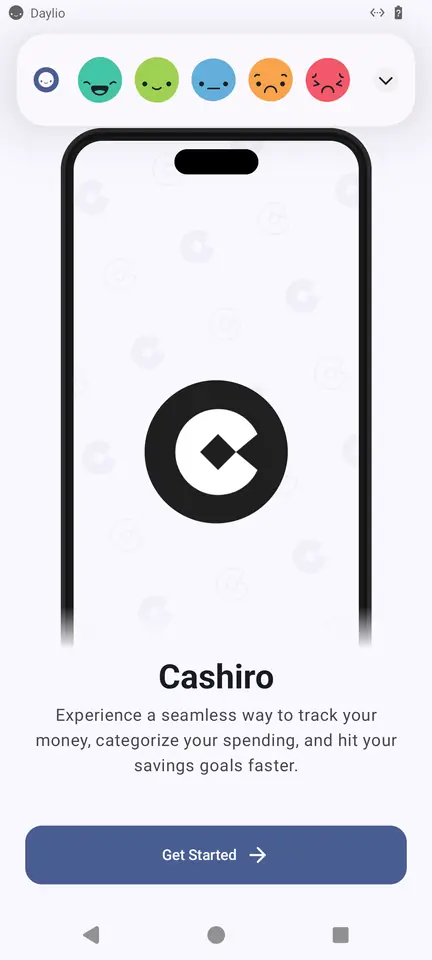
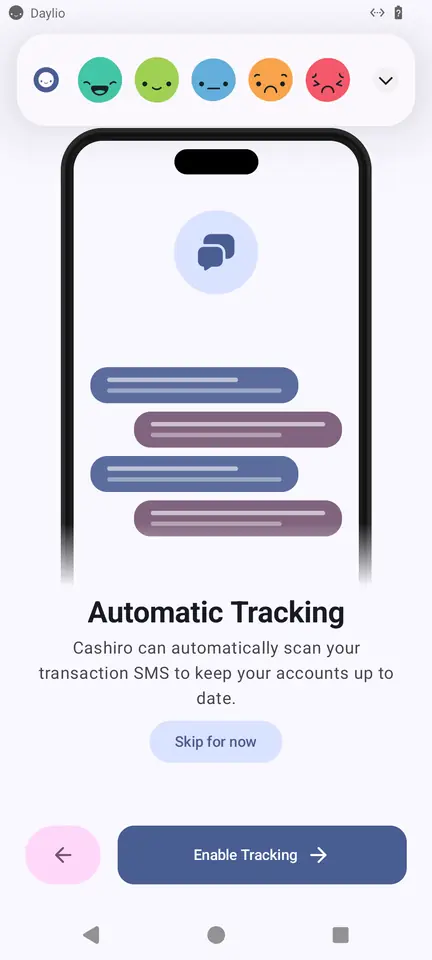
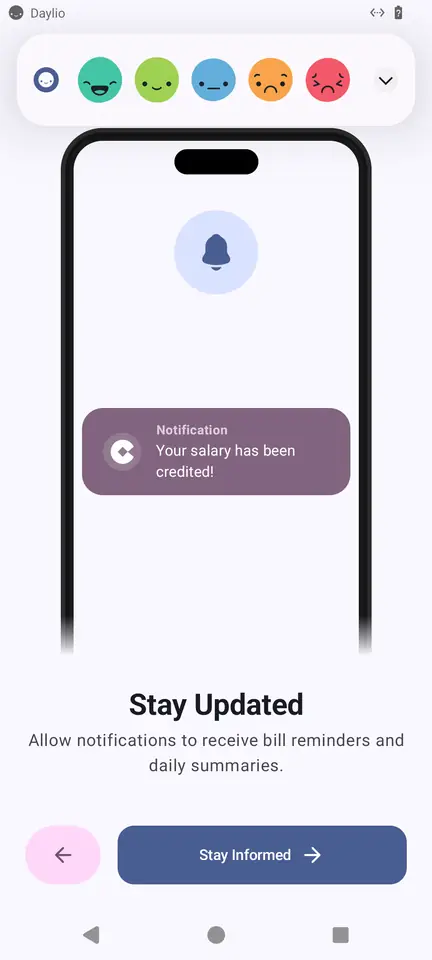
Cashiro
4 screens
ChatGPT
4 screens
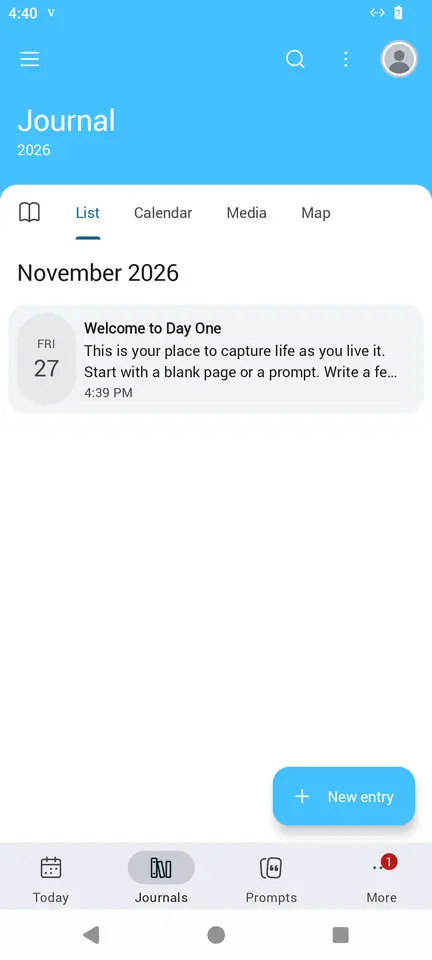
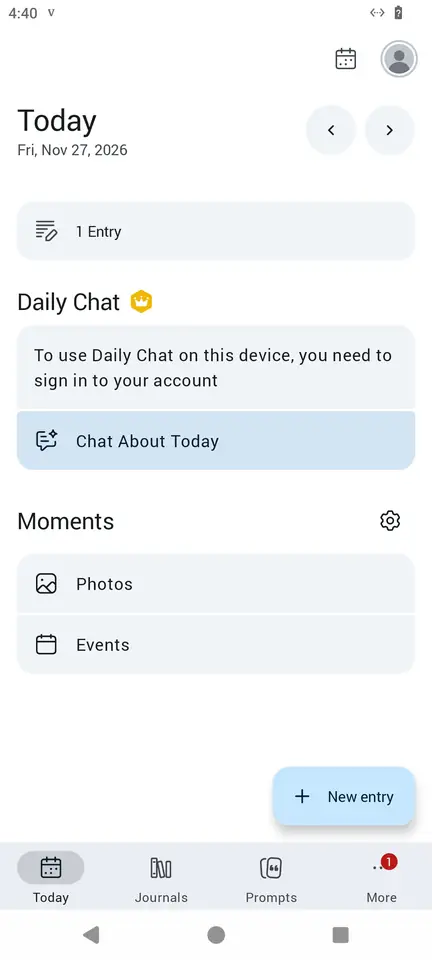
Day One
4 screens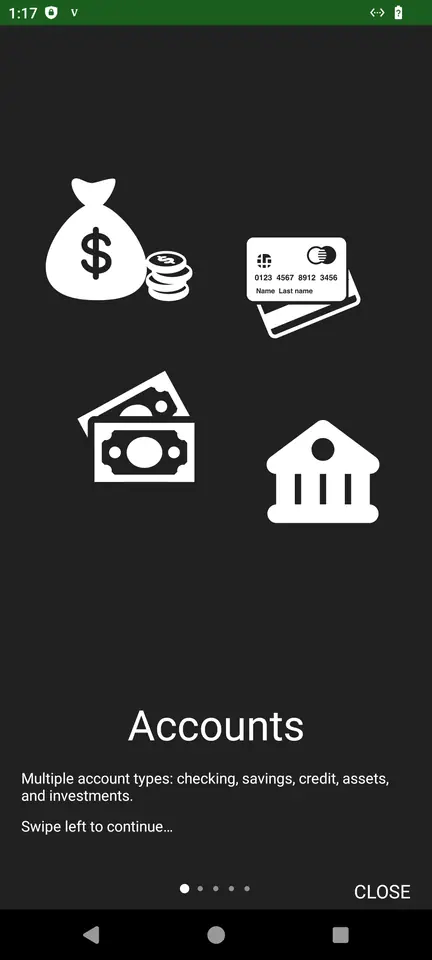
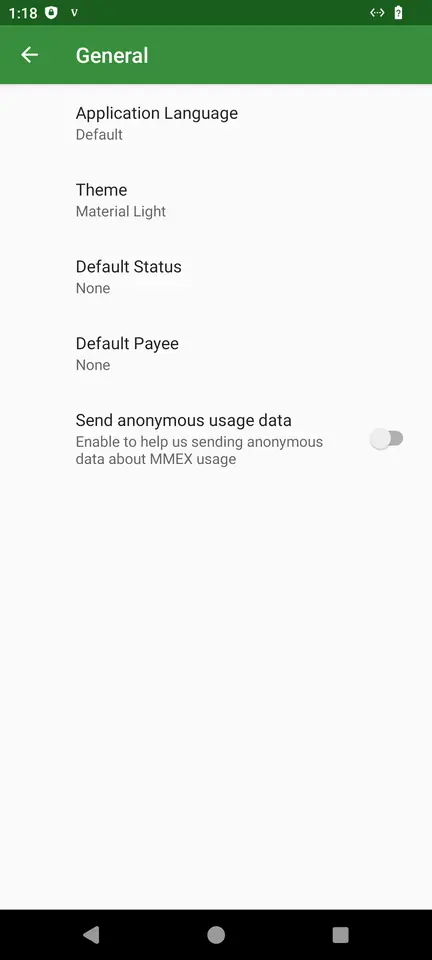
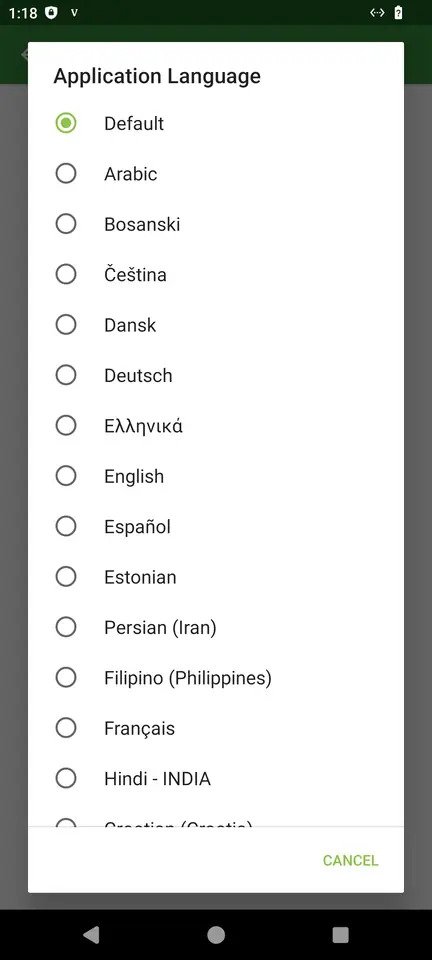
Money Manager Ex
4 screens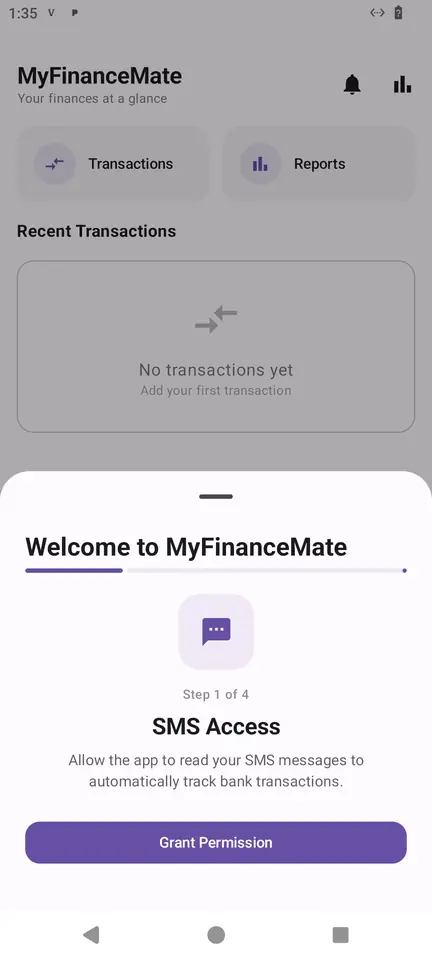
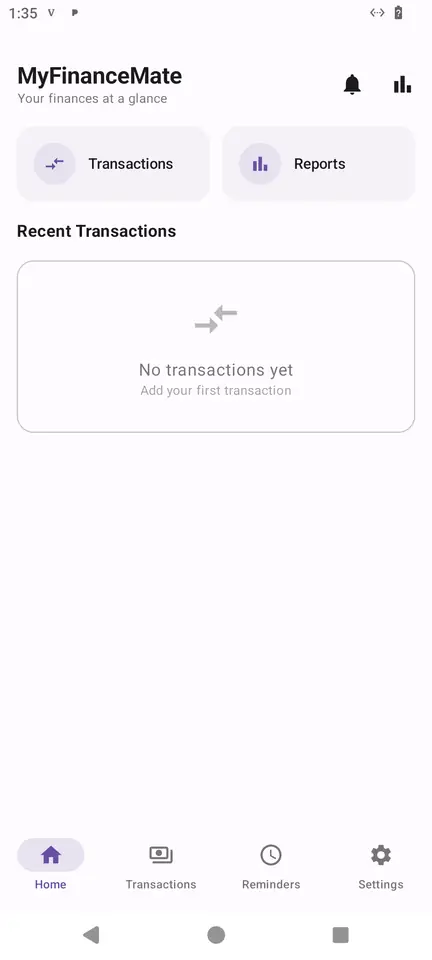
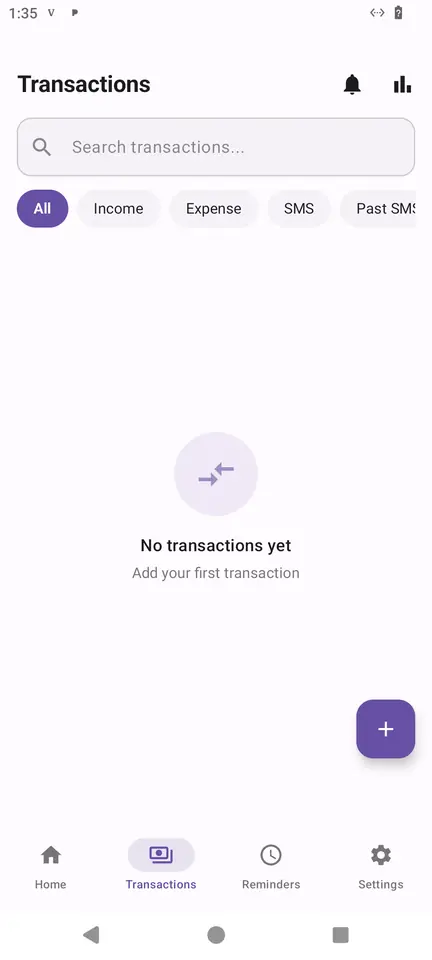
MyFinanceMate
4 screens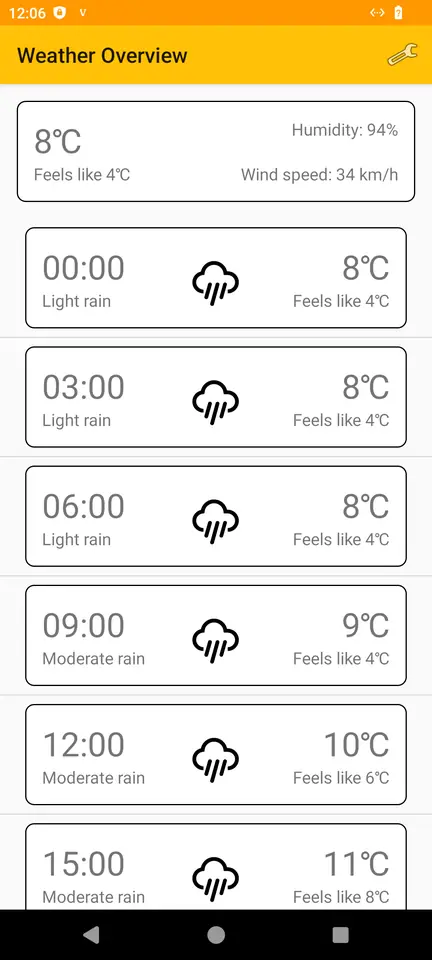
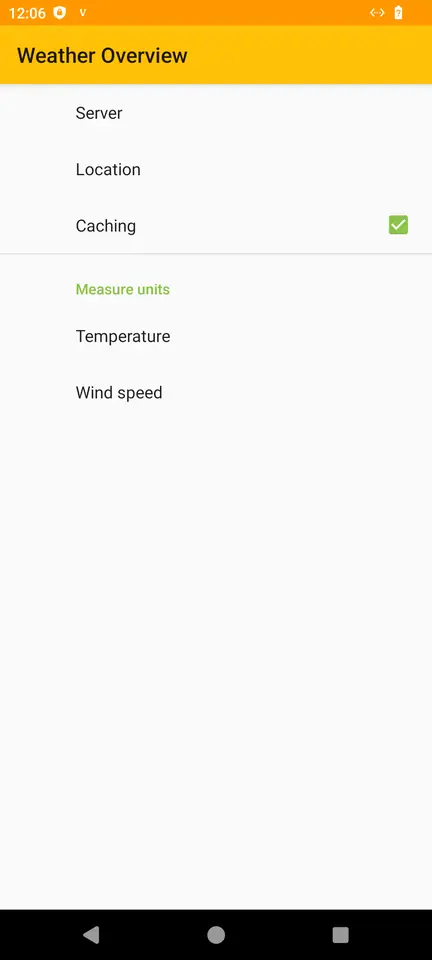
Weather Overview
4 screens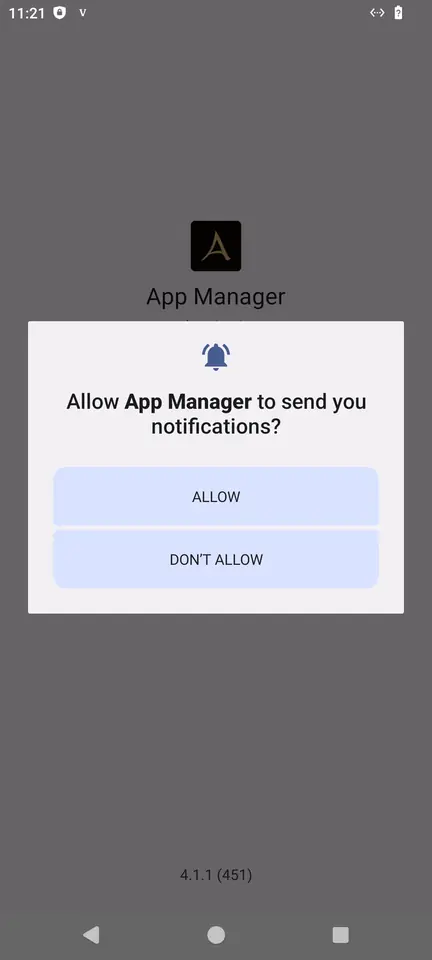
App Manager
3 screens
ClickUp
3 screens
Fossify Calendar
3 screens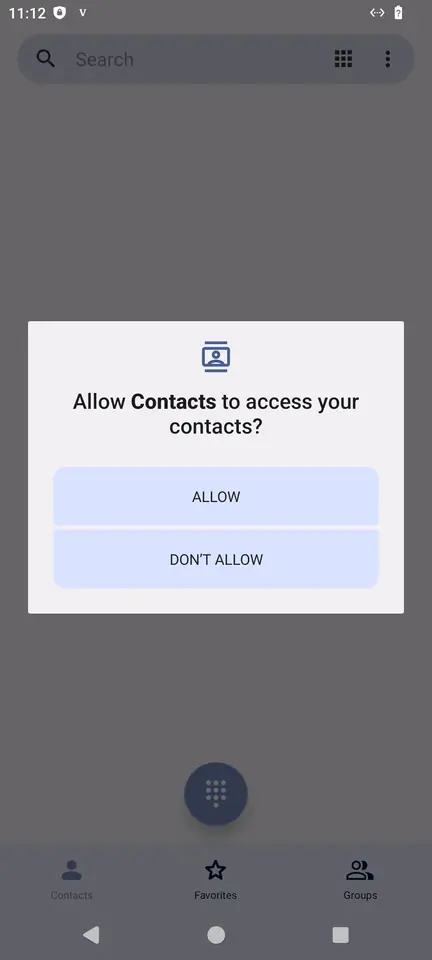
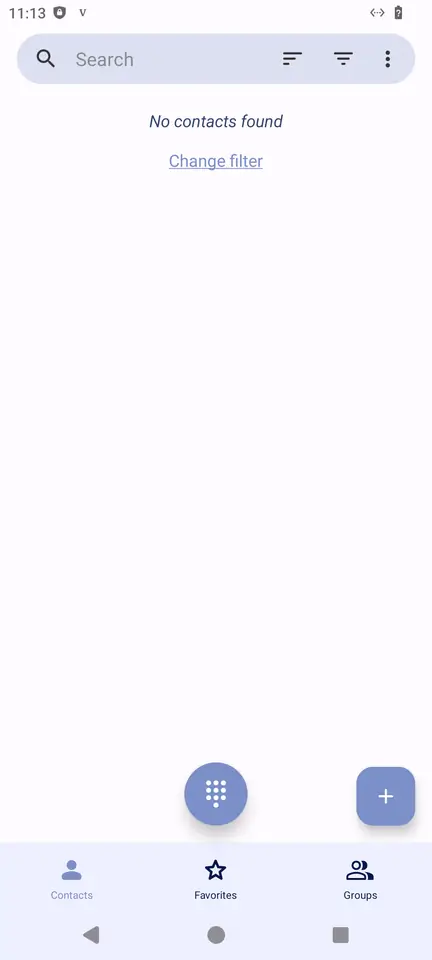
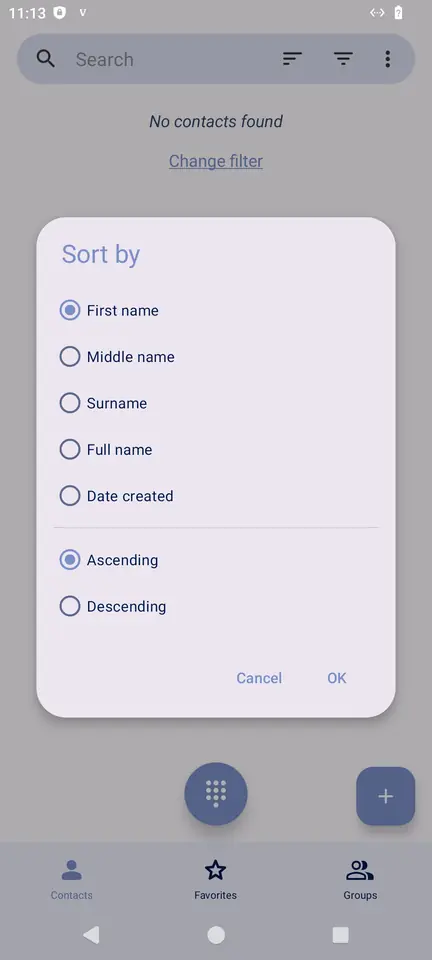
Fossify Contacts
3 screens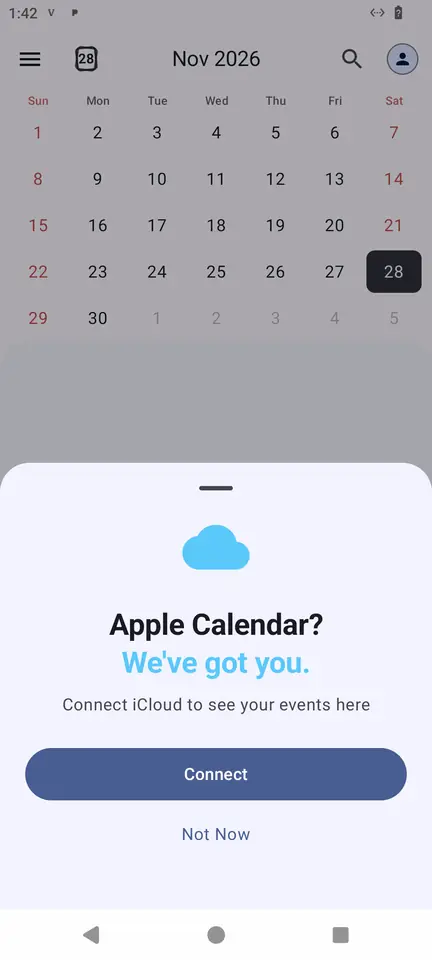
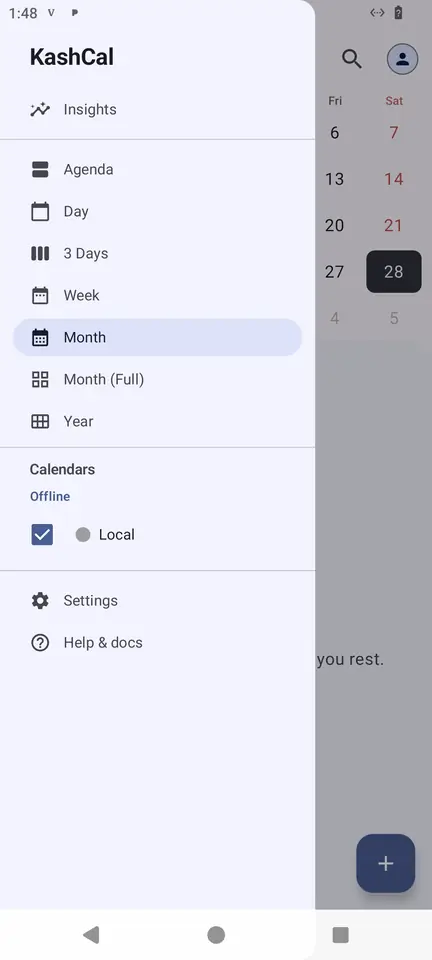
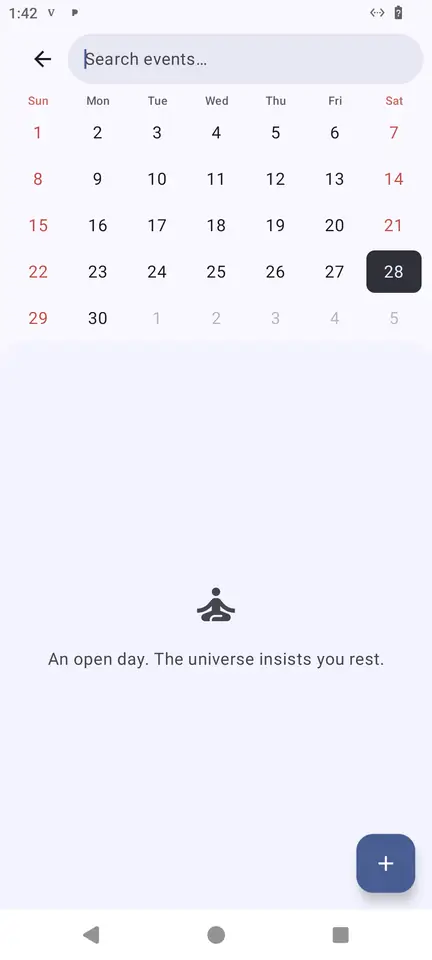
KashCal
3 screens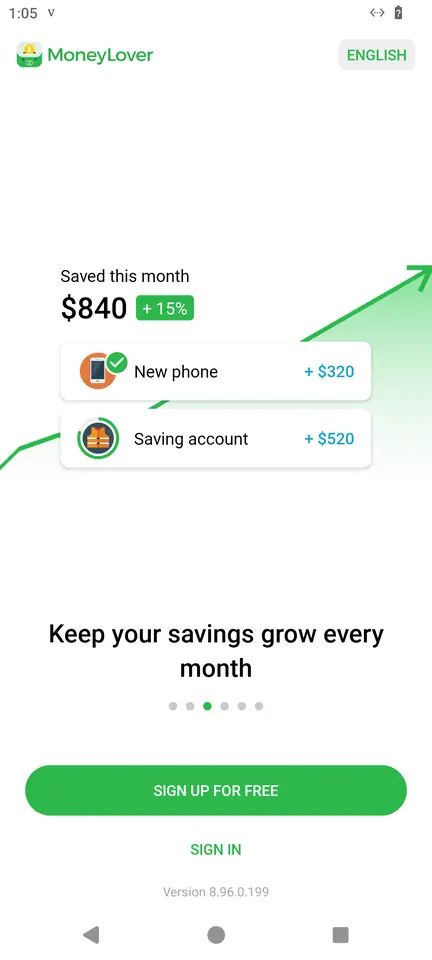
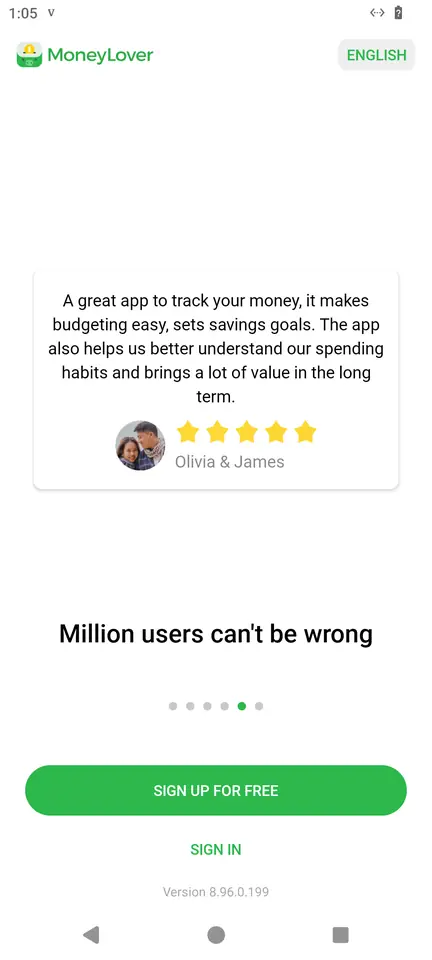
Money Lover
3 screens
Barcode Scanner (Atharok)
2 screens
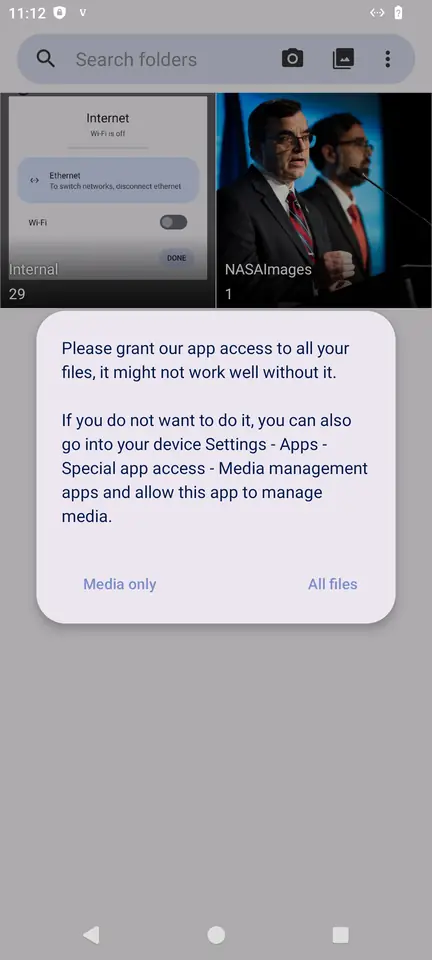
Fossify Gallery
2 screens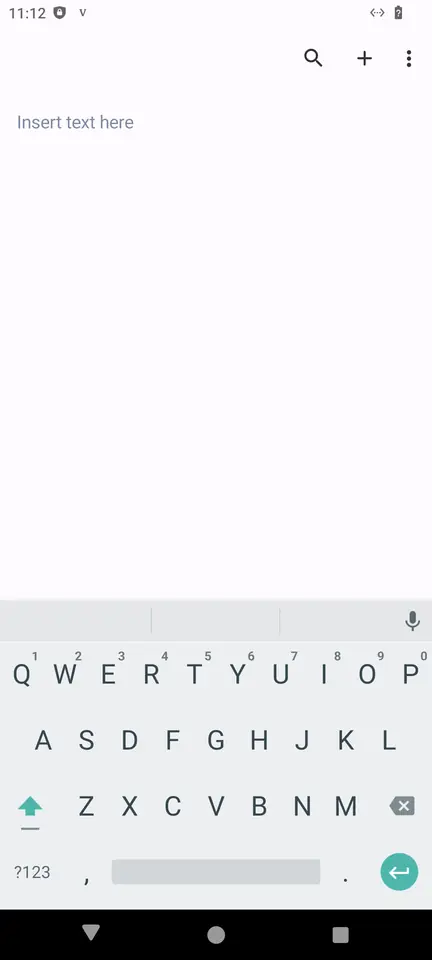
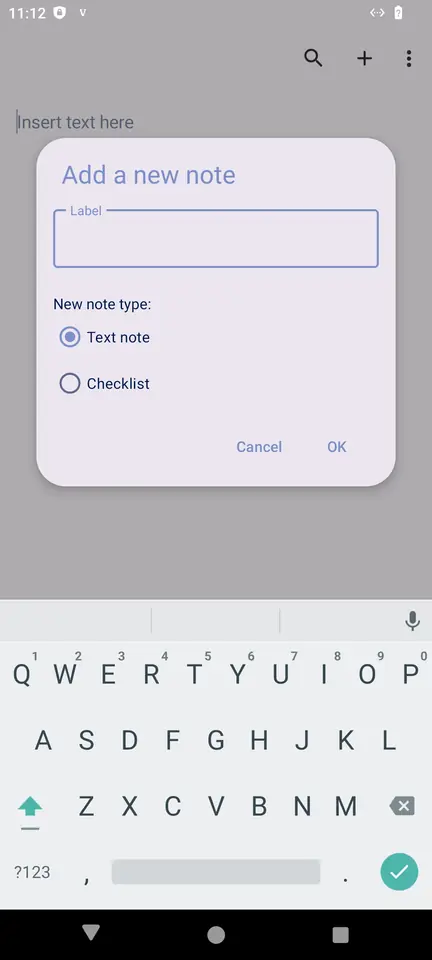
Fossify Notes
2 screens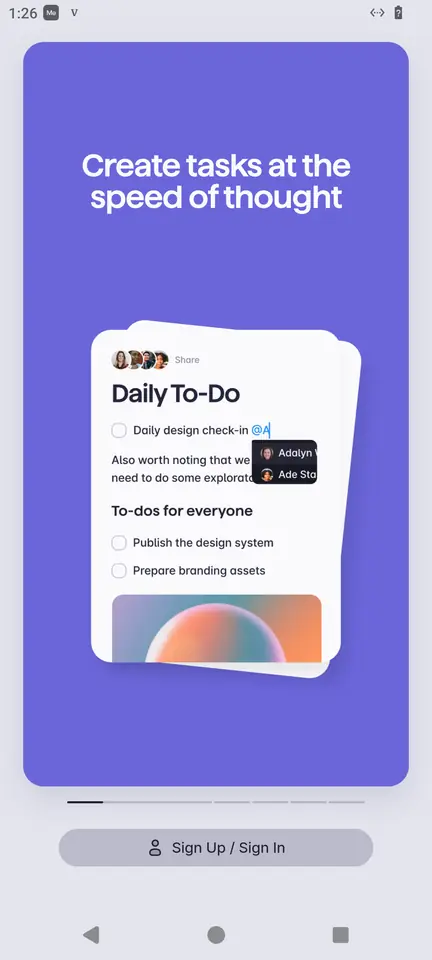
Superlist
2 screens
Toggl Track
2 screens
Aegis Authenticator
1 screen
Document Reader (OpenDocument)
1 screen
Evernote
1 screen
Expensify
1 screen
Linkora
1 screen
TourCount
1 screenProductivity & tools app flows, step by step
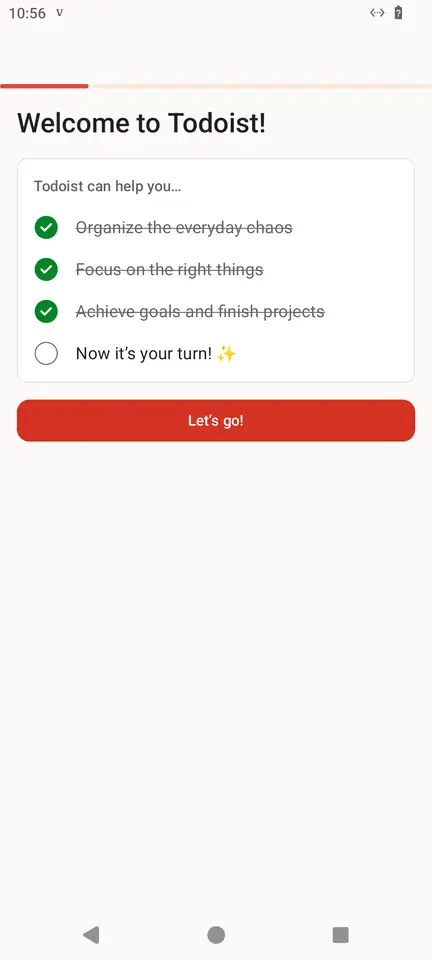
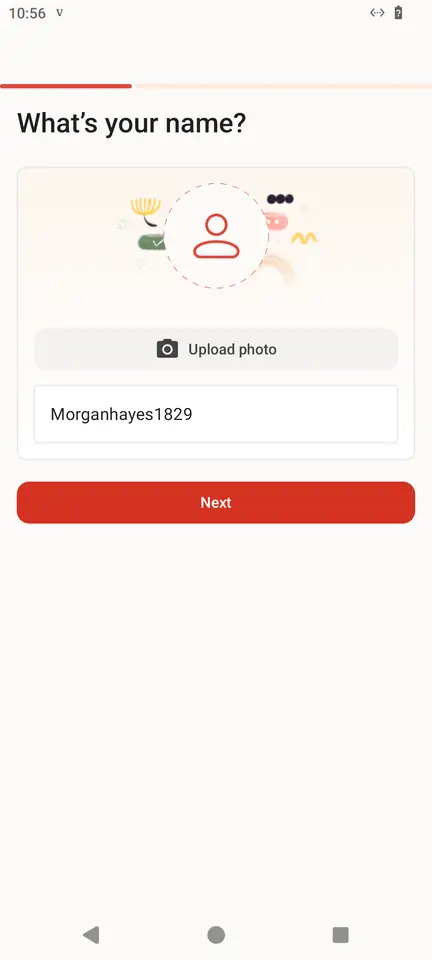
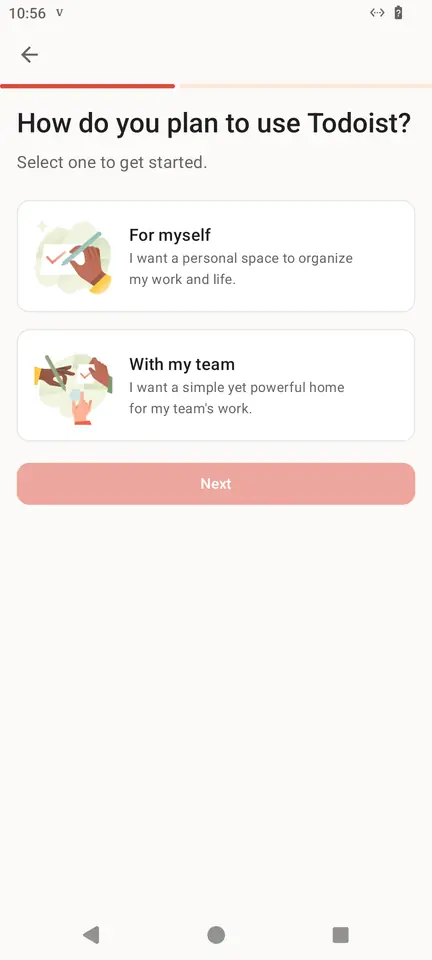
Todoist · Onboarding
15 screensForest · Onboarding
11 screensSlack · Onboarding
10 screens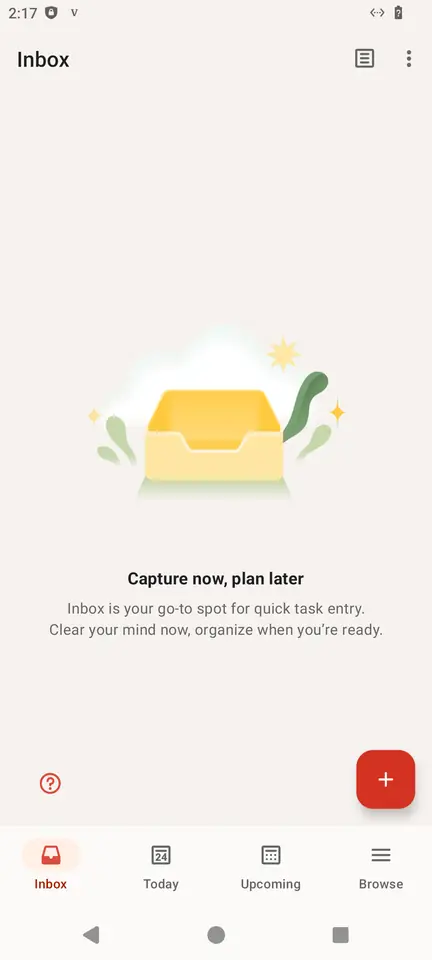
Todoist · Home & browsing
10 screens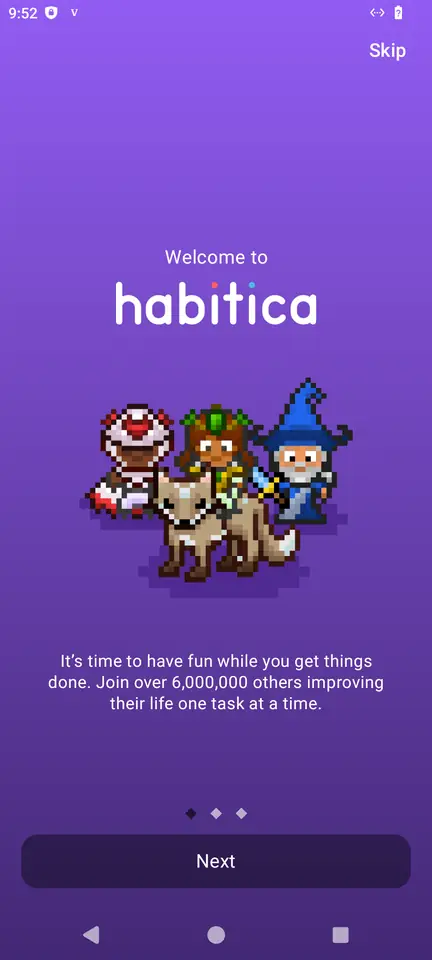
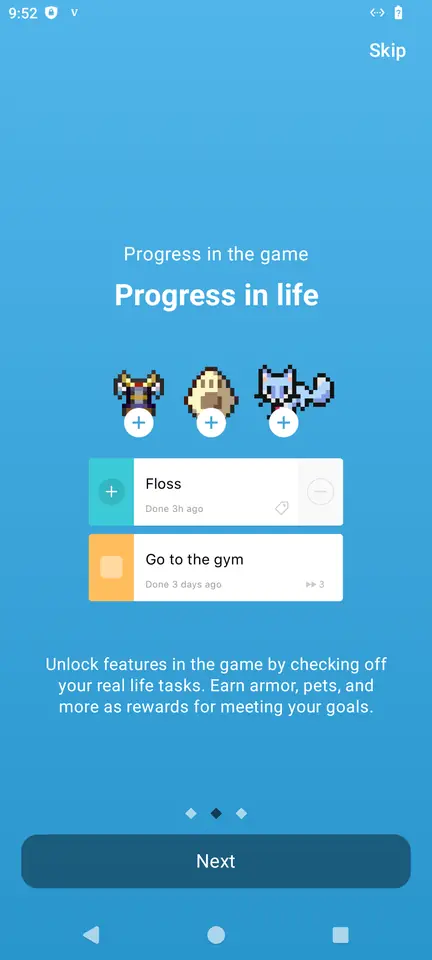
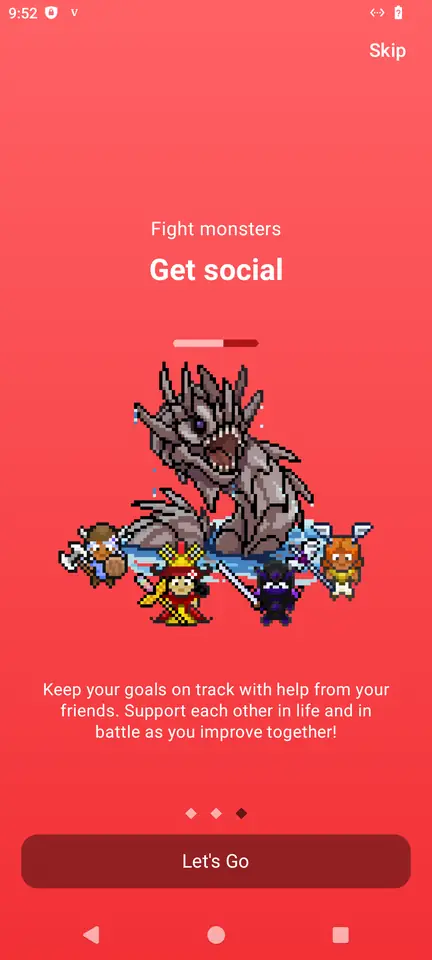
Habitica · Onboarding
9 screensDuckDuckGo · Onboarding
8 screens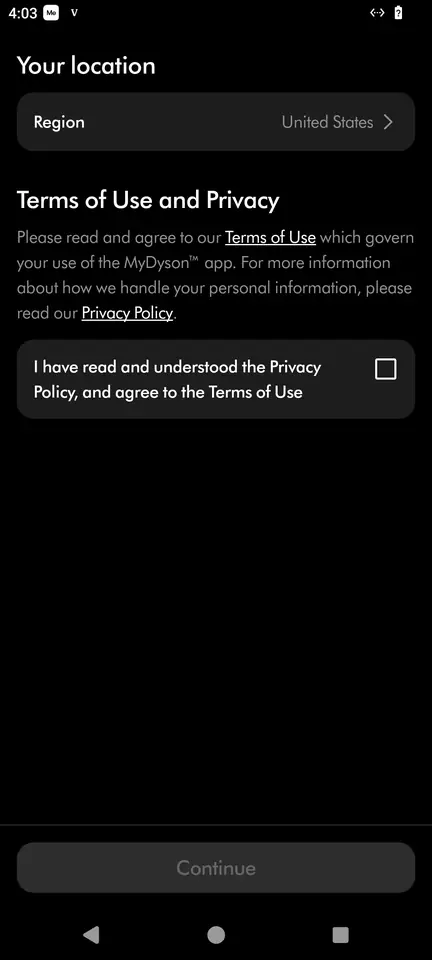
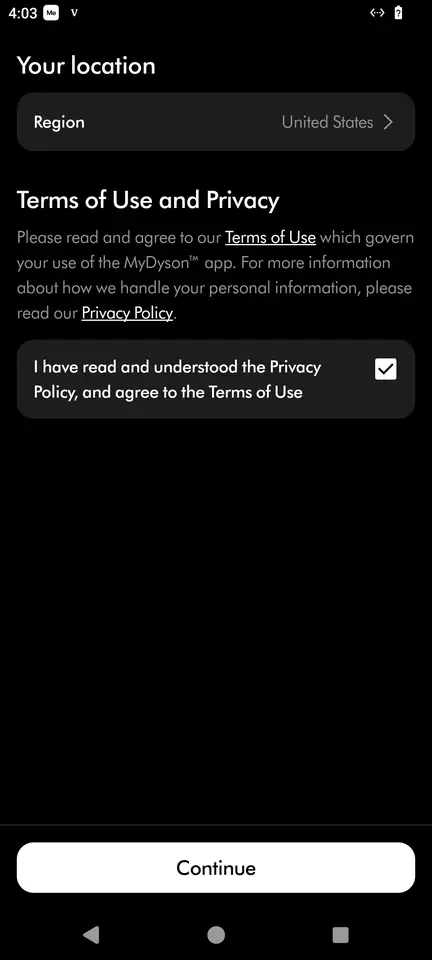
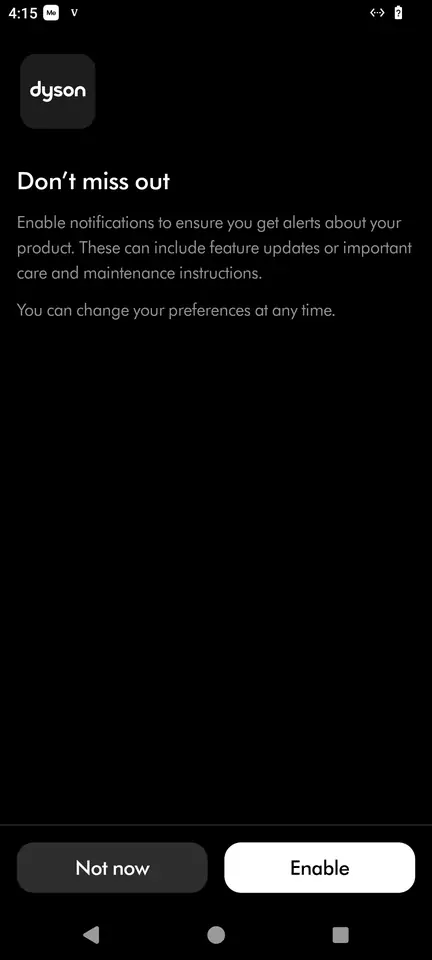
MyDyson · Onboarding
8 screensAsana · Onboarding
7 screensBrix · Onboarding
7 screensProductivity & tools onboarding screens
203 screens · 44 apps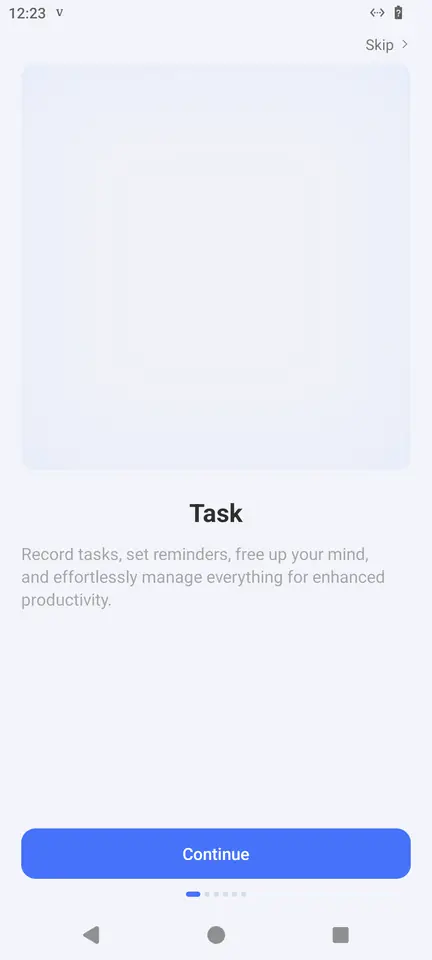
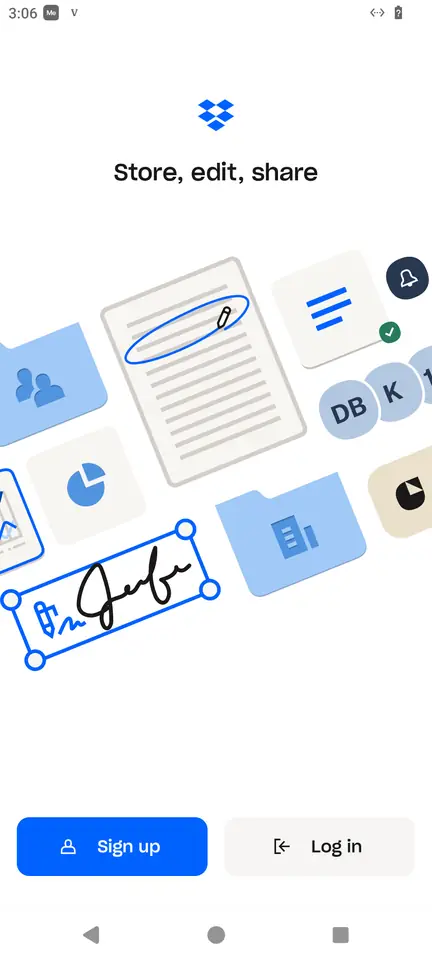
All 203 productivity & tools onboarding screens, grouped by app → · All onboarding screens from every category →
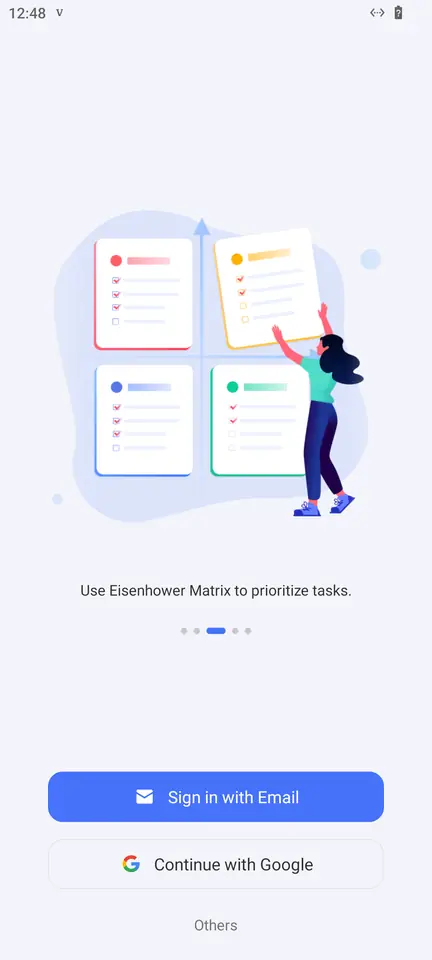
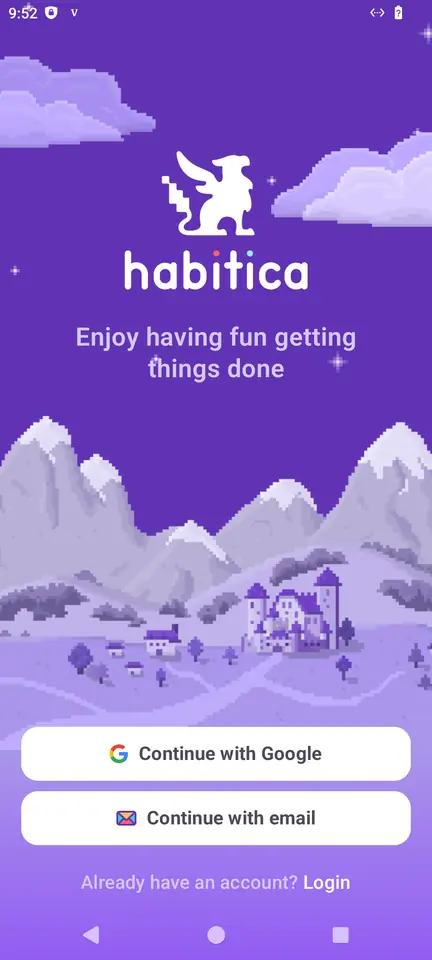
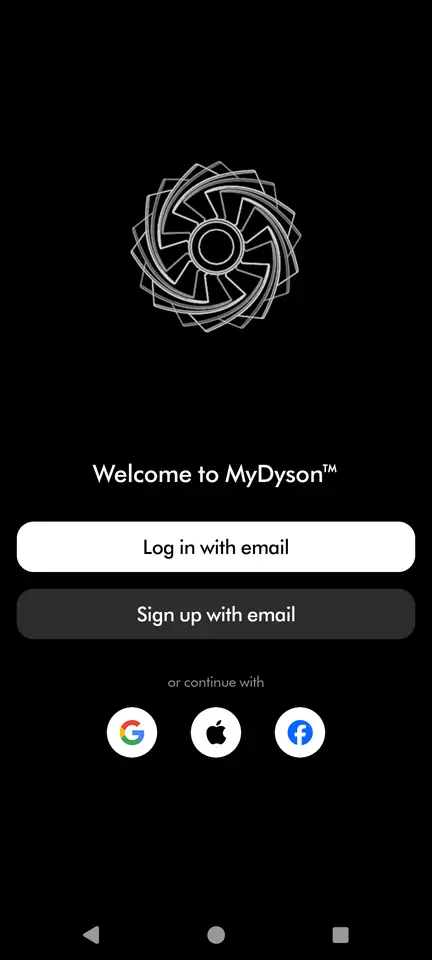
Productivity & tools login screens
24 screens · 18 apps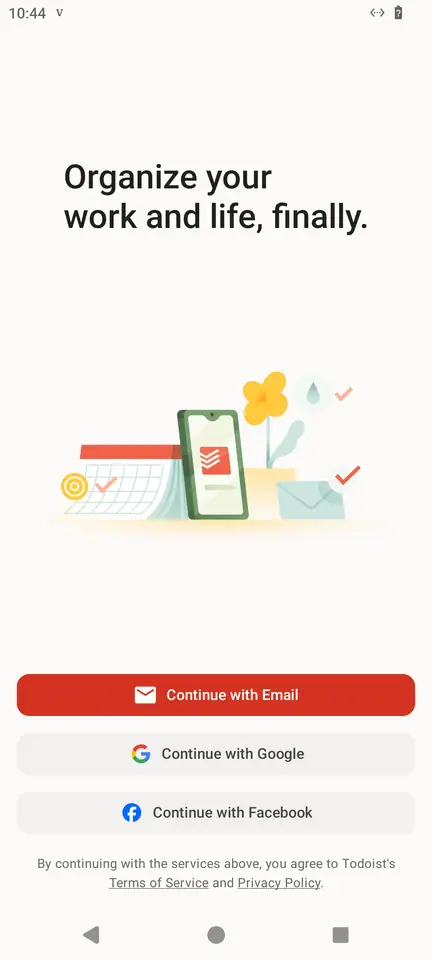
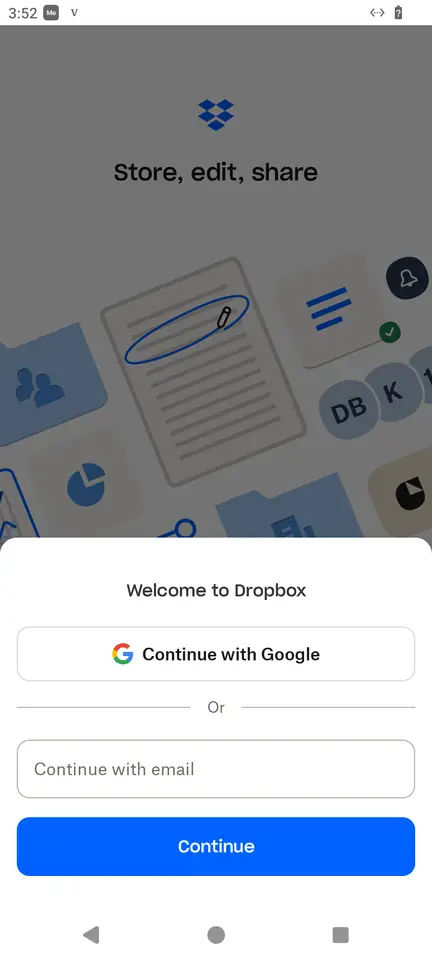
All 24 productivity & tools login screens, grouped by app → · All login screens from every category →
Productivity & tools home screens
107 screens · 26 apps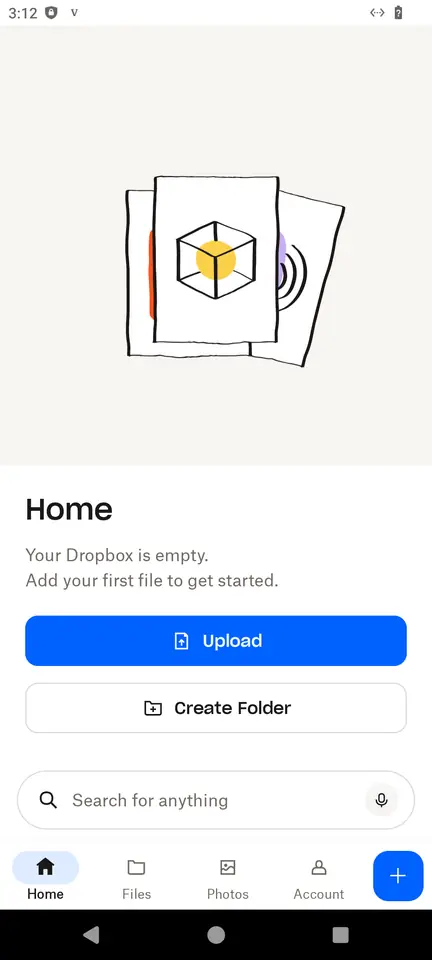
All 107 productivity & tools home screens, grouped by app → · All home screens from every category →
Productivity & tools settings screens
16 screens · 8 apps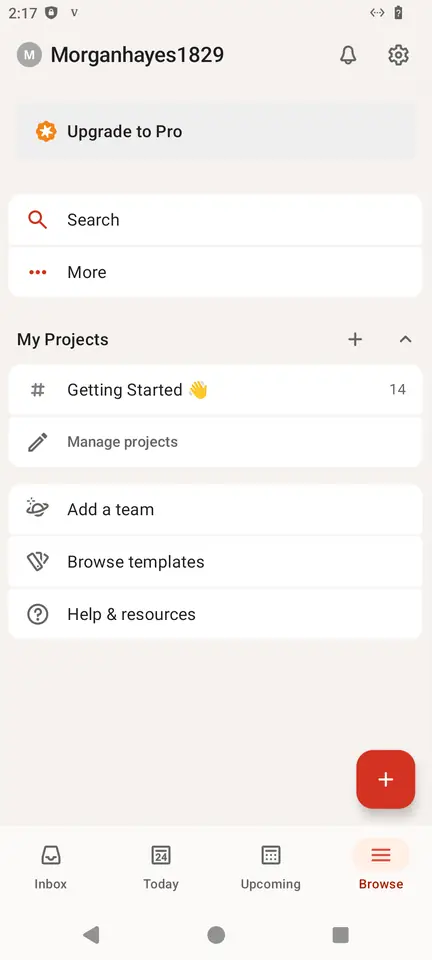
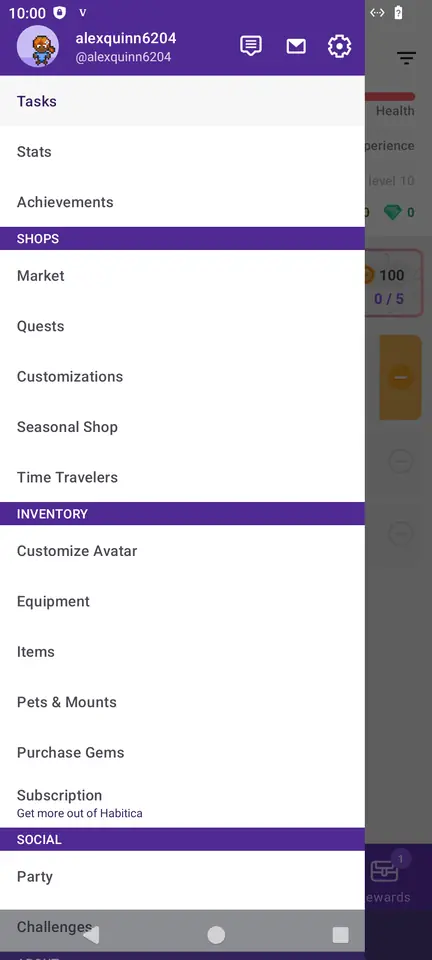
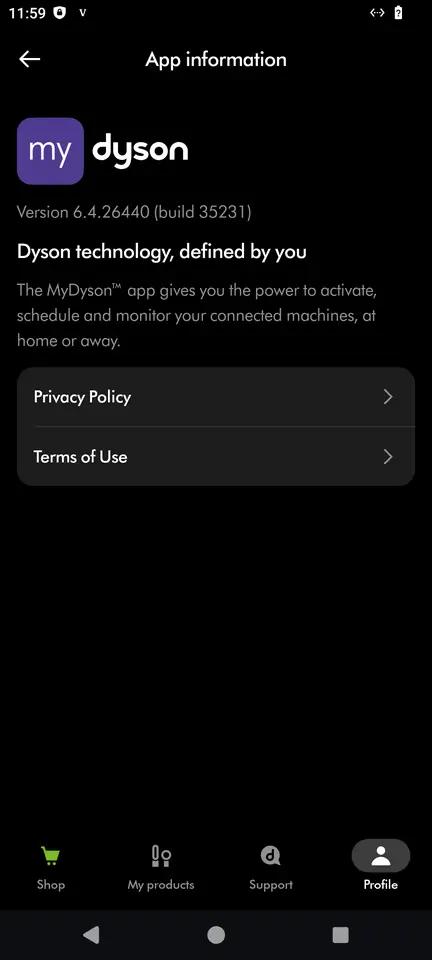
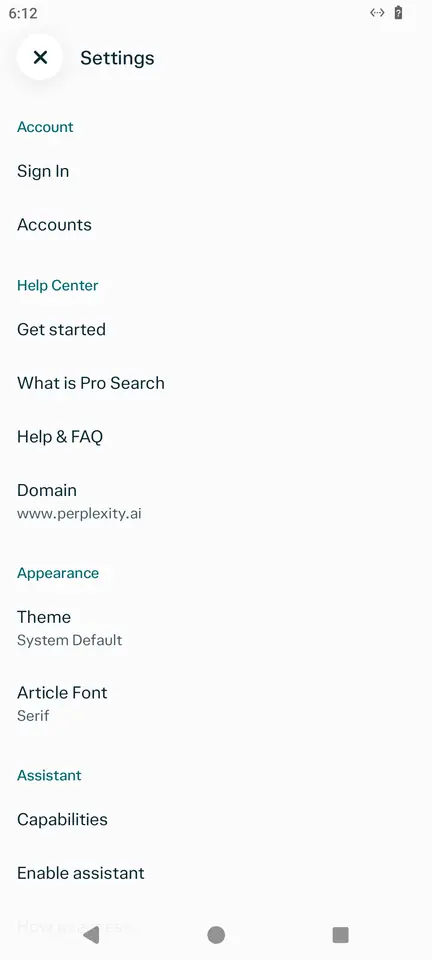
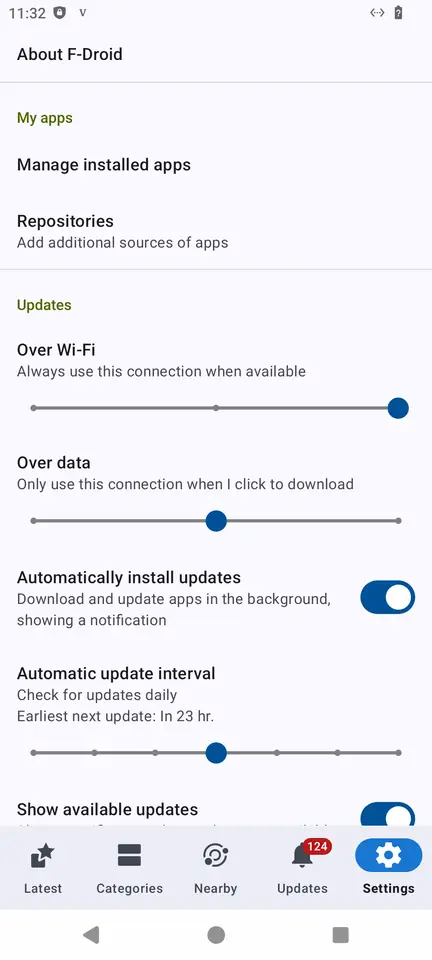
All 16 productivity & tools settings screens, grouped by app → · All settings screens from every category →
Productivity & tools paywall screens
1 screen · 1 app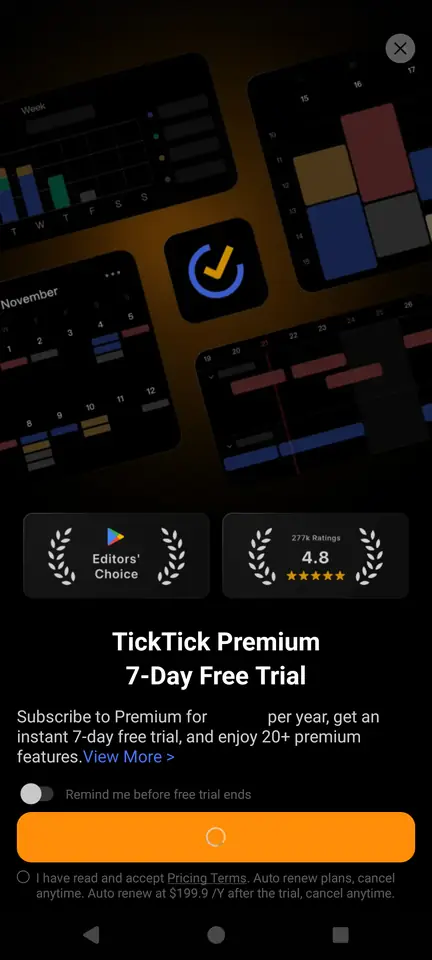
UI components in productivity & tools apps
Across 351 screens from 50 productivity & tools apps, the most common detected components are toolbar (23% of screens), button (20% of screens) and icon button (18% of screens). Share of the 351 screens where each component is in the view hierarchy and drawn on screen; the example shows it outlined.
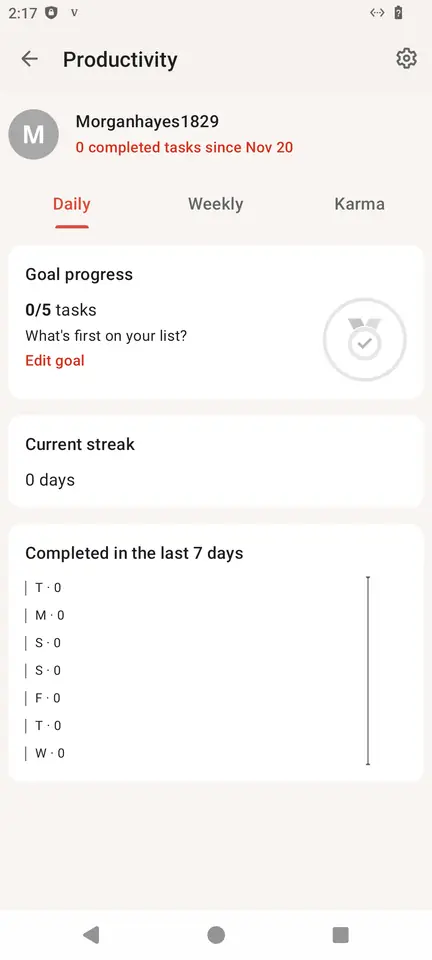
Icon button
16 apps · example: Todoist
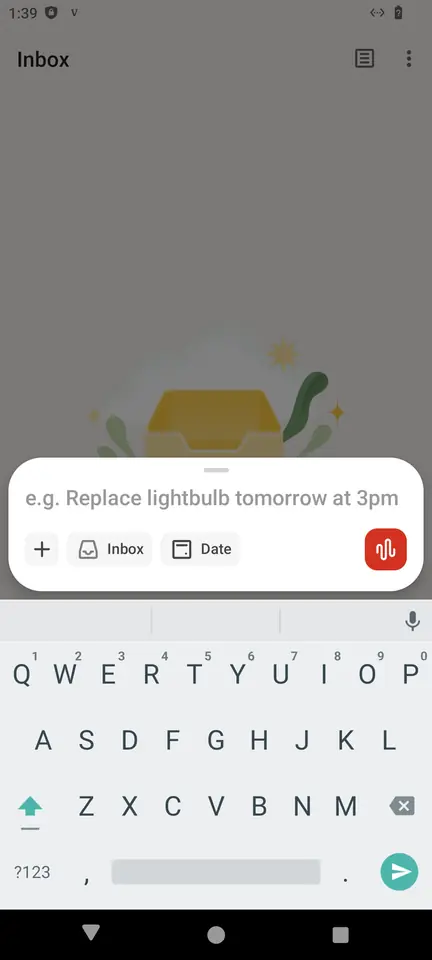
Text field
24 apps · example: Todoist
Floating action button
9 apps · example: Todoist
Progress bar
8 apps · example: Todoist
UI patterns in productivity & tools apps
Welcome screen
example: Todoist
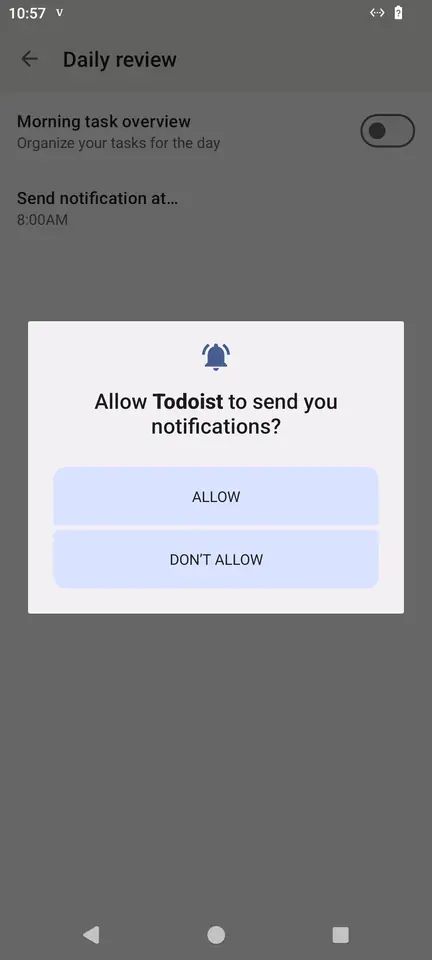
Permission priming
example: Todoist
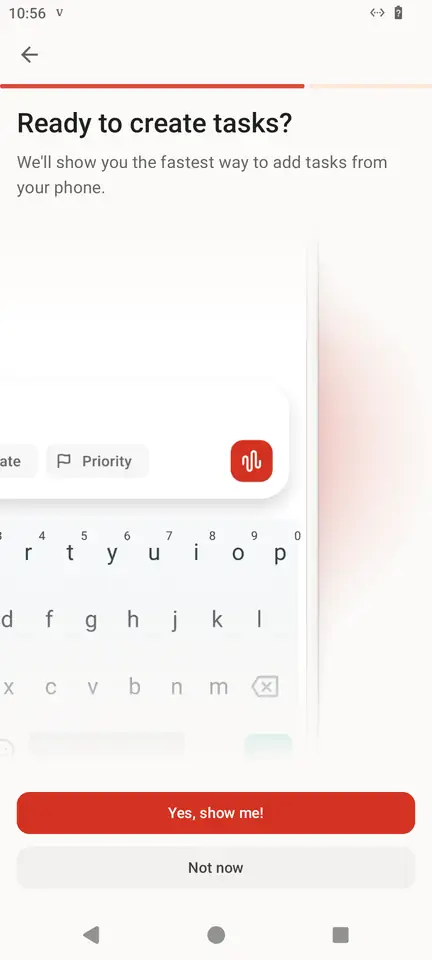
Skip button
example: Todoist
Social login buttons
example: Todoist
Email sign-up form
example: Todoist
Terms and conditions agreement
example: Todoist
Search bar
example: Dropbox
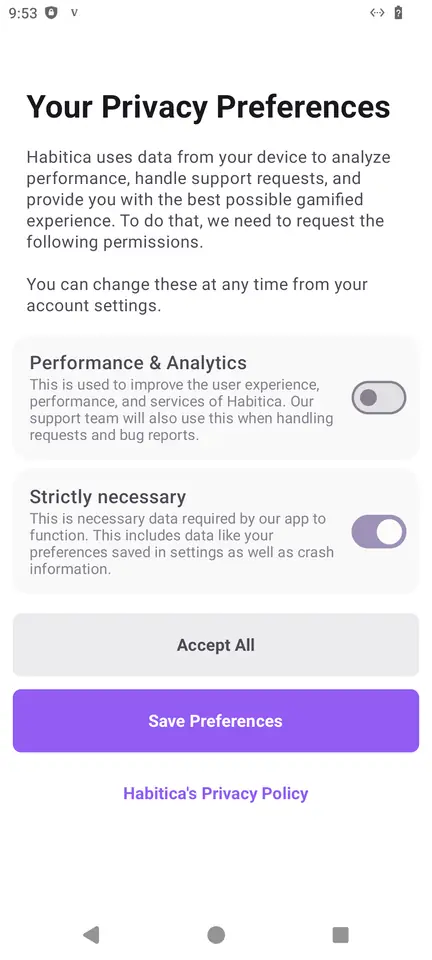
Cookie consent banner
example: Habitica
What productivity & tools apps say
UI copy that appears on the screens of two or more productivity & tools apps, with the number of apps using it.
Search
16 appsDON’T ALLOW
14 appsALLOW
13 appsBack
13 appsMore options
12 appsContinue
11 appsNext
11 appsContinue with Google
10 appsGet Started
8 appsSettings
8 appsSign up
8 appsSkip
8 appsCancel
7 appsLog in
7 apps
Design notes for productivity & tools apps
- Open straight into the main task (a new note, a search box, a scan) — no tour needed.
- Ask for an account only when sync or sharing needs one.
- Keep keyboard and one-handed use in mind; tools are used on the go.
- Make export and data ownership clear; users trust tools that do not lock data in.
FAQ
What makes good productivity & tools app UI design?
Open straight into the main task (a new note, a search box, a scan) — no tour needed. Ask for an account only when sync or sharing needs one. Keep keyboard and one-handed use in mind; tools are used on the go.
Which Android productivity & tools apps can I study?
The Flowtape library holds 351 screens from 50 Android productivity & tools apps: Todoist, TickTick, Habitica, MyDyson, Dropbox, Perplexity, Forest and Slack and more. Every screen is free to browse.
What UI components and patterns do productivity & tools apps use?
Across 351 screens from 50 productivity & tools apps, the most common detected components are toolbar (23% of screens), button (20% of screens) and icon button (18% of screens). The most common UI patterns are welcome screen (24 of 50 apps), permission priming (14 of 50 apps) and skip button (14 of 50 apps).
Which productivity & tools app flows are captured step by step?
34 onboarding flows, 22 home & browsing flows, 5 settings flows and 4 sign-in flows, each recorded screen by screen on a real Android device — for example the Todoist onboarding flow (15 screens).
Captured on real Android devices · last updated 2026-11-14