Screen · Onboarding screen · Fossify Notes · Android
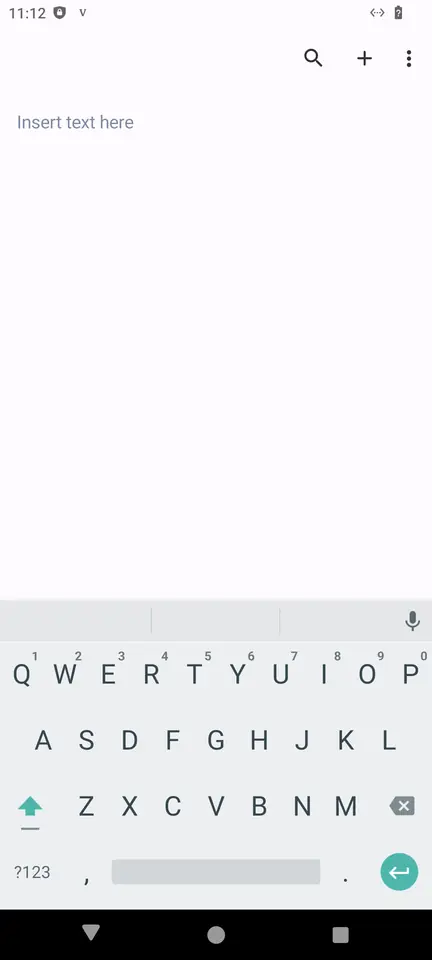
Fossify Notes onboarding screen: “Create a new note”
An onboarding screen from Fossify Notes for Android, captured on a real device — step 1 of 2 in Fossify Notes's onboarding flow. It uses 2 detected UI components, outlined on the screen below.
AndroidOnboardingstep 1 of 22 componentsfree & ungated
- App
- Fossify Notes · Productivity & tools
- Screen type
- Onboarding
- Flow
- Fossify Notes onboarding flow — step 1 of 2
- Tap
- “Create a new note”
UI text on this screen
Search
Create a new note
More options
Insert text here
UI components
Located from the app's Android view hierarchy and outlined on the screen.
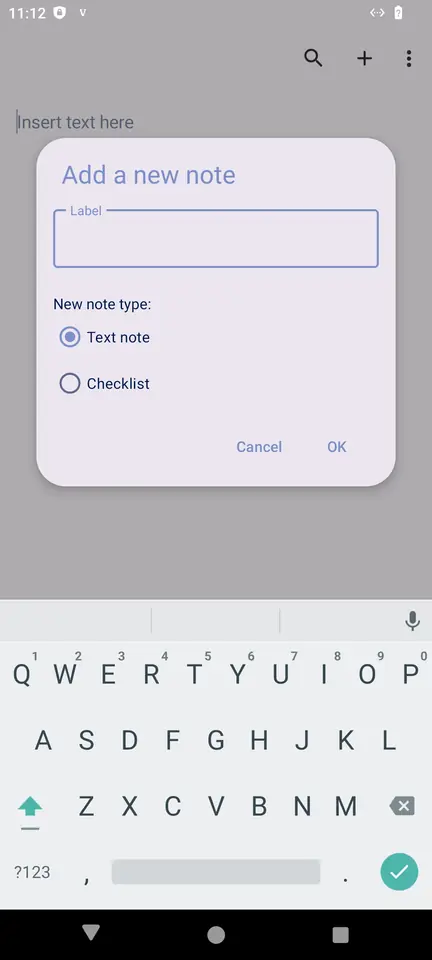
More Fossify Notes screens
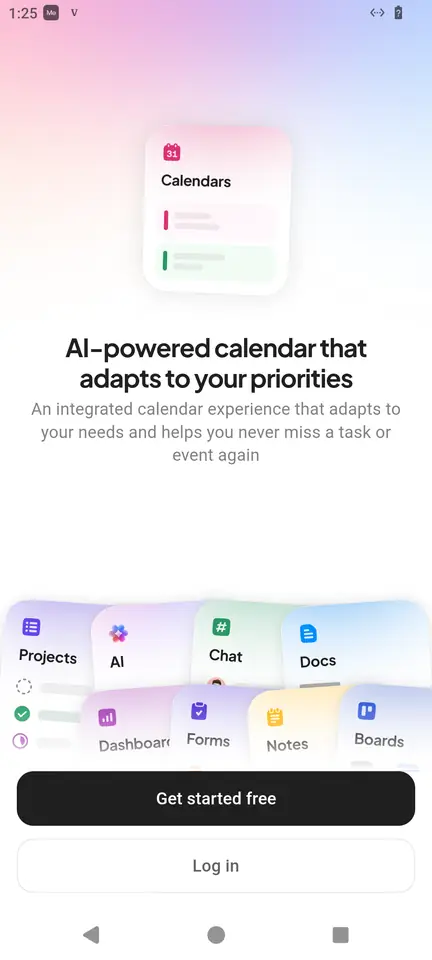
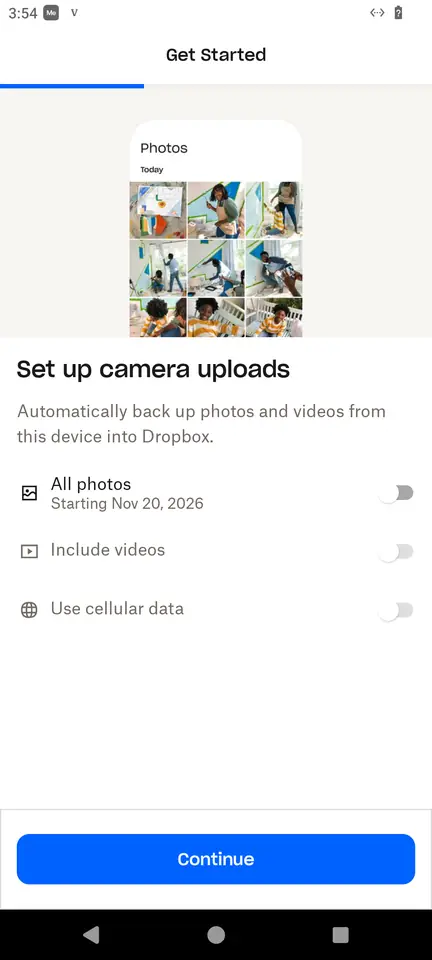
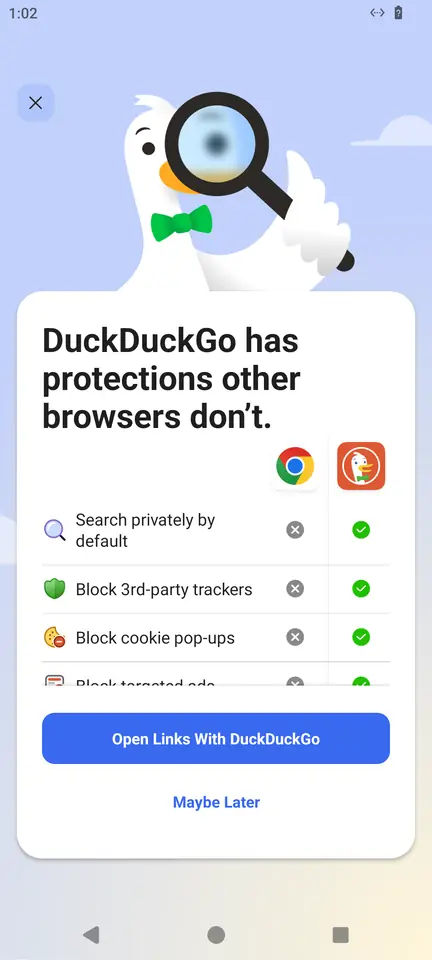
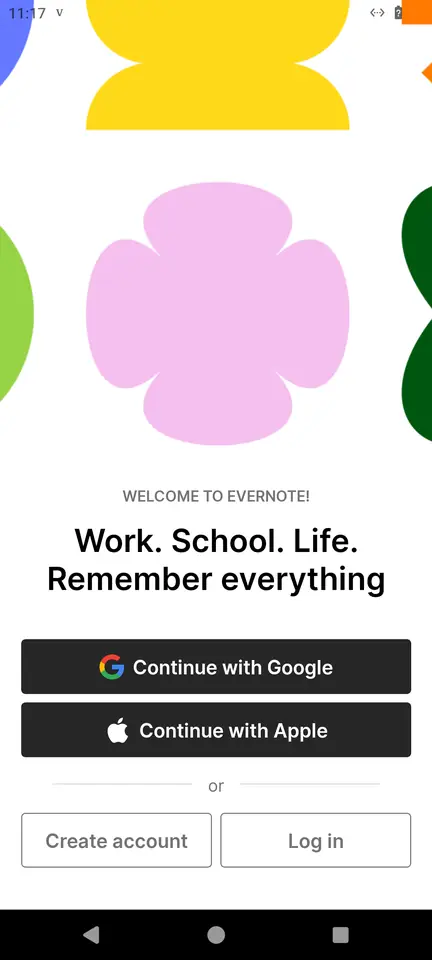
Onboarding screens from other apps
All onboarding screens →
Captured on a real Android device · last updated 2026-11-14