Privacy Friendly Notes UX teardown: the home & browsing screens
A screen-by-screen UX teardown of Privacy Friendly Notes's home & browsing screens on Android: what each of its 3 steps is for, where it asks for commitment, and what other productivity & tools apps do differently. Every screen and quote is from our own capture on a real device.
The short version
Shape: Content ×3.
- 3 screens — shorter than the median home & browsing flow in the library (4 screens across 153 other apps).
- Built from floating action button (2 screens), icon button (2 screens) and toolbar (2 screens) — the most common components we detected in the flow.
Step by step
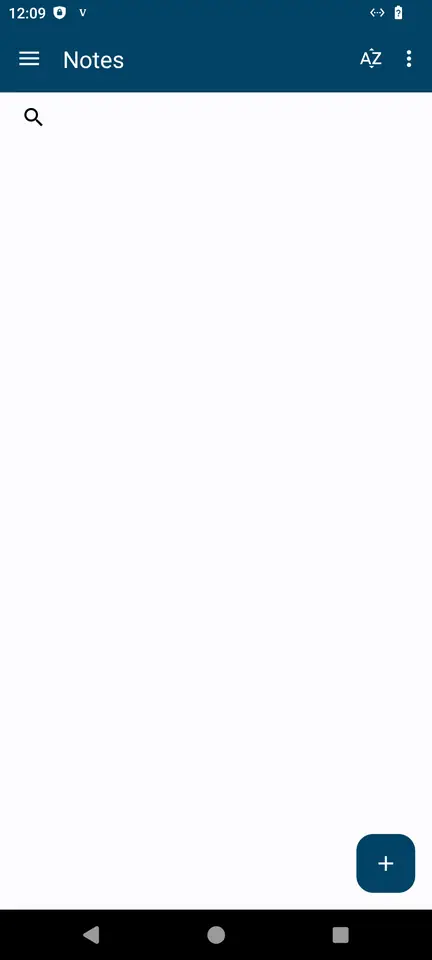
“Open navigation drawer”
This screen shows the product itself. On screen: Notes
, Sort alphabetical
.
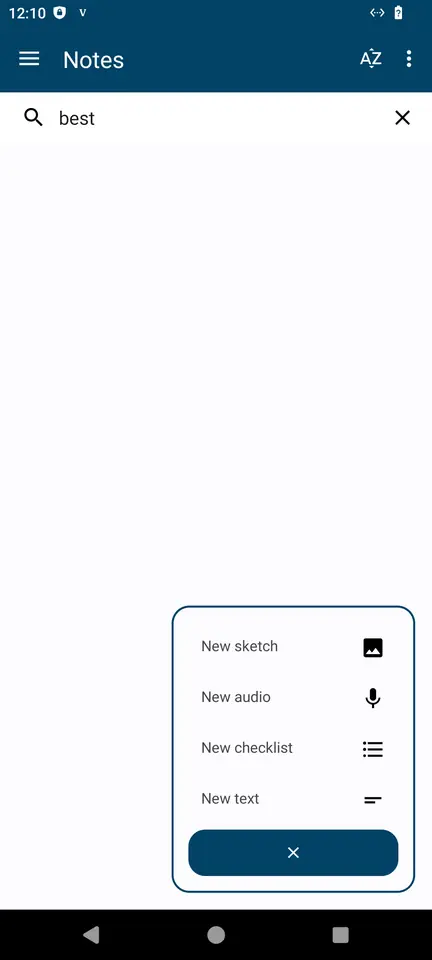
“New sketch”
This screen shows the product itself. On screen: Open navigation drawer
, Notes
.
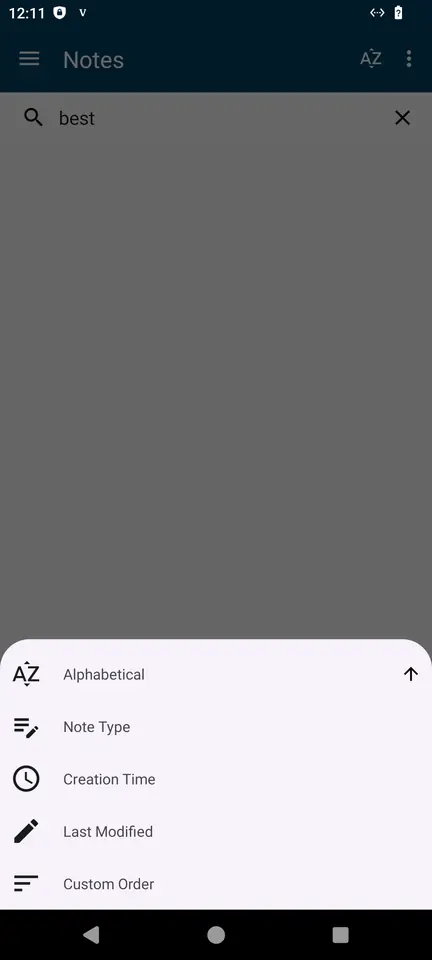
“Alphabetical”
This screen shows the product itself. On screen: Note Type
, Creation Time
.
What to steal from Privacy Friendly Notes
- Keep every step single-purpose: each of Privacy Friendly Notes's 3 screens does one job (content).
UI components in this flow
Other Privacy Friendly Notes flows
As an X thread
- 1/ How Privacy Friendly Notes handles its home & browsing flow on Android: 3 screens, step by step. A UX teardown 🧵
- 2/ The shape of the flow: Content ×3.
- 3/ Step 1 — content: “Open navigation drawer”. It shows the product itself.
- 4/ Step 2 — content: “New sketch”. It shows the product itself.
- 5/ Step 3 — content: “Alphabetical”. It shows the product itself.
- 6/ Built from floating action button (2 screens), icon button (2 screens) and toolbar (2 screens) — the most common components we detected in the flow.
- 7/ What to steal — Keep every step single-purpose: each of Privacy Friendly Notes's 3 screens does one job (content).
- 8/ Every screen, in order, free: https://uilane.com/teardown/privacy-friendly-notes/
FAQ
How many screens is Privacy Friendly Notes's home & browsing screens?
We captured 3 screens of Privacy Friendly Notes's home & browsing screens on a real Android device. Its shape: Content ×3.
What UI patterns does Privacy Friendly Notes use?
Across the 7 Privacy Friendly Notes screens in the library we detected skip button.
What can designers learn from Privacy Friendly Notes's home & browsing screens?
Keep every step single-purpose: each of Privacy Friendly Notes's 3 screens does one job (content).
Captured on a real Android device · last updated 2026-11-14