How Retro Music Player onboards: a UX teardown
A screen-by-screen UX teardown of Retro Music Player's onboarding flow on Android: what each of its 7 steps is for, where it asks for commitment, and what other streaming & entertainment apps do differently. Every screen and quote is from our own capture on a real device.
The short version
Shape: Value pitch → Permission prompt ×2 → Value pitch ×4.
- 7 screens — longer than the median onboarding flow in the library (4 screens across 152 other apps).
- No sign-up or log-in screen in the 7 onboarding screens we captured — the product comes first.
- Requests a system permission at step 2, after priming it on screen.
- No progress indicator detected across 7 screens.
- One of the few streaming & entertainment apps here using the “Permission priming” pattern (only 8 of the 45 others do).
- Built from button (5 screens), divider (3 screens) and bottom sheet (2 screens) — the most common components we detected in the flow.
Step by step
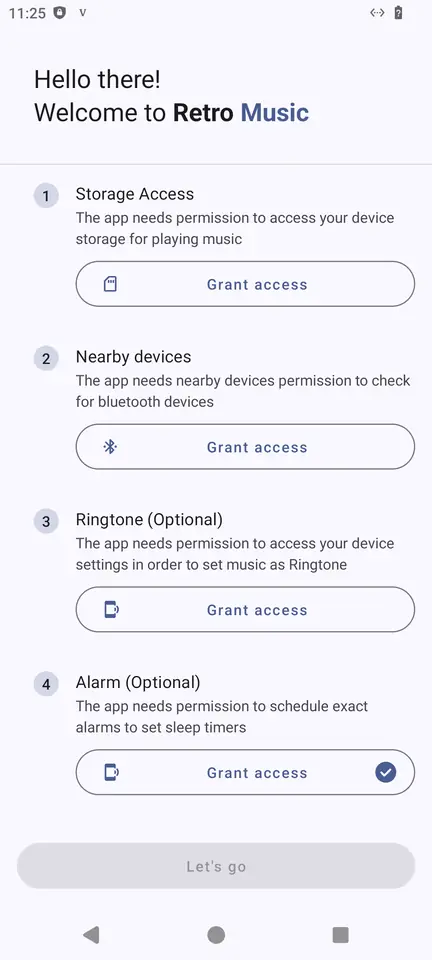
“Hello there! Welcome to Retro Music”
This screen sells the product before asking for anything. On screen: Storage Access
, The app needs permission to access your device storage for playing music
. Next tap: “Grant access”.
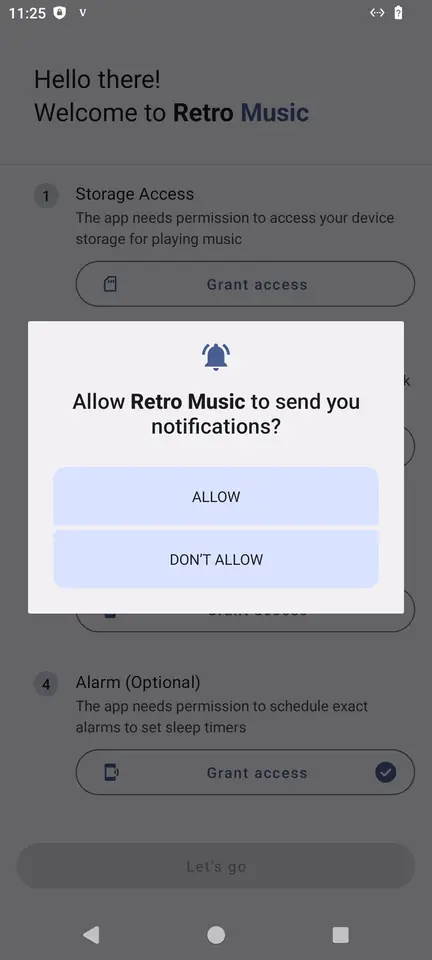
“Allow Retro Music to send you notifications?”
This screen asks for a system permission. On screen: ALLOW
, DON’T ALLOW
. Next tap: “Allow”.
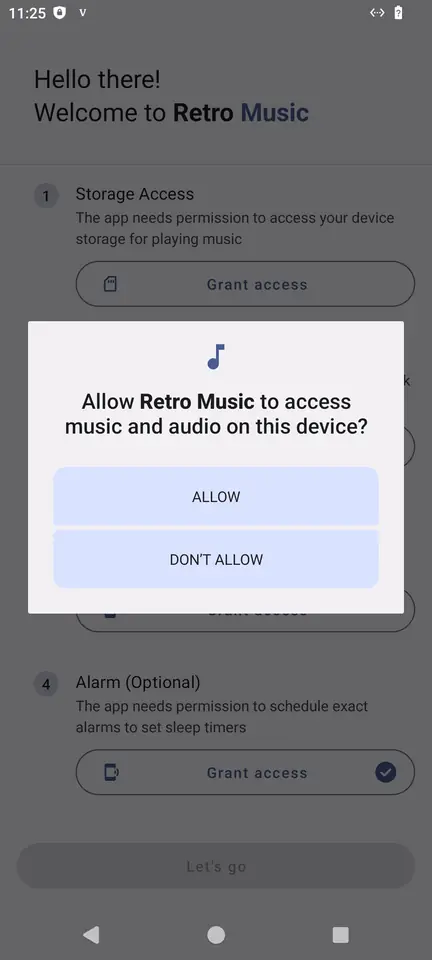
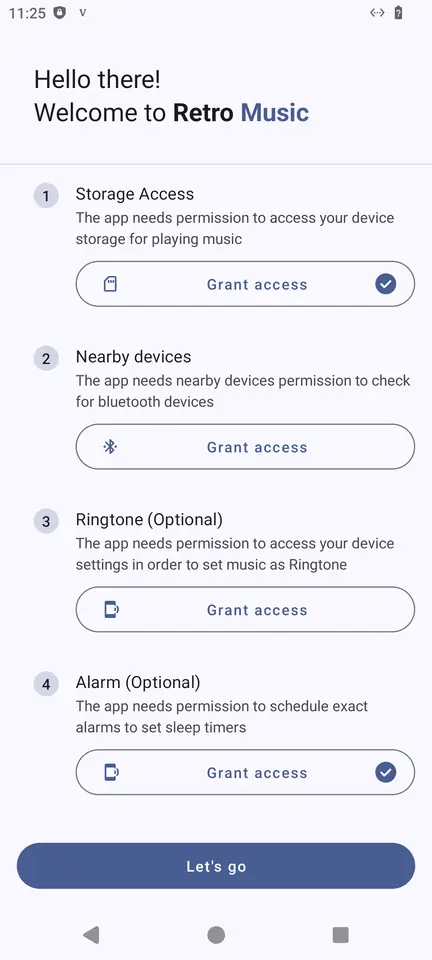
“Hello there! Welcome to Retro Music”
This screen sells the product before asking for anything. On screen: Storage Access
, The app needs permission to access your device storage for playing music
. Next tap: “Grant access”.
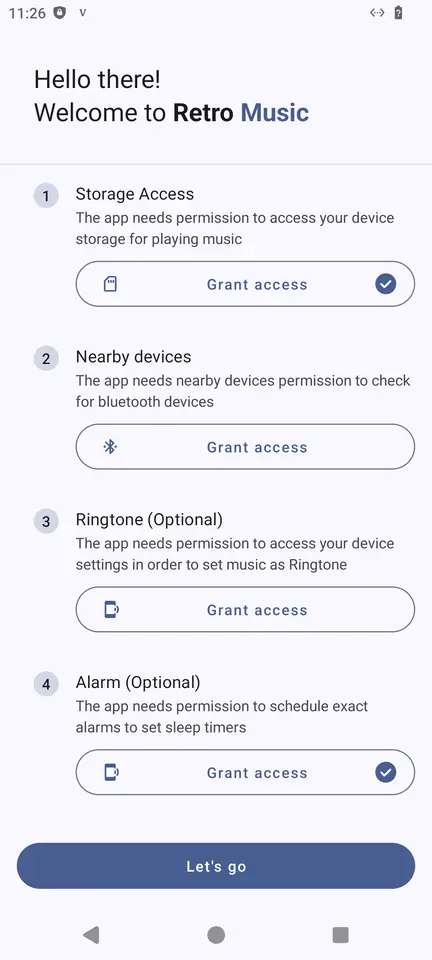
“Hello there! Welcome to Retro Music”
This screen sells the product before asking for anything. On screen: Storage Access
, The app needs permission to access your device storage for playing music
. Next tap: “Let's go”.
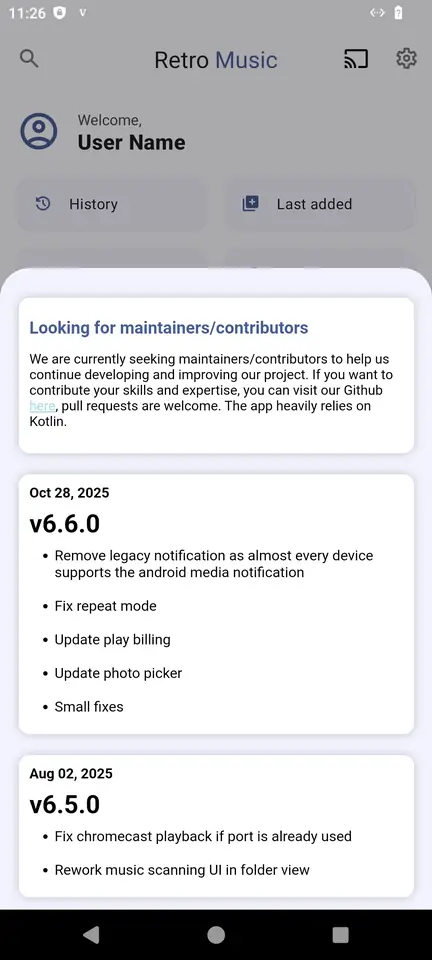
“Looking for maintainers/contributors”
This screen sells the product before asking for anything. On screen: here
, , pull requests are welcome. The app heavily relies on Kotlin.
. Next tap: “Touch outside”.
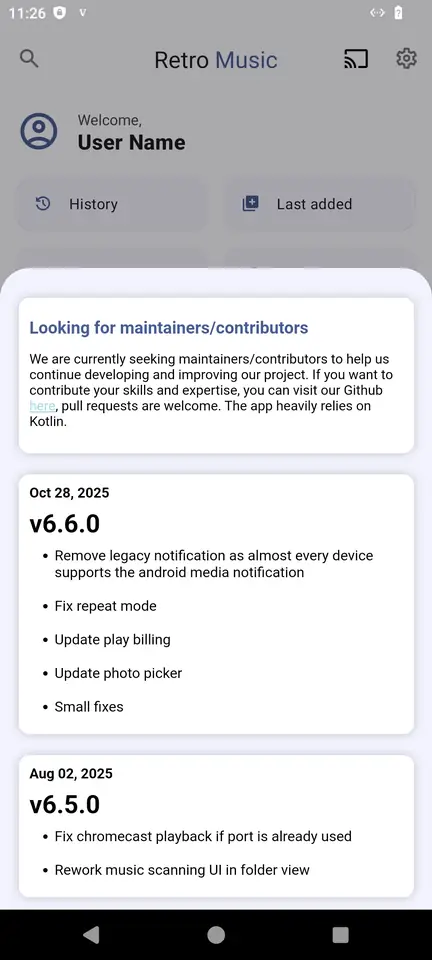
“Looking for maintainers/contributors”
This screen sells the product before asking for anything. On screen: here
, , pull requests are welcome. The app heavily relies on Kotlin.
.
What to steal from Retro Music Player
- Delay the account wall: Retro Music Player lets users through 7 onboarding screens without signing up.
UI components in this flow
Other Retro Music Player flows
As an X thread
- 1/ How Retro Music Player onboards on Android: 7 screens, step by step. A UX teardown 🧵
- 2/ The shape of the flow: Value pitch → Permission prompt ×2 → Value pitch ×4.
- 3/ Step 1 — value pitch: “Hello there! Welcome to Retro Music”. It sells the product before asking for anything. Tap: “Grant access”.
- 4/ Step 2 — permission prompt: “Allow Retro Music to send you notifications?”. It asks for a system permission. Tap: “Allow”.
- 5/ Step 3 — permission prompt: “Allow Retro Music to access music and audio on this device?”. It asks for a system permission. Tap: “Allow”.
- 6/ No sign-up or log-in screen in the 7 onboarding screens we captured — the product comes first.
- 7/ Requests a system permission at step 2, after priming it on screen.
- 8/ No progress indicator detected across 7 screens.
- 9/ What to steal — Delay the account wall: Retro Music Player lets users through 7 onboarding screens without signing up.
- 10/ Every screen, in order, free: https://uilane.com/teardown/retro-music-player/
FAQ
How many screens is Retro Music Player's onboarding flow?
We captured 7 screens of Retro Music Player's onboarding flow on a real Android device. Its shape: Value pitch → Permission prompt ×2 → Value pitch ×4.
When does Retro Music Player ask you to create an account?
Not within the 7 screens we captured — there is no sign-up or log-in screen and the flow lets users in without an account.
What UI patterns does Retro Music Player use?
Across the 13 Retro Music Player screens in the library we detected welcome screen and permission priming.
What can designers learn from Retro Music Player's onboarding flow?
Delay the account wall: Retro Music Player lets users through 7 onboarding screens without signing up.
Captured on a real Android device · last updated 2026-11-14