Home & browsing flow · Citymapper · Android
Citymapper home & browsing screens
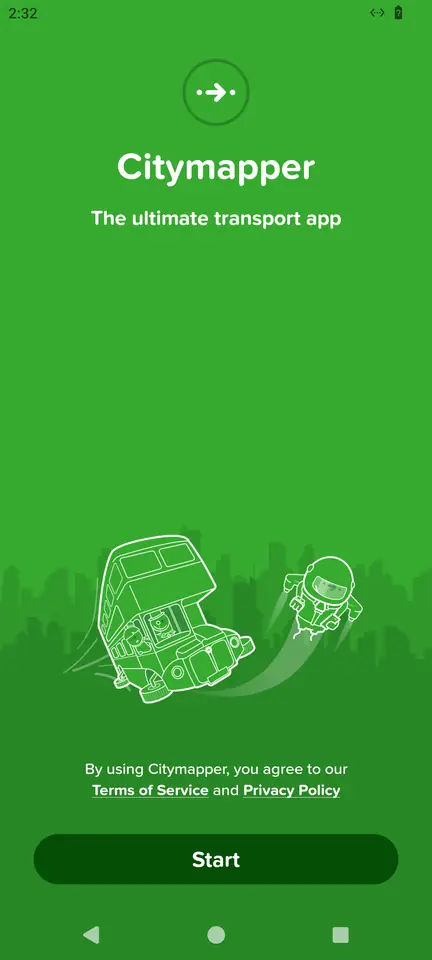
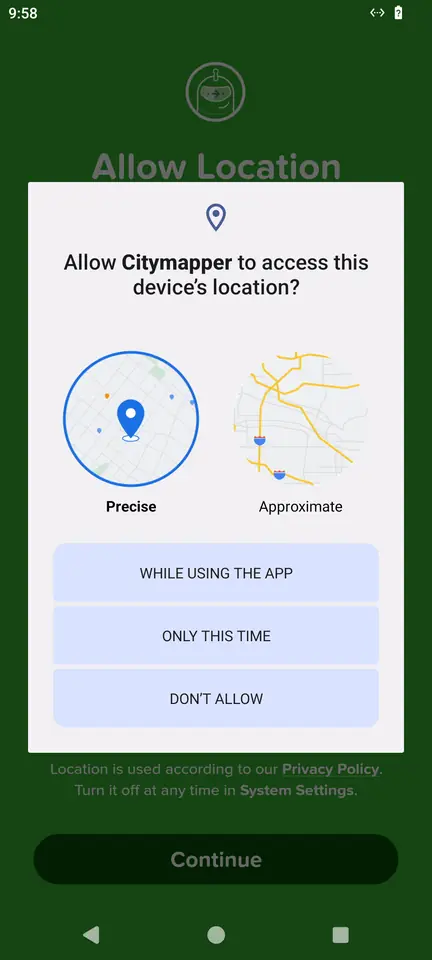
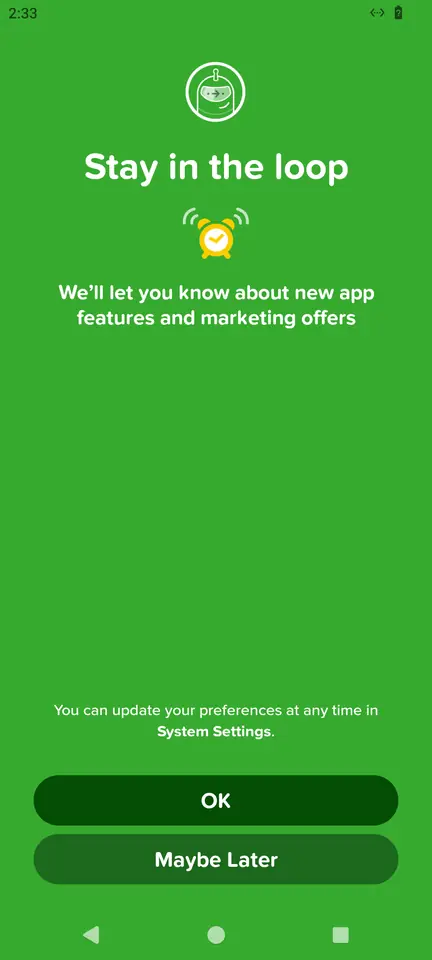
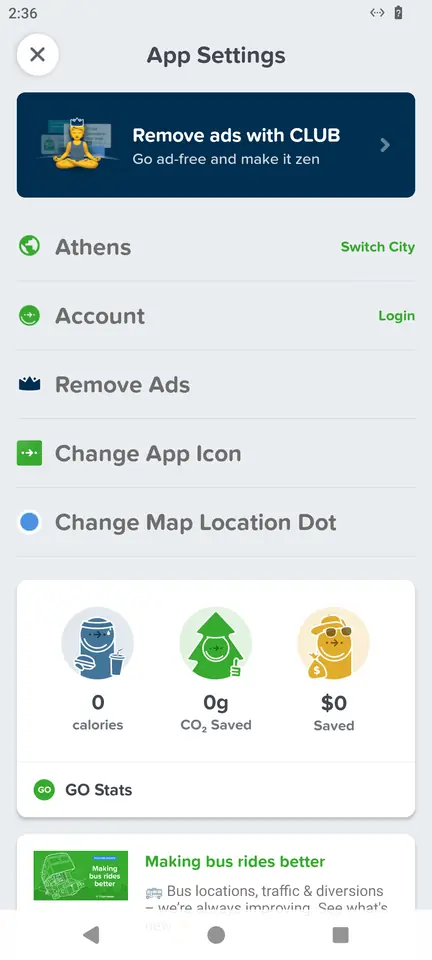
Every screen of Citymapper's home & browsing screens on Android, in order: 3 steps, recorded on a real device. Citymapper's home & browsing flow walks through 3 screens, including “Allow Location” and “Citymapper works best with location”. Along the way it stops for a permission request at step 1, a question at step 2 and a cookie or privacy prompt at step 3.
UI components:
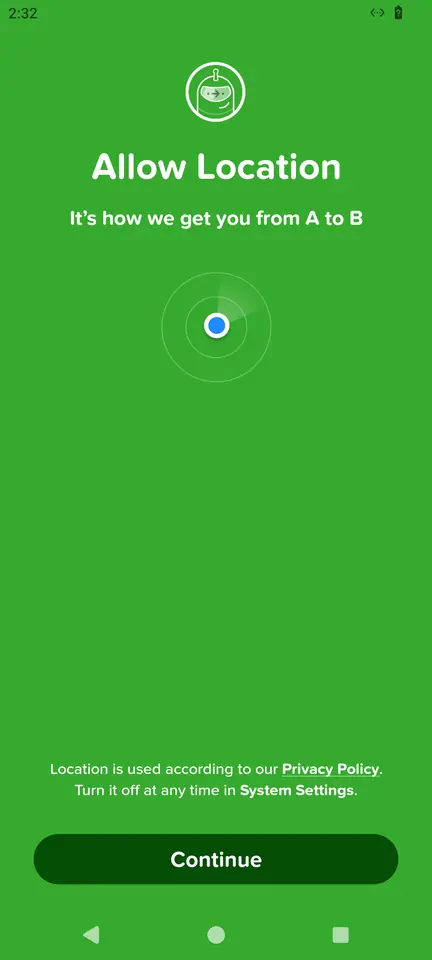 01 Onboarding
Allow Location — It’s how we get you from A to B
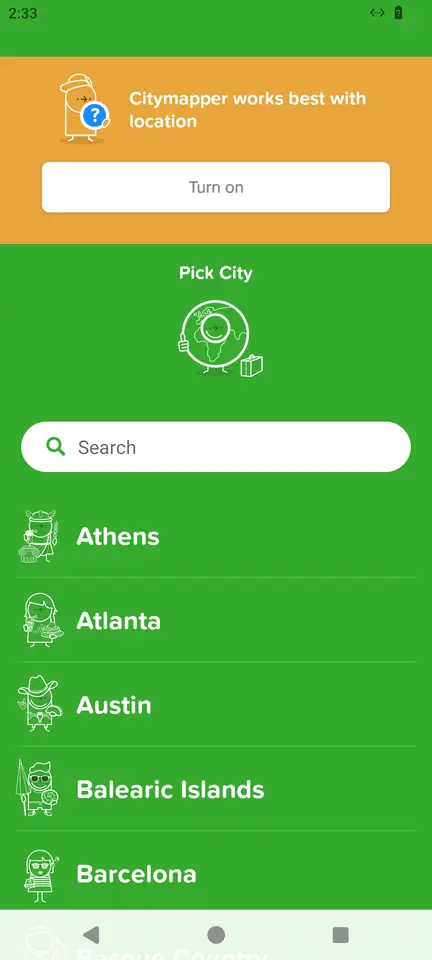 02 Home & browsing · tap “Turn on”
Citymapper works best with location — Turn on
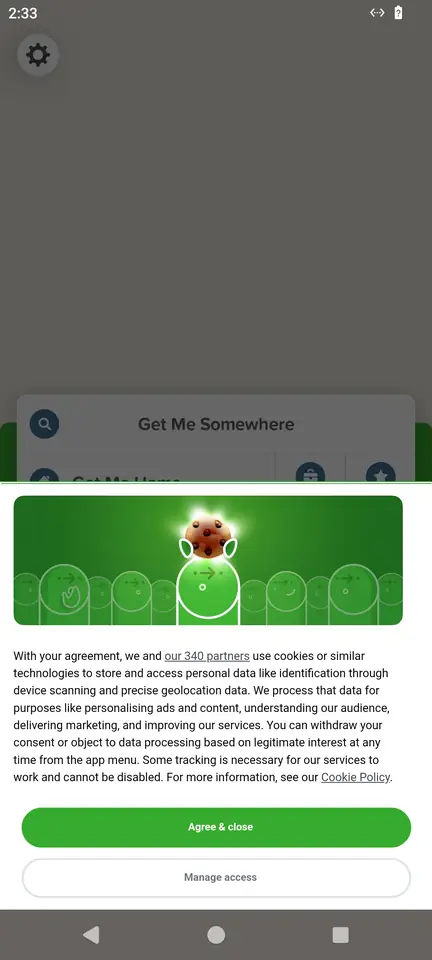 03 Consent · tap “Manage access”
Didomi SDK — didomi-cookie-letterbox
What Citymapper's home & browsing screens does
- 3 screens in order, opening on “Allow Location” and ending at “Didomi SDK”.
- Taps along the way: “Turn on” → “Manage access”.
Read the step-by-step UX teardown of this flow →
Captured on a real Android device · last updated 2026-11-14