Home & browsing flow · Trulia · Android
Trulia home & browsing screens
Every screen of Trulia's home & browsing screens on Android, in order: 7 steps, recorded on a real device. Trulia's home & browsing flow walks through 7 screens, including “Let's start searching for a home”, “Activity Feed - New!”, “Tap the heart on a home and it will…” and “Alerts”. Along the way it stops for a permission request at step 4. The screens are built around tab bars (6 screens) and a search bar.
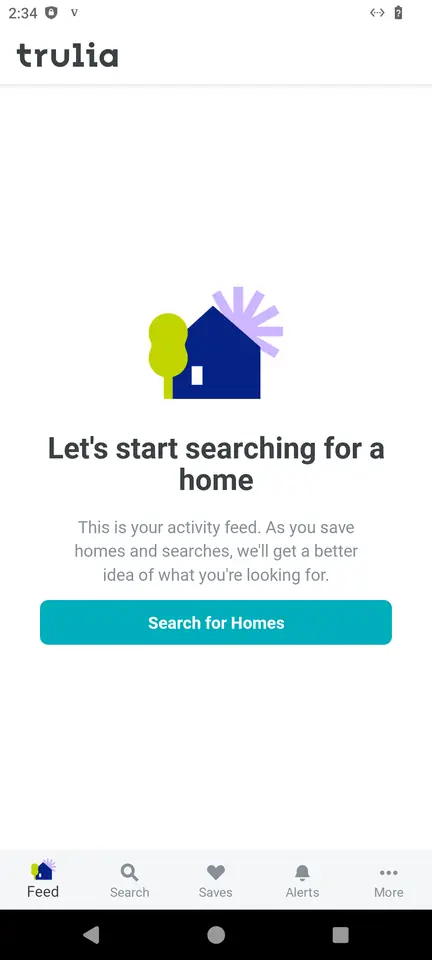 01 Home & browsing
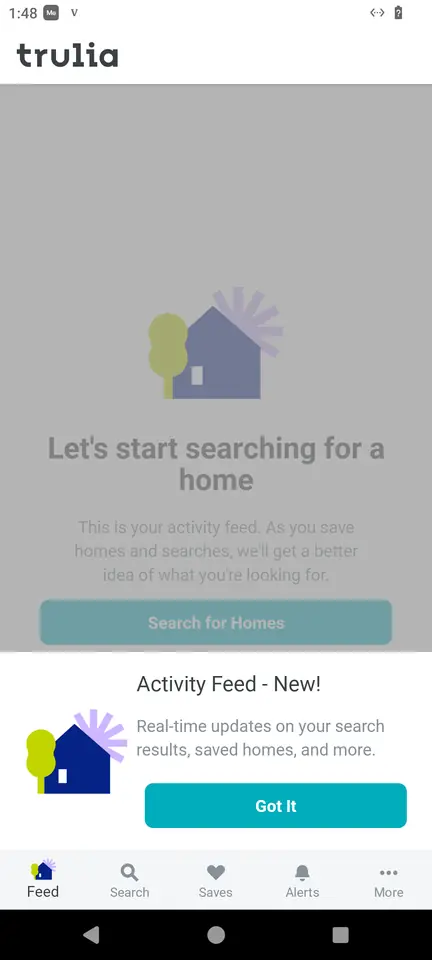
Let's start searching for a home — Search for Homes
 02 Home & browsing
Activity Feed - New! — Real-time updates on your search results, saved homes, and more.
 03 Home & browsing
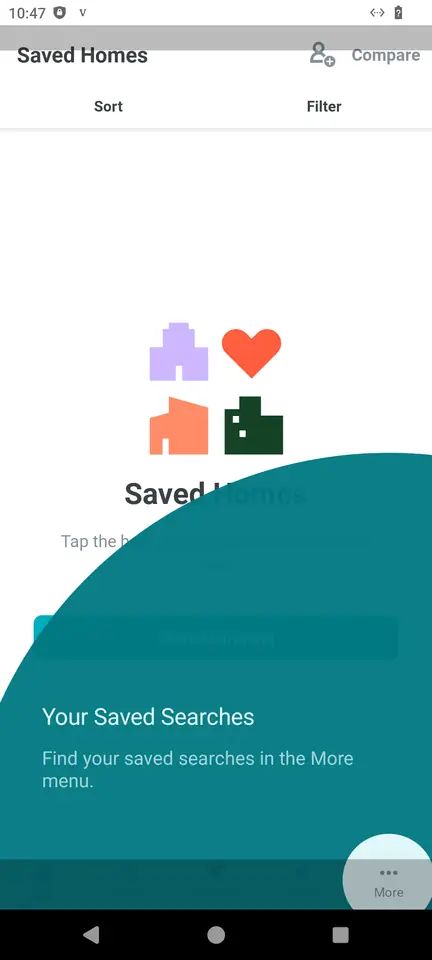
Saved Homes — Compare
 04 Home & browsing
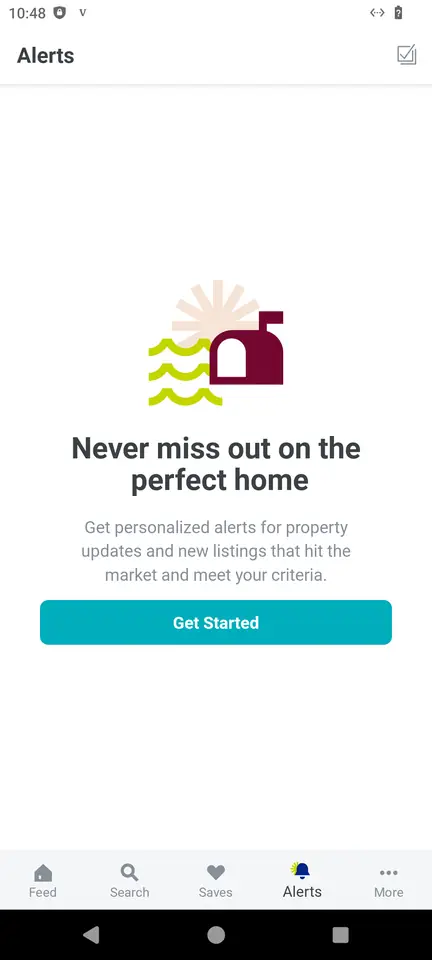
Alerts — Mark all notifications as read
 05 Home & browsing
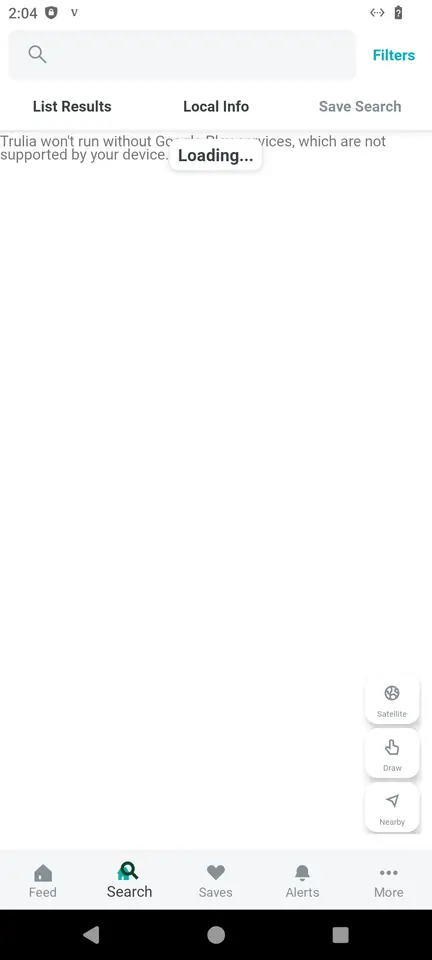
Filters — List Results
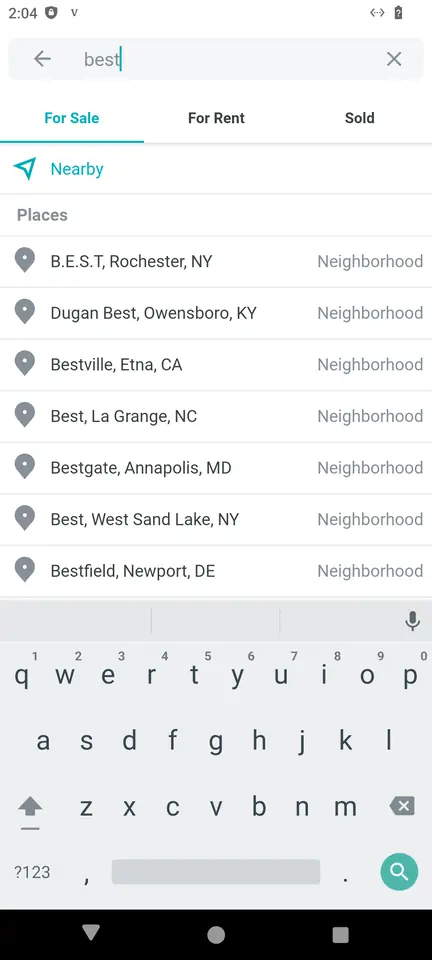 06 Home & browsing
best — Clear query
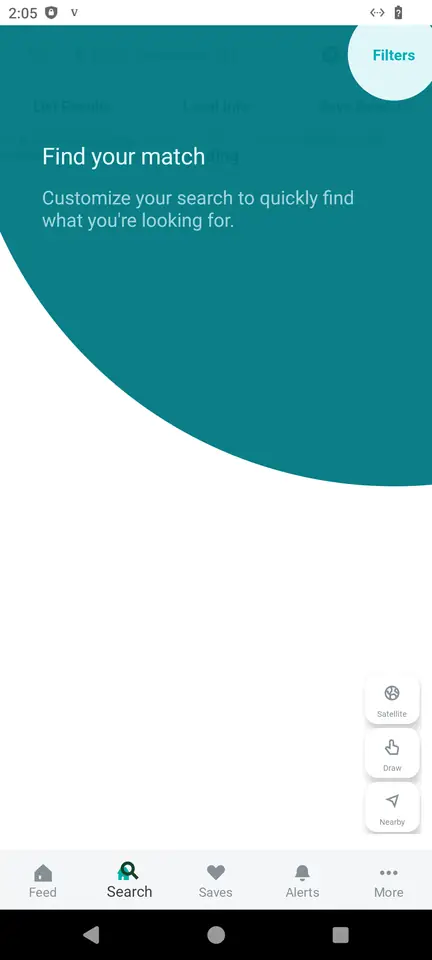 07 Home & browsing
B.E.S.T, Rochester, NY — Remove location
What Trulia's home & browsing screens does
- 7 screens in order, opening on “Let's start searching for a home” and ending at “B.E.S.T, Rochester, NY”.
Read the step-by-step UX teardown of this flow →
Captured on a real Android device · last updated 2026-11-14