Sign-in flow · Depop · Android
Depop sign-in flow
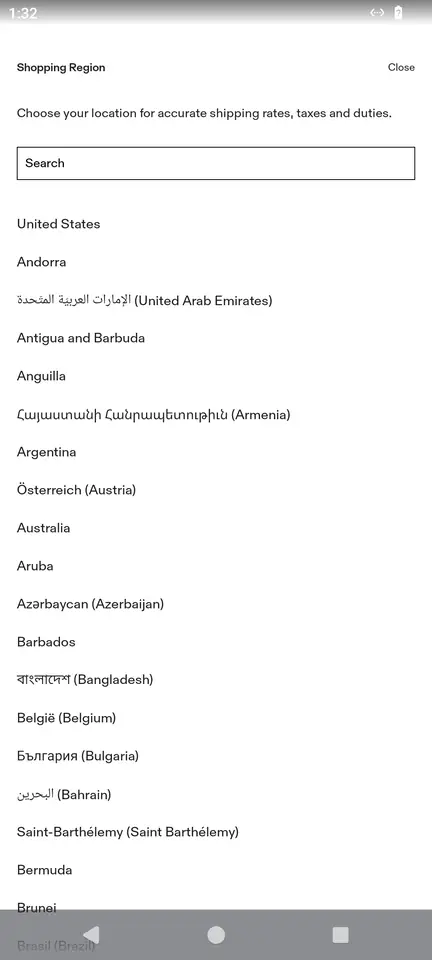
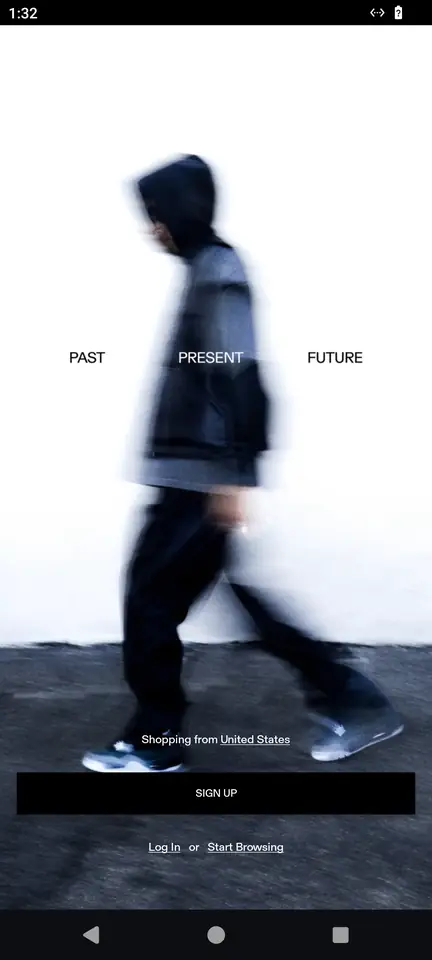
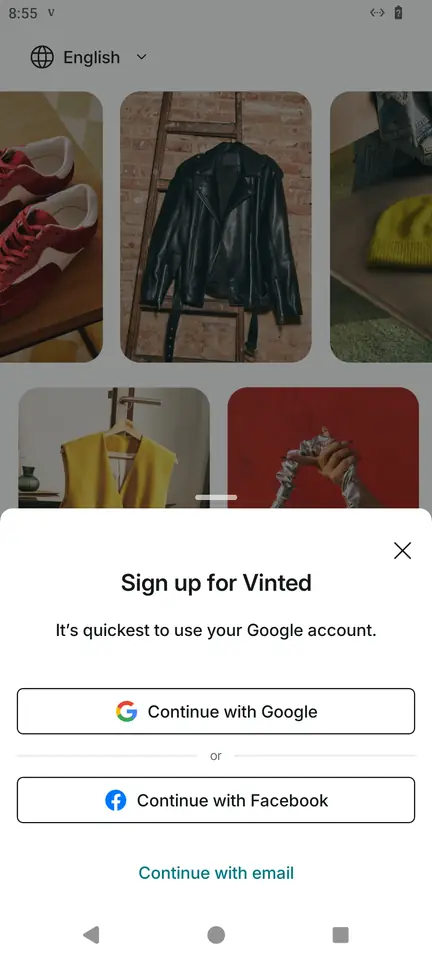
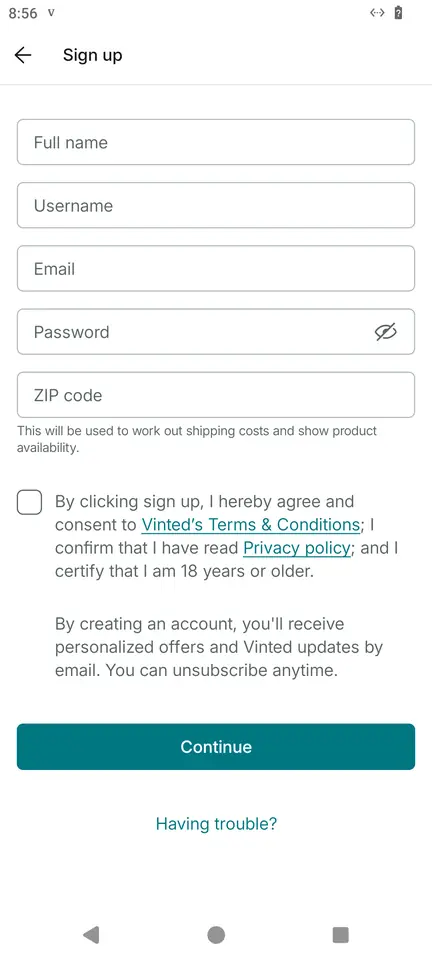
Every screen of Depop's sign-in flow on Android, in order: 6 steps, recorded on a real device. Depop's sign-in flow puts the account choice on its first screen and offers Google and email sign-in. Terms acceptance sits inside the flow. At 6 screens it is the joint 2nd-longest of the 51 sign-in flows in the library (median 2).
UI components:
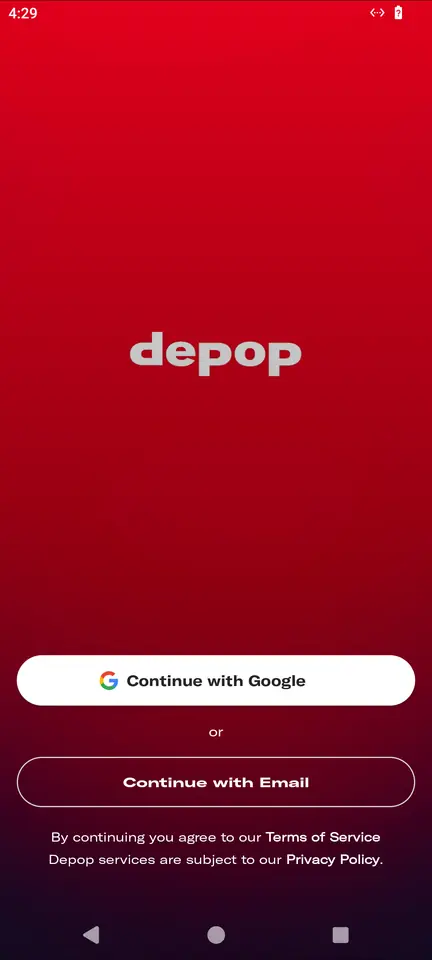 01 Sign-in · tap “Continue with Email”
Continue with Google button — Google logo
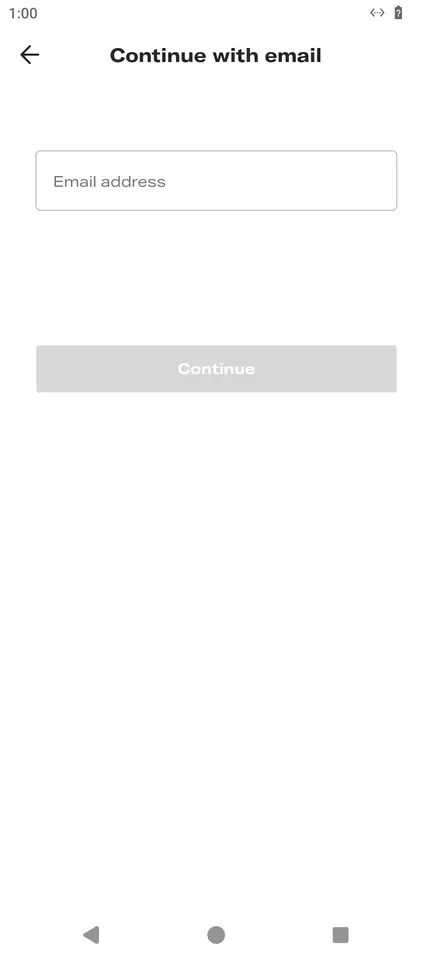 02 Sign-in · tap “Continue with email”
Loading — Back
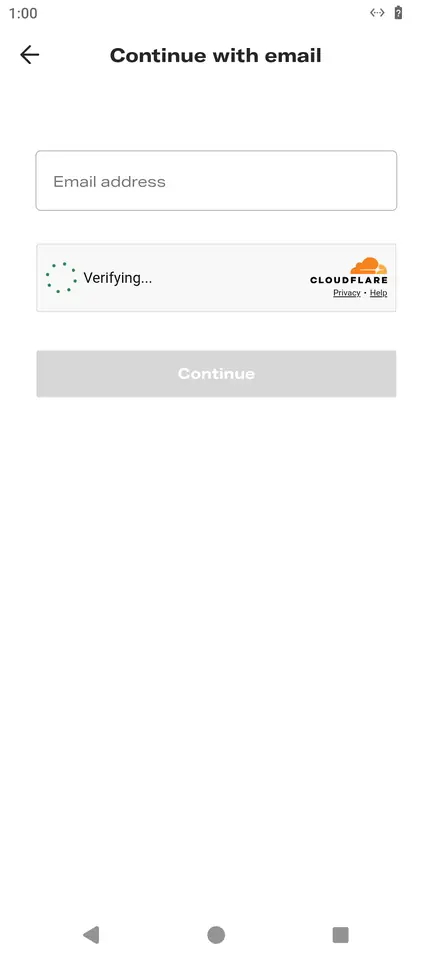 03 Sign-in
Sign up or log in — Checking your Browser…
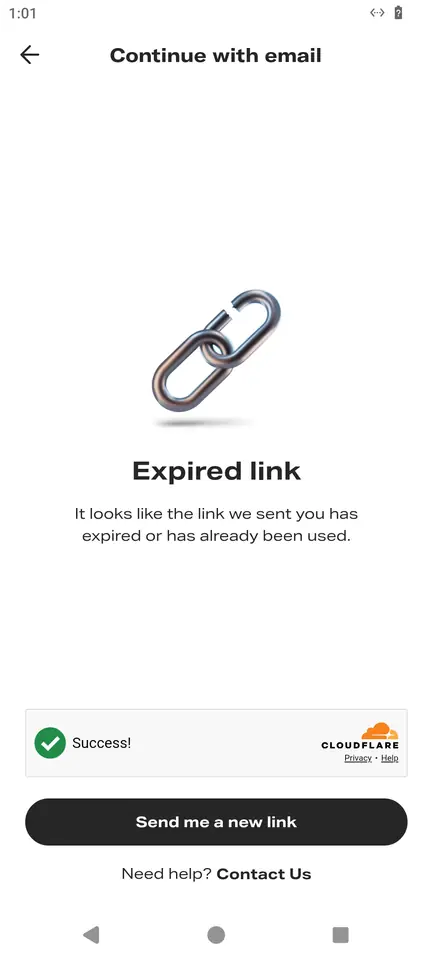 04 Sign-in · tap “Contact Us”
Invalid magic link — Expired link
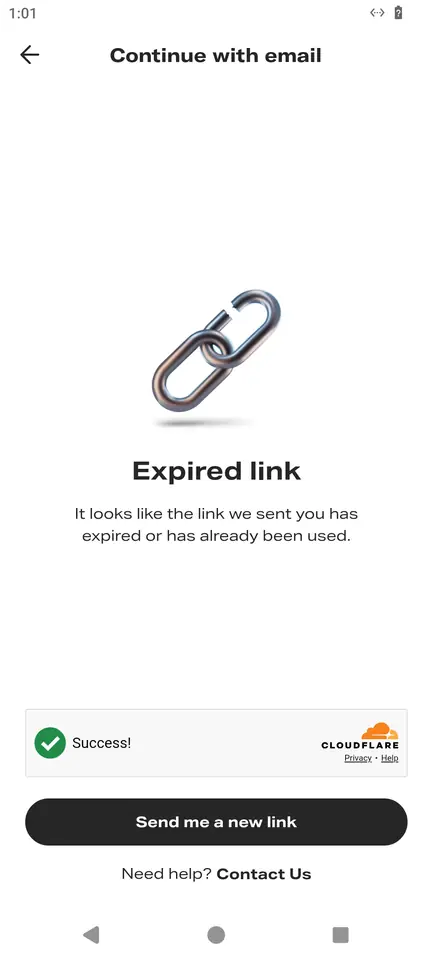 05 Sign-in · tap “Send me a new link”
Invalid magic link — Expired link
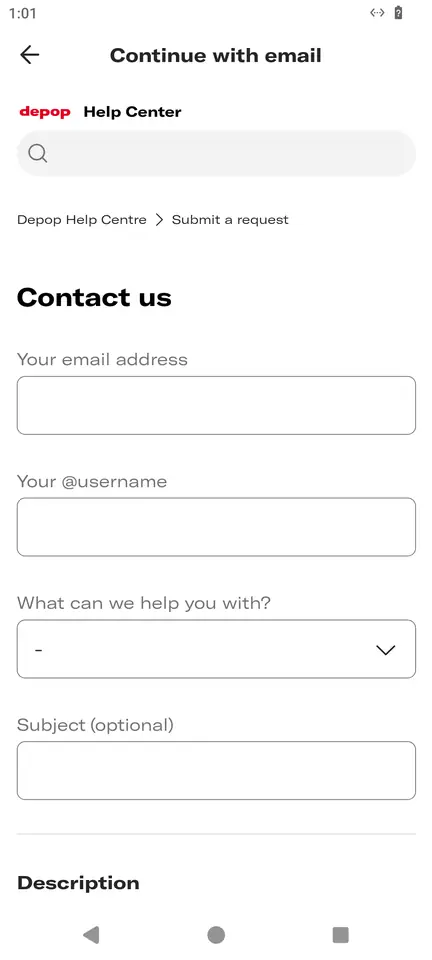 06 Sign-in
Submit a request – Depop Help Centre — Logo
What Depop's sign-in flow does
- 6 screens in order, opening on “Continue with Google” and ending at “Submit a request – Depop Help Centre”.
- Taps along the way: “Continue with Email” → “Continue with email” → “Contact Us” → “Send me a new link”.
- Offers 2 sign-in options: Email, Google.
Read the step-by-step UX teardown of this flow →
Captured on a real Android device · last updated 2026-11-14