Onboarding flow · Amazon Shopping · Android
Amazon Shopping onboarding flow
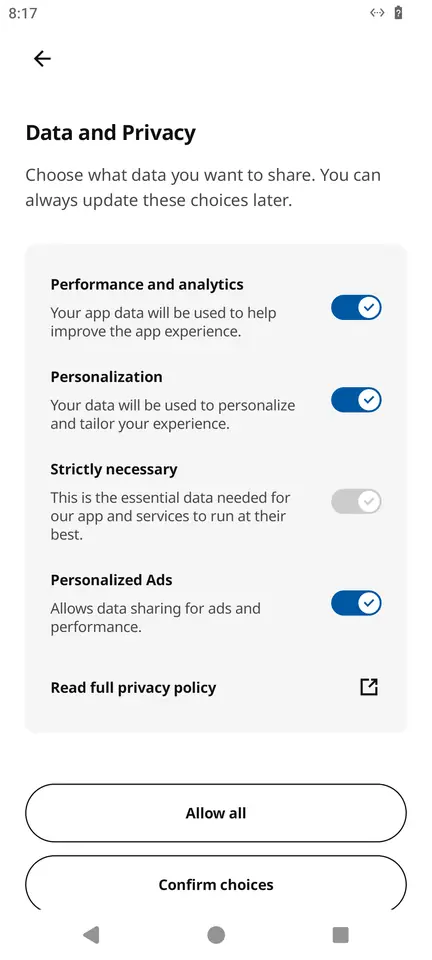
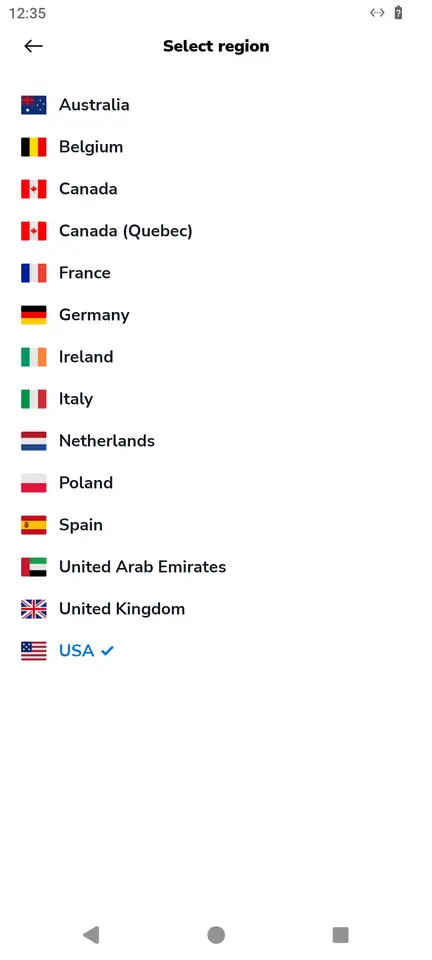
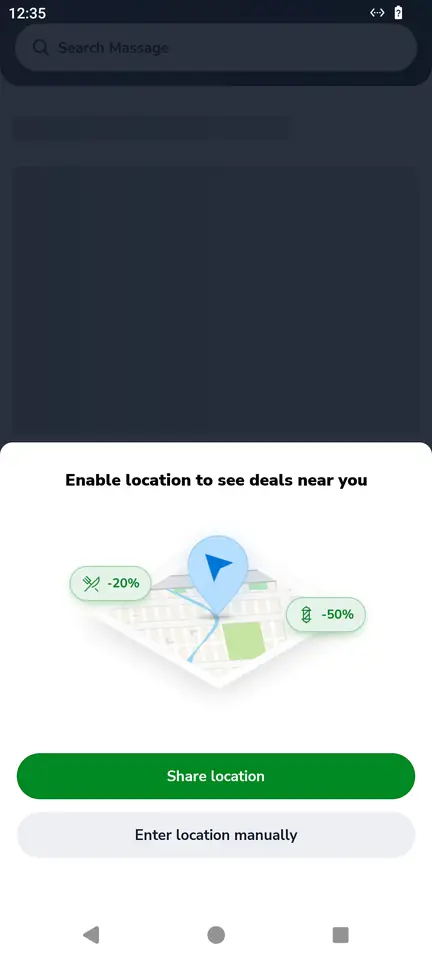
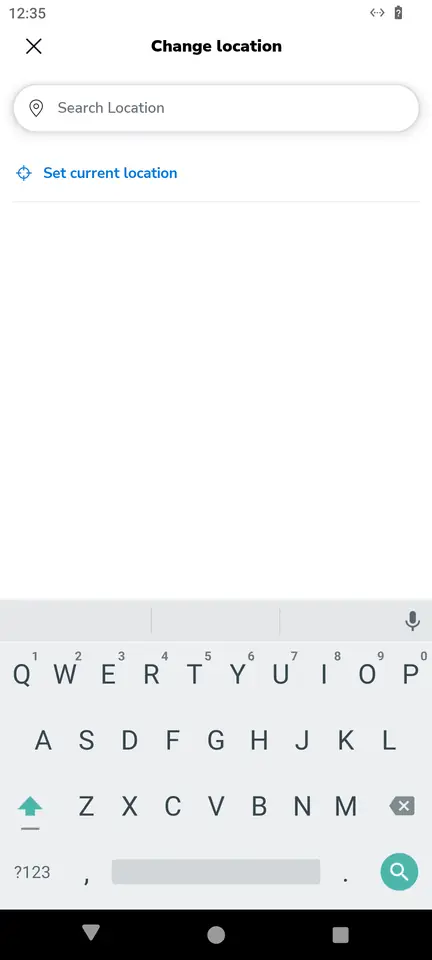
Every screen of Amazon Shopping's onboarding flow on Android, in order: 3 steps, recorded on a real device. Amazon Shopping's onboarding opens with a system permission request. At 3 screens it is shorter than the library's median onboarding flow (4 screens across 153 apps). A progress indicator shows on 1 of 3 screens.
UI components:
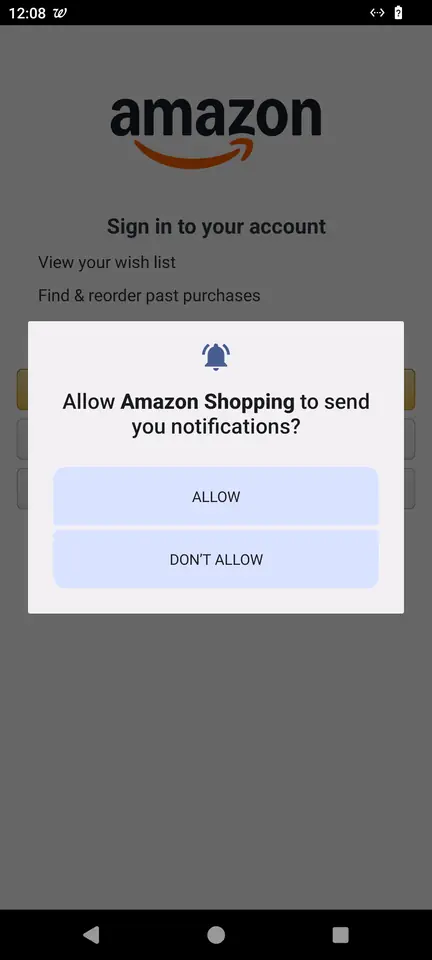 01 Permissions · tap “Allow”
Allow Amazon Shopping to send you notifications? — ALLOW
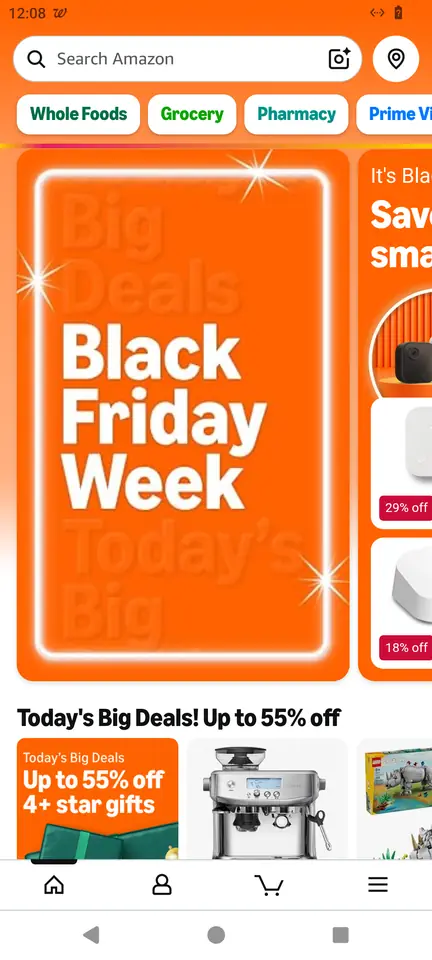 02 Onboarding · tap “Whole Foods Button 1 of 5”
Whole Foods Button 1 of 5 — Whole Foods
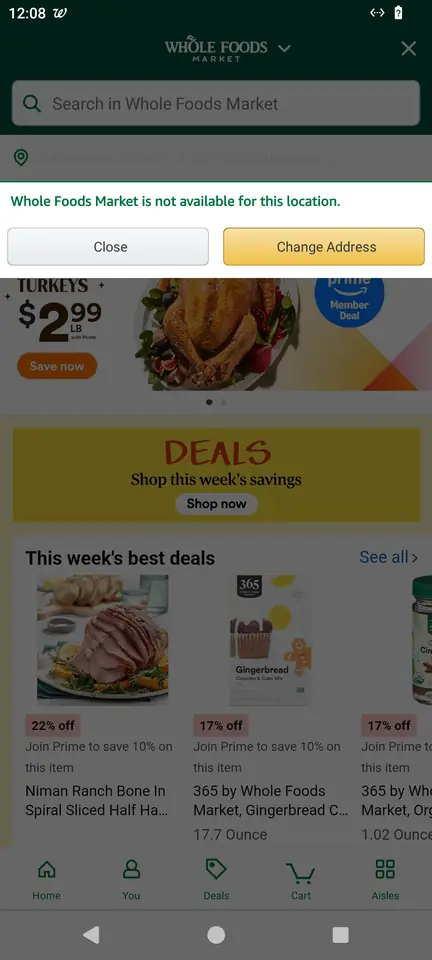 03 Onboarding · tap “Close”
Delivering to Buffalo 14205 - Update location ⌵ — Whole Foods Market is not available for this location.
What Amazon Shopping's onboarding flow does
- 3 screens in order, opening on “Allow Amazon Shopping to send you notifications?” and ending at “Delivering to Buffalo 14205 - Update location ⌵”.
- Taps along the way: “Allow” → “Whole Foods Button 1 of 5” → “Close”.
- Includes a system permission prompt inside the flow.
Captured on a real Android device · last updated 2026-11-14