Onboarding flow · Target · Android
Target onboarding flow
Every screen of Target's onboarding flow on Android, in order: 13 steps, recorded on a real device. Target's onboarding opens with a value-pitch screen (“Sign in or create account”), asks 1 question about the user, shows no sign-up form in the 13 screens we captured and requests a system permission at step 3. At 13 screens it is the 17th-longest of the 152 onboarding flows in the library (median 4). A skip option appears on 1 screen.
UI components:
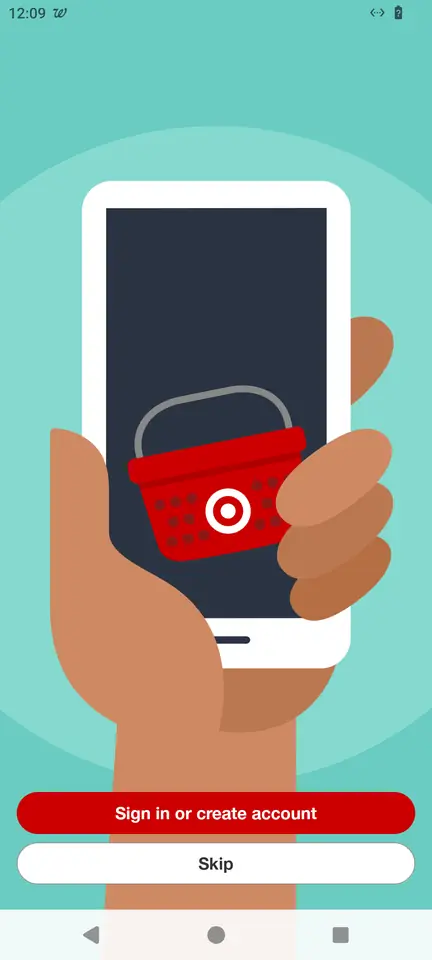 01 Onboarding · tap “Skip”
Sign in or create account — Skip
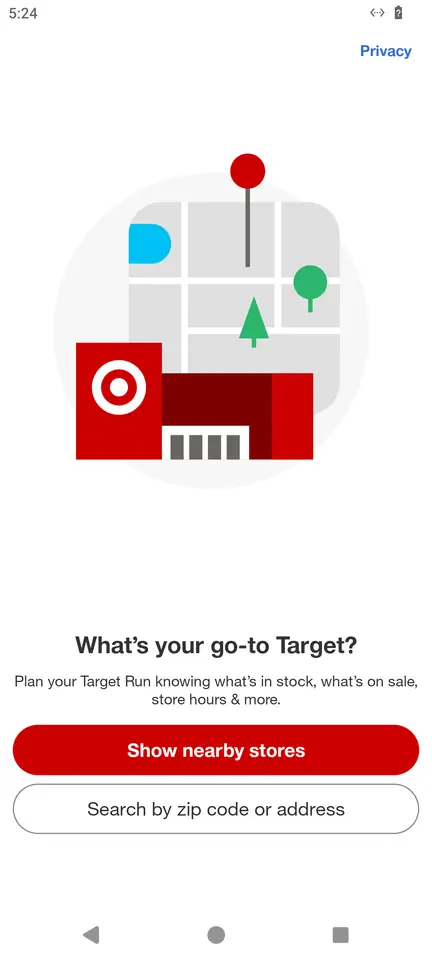 02 Onboarding · tap “Show nearby stores”
Privacy — What’s your go-to Target?
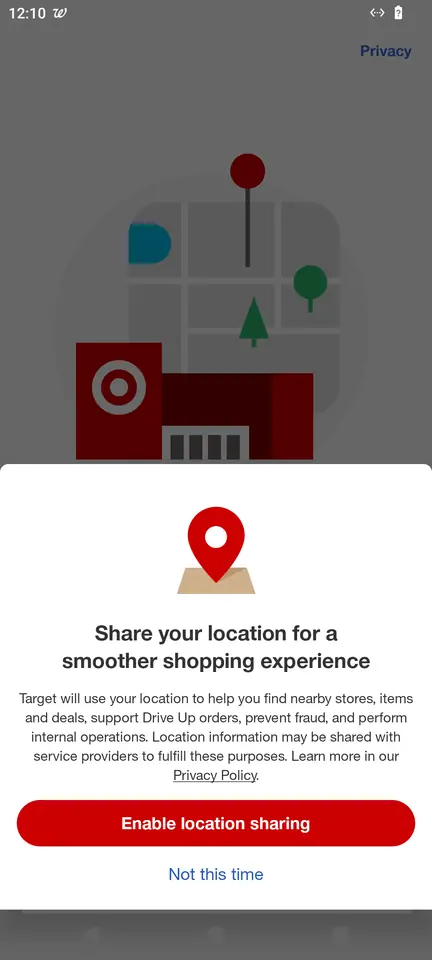 03 Onboarding · tap “Not this time”
Share your location for a smoother shopping experience — Enable location sharing
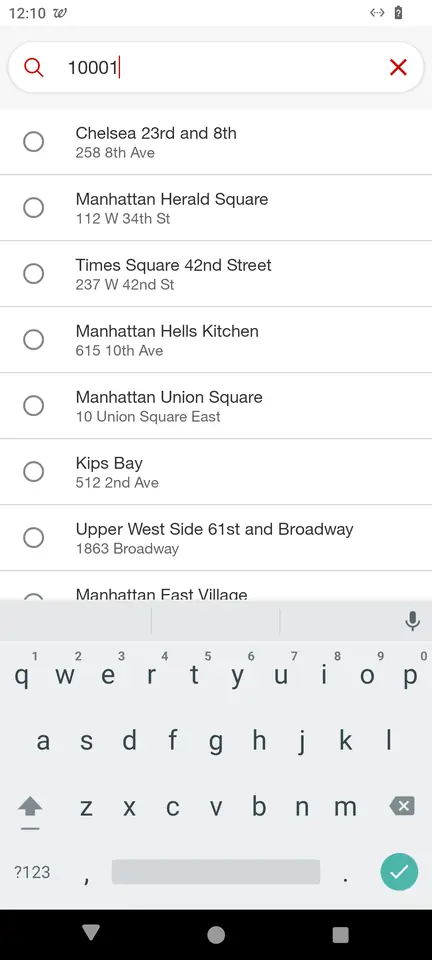 04 Onboarding · tap “Set as my store”
10001 — Clear search
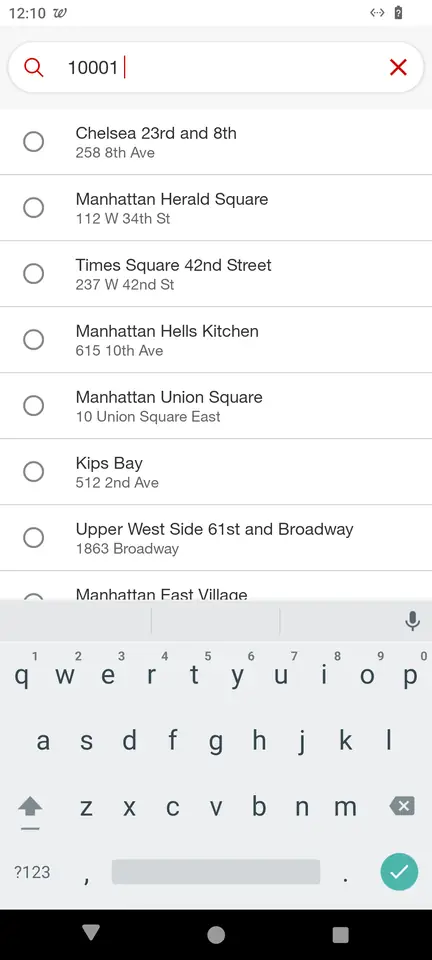 05 Onboarding · tap “Clear search”
10001 — Clear search
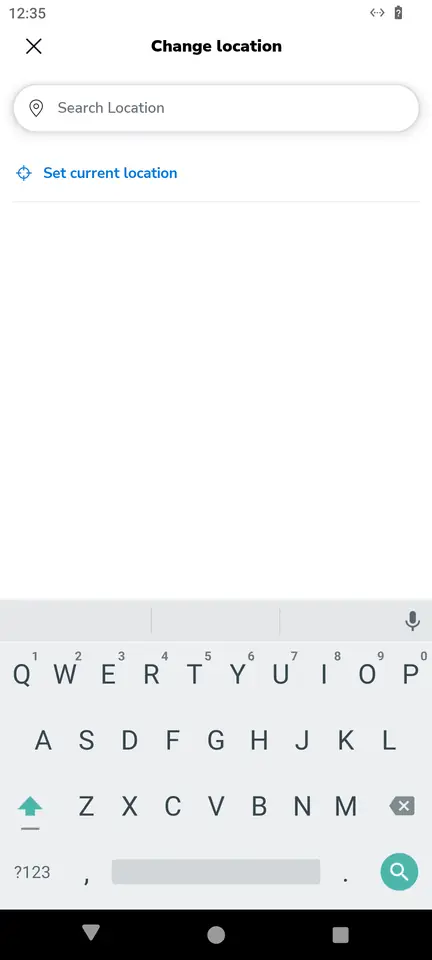
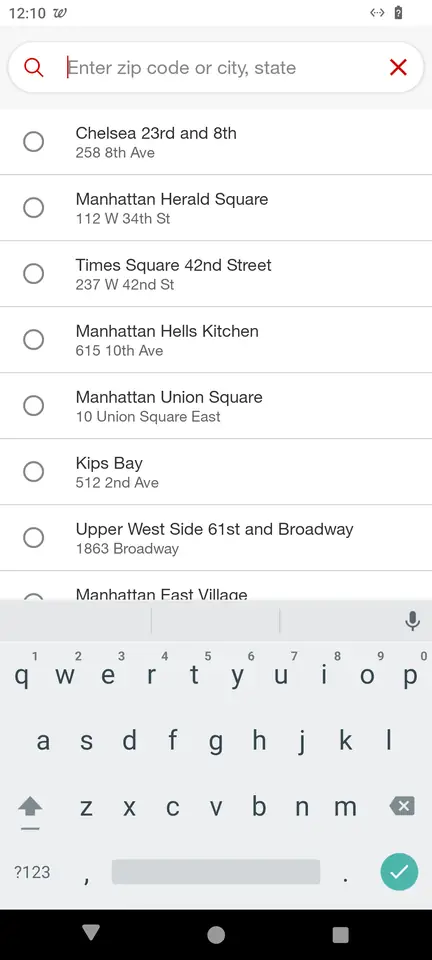 06 Onboarding · tap “Enter zip code or city, state search fie=10001”
Enter zip code or city, state — Clear search
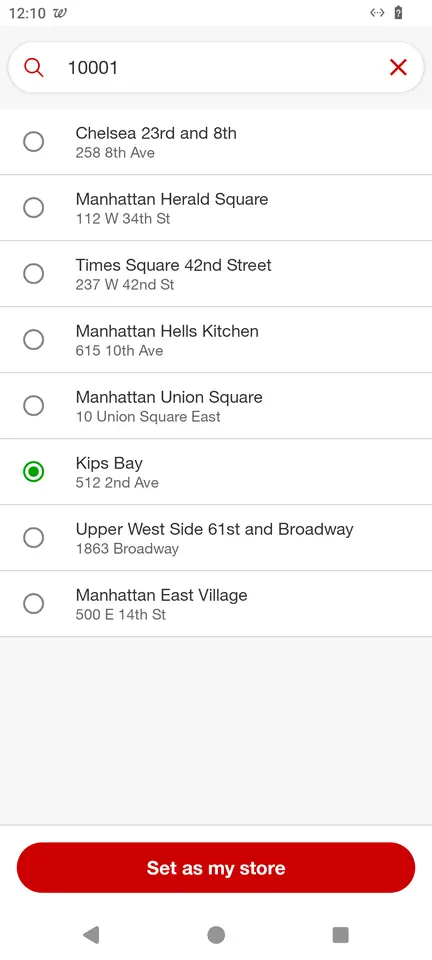 07 Onboarding · tap “Clear search”
10001 — Clear search
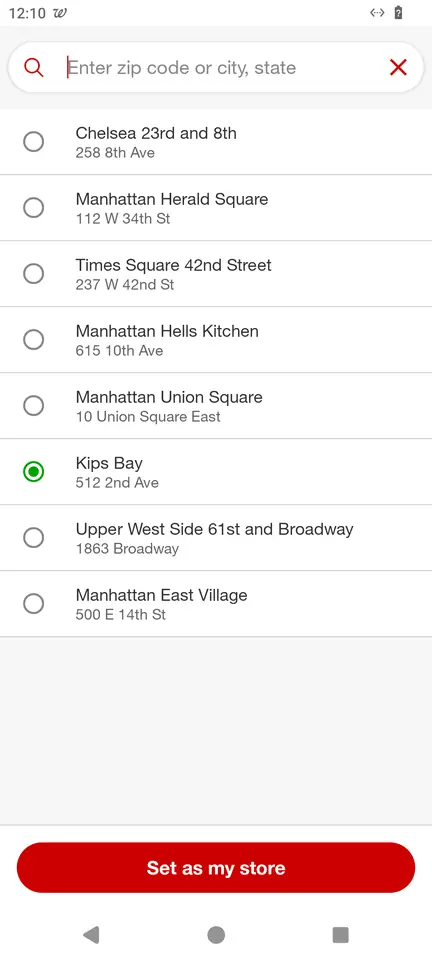 08 Onboarding · tap “Enter zip code or city, state search fie=10001”
Enter zip code or city, state — Clear search
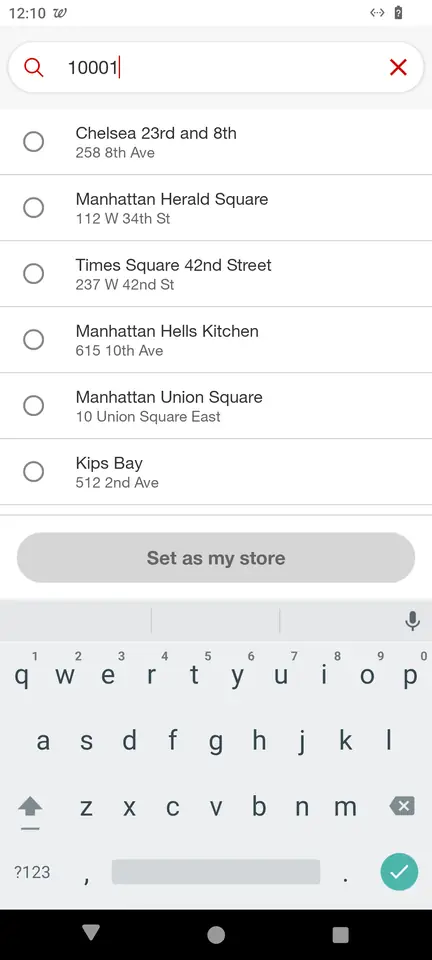 09 Onboarding
10001 — Clear search
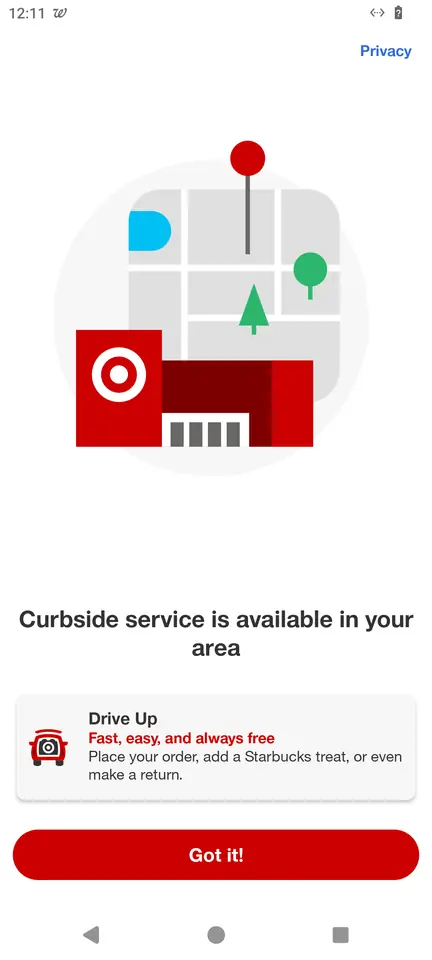 10 Onboarding · tap “Got it!”
Privacy — Curbside service is available in your area
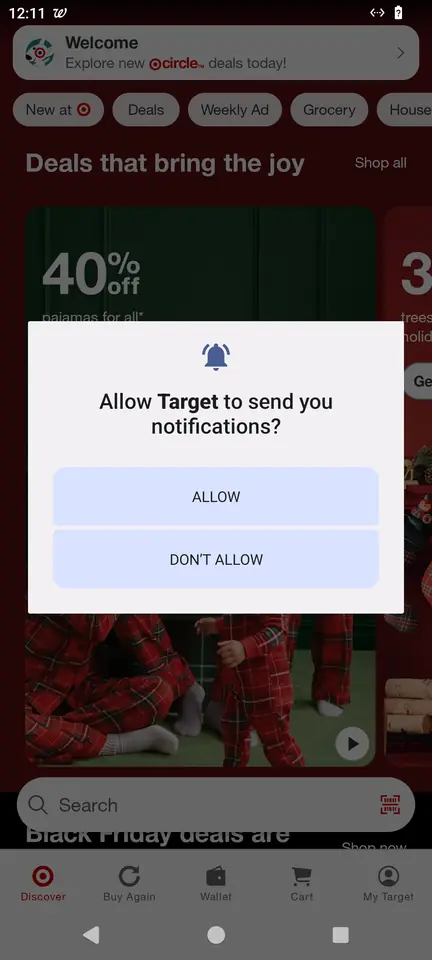 11 Permissions · tap “Allow”
Allow Target to send you notifications? — ALLOW
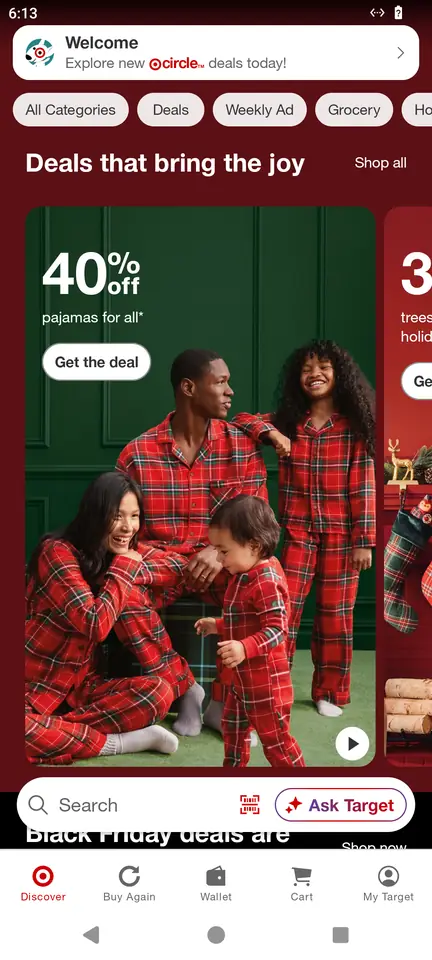 12 Onboarding · tap “My Target”
Deals that bring the joy — Shop all
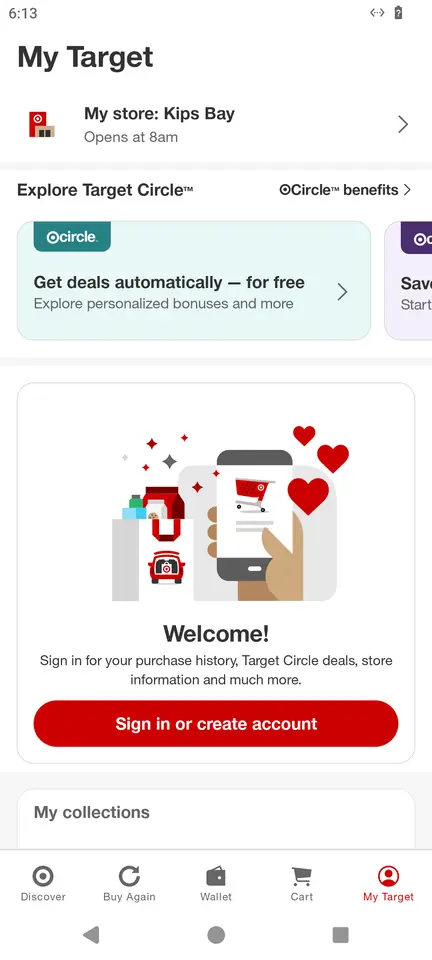 13 Onboarding · tap “Sign in or create account”
My store: Kips Bay, Opens at 8am — Explore Target Circle™
What Target's onboarding flow does
- 13 screens in order, opening on “Sign in or create account” and ending at “My store: Kips Bay, Opens at 8am”.
- Taps along the way: “Skip” → “Show nearby stores” → “Not this time” → “Set as my store” → “Clear search” → “Enter zip code or city…”….
- Leads with a free offer: “Get deals automatically — for free”.
- Includes a system permission prompt inside the flow.
- Gives users an exit: a “Skip” option.
Read the step-by-step UX teardown of this flow →
Captured on a real Android device · last updated 2026-11-14