Progress bar: definition and 34 real Android examples
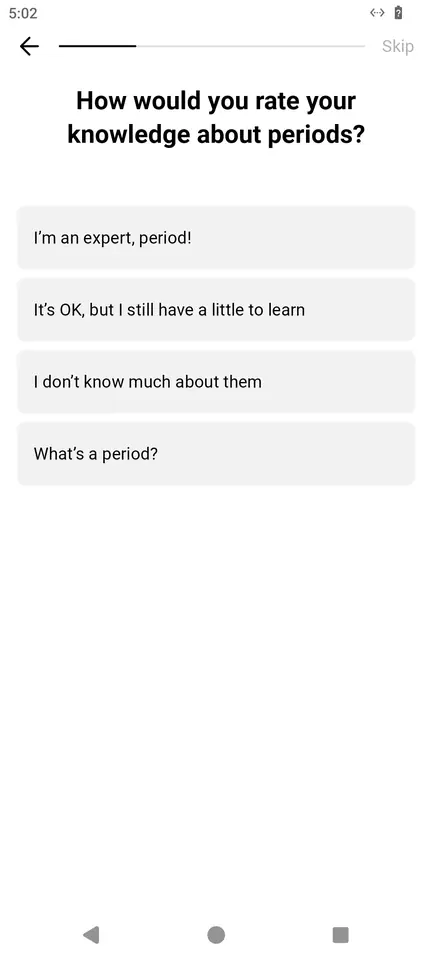
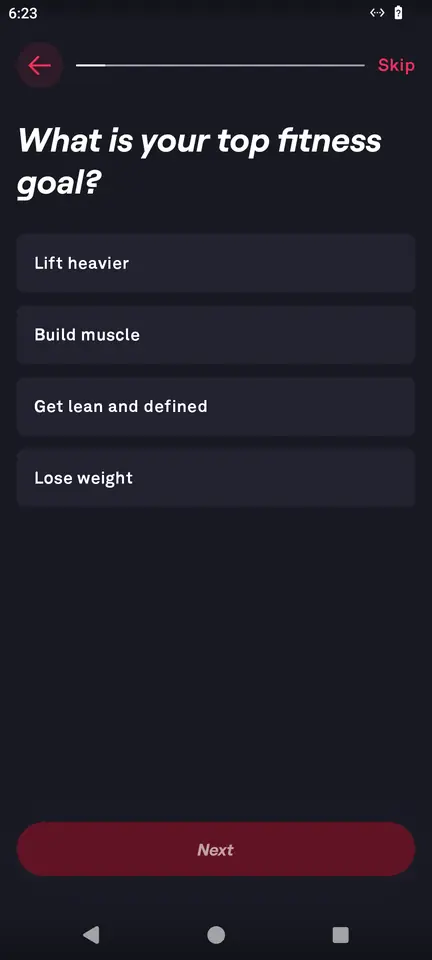
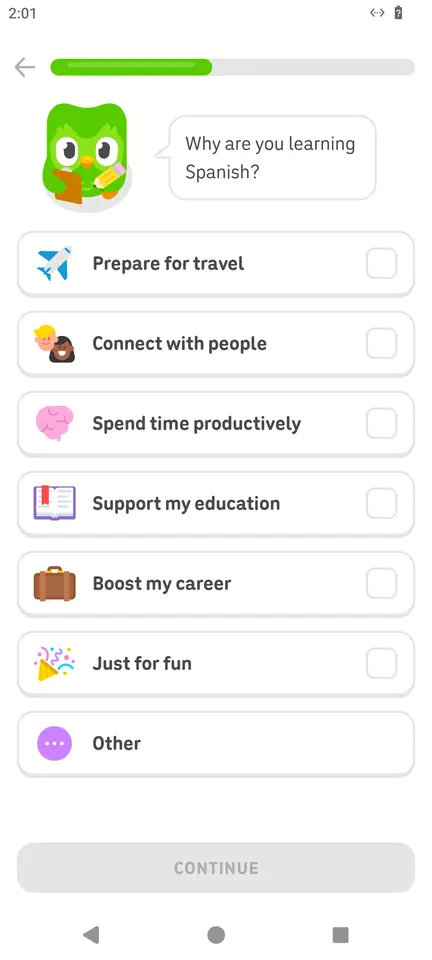
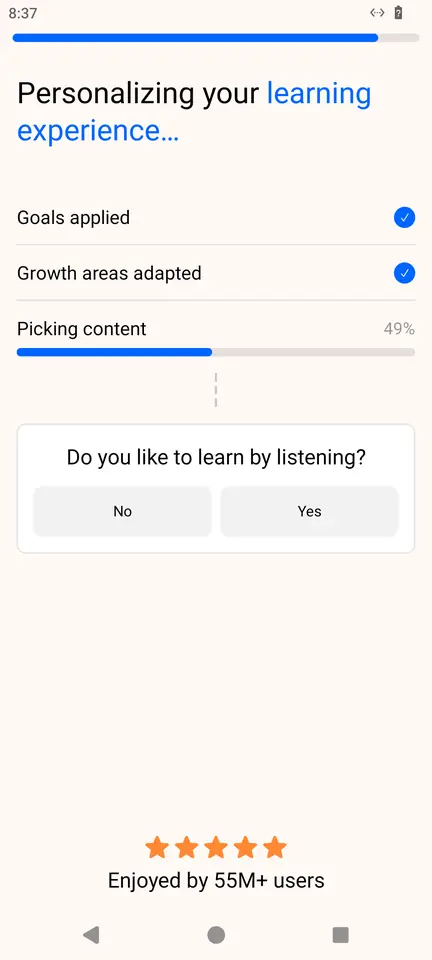
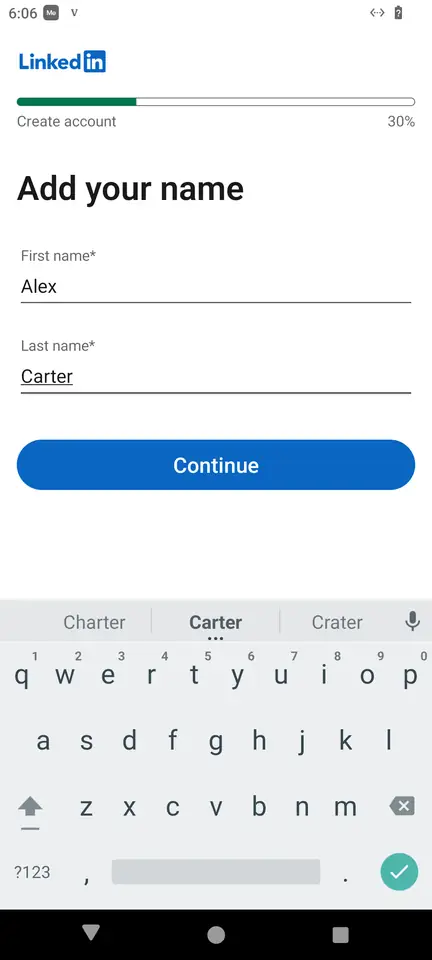
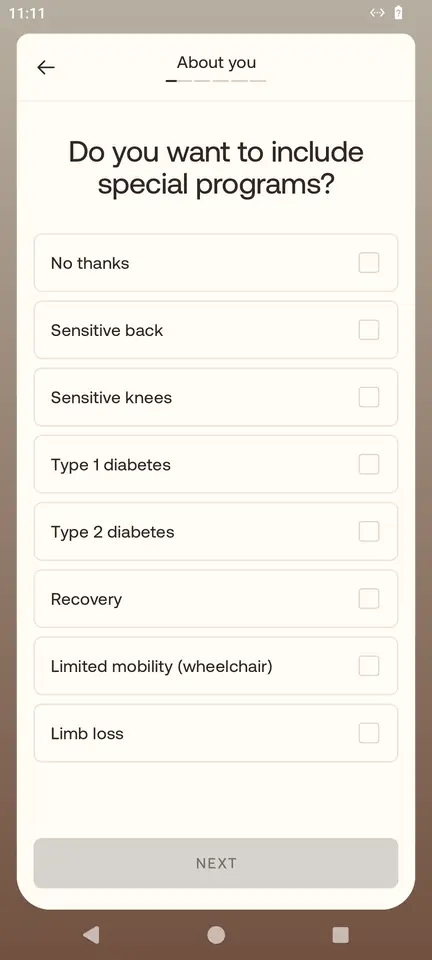
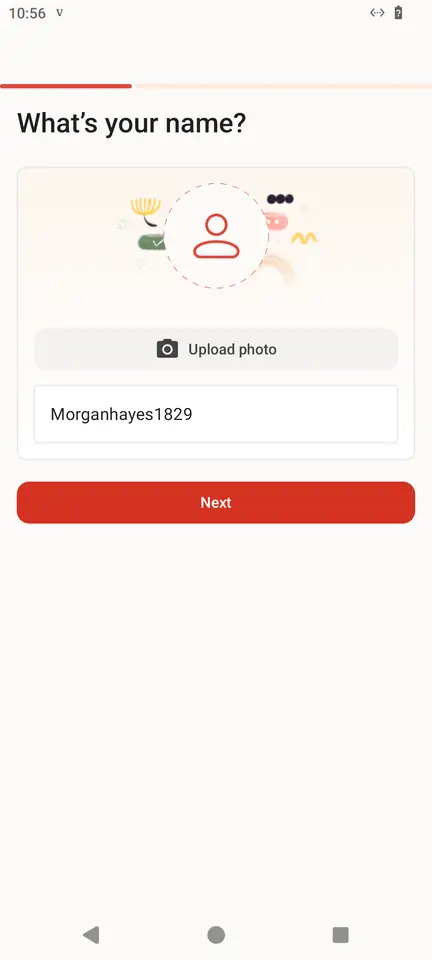
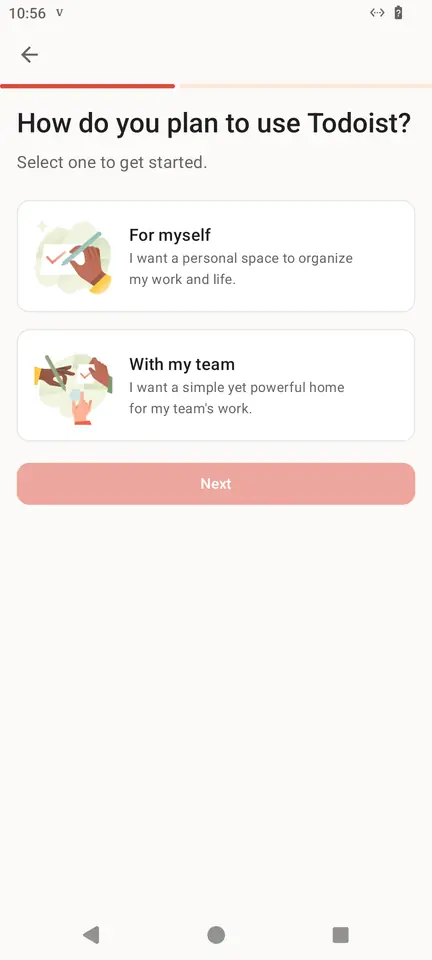
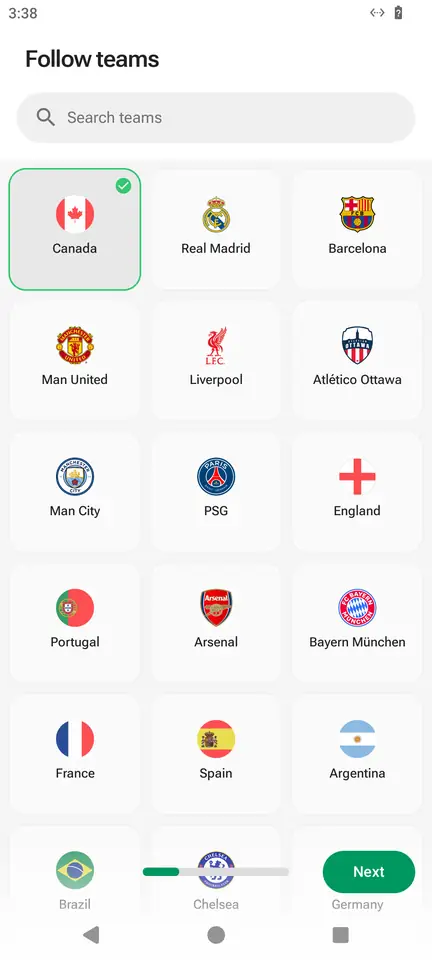
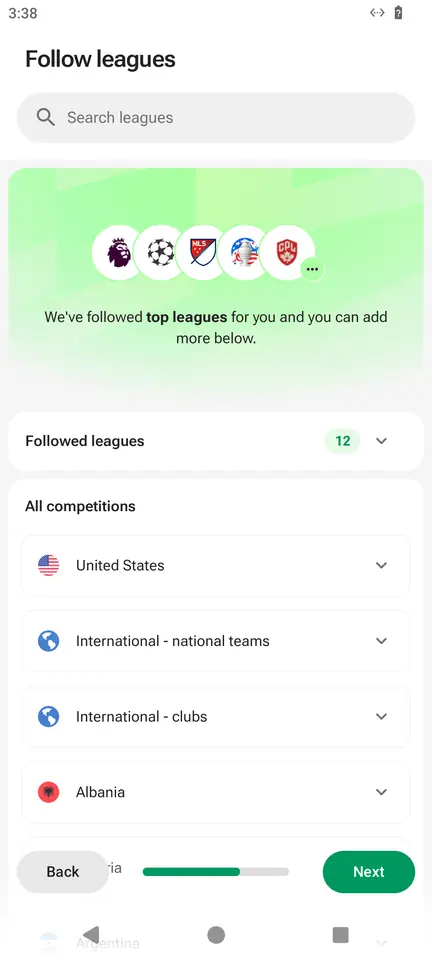
A progress bar is a thin horizontal track that fills as a task advances — a download, a lesson, or the steps of an onboarding questionnaire.
Also called: linear progress indicator, onboarding progress bar
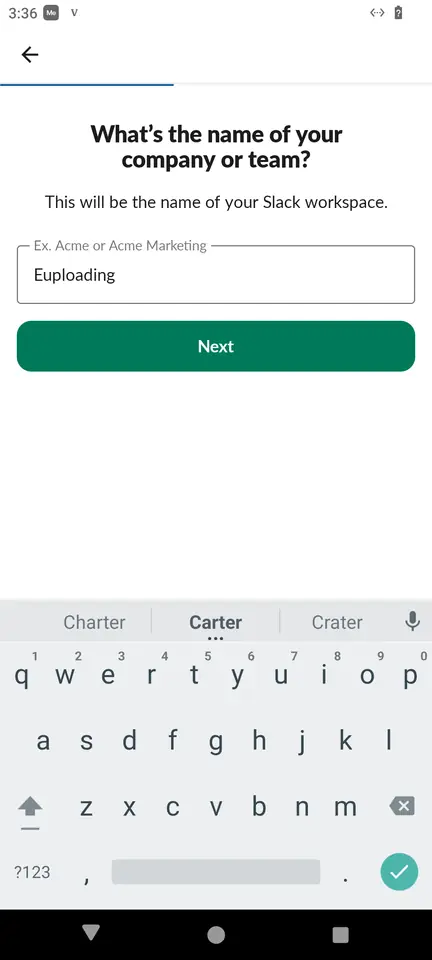
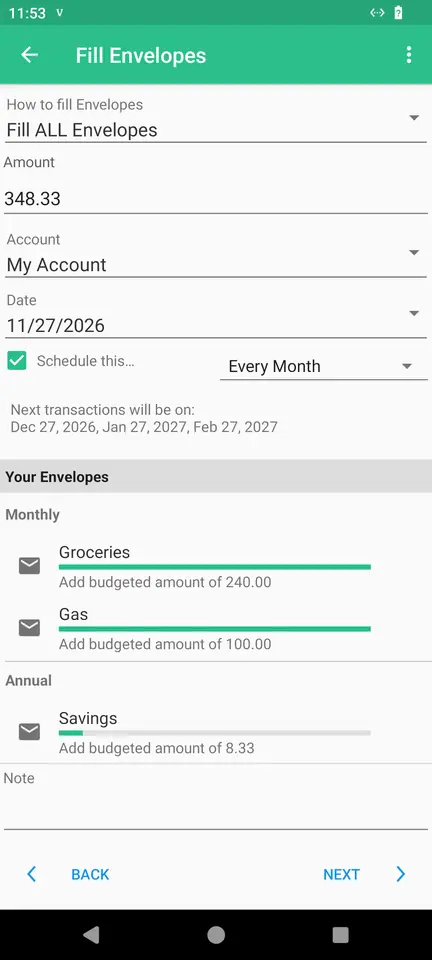
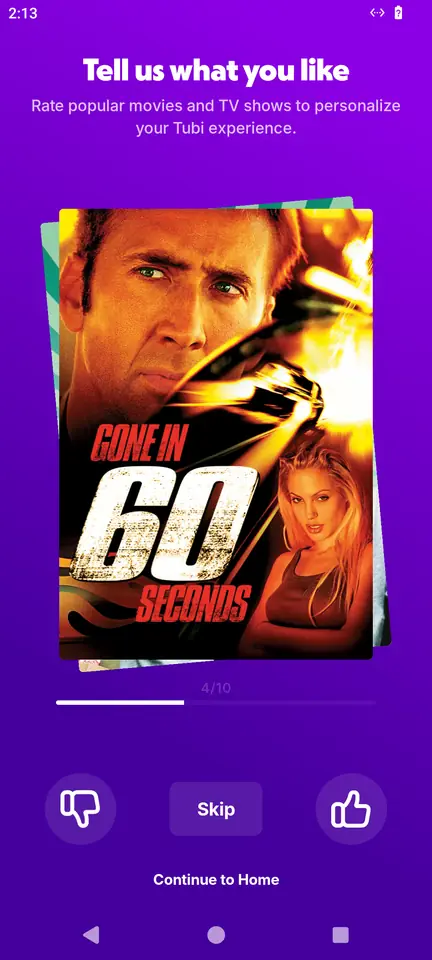
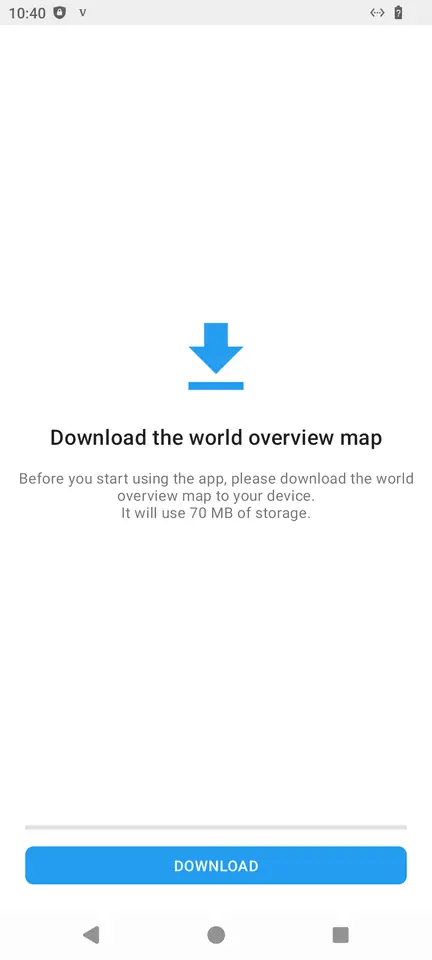
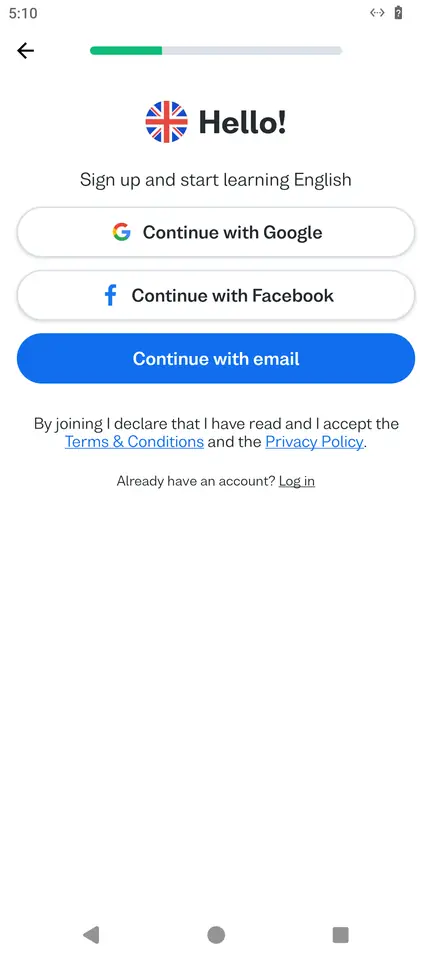
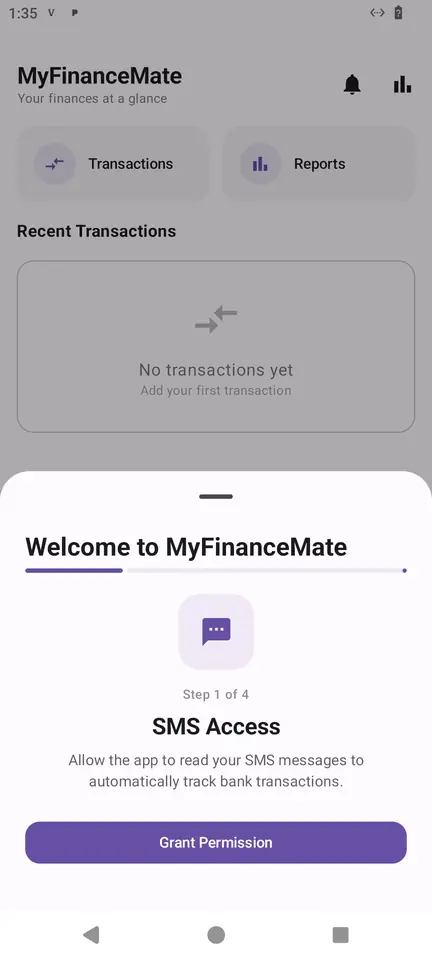
Progress bar examples, highlighted on 34 Android apps
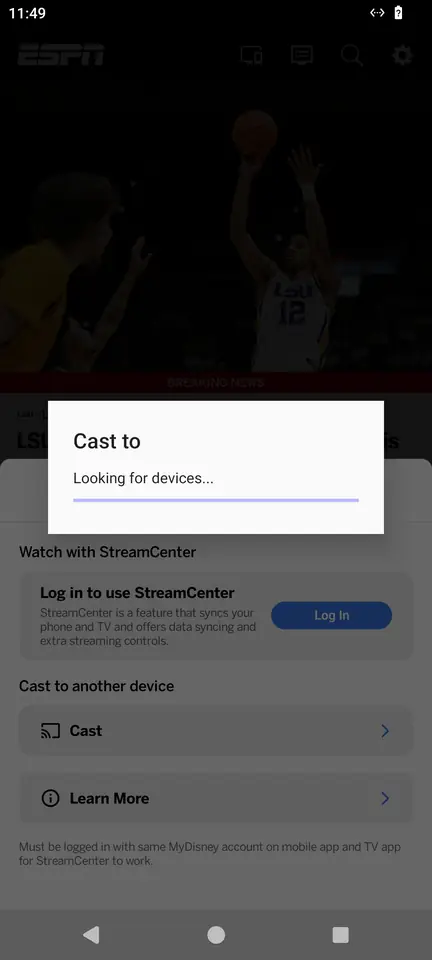
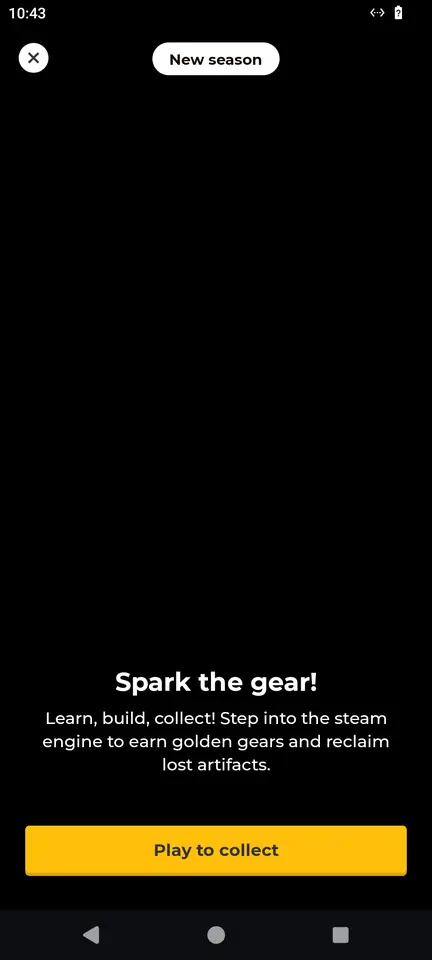
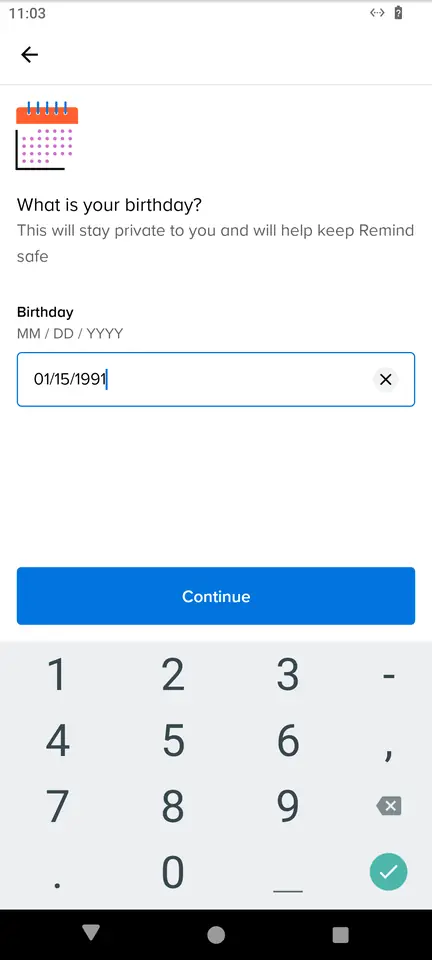
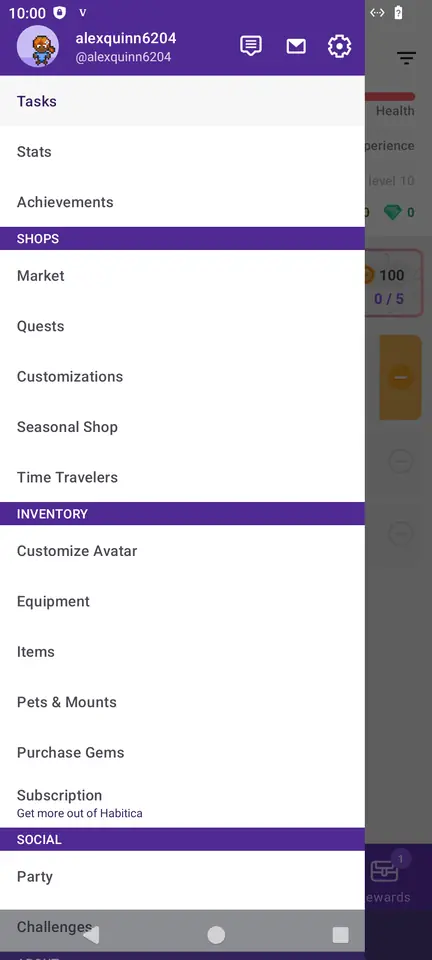
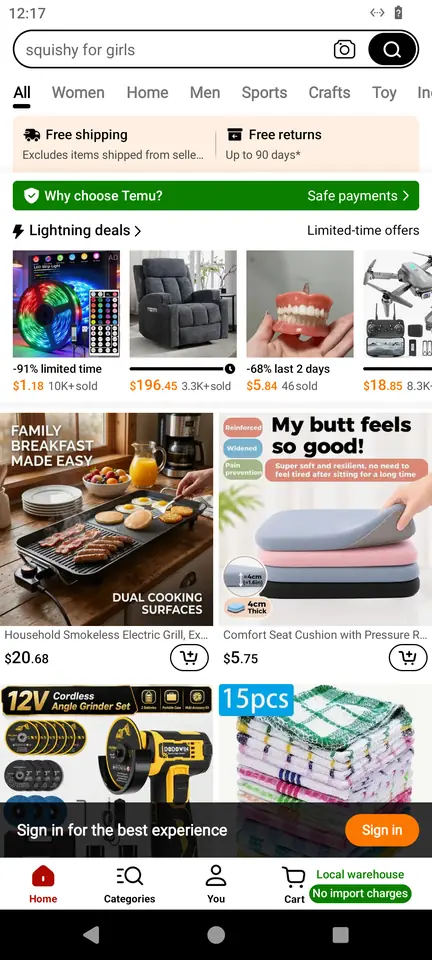
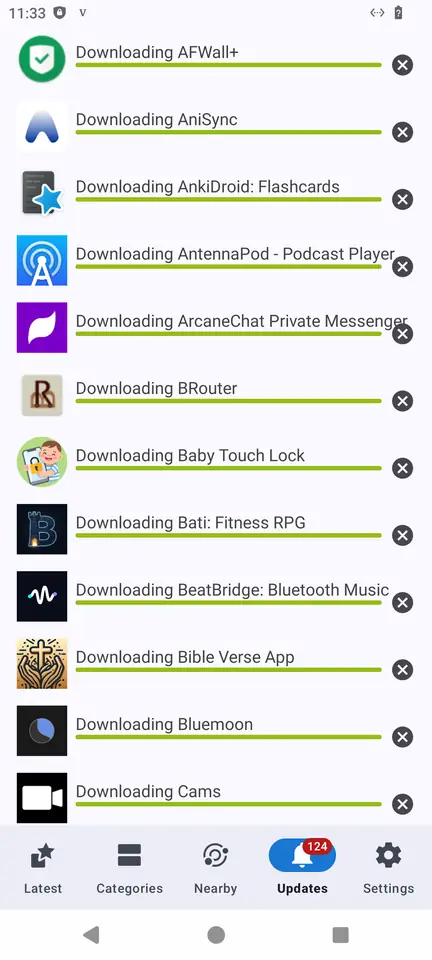
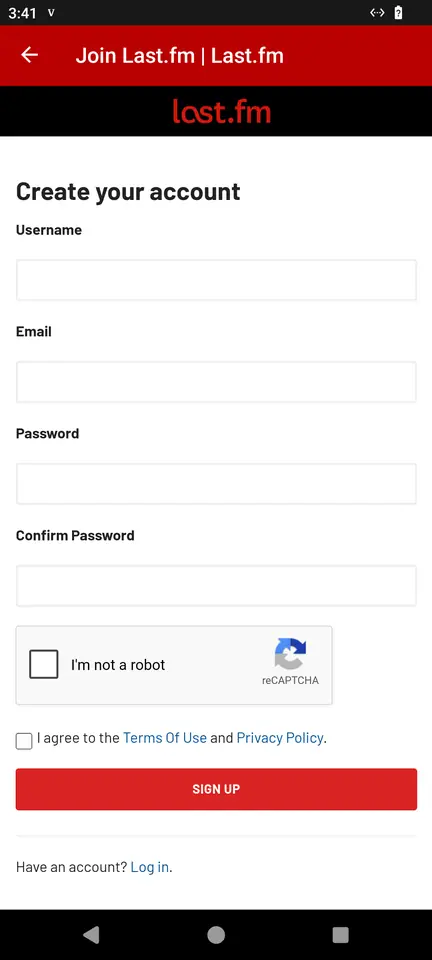
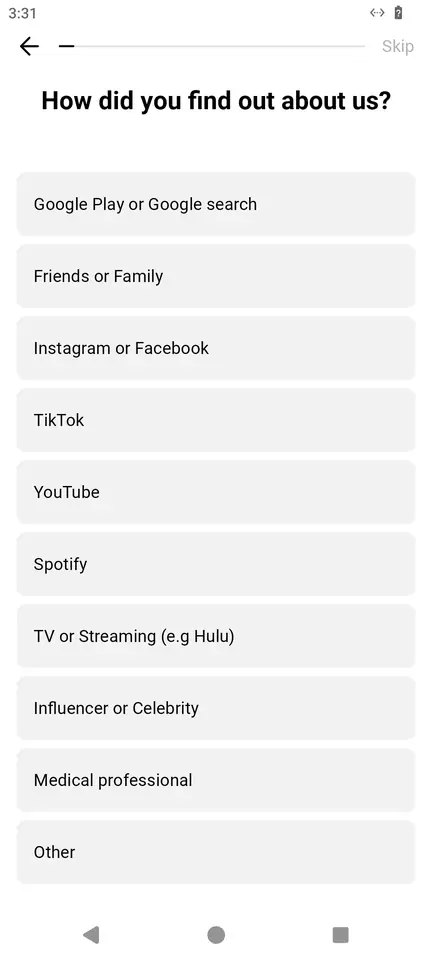
The orange outline marks the progress bar on each real screen, located from the app's own Android view hierarchy.
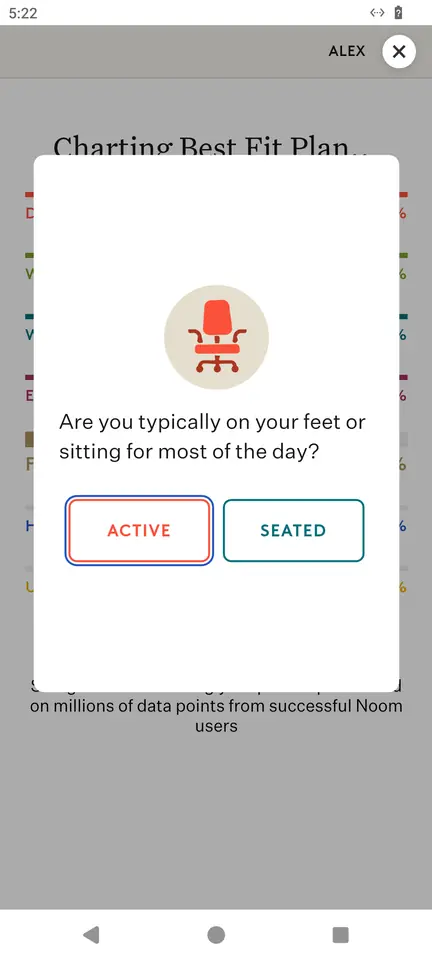
100%, DEMOGRAPHIC PROFILE
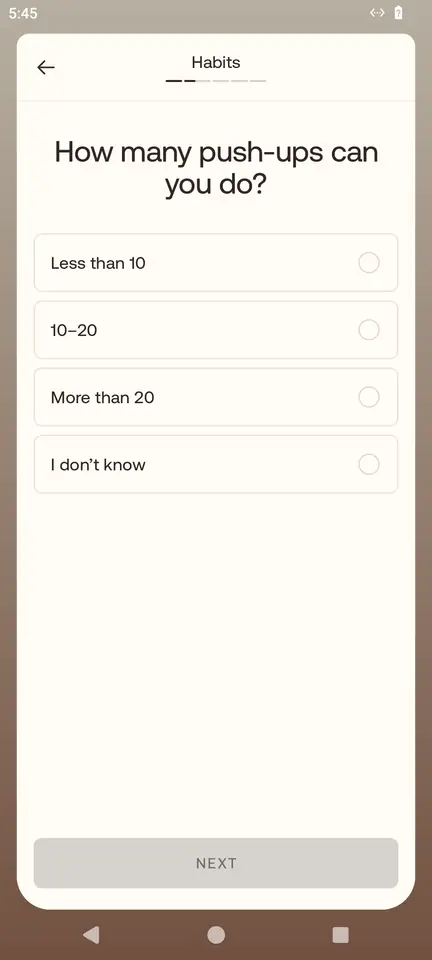
Habits
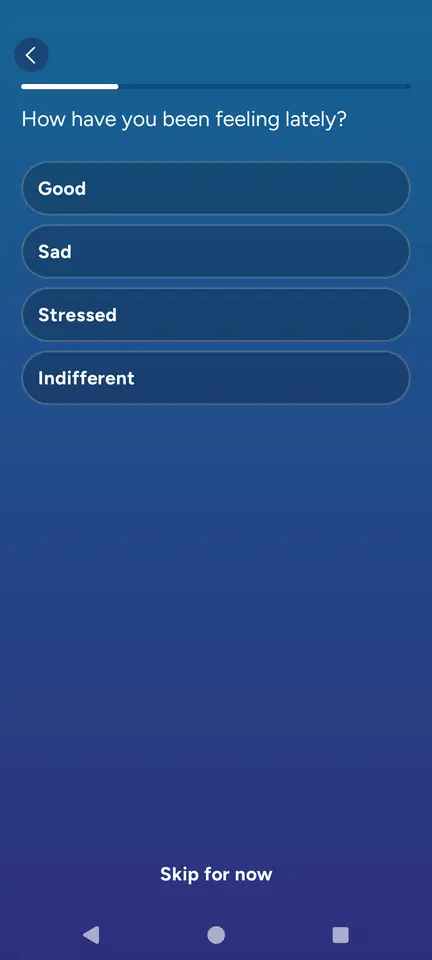
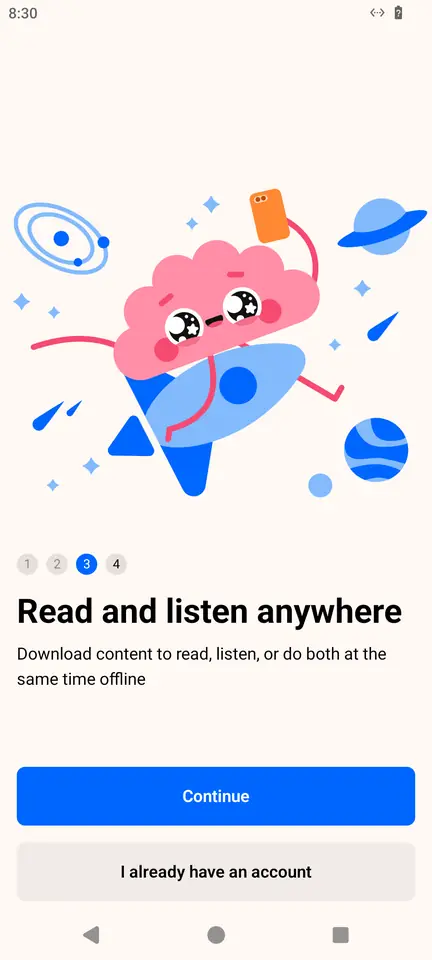
1 of 4
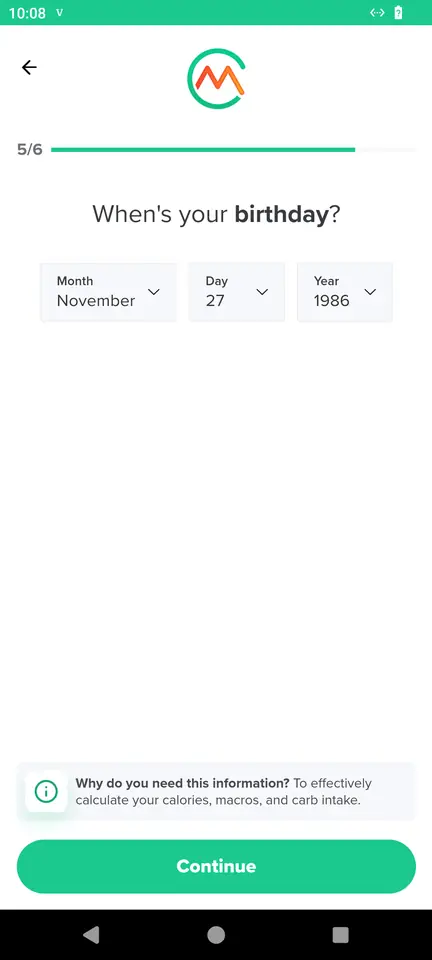
indeterminate
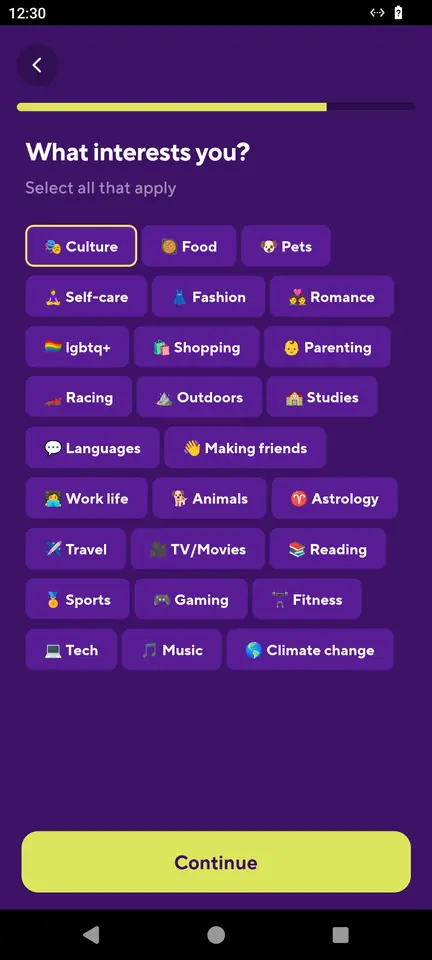
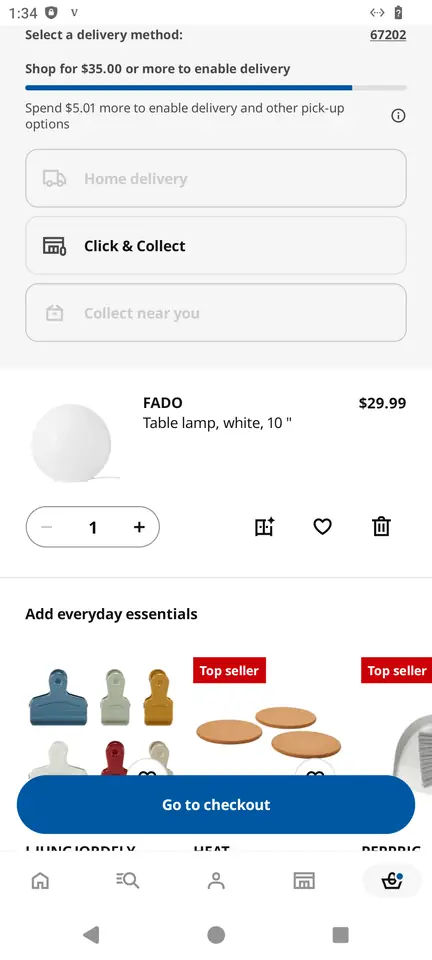
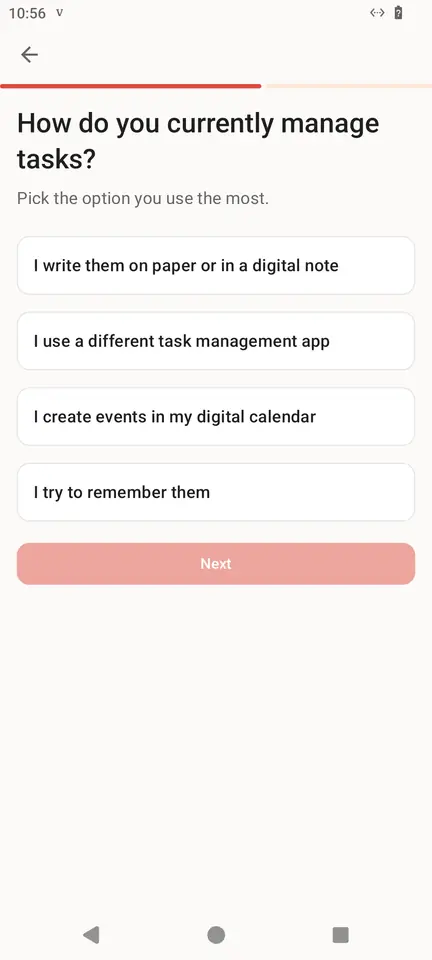
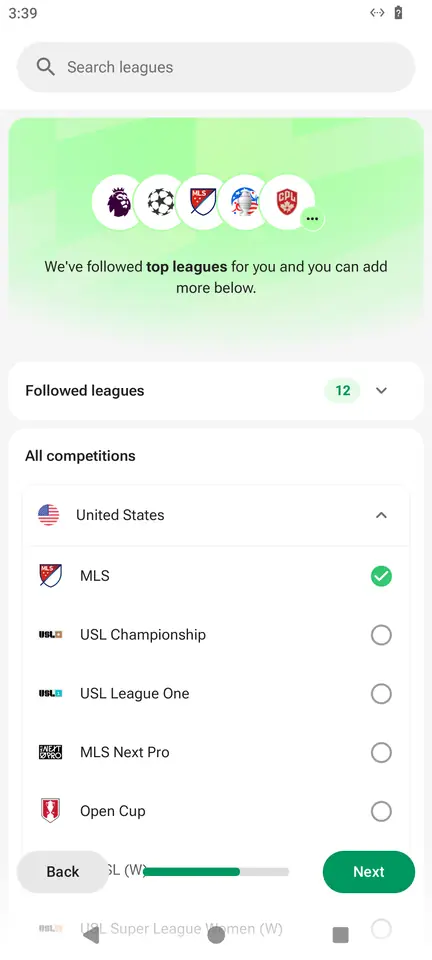
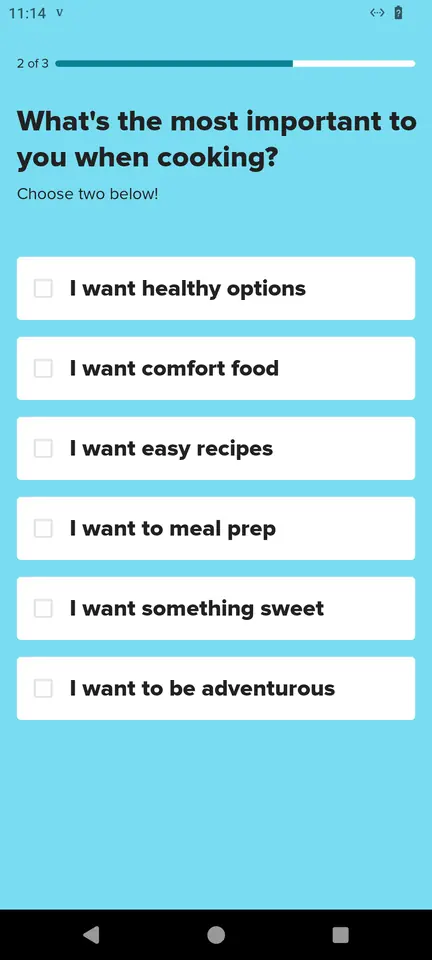
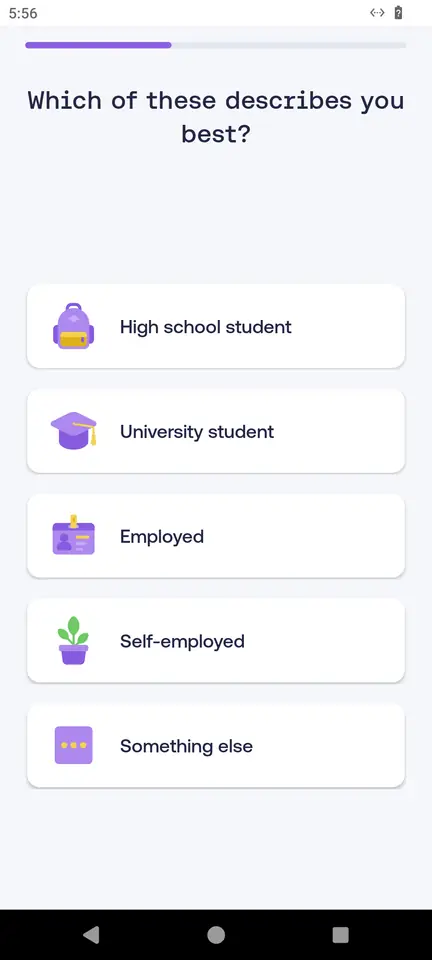
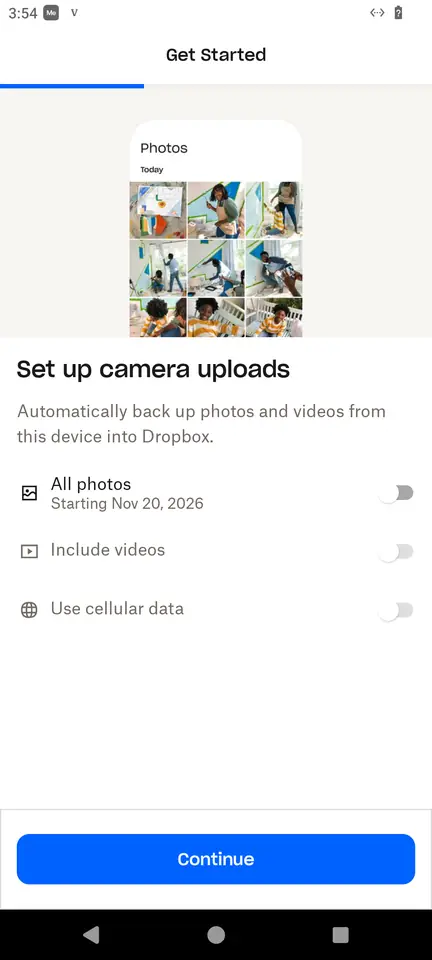
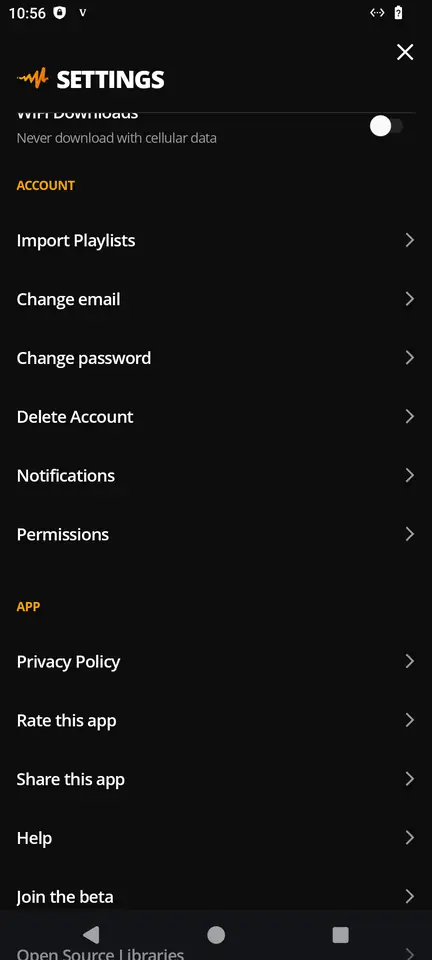

On Android
ProgressBar (horizontal style) or LinearProgressIndicator in Views; LinearProgressIndicator in Compose.
Best practices
- Use a determinate bar when you know the total; it reduces abandonment.
- In onboarding, keep the bar honest — do not add steps after it reaches the end.
- Place it at the top of the flow, consistently on every step.
- Pair it with a step count when the steps are uneven.
Where it shows up
Screens showing the component, by flow step type.
By app category
Apps showing the component, by category · 34 of 246 apps in the library.
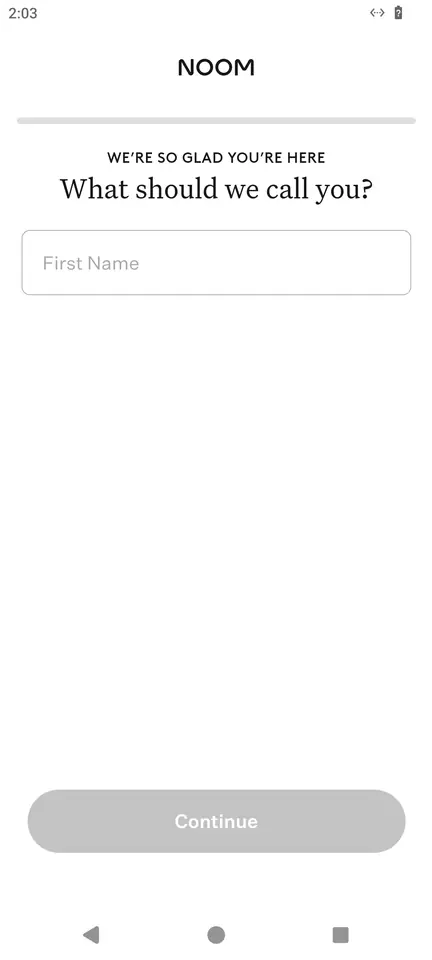
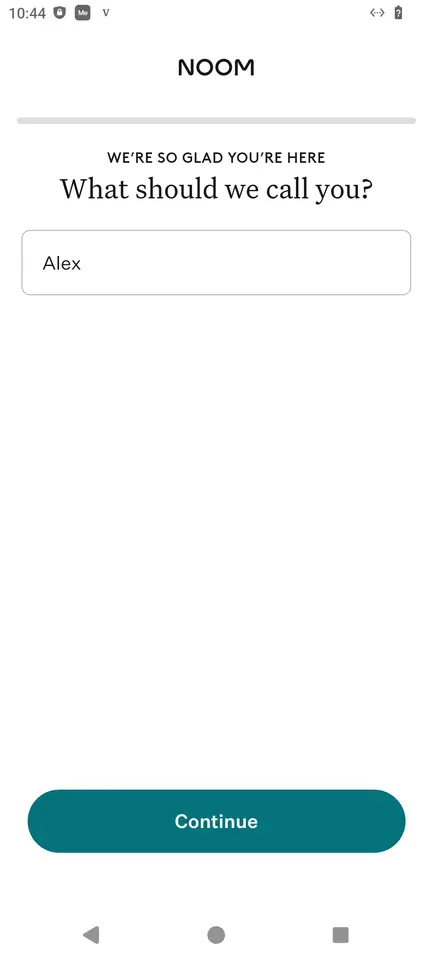
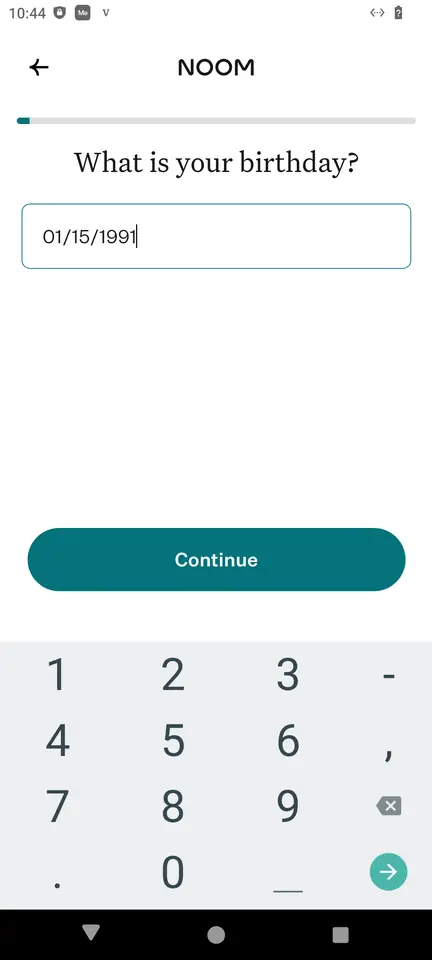
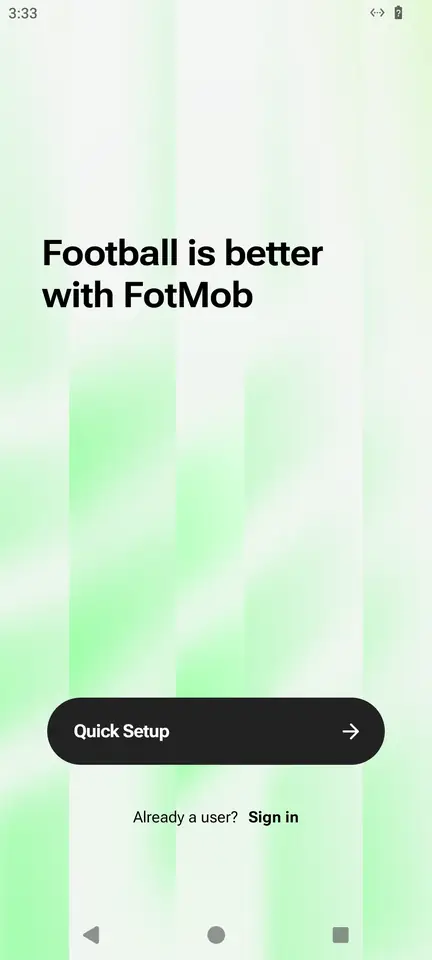
Full flows with progress bars



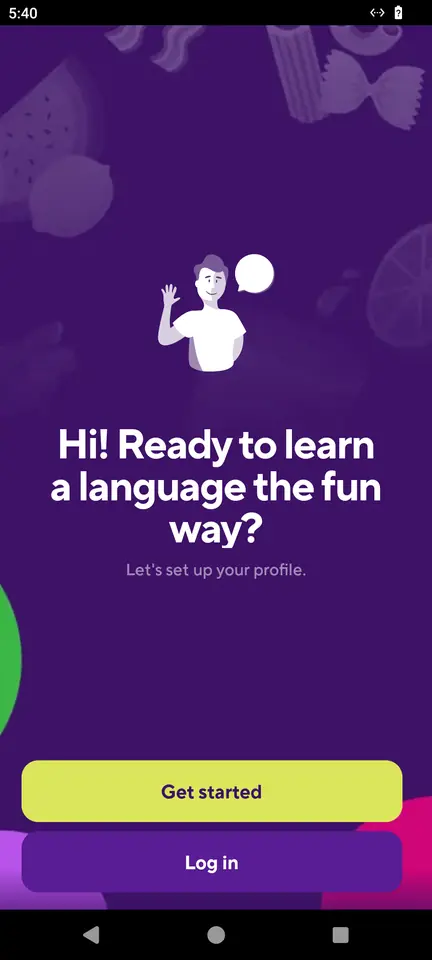
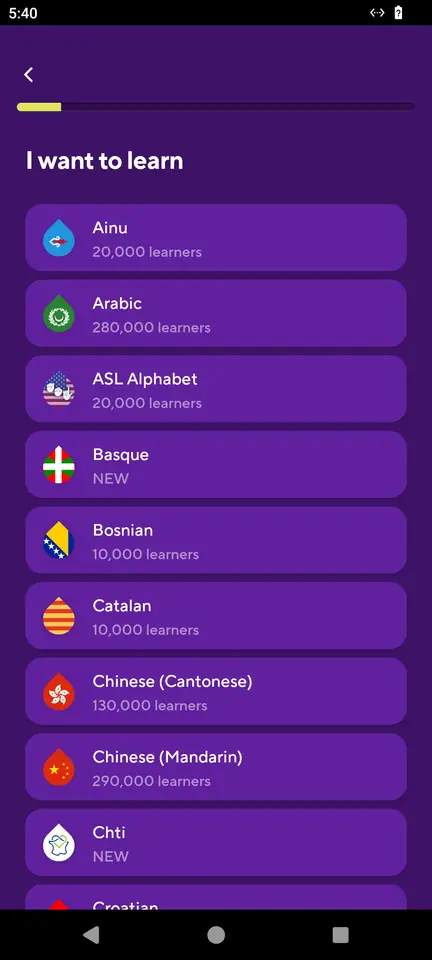
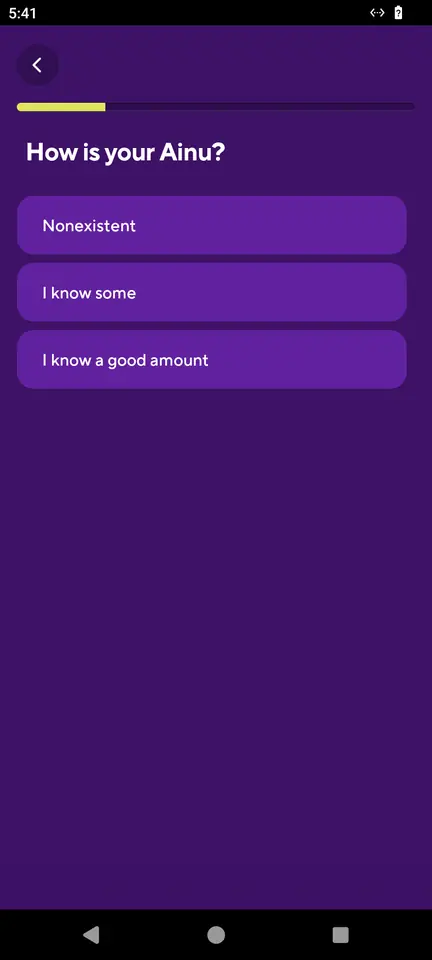
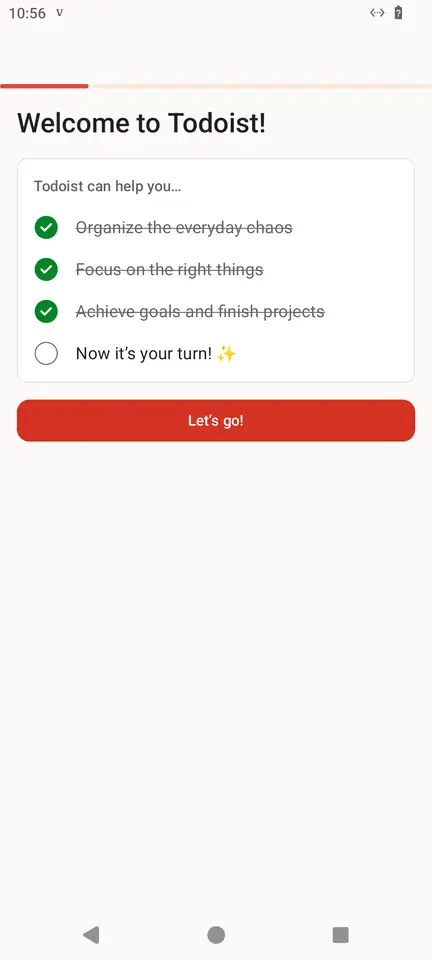
FAQ
What is a progress bar?
A progress bar is a thin horizontal track that fills as a task advances — a download, a lesson, or the steps of an onboarding questionnaire.
What is a progress bar called on Android?
ProgressBar (horizontal style) or LinearProgressIndicator in Views; LinearProgressIndicator in Compose. It is also known as linear progress indicator and onboarding progress bar.
Which Android apps use a progress bar?
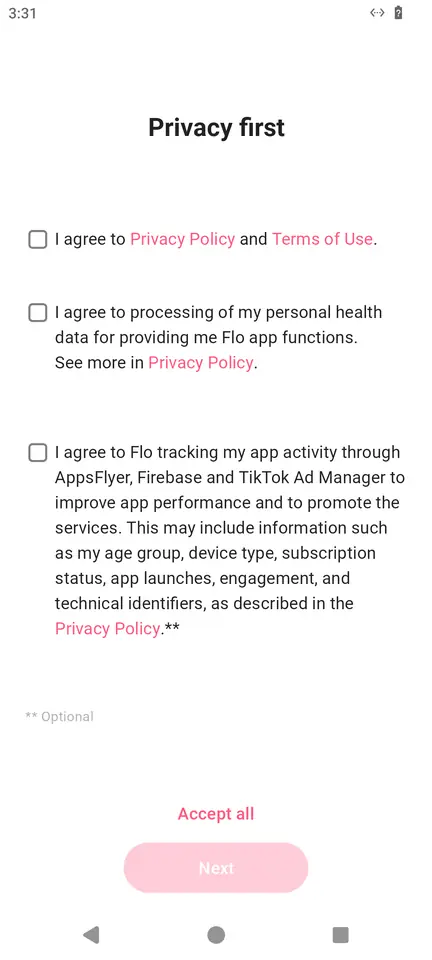
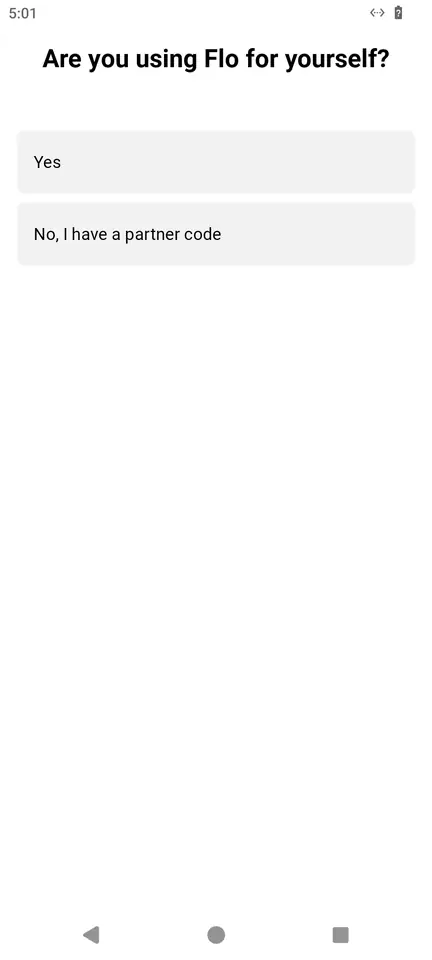
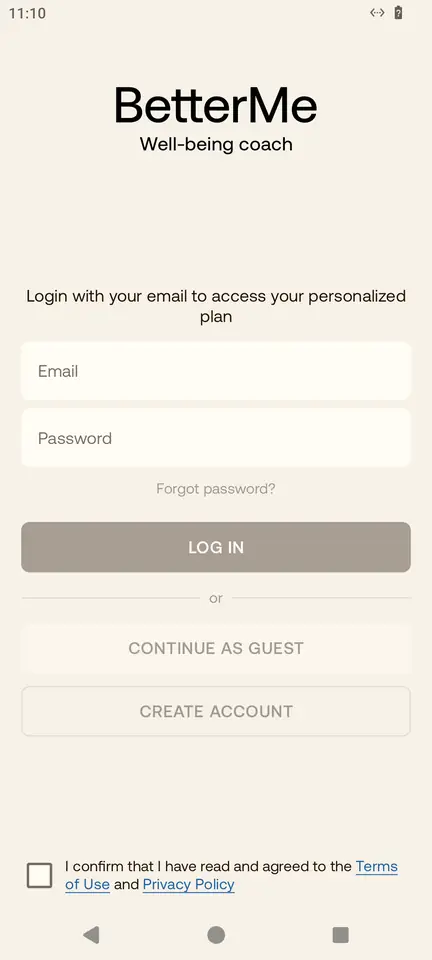
In the Flowtape library, 34 of 246 Android apps show a progress bar on the screens we captured, including Noom, BetterMe, Calm, Carb Manager, Flo and Fitbod.
How do I design a good progress bar?
Use a determinate bar when you know the total; it reduces abandonment. In onboarding, keep the bar honest — do not add steps after it reaches the end. Place it at the top of the flow, consistently on every step.
Detected in the view hierarchy of screens captured on real Android devices · last updated 2026-11-14