Onboarding flow · DailyArt · Android
DailyArt onboarding flow
Every screen of DailyArt's onboarding flow on Android, in order: 7 steps, recorded on a real device. DailyArt's onboarding opens with a system permission request, asks 2 questions about the user and shows no sign-up form in the 7 screens we captured. At 7 screens it is the joint 38th-longest of the 153 onboarding flows in the library (median 4). A skip option appears on 2 screens.
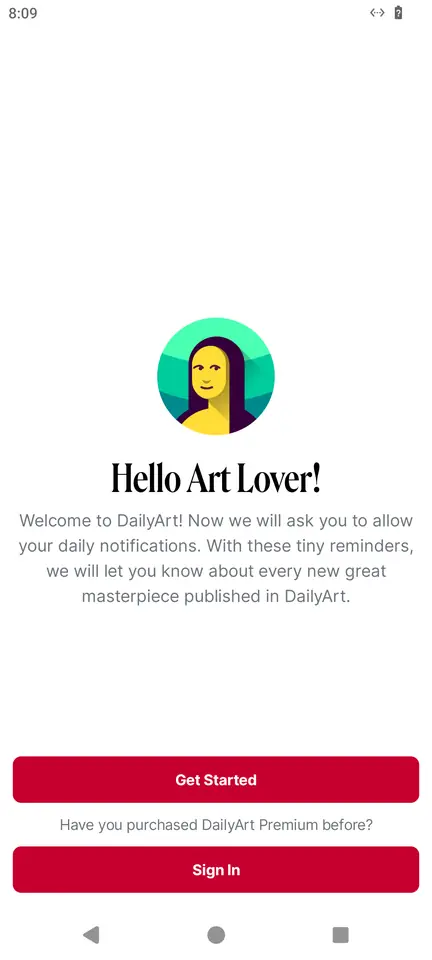 01 Onboarding · tap “Get Started”
Hello Art Lover! — Get Started
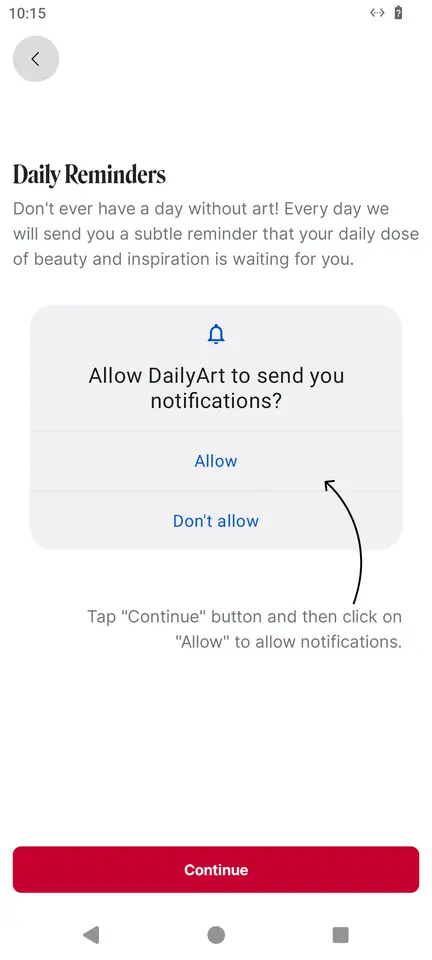 02 Onboarding · tap “Continue”
Daily Reminders — notification
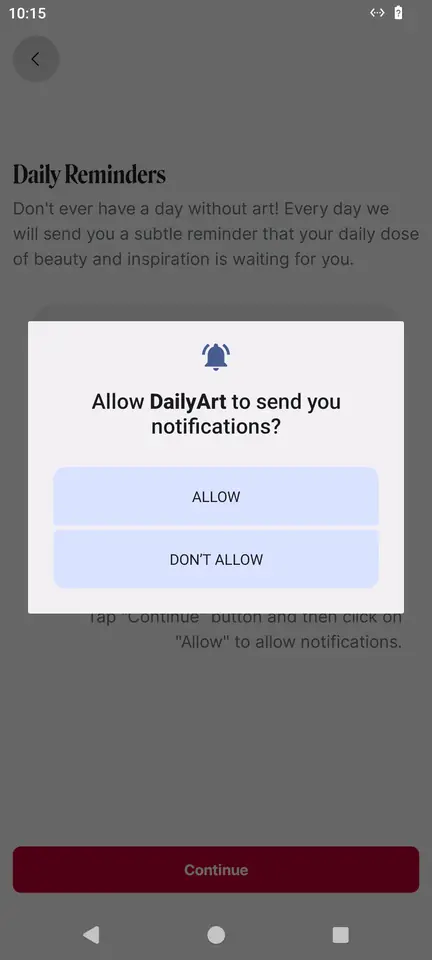 03 Permissions · tap “Allow”
Allow DailyArt to send you notifications? — ALLOW
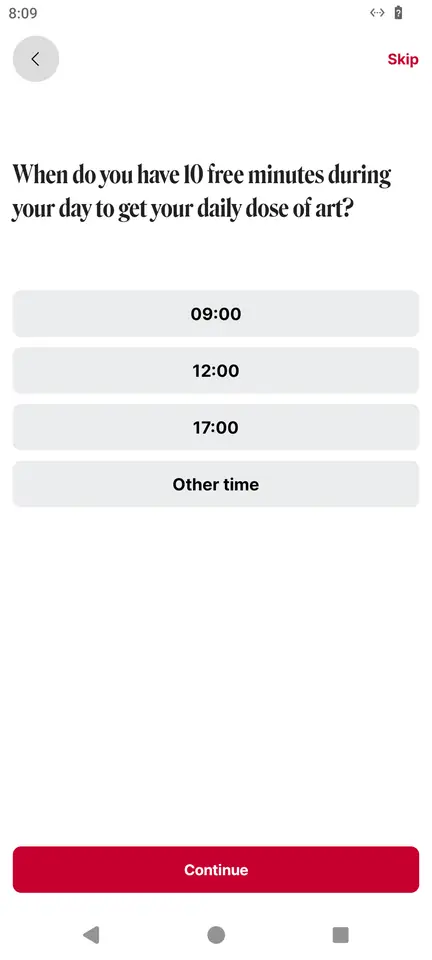 04 Onboarding · tap “09:00”
Skip — When do you have 10 free minutes during your day to get your daily dose of art?
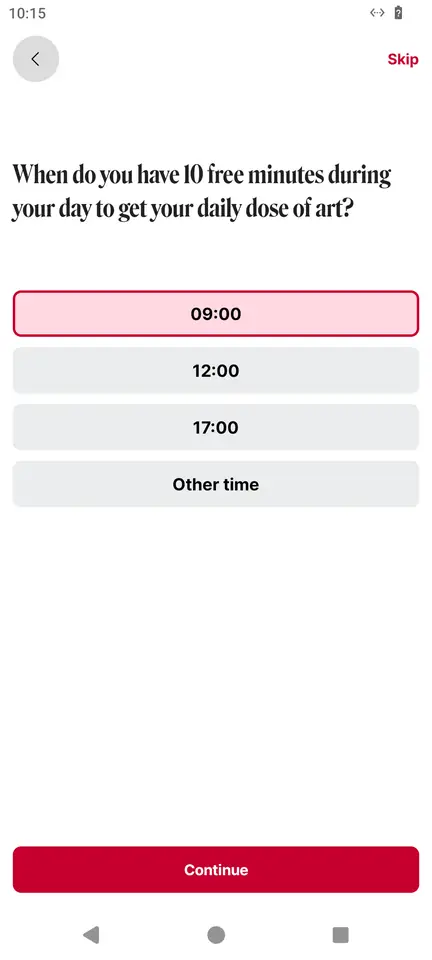 05 Onboarding · tap “Continue”
Skip — When do you have 10 free minutes during your day to get your daily dose of art?
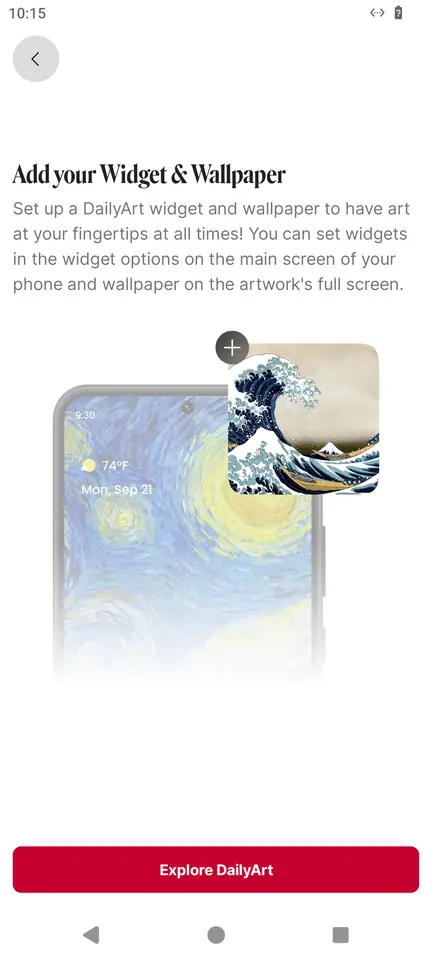 06 Onboarding · tap “Explore DailyArt”
Add your Widget & Wallpaper — onboarding widget image
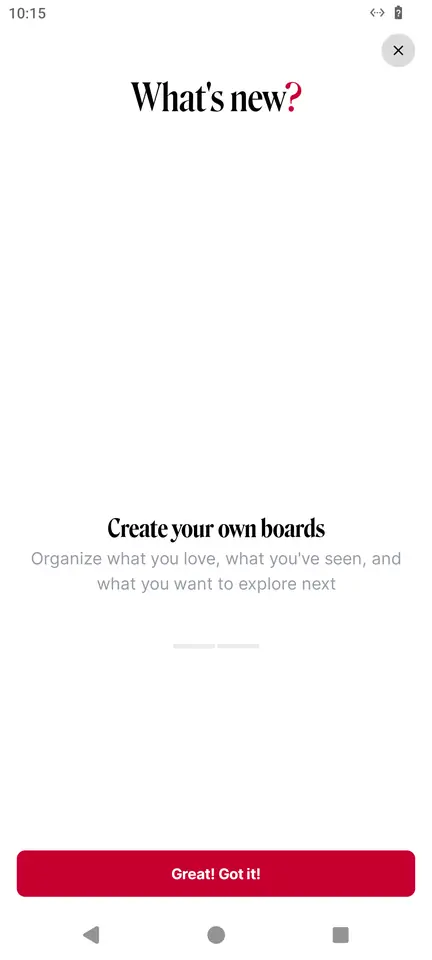 07 Onboarding · tap “Great! Got it!”
What's new? — Create your own boards
What DailyArt's onboarding flow does
- 7 screens in order, opening on “Hello Art Lover!” and ending at “What's new?”.
- Taps along the way: “Get Started” → “Continue” → “Allow” → “09:00” → “Continue” → “Explore DailyArt”….
- Includes a system permission prompt inside the flow.
- Gives users an exit: a “Skip” option.
Read the step-by-step UX teardown of this flow →
Captured on a real Android device · last updated 2026-11-14