Settings flow · Sofascore · Android
Sofascore settings screens
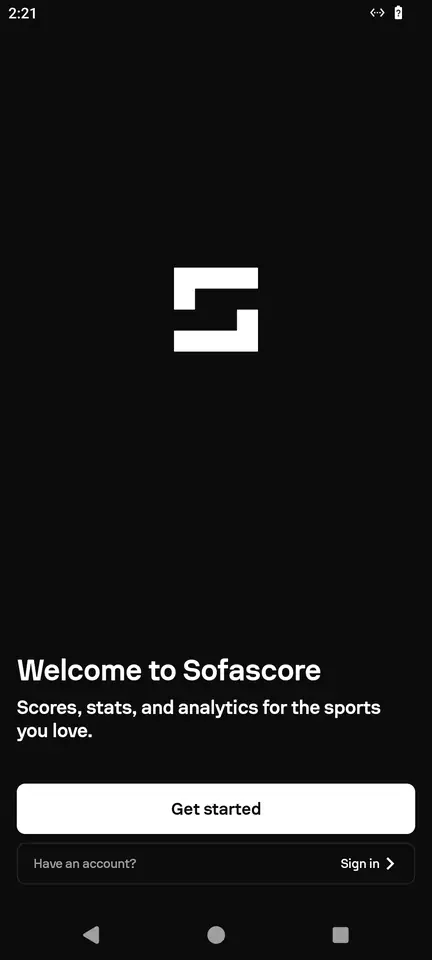
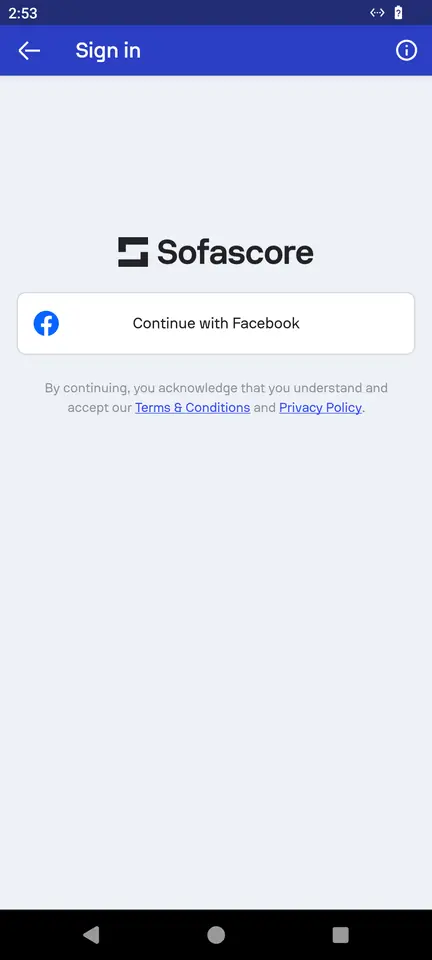
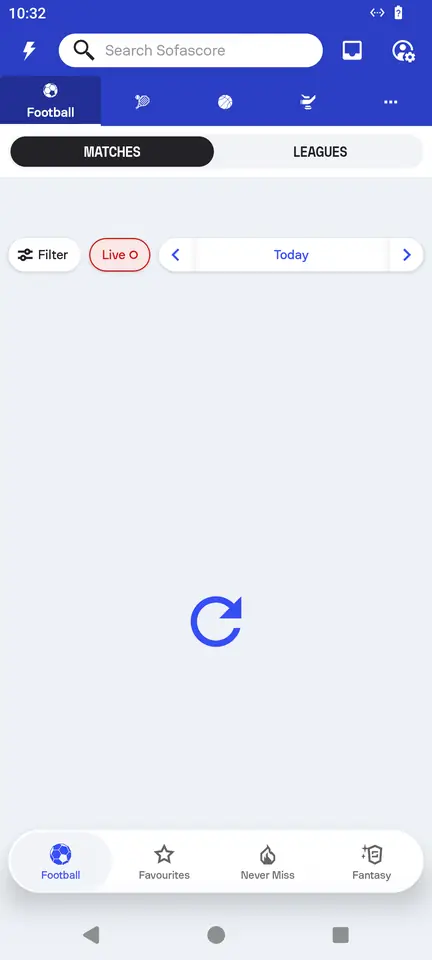
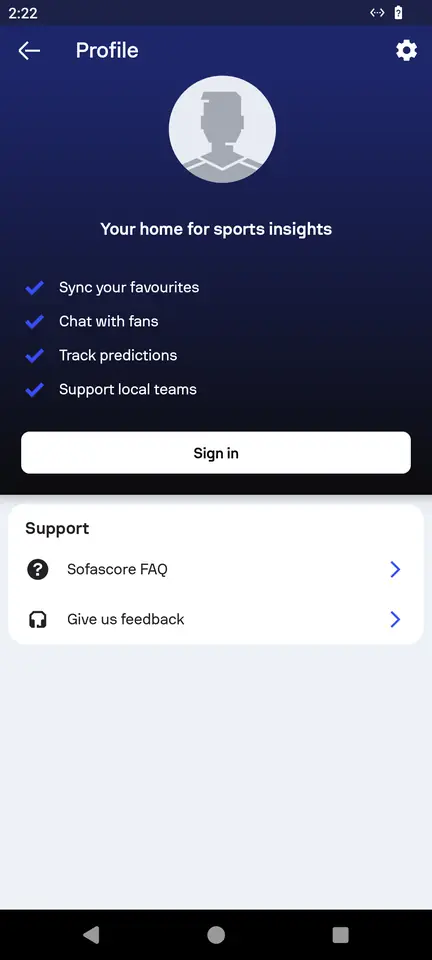
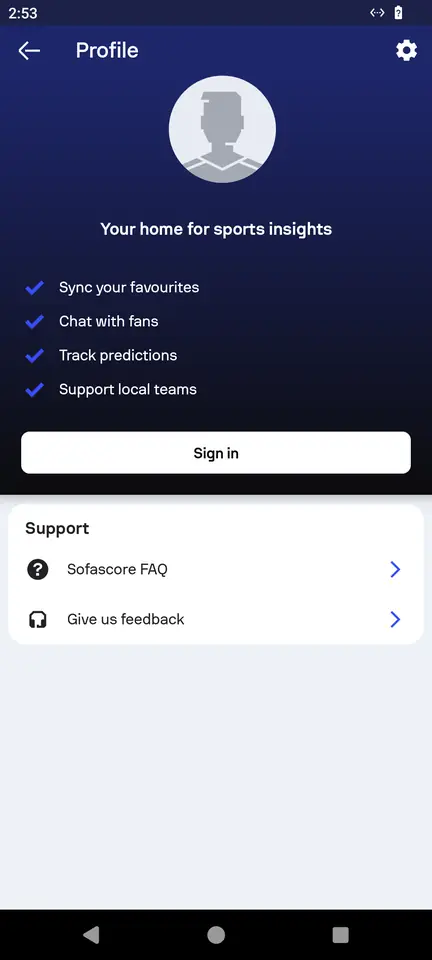
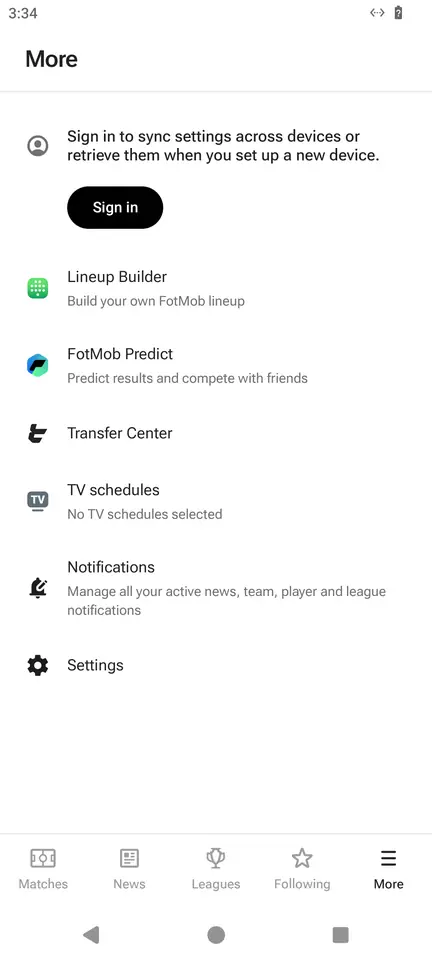
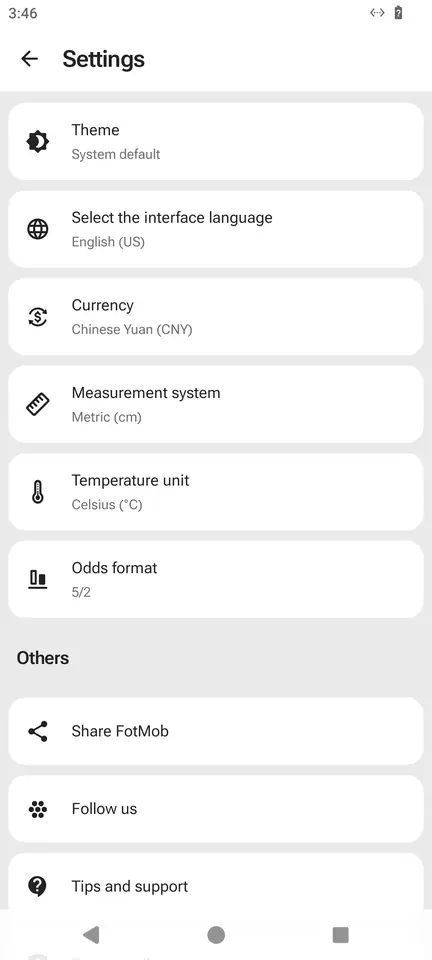
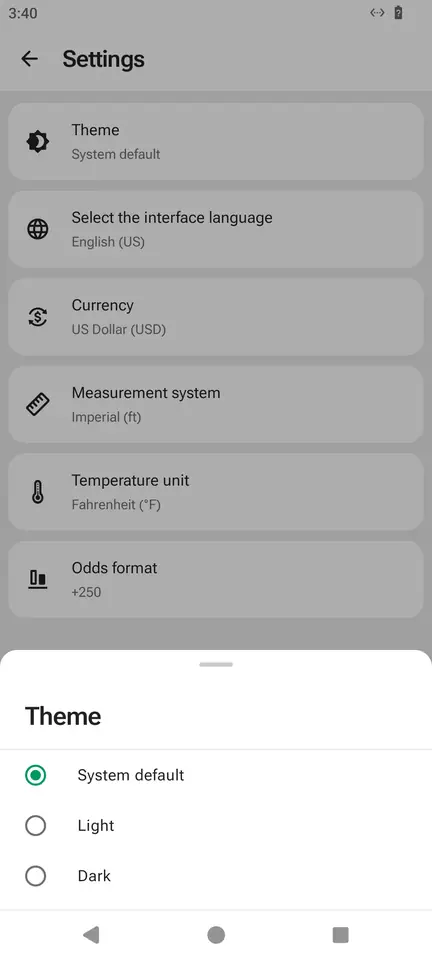
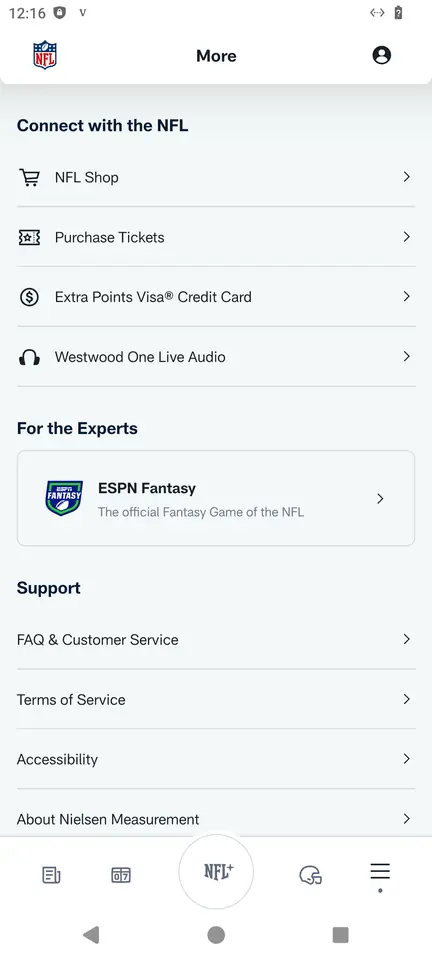
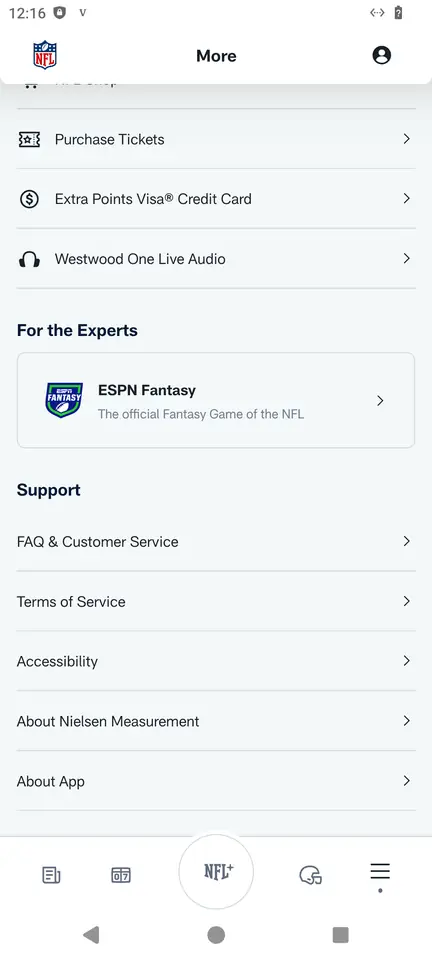
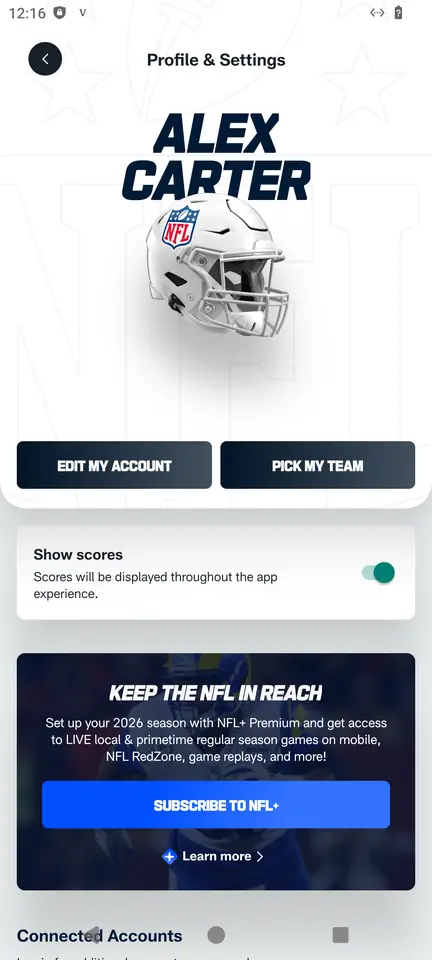
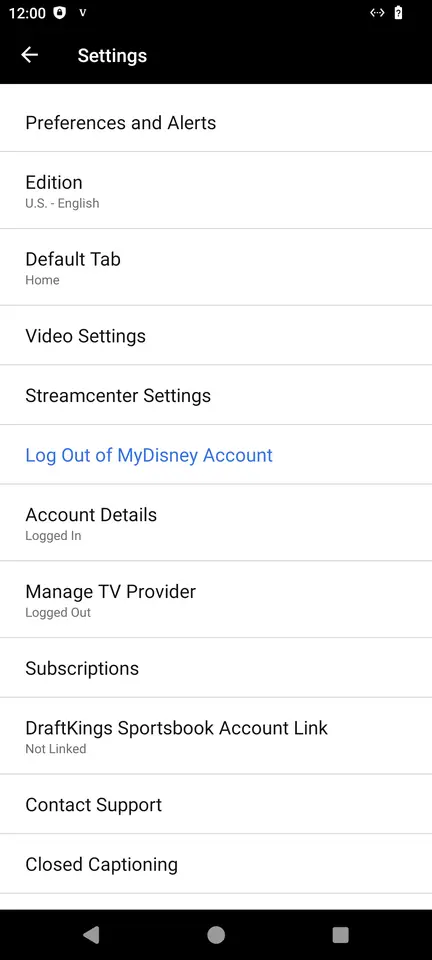
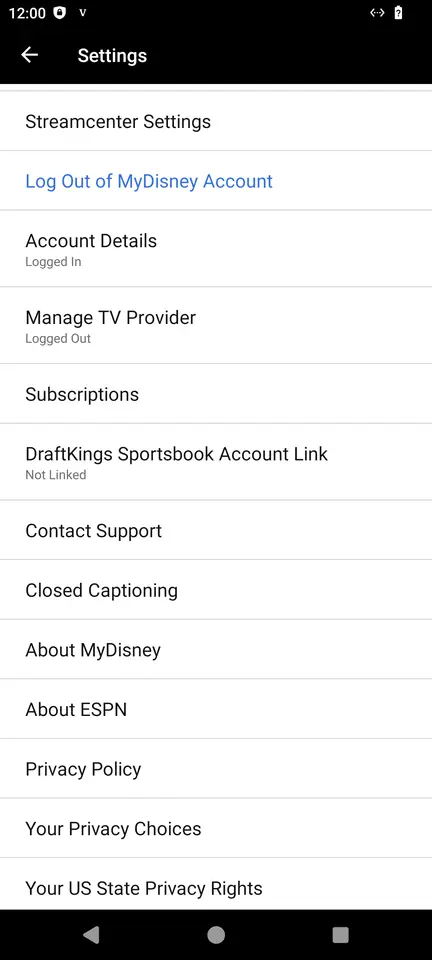
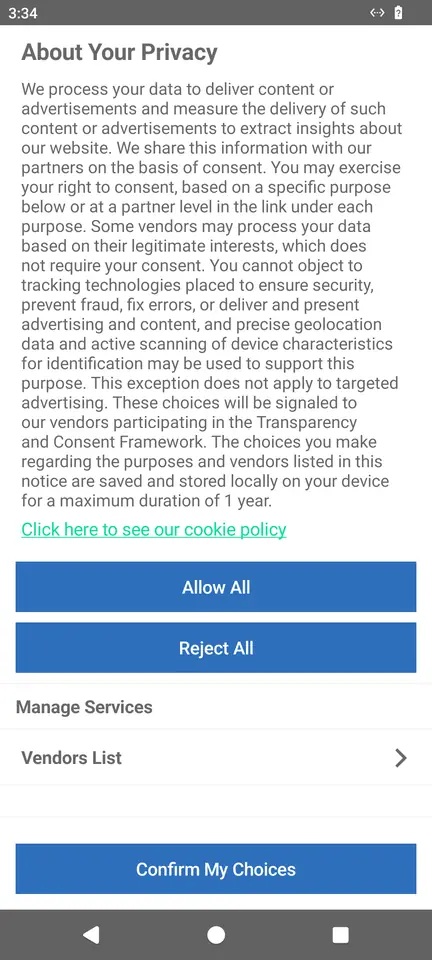
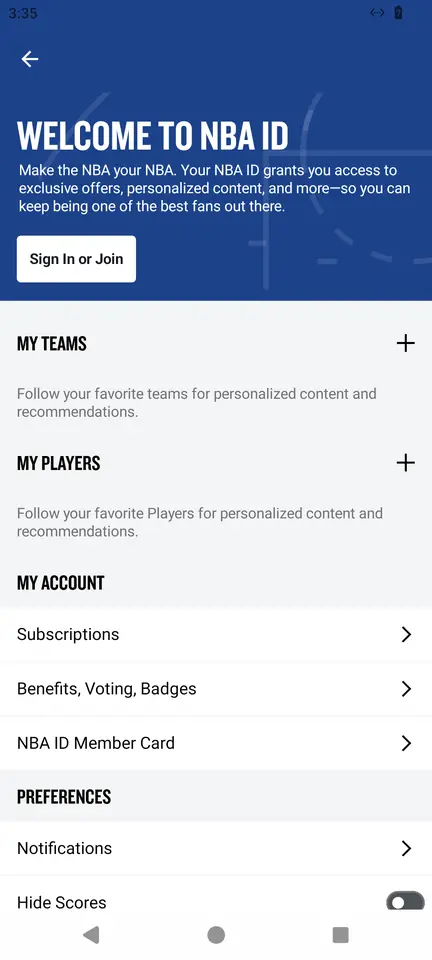
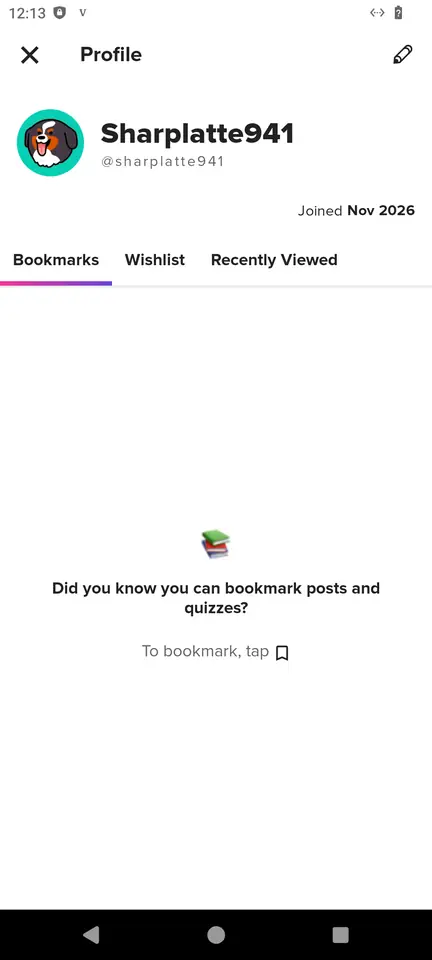
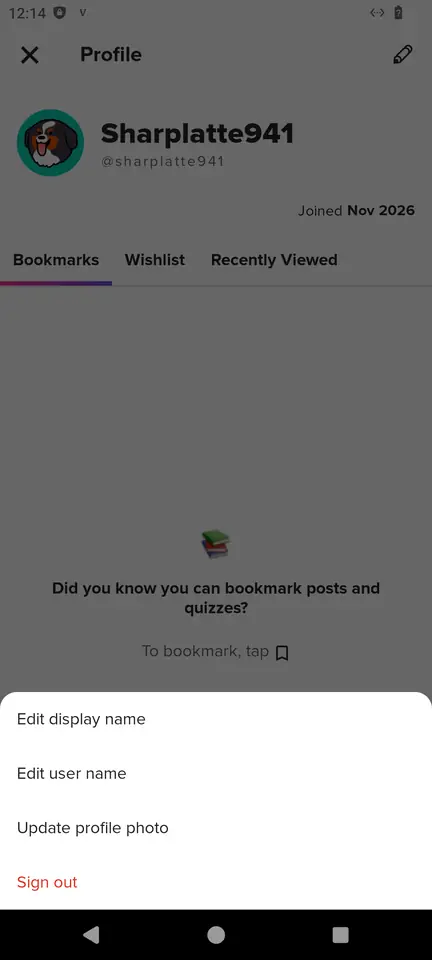
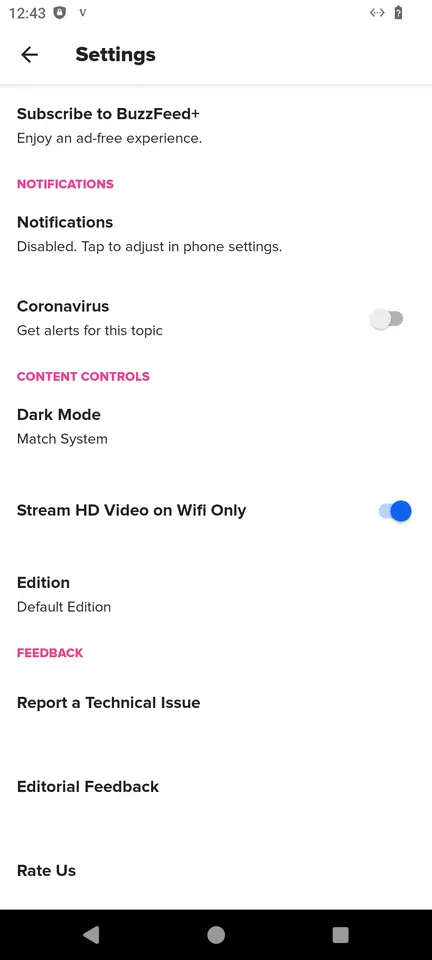
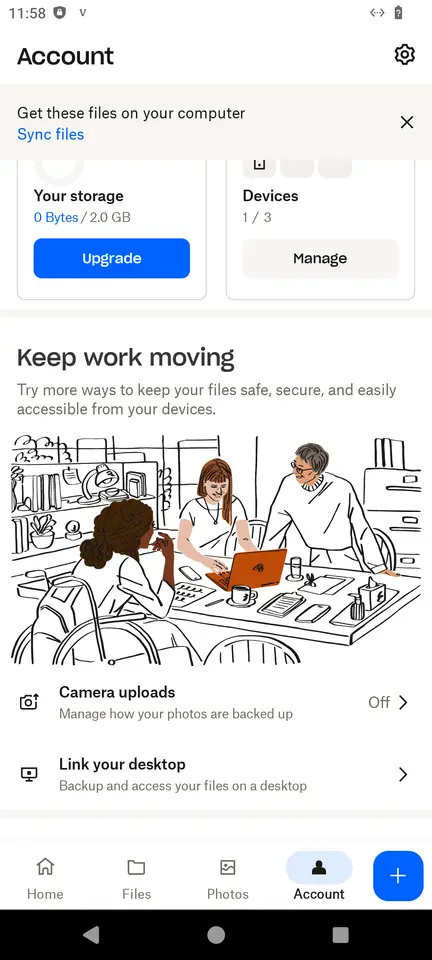
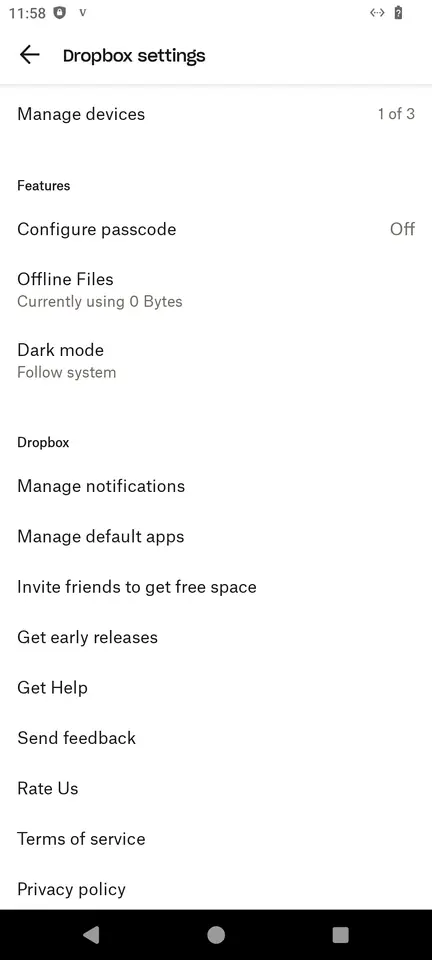
Every screen of Sofascore's settings screens on Android, in order: 6 steps, recorded on a real device. Sofascore's settings flow covers 6 screens, including “Settings”, “Rate us”, “Choose language” and “Clear finished events?”. Choices are made with radio buttons (4 screens), bottom sheets (3 screens) and toggle switches (2 screens). It also covers a light/dark theme choice and the app language.
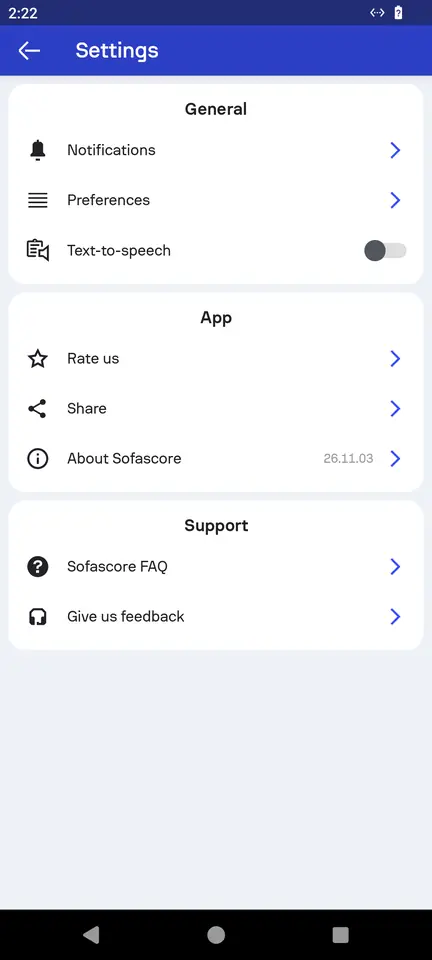 01 Settings · tap “Preferences”
Navigate up — Settings
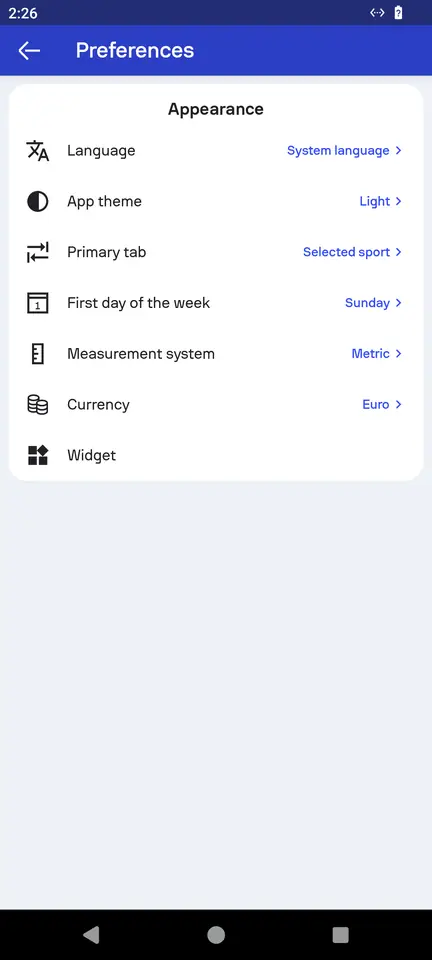 02 Settings · tap “Notifications”
Navigate up — Preferences
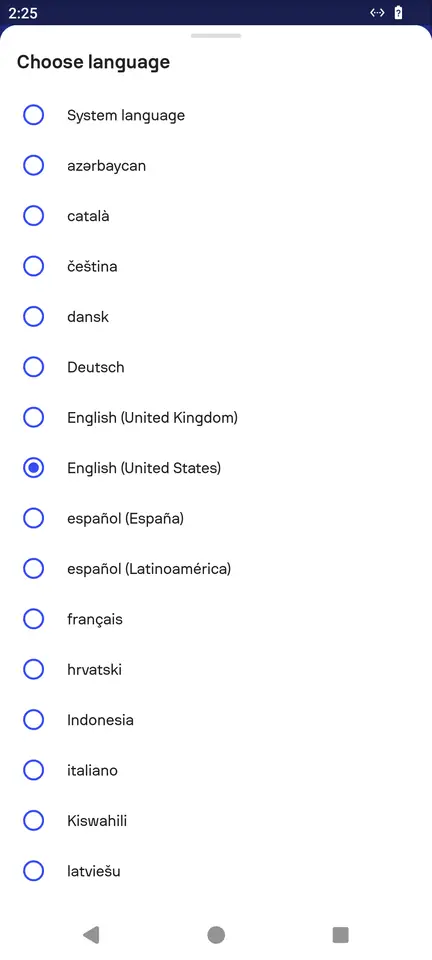 03 Settings · tap “Settings”
SettingsModal — Choose language
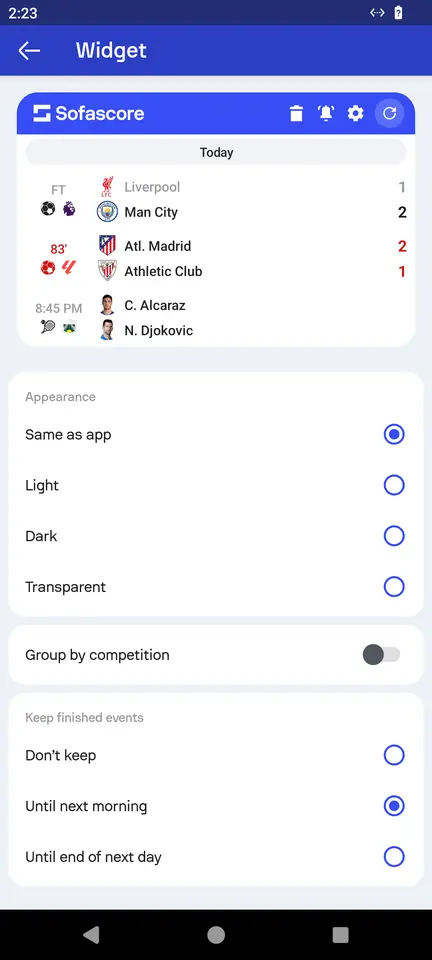 04 Settings · tap “Settings”
Navigate up — Widget
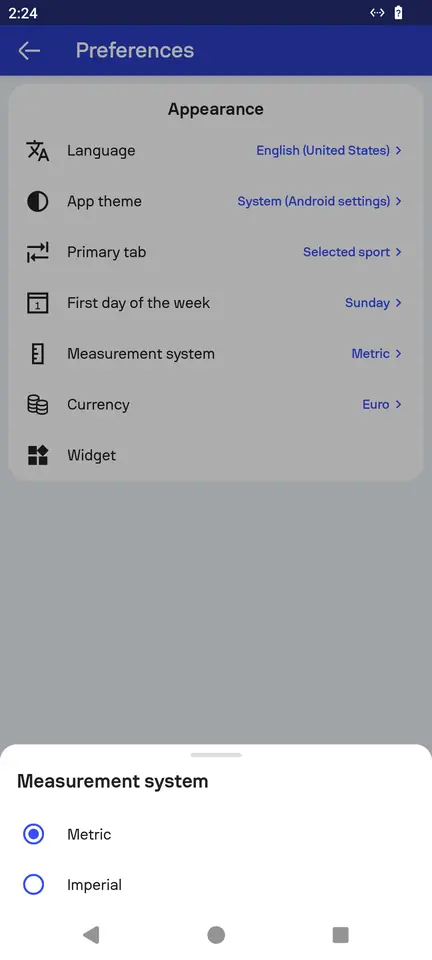 05 Settings · tap “Metric”
SettingsModal — Measurement system
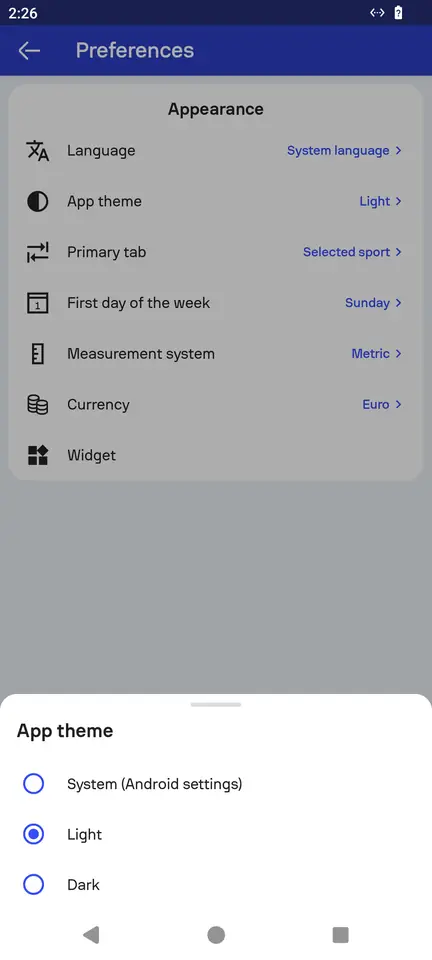 06 Settings · tap “Light”
SettingsModal — App theme
What Sofascore's settings screens does
- 6 screens in order, opening on “Settings” and ending at “SettingsModal”.
- Taps along the way: “Preferences” → “Notifications” → “Settings” → “Settings” → “Metric” → “Light”.
Read the step-by-step UX teardown of this flow →
Captured on a real Android device · last updated 2026-11-14