Settings flow · BuzzFeed · Android
BuzzFeed settings screens
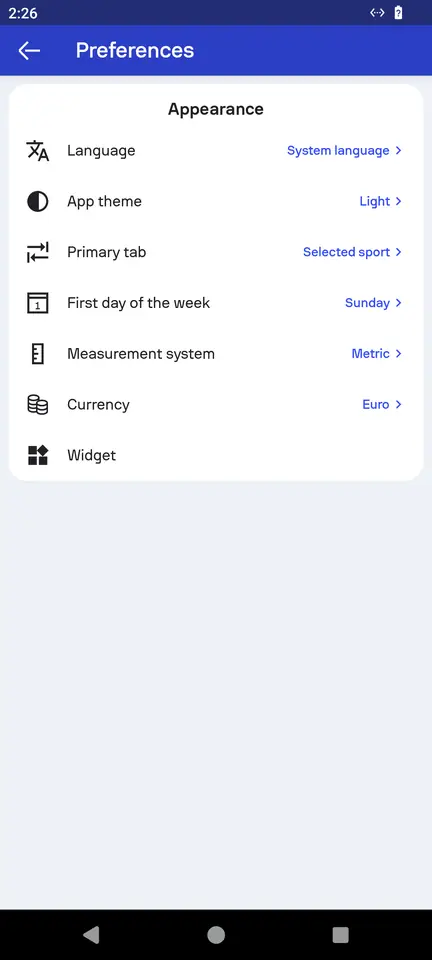
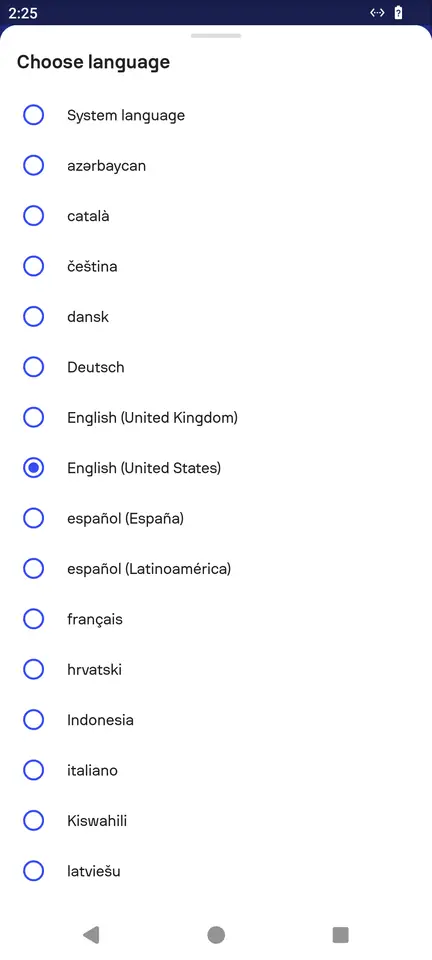
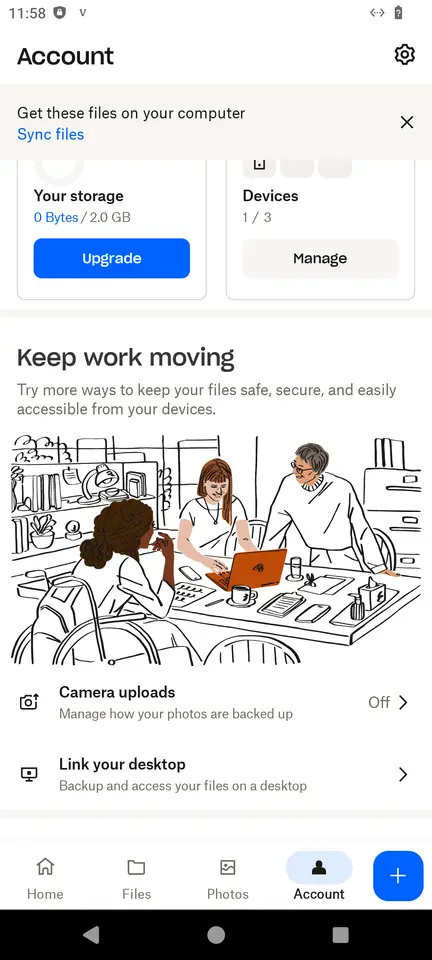
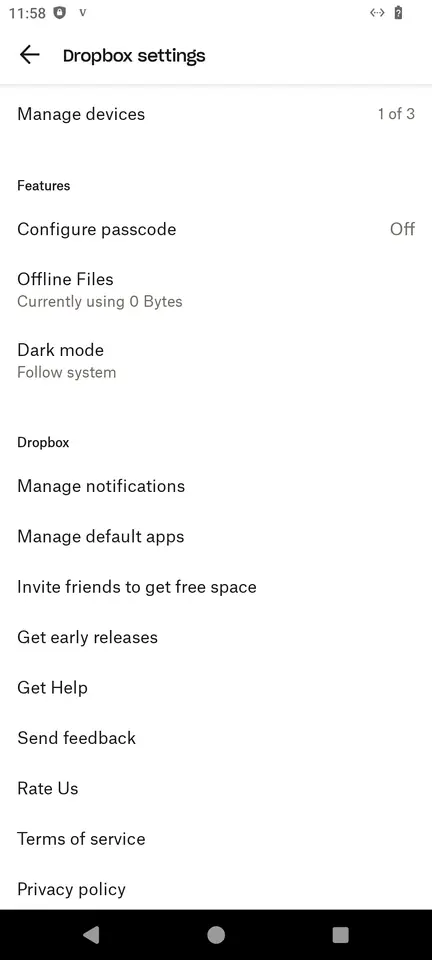
Every screen of BuzzFeed's settings screens on Android, in order: 9 steps, recorded on a real device. BuzzFeed's settings flow covers 9 screens, including “Profile”, “Edit display name”, “Enjoy an ad-free experience.” and “CONTENT CONTROLS”. Choices are made with toggle switches (4 screens) and bottom sheets (1 screen). It also covers a light/dark theme choice.
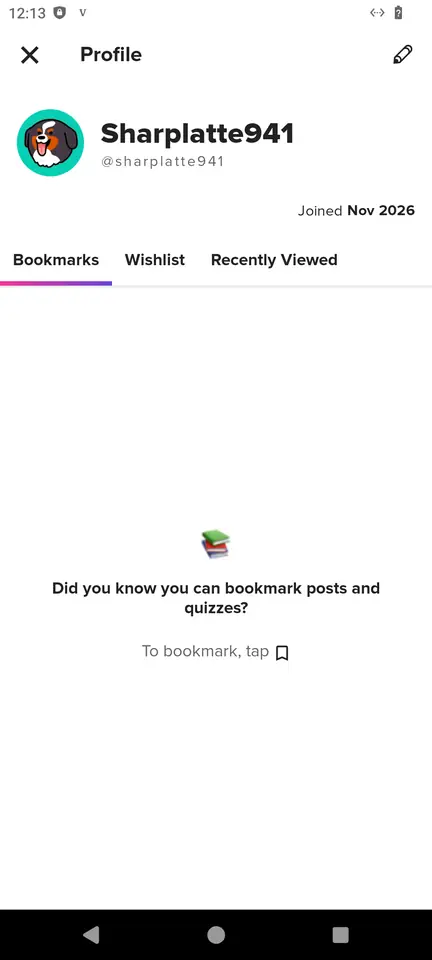 01 Settings · tap “User Profile”
Close — Profile
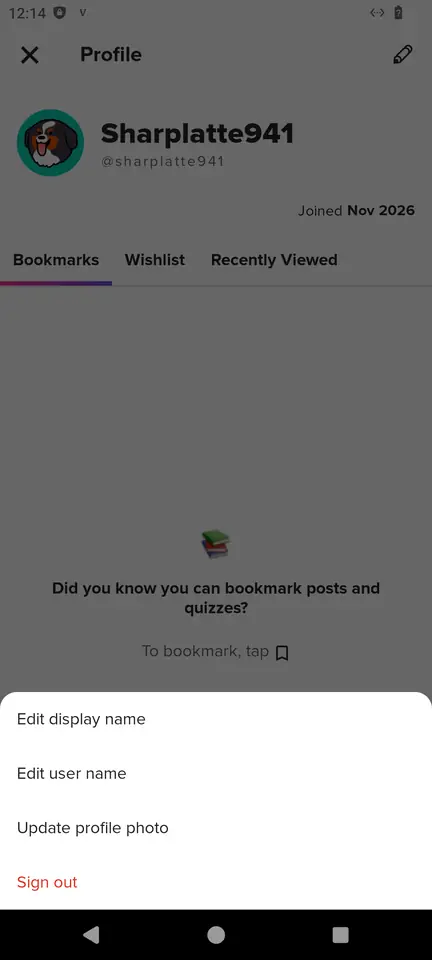 02 Settings
Edit display name — Edit user name
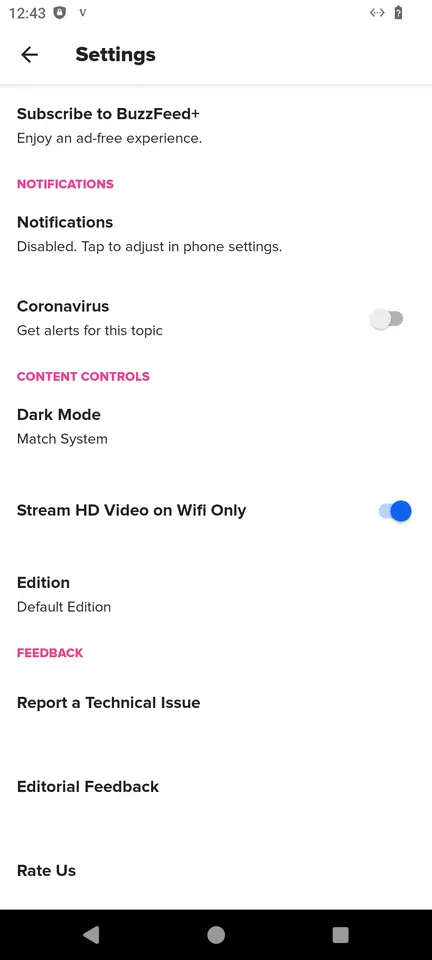 03 Settings · tap “Settings”
Navigate up — Settings
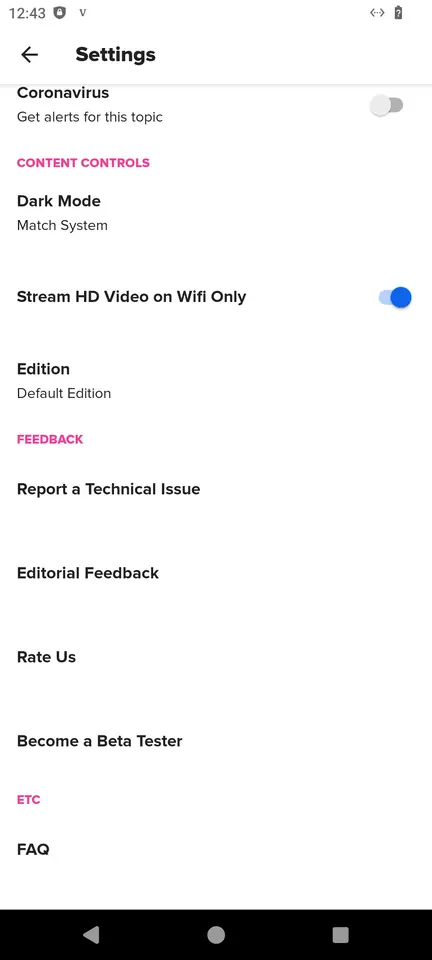 04 Settings
Navigate up — Settings
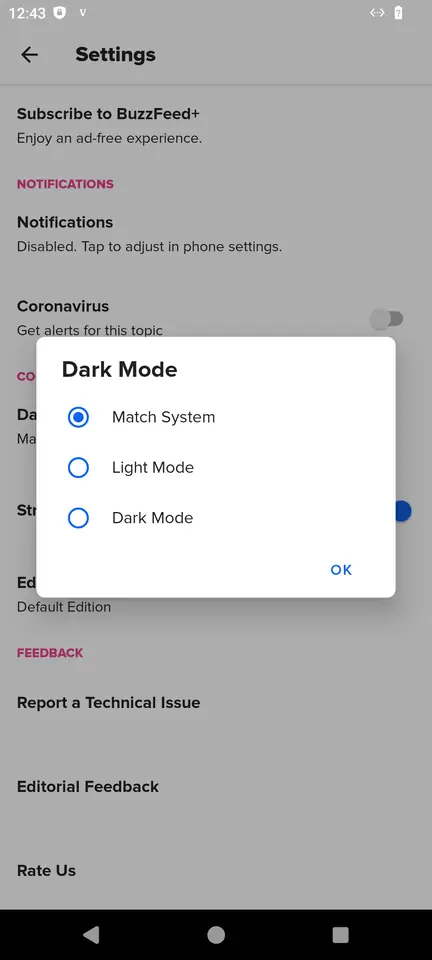 05 Settings
Dark Mode — Match System
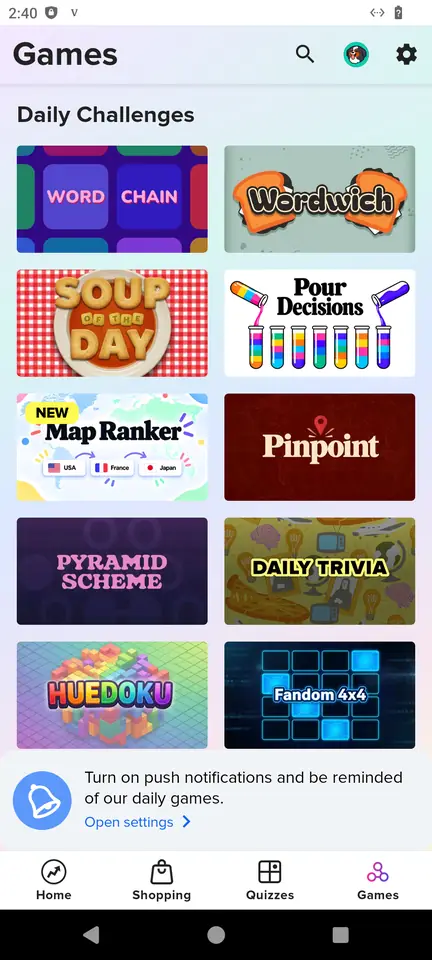
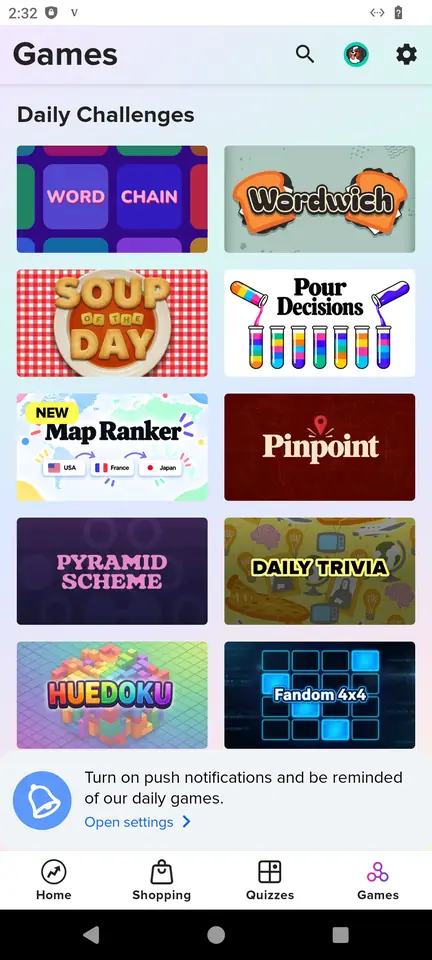 06 Settings · tap “Games”
Turn on push notifications and be reminded of our daily games. — Open settings
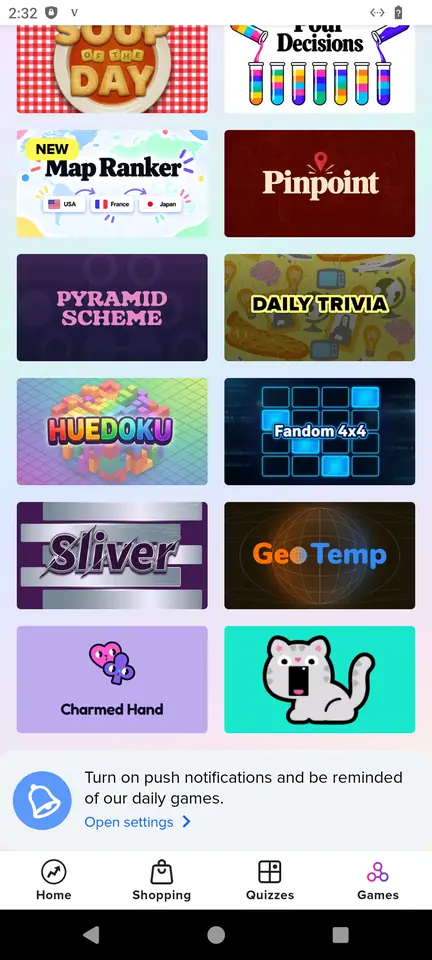 07 Settings
Soup of the Day — Pour Decisions
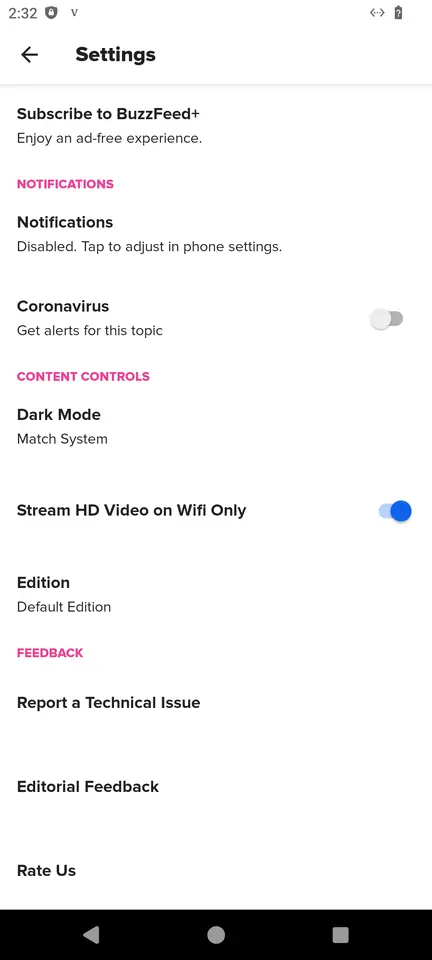 08 Settings
Navigate up — Settings
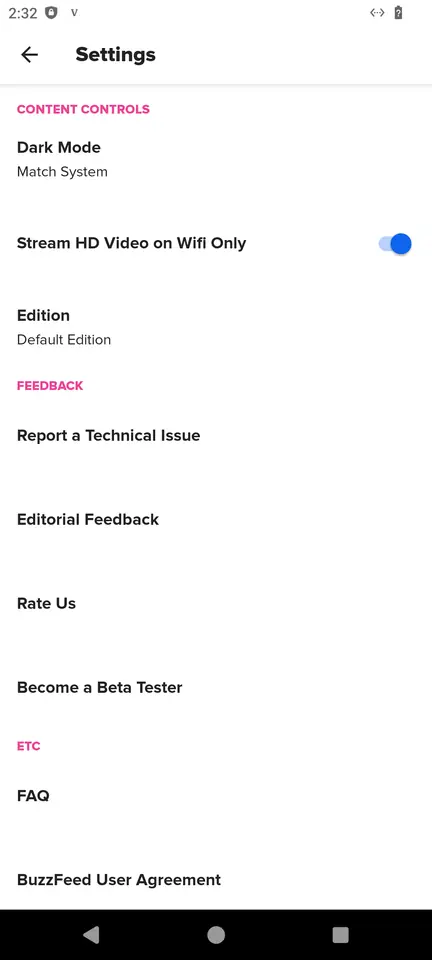 09 Settings
Navigate up — Settings
What BuzzFeed's settings screens does
- 9 screens in order, opening on “Profile” and ending at “Settings”.
- Taps along the way: “User Profile” → “Settings” → “Games”.
Captured on a real Android device · last updated 2026-11-14