How Lucid onboards: a UX teardown
A screen-by-screen UX teardown of Lucid's onboarding flow on Android: what each of its 27 steps is for, where it asks for commitment, and what other books & reading apps do differently. Every screen and quote is from our own capture on a real device.
The short version
Shape: Value pitch ×2 → Question ×6 → Info ×7 → Question ×2 → Info ×4 → Permission prompt ×2 → Info → Question ×2 → Info.
- 27 screens — longer than the median onboarding flow in the library (4 screens across 152 other apps).
- Asks 10 questions along the way, starting at step 3 with “What do you want to focus on?”.
- No sign-up or log-in screen in the 27 onboarding screens we captured — the product comes first.
- Requests a system permission at step 22, after priming it on screen.
- No progress indicator detected across 27 screens.
- Offers a way out (a skip option) on 1 screen.
- One of the few books & reading apps here using the “Age gate” pattern (only 1 of the 33 others do).
- Built from button (1 screen) and dialog (1 screen) — the most common components we detected in the flow.
Step by step
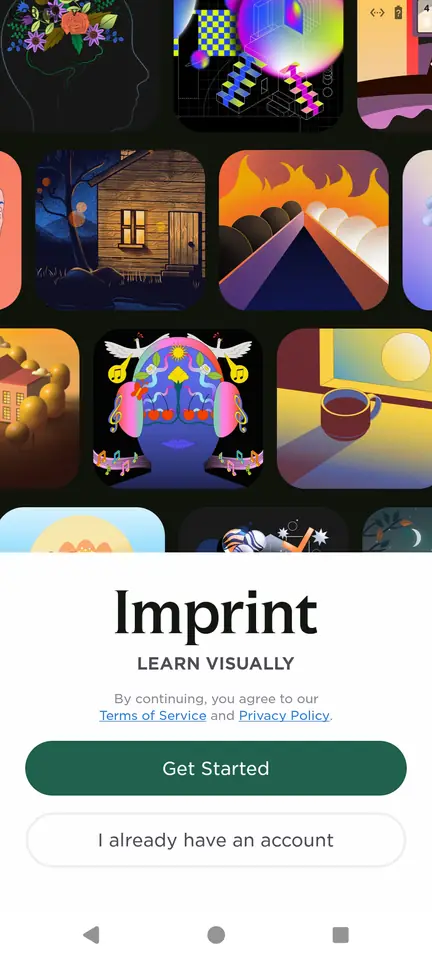
“By continuing, you agree to our Terms of Service and Privacy Policy.”
This screen sells the product before asking for anything. On screen: Imprint Logo
, LEARN VISUALLY
. Next tap: “Get Started”.
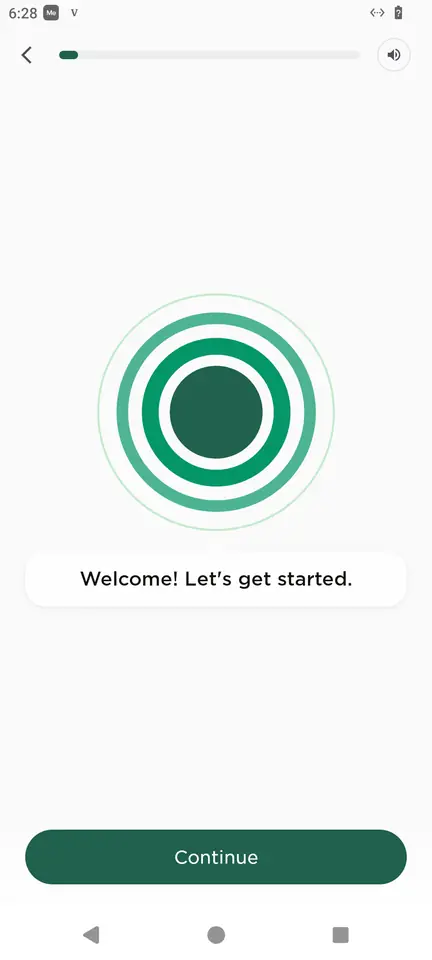
“Turn voice off”
This screen sells the product before asking for anything. On screen: Welcome! Let's get started.
, Continue
. Next tap: “Continue”.
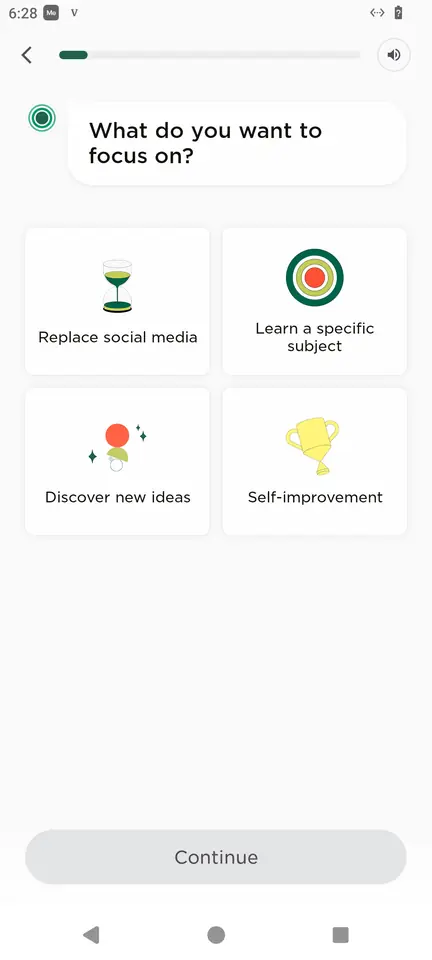
“What do you want to focus on?”
This screen asks the user about themselves to personalise what comes next. On screen: Turn voice off
, Replace social media
. Next tap: “Continue”.
“Turn voice off”
This screen asks the user about themselves to personalise what comes next. On screen: What do you want to focus on?
, Replace social media
. Next tap: “Continue”.
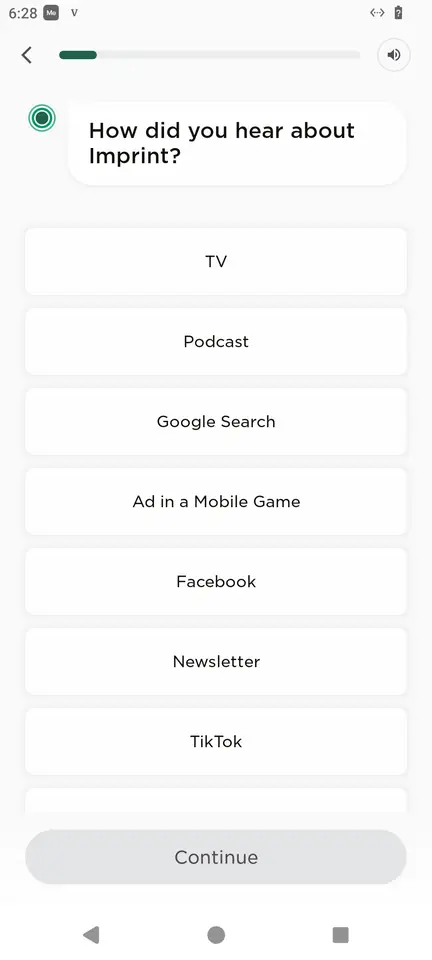
“How did you hear about Imprint?”
This screen asks the user about themselves to personalise what comes next. On screen: Turn voice off
, TV
.
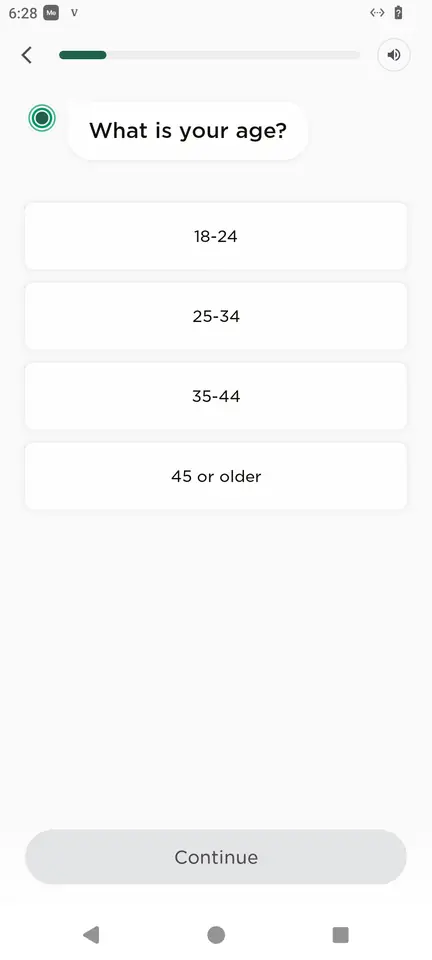
“What is your age?”
This screen asks the user about themselves to personalise what comes next. On screen: Turn voice off
, 18-24
.
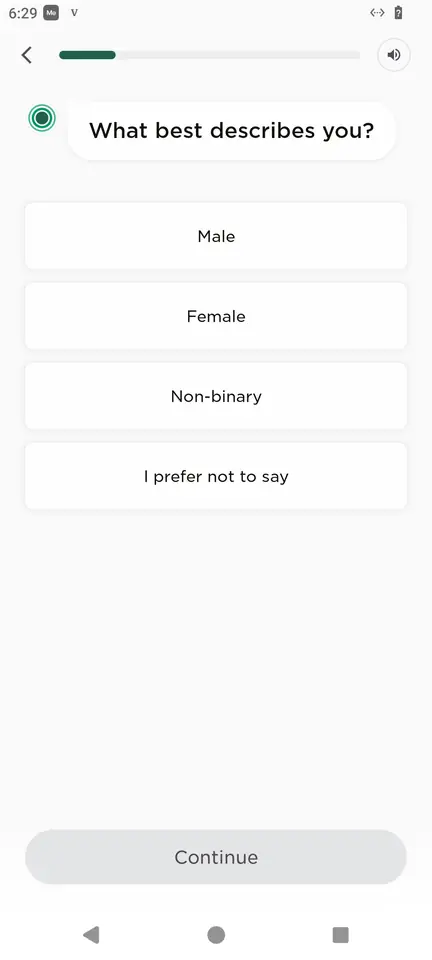
“What best describes you?”
This screen asks the user about themselves to personalise what comes next. On screen: Turn voice off
, Male
. Next tap: “Male”.
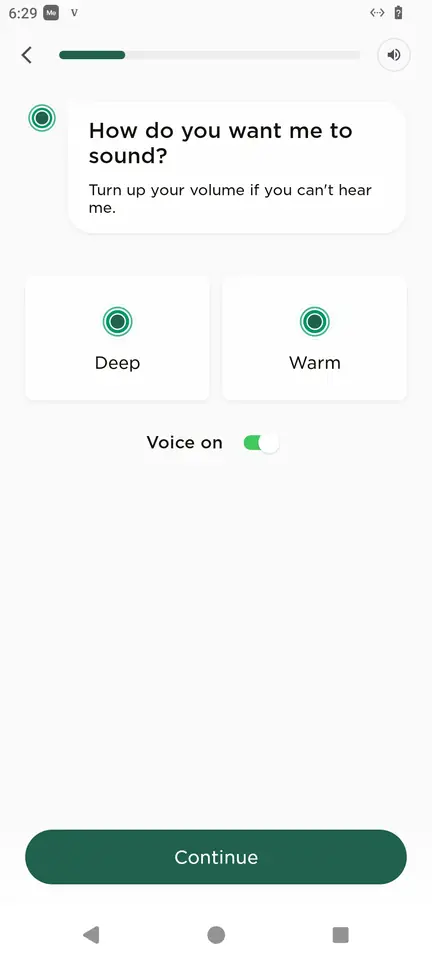
“How do you want me to sound?”
This screen asks the user about themselves to personalise what comes next. On screen: Turn voice off
, Turn up your volume if you can't hear me.
. Next tap: “Continue”.
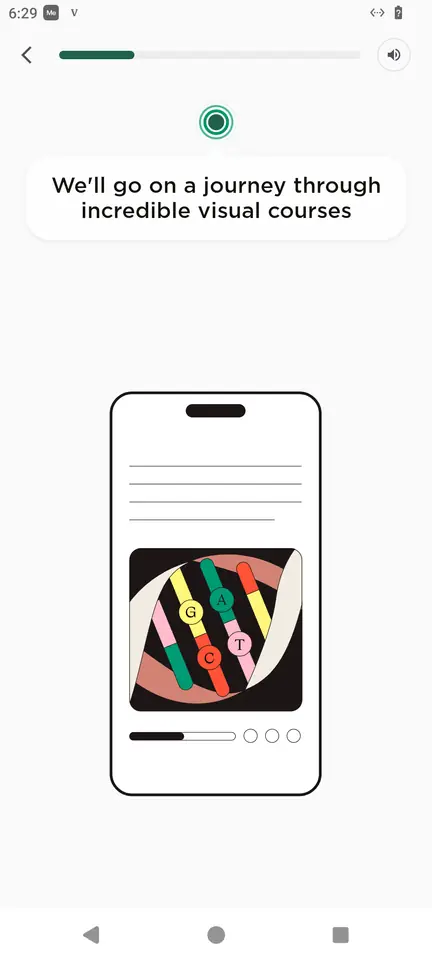
“We'll go on a journey through incredible visual courses”
This screen explains a feature or a step. On screen: Turn voice off
. Next tap: “Turn voice off”.
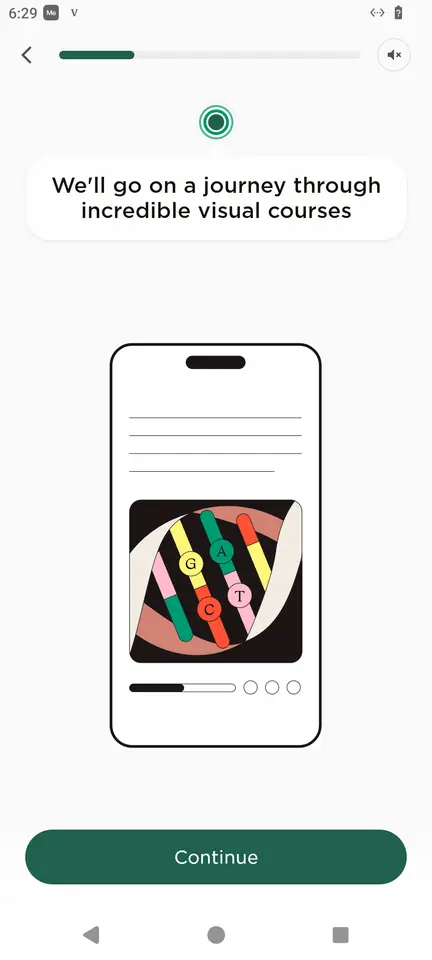
“Turn voice on”
This screen explains a feature or a step. On screen: We'll go on a journey through incredible visual courses
, Continue
. Next tap: “Continue”.
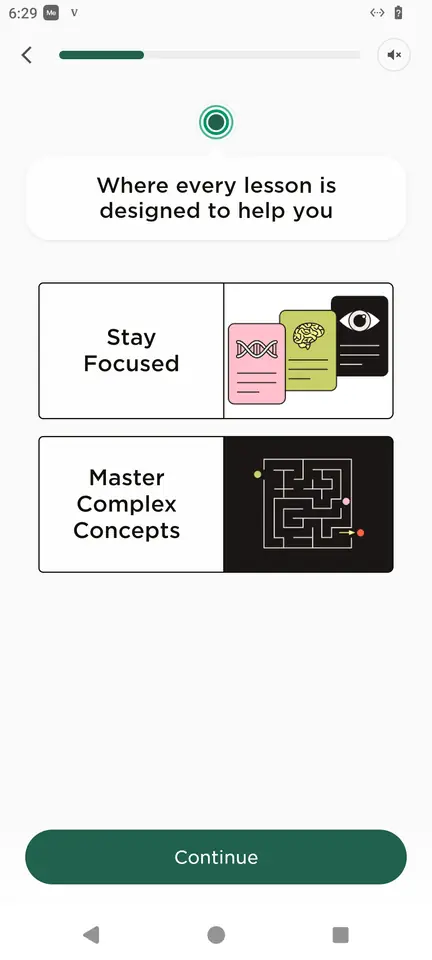
“Where every lesson is designed to help you”
This screen explains a feature or a step. On screen: Turn voice on
, Continue
. Next tap: “Continue”.
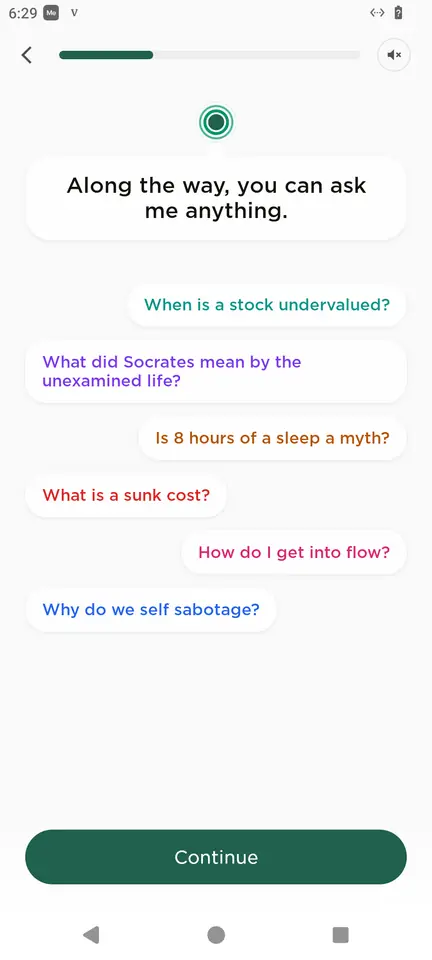
“Along the way, you can ask me anything.”
This screen explains a feature or a step. On screen: Turn voice on
, When is a stock undervalued?
.
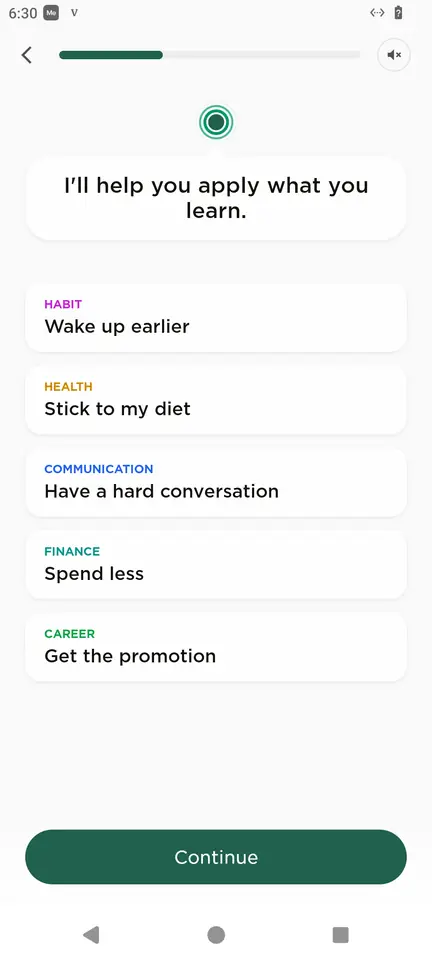
“I'll help you apply what you learn.”
This screen explains a feature or a step. On screen: Turn voice on
, HABIT
. Next tap: “Continue”.
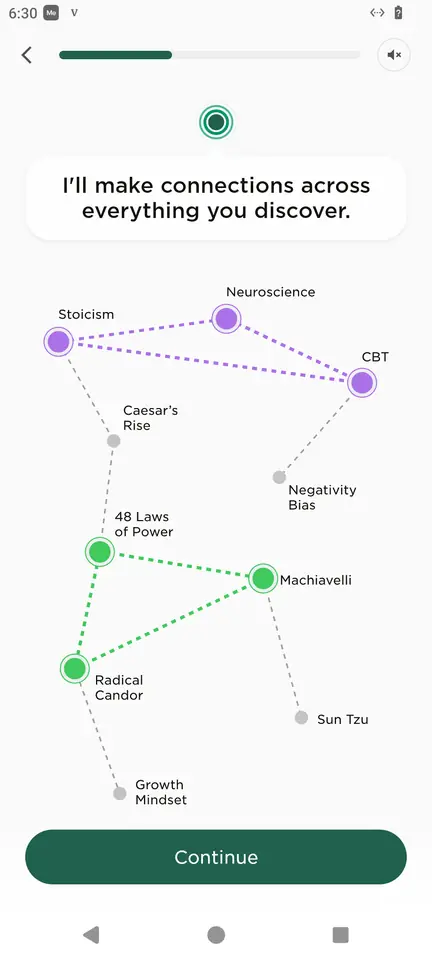
“I'll make connections across everything you discover.”
This screen explains a feature or a step. On screen: Turn voice on
, Continue
. Next tap: “Continue”.
“Let's build your learning plan...”
This screen explains a feature or a step. On screen: Turn voice on
, Continue
. Next tap: “Continue”.
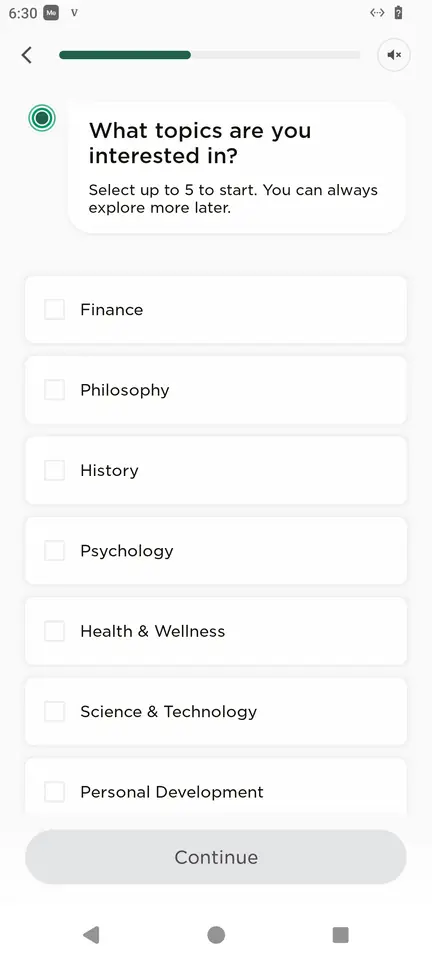
“What topics are you interested in?”
This screen asks the user about themselves to personalise what comes next. On screen: Turn voice on
, Select up to 5 to start. You can always explore more later.
. Next tap: “Finance”.
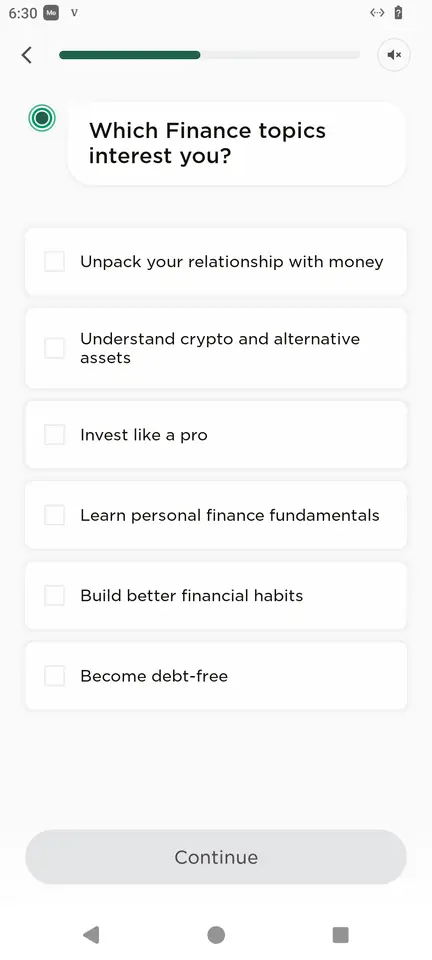
“Which Finance topics interest you?”
This screen asks the user about themselves to personalise what comes next. On screen: Turn voice on
, Unpack your relationship with money
. Next tap: “Unpack your relationship with money”.
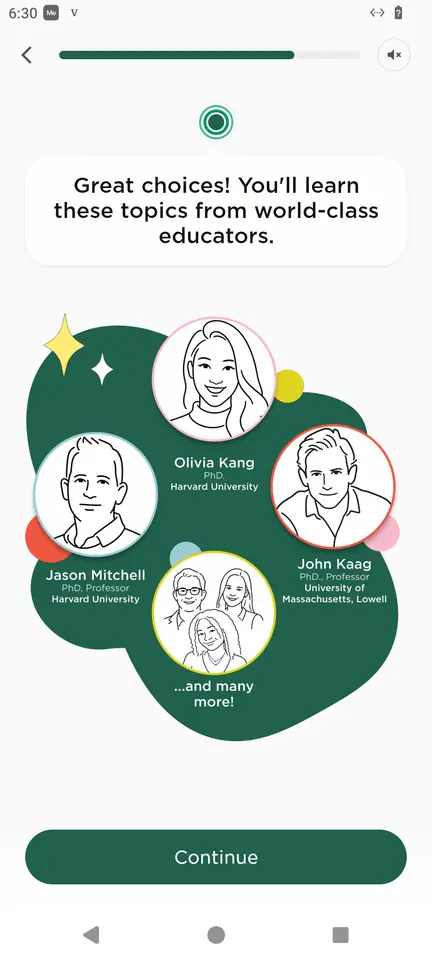
“Great choices! You'll learn these topics from world-class educators.”
This screen explains a feature or a step. On screen: Turn voice on
, Continue
. Next tap: “Continue”.
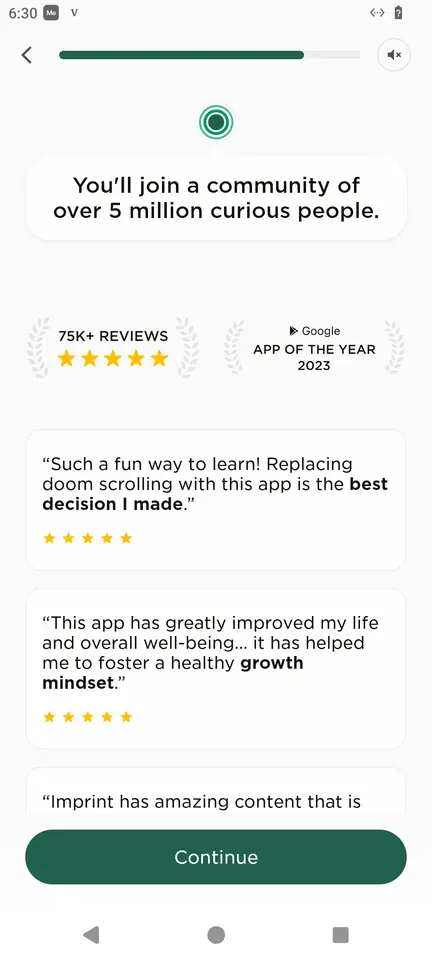
“You'll join a community of over 5 million curious people.”
This screen explains a feature or a step. On screen: Turn voice on
, Over 75,000 reviews, five stars
. Next tap: “Continue”.
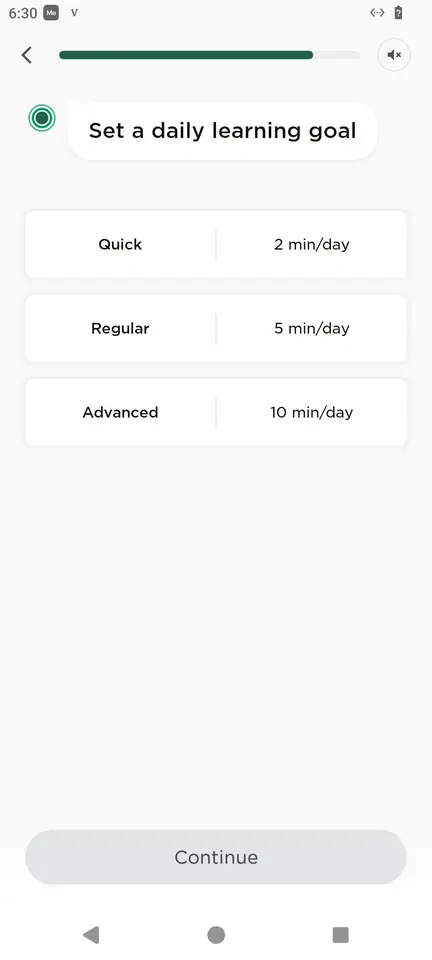
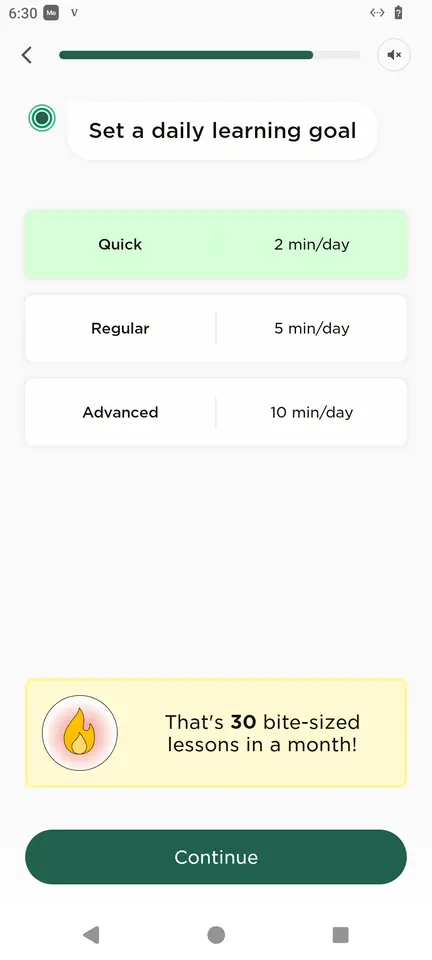
“Set a daily learning goal”
This screen explains a feature or a step. On screen: Turn voice on
, Quick
. Next tap: “Continue”.
“Turn voice on”
This screen explains a feature or a step. On screen: Set a daily learning goal
, Quick
. Next tap: “Continue”.
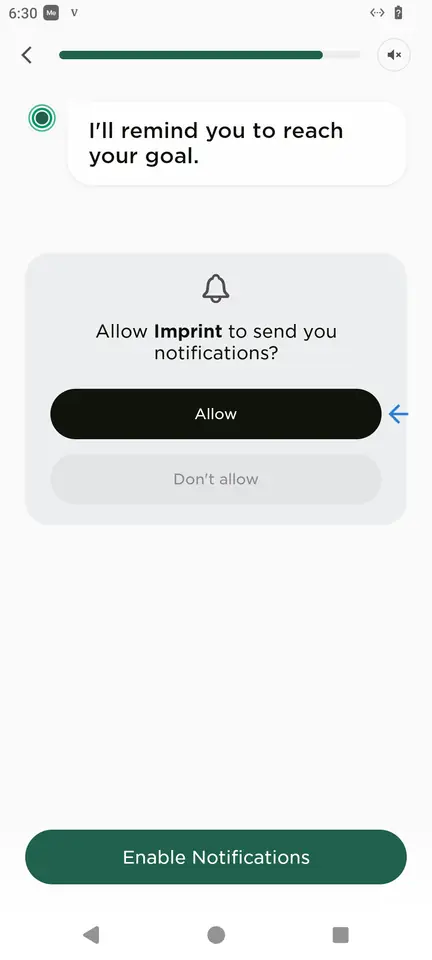
“I'll remind you to reach your goal.”
This screen asks for a system permission. On screen: Turn voice on
, Allow Imprint to send you notifications?
. Next tap: “Allow”.
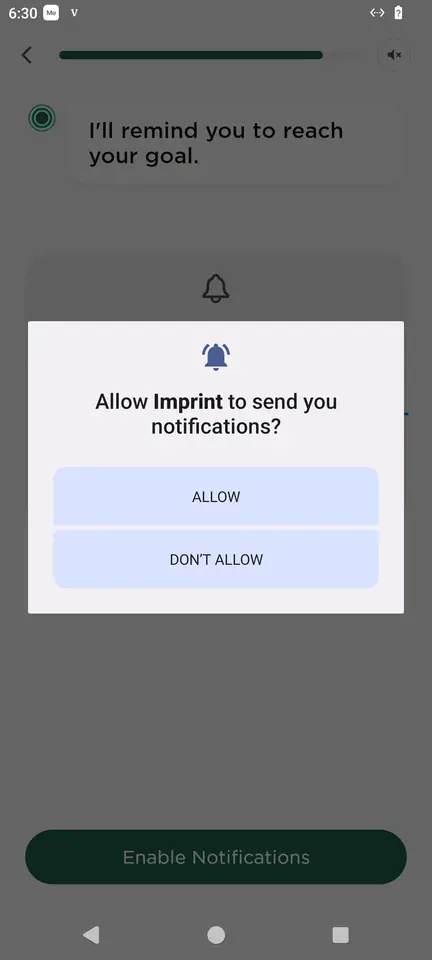
“DON’T ALLOW”
This screen asks for a system permission. On screen: Allow Imprint to send you notifications?
. Next tap: “Allow”.
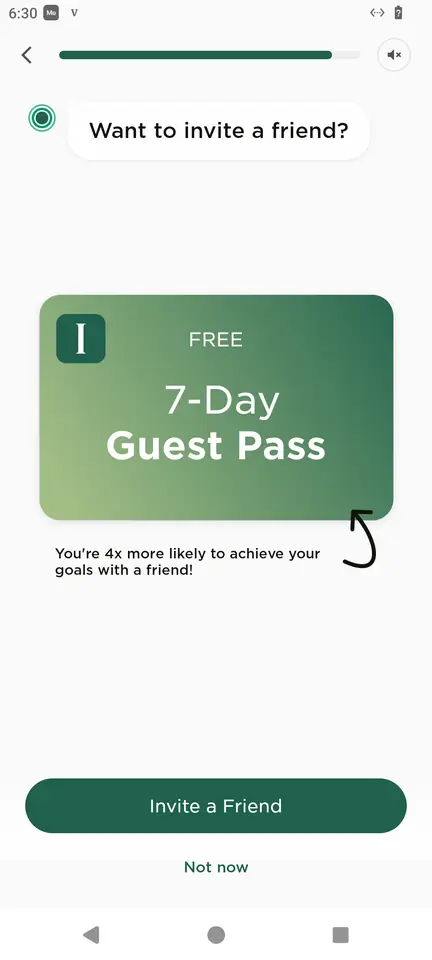
“Turn voice on”
This screen explains a feature or a step. On screen: Want to invite a friend?
, 7-day guest pass, free
.
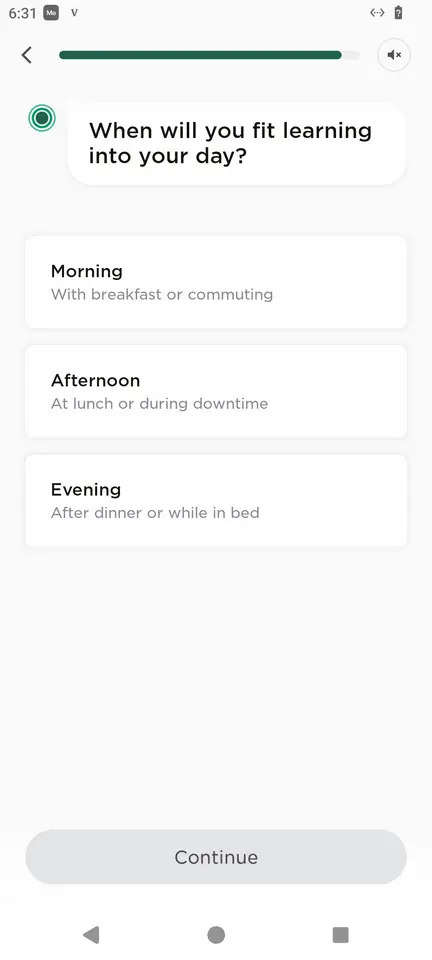
“When will you fit learning into your day?”
This screen asks the user about themselves to personalise what comes next. On screen: Turn voice on
, Morning
. Next tap: “Morning With breakfast or commuting”.
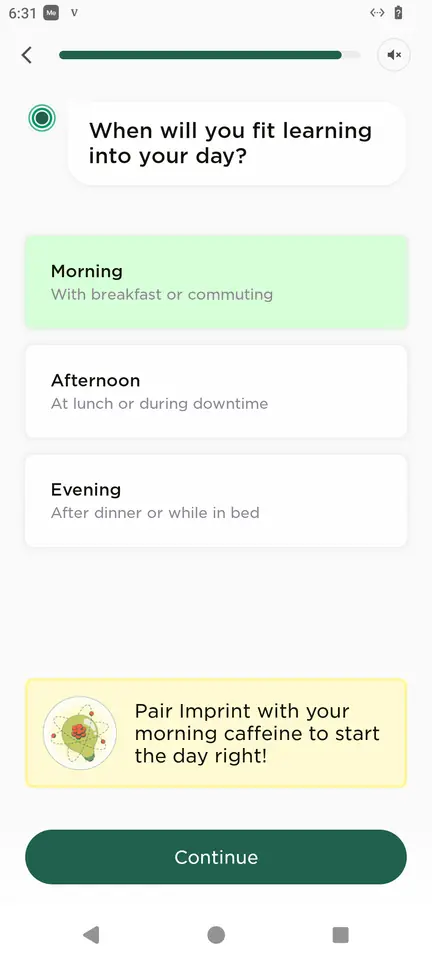
“Turn voice on”
This screen asks the user about themselves to personalise what comes next. On screen: When will you fit learning into your day?
, Morning
. Next tap: “Continue”.
“All set!”
This screen explains a feature or a step. On screen: Turn voice on
, Continue
. Next tap: “Continue”.
What to steal from Lucid
- Delay the account wall: Lucid lets users through 27 onboarding screens without signing up.
UI components in this flow
Other Lucid flows
As an X thread
- 1/ How Lucid onboards on Android: 27 screens, step by step. A UX teardown 🧵
- 2/ The shape of the flow: Value pitch ×2 → Question ×6 → Info ×7 → Question ×2 → Info ×4 → Permission prompt ×2 → Info → Question ×2 → Info.
- 3/ Step 1 — value pitch: “By continuing, you agree to our Terms of Service and Privacy Policy.”. It sells the product before asking for anything. Tap: “Get Started”.
- 4/ Step 2 — value pitch: “Turn voice off”. It sells the product before asking for anything. Tap: “Continue”.
- 5/ Step 3 — question: “What do you want to focus on?”. It asks the user about themselves to personalise what comes next. Tap: “Continue”.
- 6/ Asks 10 questions along the way, starting at step 3 with “What do you want to focus on?”.
- 7/ No sign-up or log-in screen in the 27 onboarding screens we captured — the product comes first.
- 8/ Requests a system permission at step 22, after priming it on screen.
- 9/ What to steal — Delay the account wall: Lucid lets users through 27 onboarding screens without signing up.
- 10/ Every screen, in order, free: https://uilane.com/teardown/lucid/
FAQ
How many screens is Lucid's onboarding flow?
We captured 27 screens of Lucid's onboarding flow on a real Android device. Its shape: Value pitch ×2 → Question ×6 → Info ×7 → Question ×2 → Info ×4 → Permission prompt ×2 → Info → Question ×2 → Info.
When does Lucid ask you to create an account?
Not within the 27 screens we captured — there is no sign-up or log-in screen and the flow lets users in without an account.
What UI patterns does Lucid use?
Across the 36 Lucid screens in the library we detected welcome screen, skip button, onboarding survey, age gate, permission priming and social login buttons.
What can designers learn from Lucid's onboarding flow?
Delay the account wall: Lucid lets users through 27 onboarding screens without signing up.
Captured on a real Android device · last updated 2026-11-14