How Yazio onboards: a UX teardown
A screen-by-screen UX teardown of Yazio's onboarding flow on Android: what each of its 93 steps is for, where it asks for commitment, and what other health & fitness apps do differently. Every screen and quote is from our own capture on a real device.
The short version
Shape: Value pitch → Question → Permission prompt → Question ×7 → Info → Question → Info ×2 → Question → Value pitch → Question → Info ×7 → Question ×2 → Info ×5 → Question ×2 → Info ×3 → Question ×4 → Info ×3 → Question → Info → Value pitch → Info → Question → Value pitch → Info ×2 → Question → Info ×3 → Question → Info → Question ×3 → Info → Question → Info ×3 → Question → Info → Question → Info ×2 → Question → Info ×4 → Value pitch → Info ×4 → Question → Info → Question → Info ×10.
- 93 screens — longer than the median onboarding flow in the library (4 screens across 152 other apps).
- Asks 32 questions along the way, starting at step 2 with “What’s your main goal?”.
- No sign-up or log-in screen in the 93 onboarding screens we captured.
- Requests a system permission at step 3, after priming it on screen.
- No progress indicator detected across 93 screens.
- One of the few health & fitness apps here using the “Age gate” pattern (only 6 of the 29 others do).
- Built from card (6 screens), text field (5 screens) and button (1 screen) — the most common components we detected in the flow.
Step by step
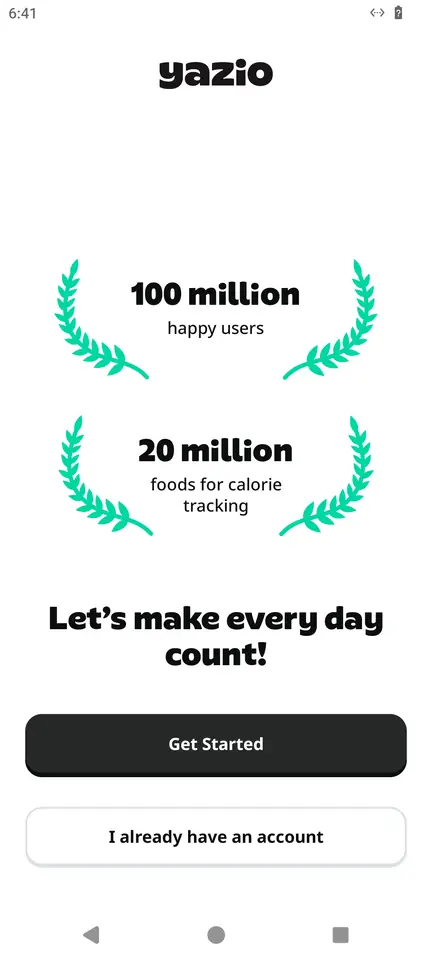
“Let’s make every day count!”
This screen sells the product before asking for anything. On screen: 100 million
, happy users
. Next tap: “Yazio logo”.
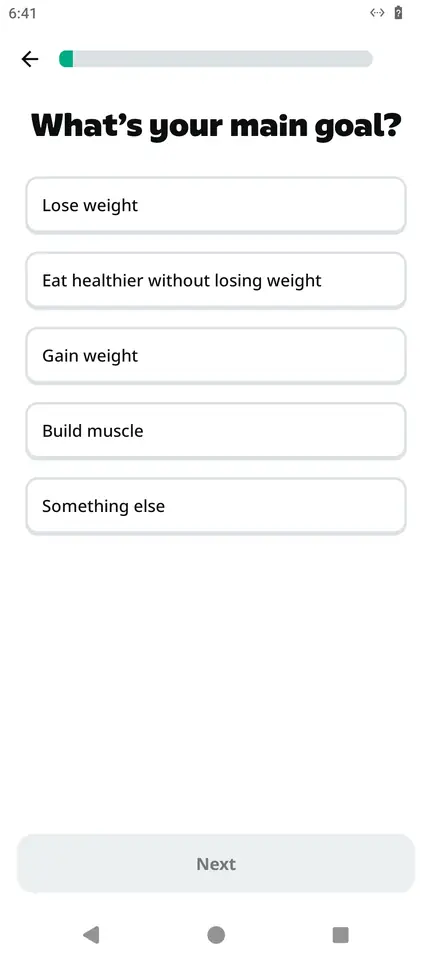
“What’s your main goal?”
This screen asks the user about themselves to personalise what comes next. On screen: Lose weight
, Eat healthier without losing weight
. Next tap: “Lose weight”.
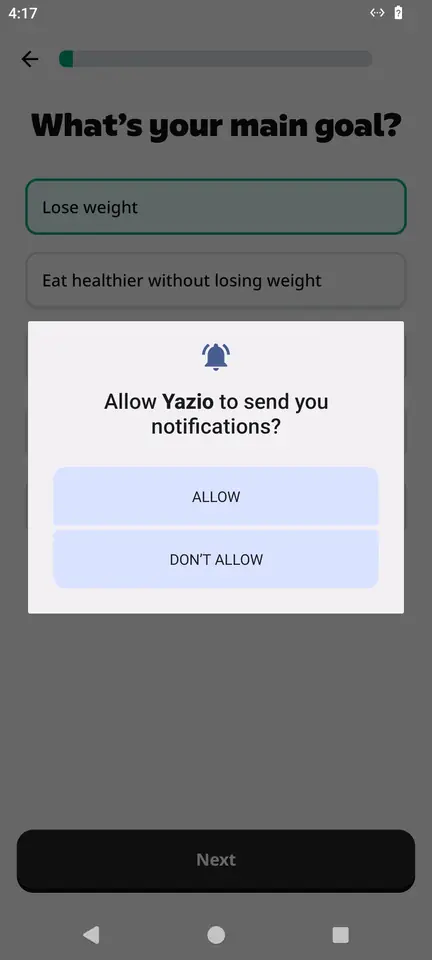
“Allow Yazio to send you notifications?”
This screen asks for a system permission. On screen: ALLOW
, DON’T ALLOW
. Next tap: “Allow”.
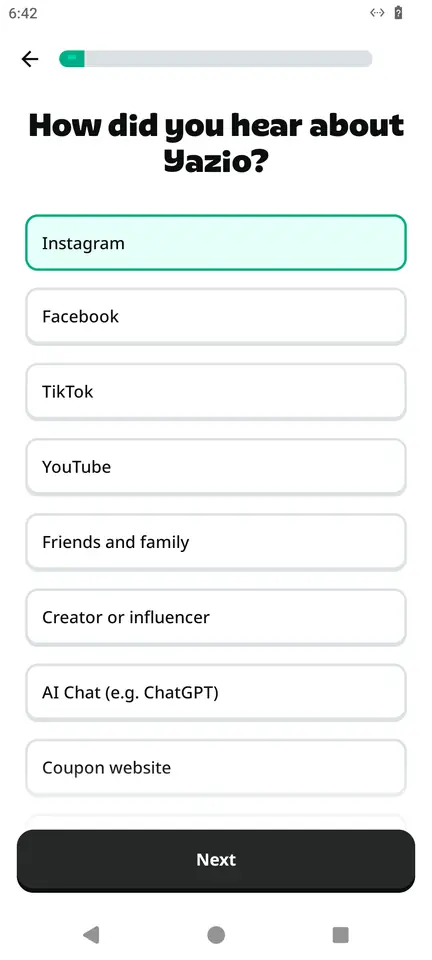
“How did you hear about Yazio?”
This screen asks the user about themselves to personalise what comes next. On screen: Instagram
, Facebook
. Next tap: “Instagram”.
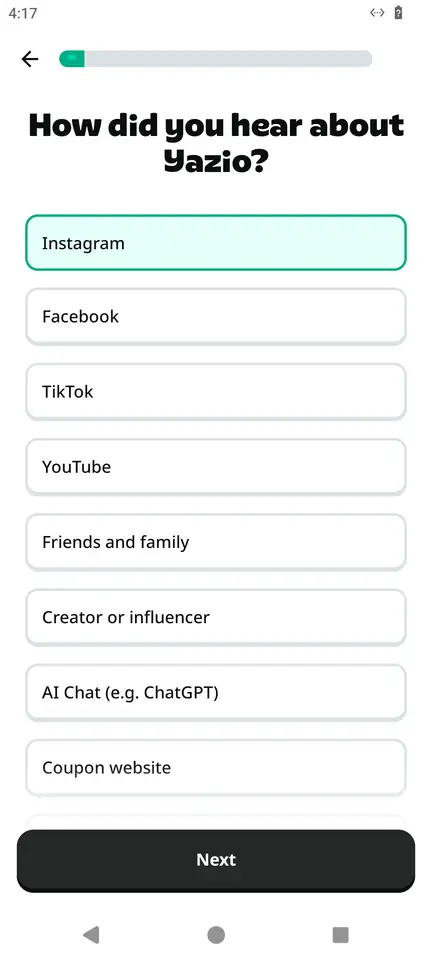
“How did you hear about Yazio?”
This screen asks the user about themselves to personalise what comes next. On screen: Instagram
, Facebook
. Next tap: “Next”.
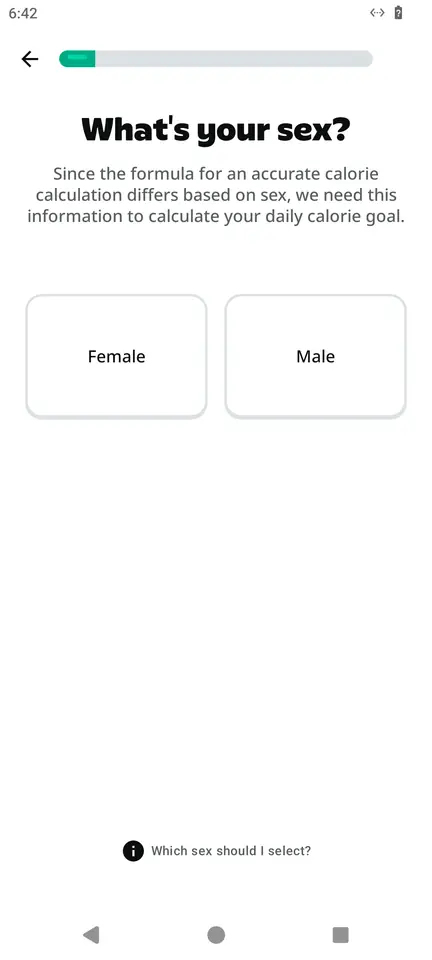
“What's your sex?”
This screen asks the user about themselves to personalise what comes next. On screen: Female
, Male
. Next tap: “Female”.
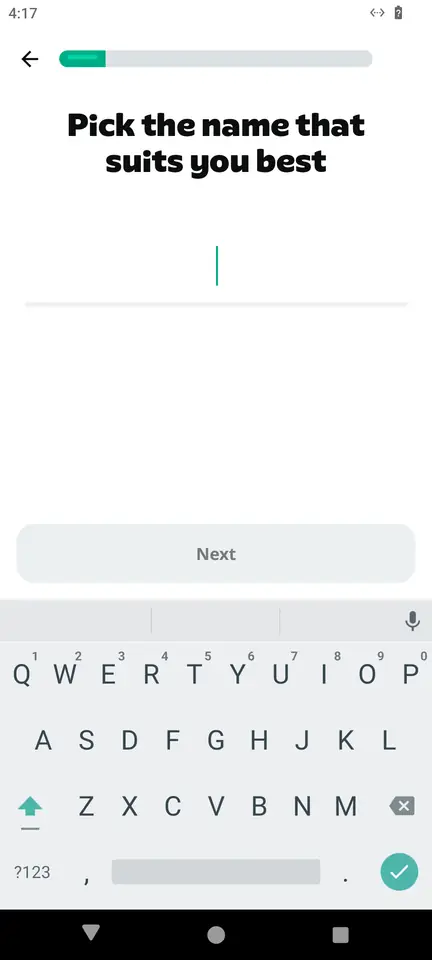
“Pick the name that suits you best”
This screen asks the user about themselves to personalise what comes next. On screen: Next
. Next tap: “Pick the name that suits you best=Alex”.
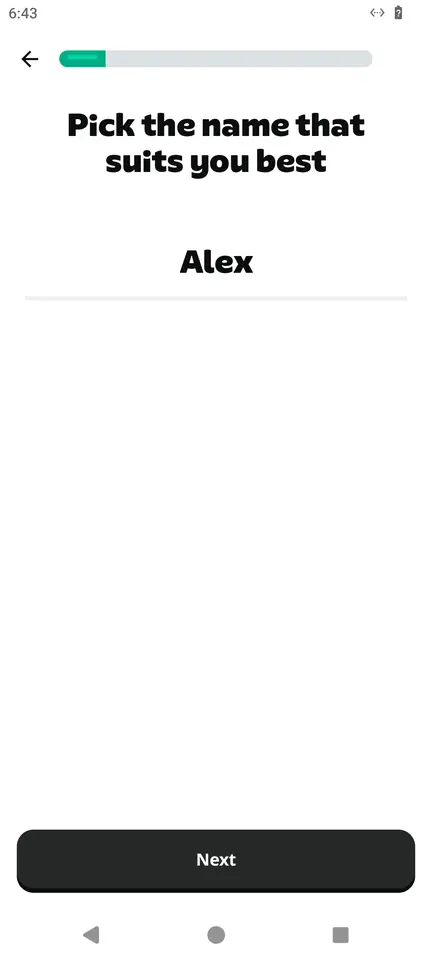
“Pick the name that suits you best”
This screen asks the user about themselves to personalise what comes next. On screen: Alex
, Next
. Next tap: “Next”.
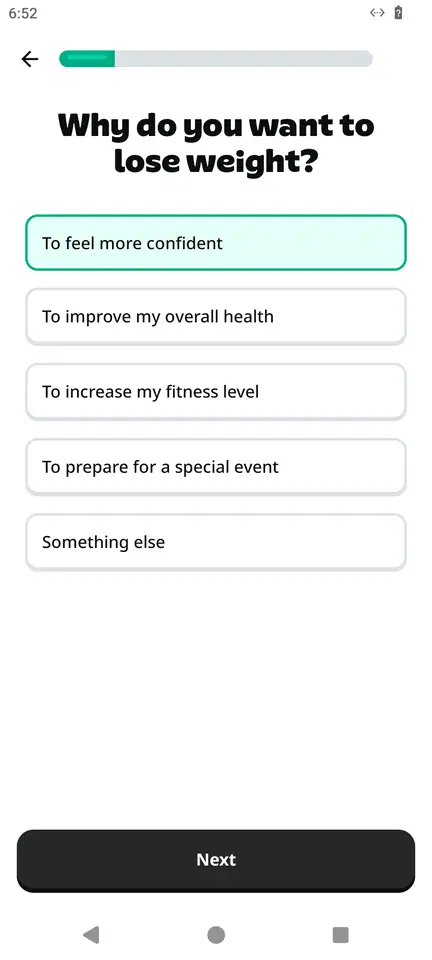
“Why do you want to lose weight?”
This screen asks the user about themselves to personalise what comes next. On screen: To feel more confident
, To improve my overall health
. Next tap: “To feel more confident”.
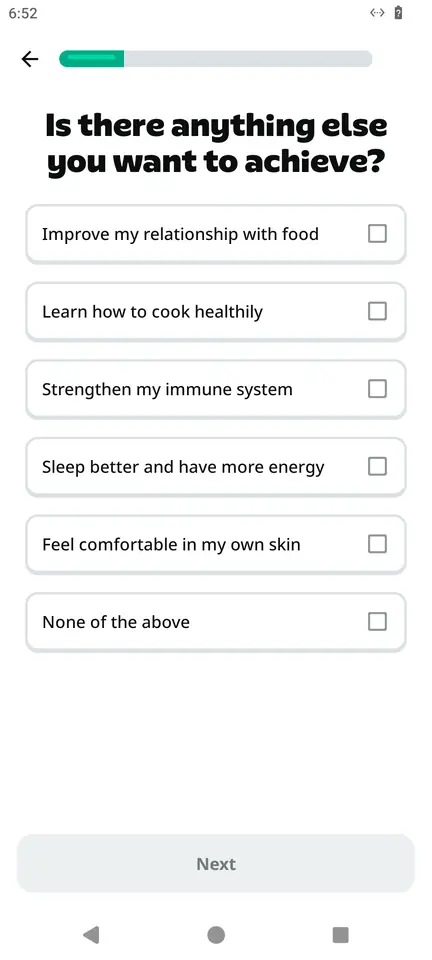
“Is there anything else you want to achieve?”
This screen asks the user about themselves to personalise what comes next. On screen: Improve my relationship with food
, Learn how to cook healthily
. Next tap: “Improve my relationship with food”.
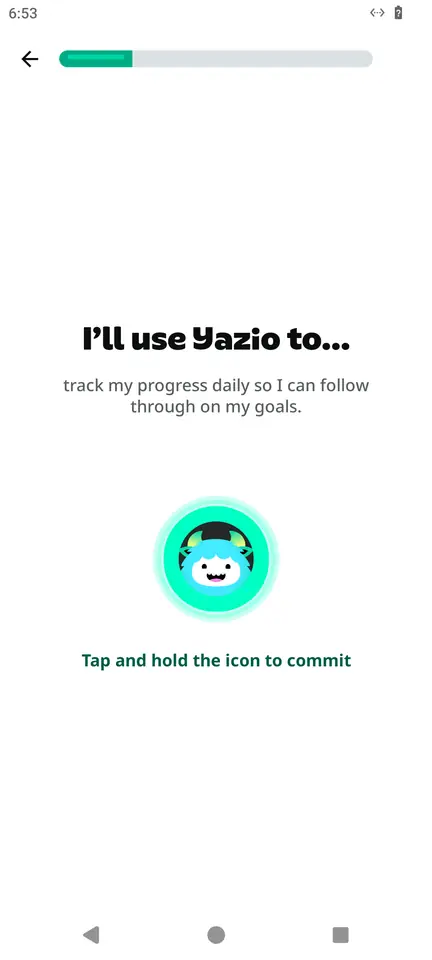
“I’ll use Yazio to...”
This screen explains a feature or a step. On screen: track my progress daily so I can follow through on my goals.
, Tap and hold the icon to commit
. Next tap: “Hold icon at (540, 1399) 3.2s”.
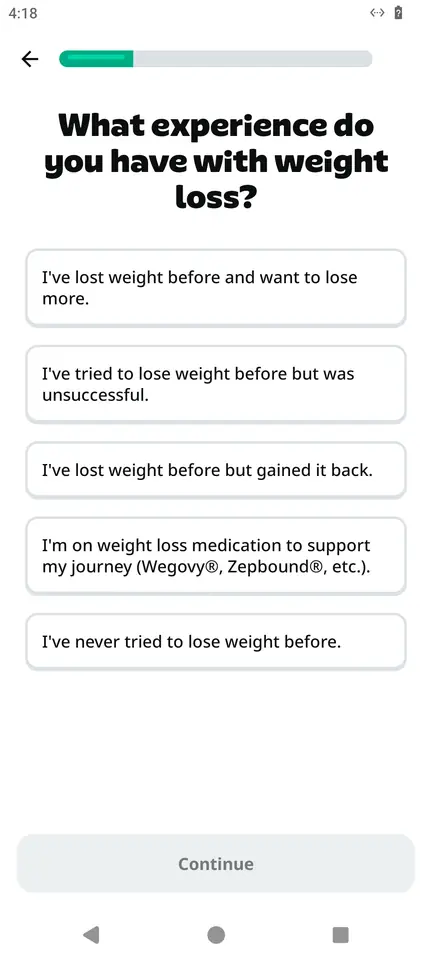
“What experience do you have with weight loss?”
This screen asks the user about themselves to personalise what comes next. On screen: I've lost weight before and want to lose more.
, I've tried to lose weight before but was unsuccessful.
. Next tap: “I've lost weight before and want to lose more.”.
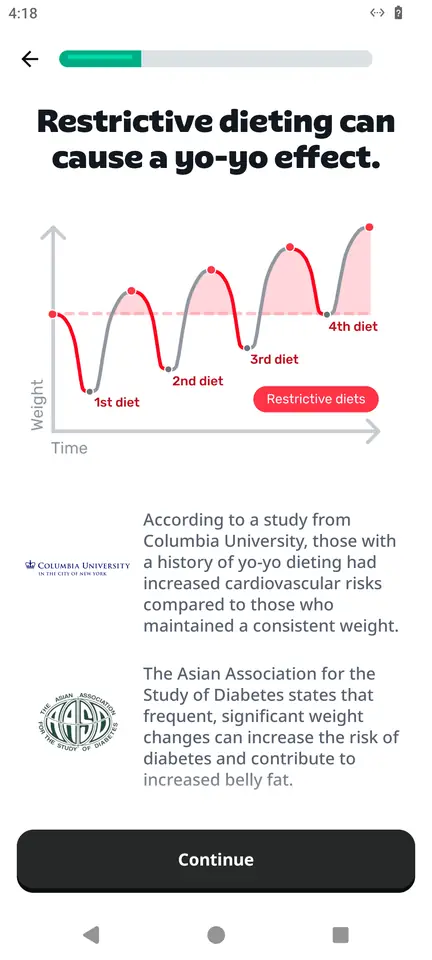
“Restrictive dieting can cause a yo-yo effect.”
This screen explains a feature or a step. On screen: Continue
. Next tap: “Next”.
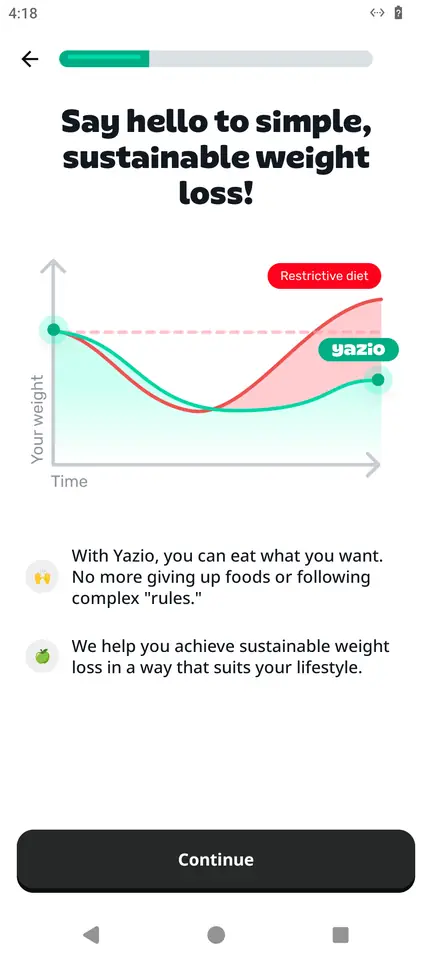
“Say hello to simple, sustainable weight loss!”
This screen explains a feature or a step. On screen: We help you achieve sustainable weight loss in a way that suits your lifestyle.
, Continue
. Next tap: “Next”.
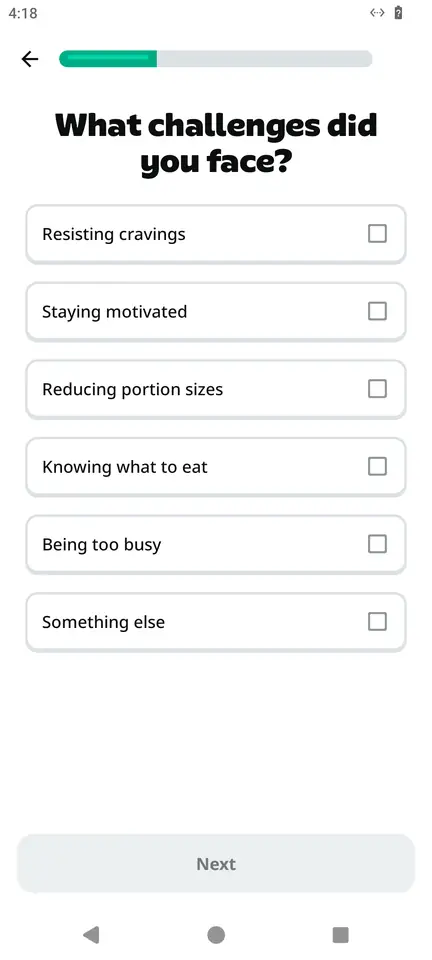
“What challenges did you face?”
This screen asks the user about themselves to personalise what comes next. On screen: Resisting cravings
, Staying motivated
. Next tap: “Resisting cravings”.
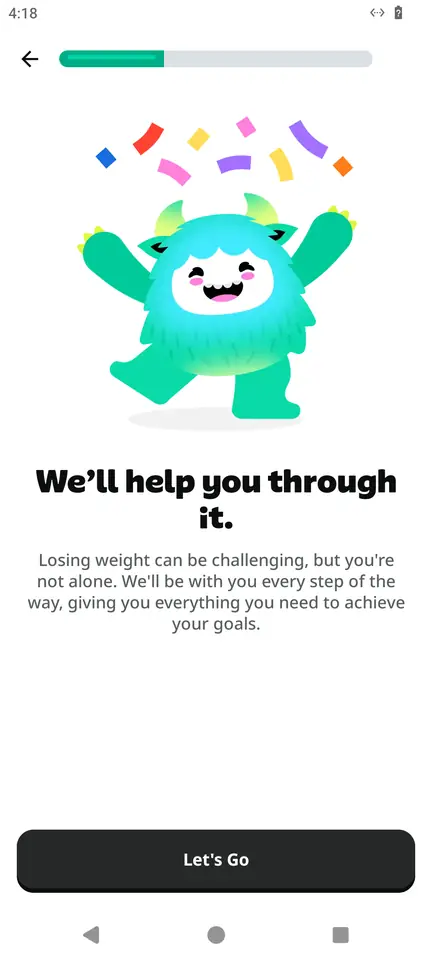
“We’ll help you through it.”
This screen sells the product before asking for anything. On screen: Let's Go
. Next tap: “Next”.
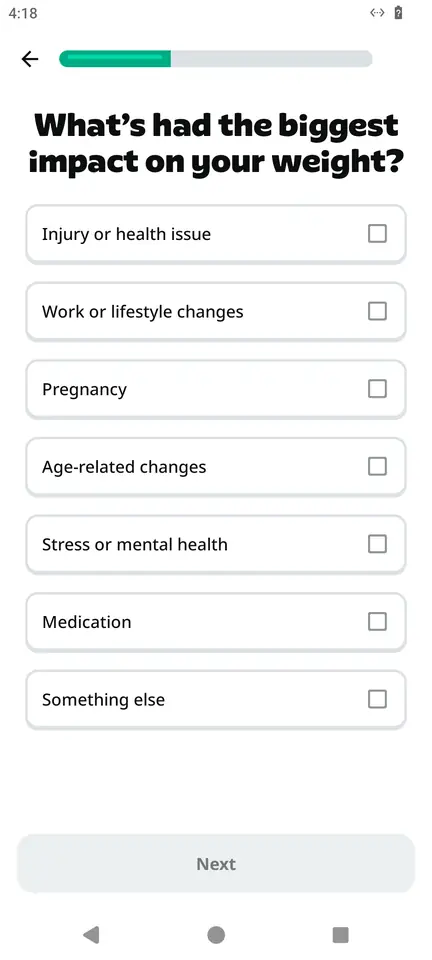
“What’s had the biggest impact on your weight?”
This screen asks the user about themselves to personalise what comes next. On screen: Injury or health issue
, Work or lifestyle changes
. Next tap: “Injury or health issue”.
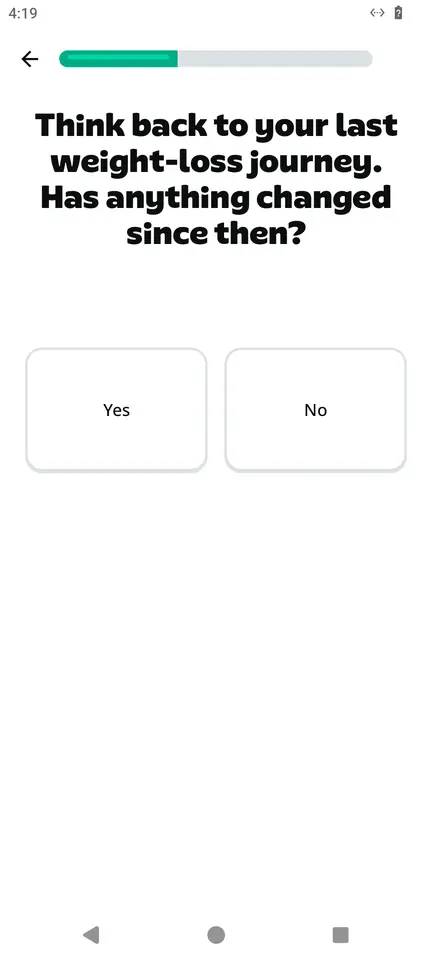
“Think back to your last weight-loss journey. Has anything changed since then?”
This screen explains a feature or a step. On screen: Yes
, No
. Next tap: “Yes”.
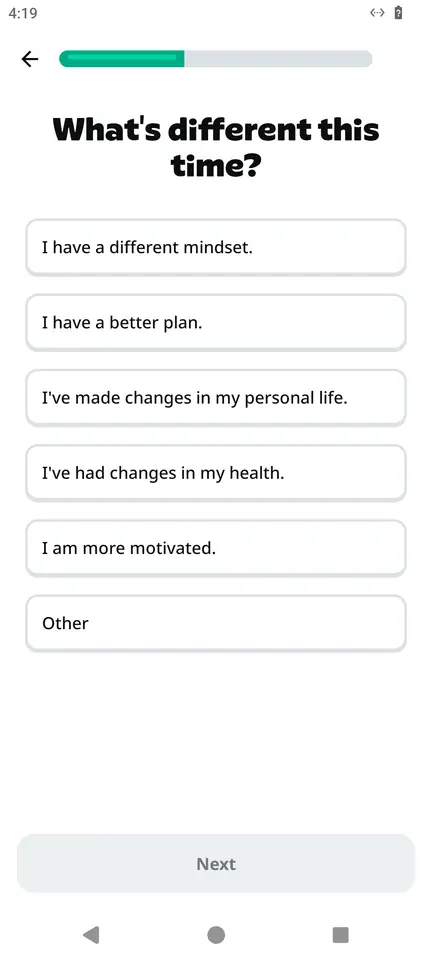
“What's different this time?”
This screen explains a feature or a step. On screen: I have a different mindset.
, I have a better plan.
. Next tap: “I have a different mindset.”.
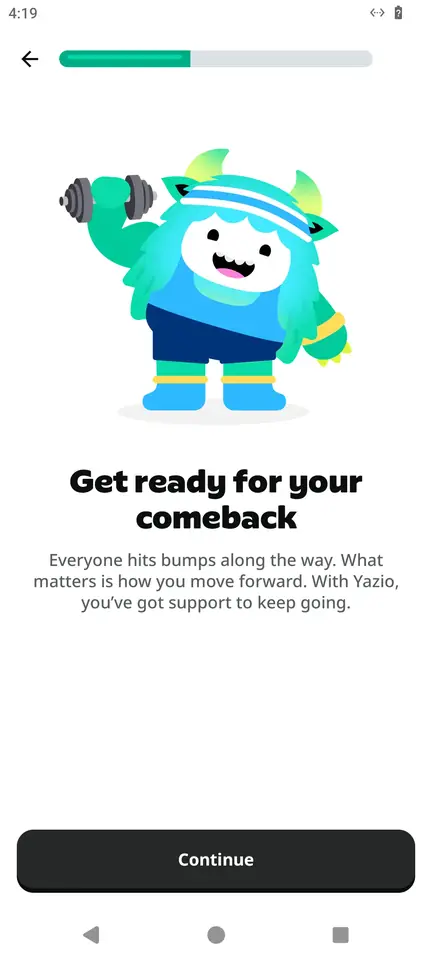
“Get ready for your comeback”
This screen explains a feature or a step. On screen: Continue
. Next tap: “Next”.
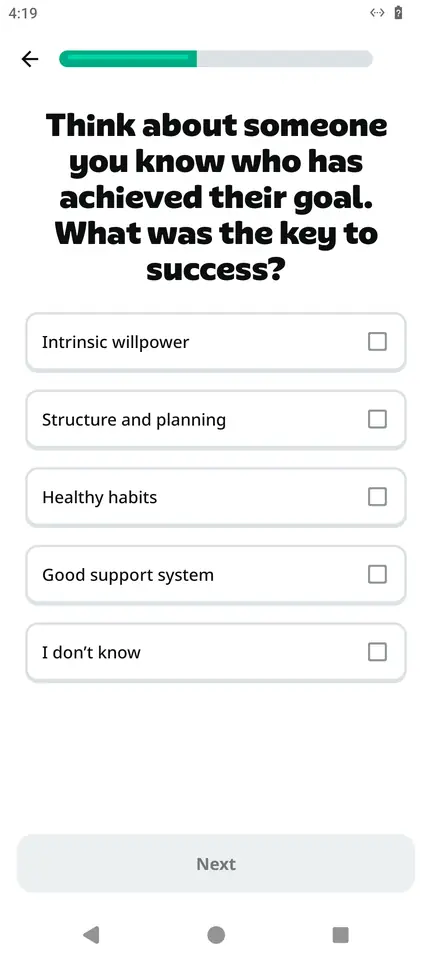
“Intrinsic willpower”
This screen explains a feature or a step. On screen: Structure and planning
, Healthy habits
. Next tap: “Intrinsic willpower”.
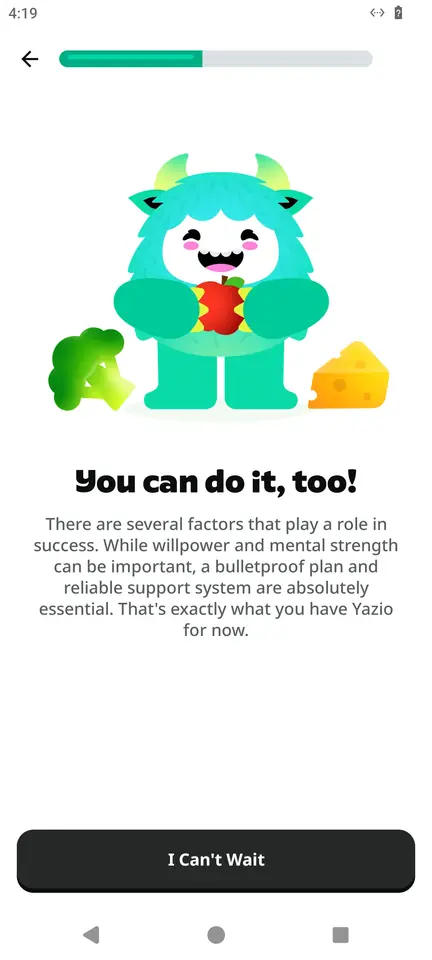
“You can do it, too!”
This screen explains a feature or a step. On screen: I Can't Wait
. Next tap: “Next”.
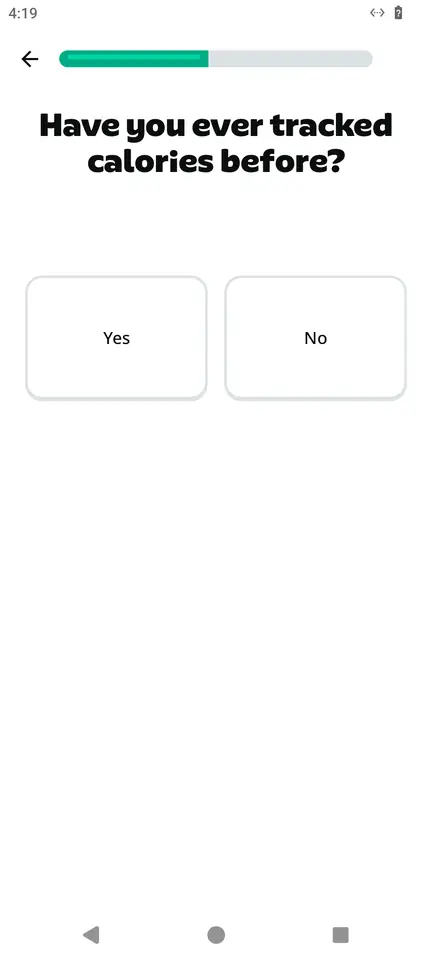
“Have you ever tracked calories before?”
This screen explains a feature or a step. On screen: Yes
, No
. Next tap: “Yes”.
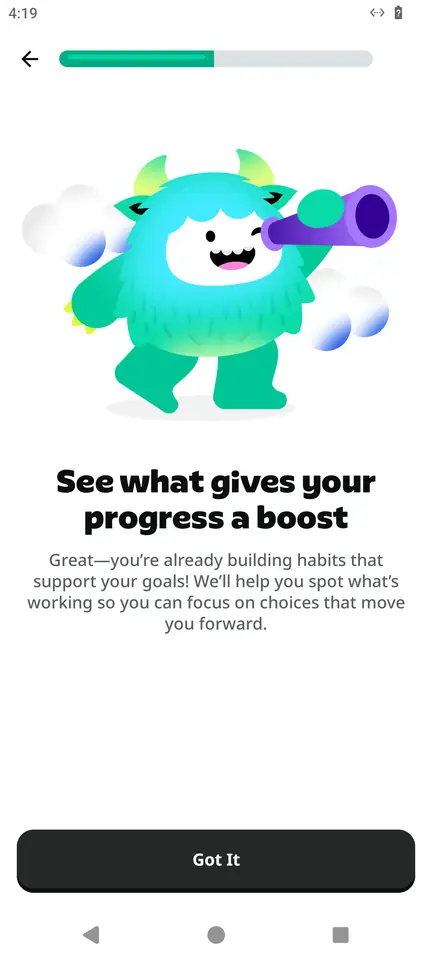
“See what gives your progress a boost”
This screen explains a feature or a step. On screen: Got It
. Next tap: “Next”.
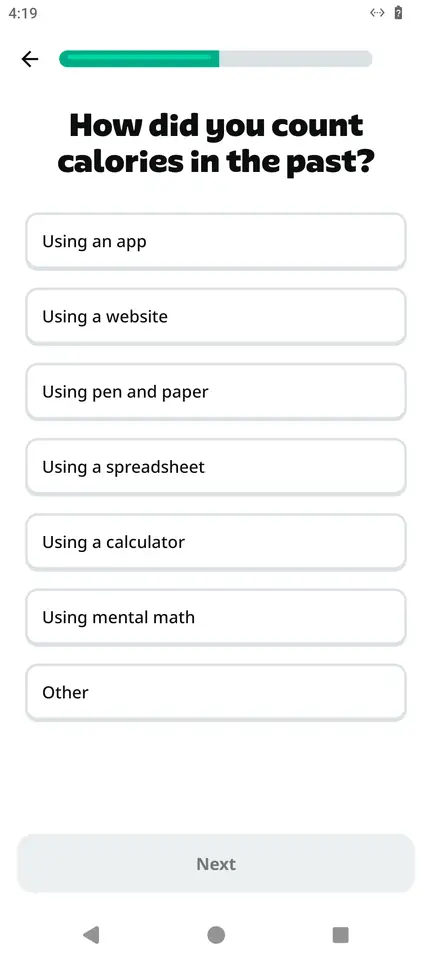
“How did you count calories in the past?”
This screen asks the user about themselves to personalise what comes next. On screen: Using an app
, Using a website
. Next tap: “Using an app”.
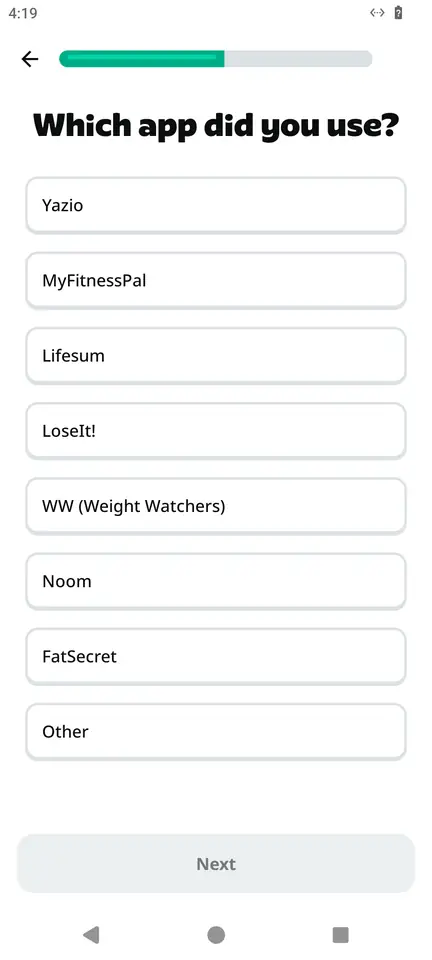
“Which app did you use?”
This screen asks the user about themselves to personalise what comes next. On screen: Yazio
, MyFitnessPal
. Next tap: “Yazio”.
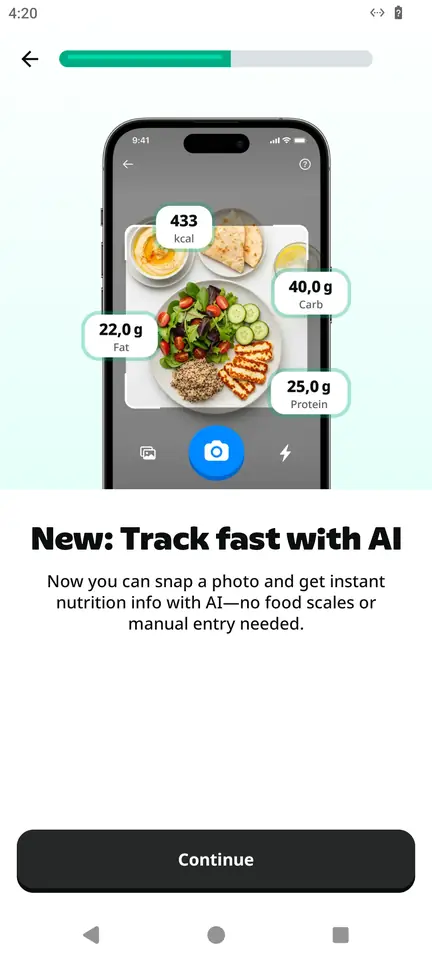
“New: Track fast with AI”
This screen explains a feature or a step. On screen: Continue
. Next tap: “Primary”.
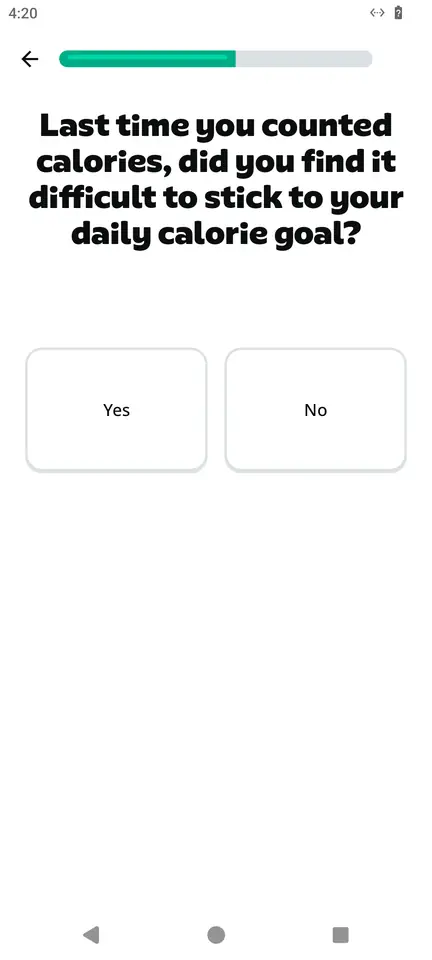
“Yes”
This screen explains a feature or a step. On screen: No
. Next tap: “Yes”.
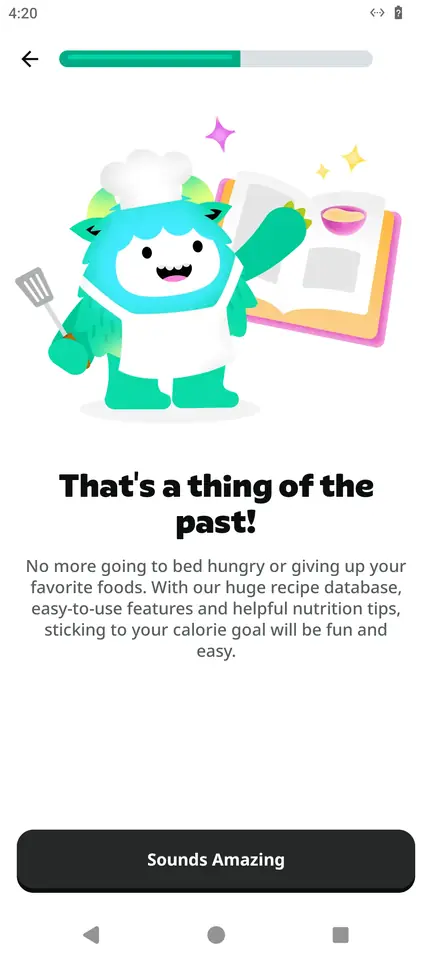
“That's a thing of the past!”
This screen explains a feature or a step. On screen: Sounds Amazing
. Next tap: “Next”.
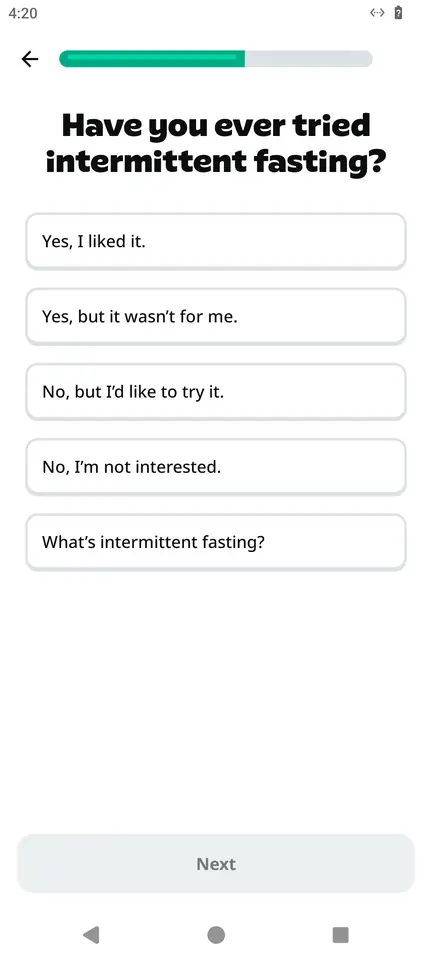
“Have you ever tried intermittent fasting?”
This screen explains a feature or a step. On screen: Yes, I liked it.
, Yes, but it wasn’t for me.
. Next tap: “Next”.
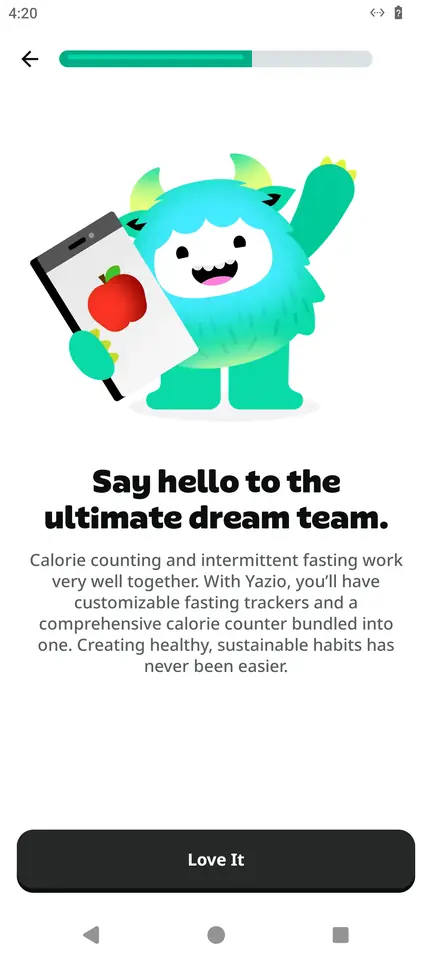
“Say hello to the ultimate dream team.”
This screen explains a feature or a step. On screen: Love It
. Next tap: “Next”.
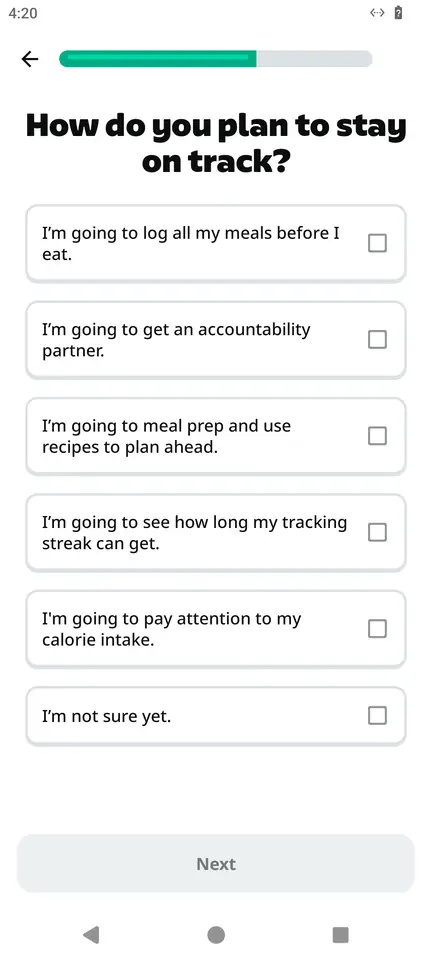
“How do you plan to stay on track?”
This screen asks the user about themselves to personalise what comes next. On screen: I’m going to log all my meals before I eat.
, I’m going to get an accountability partner.
. Next tap: “Next”.
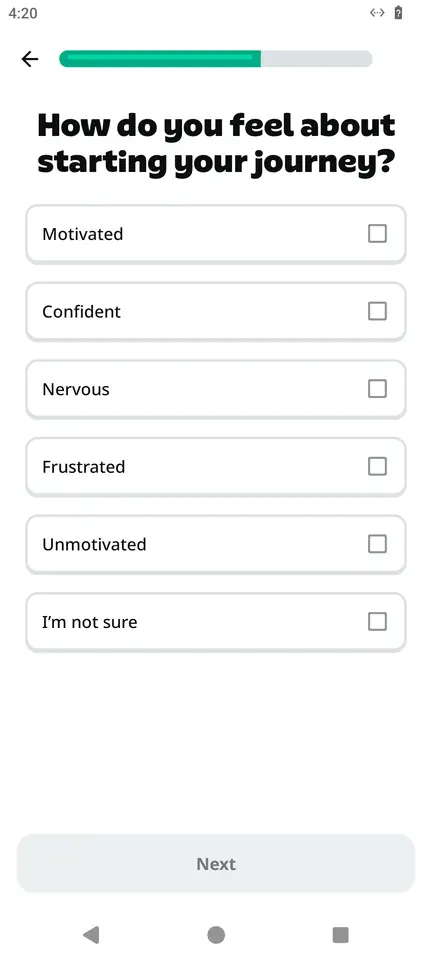
“How do you feel about starting your journey?”
This screen asks the user about themselves to personalise what comes next. On screen: Motivated
, Confident
. Next tap: “Motivated”.
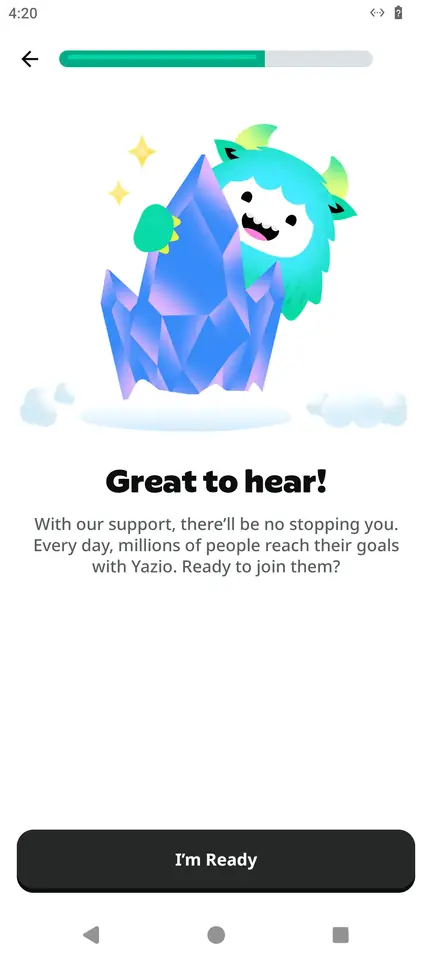
“Great to hear!”
This screen explains a feature or a step. On screen: I’m Ready
. Next tap: “Next”.
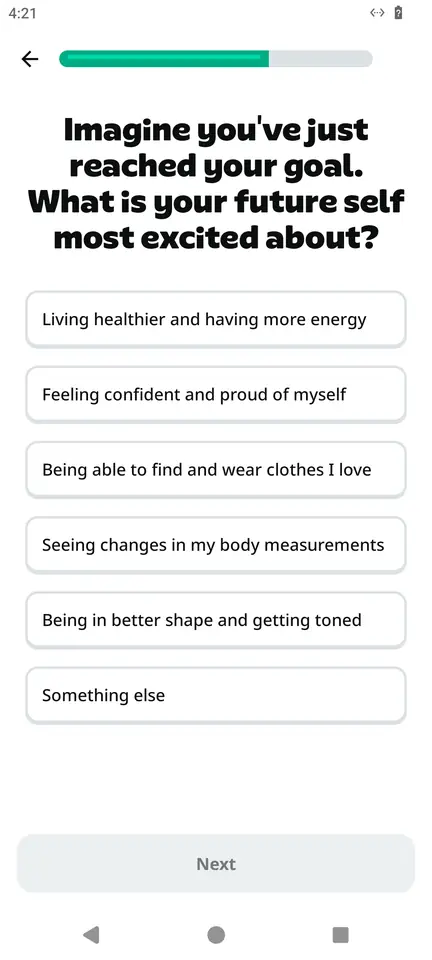
“Living healthier and having more energy”
This screen explains a feature or a step. On screen: Feeling confident and proud of myself
, Being able to find and wear clothes I love
. Next tap: “Living healthier and having more energy”.
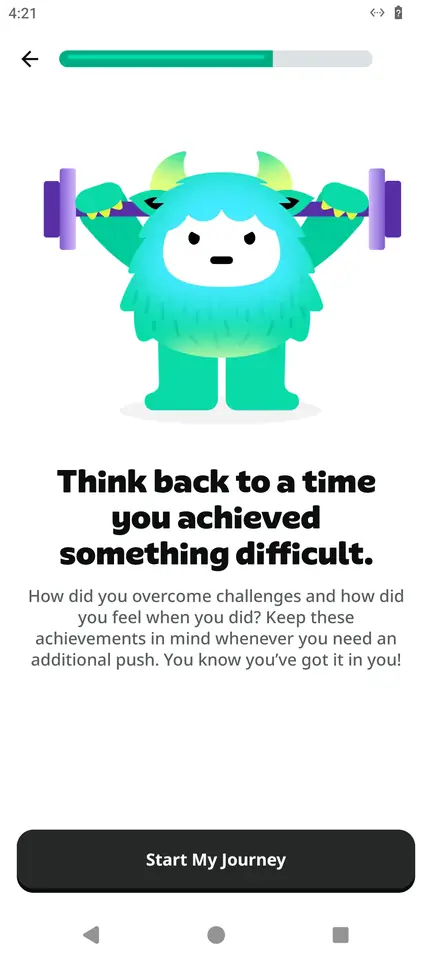
“Think back to a time you achieved something difficult.”
This screen explains a feature or a step. On screen: Start My Journey
. Next tap: “Next”.
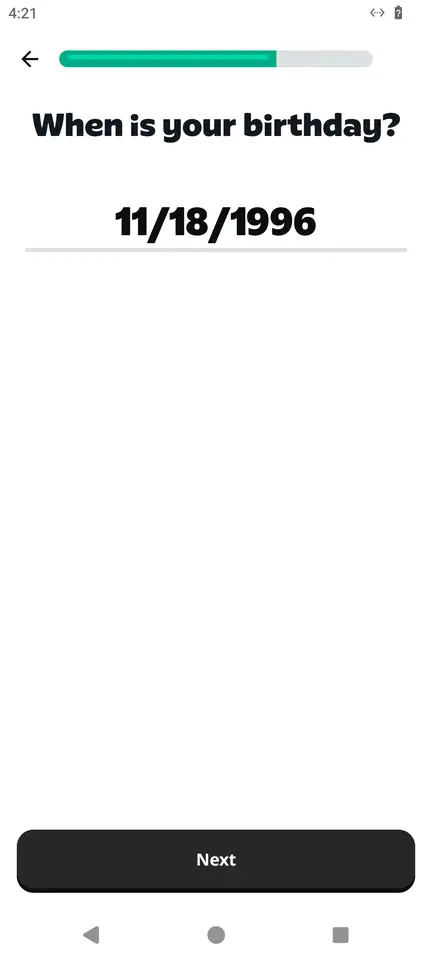
“When is your birthday?”
This screen asks the user about themselves to personalise what comes next. On screen: 11/18/1996
, Next
. Next tap: “Next”.
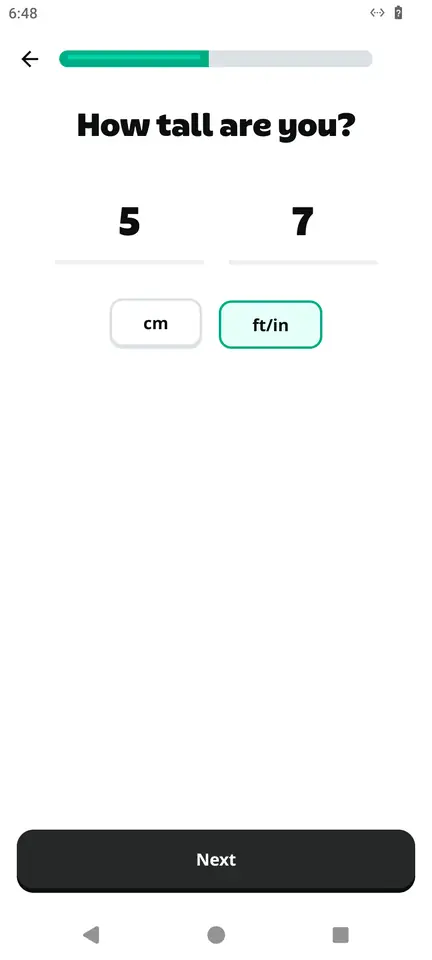
“How tall are you?”
This screen asks the user about themselves to personalise what comes next. On screen: cm
, ft/in
. Next tap: “Next”.
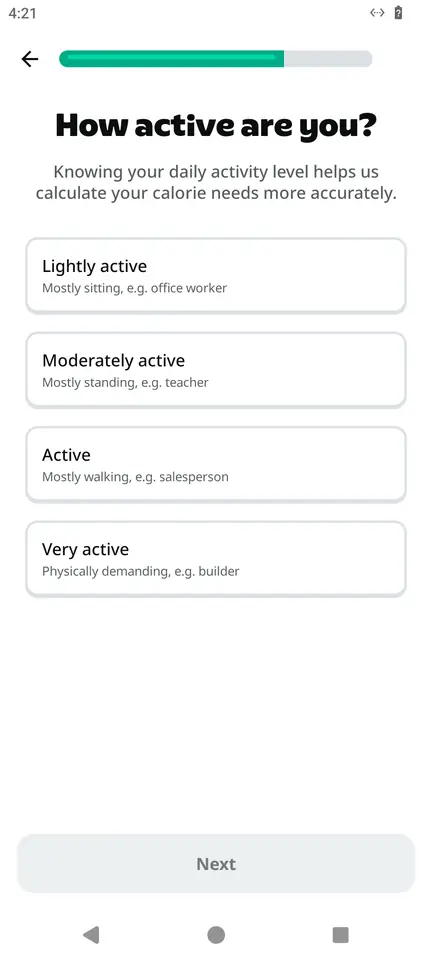
“How active are you?”
This screen asks the user about themselves to personalise what comes next. On screen: Lightly active
, Mostly sitting, e.g. office worker
. Next tap: “Lightly active Mostly sitting, e.g. office worker”.
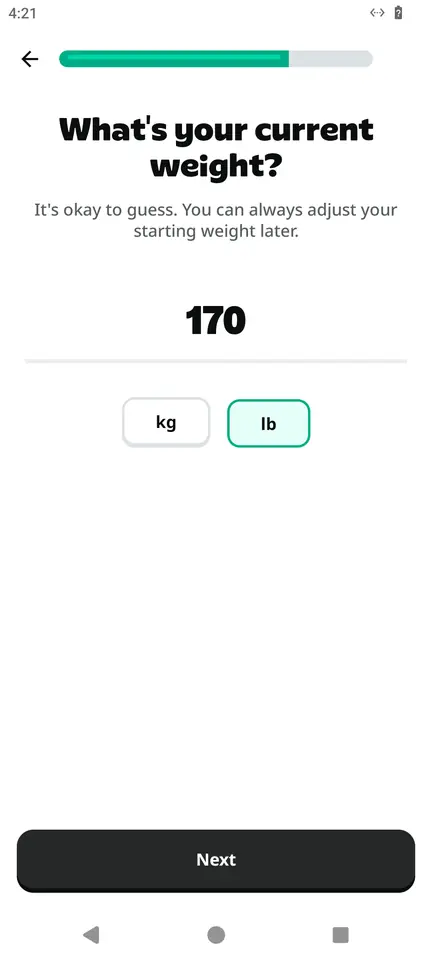
“What's your current weight?”
This screen asks the user about themselves to personalise what comes next. On screen: It's okay to guess. You can always adjust your starting weight later.
, 170
. Next tap: “Next”.
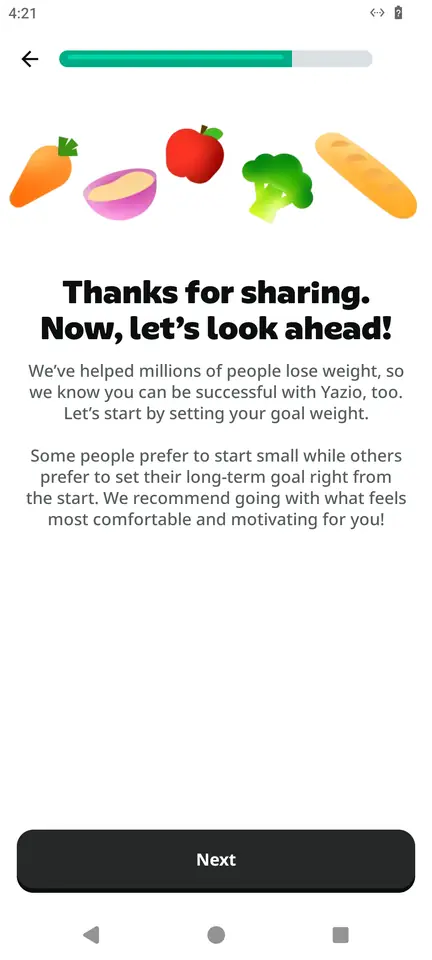
“Thanks for sharing. Now, let’s look ahead!”
This screen explains a feature or a step. On screen: Next
. Next tap: “Next”.
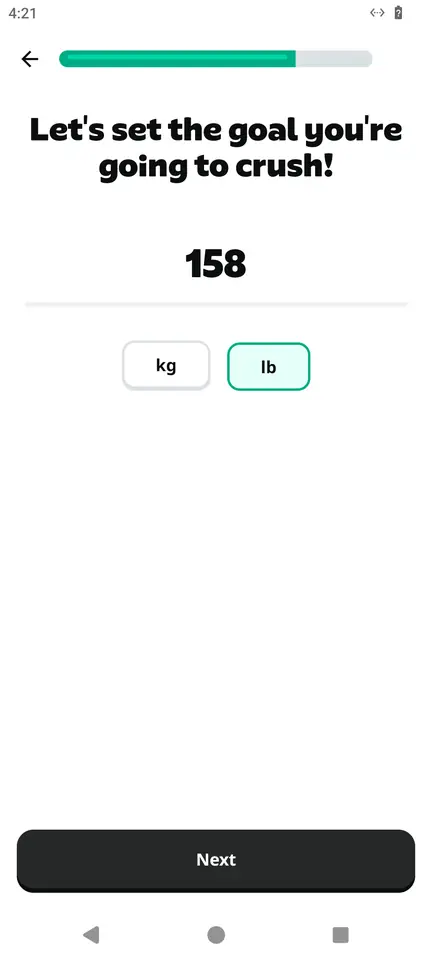
“Let's set the goal you're going to crush!”
This screen explains a feature or a step. On screen: 158
, kg
. Next tap: “Next”.
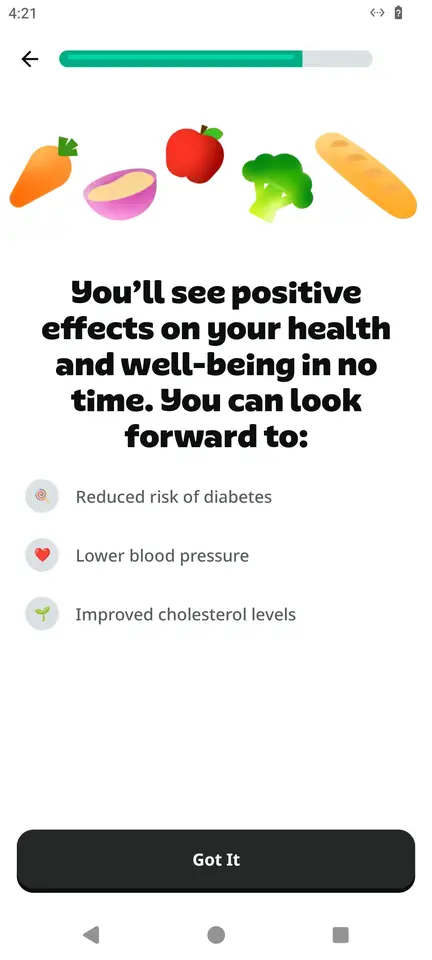
“Reduced risk of diabetes”
This screen explains a feature or a step. On screen: Lower blood pressure
, Improved cholesterol levels
. Next tap: “Next”.
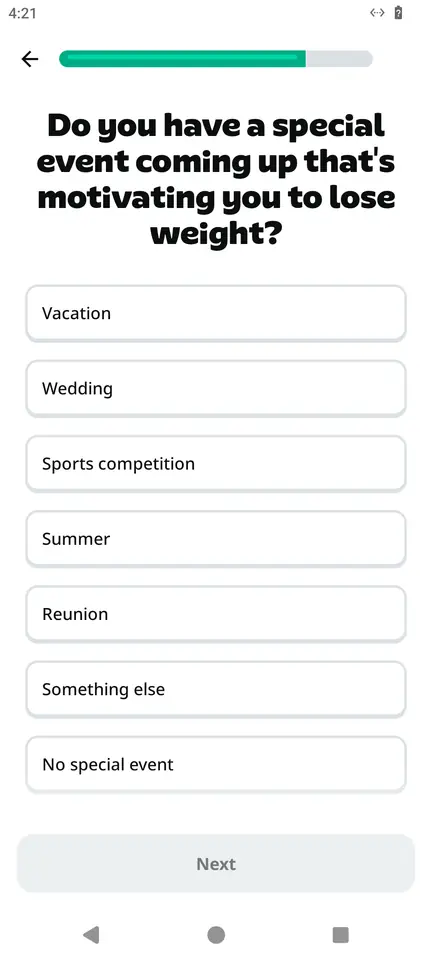
“Do you have a special event coming up that's motivating you to lose weight?”
This screen asks the user about themselves to personalise what comes next. On screen: Vacation
, Wedding
. Next tap: “Vacation”.
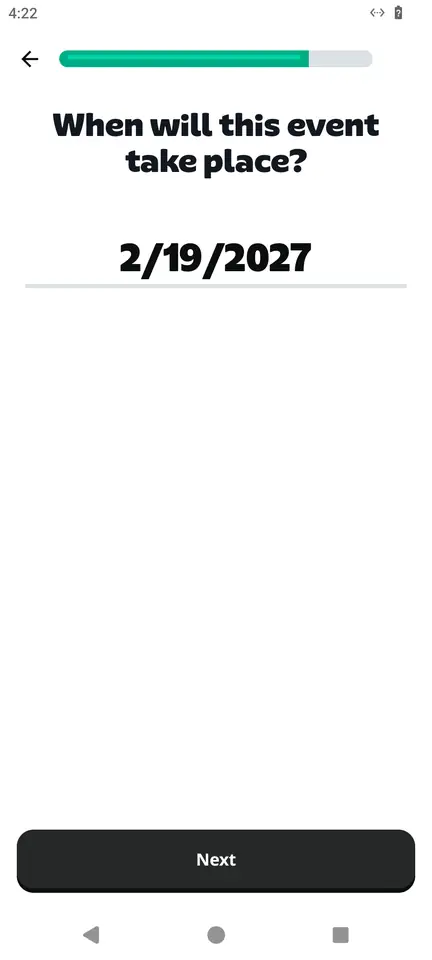
“When will this event take place?”
This screen explains a feature or a step. On screen: 2/19/2027
, Next
. Next tap: “Next”.
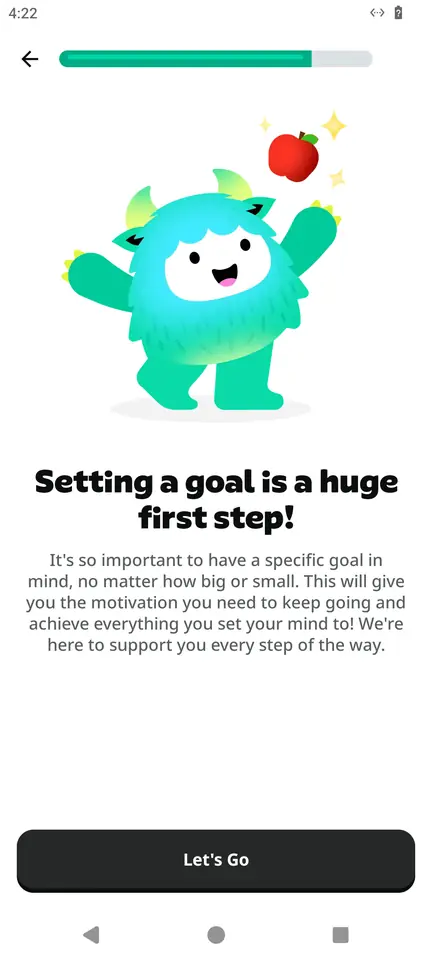
“Setting a goal is a huge first step!”
This screen sells the product before asking for anything. On screen: Let's Go
. Next tap: “Next”.
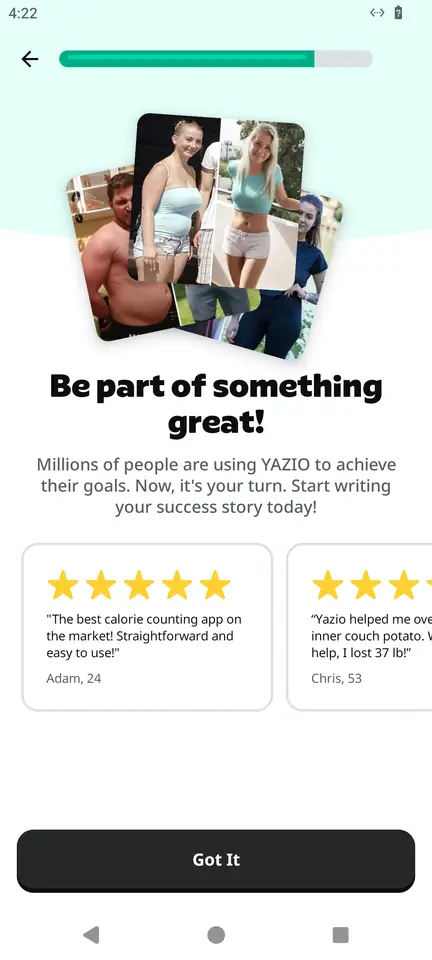
“Be part of something great!”
This screen explains a feature or a step. On screen: "The best calorie counting app on the market! Straightforward and easy to use!"
, Adam, 24
. Next tap: “Next”.
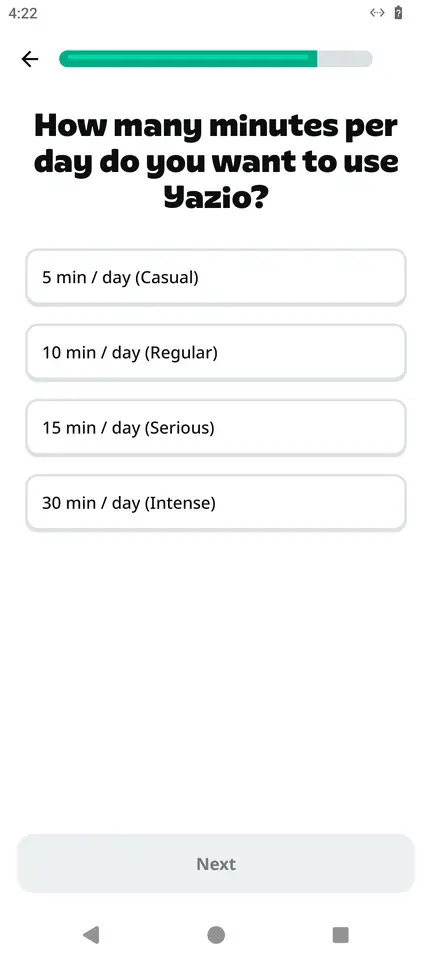
“How many minutes per day do you want to use Yazio?”
This screen asks the user about themselves to personalise what comes next. On screen: 5 min / day (Casual)
, 10 min / day (Regular)
. Next tap: “30 min / day (Intense)”.
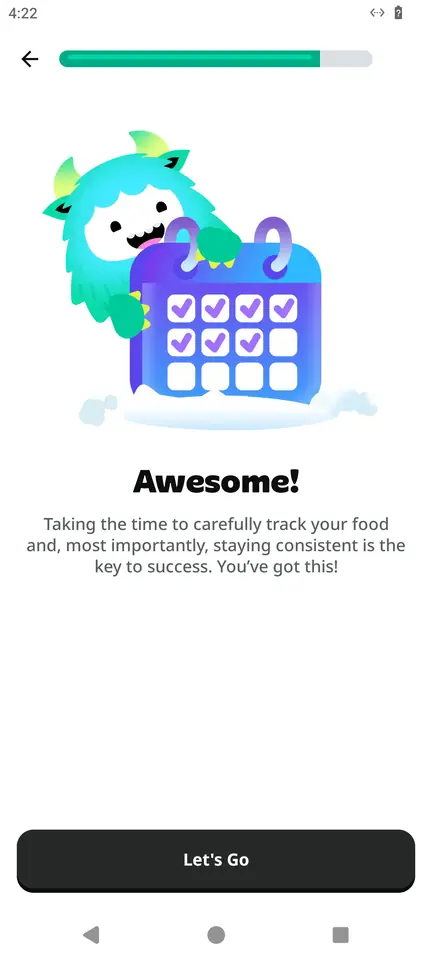
“Awesome!”
This screen sells the product before asking for anything. On screen: Let's Go
. Next tap: “Next”.
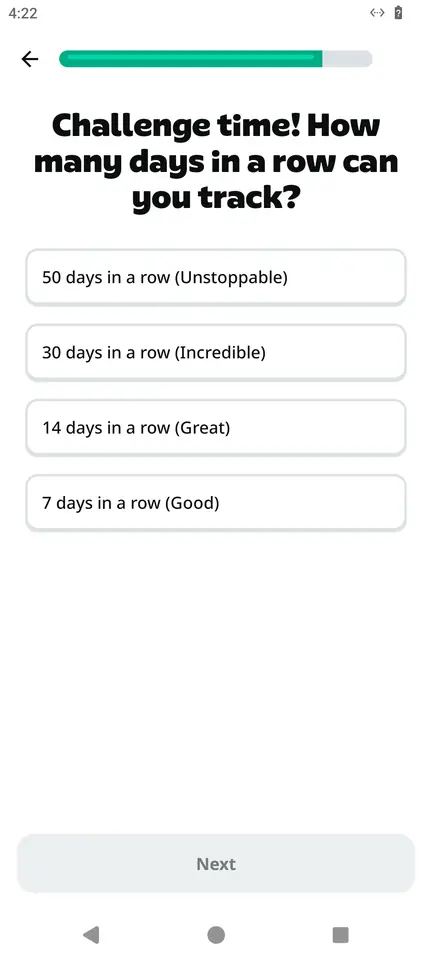
“Challenge time! How many days in a row can you track?”
This screen explains a feature or a step. On screen: 50 days in a row (Unstoppable)
, 30 days in a row (Incredible)
. Next tap: “30 days in a row (Incredible)”.
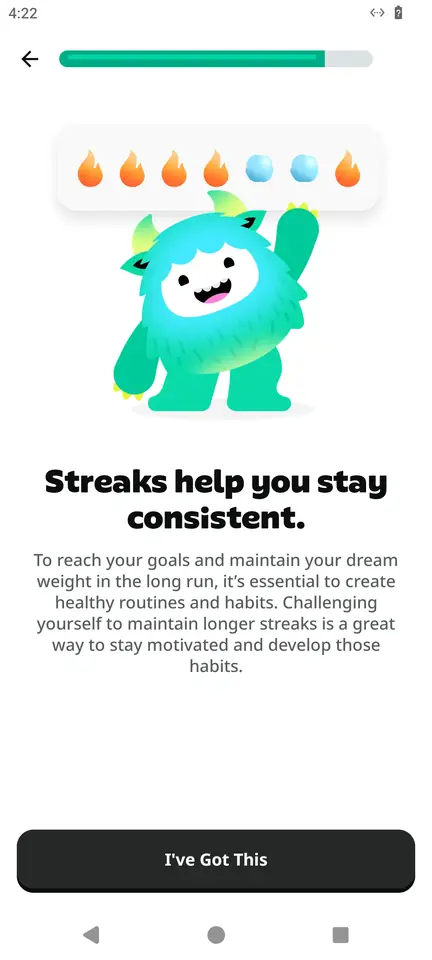
“Streaks help you stay consistent.”
This screen explains a feature or a step. On screen: I've Got This
. Next tap: “Next”.
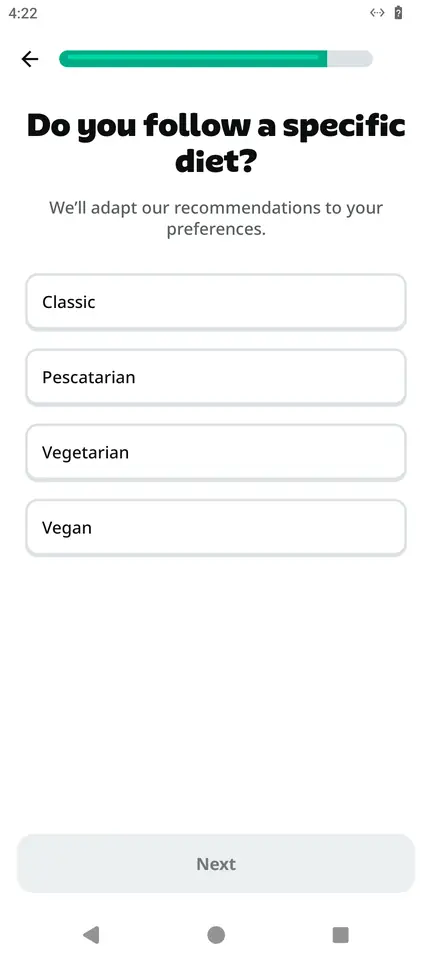
“Do you follow a specific diet?”
This screen asks the user about themselves to personalise what comes next. On screen: We’ll adapt our recommendations to your preferences.
, Classic
. Next tap: “Next”.
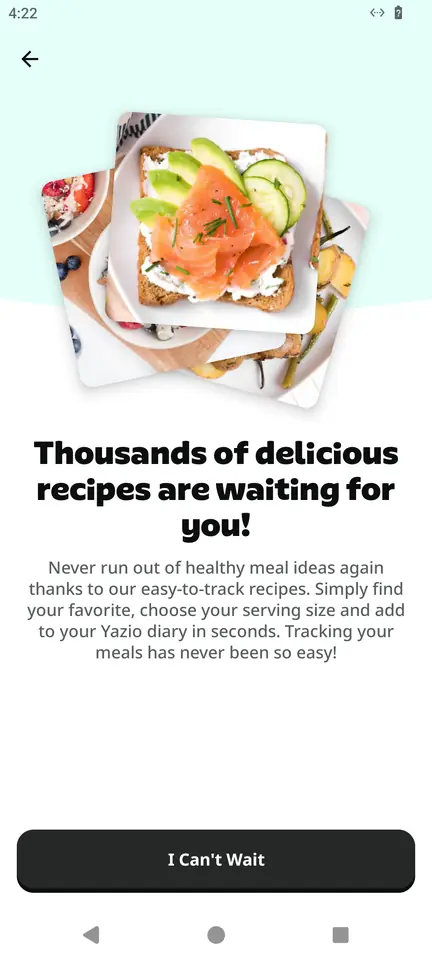
“Thousands of delicious recipes are waiting for you!”
This screen explains a feature or a step. On screen: I Can't Wait
. Next tap: “Next”.
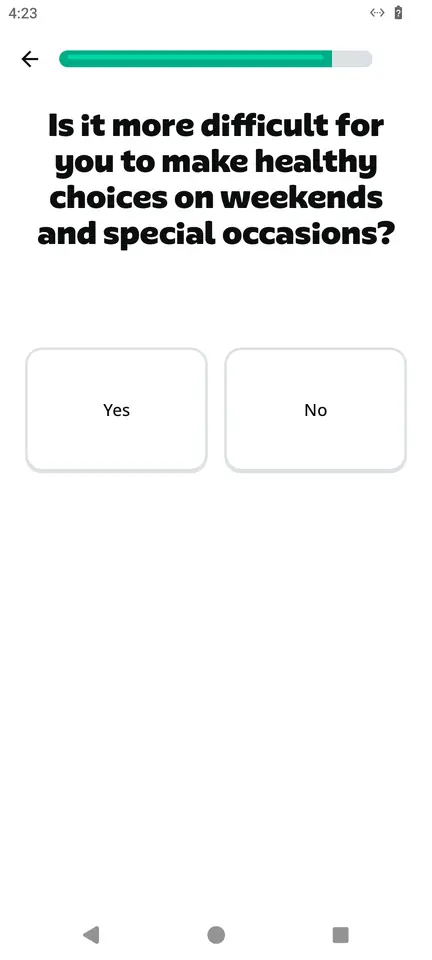
“Yes”
This screen explains a feature or a step. On screen: No
. Next tap: “Yes”.
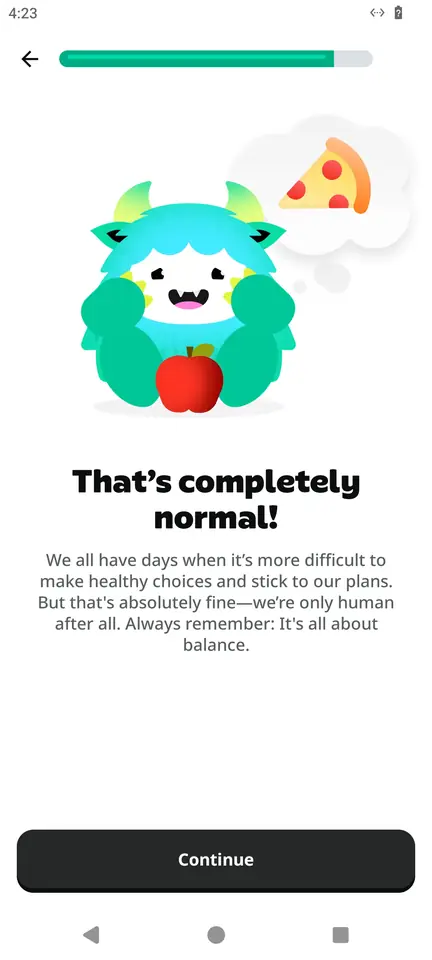
“That’s completely normal!”
This screen explains a feature or a step. On screen: Continue
. Next tap: “Next”.
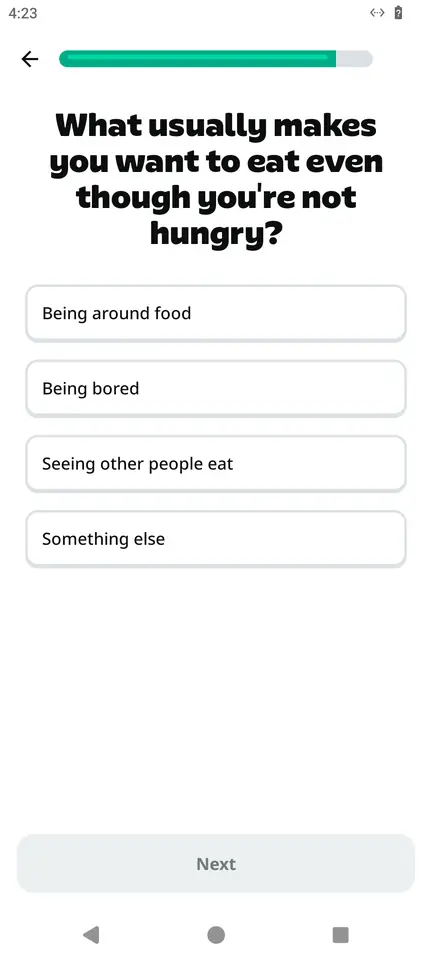
“What usually makes you want to eat even though you're not hungry?”
This screen asks the user about themselves to personalise what comes next. On screen: Being around food
, Being bored
. Next tap: “Being around food”.
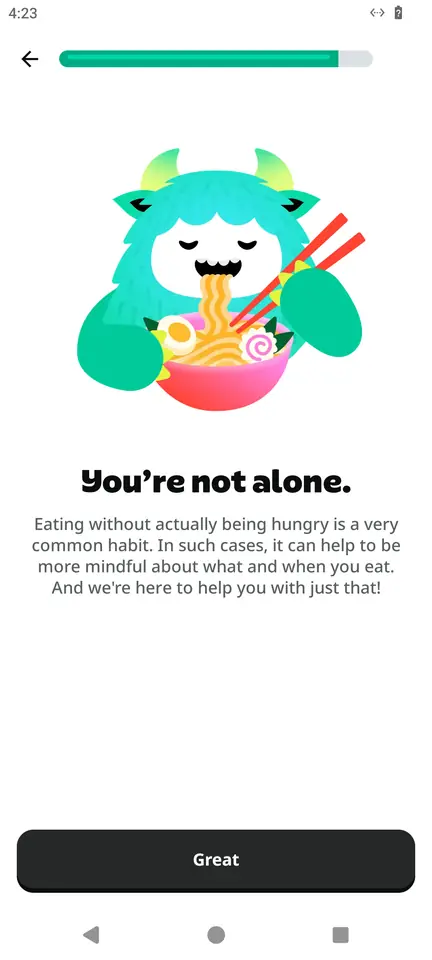
“You’re not alone.”
This screen explains a feature or a step. On screen: Great
. Next tap: “Next”.
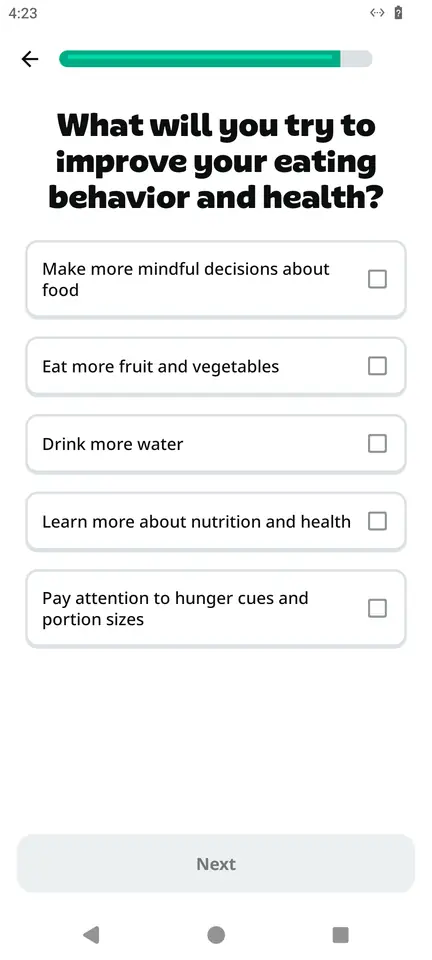
“What will you try to improve your eating behavior and health?”
This screen asks the user about themselves to personalise what comes next. On screen: Make more mindful decisions about food
, Eat more fruit and vegetables
. Next tap: “Next”.
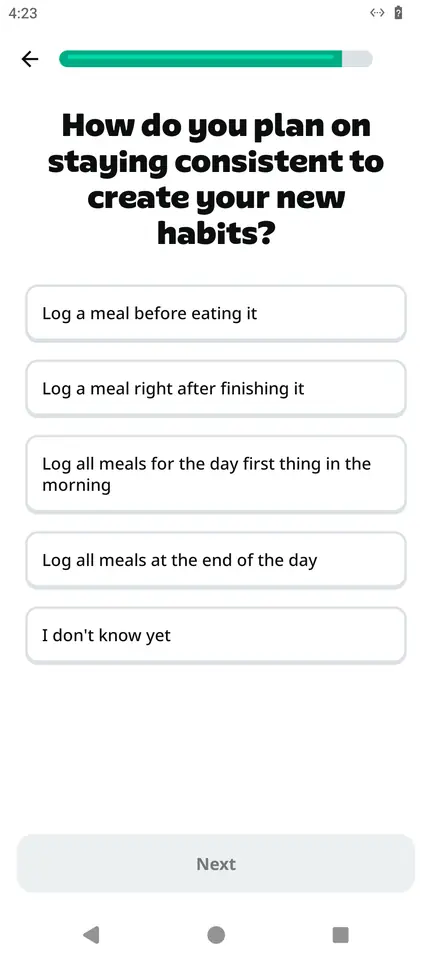
“How do you plan on staying consistent to create your new habits?”
This screen asks the user about themselves to personalise what comes next. On screen: Log a meal before eating it
, Log a meal right after finishing it
. Next tap: “Log a meal before eating it”.
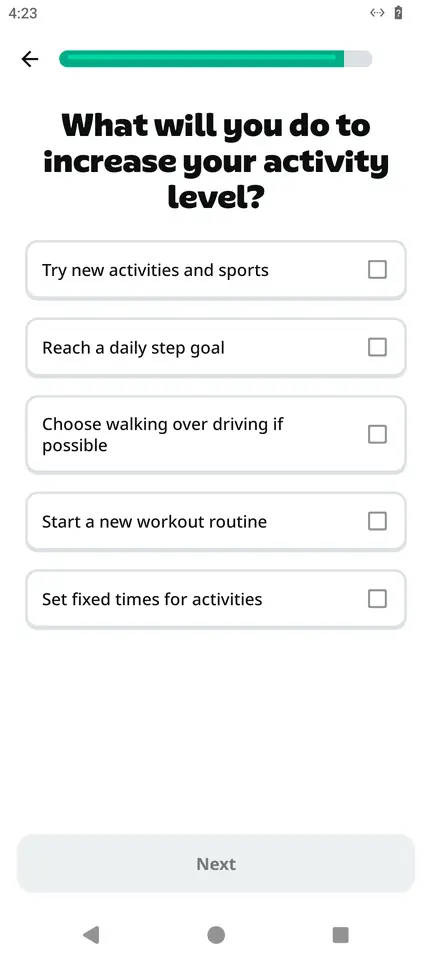
“What will you do to increase your activity level?”
This screen asks the user about themselves to personalise what comes next. On screen: Try new activities and sports
, Reach a daily step goal
. Next tap: “Try new activities and sports”.
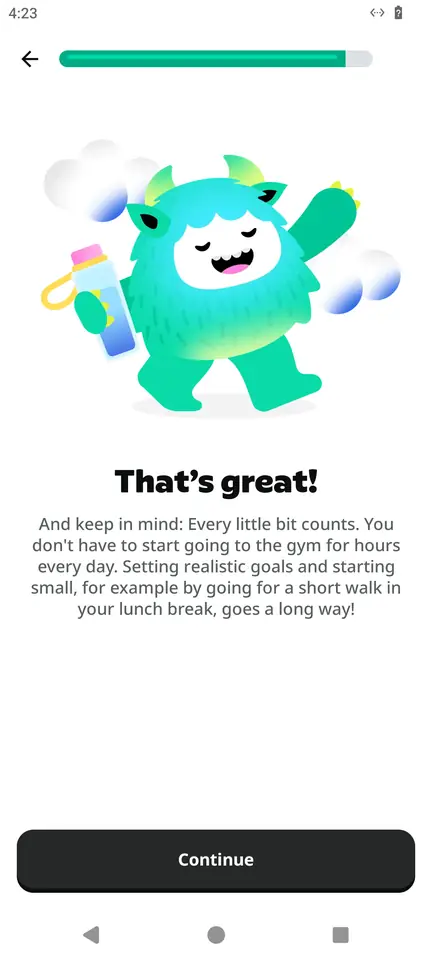
“That’s great!”
This screen explains a feature or a step. On screen: Continue
. Next tap: “Next”.
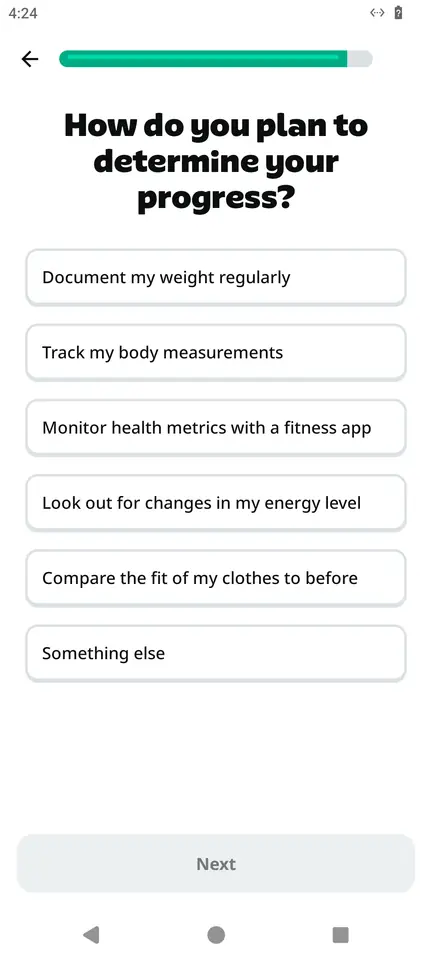
“How do you plan to determine your progress?”
This screen asks the user about themselves to personalise what comes next. On screen: Document my weight regularly
, Track my body measurements
. Next tap: “Document my weight regularly”.
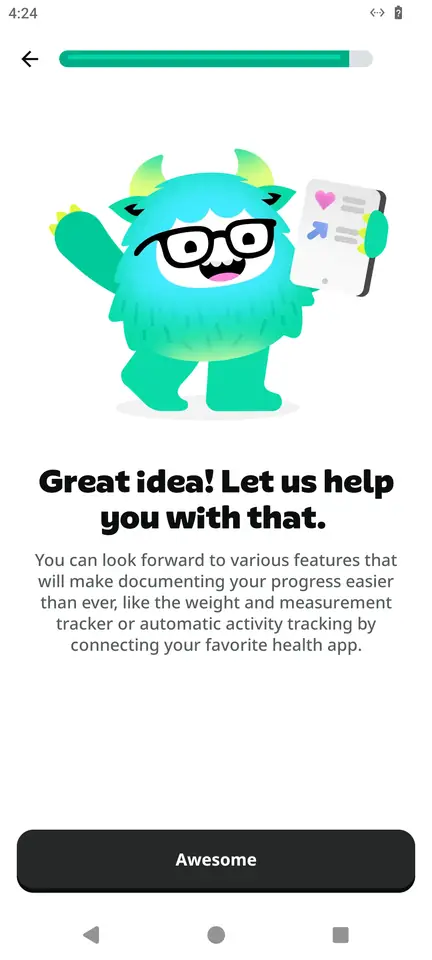
“Great idea! Let us help you with that.”
This screen explains a feature or a step. On screen: Awesome
. Next tap: “Next”.
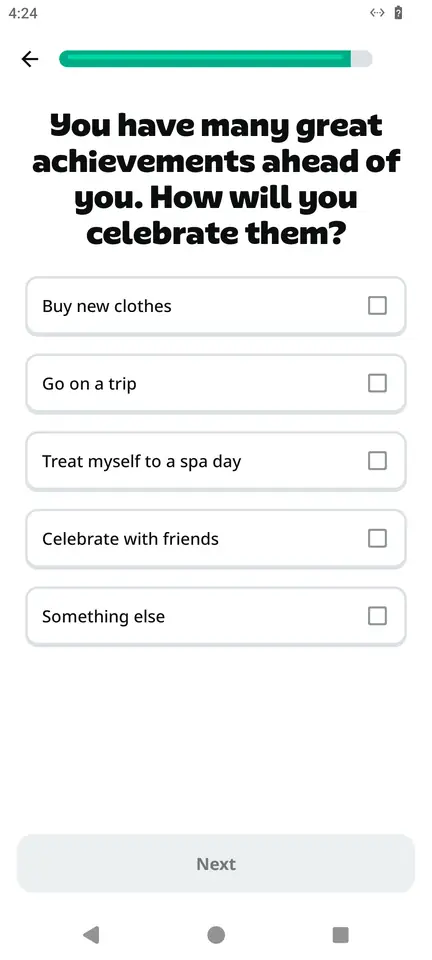
“You have many great achievements ahead of you. How will you celebrate them?”
This screen explains a feature or a step. On screen: Buy new clothes
, Go on a trip
. Next tap: “Next”.
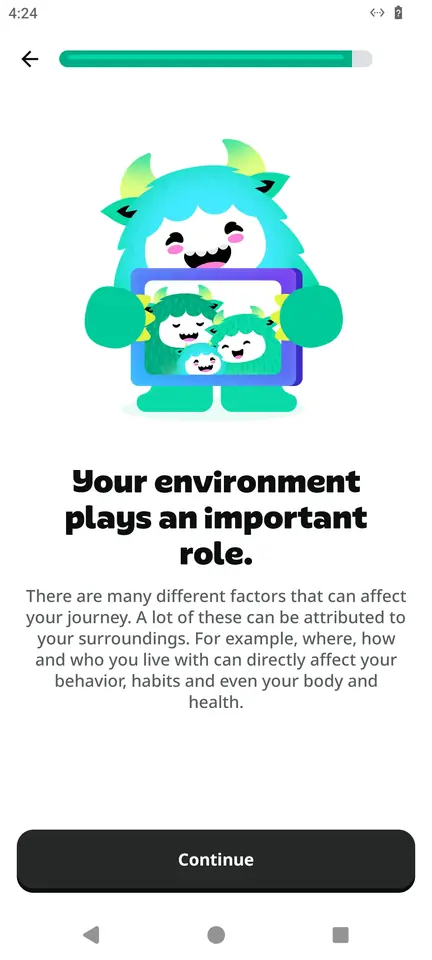
“Your environment plays an important role.”
This screen explains a feature or a step. On screen: Continue
. Next tap: “Next”.
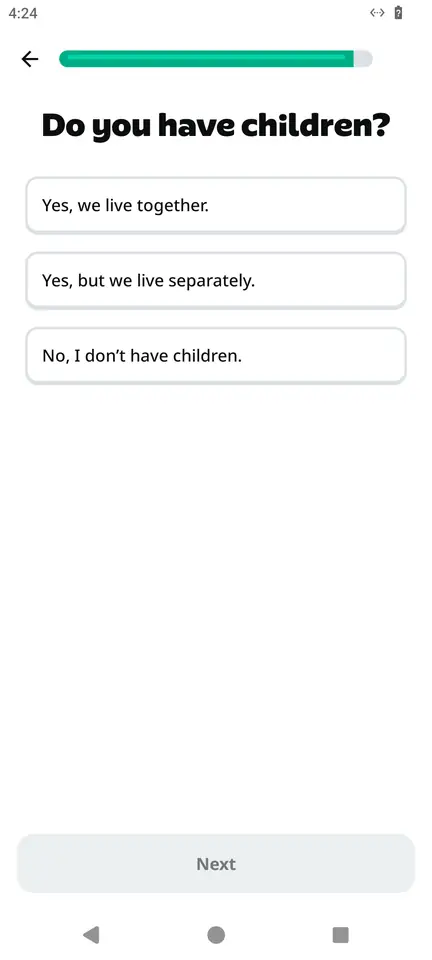
“Do you have children?”
This screen asks the user about themselves to personalise what comes next. On screen: Yes, we live together.
, Yes, but we live separately.
. Next tap: “Yes, we live together.”.
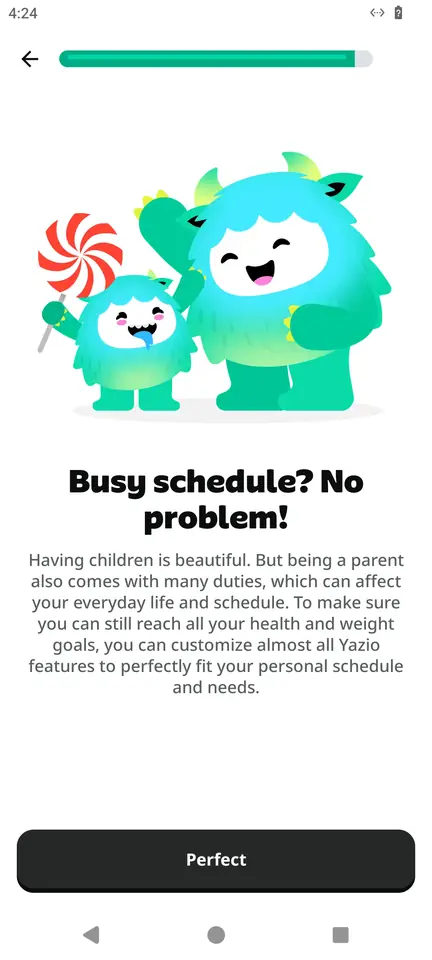
“Busy schedule? No problem!”
This screen explains a feature or a step. On screen: Perfect
. Next tap: “Next”.
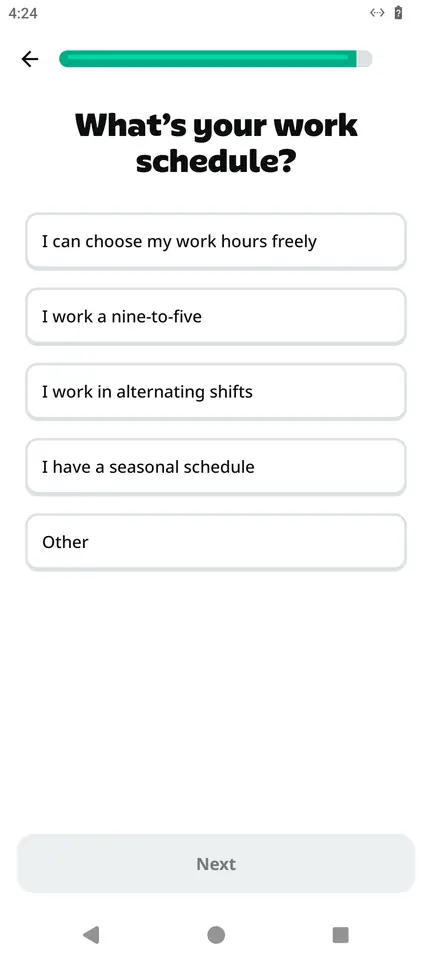
“What’s your work schedule?”
This screen asks the user about themselves to personalise what comes next. On screen: I can choose my work hours freely
, I work a nine-to-five
. Next tap: “Next”.
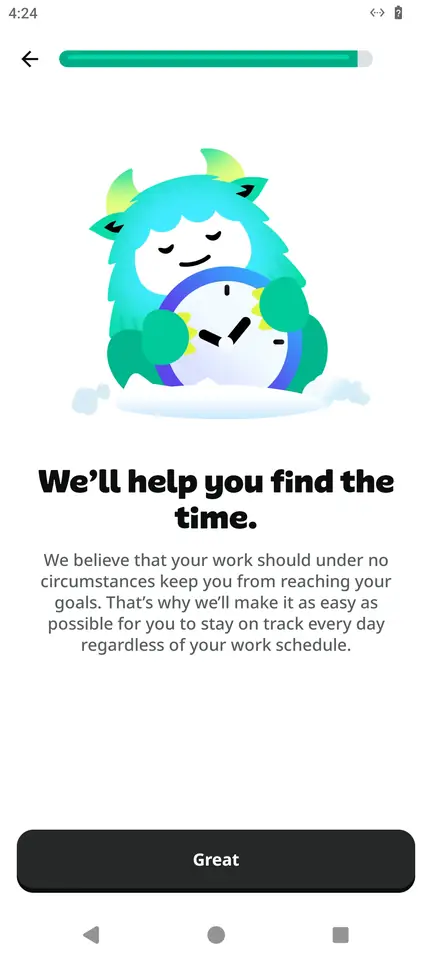
“We’ll help you find the time.”
This screen explains a feature or a step. On screen: Great
. Next tap: “Next”.
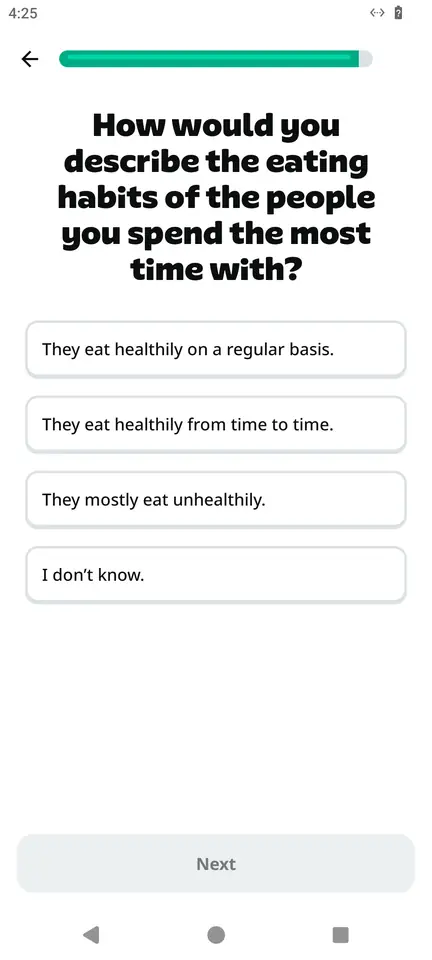
“They eat healthily on a regular basis.”
This screen explains a feature or a step. On screen: They eat healthily from time to time.
, They mostly eat unhealthily.
. Next tap: “Next”.
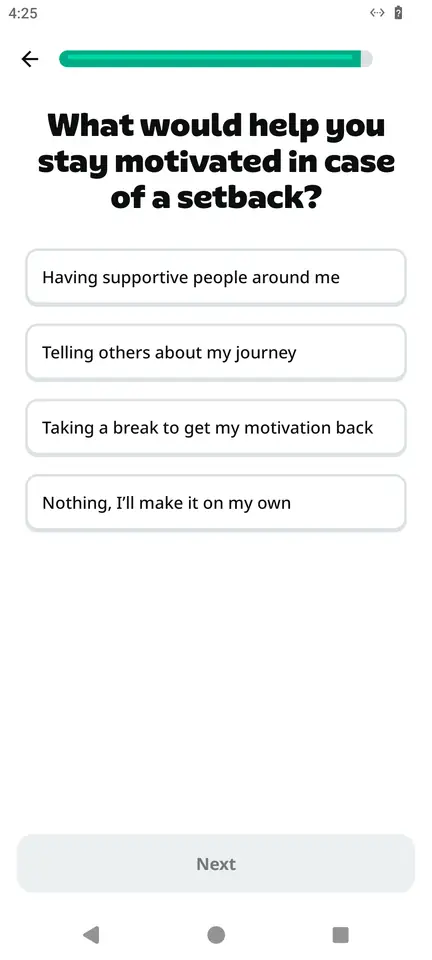
“What would help you stay motivated in case of a setback?”
This screen asks the user about themselves to personalise what comes next. On screen: Having supportive people around me
, Telling others about my journey
. Next tap: “Having supportive people around me”.
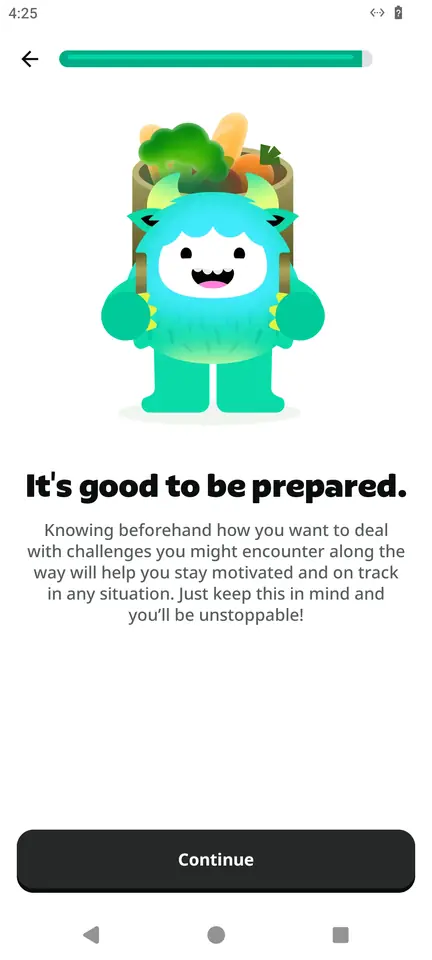
“It's good to be prepared.”
This screen explains a feature or a step. On screen: Continue
. Next tap: “Next”.
“Thank you for trusting us.”
This screen explains a feature or a step. On screen: Create My Plan
. Next tap: “Next”.
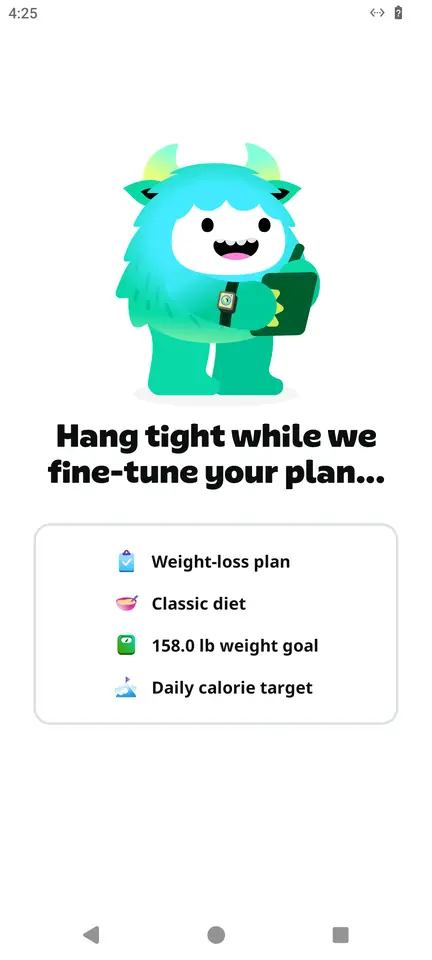
“Hang tight while we fine-tune your plan...”
This screen explains a feature or a step. On screen: Weight-loss plan
, Classic diet
.
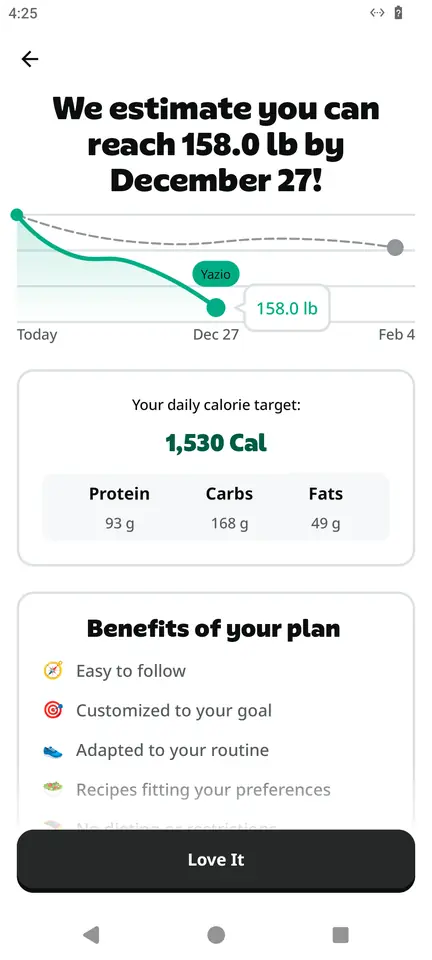
“We estimate you can reach 158.0 lb by December 27!”
This screen explains a feature or a step. On screen: Yazio
, 158.0 lb
. Next tap: “Next”.
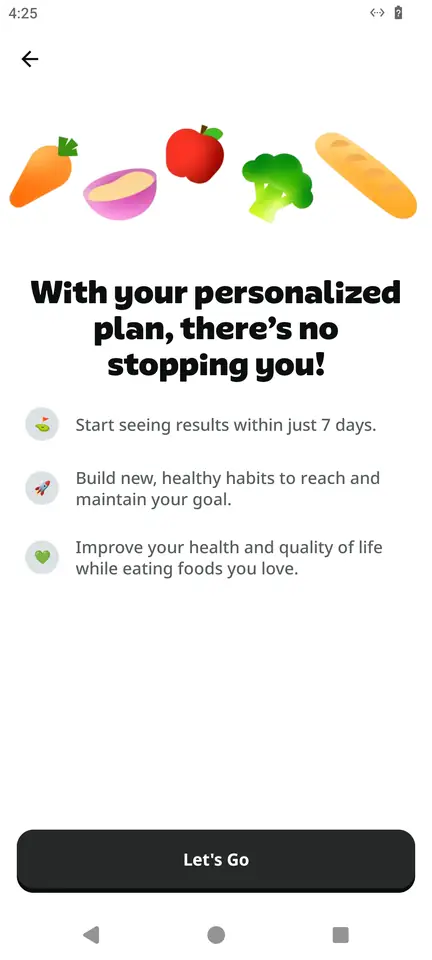
“With your personalized plan, there’s no stopping you!”
This screen sells the product before asking for anything. On screen: Start seeing results within just 7 days.
, Build new, healthy habits to reach and maintain your goal.
. Next tap: “Next”.
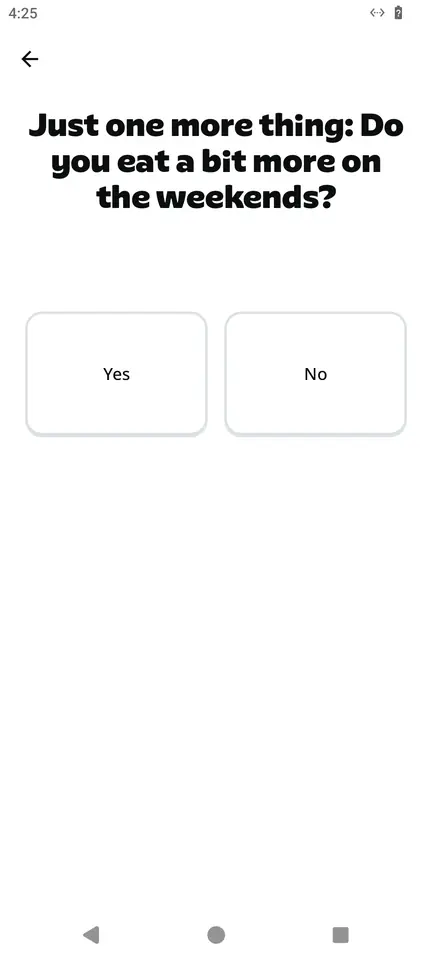
“Just one more thing: Do you eat a bit more on the weekends?”
This screen explains a feature or a step. On screen: Yes
, No
. Next tap: “Yes”.
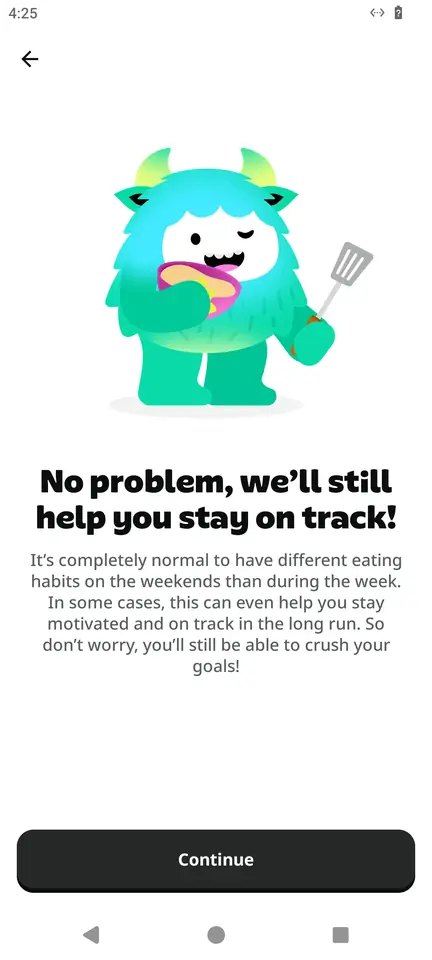
“No problem, we’ll still help you stay on track!”
This screen explains a feature or a step. On screen: Continue
. Next tap: “Next”.
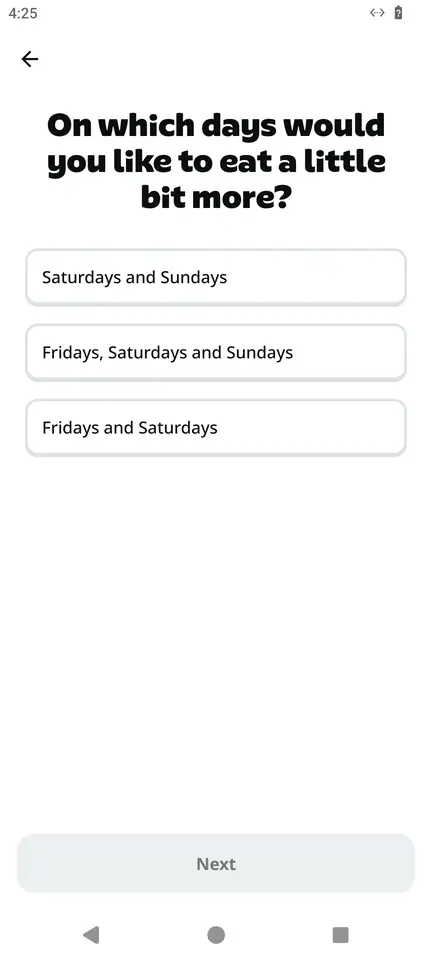
“On which days would you like to eat a little bit more?”
This screen explains a feature or a step. On screen: Saturdays and Sundays
, Fridays, Saturdays and Sundays
. Next tap: “Saturdays and Sundays”.
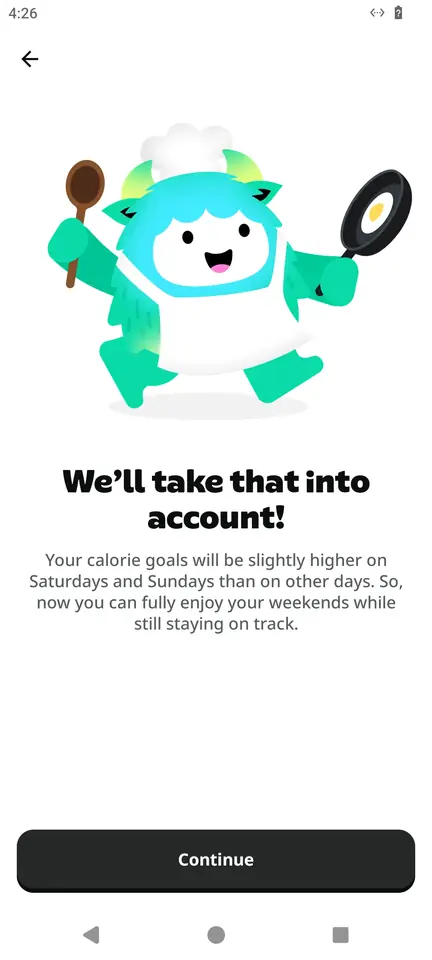
“We’ll take that into account!”
This screen explains a feature or a step. On screen: Continue
. Next tap: “Next”.
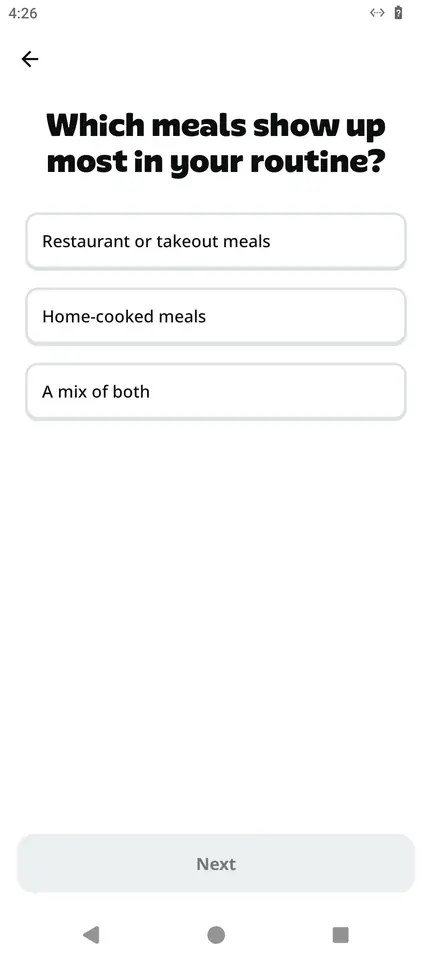
“Which meals show up most in your routine?”
This screen asks the user about themselves to personalise what comes next. On screen: Restaurant or takeout meals
, Home-cooked meals
. Next tap: “Restaurant or takeout meals”.
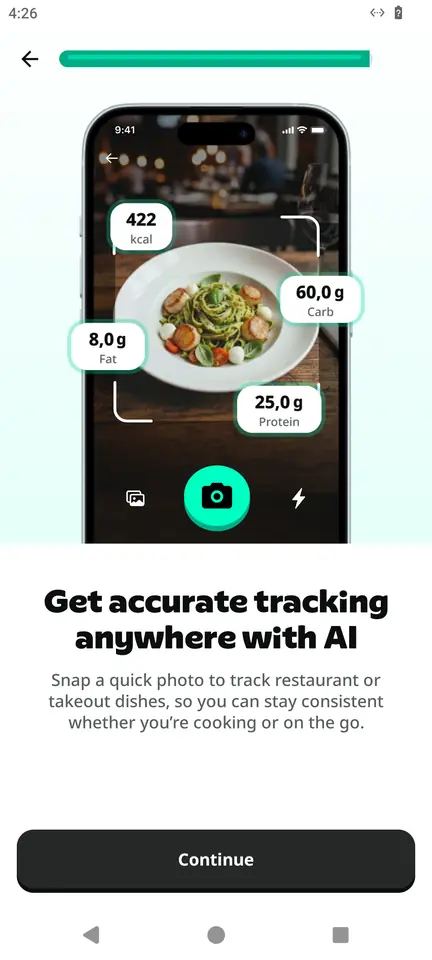
“Get accurate tracking anywhere with AI”
This screen explains a feature or a step. On screen: Continue
. Next tap: “Next”.
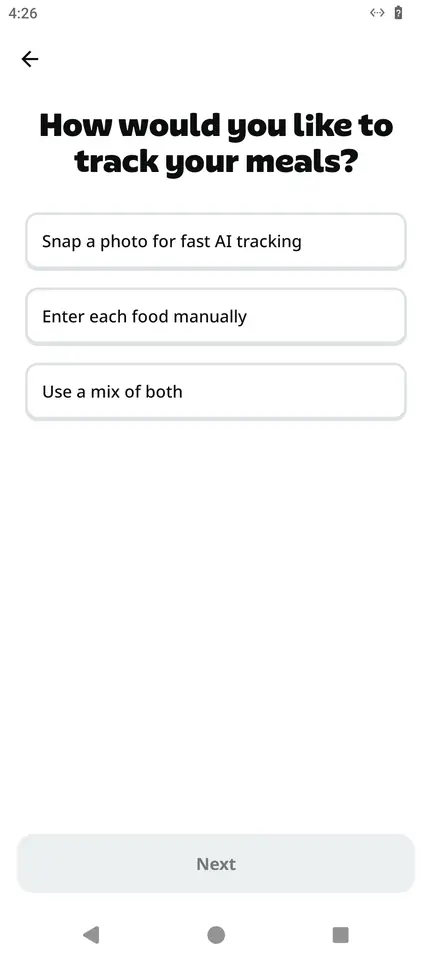
“How would you like to track your meals?”
This screen asks the user about themselves to personalise what comes next. On screen: Snap a photo for fast AI tracking
, Enter each food manually
. Next tap: “Snap a photo for fast AI tracking”.
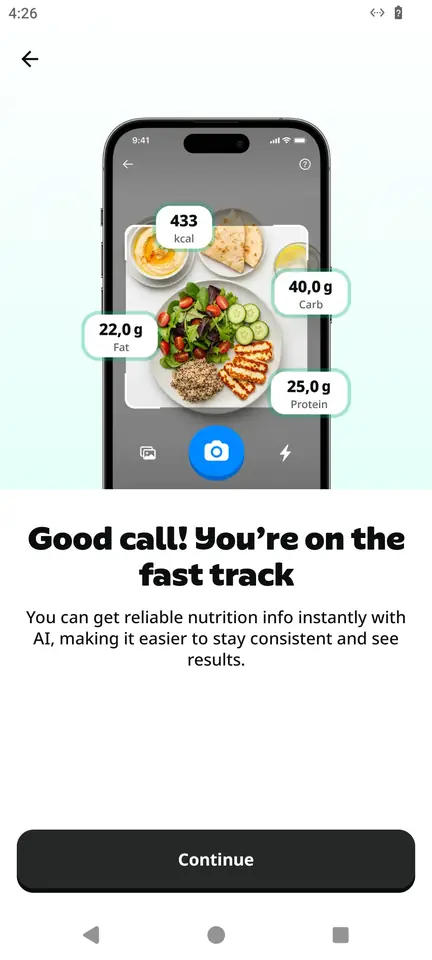
“Good call! You’re on the fast track”
This screen explains a feature or a step. On screen: Continue
. Next tap: “Primary”.
“Unlock Your Healthiest Self with Yazio Pro”
This screen explains a feature or a step. On screen: Feel more confident and in control
, Build healthy habits that stick
. Next tap: “Next”.
“Go without Yazio, but miss out on our great features proven to deliver results.”
This screen explains a feature or a step. On screen: Continue
. Next tap: “Next”.
“Don’t miss out on this chance to reach your goals even faster!”
This screen explains a feature or a step. On screen: Triple your chances of reaching your goal sustainably.
, Build healthy habits and improve quality of life without restrictions.
. Next tap: “Next”.
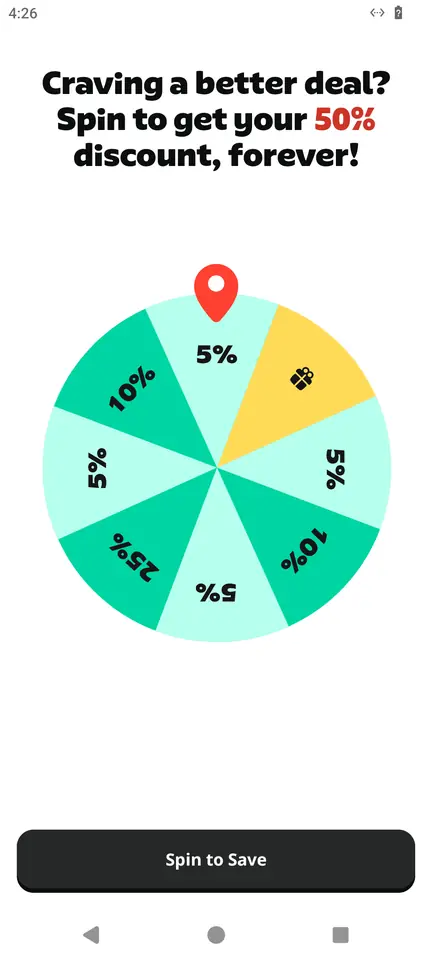
“Craving a better deal? Spin to get your 50% discount, forever!”
This screen explains a feature or a step. On screen: Spin to Save
. Next tap: “Next”.
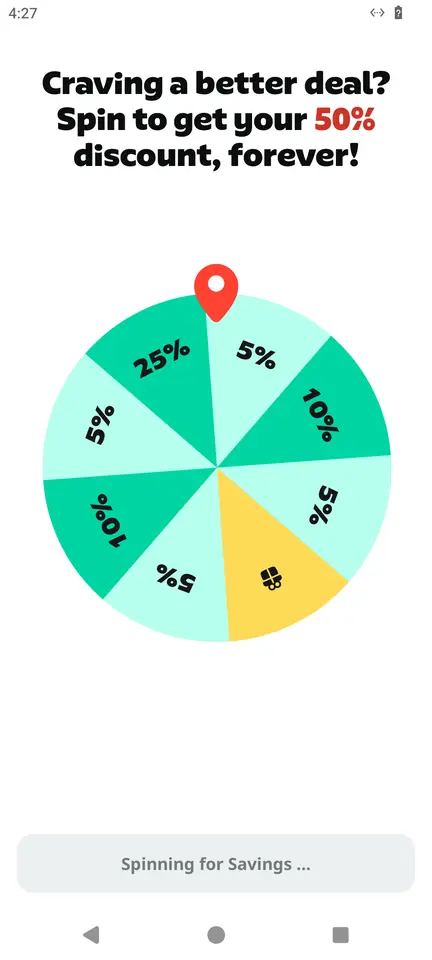
“Spinning for Savings ...”
This screen explains a feature or a step. On screen: Craving a better deal? Spin to get your 50% discount, forever!
. Next tap: “Spinning for Savings ...”.
“💎 There’s more where that came from!”
This screen explains a feature or a step. On screen: Spin Again
. Next tap: “Primary”.
“Get a head start on week 1”
This screen explains a feature or a step. On screen: See my tips
. Next tap: “Primary”.
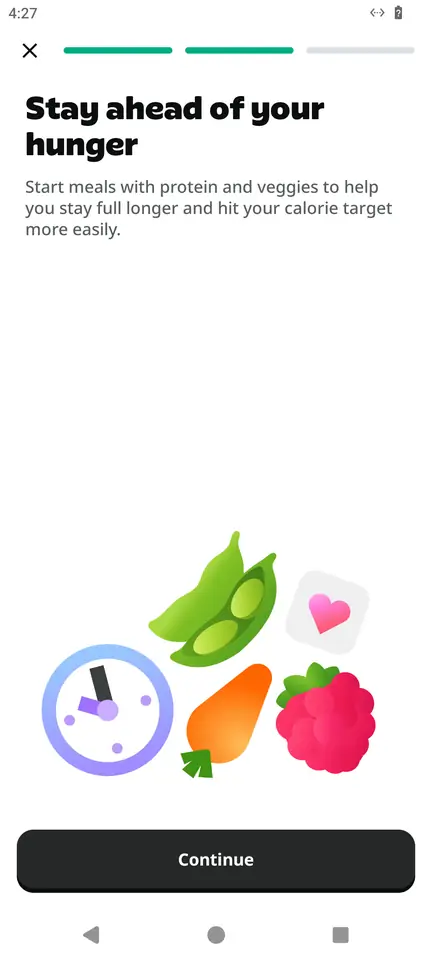
“Stay ahead of your hunger”
This screen explains a feature or a step. On screen: Continue
. Next tap: “Primary”.
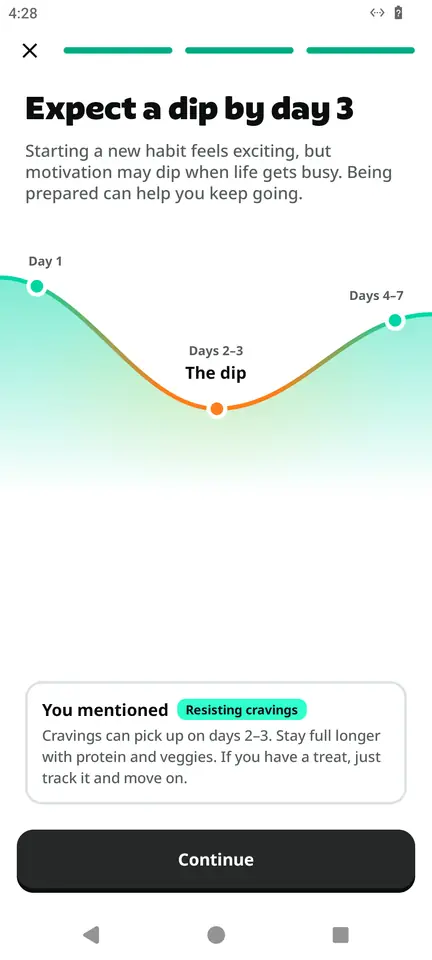
“Expect a dip by day 3”
This screen explains a feature or a step. On screen: Day 1
, Days 4–7
. Next tap: “Primary”.
What to steal from Yazio
- Keep every step single-purpose: each of Yazio's 93 screens does one job (info, permission prompt, question and value pitch).
UI components in this flow
As an X thread
- 1/ How Yazio onboards on Android: 93 screens, step by step. A UX teardown 🧵
- 2/ The shape of the flow: Value pitch → Question → Permission prompt → Question ×7 → Info → Question → Info ×2 → Question → Value pitch → Question → Info ×7 → Question ×2 → Info ×5 → Question ×2 → Info ×3 → Question ×4 → Info ×3 → Question → Info → Value pitch → Info → Question…
- 3/ Step 1 — value pitch: “Let’s make every day count!”. It sells the product before asking for anything. Tap: “Yazio logo”.
- 4/ Step 2 — question: “What’s your main goal?”. It asks the user about themselves to personalise what comes next. Tap: “Lose weight”.
- 5/ Step 3 — permission prompt: “Allow Yazio to send you notifications?”. It asks for a system permission. Tap: “Allow”.
- 6/ Asks 32 questions along the way, starting at step 2 with “What’s your main goal?”.
- 7/ No sign-up or log-in screen in the 93 onboarding screens we captured.
- 8/ Requests a system permission at step 3, after priming it on screen.
- 9/ What to steal — Keep every step single-purpose: each of Yazio's 93 screens does one job (info, permission prompt, question and value pitch).
- 10/ Every screen, in order, free: https://uilane.com/teardown/yazio/
FAQ
How many screens is Yazio's onboarding flow?
We captured 93 screens of Yazio's onboarding flow on a real Android device. Its shape: Value pitch → Question → Permission prompt → Question ×7 → Info → Question → Info ×2 → Question → Value pitch → Question → Info ×7 → Question ×2 → Info ×5 → Question ×2 → Info ×3 → Question ×4 → Info ×3 → Question → Info → Value pitch → Info → Question → Value pitch → Info ×2 → Question → Info ×3 → Question → Info → Question ×3 → Info → Question → Info ×3 → Question → Info → Question → Info ×2 → Question → Info ×4 → Value pitch → Info ×4 → Question → Info → Question → Info ×10.
When does Yazio ask you to create an account?
Not within the 93 screens we captured — there is no sign-up or log-in screen.
What UI patterns does Yazio use?
Across the 112 Yazio screens in the library we detected welcome screen, onboarding survey, age gate, permission priming and terms and conditions agreement.
What can designers learn from Yazio's onboarding flow?
Keep every step single-purpose: each of Yazio's 93 screens does one job (info, permission prompt, question and value pitch).
Captured on a real Android device · last updated 2026-11-14