How Simple onboards: a UX teardown
A screen-by-screen UX teardown of Simple's onboarding flow on Android: what each of its 51 steps is for, where it asks for commitment, and what other health & fitness apps do differently. Every screen and quote is from our own capture on a real device.
The short version
Shape: Value pitch ×6 → Question ×2 → Info → Question ×2 → Info ×5 → Question ×2 → Info → Question ×11 → Info ×2 → Question → Info → Question ×2 → Info → Question → Info ×4 → Question ×2 → Info ×4 → Question → Info → Permission prompt.
- 51 screens — longer than the median onboarding flow in the library (4 screens across 151 other apps).
- Asks 24 questions along the way, starting at step 7 with “Which one goal matters the most to you?”.
- No sign-up or log-in screen in the 51 onboarding screens we captured — the product comes first.
- Requests a system permission at step 51, after priming it on screen.
- Shows progress on 29 of 51 screens, so the user can see how much is left.
- Offers a way out (a skip option) on 1 screen.
- One of the few health & fitness apps here using the “Onboarding progress indicator” pattern (only 6 of the 28 others do).
- Built from list item (22 screens), button (19 screens) and text field (2 screens) — the most common components we detected in the flow.
Step by step
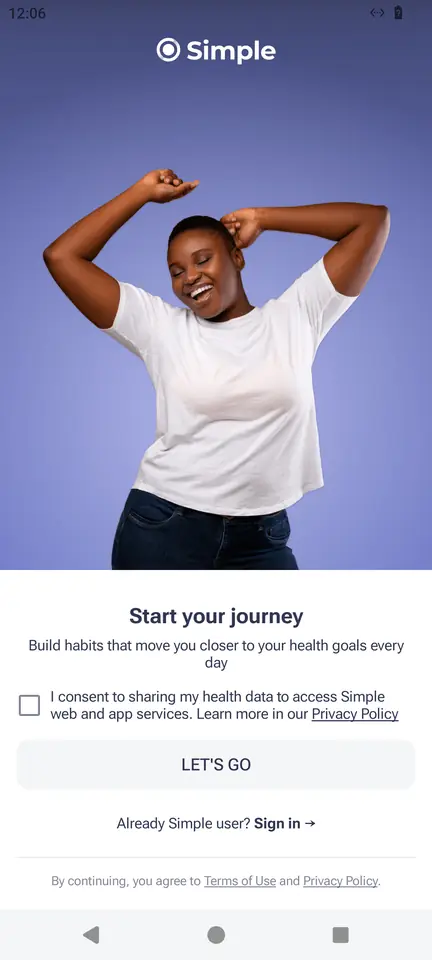
“Start your journey”
This screen sells the product before asking for anything. On screen: Build habits that move you closer to your health goals every day
, LET'S GO
. Next tap: “Consent checkbox”.
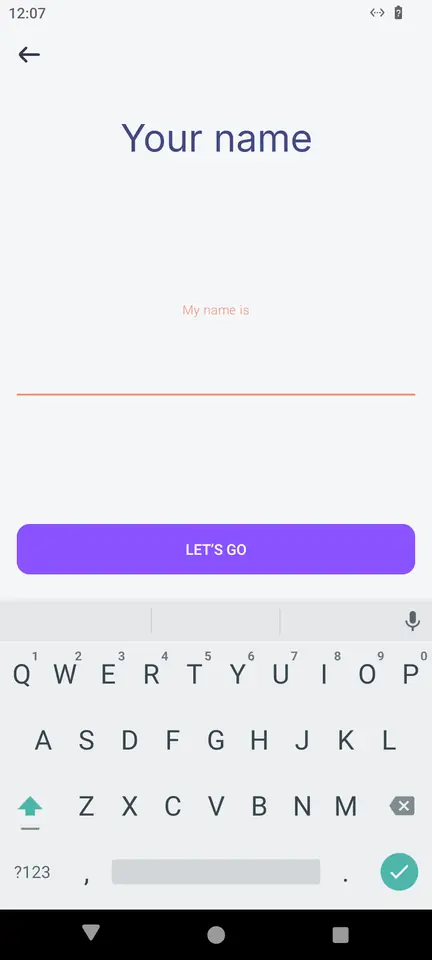
“Your name”
This screen sells the product before asking for anything. On screen: My name is
, LET’S GO
. Next tap: “My name is etName=Alex”.
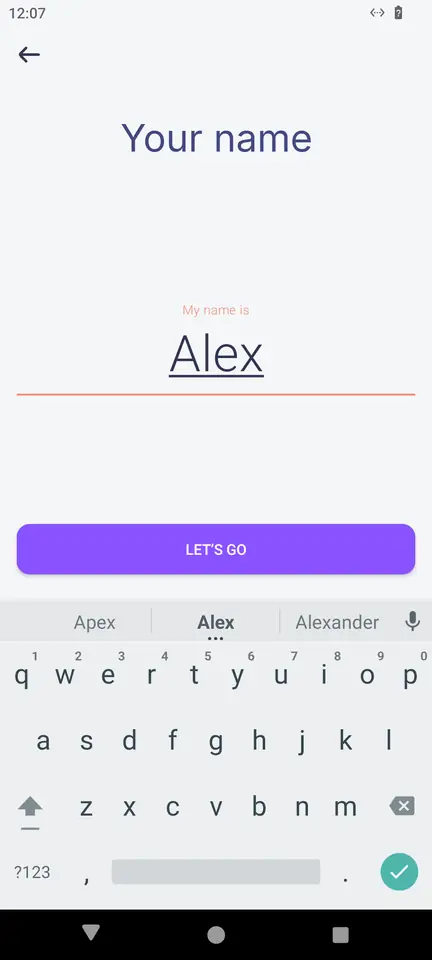
“Your name”
This screen sells the product before asking for anything. On screen: Alex
, LET’S GO
. Next tap: “LET’S GO”.
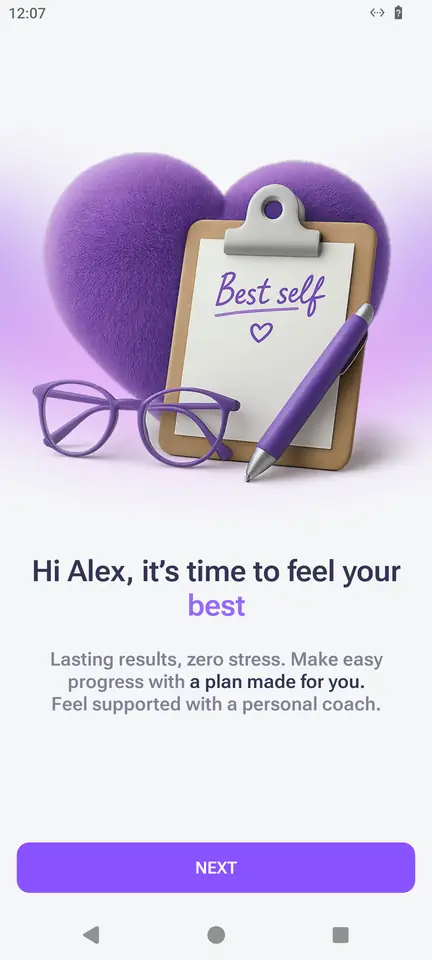
“Hi Alex, it’s time to feel your best”
This screen sells the product before asking for anything. On screen: NEXT
. Next tap: “Next”.
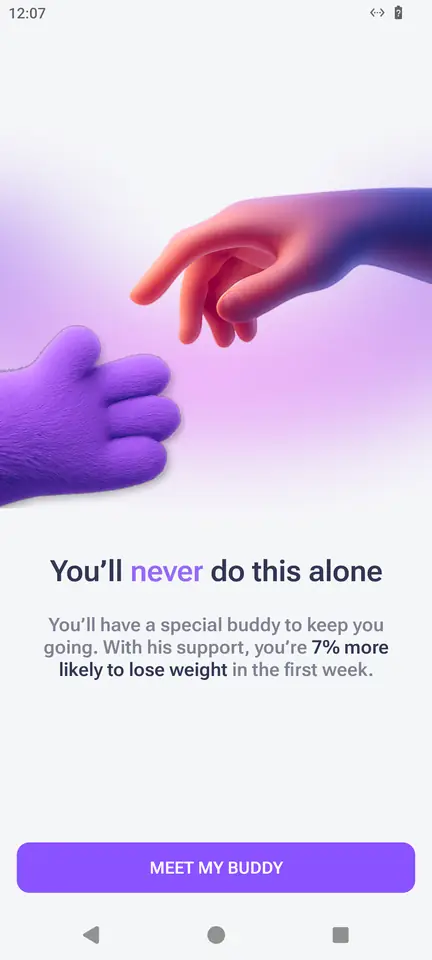
“You’ll never do this alone”
This screen sells the product before asking for anything. On screen: MEET MY BUDDY
. Next tap: “MEET MY BUDDY”.
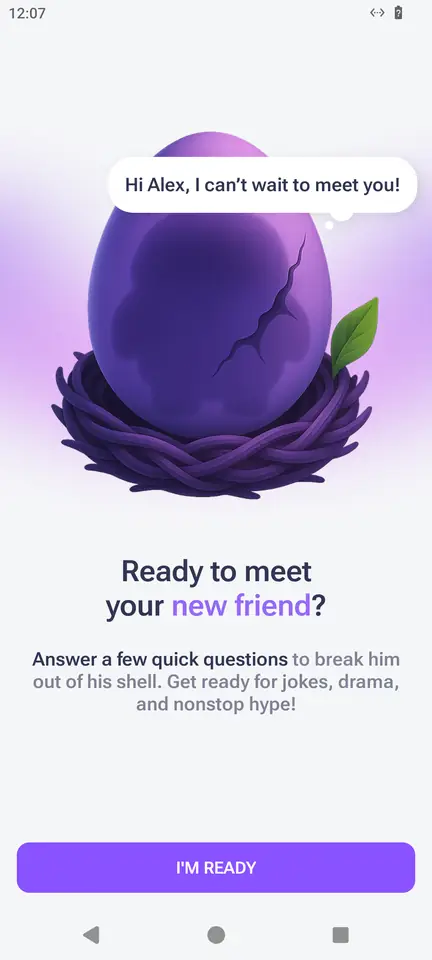
“Hi Alex, I can’t wait to meet you!”
This screen sells the product before asking for anything. On screen: Ready to meet your new friend?
, I'M READY
. Next tap: “I'M READY”.
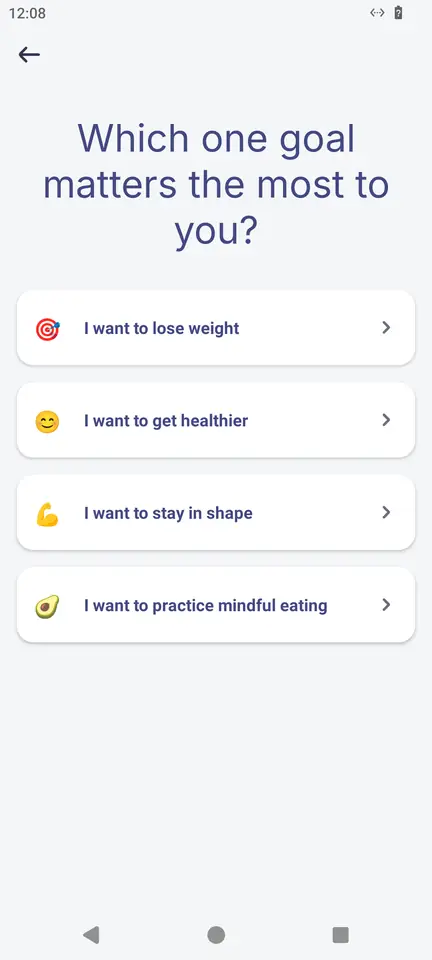
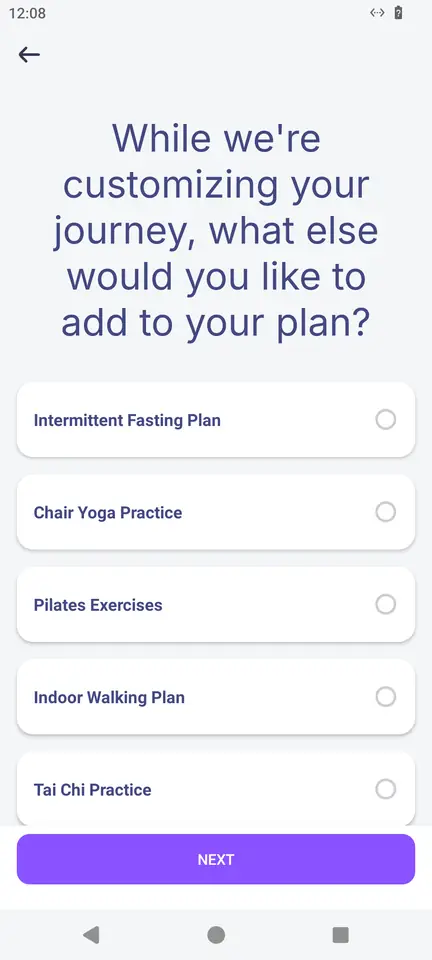
“Which one goal matters the most to you?”
This screen asks the user about themselves to personalise what comes next. On screen: I want to lose weight
, I want to get healthier
.
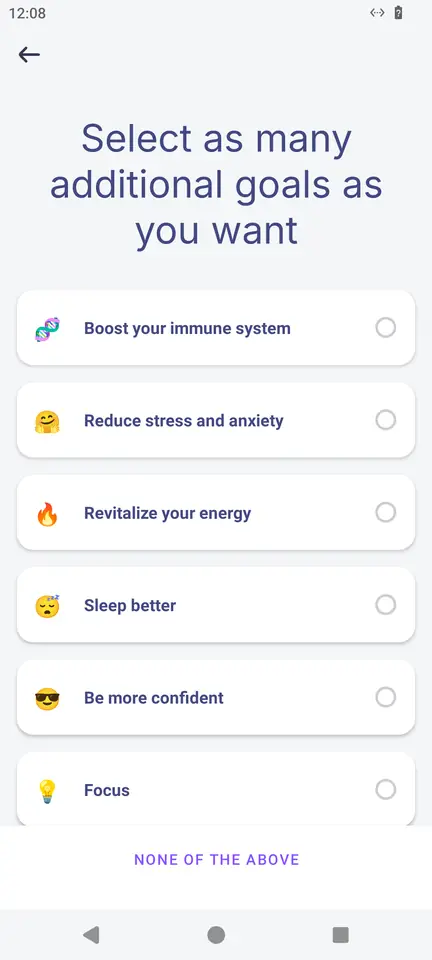
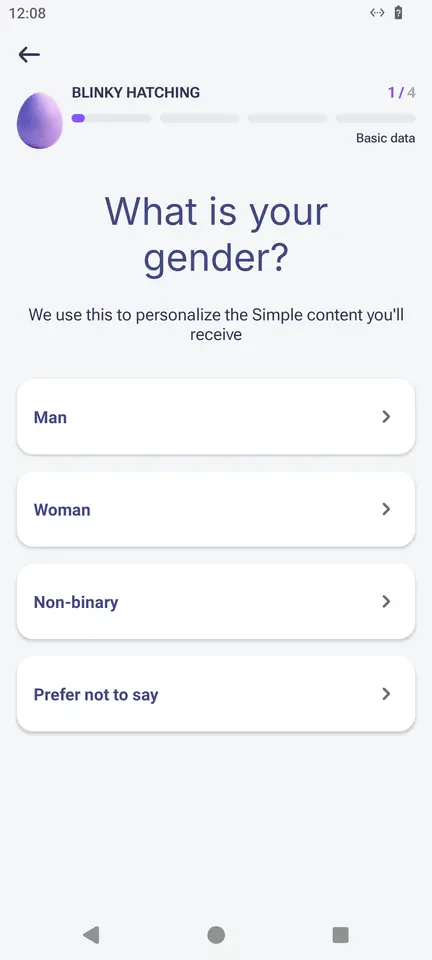
“What is your gender?”
This screen asks the user about themselves to personalise what comes next. On screen: BLINKY HATCHING
, 1 / 4
.
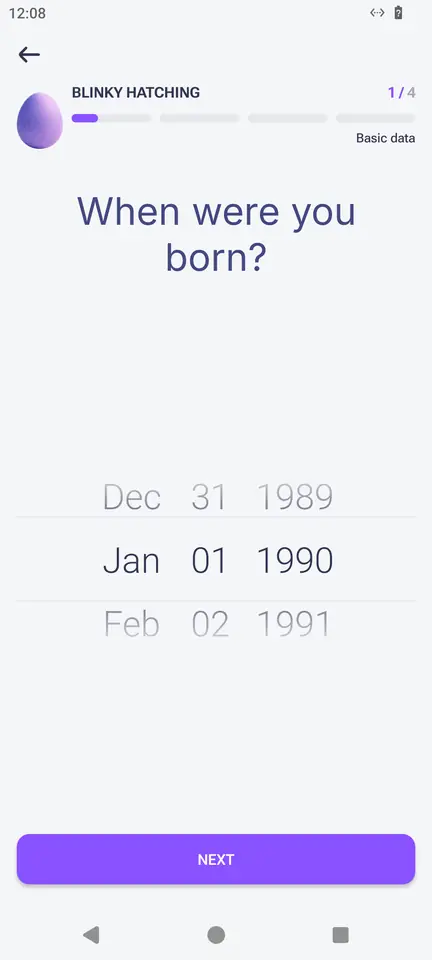
“When were you born?”
This screen asks the user about themselves to personalise what comes next. On screen: BLINKY HATCHING
, 1 / 4
. Next tap: “Next”.
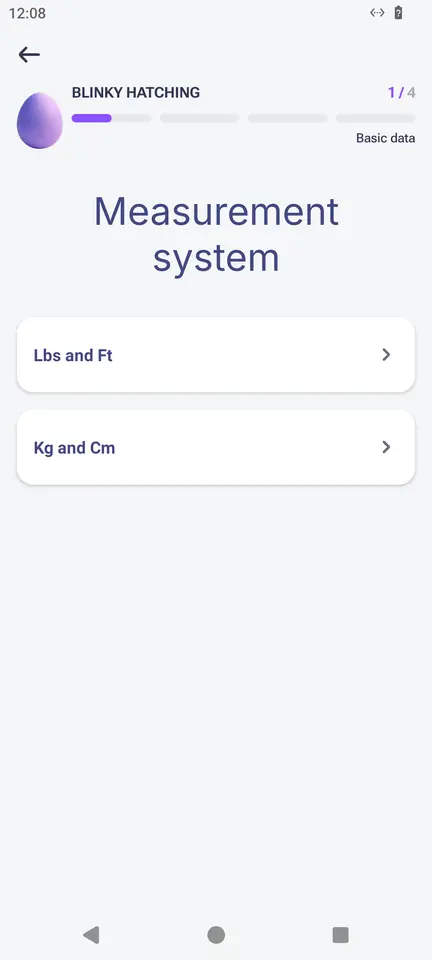
“Measurement system”
This screen explains a feature or a step. On screen: BLINKY HATCHING
, 1 / 4
.
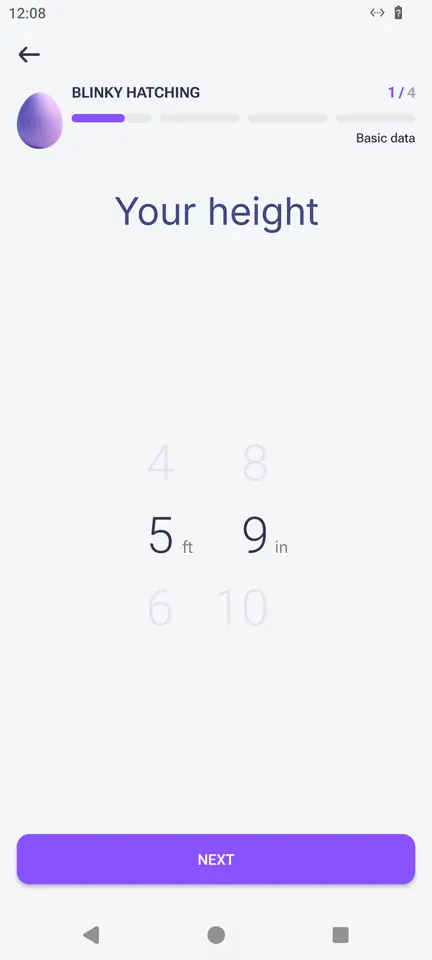
“Your height”
This screen explains a feature or a step. On screen: BLINKY HATCHING
, 1 / 4
. Next tap: “Next”.
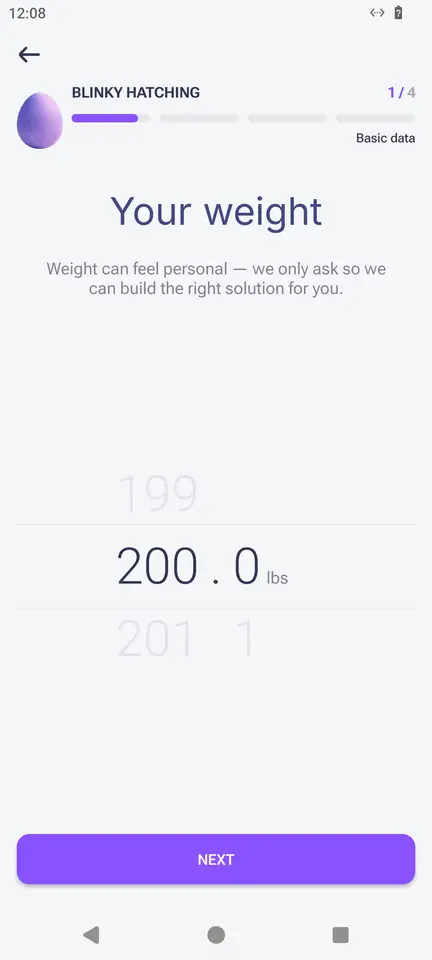
“Your weight”
This screen explains a feature or a step. On screen: BLINKY HATCHING
, 1 / 4
. Next tap: “Weight”.
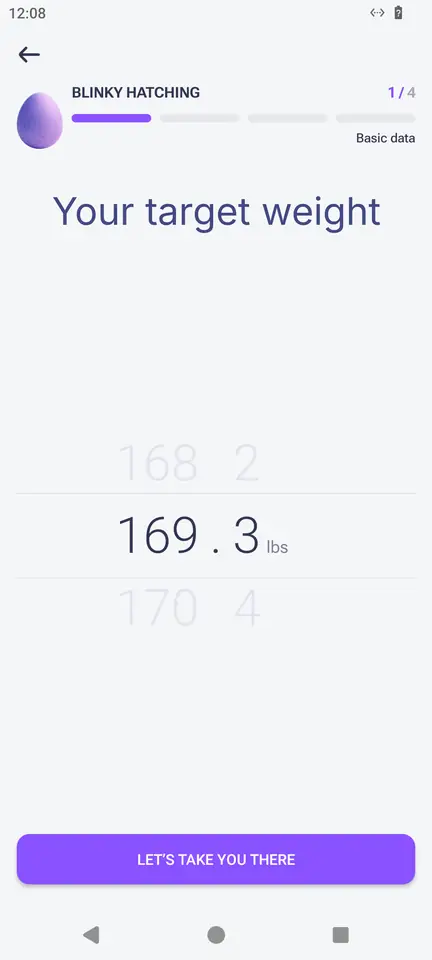
“Your target weight”
This screen explains a feature or a step. On screen: BLINKY HATCHING
, 1 / 4
. Next tap: “Weight”.
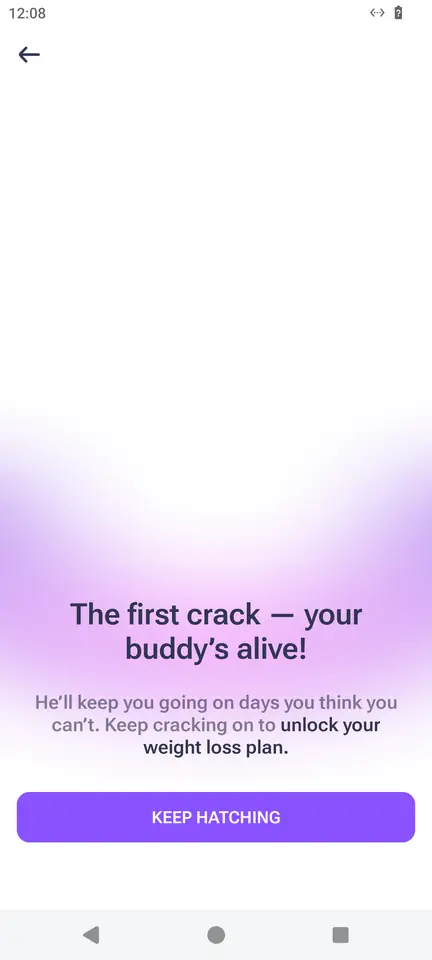
“The first crack — your buddy’s alive!”
This screen explains a feature or a step. On screen: KEEP HATCHING
. Next tap: “KEEP HATCHING”.
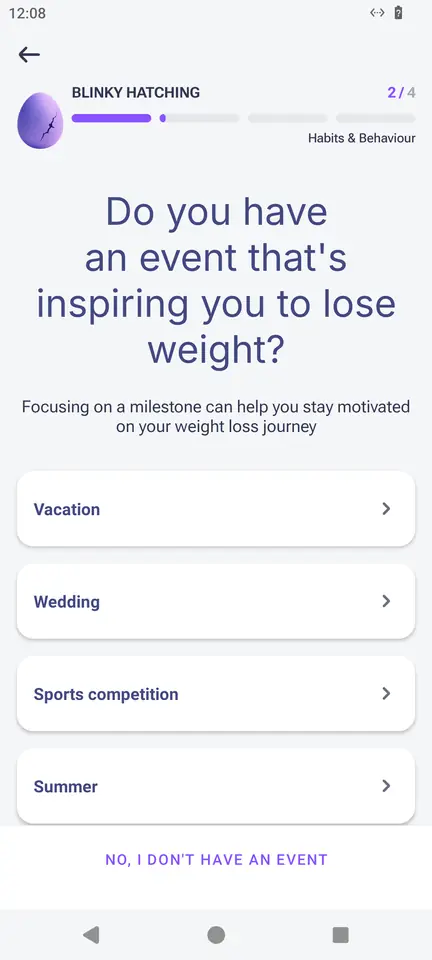
“Do you have an event that's inspiring you to lose weight?”
This screen asks the user about themselves to personalise what comes next. On screen: BLINKY HATCHING
, 2 / 4
.
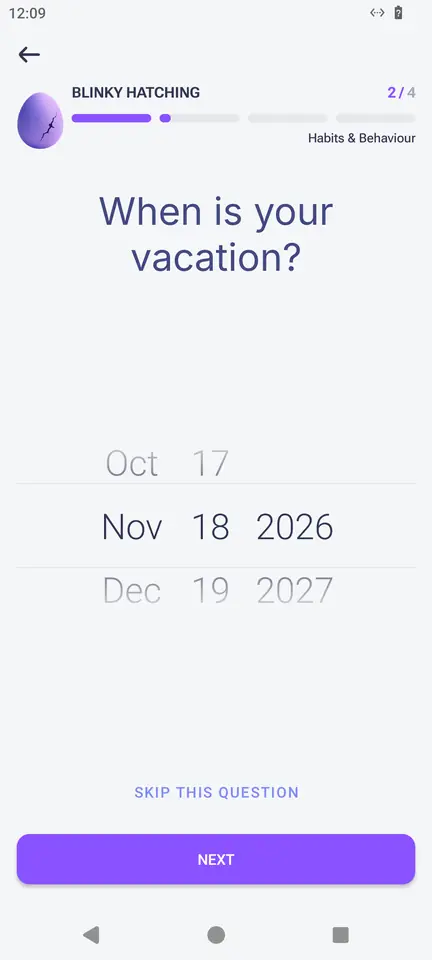
“When is your vacation?”
This screen asks the user about themselves to personalise what comes next. On screen: BLINKY HATCHING
, 2 / 4
. Next tap: “Next”.
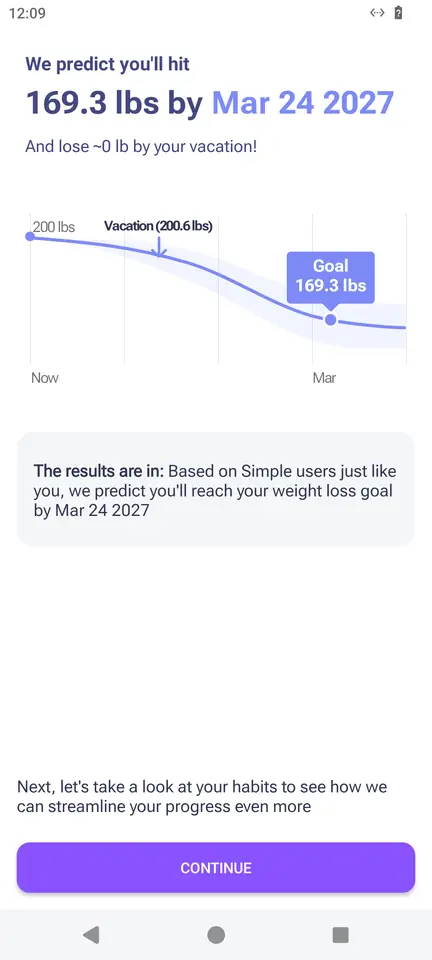
“We predict you'll hit”
This screen explains a feature or a step. On screen: 169.3 lbs by
, Mar
. Next tap: “Continue”.
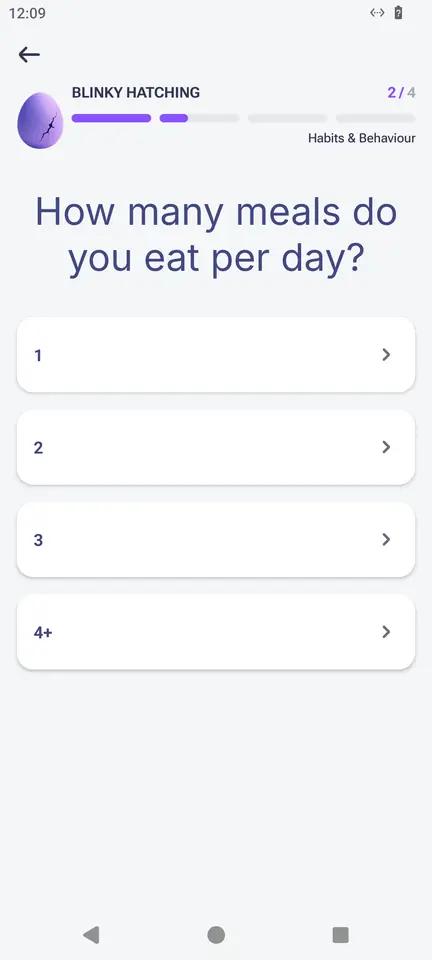
“How many meals do you eat per day?”
This screen asks the user about themselves to personalise what comes next. On screen: BLINKY HATCHING
, 2 / 4
.
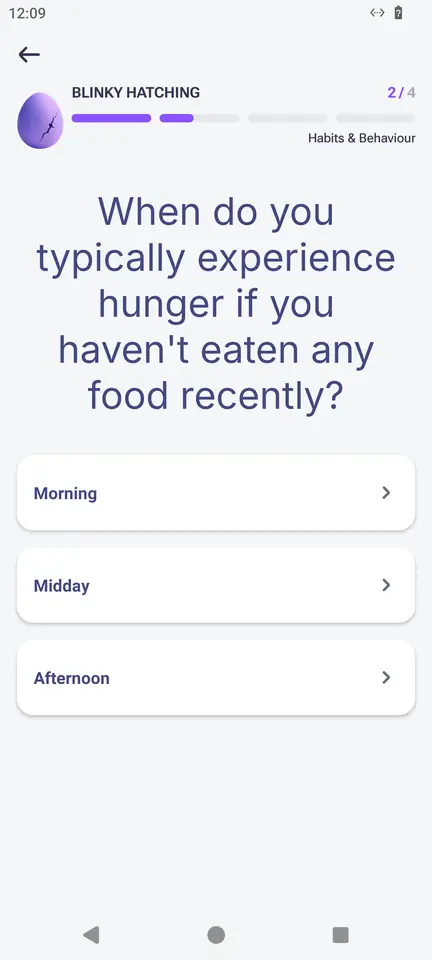
“When do you typically experience hunger if you haven't eaten any food recently?”
This screen asks the user about themselves to personalise what comes next. On screen: BLINKY HATCHING
, 2 / 4
.
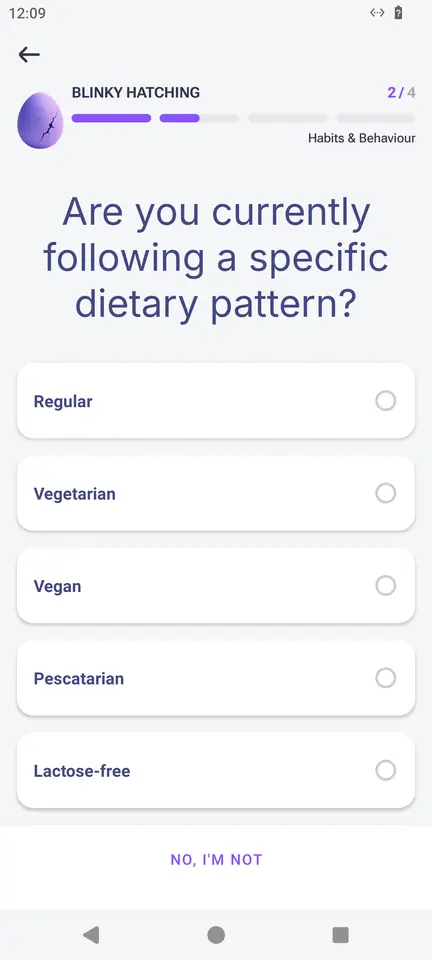
“Are you currently following a specific dietary pattern?”
This screen asks the user about themselves to personalise what comes next. On screen: BLINKY HATCHING
, 2 / 4
.
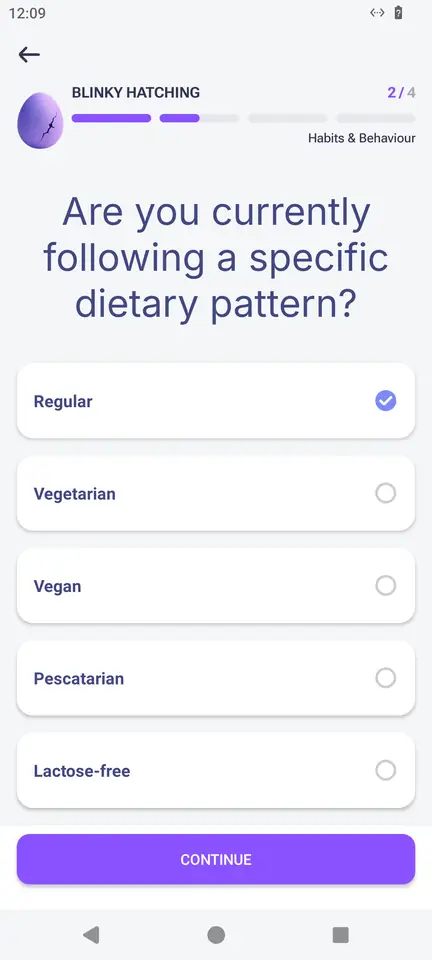
“BLINKY HATCHING”
This screen asks the user about themselves to personalise what comes next. On screen: 2 / 4
, Habits & Behaviour
. Next tap: “Continue”.
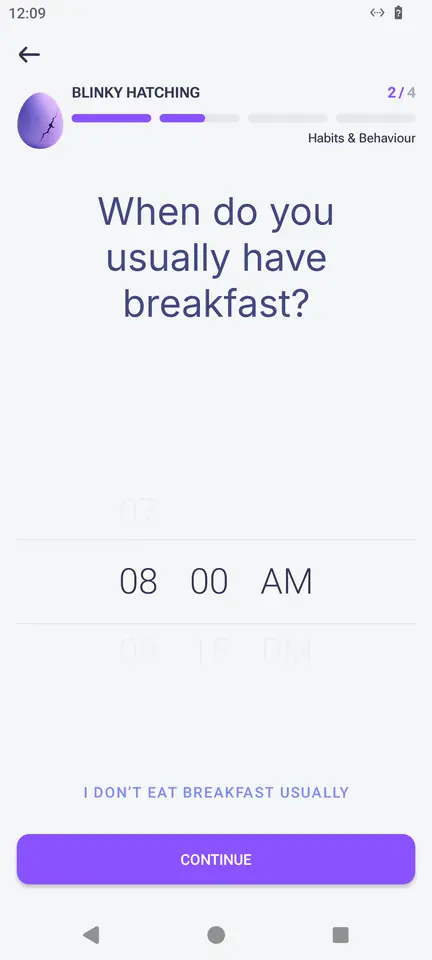
“When do you usually have breakfast?”
This screen asks the user about themselves to personalise what comes next. On screen: BLINKY HATCHING
, 2 / 4
. Next tap: “I DON’T EAT BREAKFAST USUALLY”.
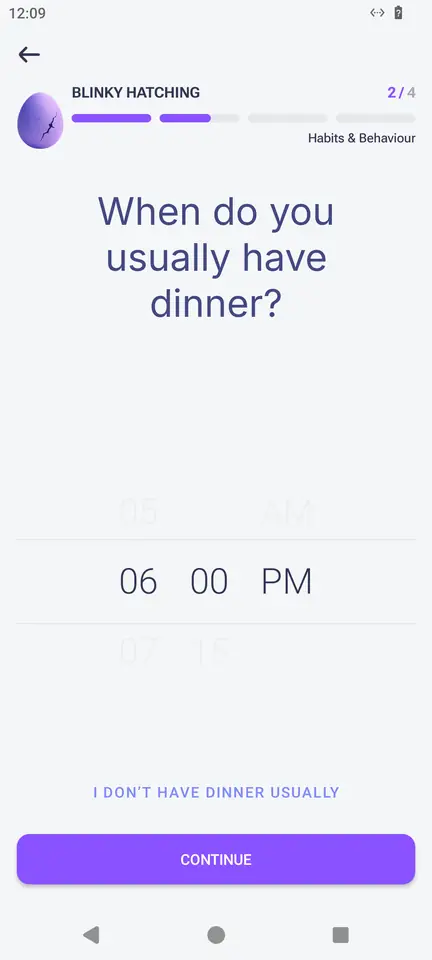
“When do you usually have dinner?”
This screen asks the user about themselves to personalise what comes next. On screen: BLINKY HATCHING
, 2 / 4
. Next tap: “Continue”.
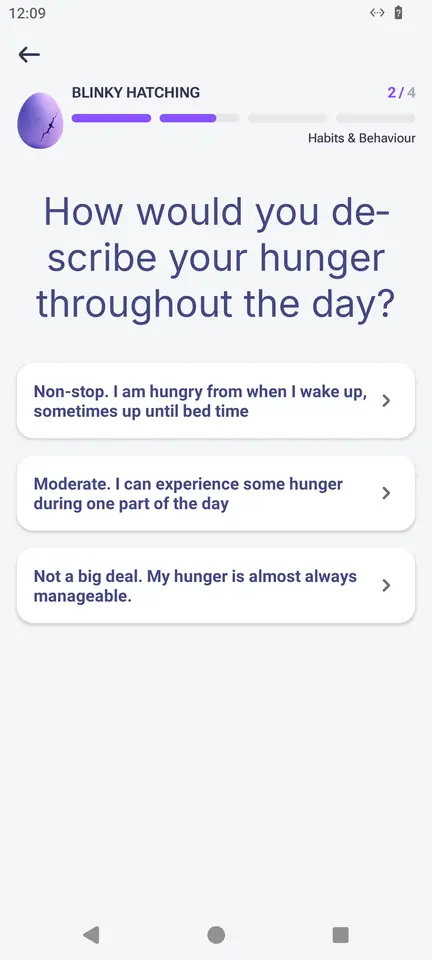
“How would you describe your hunger throughout the day?”
This screen asks the user about themselves to personalise what comes next. On screen: BLINKY HATCHING
, 2 / 4
.
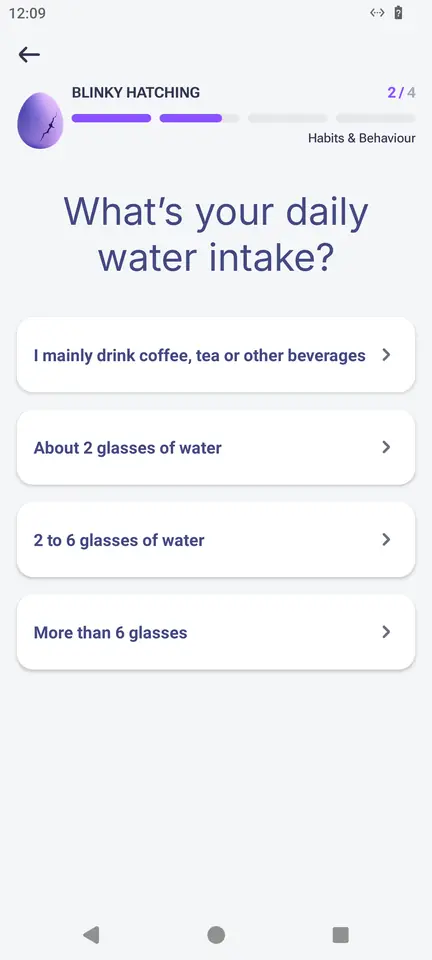
“What’s your daily water intake?”
This screen asks the user about themselves to personalise what comes next. On screen: BLINKY HATCHING
, 2 / 4
.
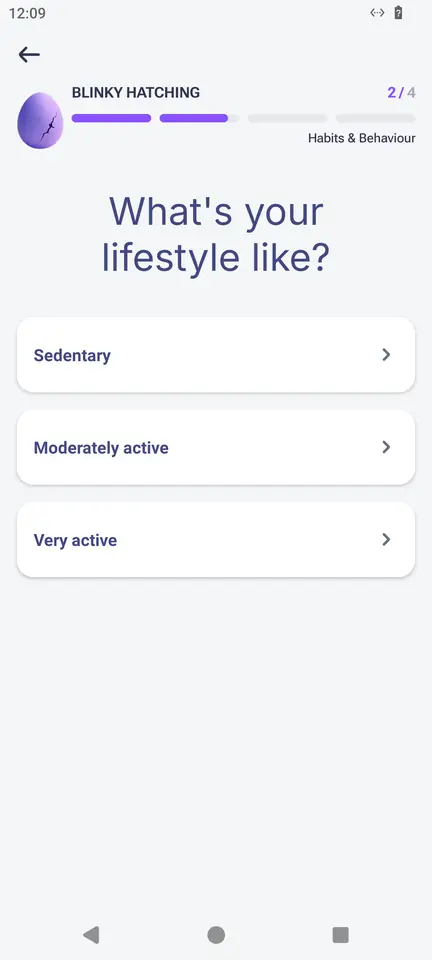
“What's your lifestyle like?”
This screen asks the user about themselves to personalise what comes next. On screen: BLINKY HATCHING
, 2 / 4
.
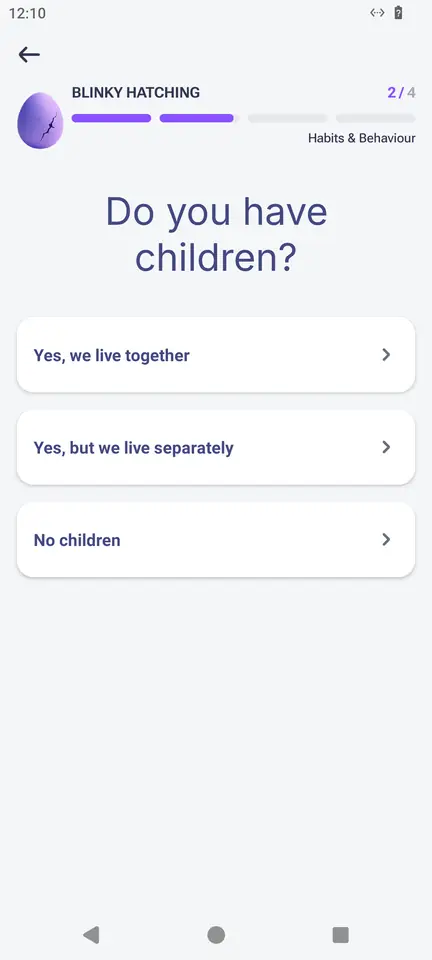
“Do you have children?”
This screen asks the user about themselves to personalise what comes next. On screen: BLINKY HATCHING
, 2 / 4
.
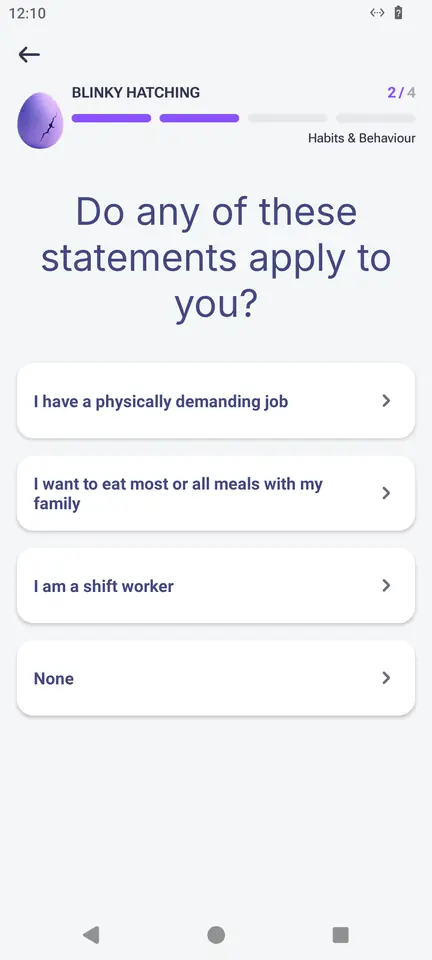
“Do any of these statements apply to you?”
This screen asks the user about themselves to personalise what comes next. On screen: BLINKY HATCHING
, 2 / 4
.
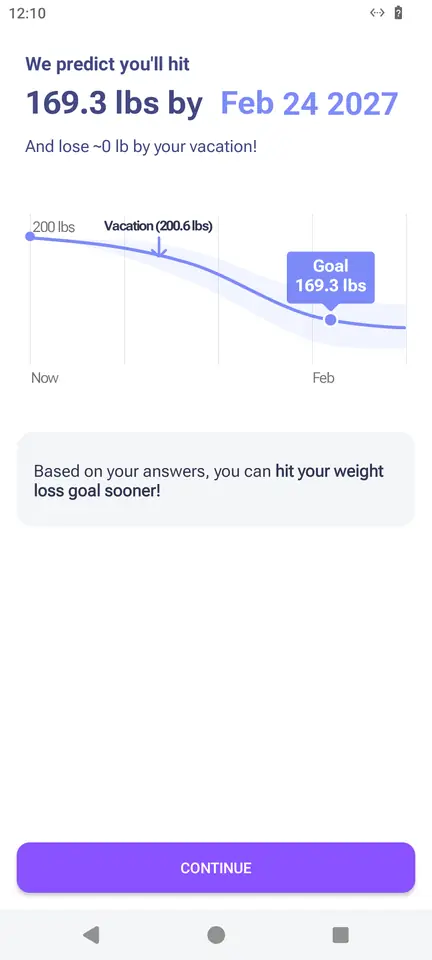
“We predict you'll hit”
This screen explains a feature or a step. On screen: 169.3 lbs by
, Feb
. Next tap: “Continue”.
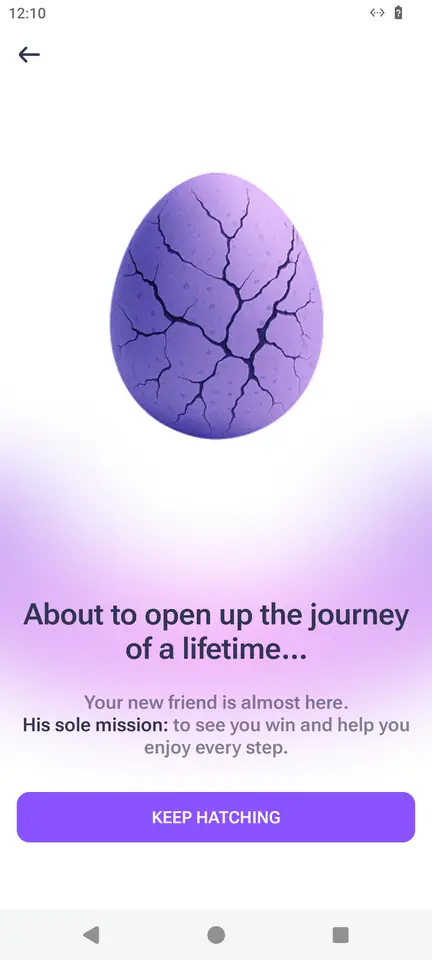
“About to open up the journey of a lifetime...”
This screen explains a feature or a step. On screen: KEEP HATCHING
. Next tap: “KEEP HATCHING”.
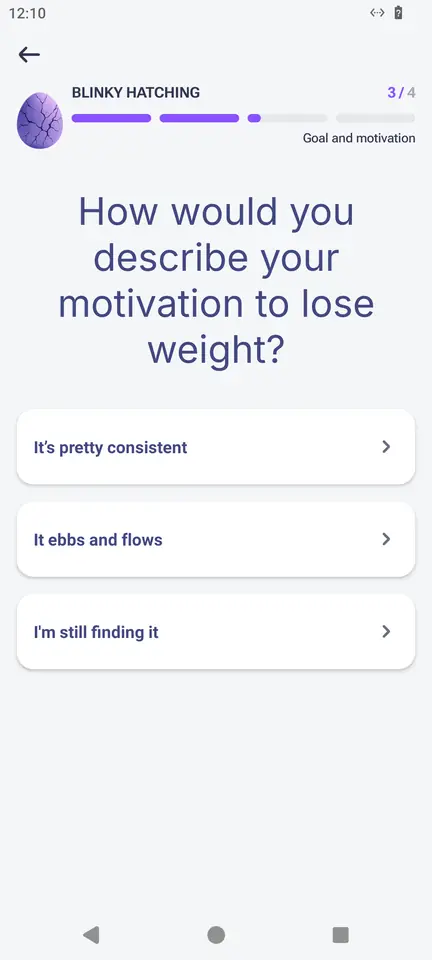
“How would you describe your motivation to lose weight?”
This screen asks the user about themselves to personalise what comes next. On screen: BLINKY HATCHING
, 3 / 4
.
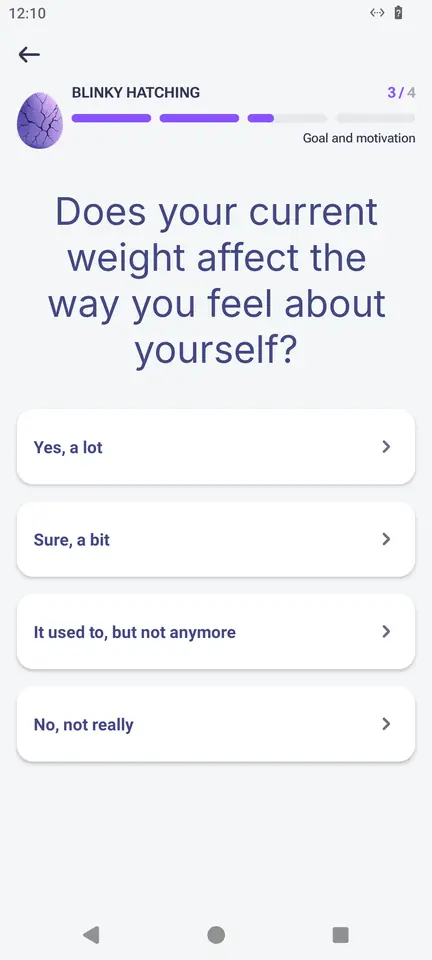
“Does your current weight affect the way you feel about yourself?”
This screen explains a feature or a step. On screen: BLINKY HATCHING
, 3 / 4
.
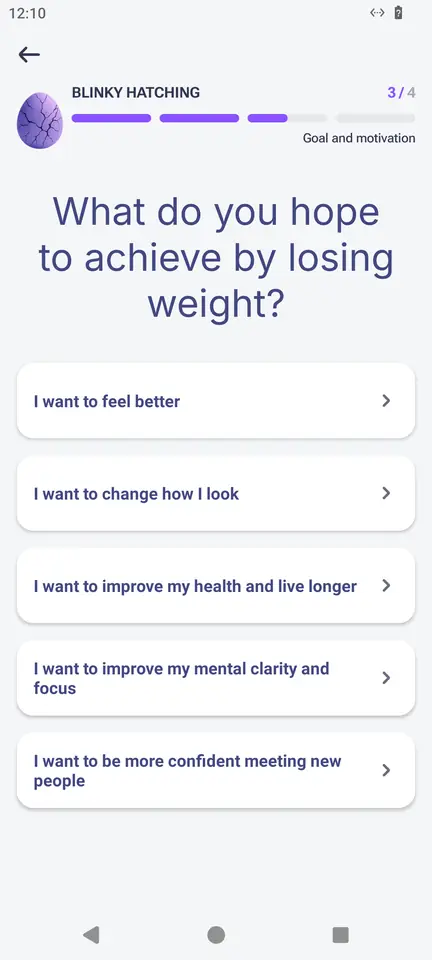
“What do you hope to achieve by losing weight?”
This screen asks the user about themselves to personalise what comes next. On screen: BLINKY HATCHING
, 3 / 4
.
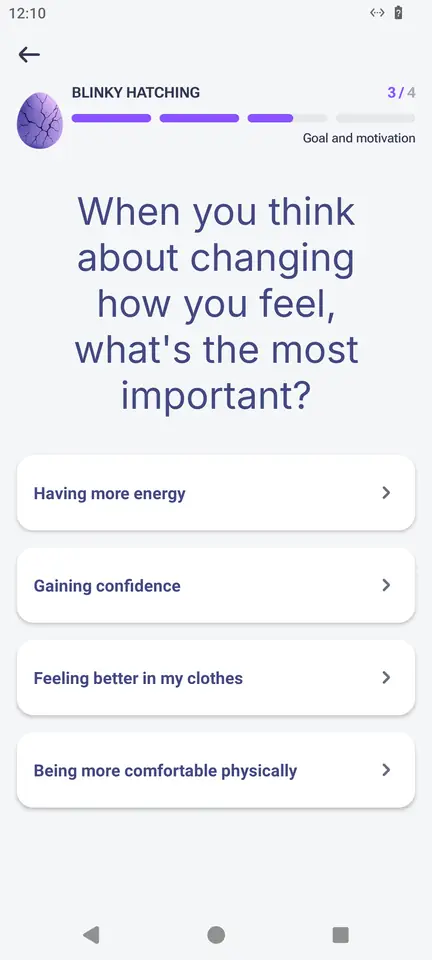
“When you think about changing how you feel, what's the most important?”
This screen asks the user about themselves to personalise what comes next. On screen: BLINKY HATCHING
, 3 / 4
.
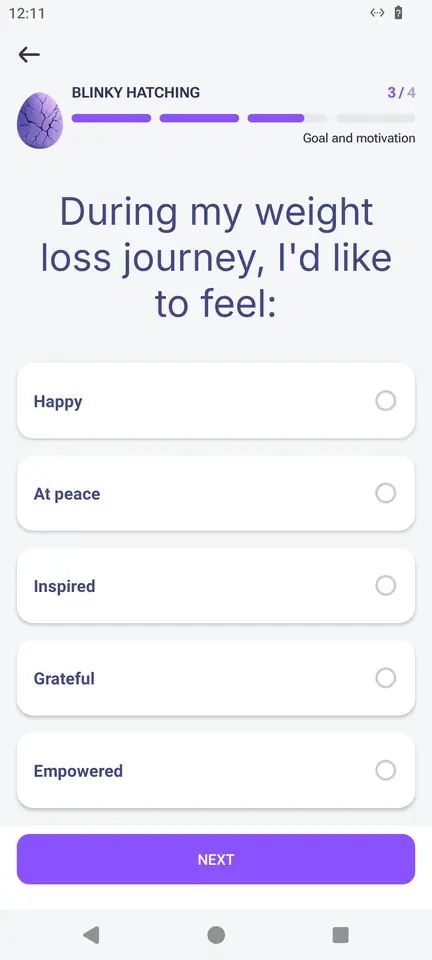
“During my weight loss journey, I'd like to feel:”
This screen explains a feature or a step. On screen: BLINKY HATCHING
, 3 / 4
.
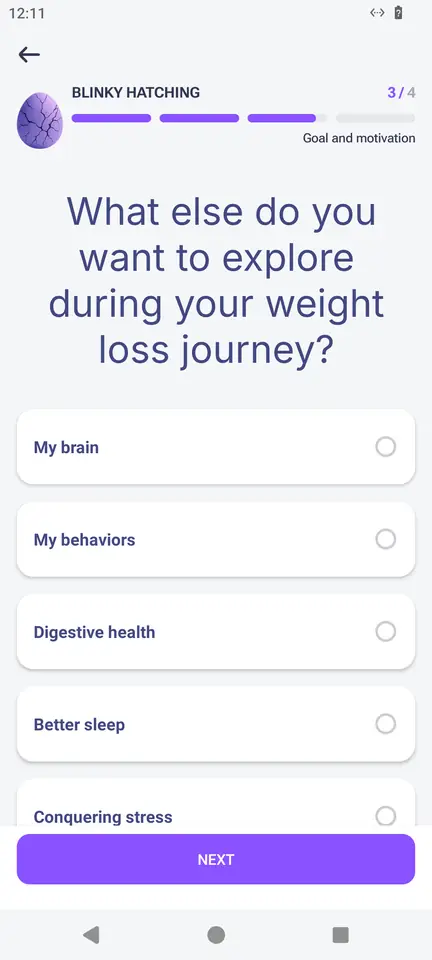
“What else do you want to explore during your weight loss journey?”
This screen asks the user about themselves to personalise what comes next. On screen: BLINKY HATCHING
, 3 / 4
.
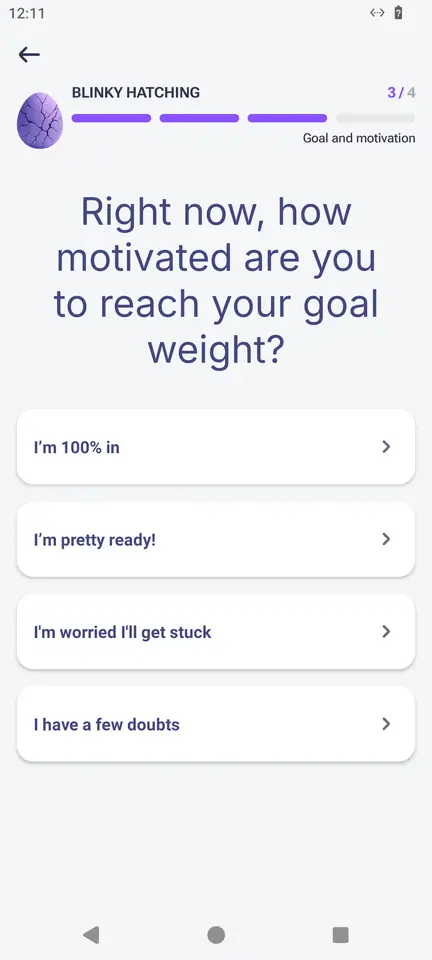
“Right now, how motivated are you to reach your goal weight?”
This screen explains a feature or a step. On screen: BLINKY HATCHING
, 3 / 4
.
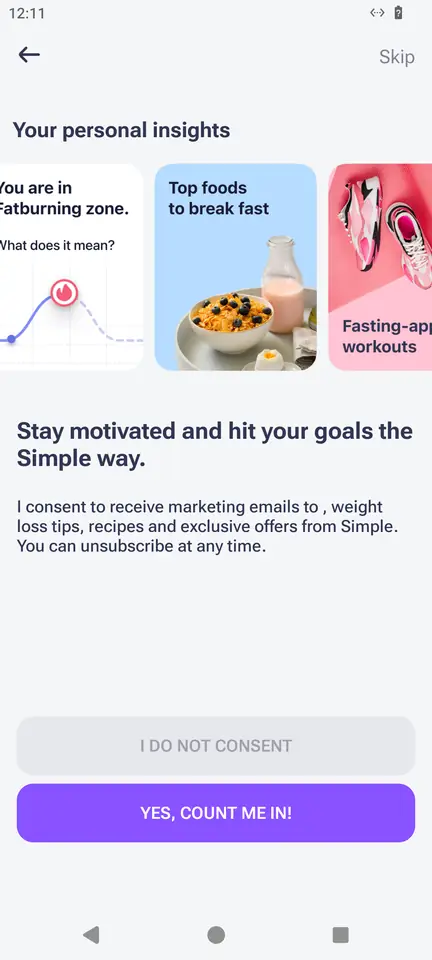
“Your personal insights”
This screen explains a feature or a step. On screen: Skip
, Stay motivated and hit your goals the Simple way.
. Next tap: “YES, COUNT ME IN!”.
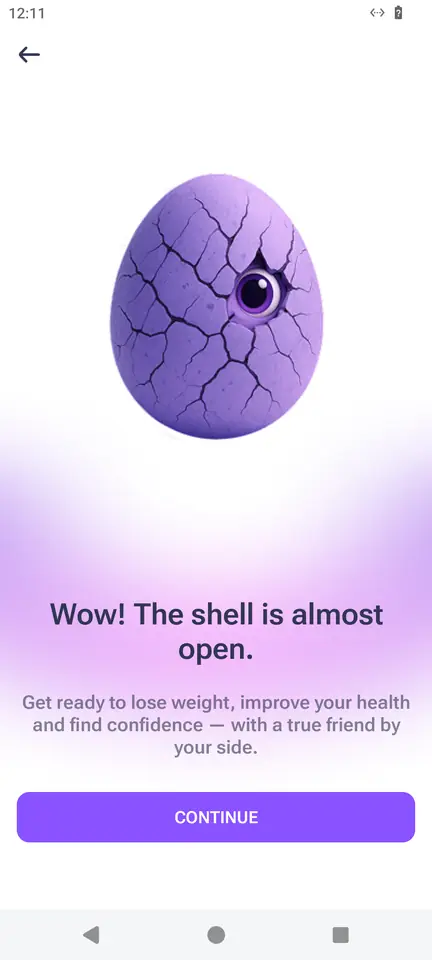
“Wow! The shell is almost open.”
This screen explains a feature or a step. On screen: CONTINUE
. Next tap: “Continue”.
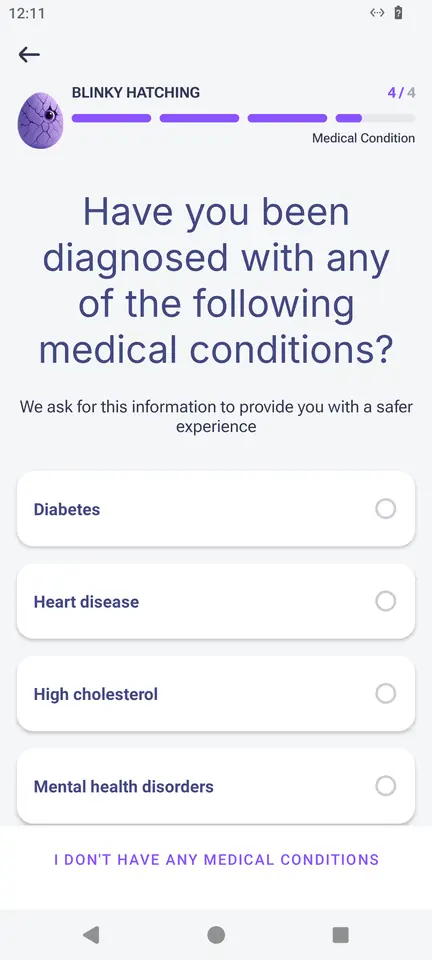
“Have you been diagnosed with any of the following medical conditions?”
This screen explains a feature or a step. On screen: BLINKY HATCHING
, 4 / 4
. Next tap: “I DON'T HAVE ANY MEDICAL CONDITIONS”.
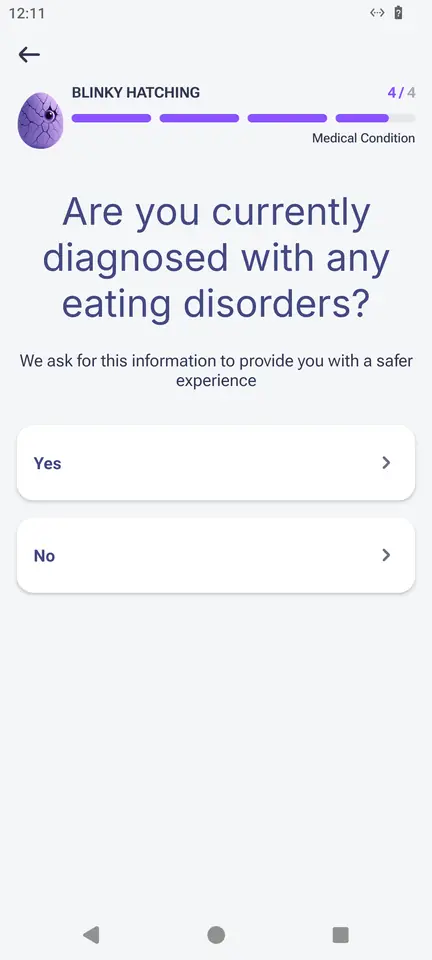
“Are you currently diagnosed with any eating disorders?”
This screen asks the user about themselves to personalise what comes next. On screen: BLINKY HATCHING
, 4 / 4
.
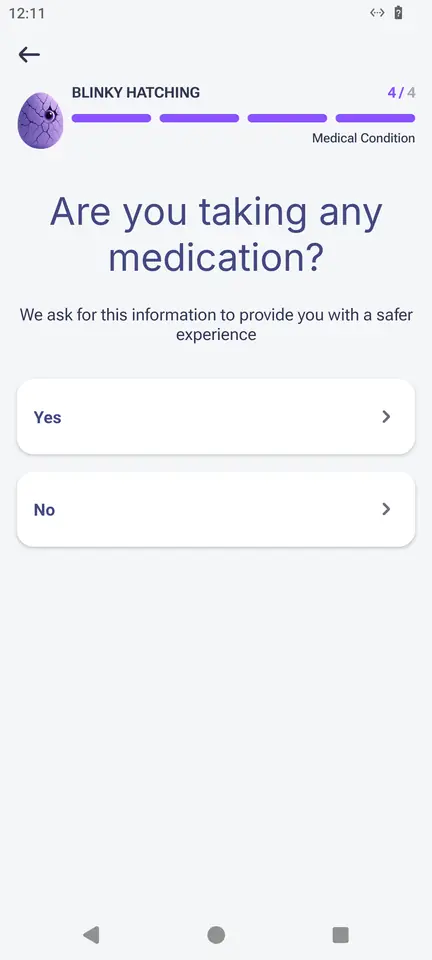
“Are you taking any medication?”
This screen asks the user about themselves to personalise what comes next. On screen: BLINKY HATCHING
, 4 / 4
.
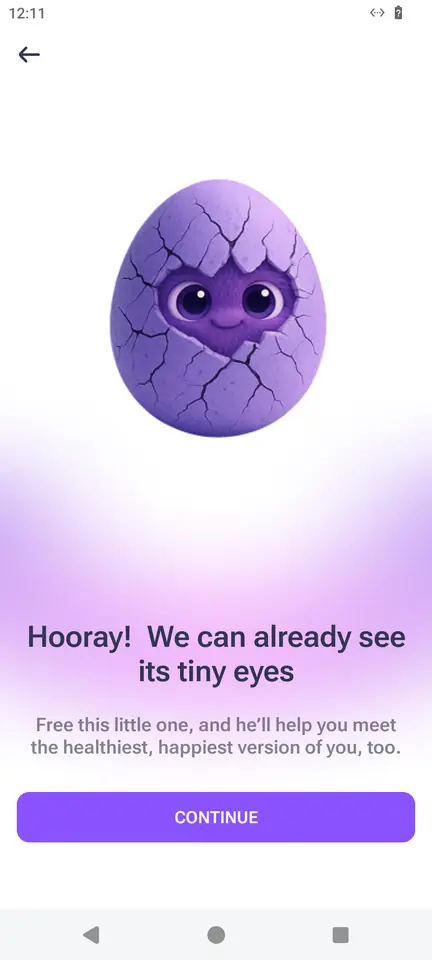
“Hooray! We can already see its tiny eyes”
This screen explains a feature or a step. On screen: CONTINUE
. Next tap: “Continue”.
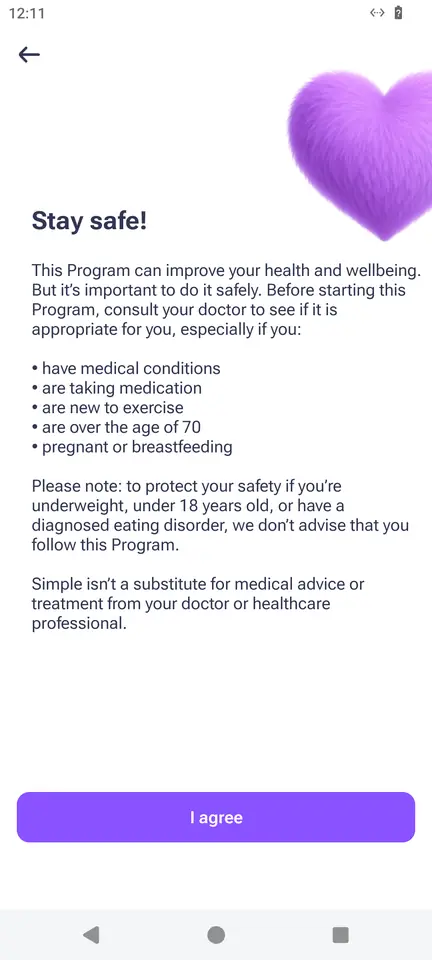
“Stay safe!”
This screen explains a feature or a step. On screen: I agree
. Next tap: “I agree”.
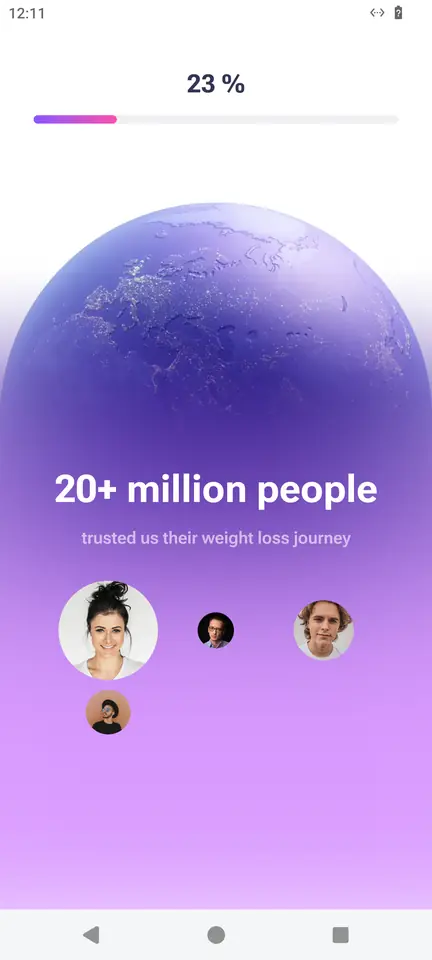
“trusted us their weight loss journey”
This screen explains a feature or a step. On screen: 12 %
, 20+ million people
.
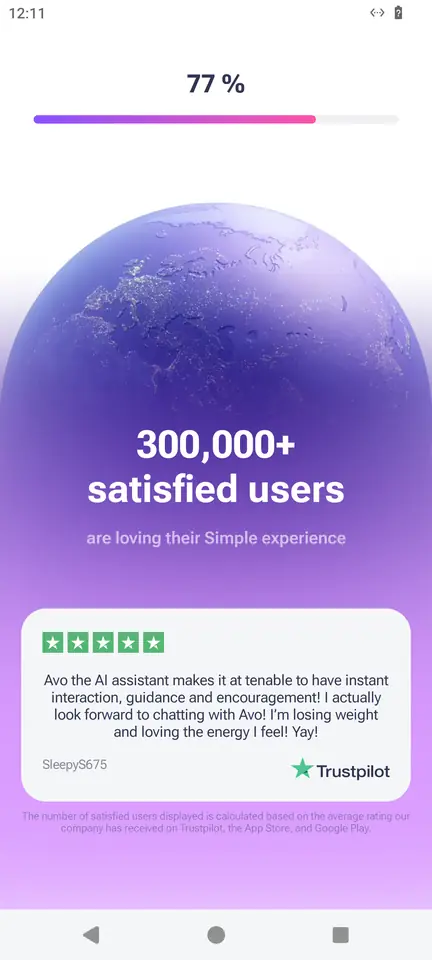
“Log 30 min of movement”
This screen explains a feature or a step. On screen: 64 %
, Log a low-sodium meal
.
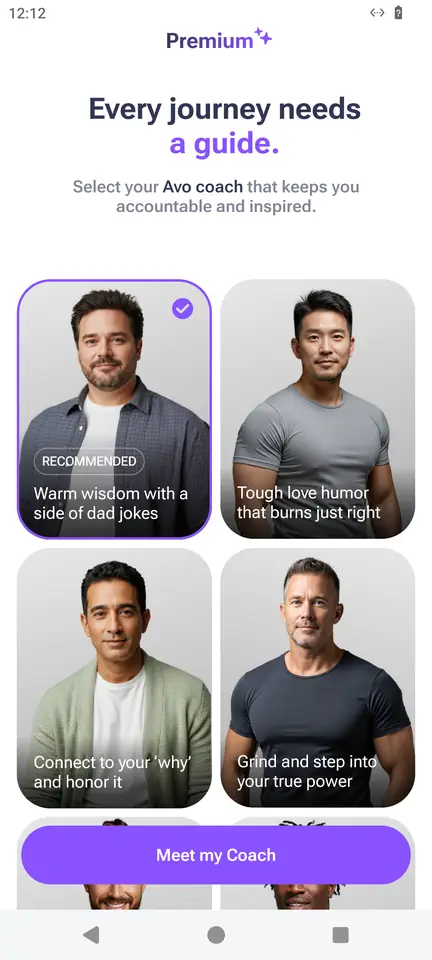
“Select your Avo coach that keeps you accountable and inspired.”
This screen asks the user about themselves to personalise what comes next. On screen: RECOMMENDED
, Warm wisdom with a side of dad jokes
. Next tap: “Meet my Coach”.
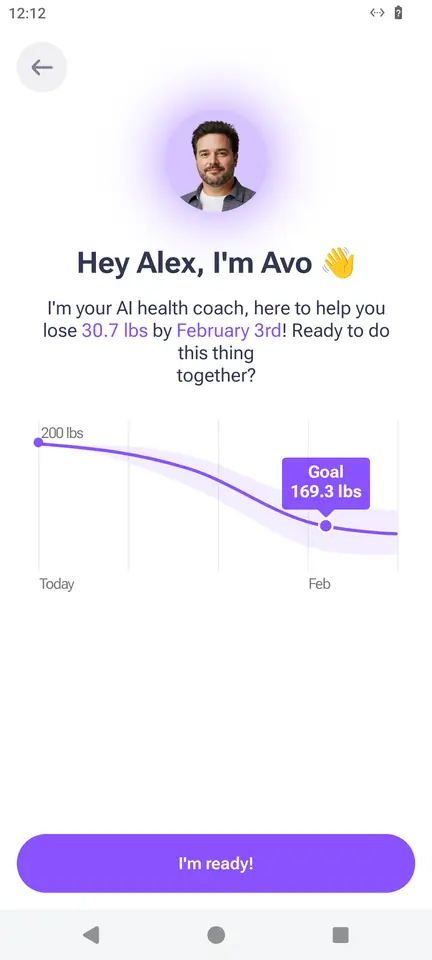
“Avo.Avatar”
This screen explains a feature or a step. On screen: Hey Alex, I'm Avo 👋
, Goal 169.3 lbs
. Next tap: “I'm ready!”.
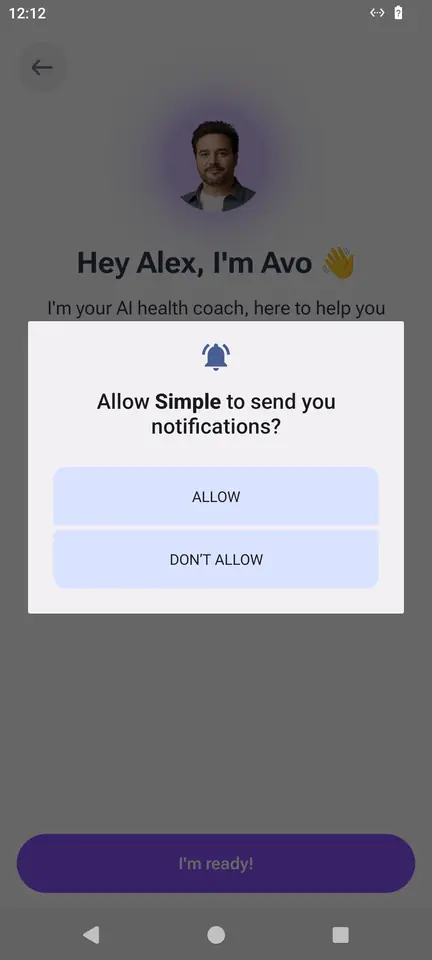
“Allow Simple to send you notifications?”
This screen asks for a system permission. On screen: ALLOW
, DON’T ALLOW
. Next tap: “Allow”.
What to steal from Simple
- Delay the account wall: Simple lets users through 51 onboarding screens without signing up.
- Show progress on a long flow: 29 of Simple's 51 screens carry a progress indicator.
UI components in this flow
Other Simple flows
As an X thread
- 1/ How Simple onboards on Android: 51 screens, step by step. A UX teardown 🧵
- 2/ The shape of the flow: Value pitch ×6 → Question ×2 → Info → Question ×2 → Info ×5 → Question ×2 → Info → Question ×11 → Info ×2 → Question → Info → Question ×2 → Info → Question → Info ×4 → Question ×2 → Info ×4 → Question → Info → Permission prompt.
- 3/ Step 1 — value pitch: “Start your journey”. It sells the product before asking for anything. Tap: “Consent checkbox”.
- 4/ Step 2 — value pitch: “Your name”. It sells the product before asking for anything. Tap: “My name is etName=Alex”.
- 5/ Step 3 — value pitch: “Your name”. It sells the product before asking for anything. Tap: “LET’S GO”.
- 6/ Asks 24 questions along the way, starting at step 7 with “Which one goal matters the most to you?”.
- 7/ No sign-up or log-in screen in the 51 onboarding screens we captured — the product comes first.
- 8/ Requests a system permission at step 51, after priming it on screen.
- 9/ What to steal — Delay the account wall: Simple lets users through 51 onboarding screens without signing up.
- 10/ Every screen, in order, free: https://flowtape.ai/teardown/simple/
FAQ
How many screens is Simple's onboarding flow?
We captured 51 screens of Simple's onboarding flow on a real Android device. Its shape: Value pitch ×6 → Question ×2 → Info → Question ×2 → Info ×5 → Question ×2 → Info → Question ×11 → Info ×2 → Question → Info → Question ×2 → Info → Question → Info ×4 → Question ×2 → Info ×4 → Question → Info → Permission prompt.
When does Simple ask you to create an account?
Not within the 51 screens we captured — there is no sign-up or log-in screen and the flow lets users in without an account.
What UI patterns does Simple use?
Across the 63 Simple screens in the library we detected welcome screen, onboarding progress indicator, skip button, onboarding survey, permission priming and social login buttons.
What can designers learn from Simple's onboarding flow?
Delay the account wall: Simple lets users through 51 onboarding screens without signing up. Show progress on a long flow: 29 of Simple's 51 screens carry a progress indicator.
Captured on a real Android device · last updated 2026-11-14