How Fitbod onboards: a UX teardown
A screen-by-screen UX teardown of Fitbod's onboarding flow on Android: what each of its 19 steps is for, where it asks for commitment, and what other health & fitness apps do differently. Every screen and quote is from our own capture on a real device.
The short version
Shape: Value pitch ×6 → Question → Info → Question ×3 → Permission prompt ×3 → Info → Question ×4.
- 19 screens — longer than the median onboarding flow in the library (4 screens across 152 other apps).
- Asks 8 questions along the way, starting at step 7 with “Which gym do you go to?”.
- No sign-up or log-in screen in the 19 onboarding screens we captured — the product comes first.
- Requests a system permission at step 12, after priming it on screen.
- No progress indicator detected across 19 screens.
- Offers a way out (a skip option) on 6 screens.
- 18 of the 29 other health & fitness apps in the library use the “Welcome screen” pattern; it was not detected in any Fitbod screen we captured.
- One of the few health & fitness apps here using the “Age gate” pattern (only 6 of the 29 others do).
- Built from button (1 screen), checkbox (1 screen) and dialog (1 screen) — the most common components we detected in the flow.
Step by step
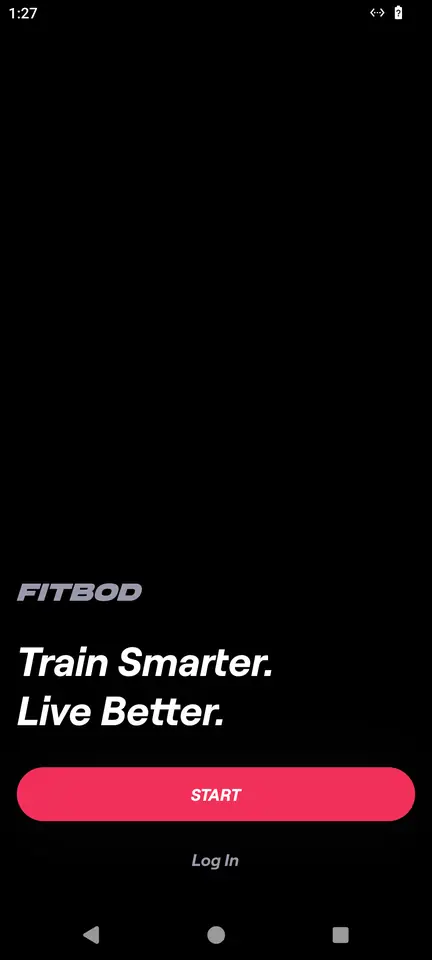
“Train Smarter.”
This screen sells the product before asking for anything. On screen: Live Better.
, START
. Next tap: “Start”.
“Train Smarter.”
This screen sells the product before asking for anything. On screen: Live Better.
, START
. Next tap: “Start”.
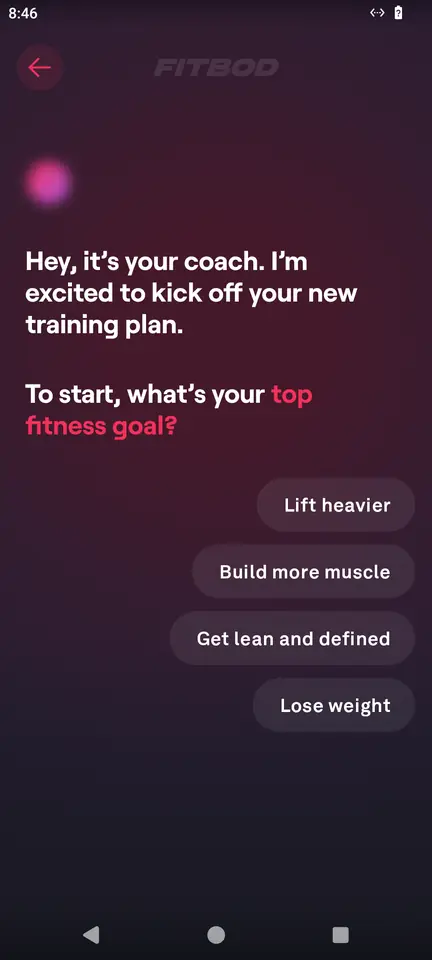
“Hey, it’s your coach. I’m excited to kick off your new training plan.”
This screen sells the product before asking for anything. On screen: To start, what’s your top fitness goal?
, Lift heavier
. Next tap: “Lift heavier”.
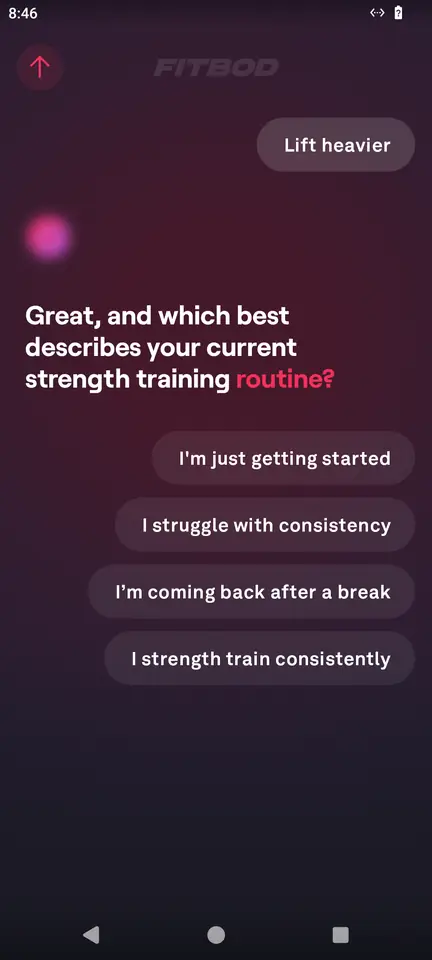
“Great, and which best describes your current strength training routine?”
This screen sells the product before asking for anything. On screen: Lift heavier
, I'm just getting started
. Next tap: “I'm just getting started”.
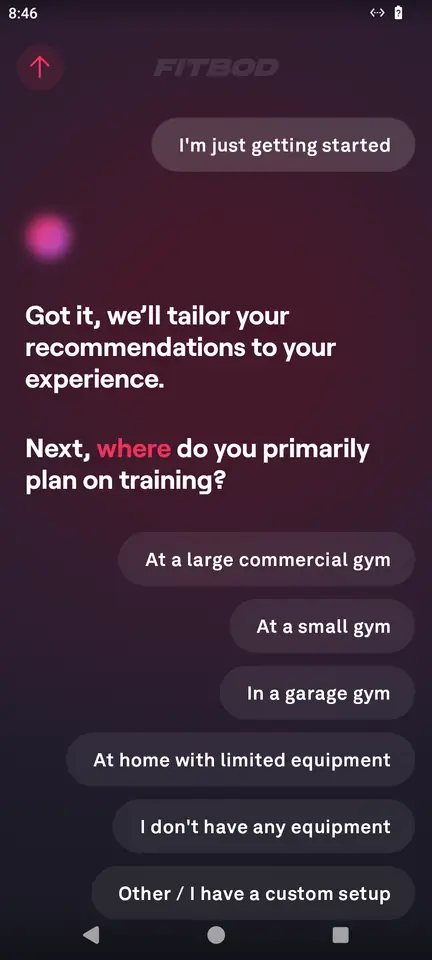
“Got it, we’ll tailor your recommendations to your experience.”
This screen sells the product before asking for anything. On screen: I'm just getting started
, Next, where do you primarily plan on training?
.
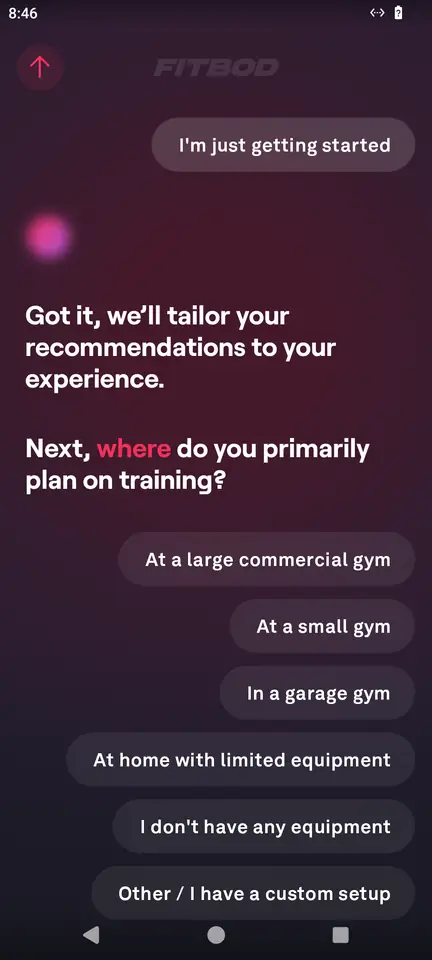
“At a large commercial gym”
This screen sells the product before asking for anything. On screen: I'm just getting started
, Got it, we’ll tailor your recommendations to your experience.
. Next tap: “At a large commercial gym”.
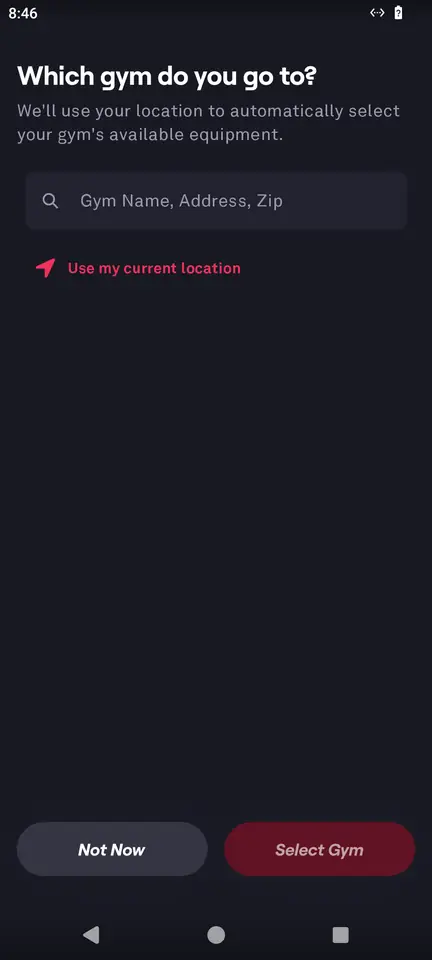
“Which gym do you go to?”
This screen asks the user about themselves to personalise what comes next. On screen: We'll use your location to automatically select your gym's available equipment.
, Gym Name, Address, Zip
. Next tap: “Not Now”.
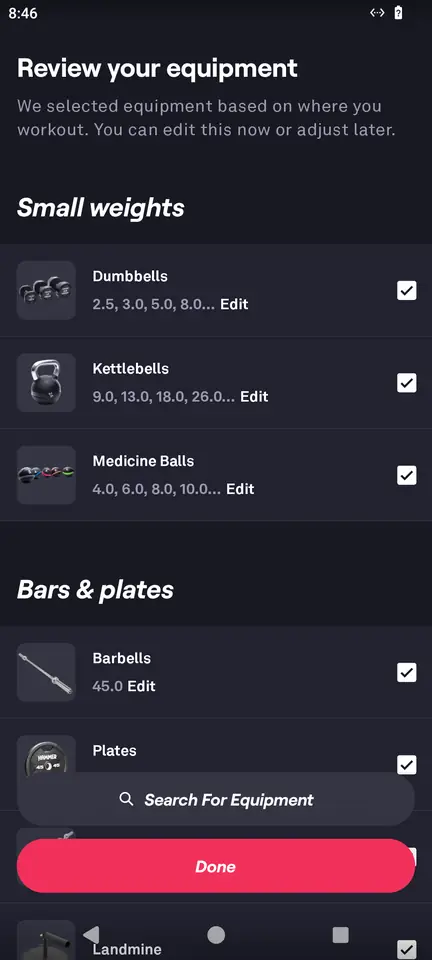
“Review your equipment”
This screen explains a feature or a step. On screen: Small weights
, Dumbbells
. Next tap: “Done”.
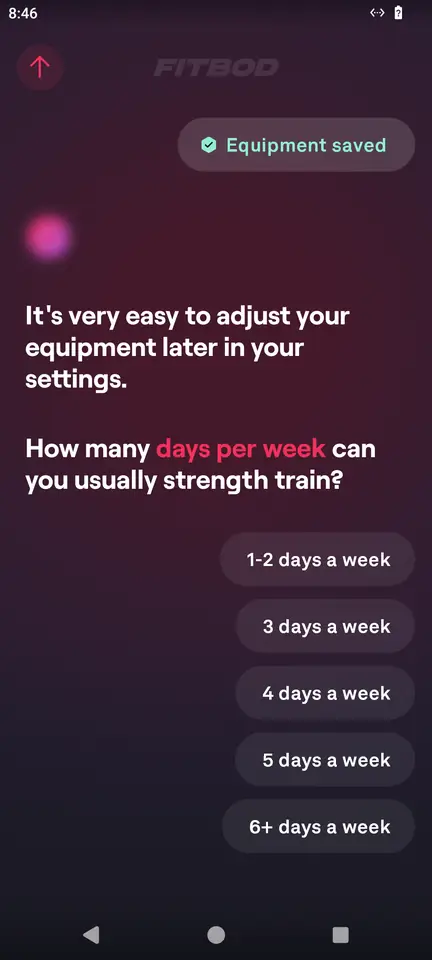
“How many days per week can you usually strength train?”
This screen asks the user about themselves to personalise what comes next. On screen: Equipment saved
, It's very easy to adjust your equipment later in your settings.
.
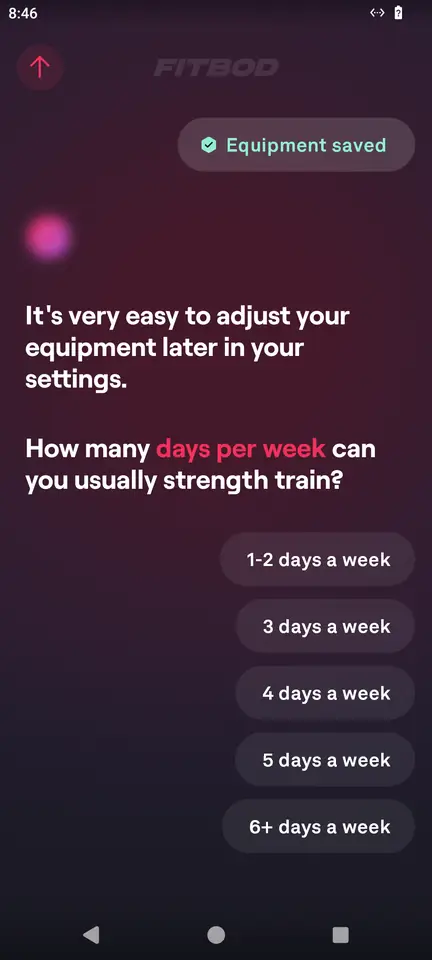
“1-2 days a week”
This screen asks the user about themselves to personalise what comes next. On screen: Equipment saved
, It's very easy to adjust your equipment later in your settings.
. Next tap: “1-2 days a week”.
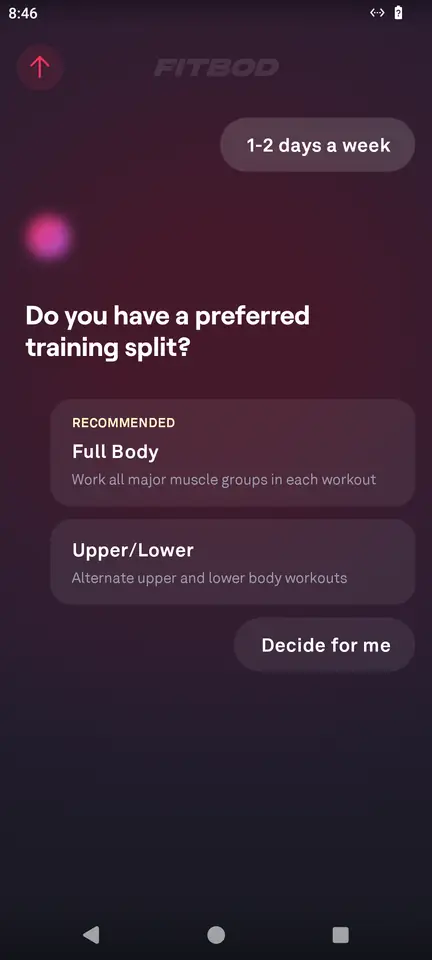
“Do you have a preferred training split?”
This screen asks the user about themselves to personalise what comes next. On screen: 1-2 days a week
, RECOMMENDED
. Next tap: “RECOMMENDED Full Body Work all major muscle groups in each w”.
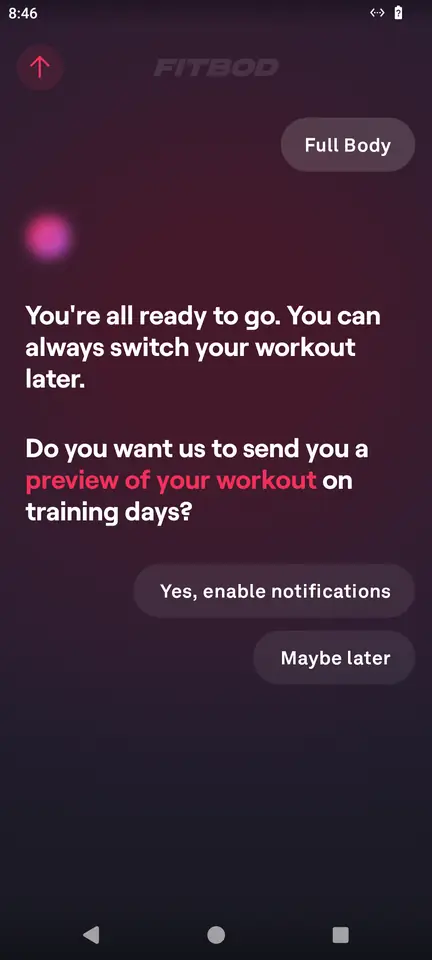
“You're all ready to go. You can always switch your workout later.”
This screen asks for a system permission. On screen: Full Body
, Do you want us to send you a preview of your workout on training days?
.
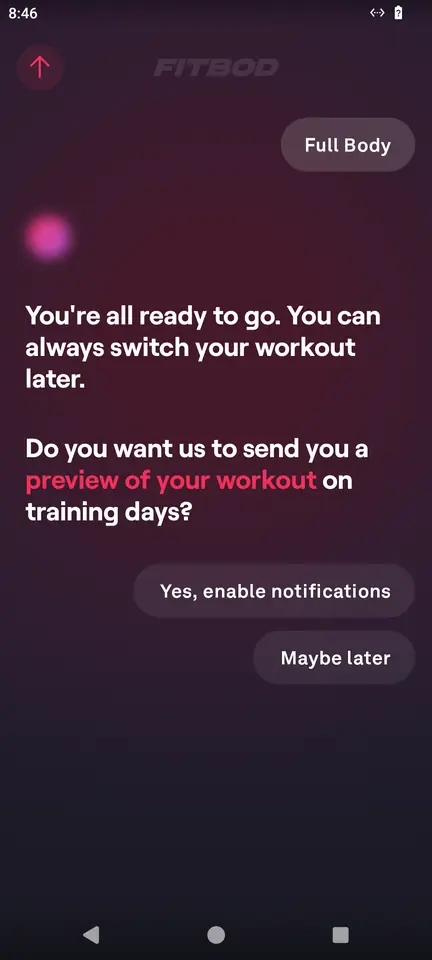
“Yes, enable notifications”
This screen asks for a system permission. On screen: Full Body
, You're all ready to go. You can always switch your workout later.
. Next tap: “Yes, enable notifications”.
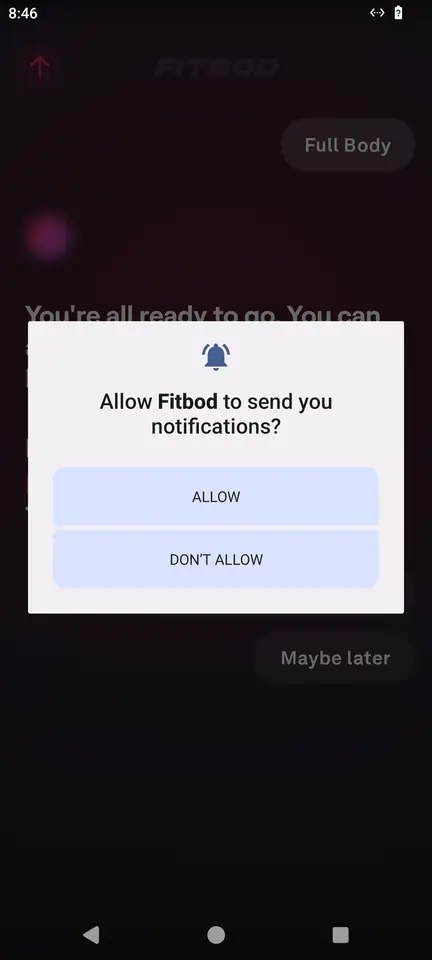
“Allow Fitbod to send you notifications?”
This screen asks for a system permission. On screen: ALLOW
, DON’T ALLOW
. Next tap: “Allow”.
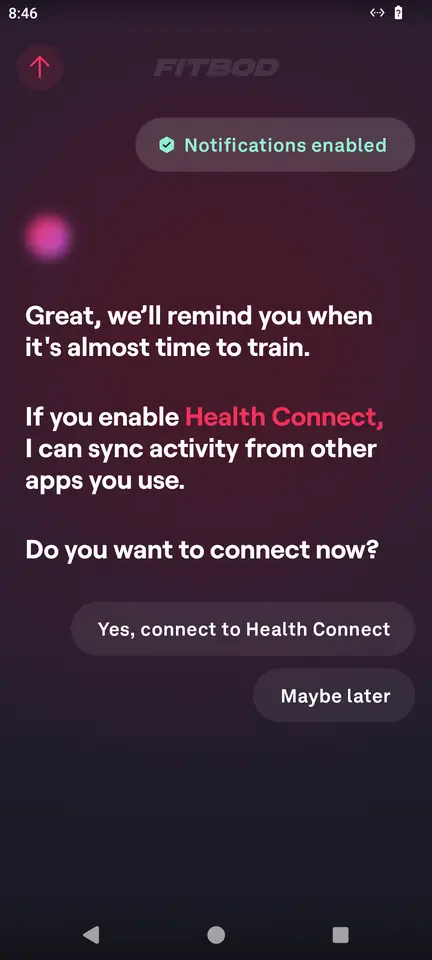
“Great, we’ll remind you when it's almost time to train.”
This screen explains a feature or a step. On screen: Notifications enabled
, If you enable Health Connect, I can sync activity from other apps you use.
.
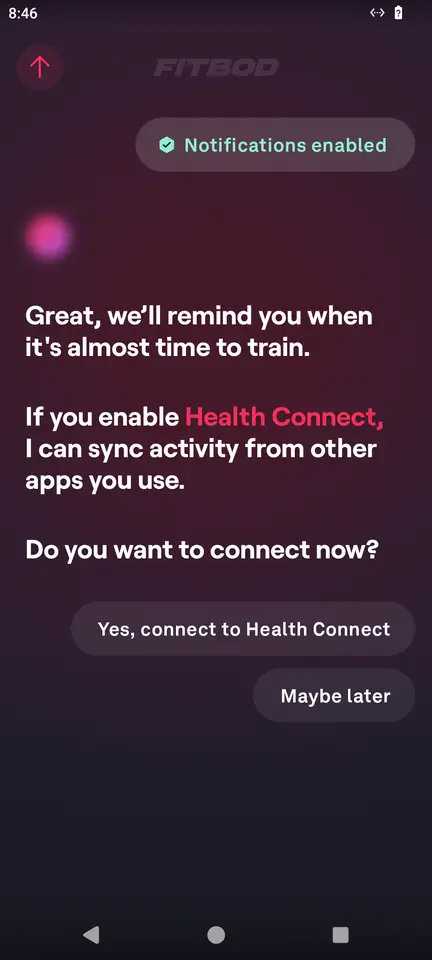
“Do you want to connect now?”
This screen asks the user about themselves to personalise what comes next. On screen: Notifications enabled
, Great, we’ll remind you when it's almost time to train.
. Next tap: “Maybe later”.
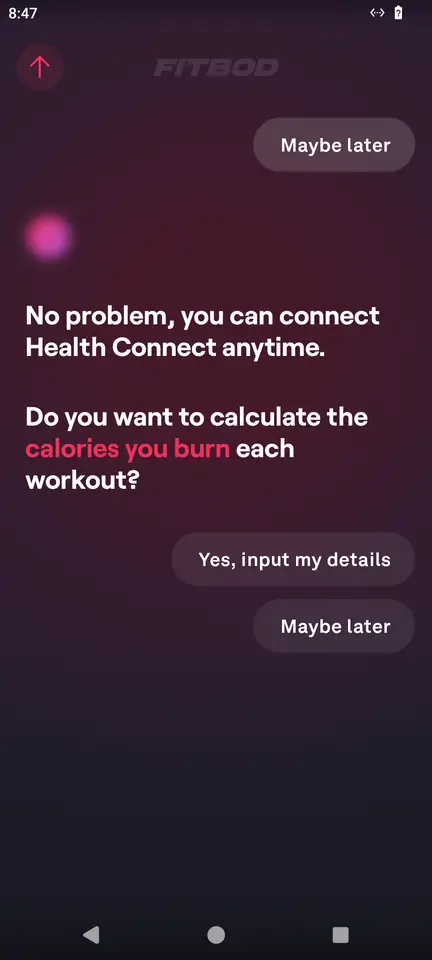
“No problem, you can connect Health Connect anytime.”
This screen asks the user about themselves to personalise what comes next. On screen: Maybe later
, Do you want to calculate the calories you burn each workout?
.
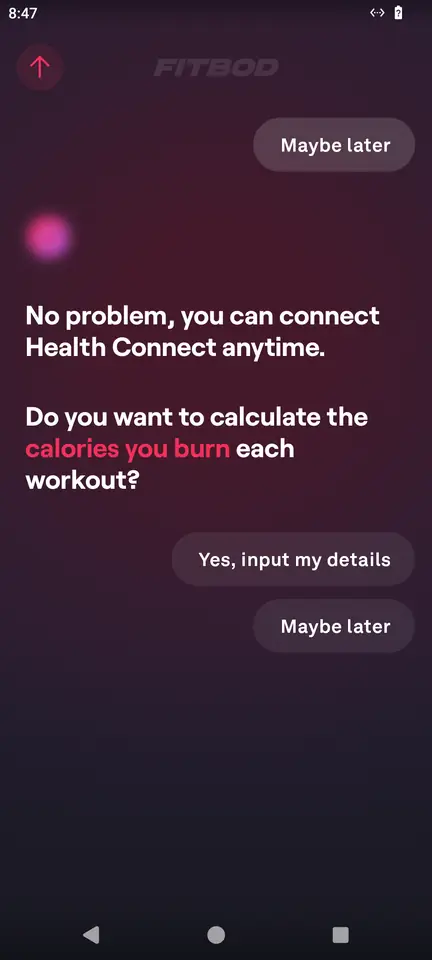
“Yes, input my details”
This screen asks the user about themselves to personalise what comes next. On screen: Maybe later
, No problem, you can connect Health Connect anytime.
. Next tap: “Maybe later”.
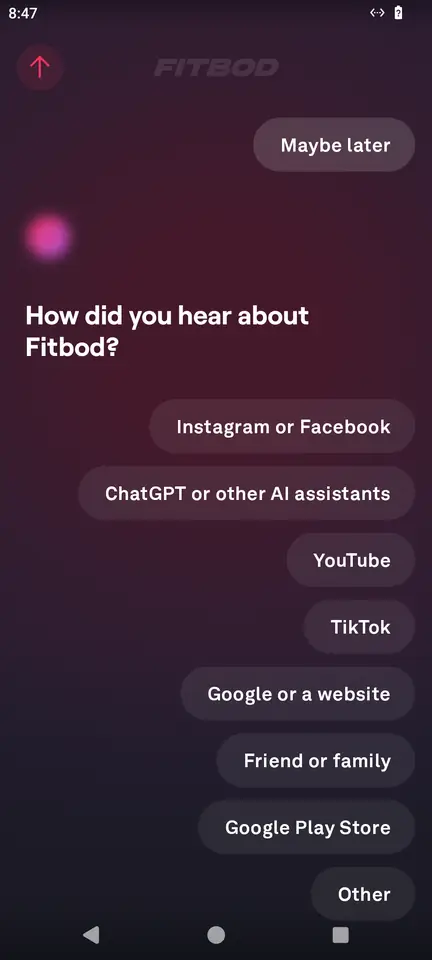
“How did you hear about Fitbod?”
This screen asks the user about themselves to personalise what comes next. On screen: Maybe later
, Instagram or Facebook
. Next tap: “Instagram or Facebook”.
What to steal from Fitbod
- Delay the account wall: Fitbod lets users through 19 onboarding screens without signing up.
UI components in this flow
As an X thread
- 1/ How Fitbod onboards on Android: 19 screens, step by step. A UX teardown 🧵
- 2/ The shape of the flow: Value pitch ×6 → Question → Info → Question ×3 → Permission prompt ×3 → Info → Question ×4.
- 3/ Step 1 — value pitch: “Train Smarter.”. It sells the product before asking for anything. Tap: “Start”.
- 4/ Step 2 — value pitch: “Train Smarter.”. It sells the product before asking for anything. Tap: “Start”.
- 5/ Step 3 — value pitch: “Hey, it’s your coach. I’m excited to kick off your new training plan.”. It sells the product before asking for anything. Tap: “Lift heavier”.
- 6/ Asks 8 questions along the way, starting at step 7 with “Which gym do you go to?”.
- 7/ No sign-up or log-in screen in the 19 onboarding screens we captured — the product comes first.
- 8/ Requests a system permission at step 12, after priming it on screen.
- 9/ What to steal — Delay the account wall: Fitbod lets users through 19 onboarding screens without signing up.
- 10/ Every screen, in order, free: https://uilane.com/teardown/fitbod/
FAQ
How many screens is Fitbod's onboarding flow?
We captured 19 screens of Fitbod's onboarding flow on a real Android device. Its shape: Value pitch ×6 → Question → Info → Question ×3 → Permission prompt ×3 → Info → Question ×4.
When does Fitbod ask you to create an account?
Not within the 19 screens we captured — there is no sign-up or log-in screen and the flow lets users in without an account.
What UI patterns does Fitbod use?
Across the 66 Fitbod screens in the library we detected skip button, onboarding survey, age gate, permission priming, social login buttons and email sign-up form.
What can designers learn from Fitbod's onboarding flow?
Delay the account wall: Fitbod lets users through 19 onboarding screens without signing up.
Captured on a real Android device · last updated 2026-11-14