Onboarding flow · DoorDash · Android
DoorDash onboarding flow
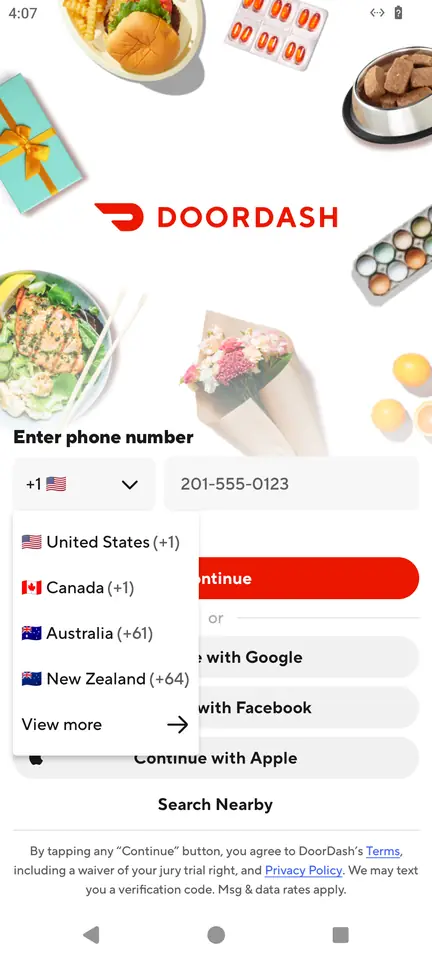
Every screen of DoorDash's onboarding flow on Android, in order: 8 steps, recorded on a real device. DoorDash's onboarding opens with a system permission request and shows no sign-up form in the 8 screens we captured. At 8 screens it is the joint 25th-longest of the 152 onboarding flows in the library (median 4). A skip option appears on 3 screens.
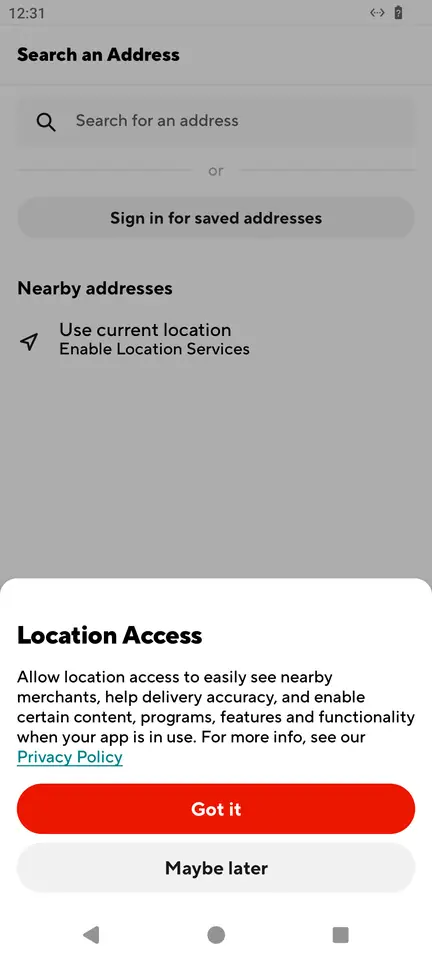 01 Onboarding · tap “Overlay”
Location Access — Got it
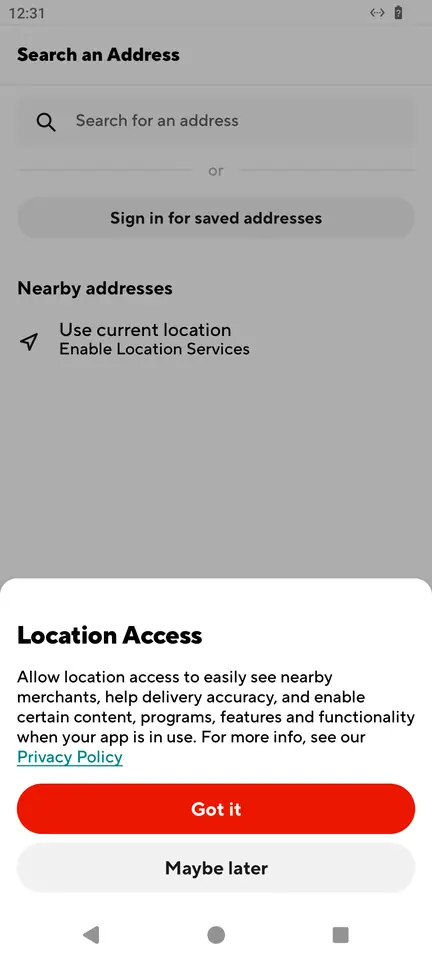 02 Onboarding · tap “Got it”
Location Access — Got it
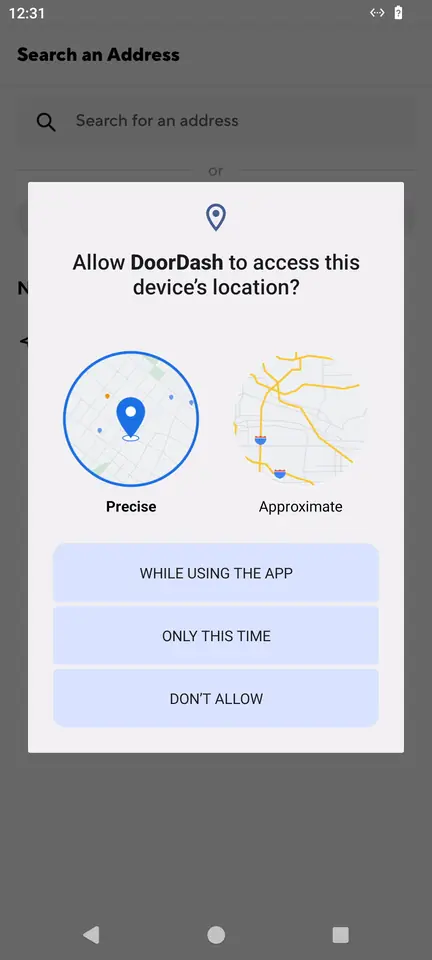 03 Permissions · tap “WHILE USING THE APP”
Allow DoorDash to access this device’s location? — Precise
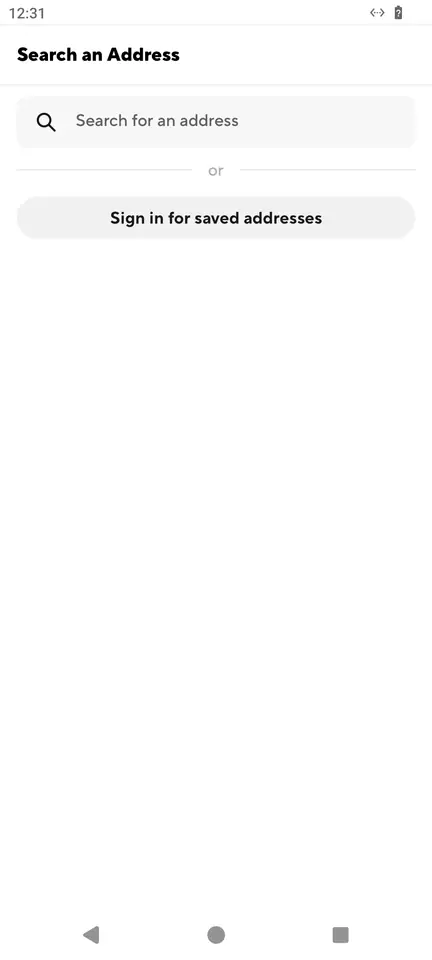 04 Onboarding · tap “Address=350 5th Ave New York”
Search an Address — Search for an address
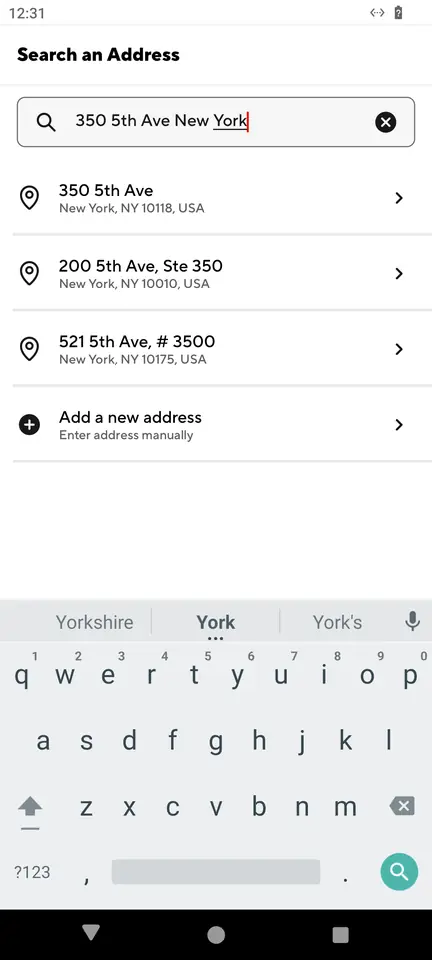 05 Onboarding · tap “350 5th Ave New York, NY 10118, USA Edit Address”
Search an Address — 350 5th Ave New York
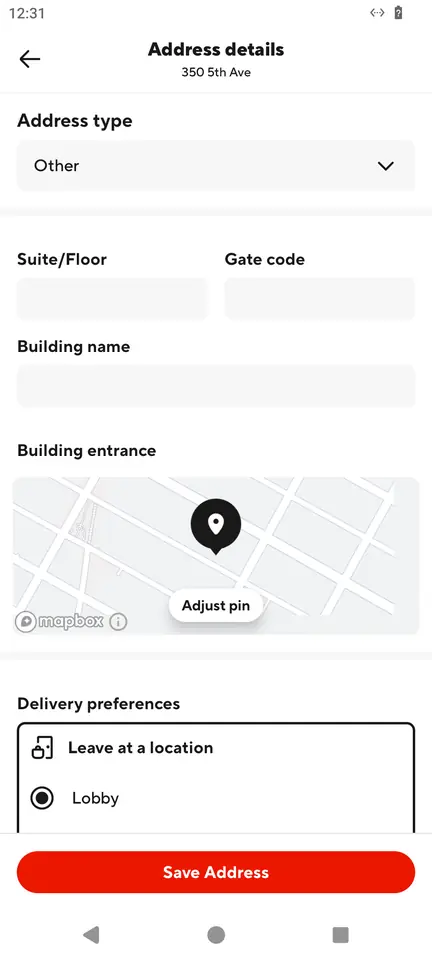 06 Onboarding · tap “Save Address”
Back — Address details
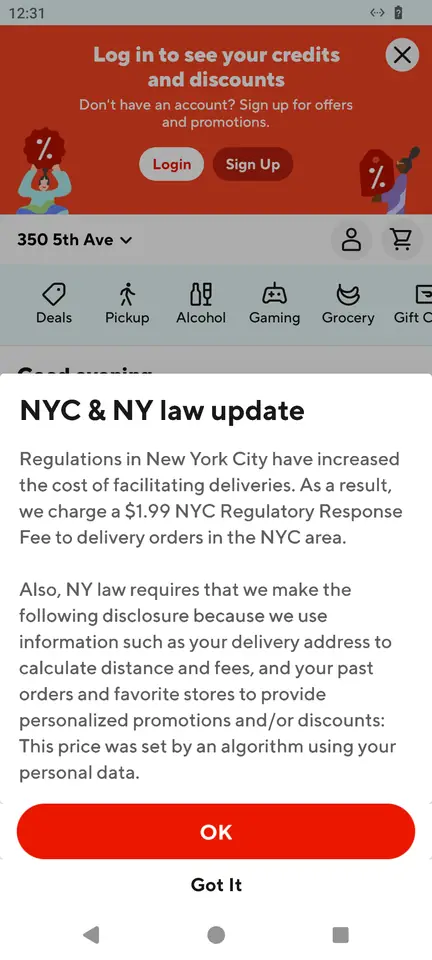 07 Onboarding · tap “Touch outside”
announcement v2 — OK
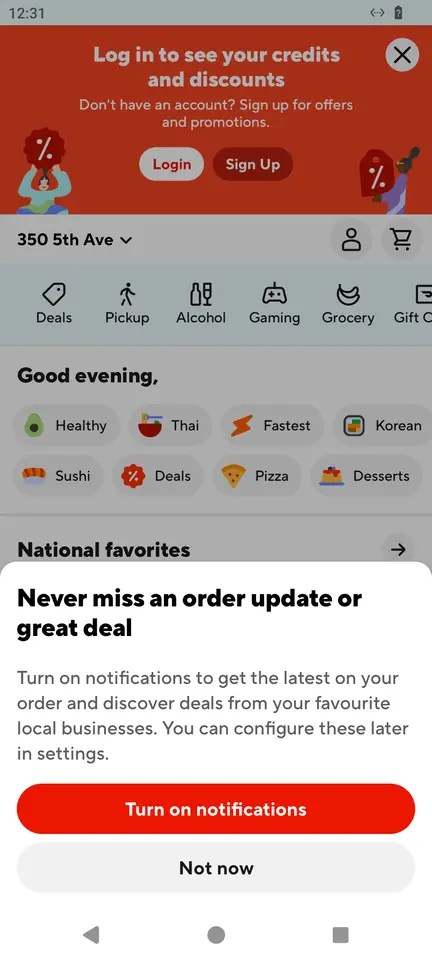 08 Onboarding · tap “Overlay”
Never miss an order update or great deal — Turn on notifications
What DoorDash's onboarding flow does
- 8 screens in order, opening on “Location Access” and ending at “Never miss an order update or great deal”.
- Taps along the way: “Overlay” → “Got it” → “WHILE USING THE APP” → “Address=350 5th Ave New York” → “350 5th Ave New York, NY…” → “Save Address”….
- Includes a system permission prompt inside the flow.
- Gives users an exit: a “Maybe later” option.
Read the step-by-step UX teardown of this flow →
Captured on a real Android device · last updated 2026-11-14