Home & browsing flow · FARFETCH · Android
FARFETCH home & browsing screens
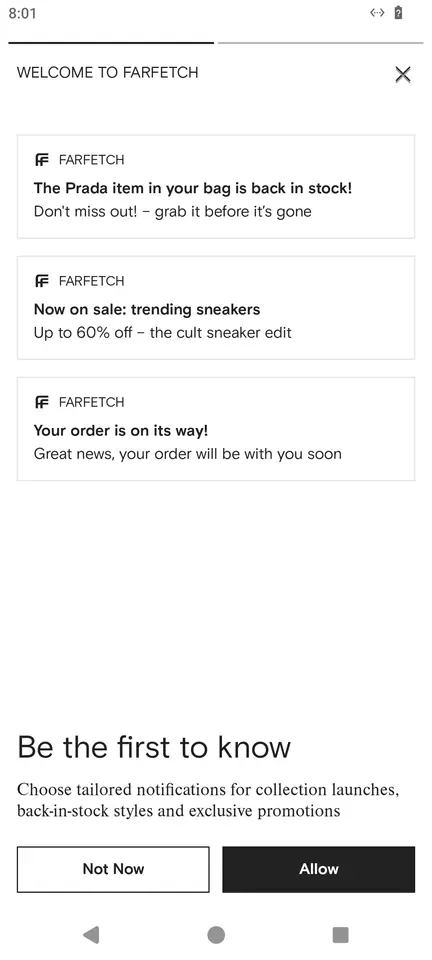
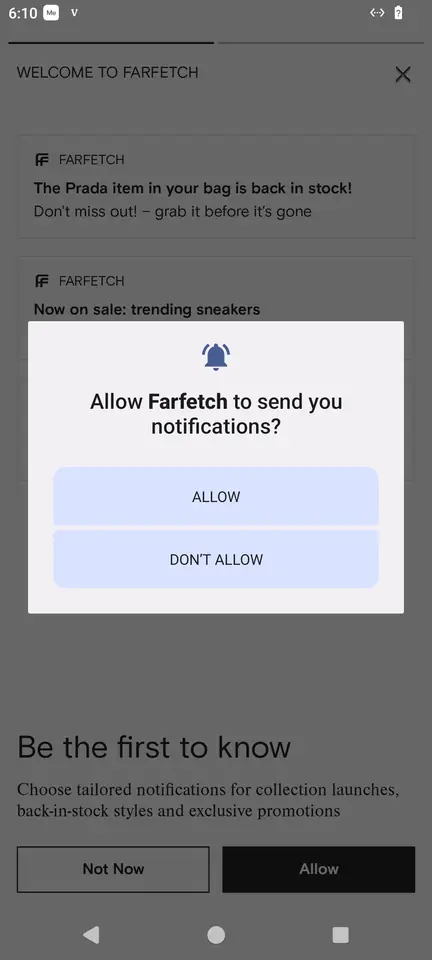
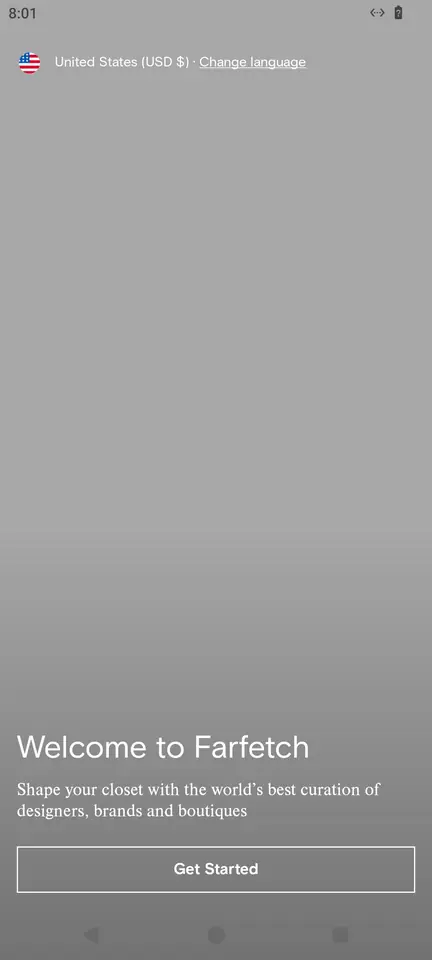
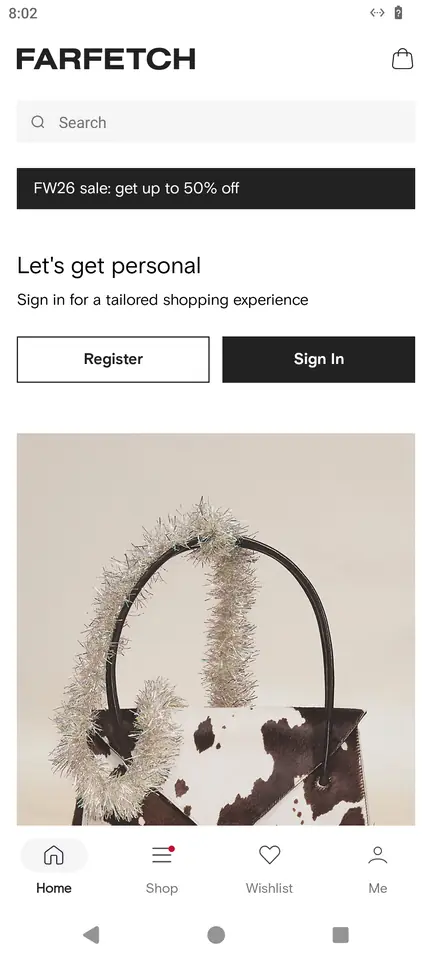
Every screen of FARFETCH's home & browsing screens on Android, in order: 6 steps, recorded on a real device. FARFETCH's home & browsing flow walks through 6 screens, including “Brands”, “Language” and “No recent searches”. Along the way it stops for a question at step 2. The screens are built around tab bars (6 screens), tabs (4 screens) and a search bar.
UI components:
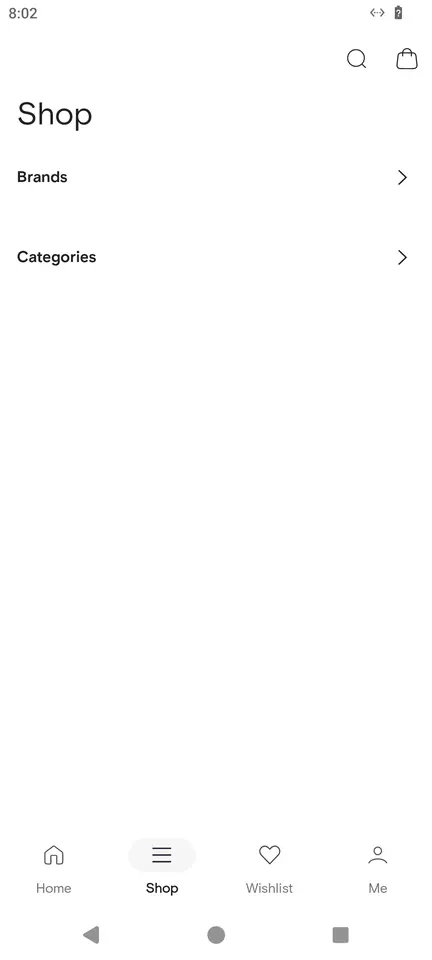 01 Home & browsing · tap “Me”
Shop — Brands
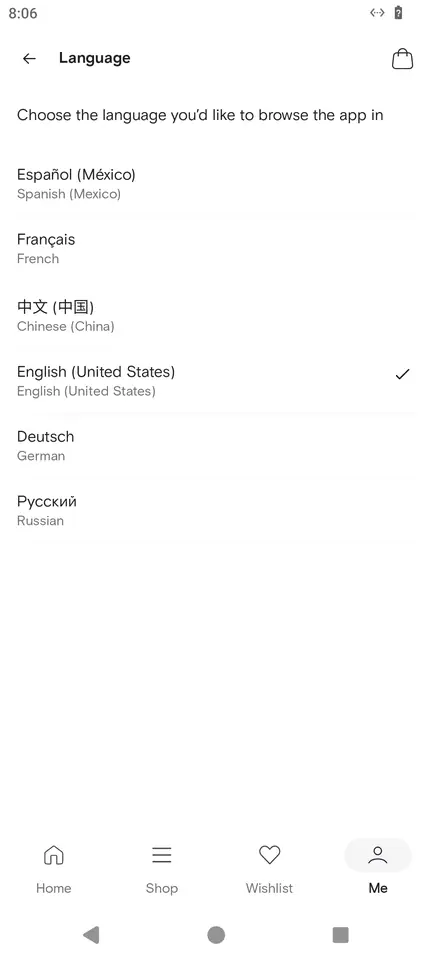 02 Settings · tap “Wishlist”
Language — Choose the language you’d like to browse the app in
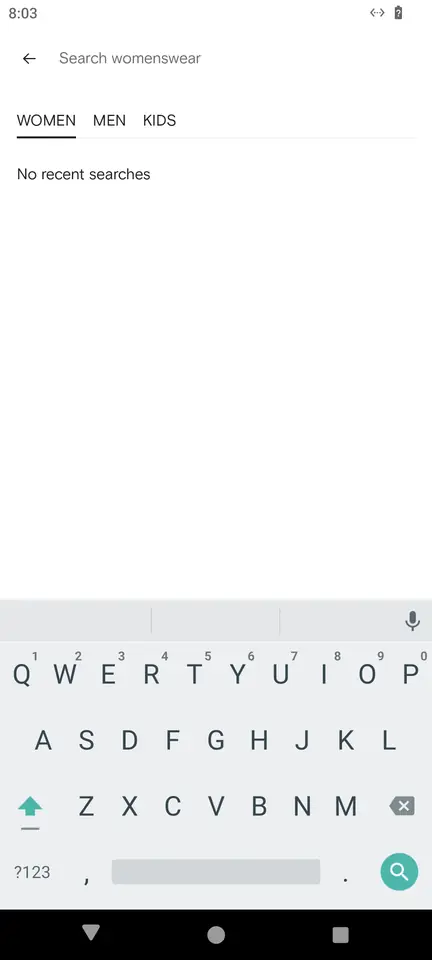 03 Home & browsing · tap “MEN”
Search womenswear — WOMEN
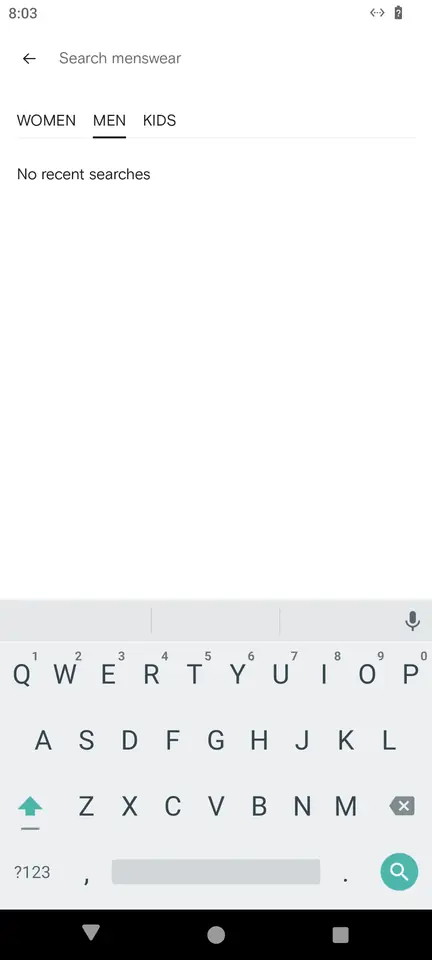 04 Home & browsing · tap “Women”
Search menswear — WOMEN
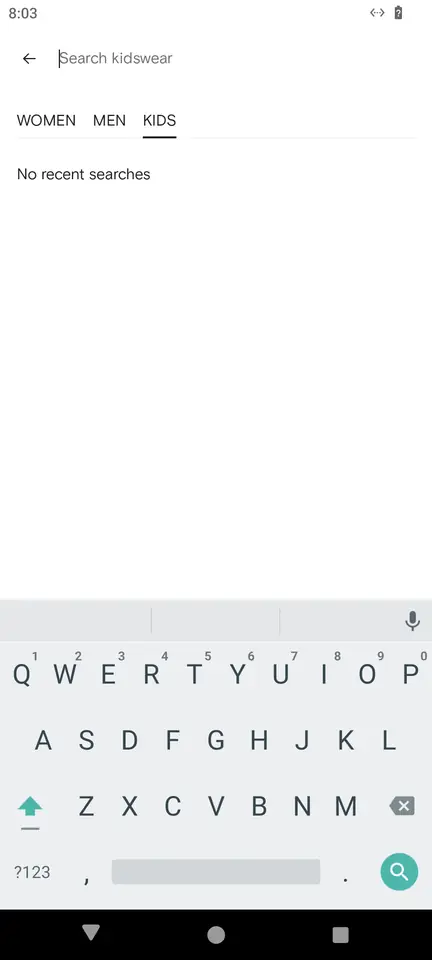 05 Home & browsing · tap “Search kidswear”
Search kidswear — WOMEN
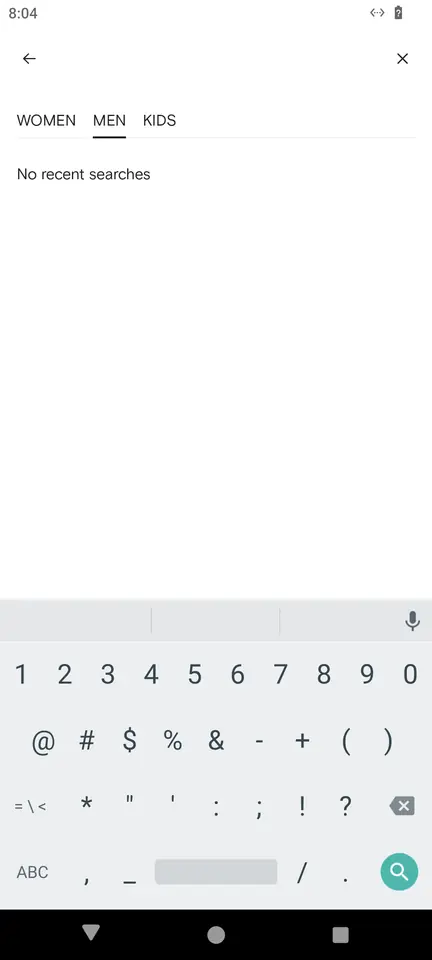 06 Home & browsing · tap “Women”
WOMEN — MEN
What FARFETCH's home & browsing screens does
- 6 screens in order, opening on “Brands” and ending at “No recent searches”.
- Taps along the way: “Me” → “Wishlist” → “MEN” → “Women” → “Search kidswear” → “Women”.
Captured on a real Android device · last updated 2026-11-14