How Babbel onboards: a UX teardown
A screen-by-screen UX teardown of Babbel's onboarding flow on Android: what each of its 20 steps is for, where it asks for commitment, and what other language learning apps do differently. Every screen and quote is from our own capture on a real device.
The short version
Shape: Question ×2 → Info → Question ×2 → Info ×2 → Question ×4 → Permission prompt → Question → Info ×3 → Question → Info → Question ×2.
- 20 screens — longer than the median onboarding flow in the library (4 screens across 151 other apps).
- Asks 12 questions along the way, starting at step 1 with “Speak with confidence”.
- No sign-up or log-in screen in the 20 onboarding screens we captured — the product comes first.
- Requests a system permission at step 12, after priming it on screen.
- No progress indicator detected across 20 screens.
- Offers a way out (a skip option) on 3 screens.
- 4 of the 6 other language learning apps in the library use the “Welcome screen” pattern; it was not detected in any Babbel screen we captured.
- One of the few language learning apps here using the “Skip button” pattern (only 1 of the 6 others do).
- Built from badge (6 screens), text field (2 screens) and button (1 screen) — the most common components we detected in the flow.
Step by step
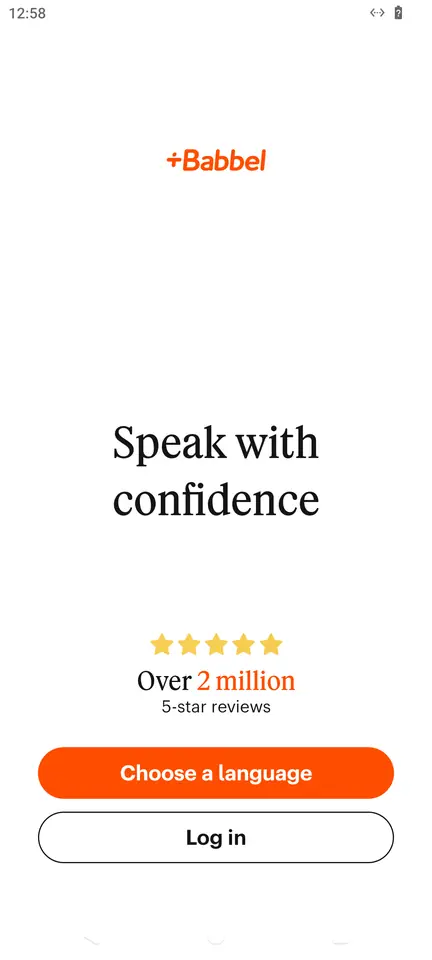
“Speak with confidence”
This screen asks the user about themselves to personalise what comes next. On screen: Over 2 million
, 5-star reviews
. Next tap: “Choose language”.
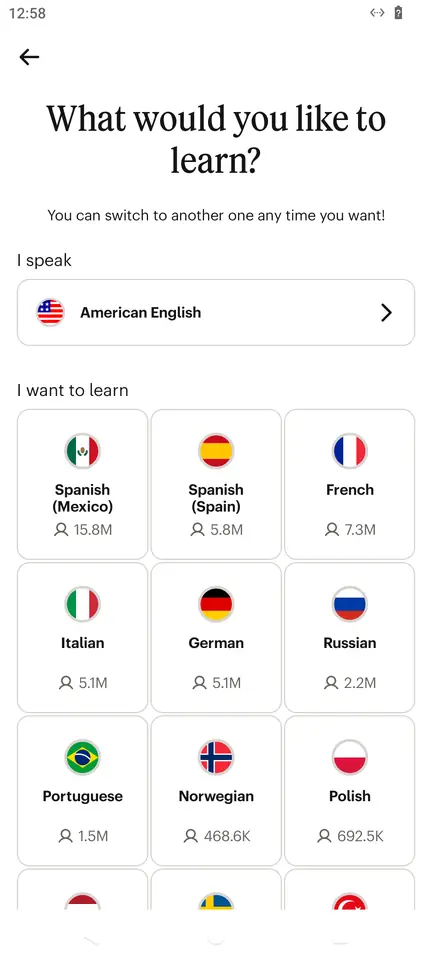
“What would you like to learn?”
This screen asks the user about themselves to personalise what comes next. On screen: You can switch to another one any time you want!
, I speak
.
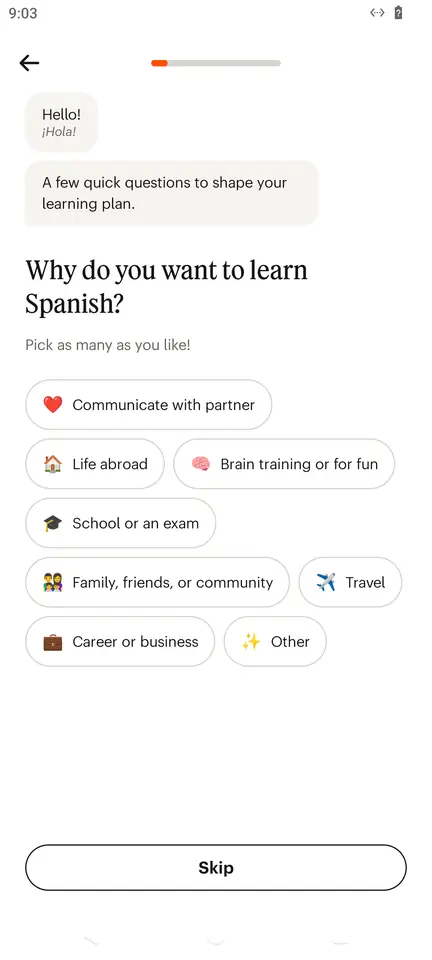
“Hello!”
This screen explains a feature or a step. On screen: ¡Hola!
, A few quick questions to shape your learning plan.
.
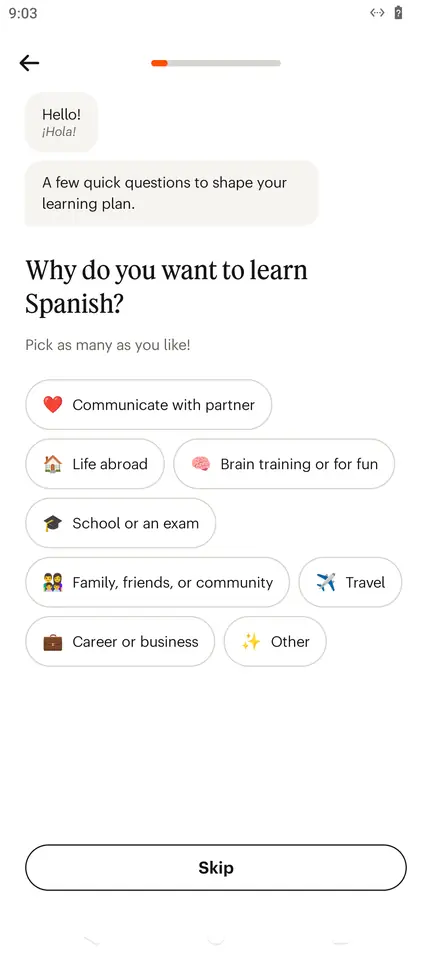
“Why do you want to learn Spanish?”
This screen asks the user about themselves to personalise what comes next. On screen: Hello!
, ¡Hola!
. Next tap: “Partner”.
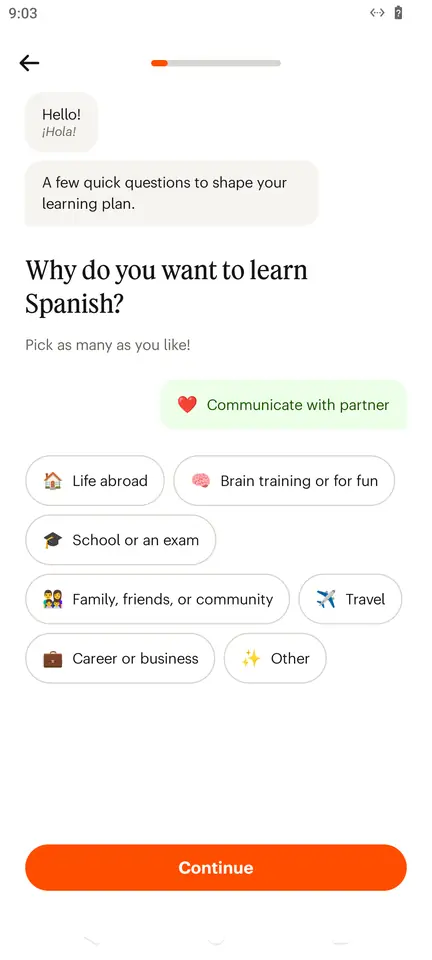
“Hello!”
This screen asks the user about themselves to personalise what comes next. On screen: ¡Hola!
, A few quick questions to shape your learning plan.
.
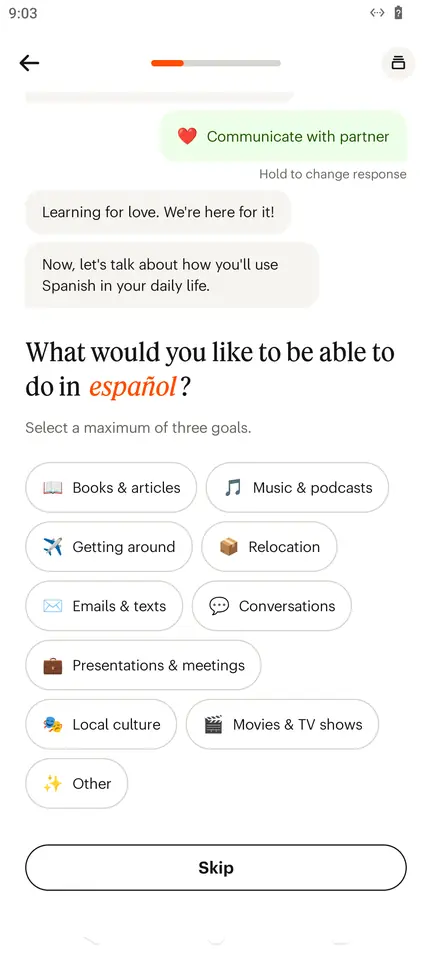
“Hold to change response”
This screen explains a feature or a step. On screen: ❤️
, Communicate with partner
.
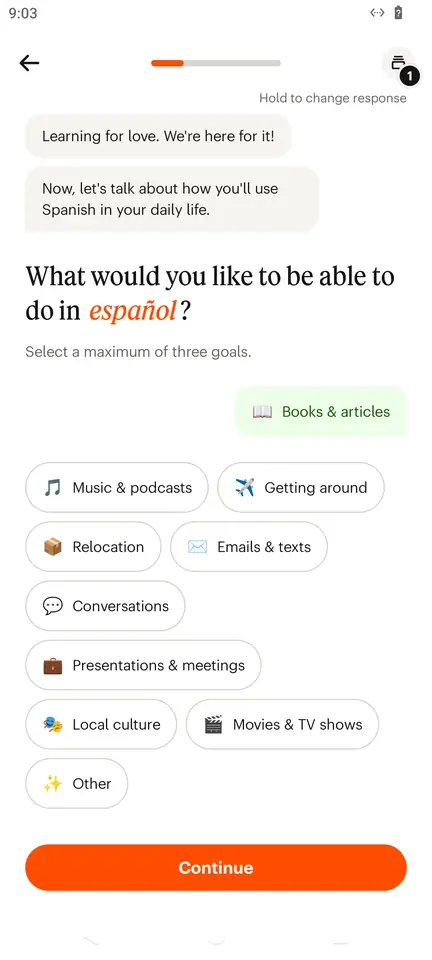
“Hold to change response”
This screen explains a feature or a step. On screen: Learning for love. We're here for it!
, Now, let's talk about how you'll use Spanish in your daily life.
.
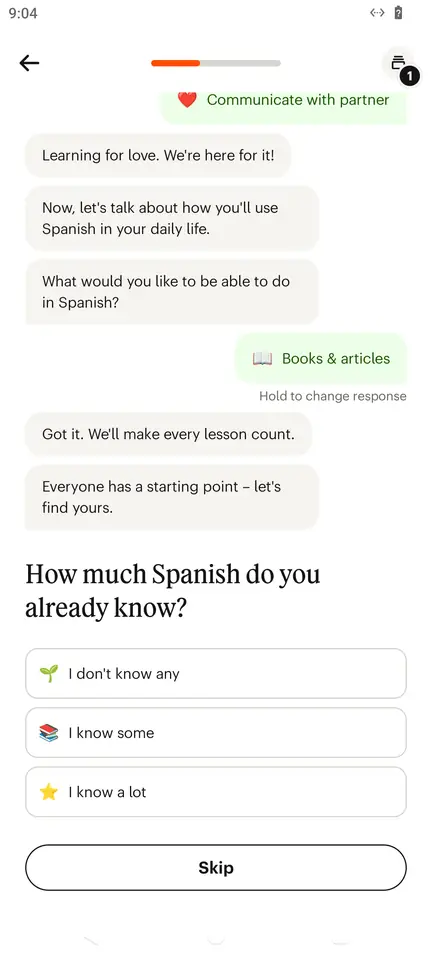
“Communicate with partner”
This screen asks the user about themselves to personalise what comes next. On screen: ❤️
, Learning for love. We're here for it!
. Next tap: “Not much”.
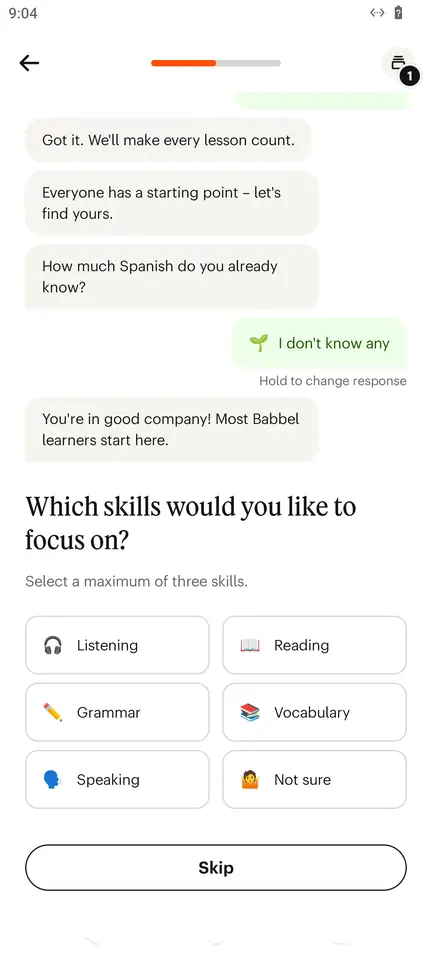
“Everyone has a starting point – let's find yours.”
This screen asks the user about themselves to personalise what comes next. On screen: Books & articles
, Got it. We'll make every lesson count.
.
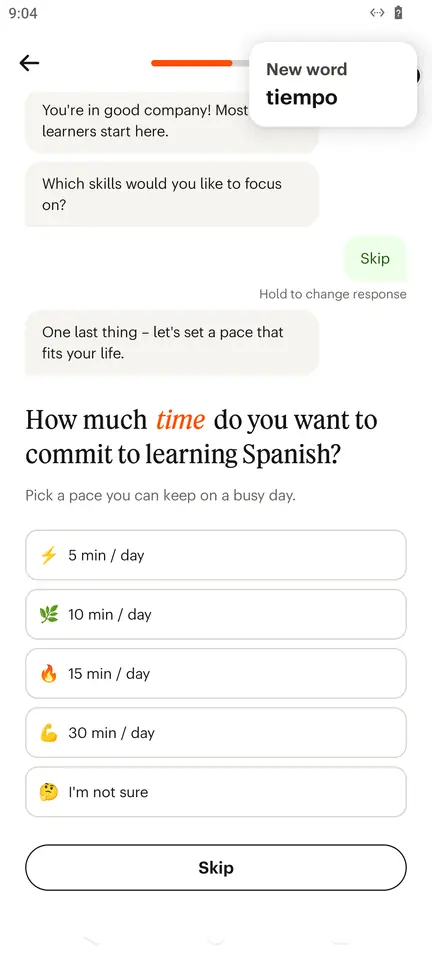
“One last thing – let's set a pace that fits your life.”
This screen asks the user about themselves to personalise what comes next. On screen: You're in good company! Most Babbel learners start here.
, Which skills would you like to focus on?
.
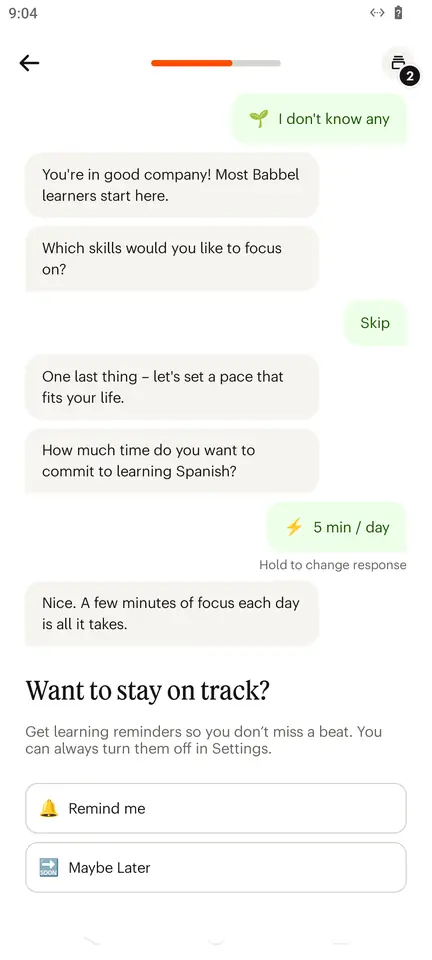
“I don't know any”
This screen asks the user about themselves to personalise what comes next. On screen: You're in good company! Most Babbel learners start here.
, Which skills would you like to focus on?
. Next tap: “Allow”.
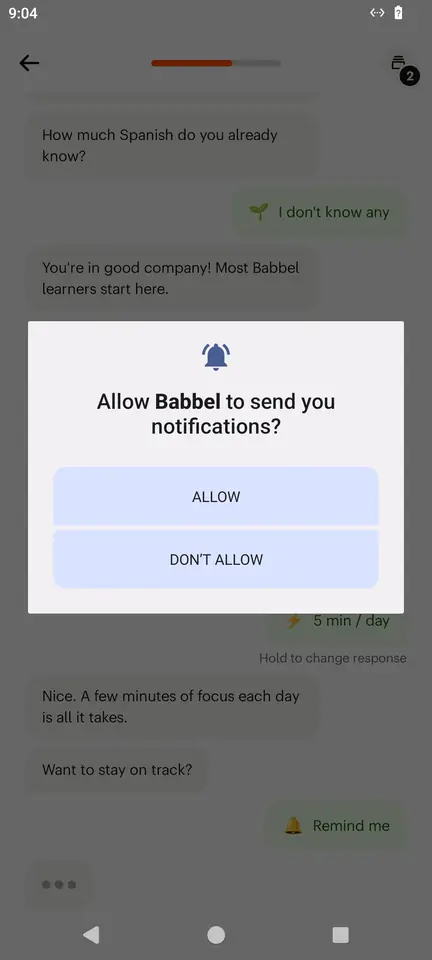
“Allow Babbel to send you notifications?”
This screen asks for a system permission. On screen: ALLOW
, DON’T ALLOW
. Next tap: “Allow”.
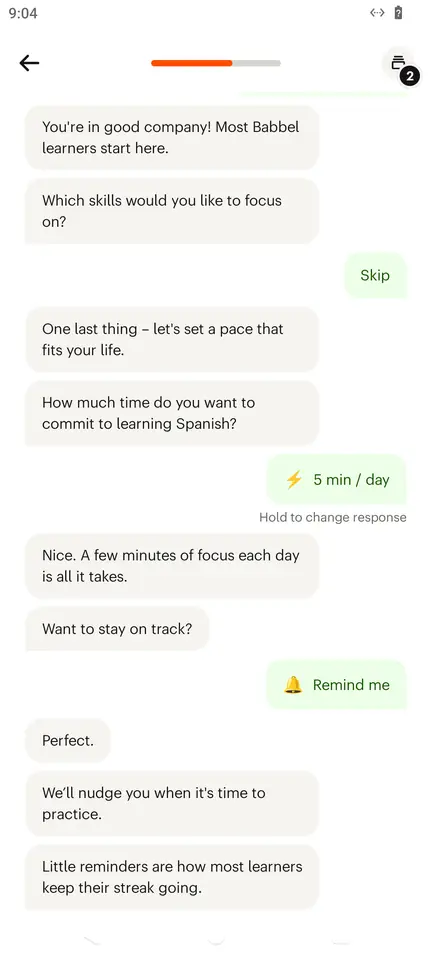
“I don't know any”
This screen asks the user about themselves to personalise what comes next. On screen: You're in good company! Most Babbel learners start here.
, Which skills would you like to focus on?
.
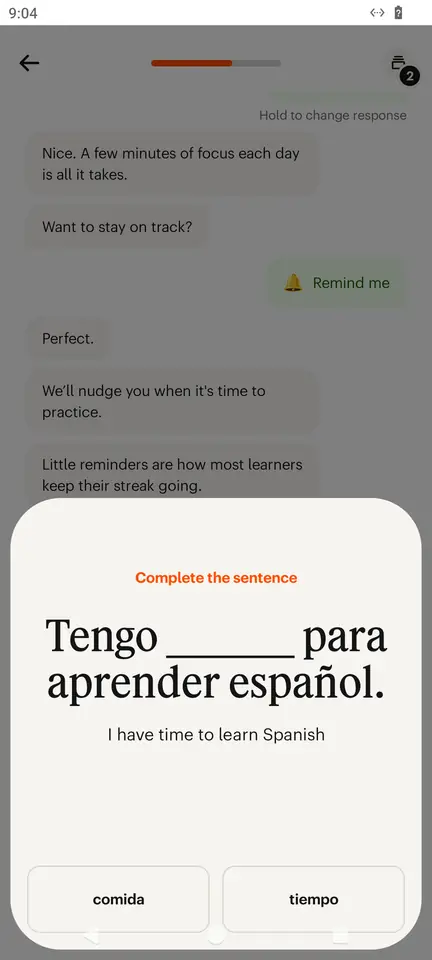
“Complete the sentence”
This screen explains a feature or a step. On screen: Tengo ________ para aprender español.
, I have time to learn Spanish
. Next tap: “Time”.
“Ready to build your streak?”
This screen explains a feature or a step. On screen: Continue
.
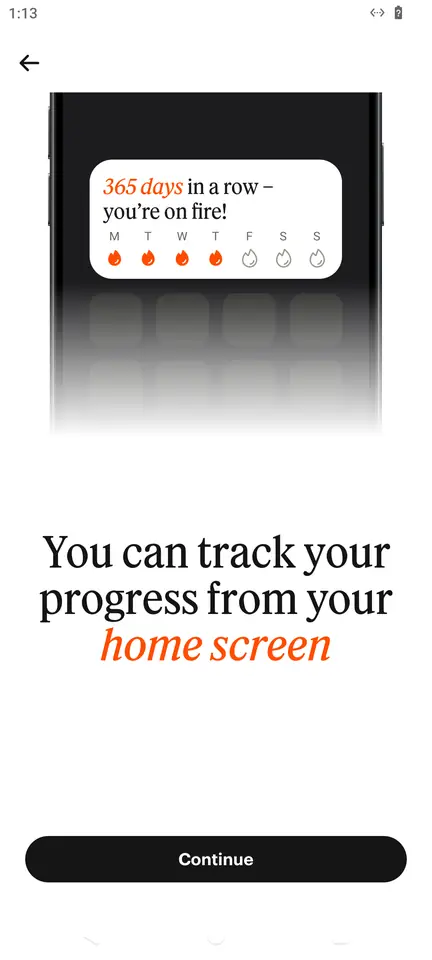
“365 days in a row – you’re on fire!”
This screen explains a feature or a step. On screen: You can track your progress from your home screen
, Continue
.
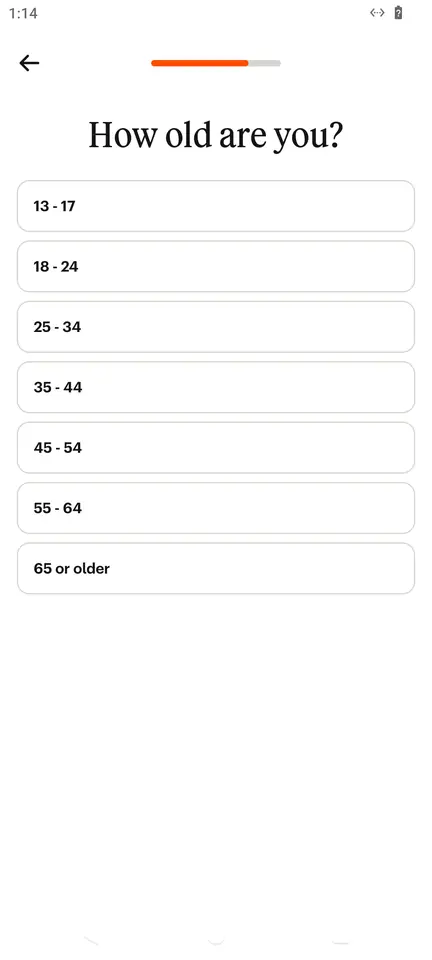
“How old are you?”
This screen asks the user about themselves to personalise what comes next. On screen: 13 - 17
, 18 - 24
. Next tap: “25 - 34”.
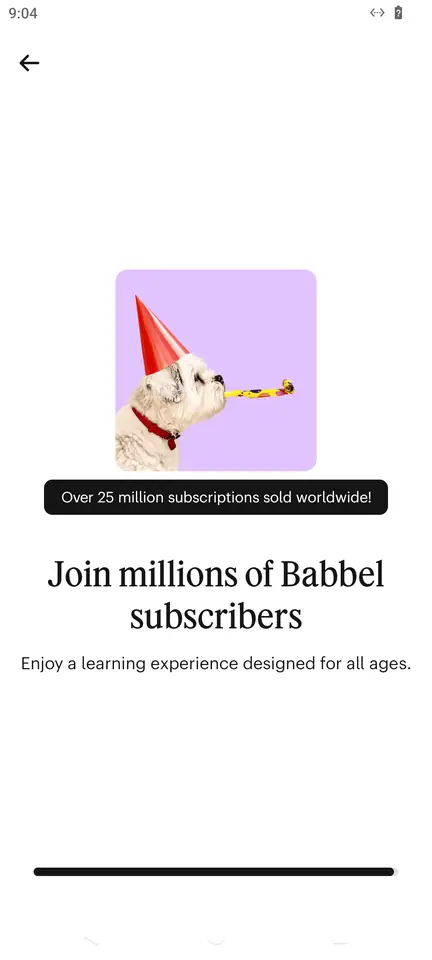
“Over 25 million subscriptions sold worldwide!”
This screen explains a feature or a step. On screen: Join millions of Babbel subscribers
, Enjoy a learning experience designed for all ages.
.
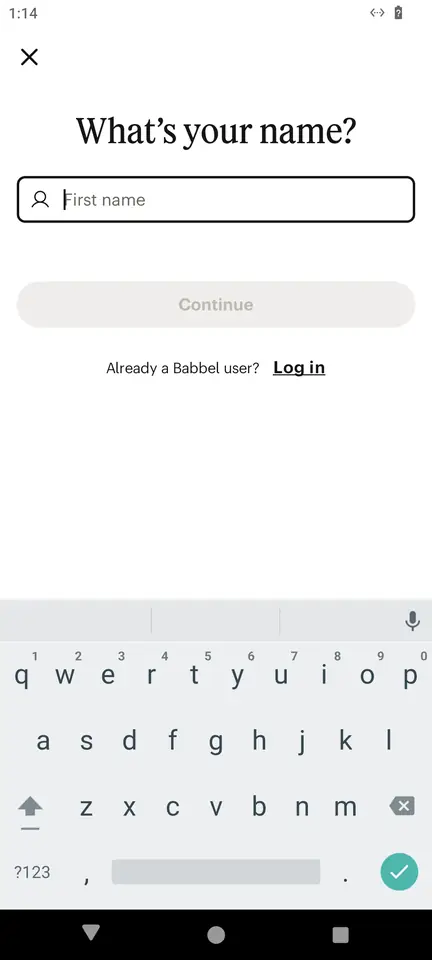
“What’s your name?”
This screen asks the user about themselves to personalise what comes next. On screen: First name
, Continue
. Next tap: “What’s your name?=Alex”.
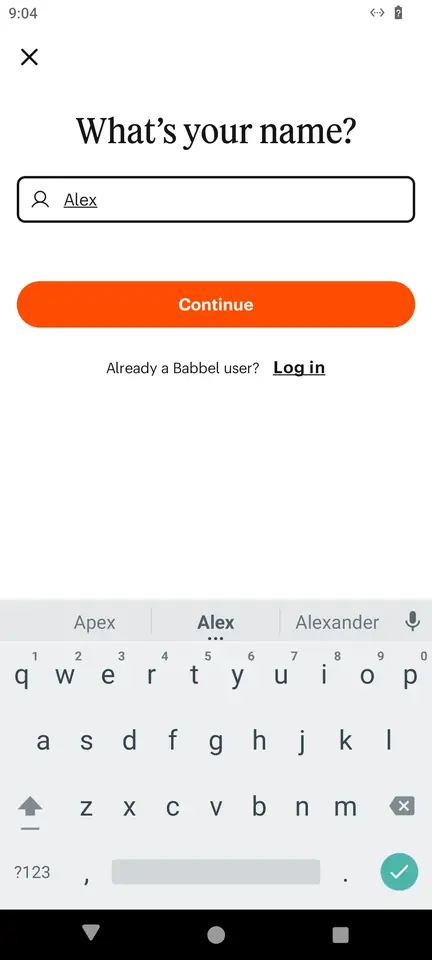
“What’s your name?”
This screen asks the user about themselves to personalise what comes next. On screen: Alex
, First name
. Next tap: “Continue”.
What to steal from Babbel
- Delay the account wall: Babbel lets users through 20 onboarding screens without signing up.
UI components in this flow
Other Babbel flows
As an X thread
- 1/ How Babbel onboards on Android: 20 screens, step by step. A UX teardown 🧵
- 2/ The shape of the flow: Question ×2 → Info → Question ×2 → Info ×2 → Question ×4 → Permission prompt → Question → Info ×3 → Question → Info → Question ×2.
- 3/ Step 1 — question: “Speak with confidence”. It asks the user about themselves to personalise what comes next. Tap: “Choose language”.
- 4/ Step 2 — question: “What would you like to learn?”. It asks the user about themselves to personalise what comes next.
- 5/ Step 3 — info: “Hello!”. It explains a feature or a step.
- 6/ Asks 12 questions along the way, starting at step 1 with “Speak with confidence”.
- 7/ No sign-up or log-in screen in the 20 onboarding screens we captured — the product comes first.
- 8/ Requests a system permission at step 12, after priming it on screen.
- 9/ What to steal — Delay the account wall: Babbel lets users through 20 onboarding screens without signing up.
- 10/ Every screen, in order, free: https://flowtape.ai/teardown/babbel/
FAQ
How many screens is Babbel's onboarding flow?
We captured 20 screens of Babbel's onboarding flow on a real Android device. Its shape: Question ×2 → Info → Question ×2 → Info ×2 → Question ×4 → Permission prompt → Question → Info ×3 → Question → Info → Question ×2.
When does Babbel ask you to create an account?
Not within the 20 screens we captured — there is no sign-up or log-in screen and the flow lets users in without an account.
What UI patterns does Babbel use?
Across the 43 Babbel screens in the library we detected skip button, onboarding survey, age gate, permission priming, cookie consent banner and email sign-up form.
What can designers learn from Babbel's onboarding flow?
Delay the account wall: Babbel lets users through 20 onboarding screens without signing up.
Captured on a real Android device · last updated 2026-11-14