How Duolingo onboards: a UX teardown
A screen-by-screen UX teardown of Duolingo's onboarding flow on Android: what each of its 22 steps is for, where it asks for commitment, and what other language learning apps do differently. Every screen and quote is from our own capture on a real device.
The short version
Shape: Value pitch ×3 → Question ×6 → Info → Question → Info ×2 → Question → Info → Permission prompt ×2 → Info ×4 → Question.
- 22 screens — longer than the median onboarding flow in the library (4 screens across 152 other apps).
- Asks 9 questions along the way, starting at step 4 with “What would you like to learn?”.
- No sign-up or log-in screen in the 22 onboarding screens we captured — the product comes first.
- Requests a system permission at step 16, after priming it on screen.
- Shows progress on 17 of 22 screens, so the user can see how much is left.
- 3 of the 6 other language learning apps in the library use the “Age gate” pattern; it was not detected in any Duolingo screen we captured.
- Built from toolbar (19 screens), progress bar (17 screens) and card (7 screens) — the most common components we detected in the flow.
Step by step
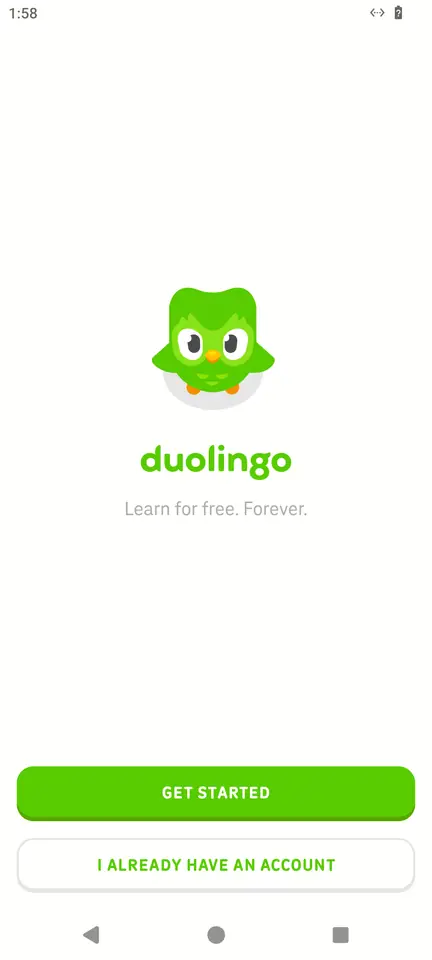
“Learn for free. Forever.”
This screen sells the product before asking for anything. On screen: Duolingo
, GET STARTED
. Next tap: “GET STARTED”.
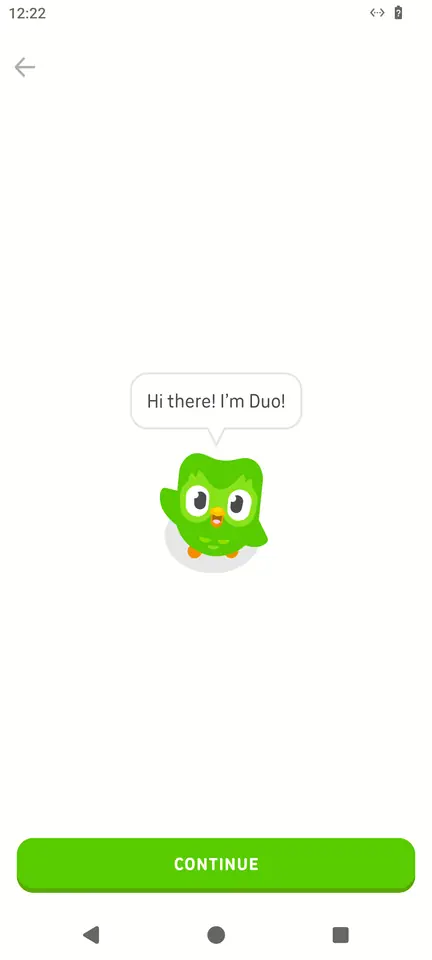
“Hi there! I’m Duo!”
This screen sells the product before asking for anything. On screen: CONTINUE
. Next tap: “Continue”.
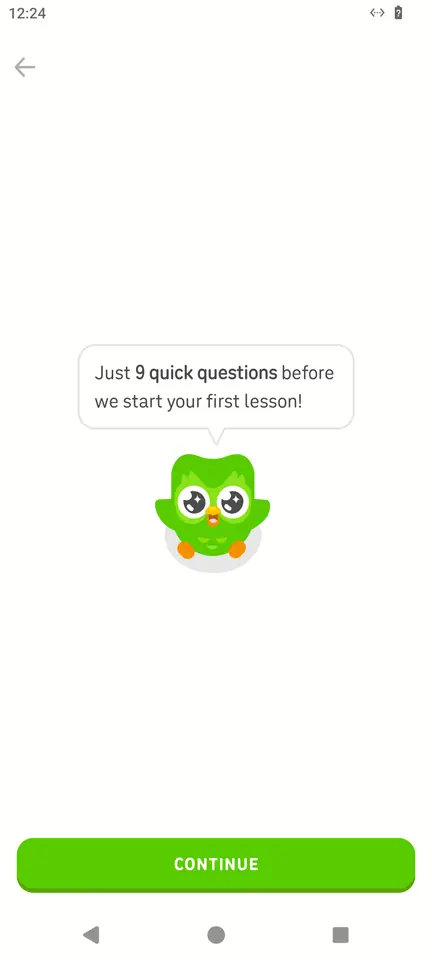
“Just 9 quick questions before we start your first lesson!”
This screen sells the product before asking for anything. On screen: CONTINUE
. Next tap: “Continue”.
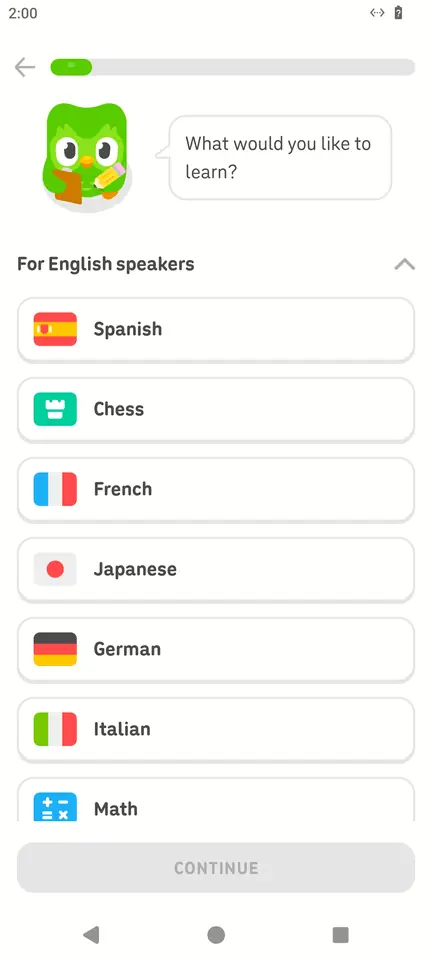
“What would you like to learn?”
This screen asks the user about themselves to personalise what comes next. On screen: For English speakers
, Spanish
. Next tap: “Language”.
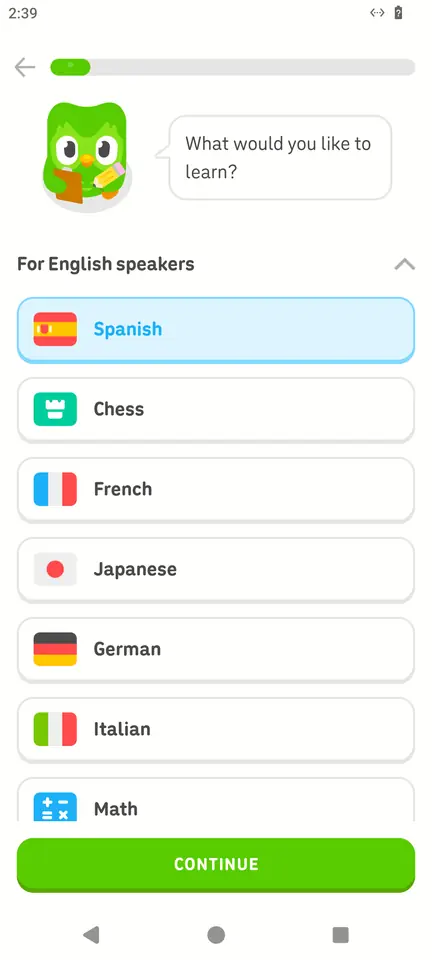
“What would you like to learn?”
This screen asks the user about themselves to personalise what comes next. On screen: For English speakers
, Spanish
. Next tap: “Continue”.
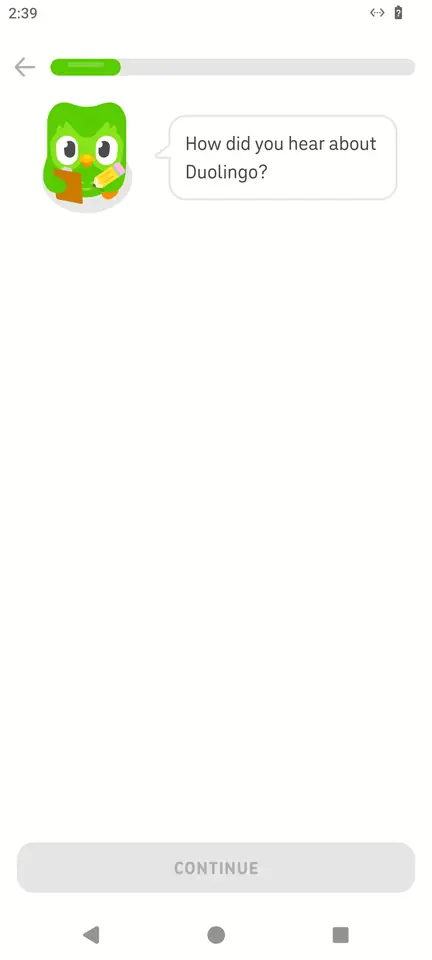
“How did you hear about Duolingo?”
This screen asks the user about themselves to personalise what comes next. On screen: CONTINUE
. Next tap: “Continue”.
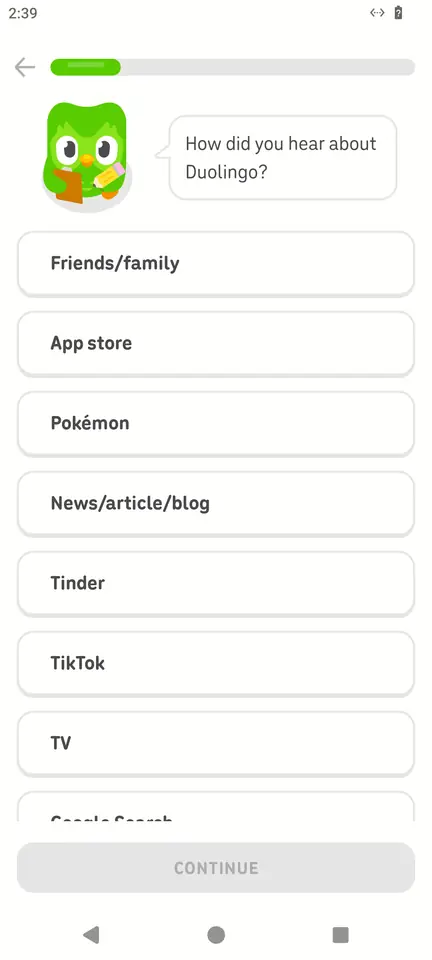
“Friends/family”
This screen asks the user about themselves to personalise what comes next. On screen: How did you hear about Duolingo?
, App store
.
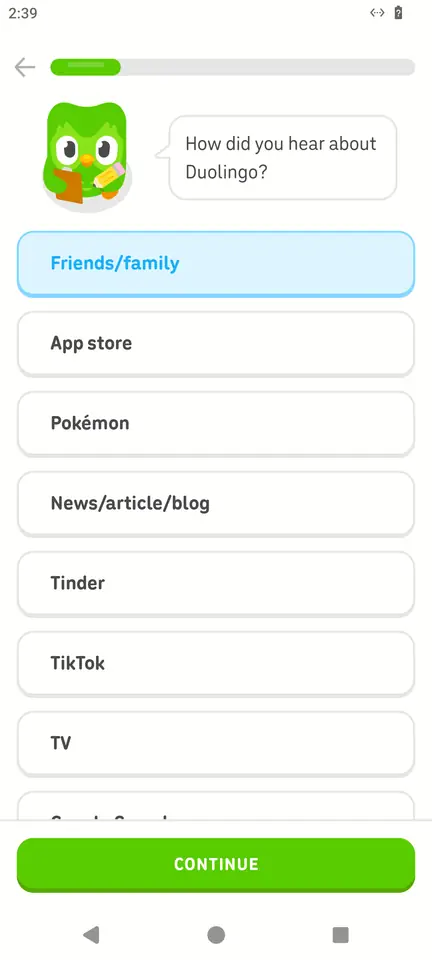
“How did you hear about Duolingo?”
This screen asks the user about themselves to personalise what comes next. On screen: Friends/family
, App store
. Next tap: “Continue”.
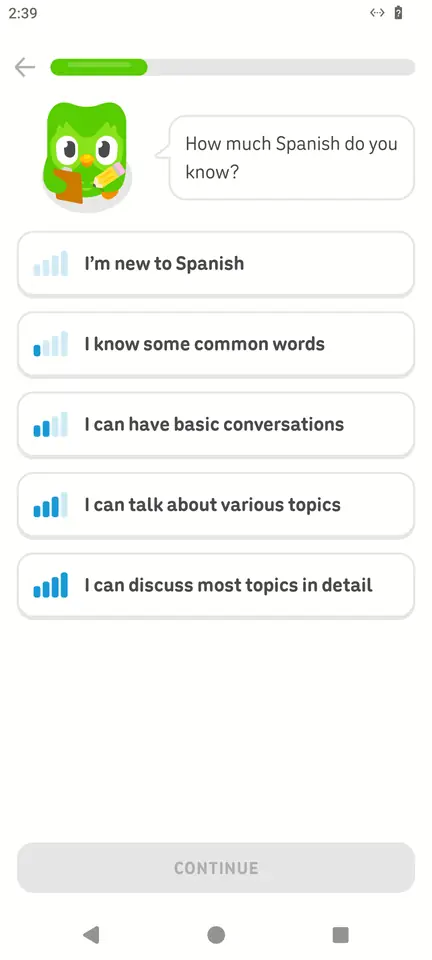
“How much Spanish do you know?”
This screen asks the user about themselves to personalise what comes next. On screen: NOTHING
, I’m new to Spanish
. Next tap: “Nothing”.
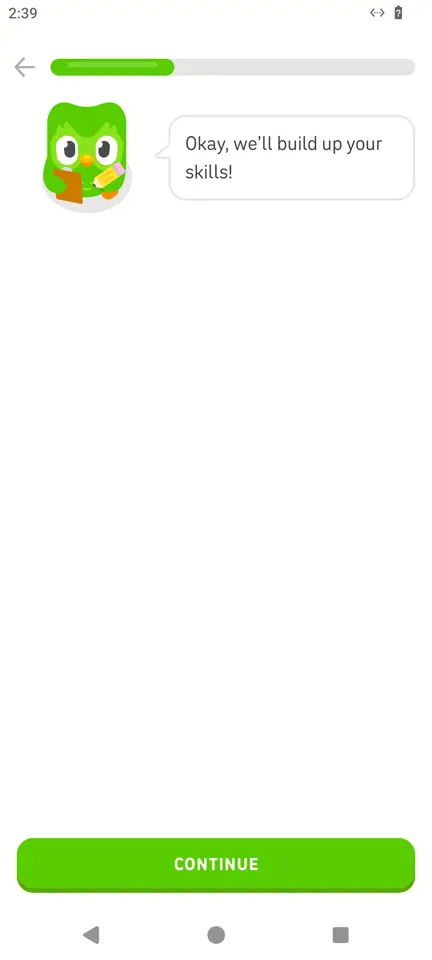
“Okay, we’ll build up your skills!”
This screen explains a feature or a step. On screen: CONTINUE
. Next tap: “Continue”.
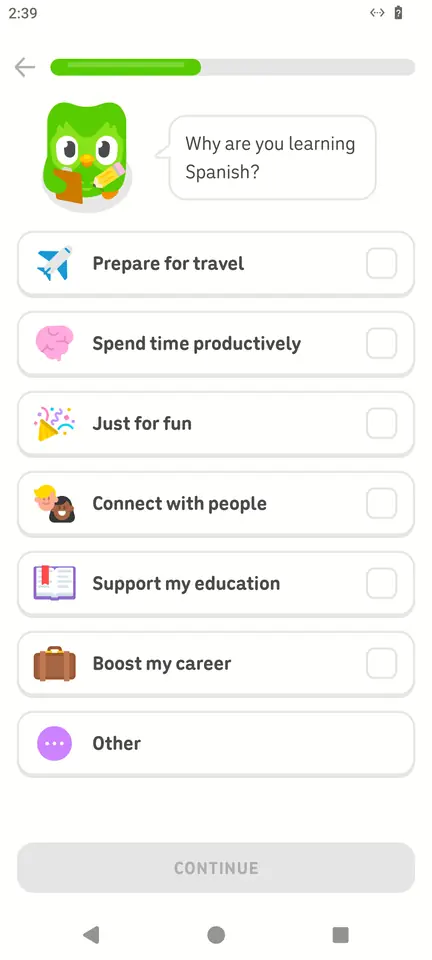
“Why are you learning Spanish?”
This screen asks the user about themselves to personalise what comes next. On screen: travel
, Prepare for travel
. Next tap: “Travel”.
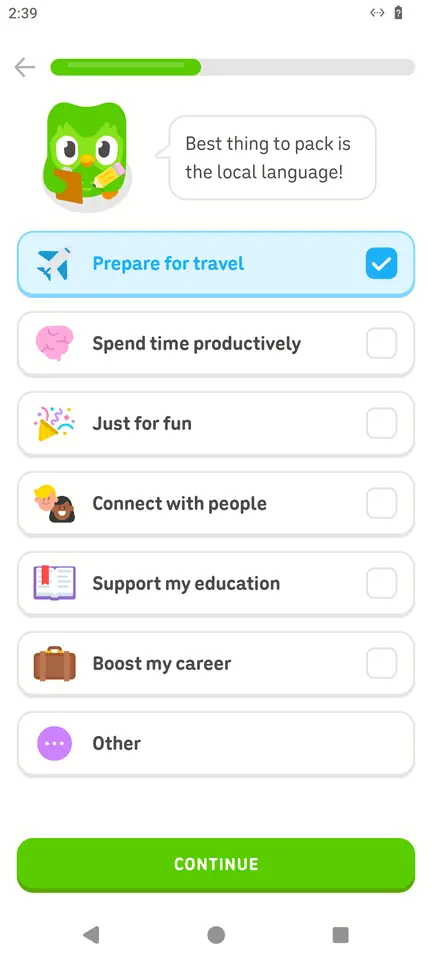
“Best thing to pack is the local language!”
This screen explains a feature or a step. On screen: travel
, Prepare for travel
. Next tap: “Continue”.
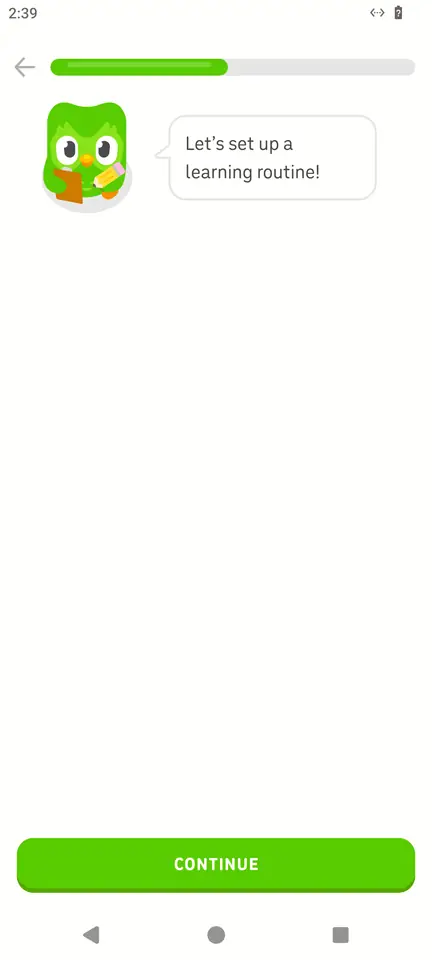
“Let’s set up a learning routine!”
This screen explains a feature or a step. On screen: CONTINUE
. Next tap: “Continue”.
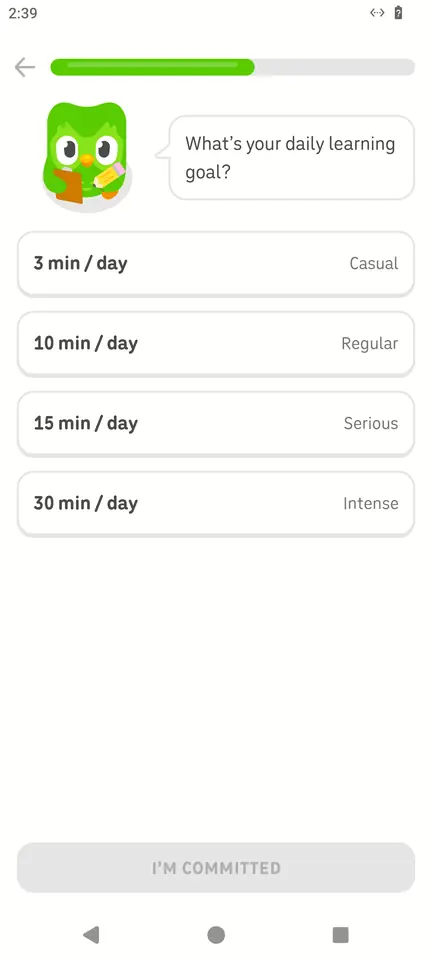
“What’s your daily learning goal?”
This screen asks the user about themselves to personalise what comes next. On screen: 3 min / day
, Casual
.
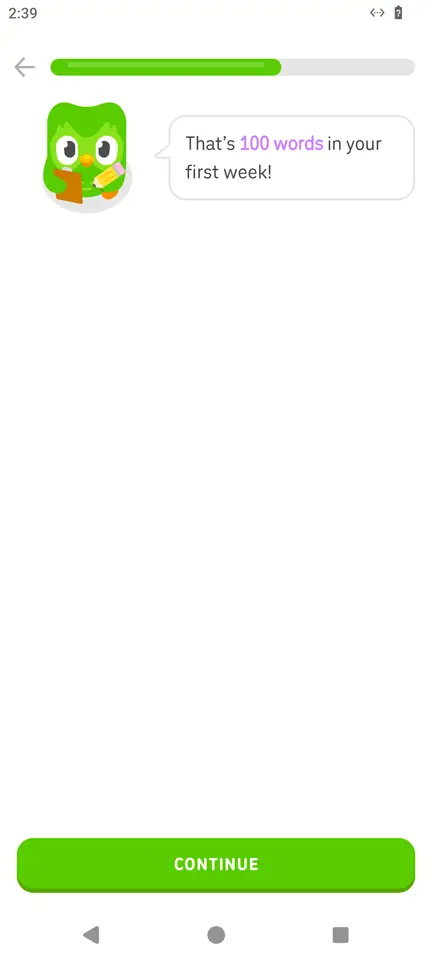
“That’s 100 words in your first week!”
This screen explains a feature or a step. On screen: CONTINUE
. Next tap: “Continue”.
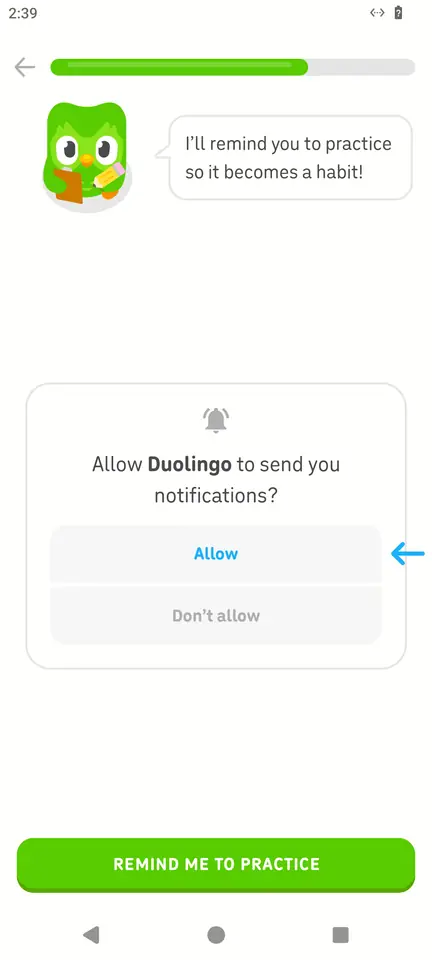
“I’ll remind you to practice so it becomes a habit!”
This screen asks for a system permission. On screen: Allow Duolingo to send you notifications?
, Allow
.
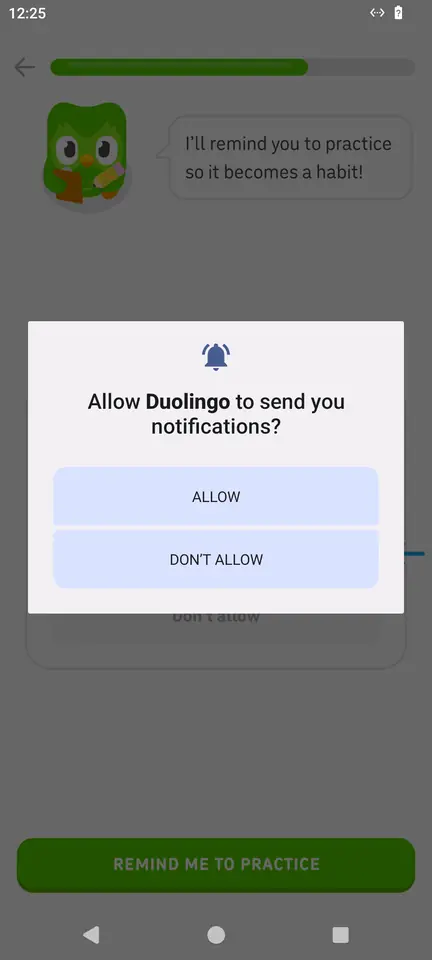
“DON’T ALLOW”
This screen asks for a system permission. On screen: Allow Duolingo to send you notifications?
. Next tap: “Allow”.
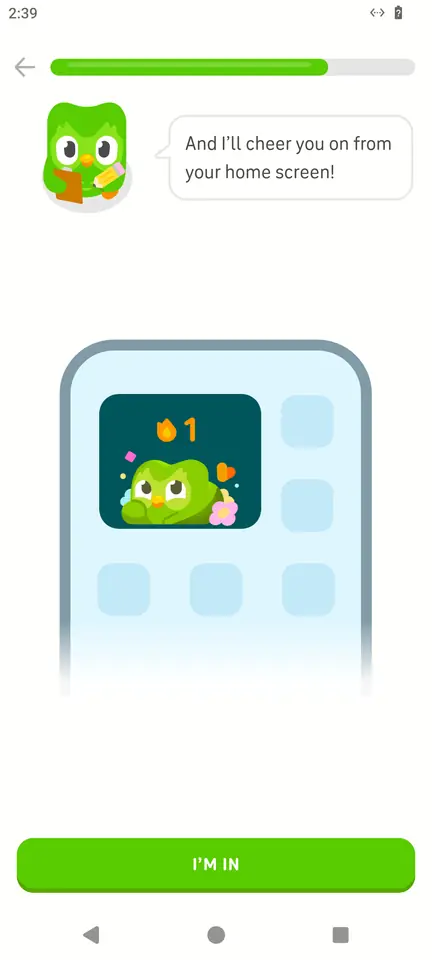
“And I’ll cheer you on from your home screen!”
This screen explains a feature or a step. On screen: I’M IN
. Next tap: “I’M IN”.
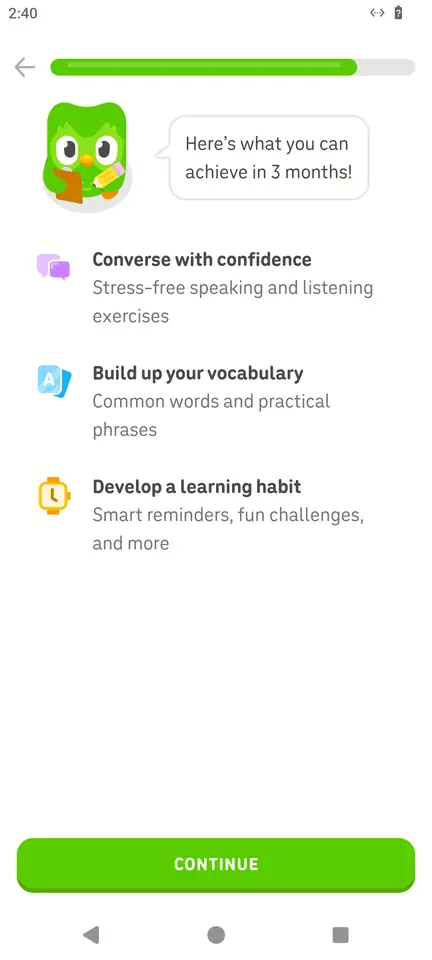
“Here’s what you can achieve in 3 months!”
This screen explains a feature or a step. On screen: Converse with confidence
, Stress-free speaking and listening exercises
. Next tap: “Continue”.
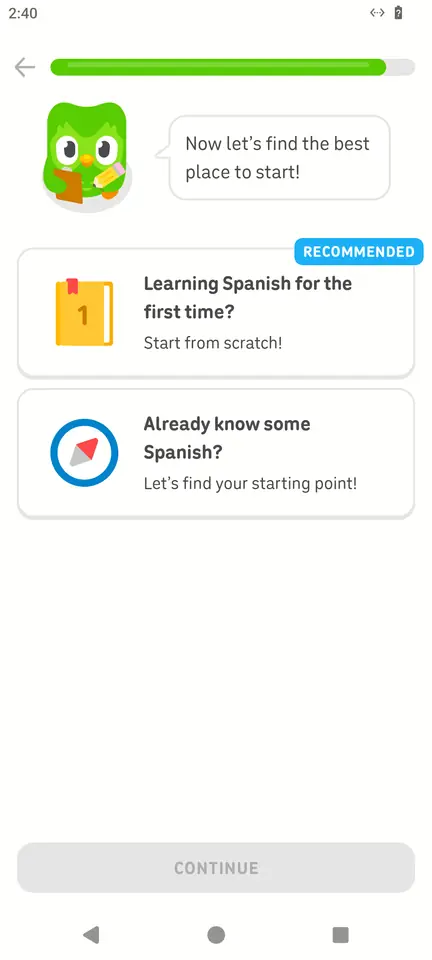
“Now let’s find the best place to start!”
This screen explains a feature or a step. On screen: Learning Spanish for the first time?
, Start from scratch!
.
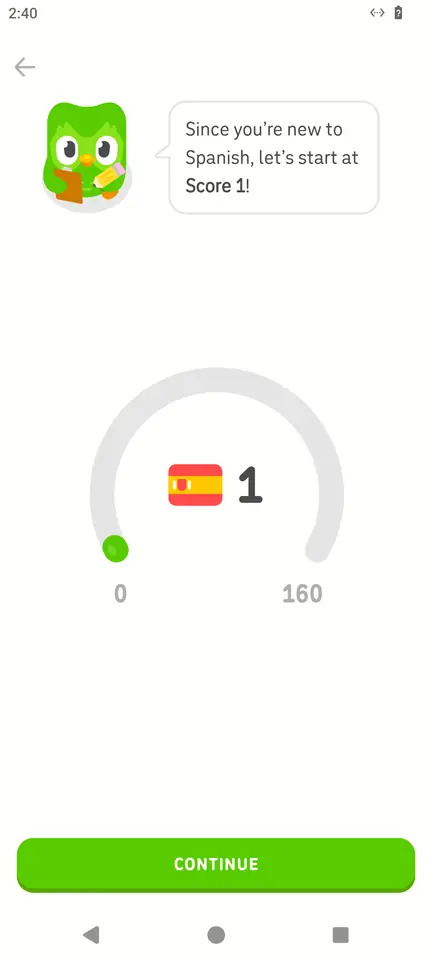
“Since you’re new to Spanish, let’s start at Score 1!”
This screen explains a feature or a step. On screen: score ring
, language flag
. Next tap: “Continue”.
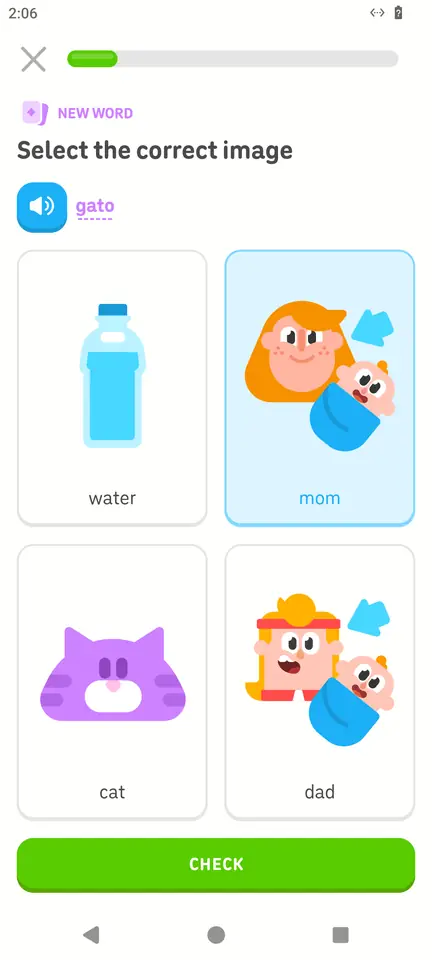
“New word”
This screen asks the user about themselves to personalise what comes next. On screen: NEW
, WORD
.
What to steal from Duolingo
- Delay the account wall: Duolingo lets users through 22 onboarding screens without signing up.
- Show progress on a long flow: 17 of Duolingo's 22 screens carry a progress indicator.
UI components in this flow
Other Duolingo flows
As an X thread
- 1/ How Duolingo onboards on Android: 22 screens, step by step. A UX teardown 🧵
- 2/ The shape of the flow: Value pitch ×3 → Question ×6 → Info → Question → Info ×2 → Question → Info → Permission prompt ×2 → Info ×4 → Question.
- 3/ Step 1 — value pitch: “Learn for free. Forever.”. It sells the product before asking for anything. Tap: “GET STARTED”.
- 4/ Step 2 — value pitch: “Hi there! I’m Duo!”. It sells the product before asking for anything. Tap: “Continue”.
- 5/ Step 3 — value pitch: “Just 9 quick questions before we start your first lesson!”. It sells the product before asking for anything. Tap: “Continue”.
- 6/ Asks 9 questions along the way, starting at step 4 with “What would you like to learn?”.
- 7/ No sign-up or log-in screen in the 22 onboarding screens we captured — the product comes first.
- 8/ Requests a system permission at step 16, after priming it on screen.
- 9/ What to steal — Delay the account wall: Duolingo lets users through 22 onboarding screens without signing up.
- 10/ Every screen, in order, free: https://uilane.com/teardown/duolingo/
FAQ
How many screens is Duolingo's onboarding flow?
We captured 22 screens of Duolingo's onboarding flow on a real Android device. Its shape: Value pitch ×3 → Question ×6 → Info → Question → Info ×2 → Question → Info → Permission prompt ×2 → Info ×4 → Question.
When does Duolingo ask you to create an account?
Not within the 22 screens we captured — there is no sign-up or log-in screen and the flow lets users in without an account.
What UI patterns does Duolingo use?
Across the 46 Duolingo screens in the library we detected welcome screen and permission priming.
What can designers learn from Duolingo's onboarding flow?
Delay the account wall: Duolingo lets users through 22 onboarding screens without signing up. Show progress on a long flow: 17 of Duolingo's 22 screens carry a progress indicator.
Captured on a real Android device · last updated 2026-11-14