How Knit onboards: a UX teardown
A screen-by-screen UX teardown of Knit's onboarding flow on Android: what each of its 9 steps is for, where it asks for commitment, and what other social apps do differently. Every screen and quote is from our own capture on a real device.
The short version
Shape: Value pitch → Question ×3 → Permission prompt ×2 → Info → Permission prompt → Info.
- 9 screens — longer than the median onboarding flow in the library (4 screens across 151 other apps).
- Asks 3 questions along the way, starting at step 2 with “Restore a backup”.
- No sign-up or log-in screen in the 9 onboarding screens we captured.
- Requests a system permission at step 5, after priming it on screen.
- Shows progress on 3 of 9 screens, so the user can see how much is left.
- Offers a way out (a skip option) on 1 screen.
- One of the few social apps here using the “Skip button” pattern (only 1 of the 12 others do).
- Built from avatar (2 screens), button (2 screens) and dialog (2 screens) — the most common components we detected in the flow.
Step by step
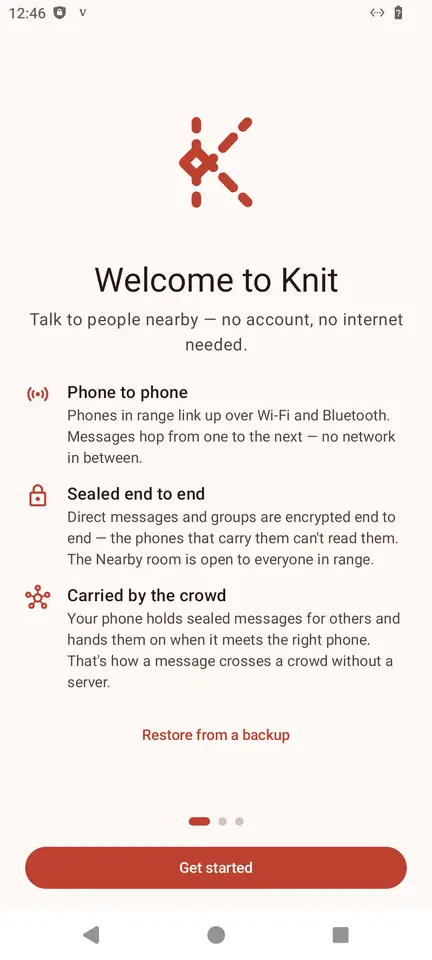
“Welcome to Knit”
This screen sells the product before asking for anything. On screen: Talk to people nearby — no account, no internet needed.
, Phone to phone
. Next tap: “Restore”.
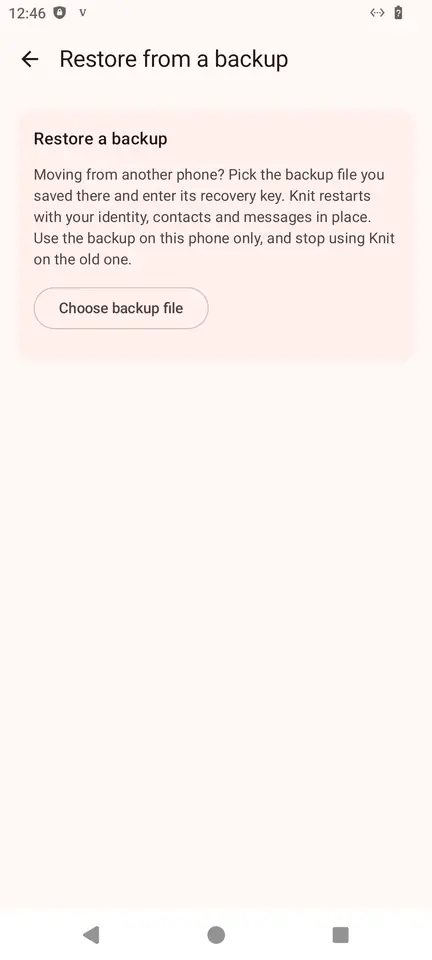
“Restore a backup”
This screen asks the user about themselves to personalise what comes next. On screen: Choose backup file
, Restore from a backup
.
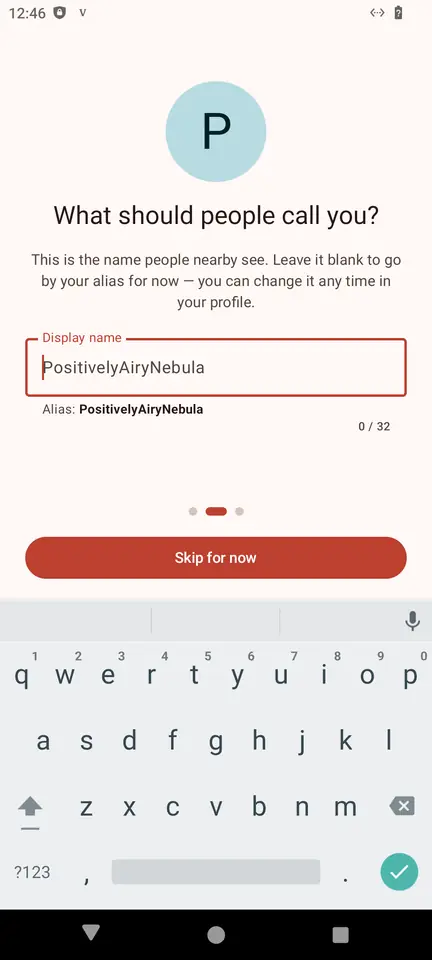
“What should people call you?”
This screen asks the user about themselves to personalise what comes next. On screen: Display name
, PositivelyAiryNebula
. Next tap: “Display name=Alex”.
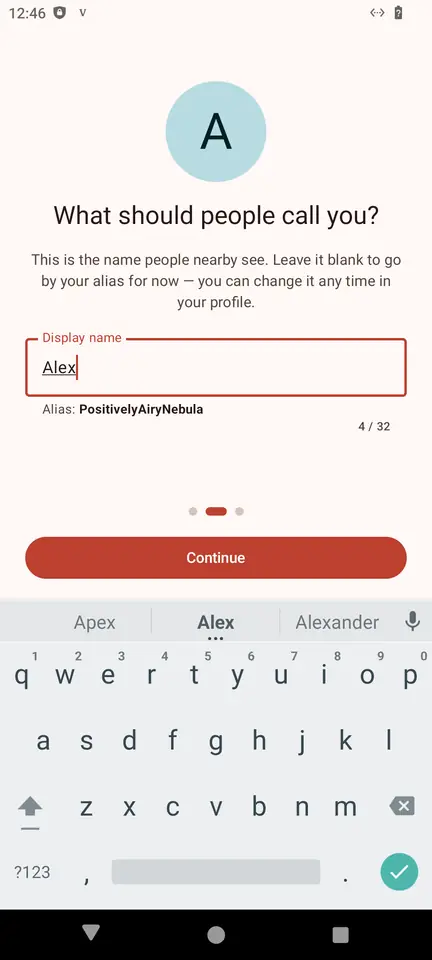
“Continue”
This screen asks the user about themselves to personalise what comes next. On screen: What should people call you?
, Alex
. Next tap: “Next”.
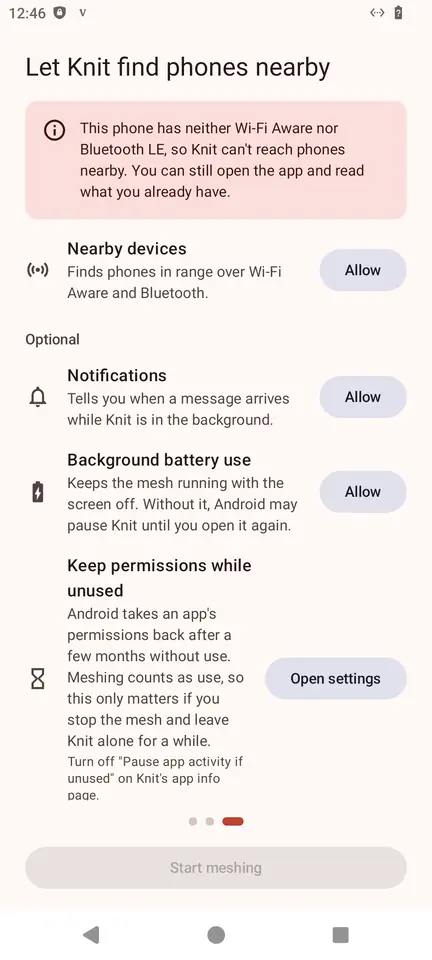
“Let Knit find phones nearby”
This screen asks for a system permission. On screen: Nearby devices
, Finds phones in range over Wi-Fi Aware and Bluetooth.
. Next tap: “Grant”.
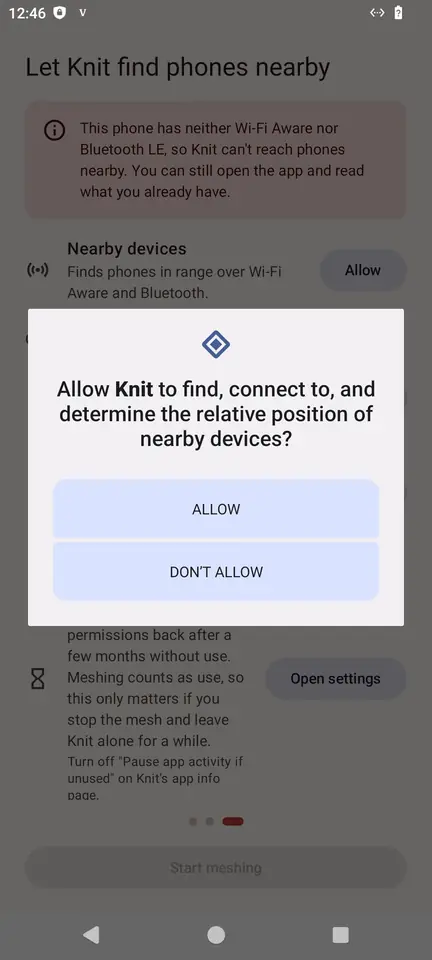
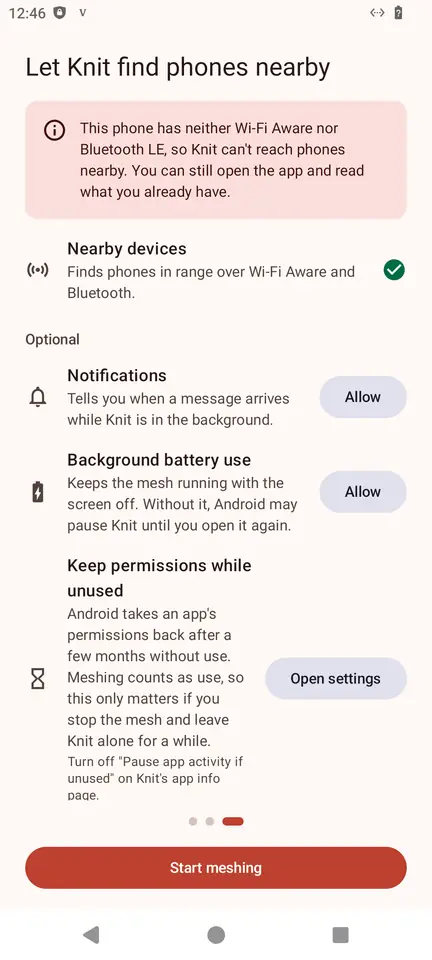
“Let Knit find phones nearby”
This screen explains a feature or a step. On screen: Nearby devices
, Finds phones in range over Wi-Fi Aware and Bluetooth.
. Next tap: “Notifications”.
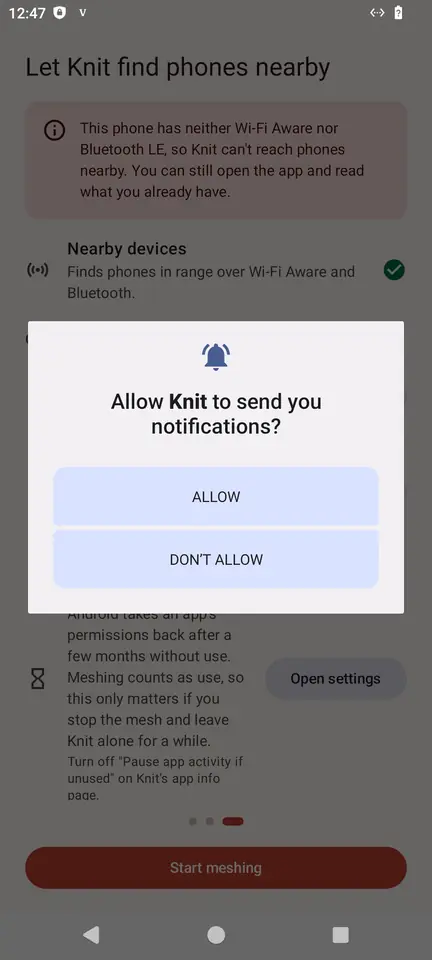
“Allow Knit to send you notifications?”
This screen asks for a system permission. On screen: ALLOW
, DON’T ALLOW
. Next tap: “Allow”.
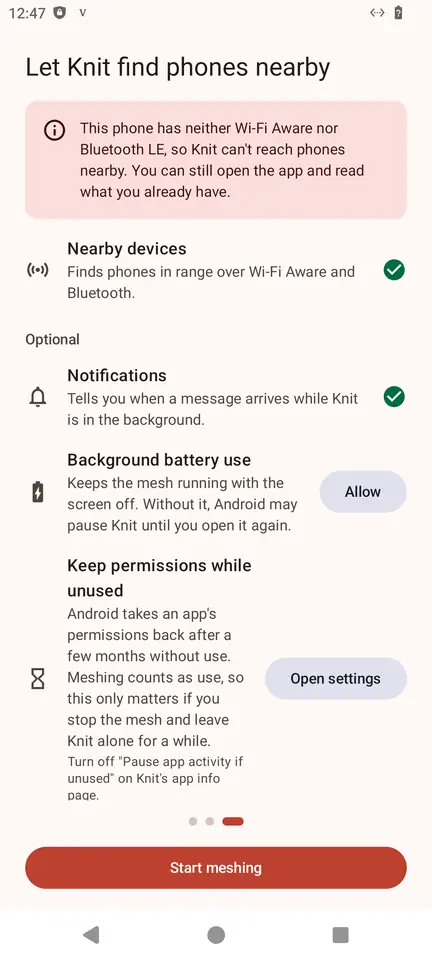
“Let Knit find phones nearby”
This screen explains a feature or a step. On screen: Nearby devices
, Finds phones in range over Wi-Fi Aware and Bluetooth.
.
What to steal from Knit
- Show progress on a long flow: 3 of Knit's 9 screens carry a progress indicator.
UI components in this flow
As an X thread
- 1/ How Knit onboards on Android: 9 screens, step by step. A UX teardown 🧵
- 2/ The shape of the flow: Value pitch → Question ×3 → Permission prompt ×2 → Info → Permission prompt → Info.
- 3/ Step 1 — value pitch: “Welcome to Knit”. It sells the product before asking for anything. Tap: “Restore”.
- 4/ Step 2 — question: “Restore a backup”. It asks the user about themselves to personalise what comes next.
- 5/ Step 3 — question: “What should people call you?”. It asks the user about themselves to personalise what comes next. Tap: “Display name=Alex”.
- 6/ Asks 3 questions along the way, starting at step 2 with “Restore a backup”.
- 7/ No sign-up or log-in screen in the 9 onboarding screens we captured.
- 8/ Requests a system permission at step 5, after priming it on screen.
- 9/ What to steal — Show progress on a long flow: 3 of Knit's 9 screens carry a progress indicator.
- 10/ Every screen, in order, free: https://flowtape.ai/teardown/knit/
FAQ
How many screens is Knit's onboarding flow?
We captured 9 screens of Knit's onboarding flow on a real Android device. Its shape: Value pitch → Question ×3 → Permission prompt ×2 → Info → Permission prompt → Info.
When does Knit ask you to create an account?
Not within the 9 screens we captured — there is no sign-up or log-in screen.
What UI patterns does Knit use?
Across the 9 Knit screens in the library we detected welcome screen, onboarding progress indicator, skip button and permission priming.
What can designers learn from Knit's onboarding flow?
Show progress on a long flow: 3 of Knit's 9 screens carry a progress indicator.
Captured on a real Android device · last updated 2026-11-14