How Remind onboards: a UX teardown
A screen-by-screen UX teardown of Remind's onboarding flow on Android: what each of its 6 steps is for, where it asks for commitment, and what other education apps do differently. Every screen and quote is from our own capture on a real device.
The short version
Shape: Question ×3 → Permission prompt → Info ×2.
- 6 screens — longer than the median onboarding flow in the library (4 screens across 151 other apps).
- Asks 3 questions along the way, starting at step 1 with “What is your birthday?”.
- No sign-up or log-in screen in the 6 onboarding screens we captured — the product comes first.
- Requests a system permission at step 4, after priming it on screen.
- Shows progress on 2 of 6 screens, so the user can see how much is left.
- 10 of the 20 other education apps in the library use the “Welcome screen” pattern; it was not detected in any Remind screen we captured.
- One of the few education apps here using the “Age gate” pattern (only 1 of the 20 others do).
- Built from button (4 screens), divider (4 screens) and icon button (4 screens) — the most common components we detected in the flow.
Step by step
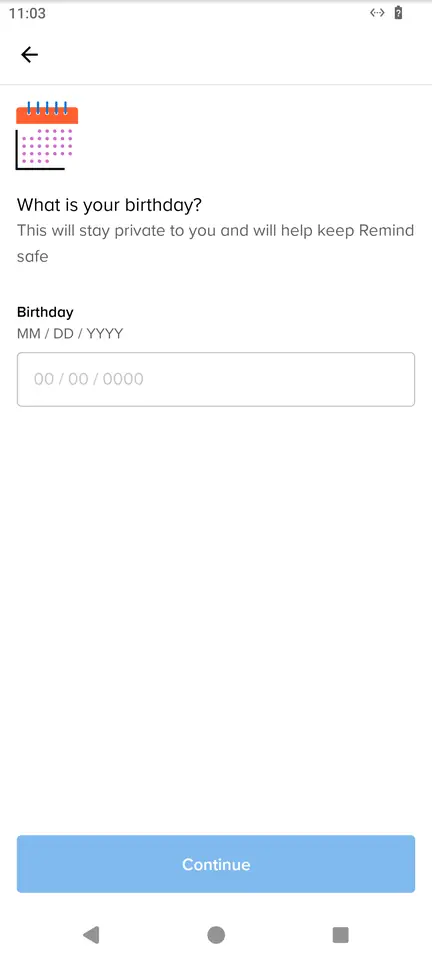
“What is your birthday?”
This screen asks the user about themselves to personalise what comes next. On screen: This will stay private to you and will help keep Remind safe
, Birthday
. Next tap: “Birthday=01151991”.
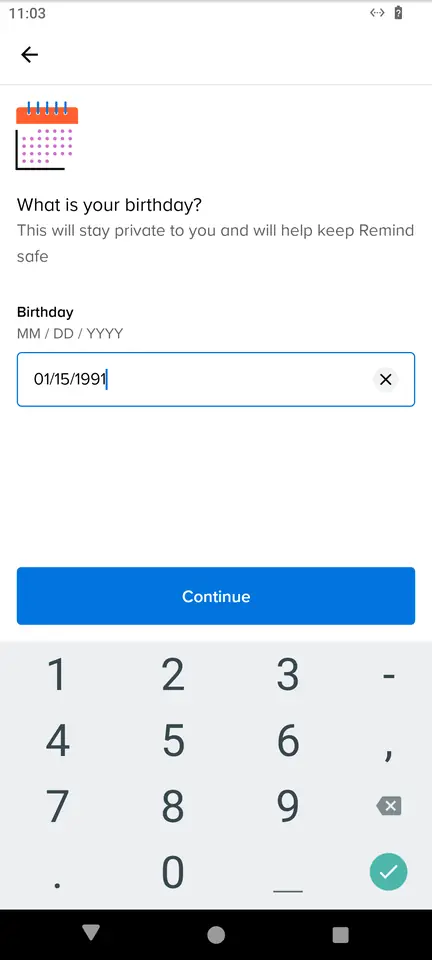
“01/15/1991”
This screen asks the user about themselves to personalise what comes next. On screen: What is your birthday?
, This will stay private to you and will help keep Remind safe
. Next tap: “Continue”.
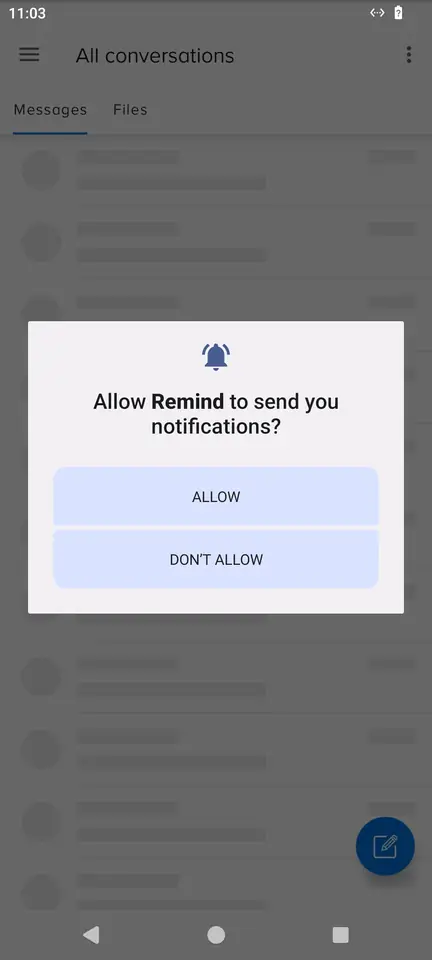
“Allow Remind to send you notifications?”
This screen asks for a system permission. On screen: ALLOW
, DON’T ALLOW
. Next tap: “Allow”.
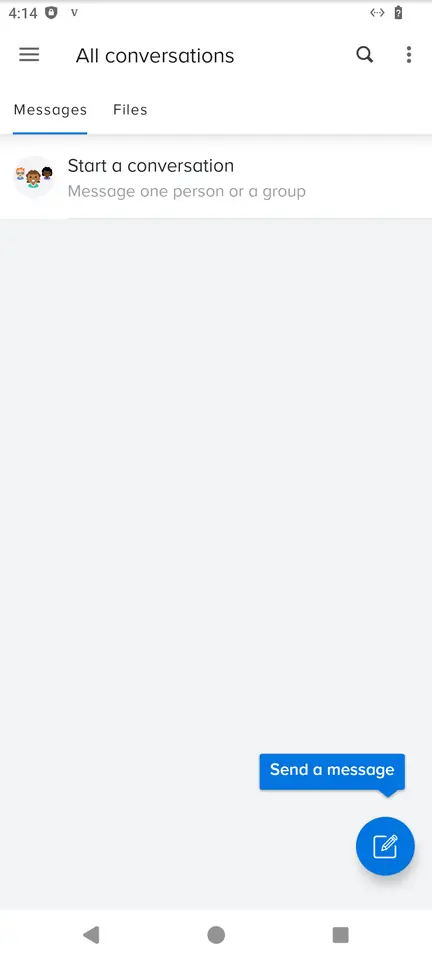
“Filter Drawer”
This screen explains a feature or a step. On screen: open drawer
, All conversations
. Next tap: “Open drawer”.
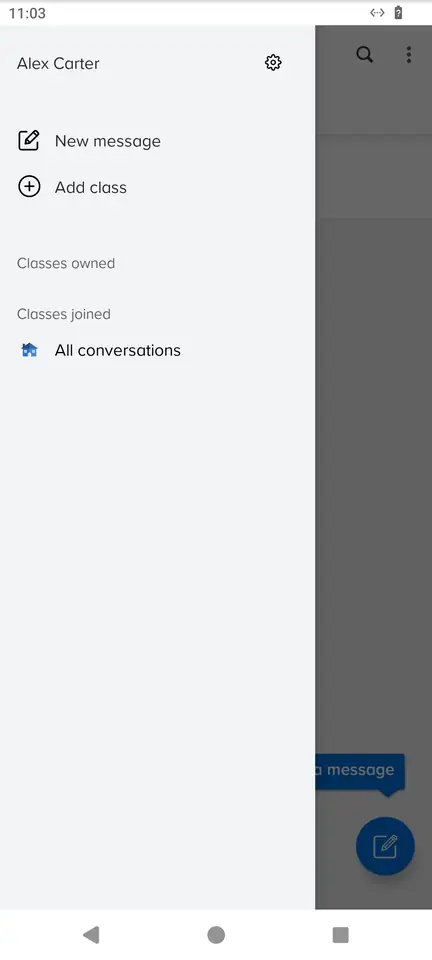
“close drawer”
This screen explains a feature or a step. On screen: Filter Drawer
, All conversations
.
What to steal from Remind
- Delay the account wall: Remind lets users through 6 onboarding screens without signing up.
- Show progress on a long flow: 2 of Remind's 6 screens carry a progress indicator.
UI components in this flow
As an X thread
- 1/ How Remind onboards on Android: 6 screens, step by step. A UX teardown 🧵
- 2/ The shape of the flow: Question ×3 → Permission prompt → Info ×2.
- 3/ Step 1 — question: “What is your birthday?”. It asks the user about themselves to personalise what comes next. Tap: “Birthday=01151991”.
- 4/ Step 2 — question: “01/15/1991”. It asks the user about themselves to personalise what comes next. Tap: “Continue”.
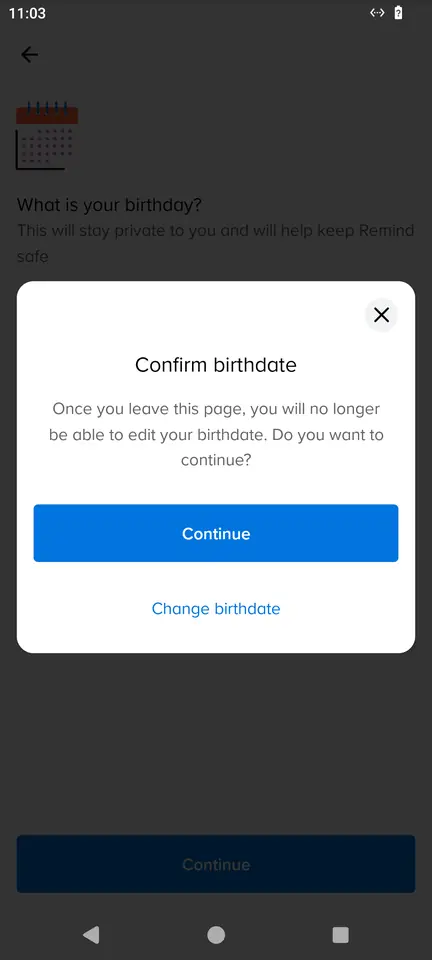
- 5/ Step 3 — question: “Confirm birthdate”. It asks the user about themselves to personalise what comes next. Tap: “Change birthdate”.
- 6/ Asks 3 questions along the way, starting at step 1 with “What is your birthday?”.
- 7/ No sign-up or log-in screen in the 6 onboarding screens we captured — the product comes first.
- 8/ Requests a system permission at step 4, after priming it on screen.
- 9/ What to steal — Delay the account wall: Remind lets users through 6 onboarding screens without signing up.
- 10/ Every screen, in order, free: https://flowtape.ai/teardown/remind/
FAQ
How many screens is Remind's onboarding flow?
We captured 6 screens of Remind's onboarding flow on a real Android device. Its shape: Question ×3 → Permission prompt → Info ×2.
When does Remind ask you to create an account?
Not within the 6 screens we captured — there is no sign-up or log-in screen and the flow lets users in without an account.
What UI patterns does Remind use?
Across the 20 Remind screens in the library we detected onboarding survey, age gate, permission priming, terms and conditions agreement and search bar.
What can designers learn from Remind's onboarding flow?
Delay the account wall: Remind lets users through 6 onboarding screens without signing up. Show progress on a long flow: 2 of Remind's 6 screens carry a progress indicator.
Captured on a real Android device · last updated 2026-11-14