Home & browsing flow · Dropbox · Android
Dropbox home & browsing screens
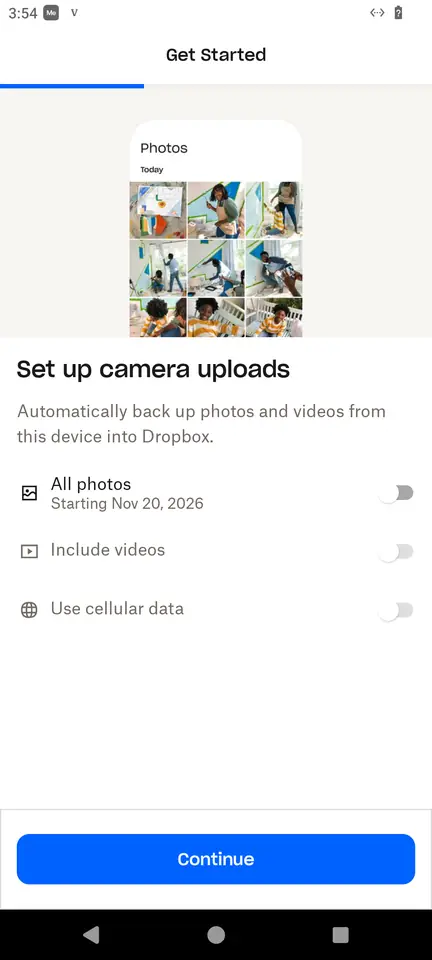
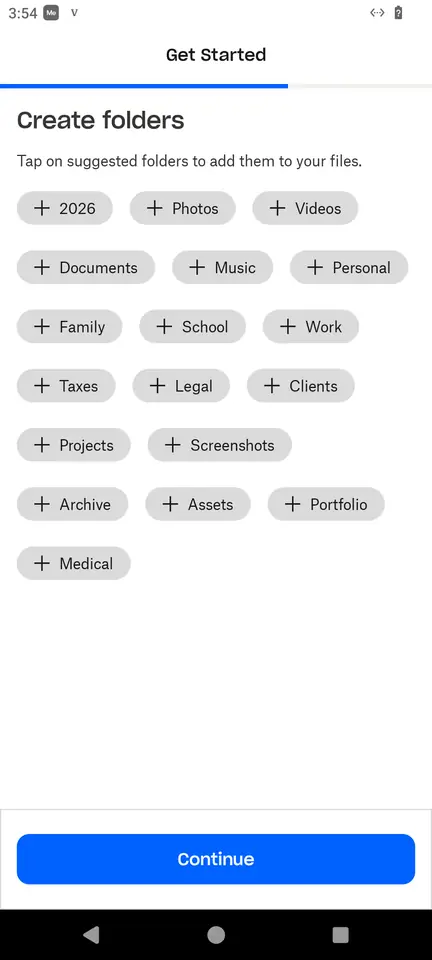
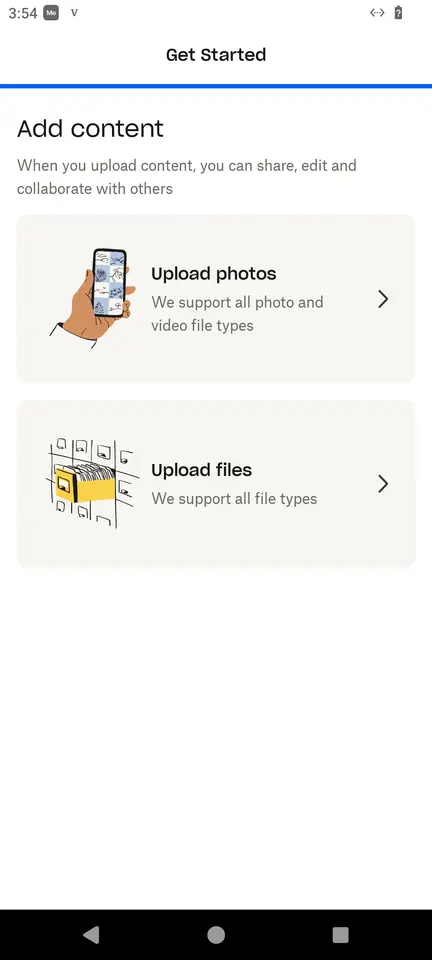
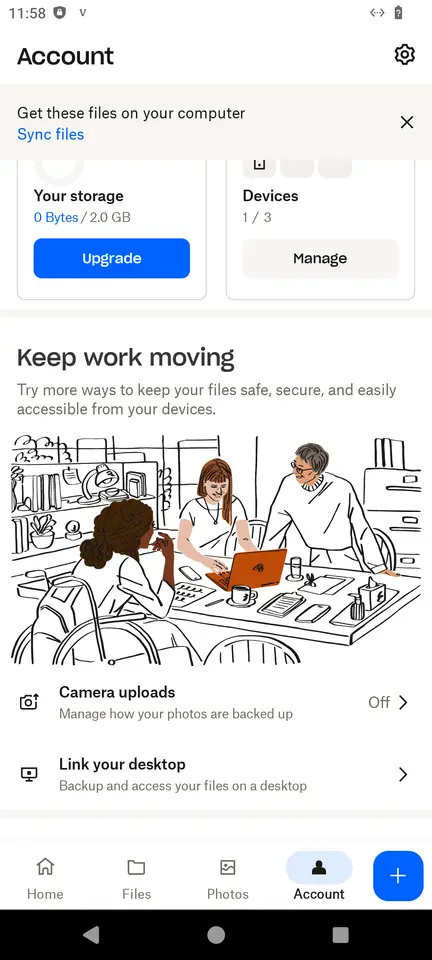
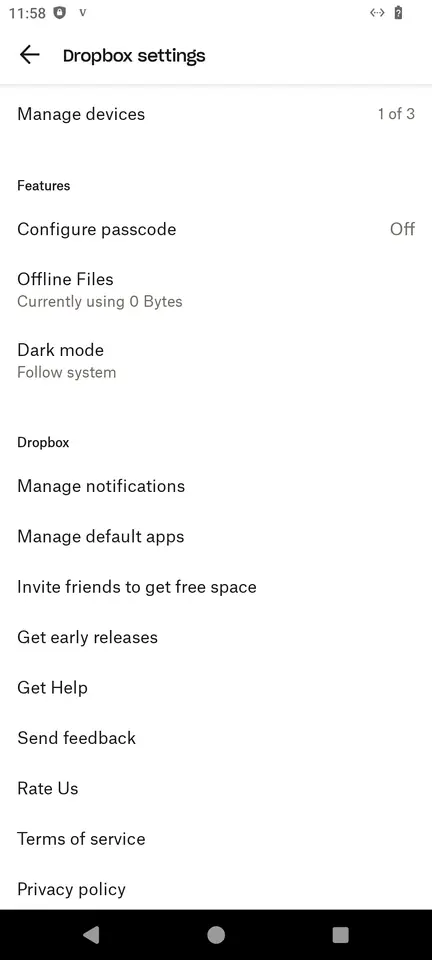
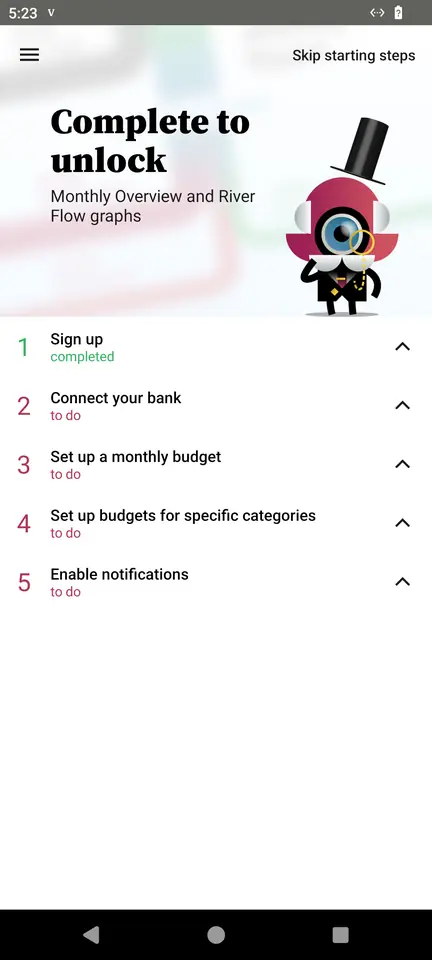
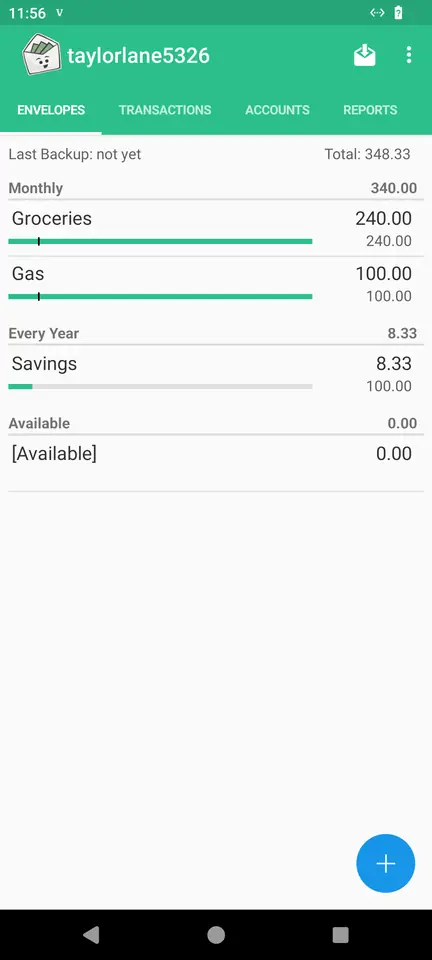
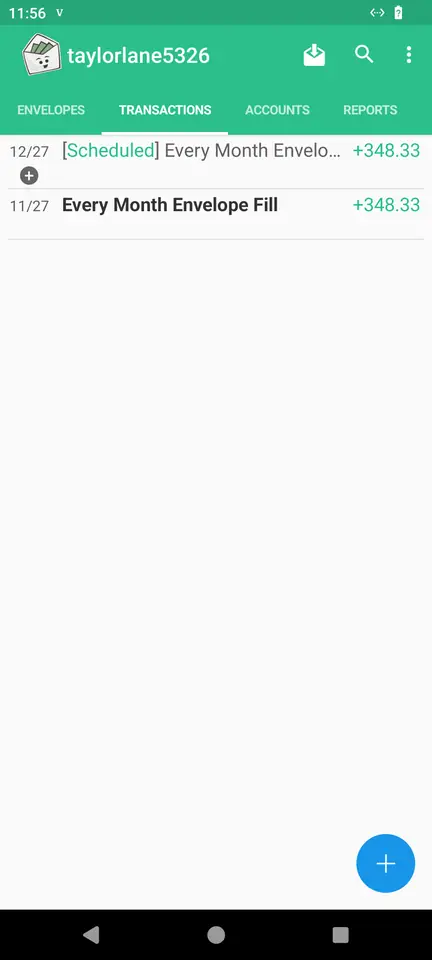
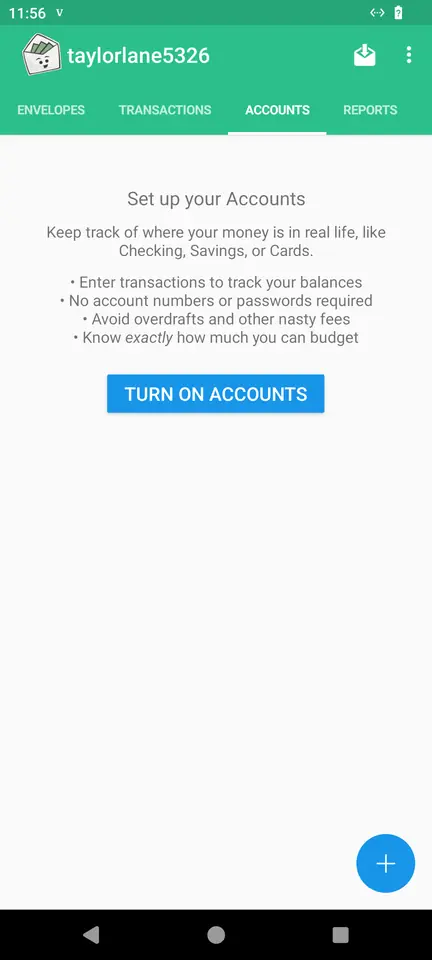
Every screen of Dropbox's home & browsing screens on Android, in order: 4 steps, recorded on a real device. Dropbox's home & browsing flow walks through 4 screens, including “Your Dropbox is empty. Add your first…” and “In files, you can add, search, preview…”. The screens are built around a search bar.
UI components:
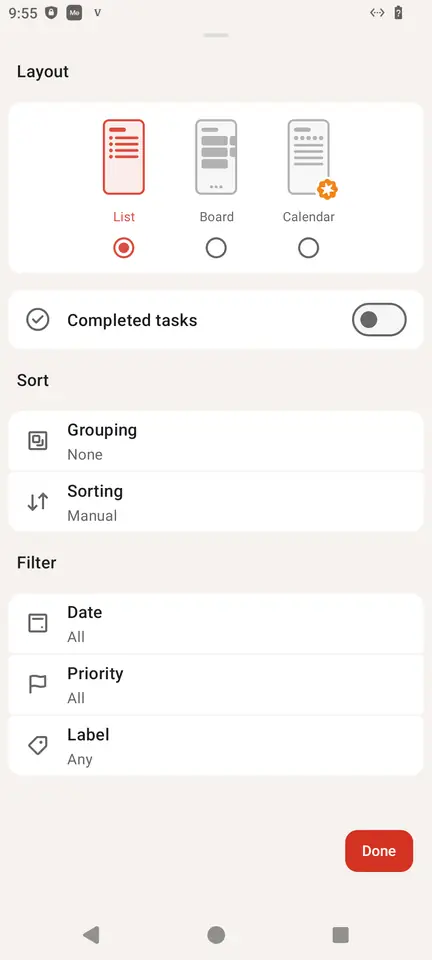
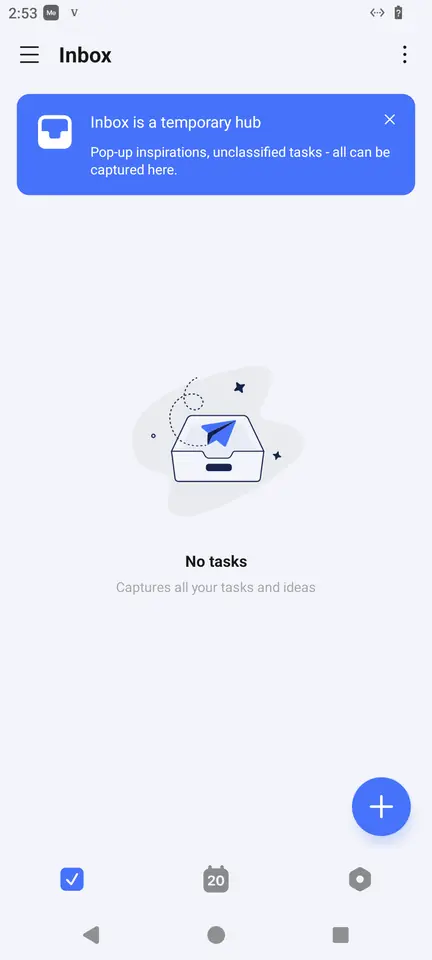
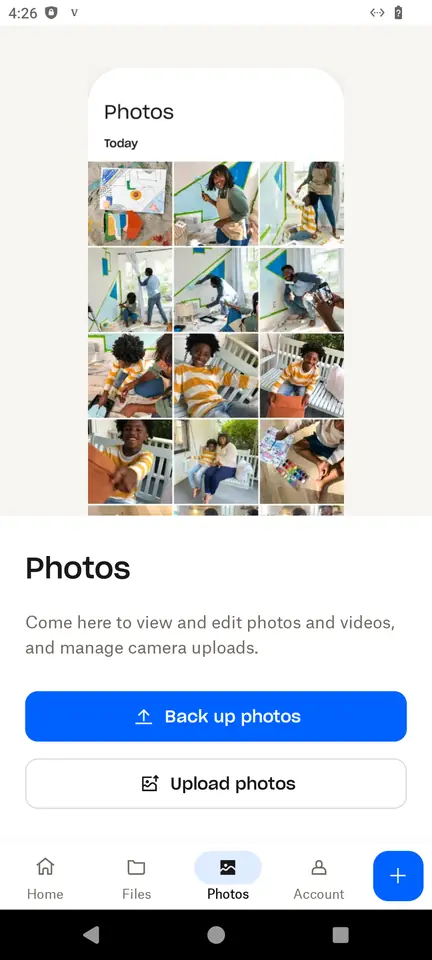 01 Home & browsing
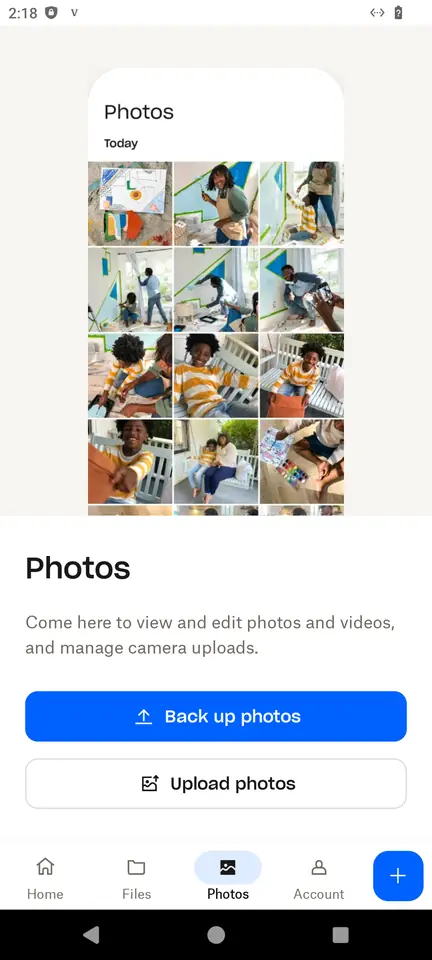
Photos tab with image uploaded — Photos
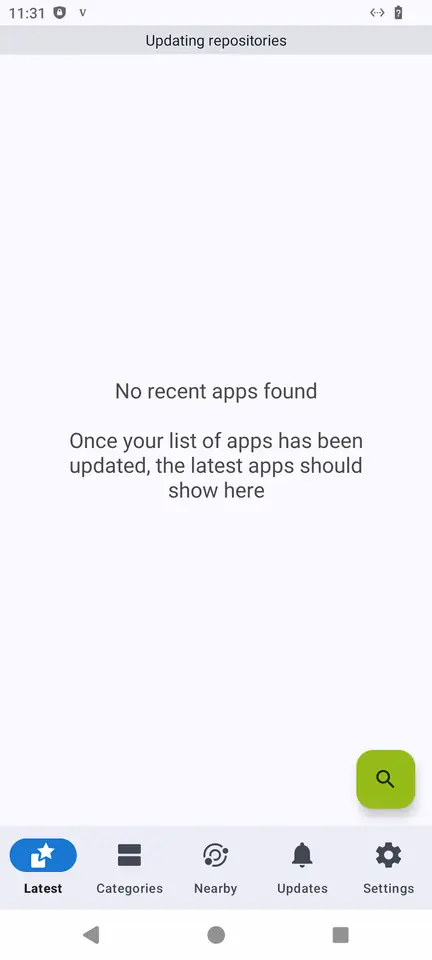
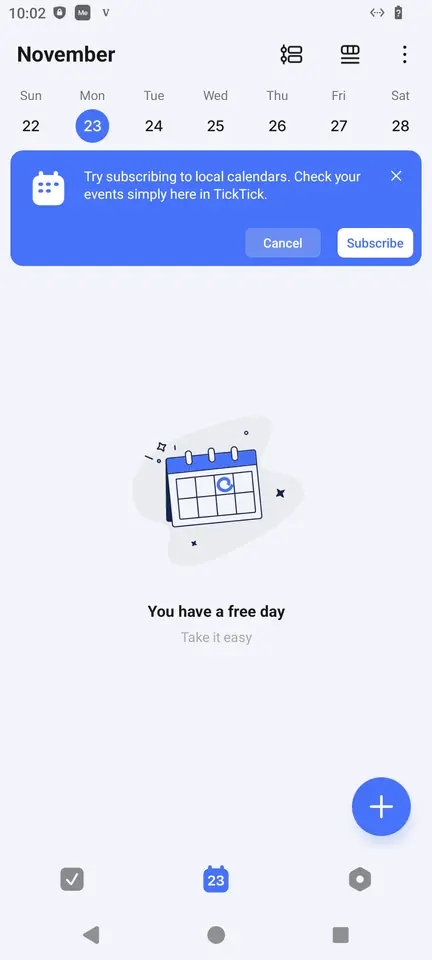
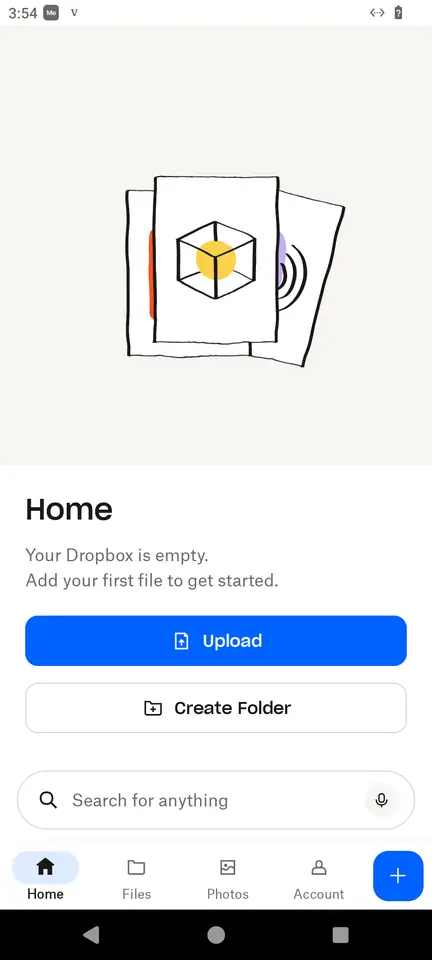 02 Home & browsing
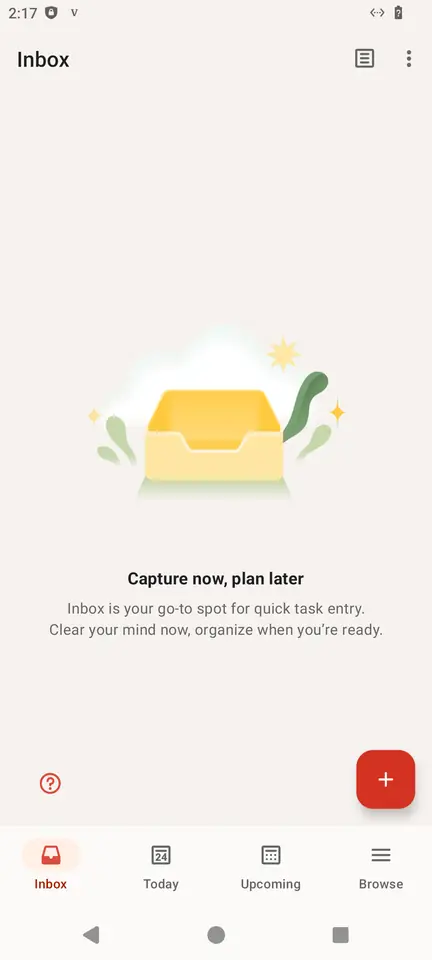
Home — Your Dropbox is empty. Add your first file to get started.
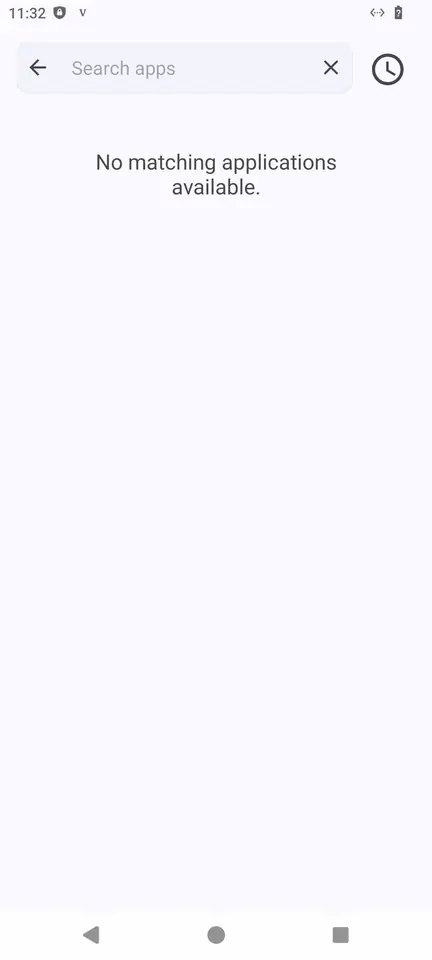
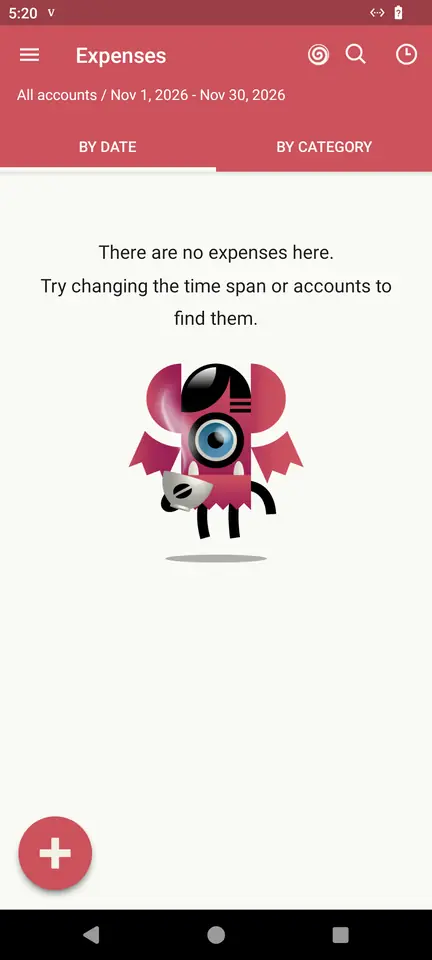
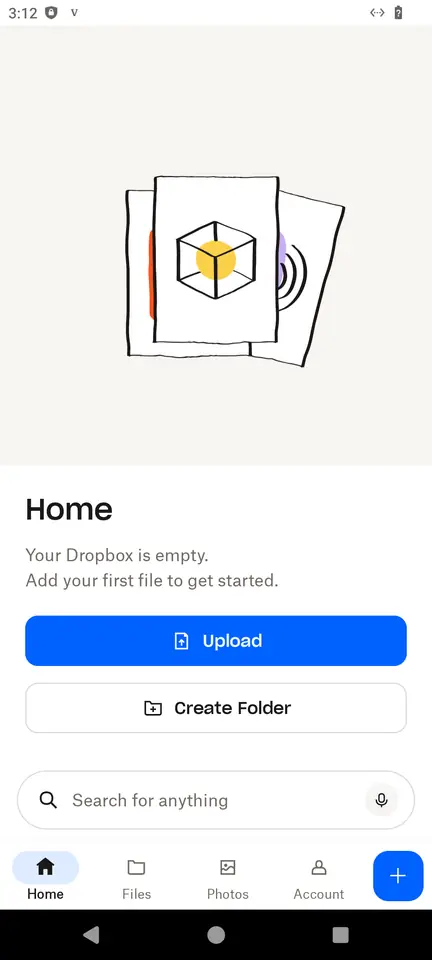 03 Home & browsing
Home — Your Dropbox is empty. Add your first file to get started.
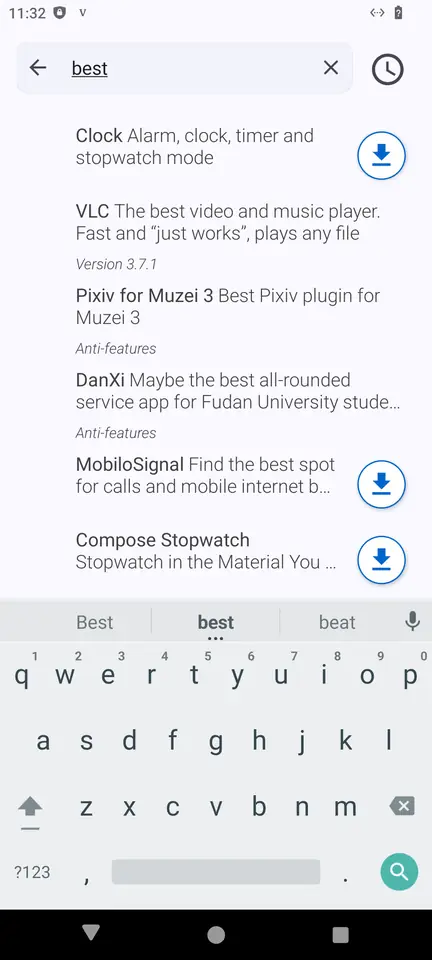
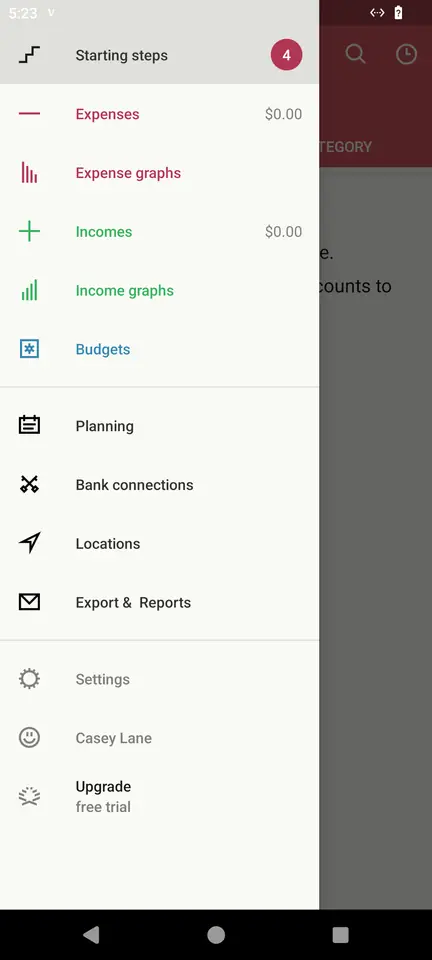
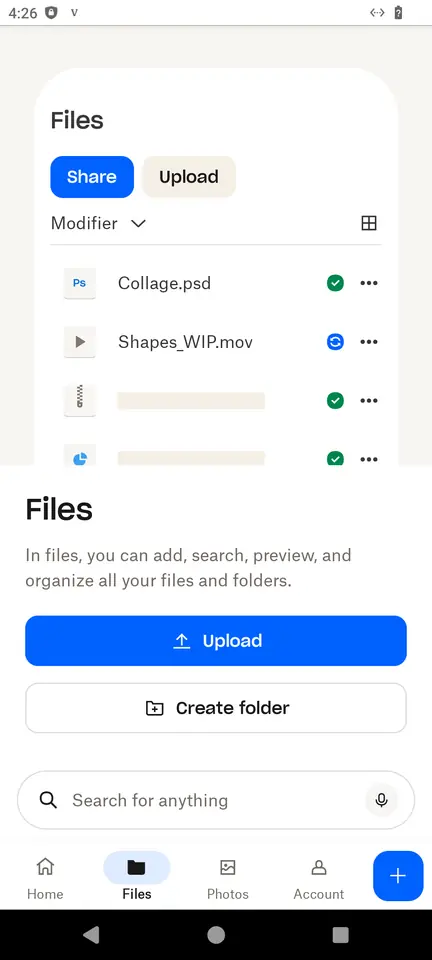 04 Home & browsing
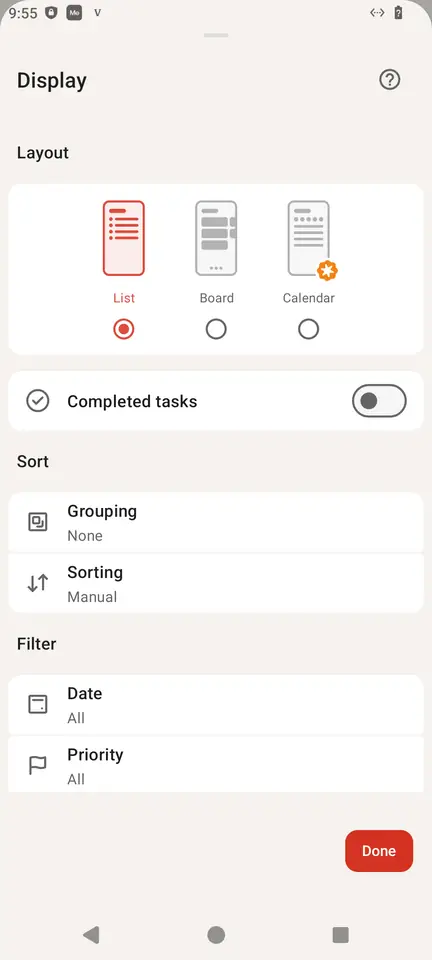
Files — In files, you can add, search, preview, and organize all your files and folders.
What Dropbox's home & browsing screens does
- 4 screens in order, opening on “Photos tab with image uploaded” and ending at “In files, you can add, search, preview, and organize all…”.
Captured on a real Android device · last updated 2026-11-14