Education app settings screens: 23 screens from 9 Android apps
Every settings screen we captured in education apps: 23 screens from 9 Android apps, grouped by app. 4 of these apps have their full settings flow captured step by step: the longest is Khan Academy (3 screens), the shortest Mindvalley (2 screens). Across these 23 screens the most common detected components are toolbar (22%), divider (9%) and toggle switch (9%).
Education settings flows, step by step
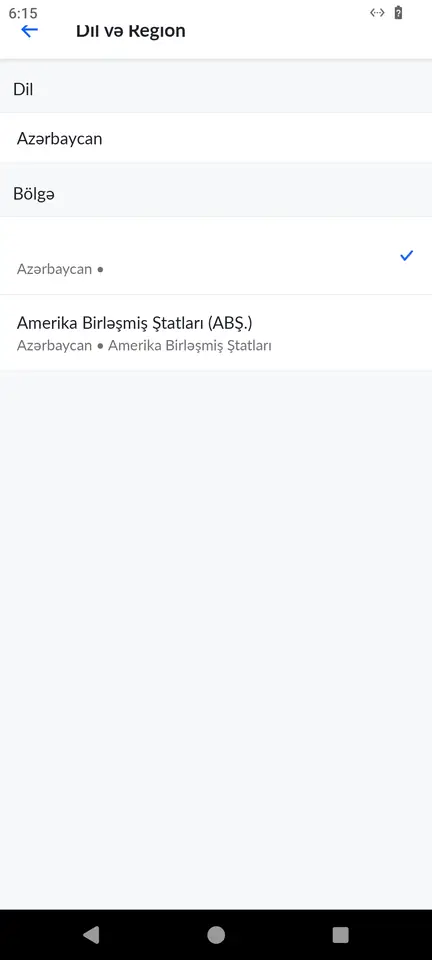
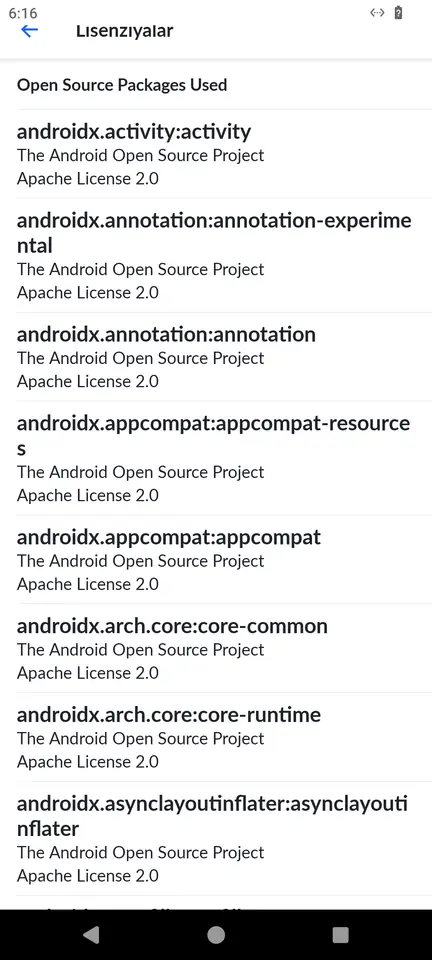
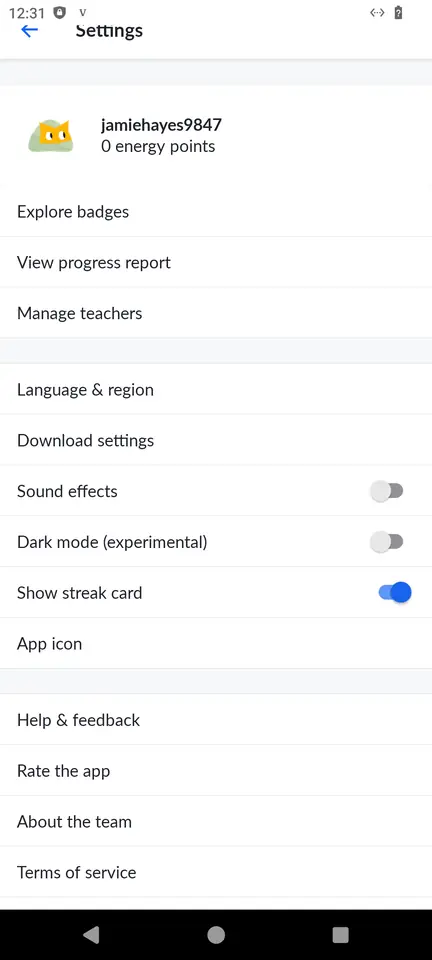
Khan Academy
6 settings screens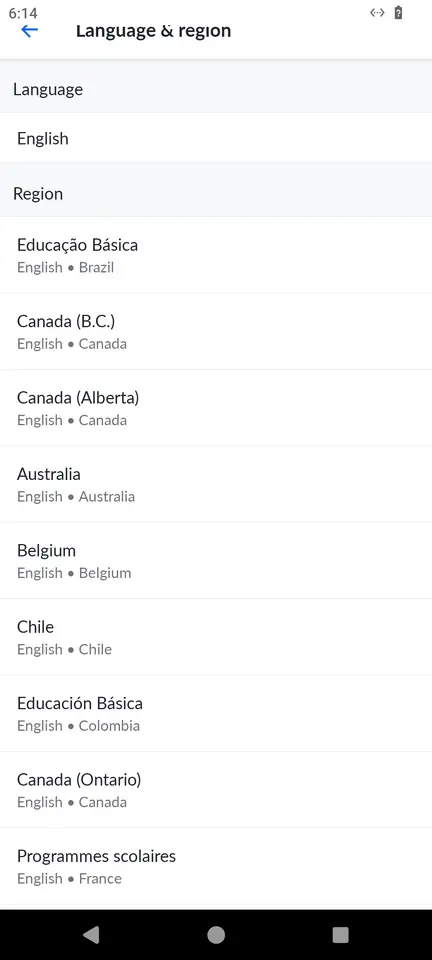
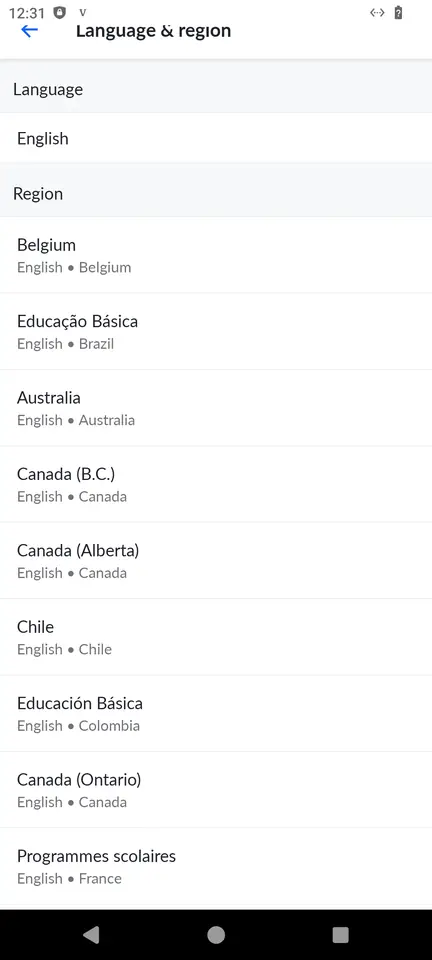
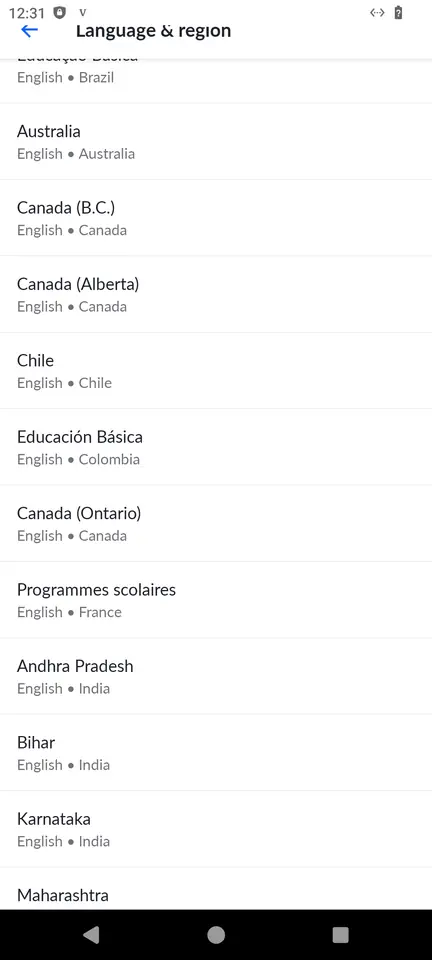
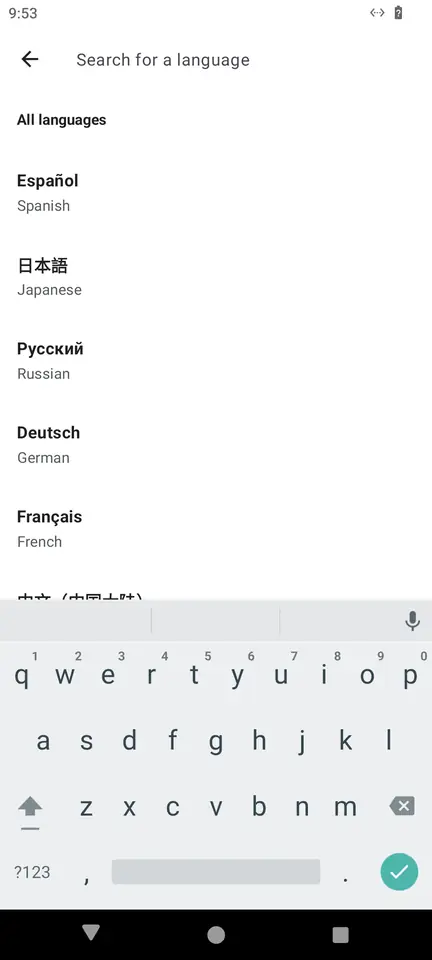
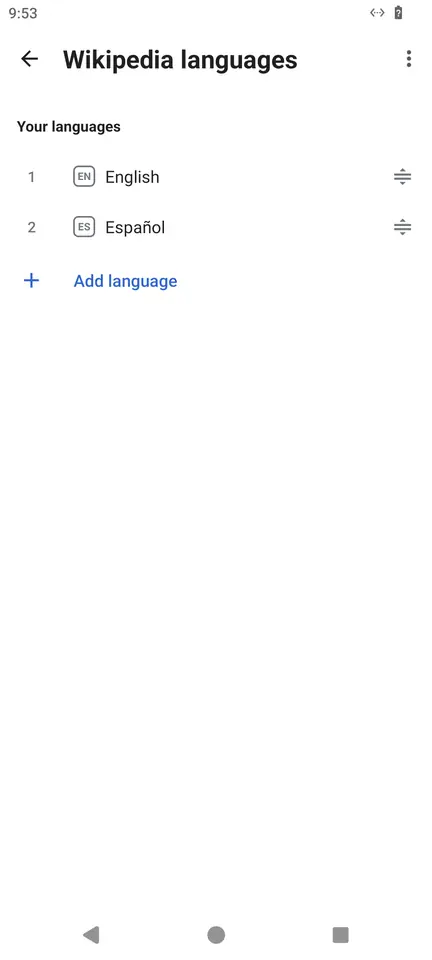
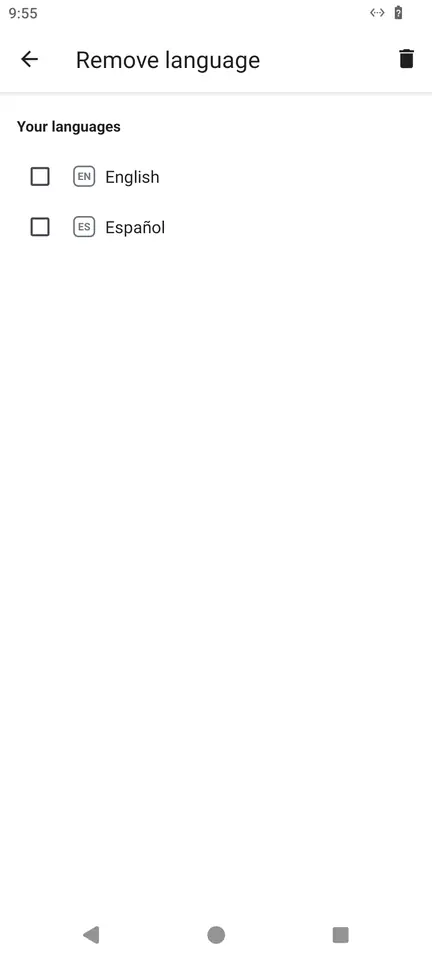
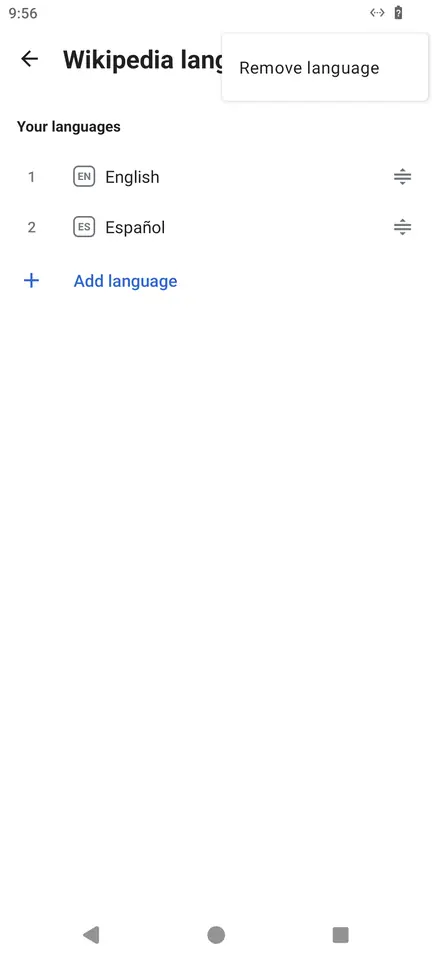
Wikipedia
6 settings screens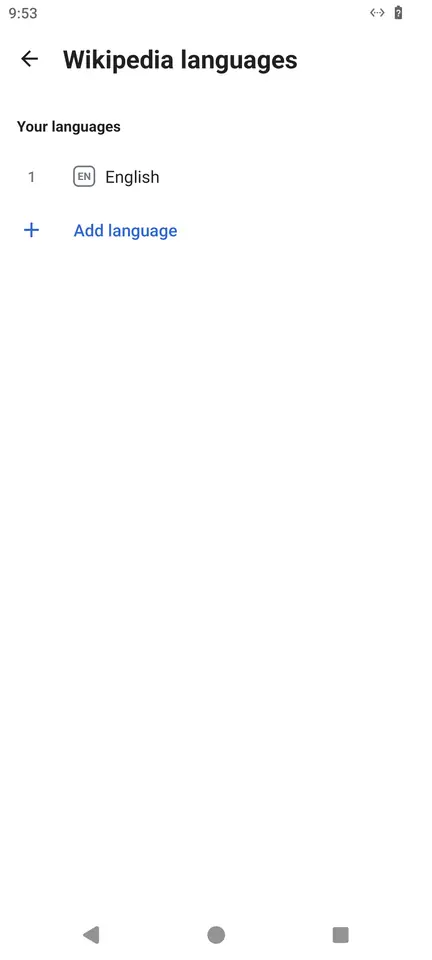
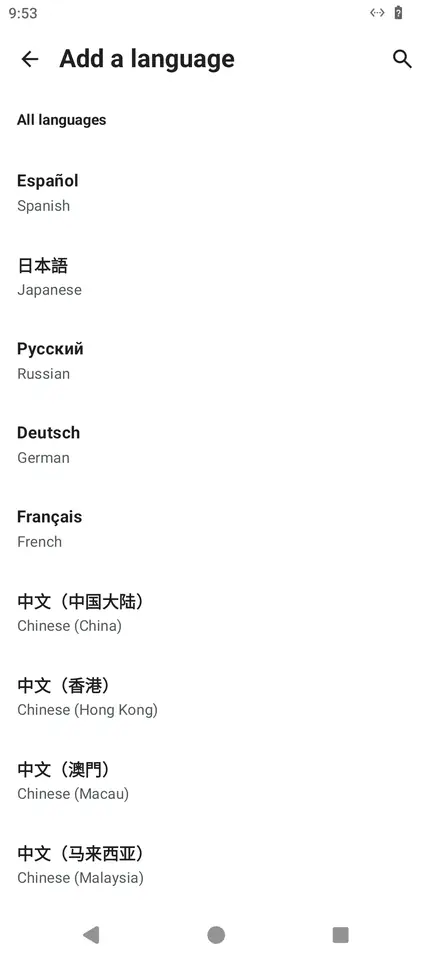
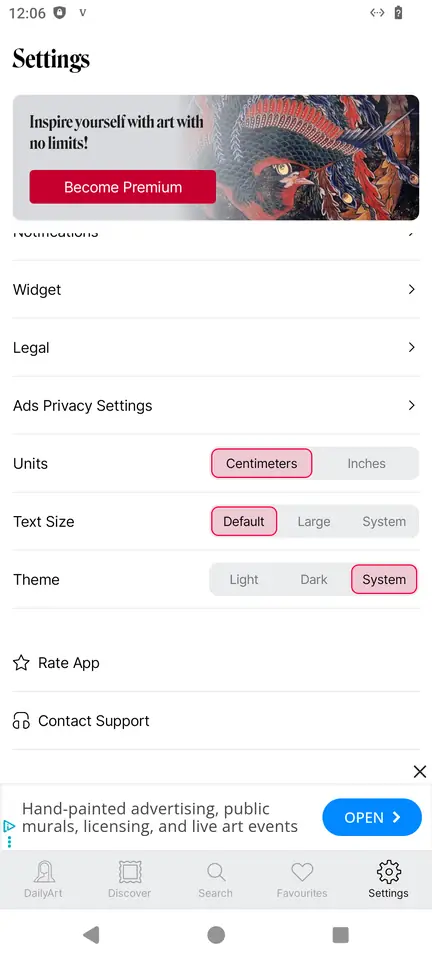
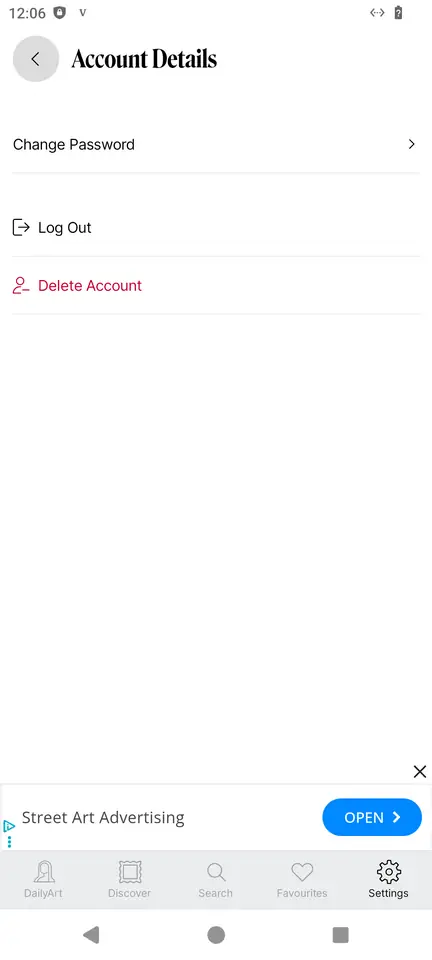
DailyArt
3 settings screens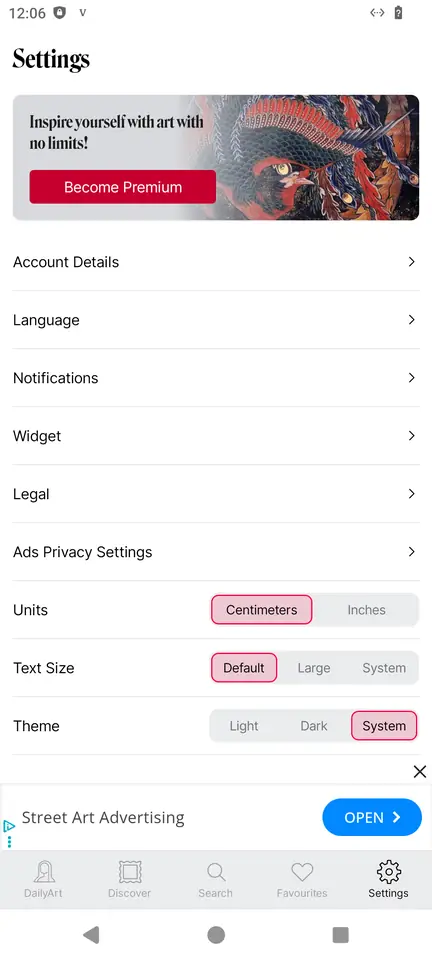
Mindvalley
2 settings screens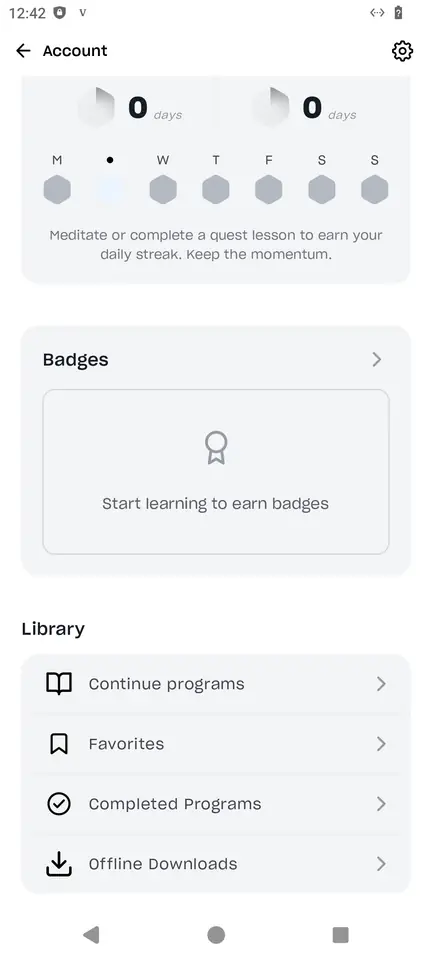
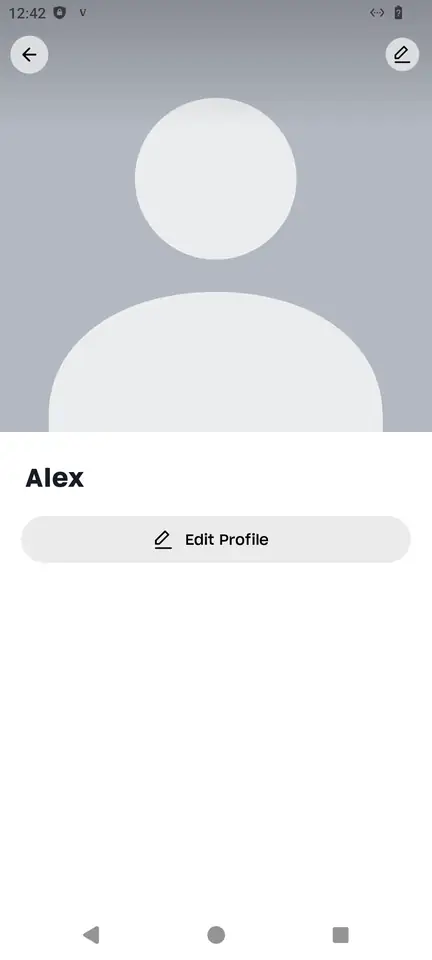
Remind
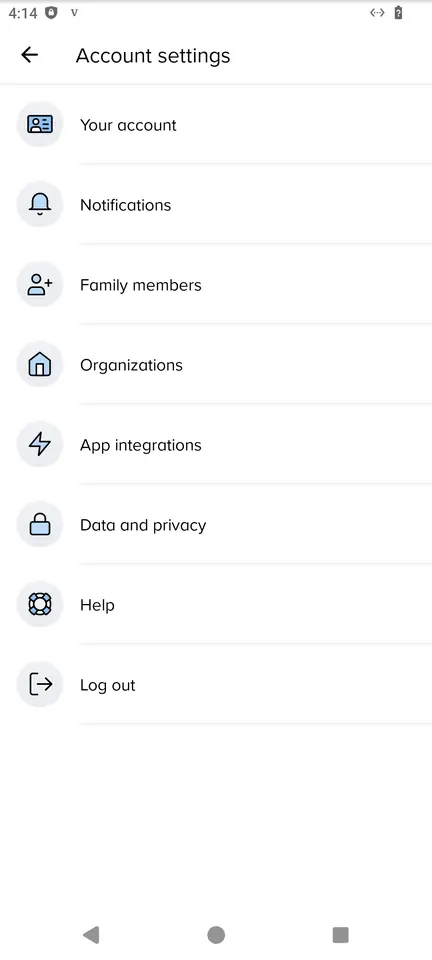
2 settings screens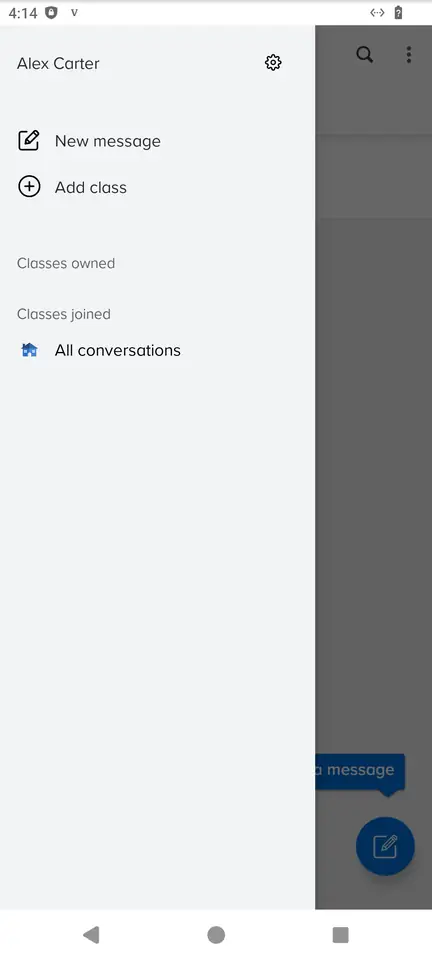
Calliope mini
1 settings screen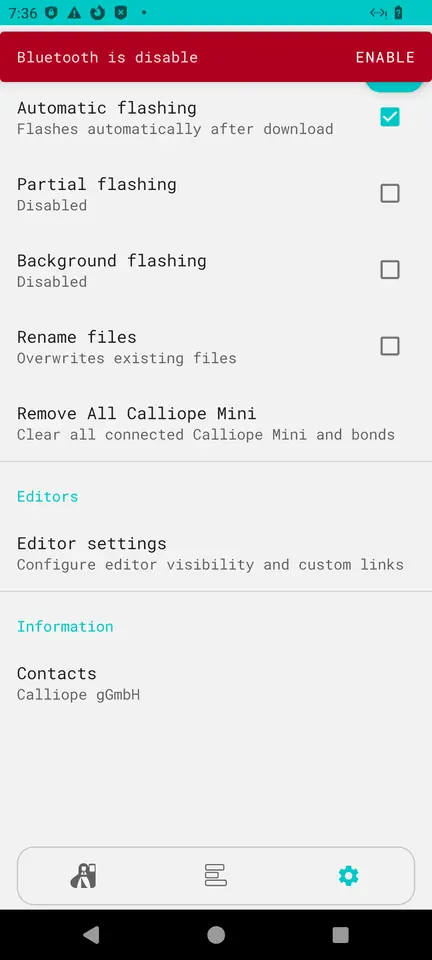
Coursera
1 settings screen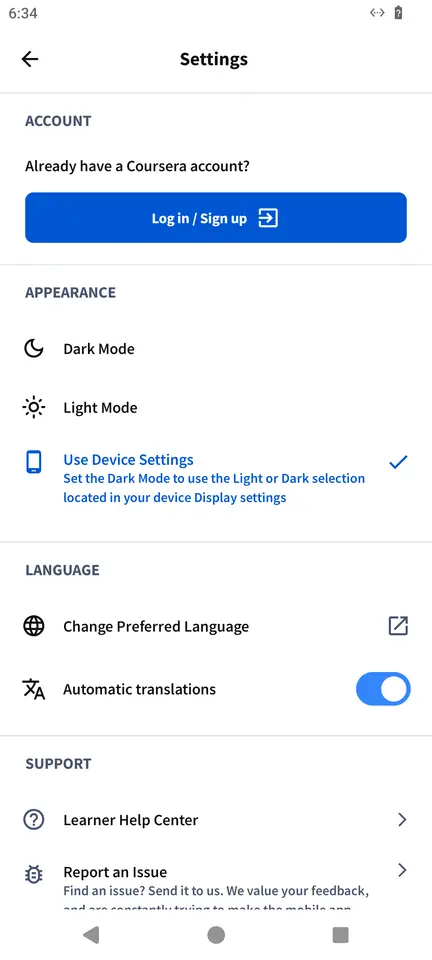
MasterClass
1 settings screen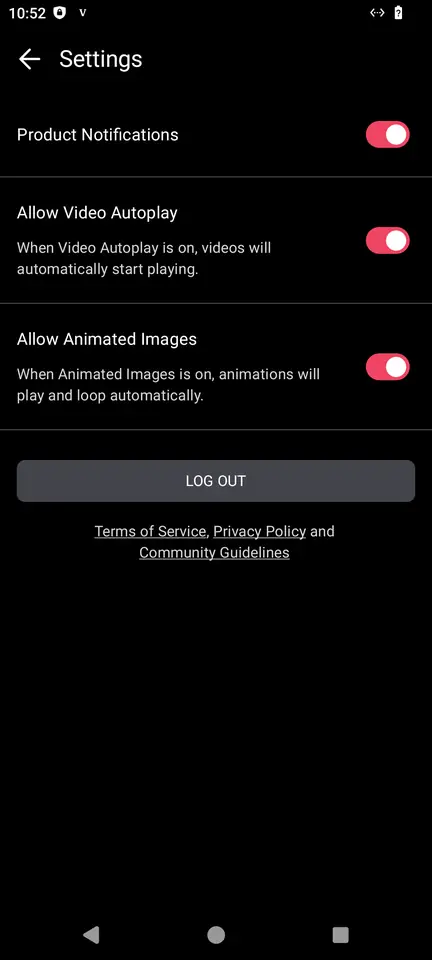
TED
1 settings screen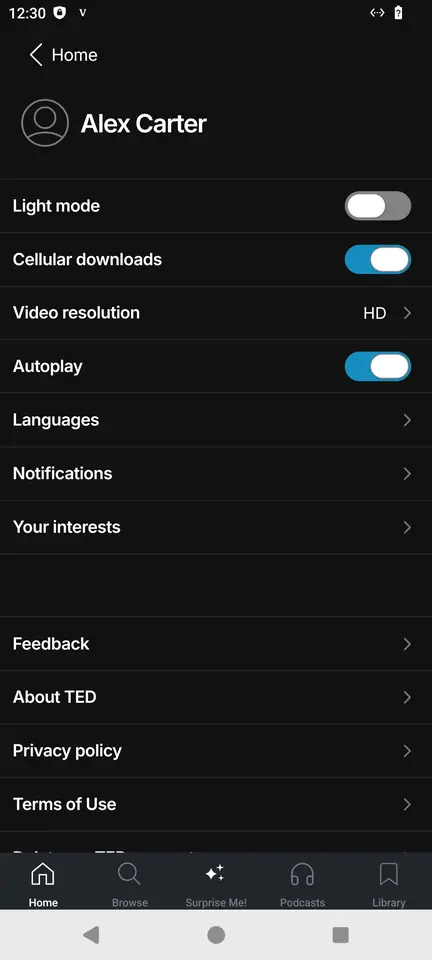
UI components on education settings screens
Share of the 23 screens where each component is in the view hierarchy and drawn on screen; the example shows it outlined.
Icon button
4 apps · example: Khan Academy
Toggle switch
2 apps · example: Khan Academy
Floating action button
1 app · example: Remind
UI patterns on education settings screens
Dark mode toggle
example: Khan Academy
Language selector
example: Khan Academy
What education apps say on these screens
UI copy that appears on the settings screens of two or more education apps, with the number of apps using it.
Navigate up
4 appsLanguage
3 appsEnglish
2 appsLight Mode
2 appsLOG OUT
2 appsMore options
2 appsNotifications
2 appsSettings
2 apps
Best practices for settings screens
- Group settings into a few labelled sections, most-used first.
- Use switches for instant on/off options; no Save button needed.
- Show the current value under each row (e.g. “Language — English”).
- Keep destructive actions (delete account, sign out) at the bottom, visually separated.
- Make notification and privacy controls easy to find.
Design notes for education apps
- Make the next lesson the biggest thing on the home screen; learners should never have to look for where they left off.
- Show progress in units the learner cares about (lessons done, streak, course %), not raw points.
- Keep lessons short and resumable; a phone session is often under five minutes.
- Ask the learner's goal and level in onboarding, and use the answer to pick the first lesson.
FAQ
What do education app settings screens look like?
The UI Lane library holds 23 settings screens from 9 Android education apps (Khan Academy, Wikipedia, DailyArt, Mindvalley, Remind and Calliope mini and more). Across these 23 screens the most common detected components are toolbar (22%), divider (9%) and toggle switch (9%). The most common UI patterns are dark mode toggle (3 of 9 apps) and language selector (3 of 9 apps).
Which education apps have the longest settings flow?
4 of these apps have their full settings flow captured step by step: the longest is Khan Academy (3 screens), the shortest Mindvalley (2 screens). Full list: DailyArt (3), Khan Academy (3), Mindvalley (2) and Remind (2).
What do education apps say on their settings screens?
UI copy used by two or more of these apps: “Navigate up” (4 apps), “Language” (3 apps), “English” (2 apps), “Light Mode” (2 apps) and “LOG OUT” (2 apps).
Captured on real Android devices · last updated 2026-11-14