Productivity app home screens: 117 screens from 30 Android apps
Every home screen we captured in productivity & tools apps: 117 screens from 30 Android apps, grouped by app. 26 of these apps have their full home flow captured step by step: the longest is Todoist (10 screens), the shortest KashCal (2 screens). Across these 117 screens the most common detected components are toolbar (44%), floating action button (19%) and text field (15%).
Productivity & tools home flows, step by step
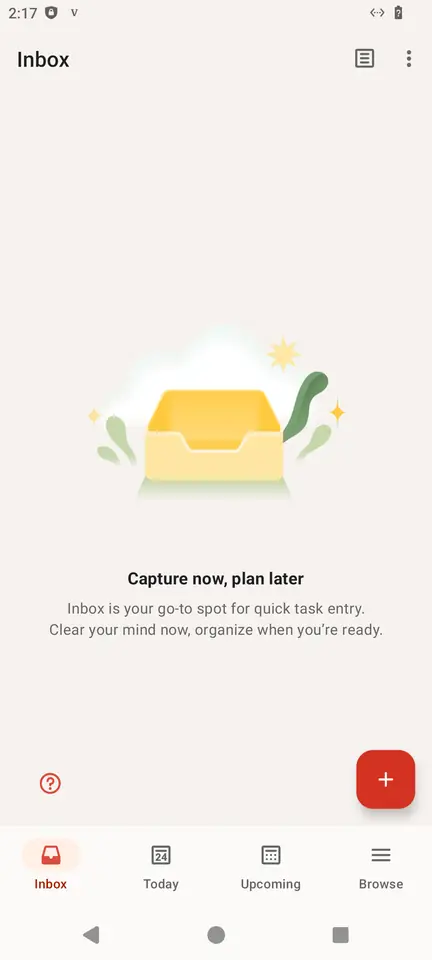
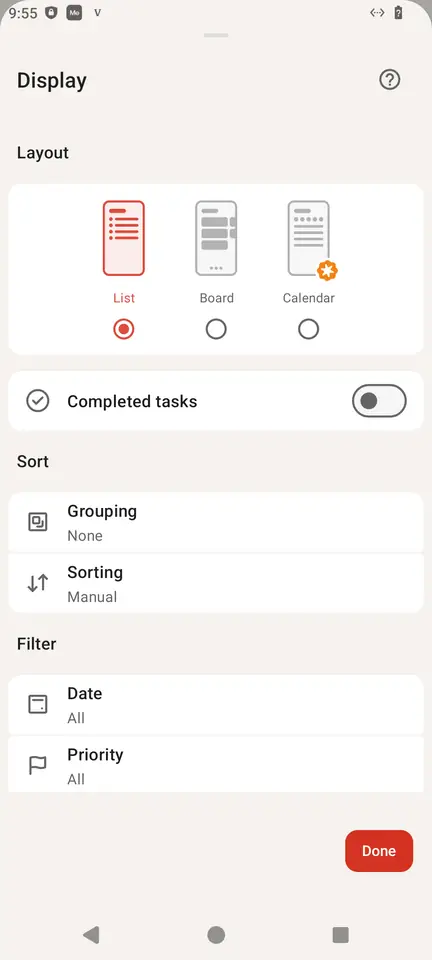
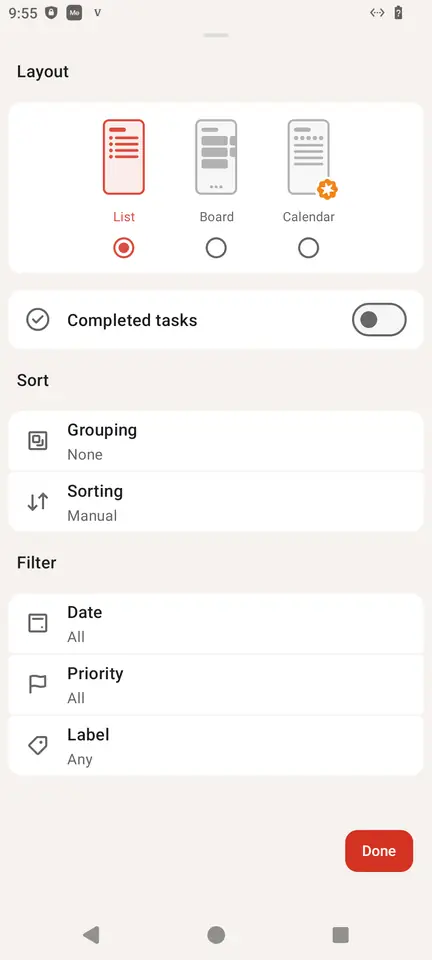
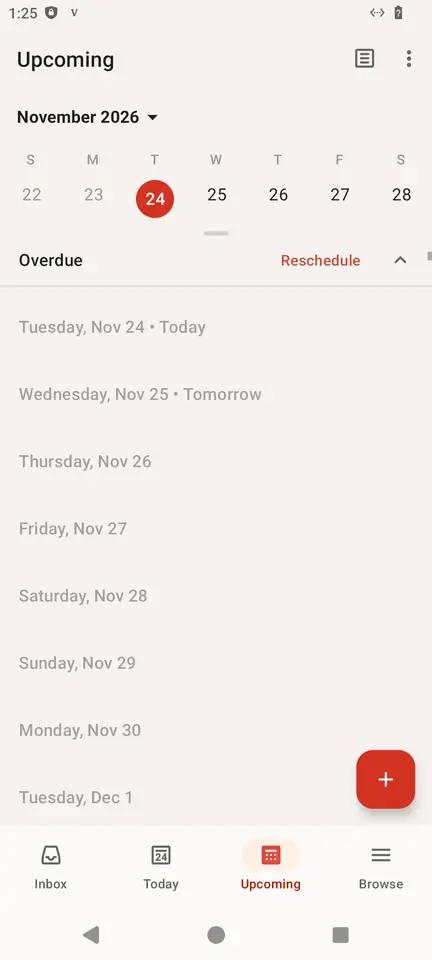
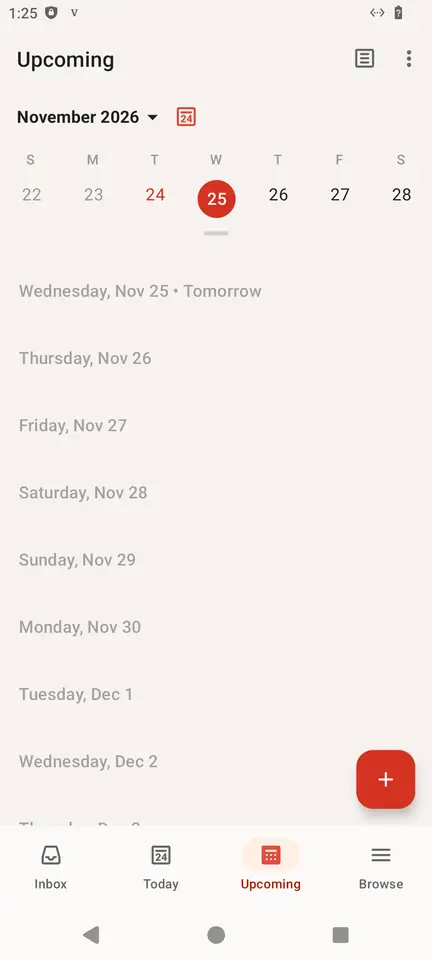
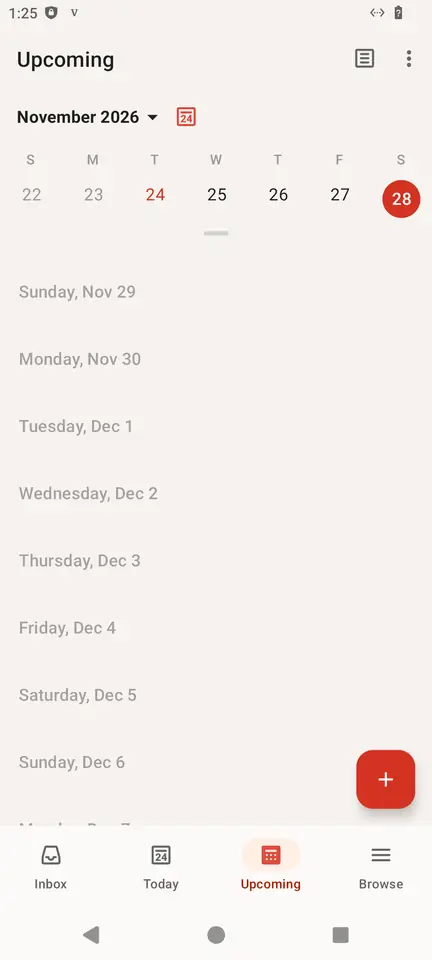
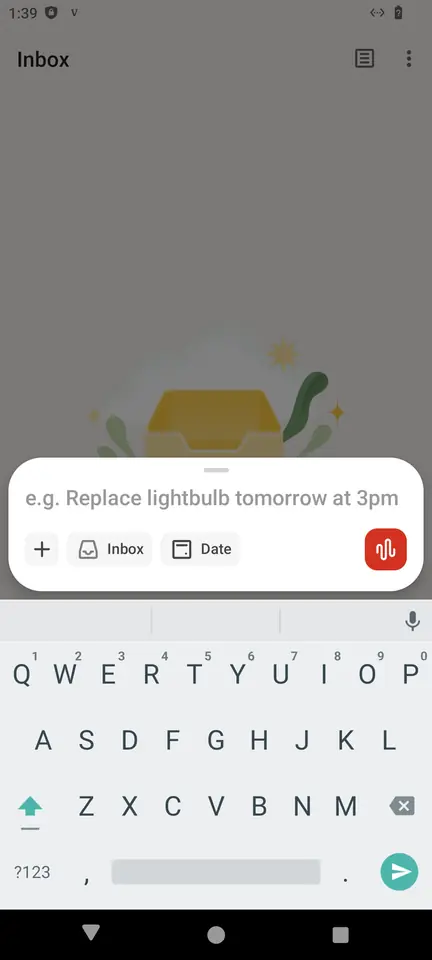
Todoist · Home & browsing
10 screens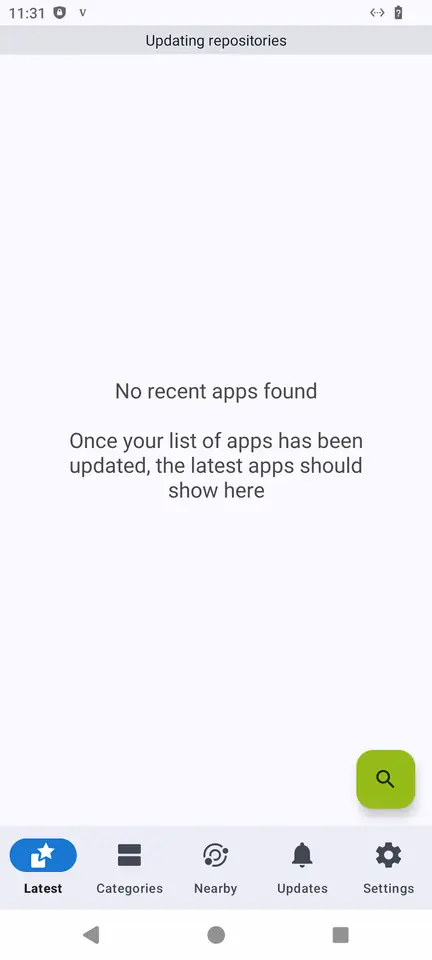
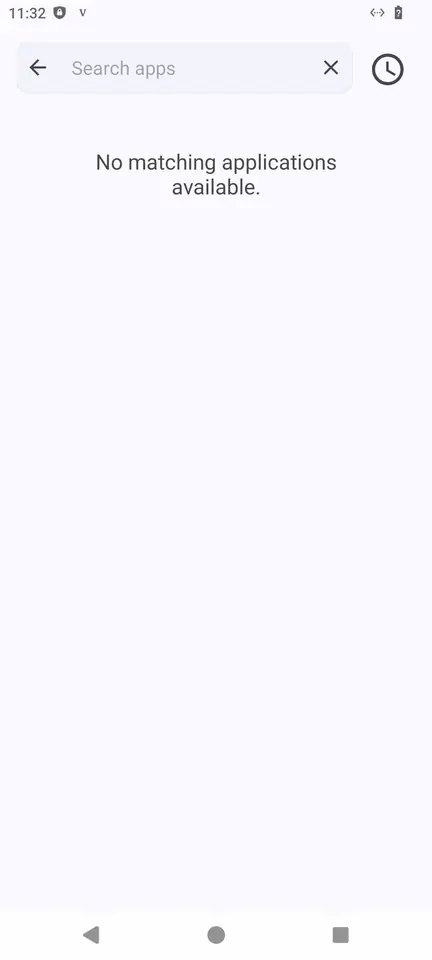
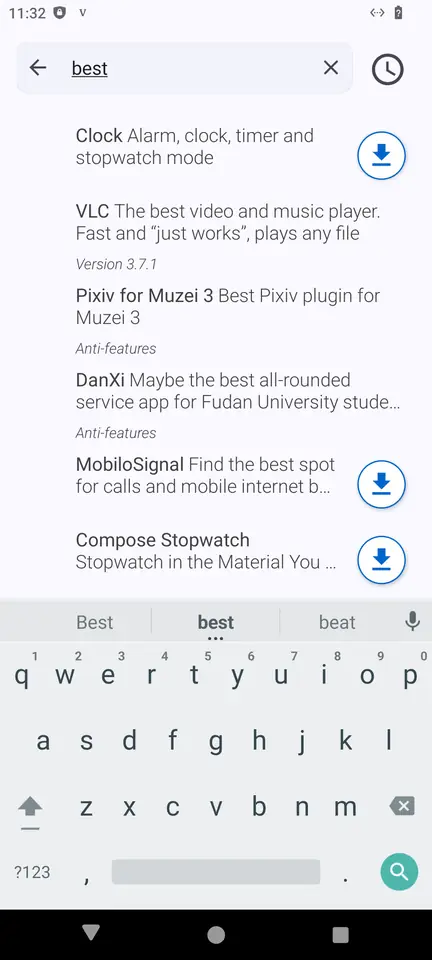
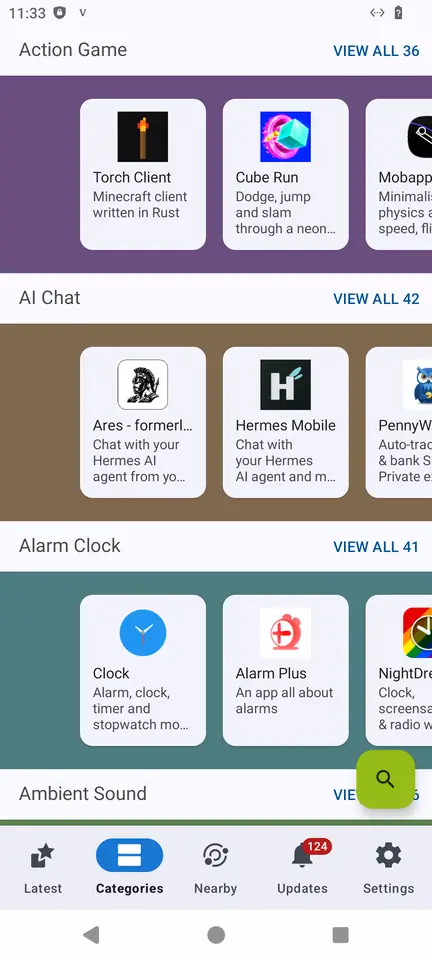
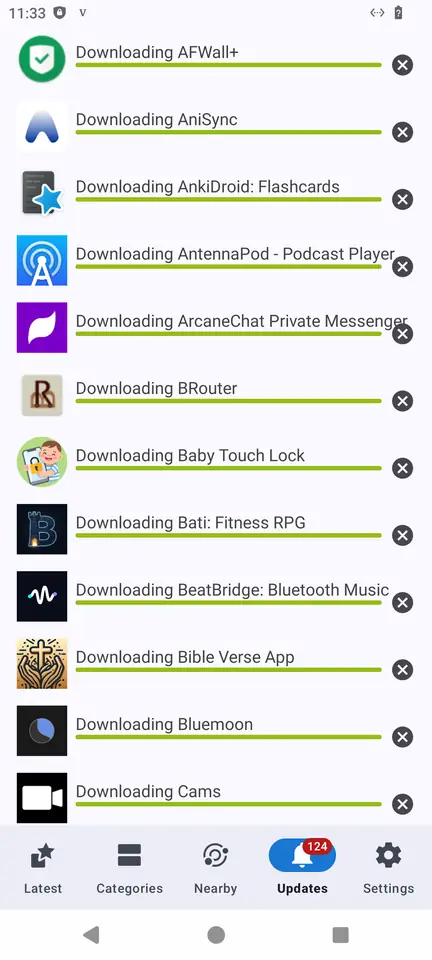
F-Droid · Home & browsing
6 screens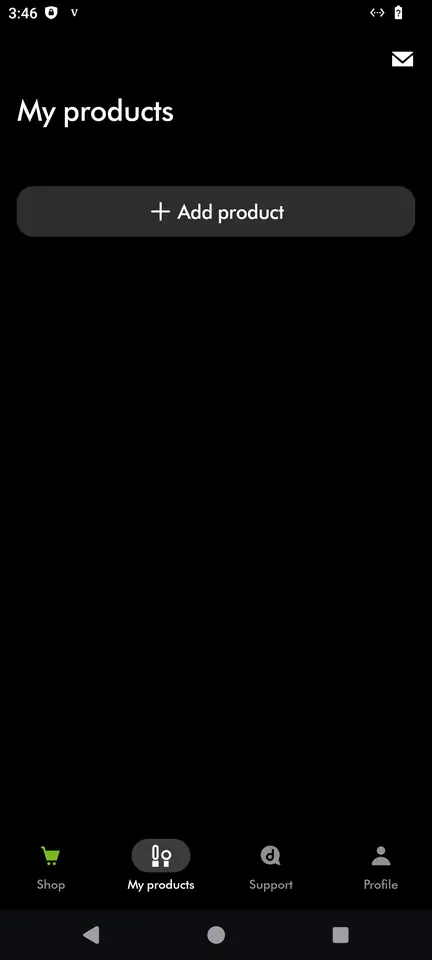
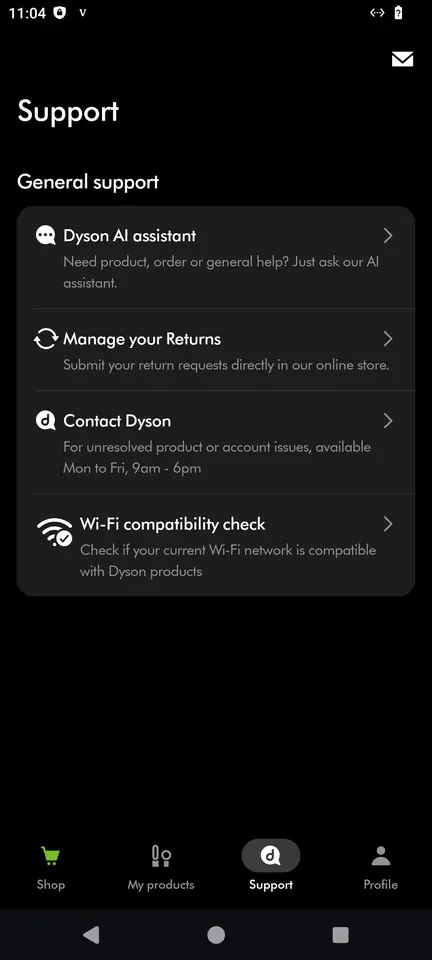
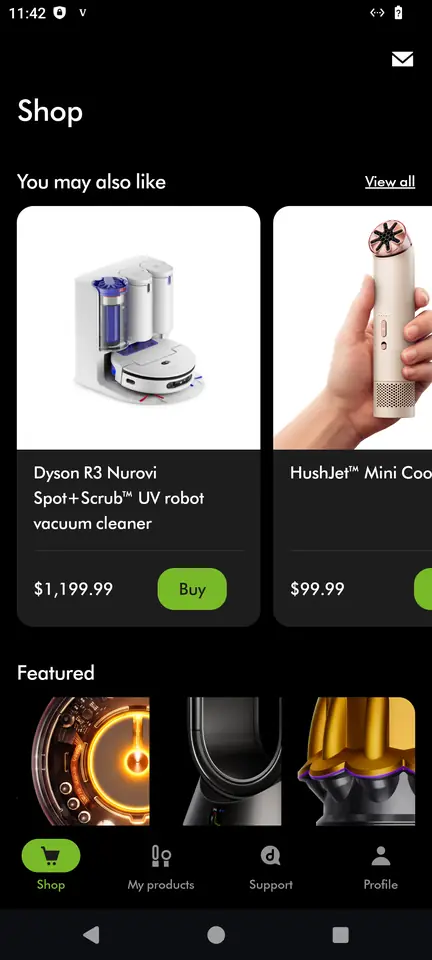
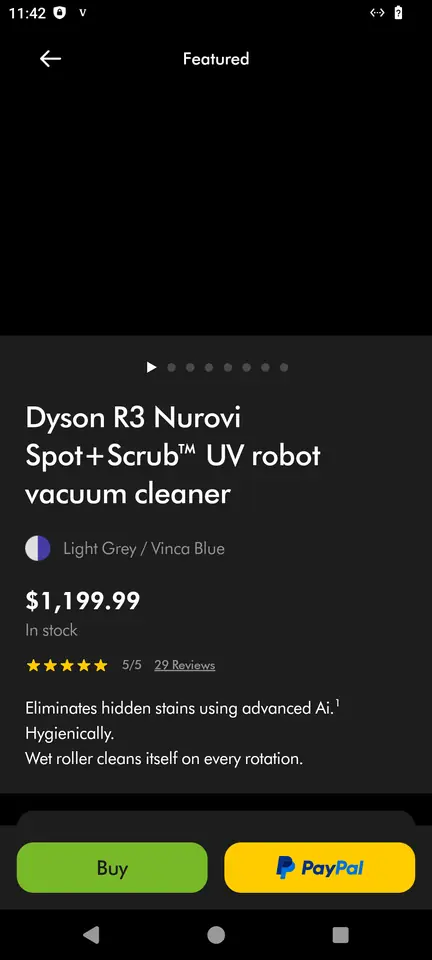
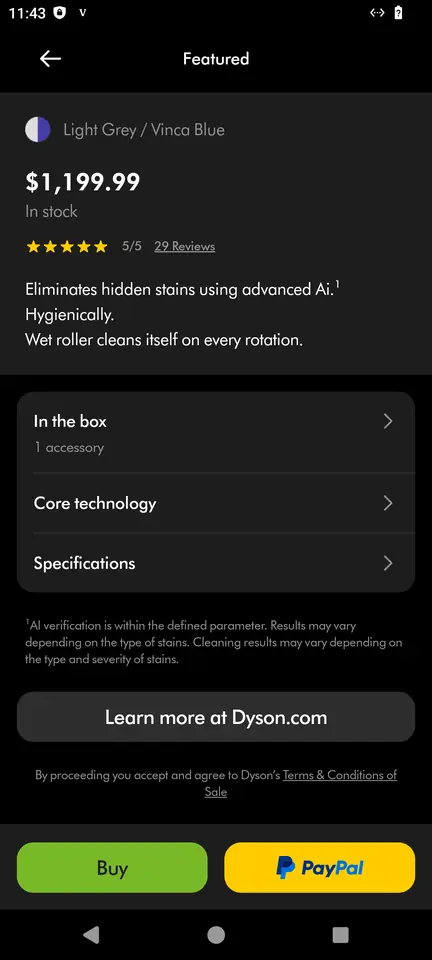
MyDyson · Home & browsing
6 screens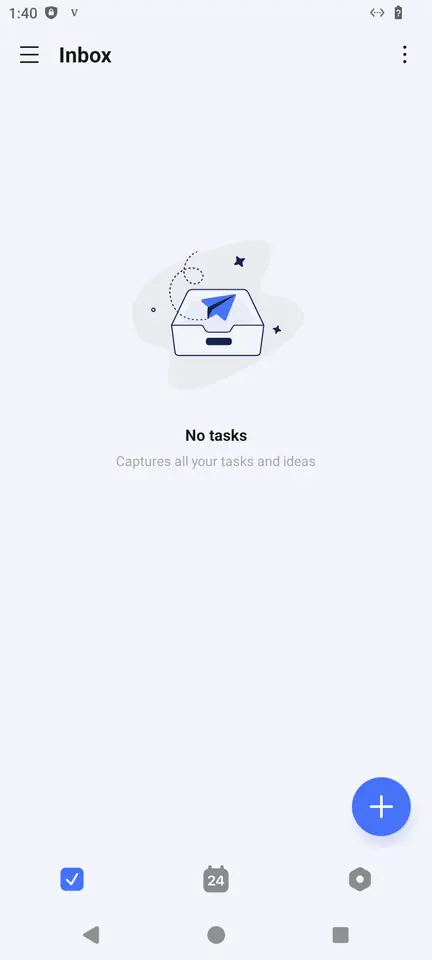
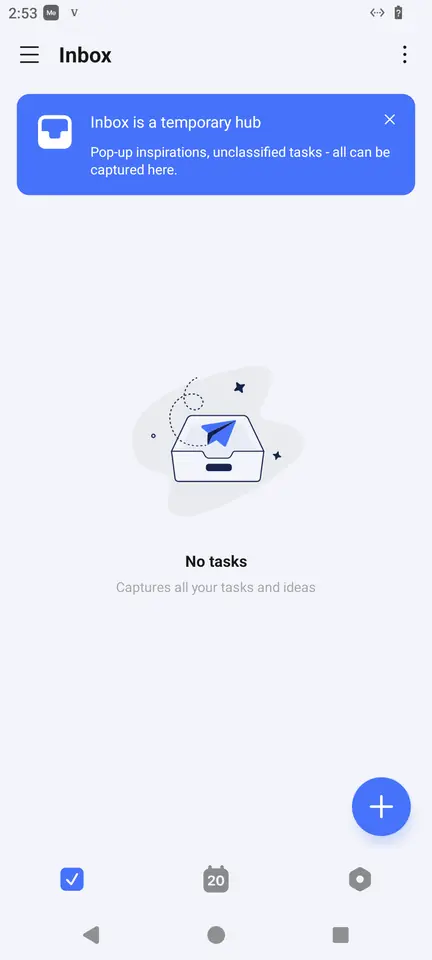
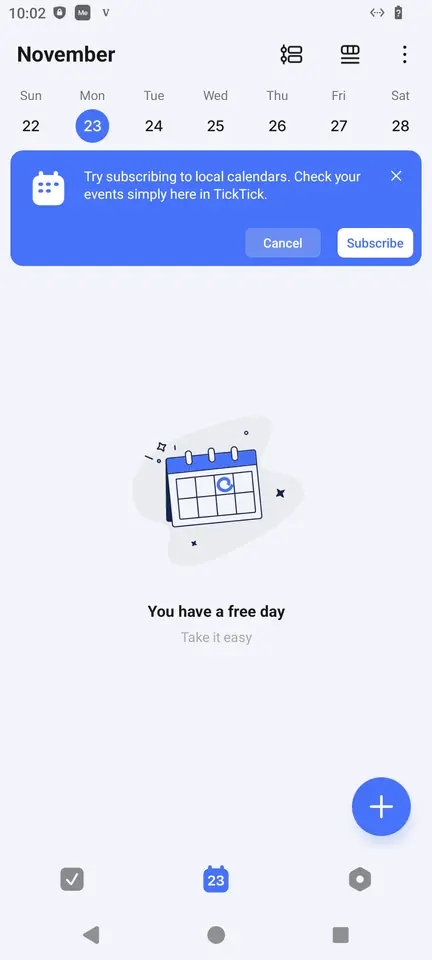
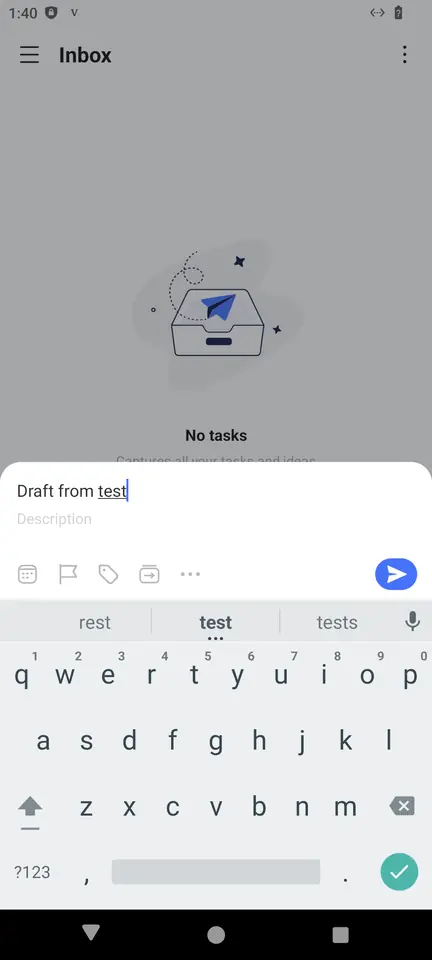
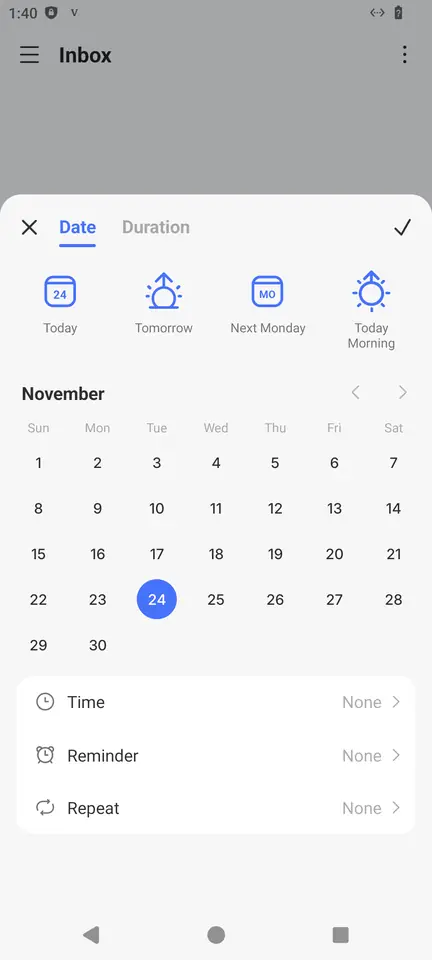
TickTick · Home & browsing
6 screens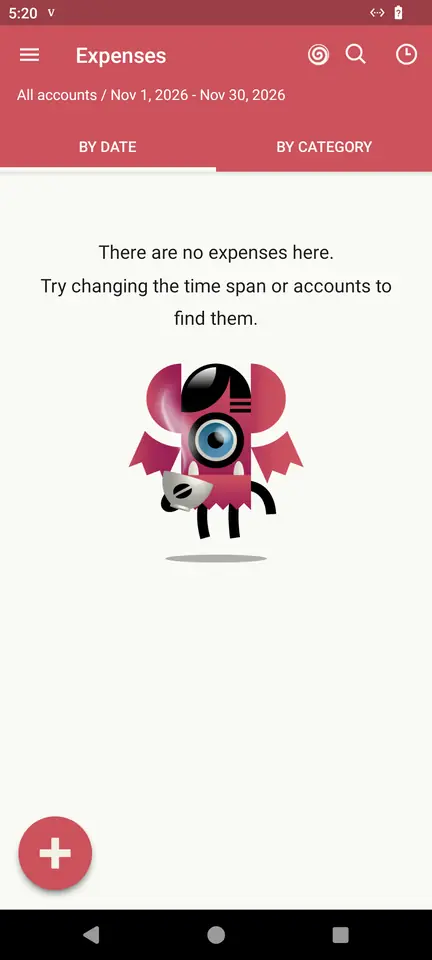
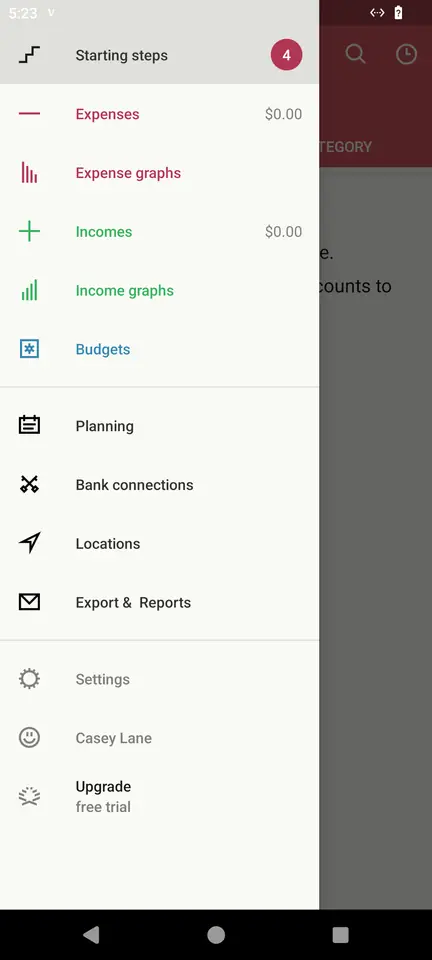
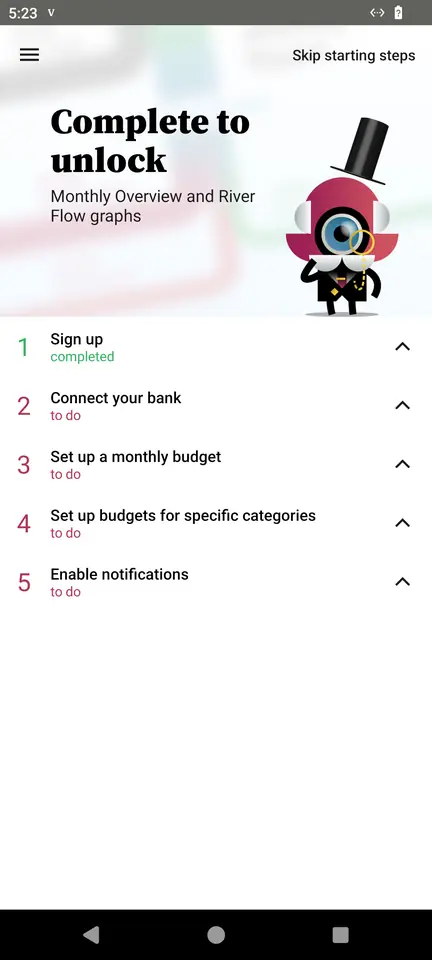
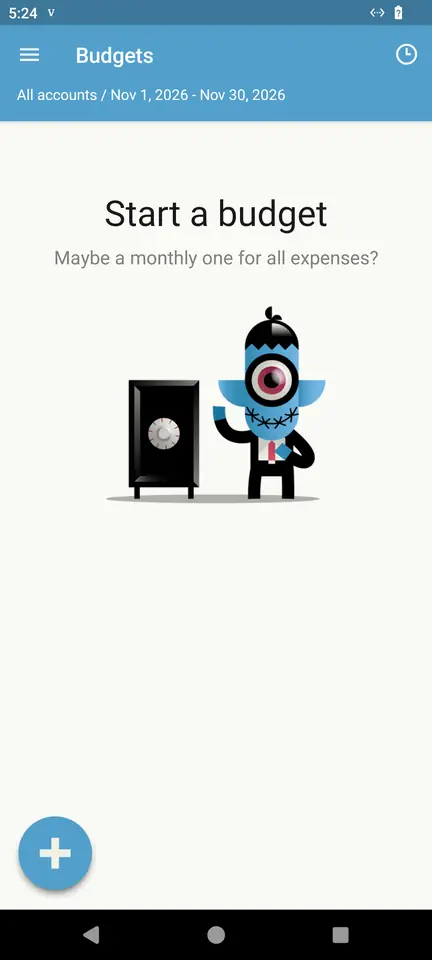
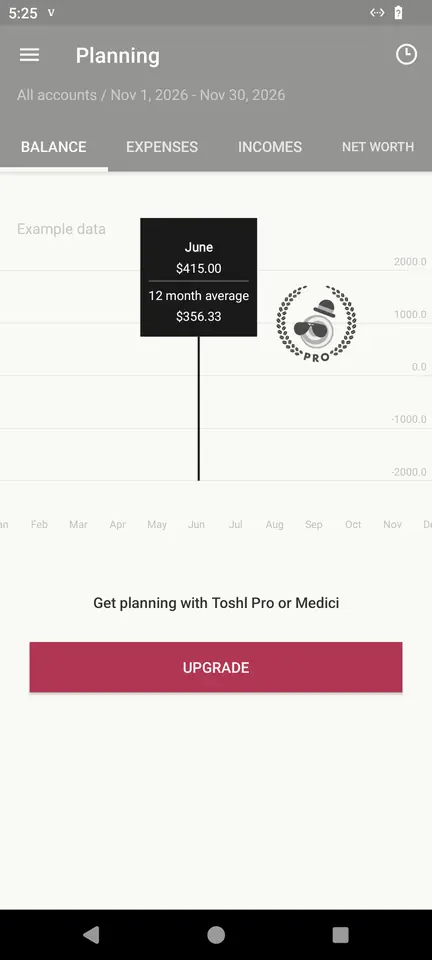
Toshl Finance · Home & browsing
6 screens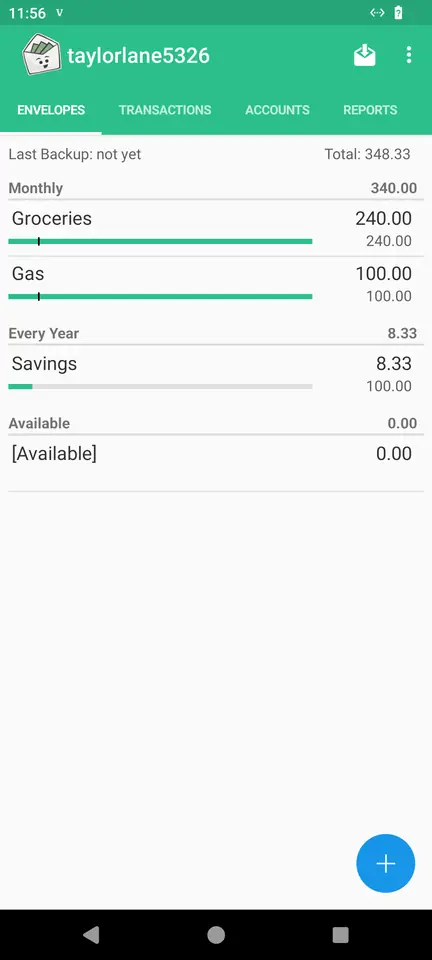
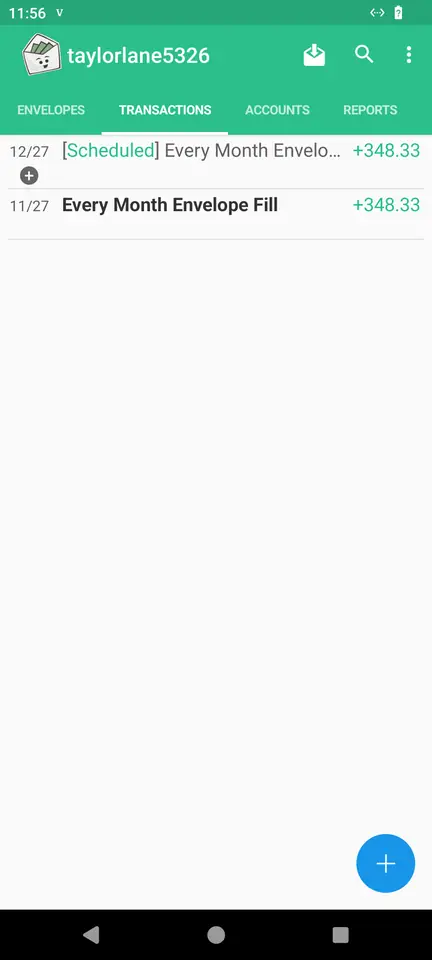
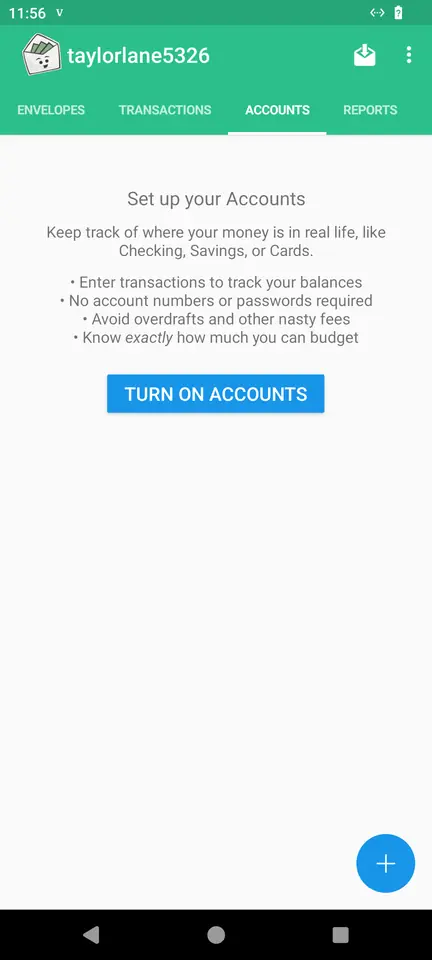
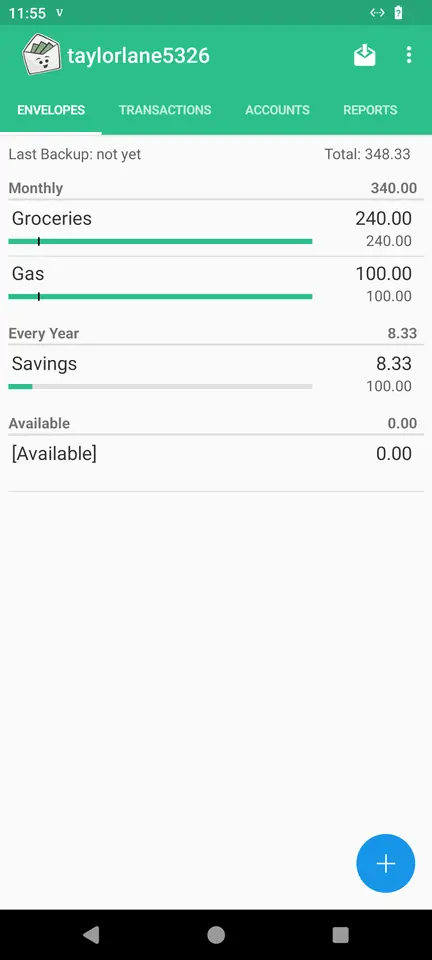
Goodbudget · Home & browsing
5 screens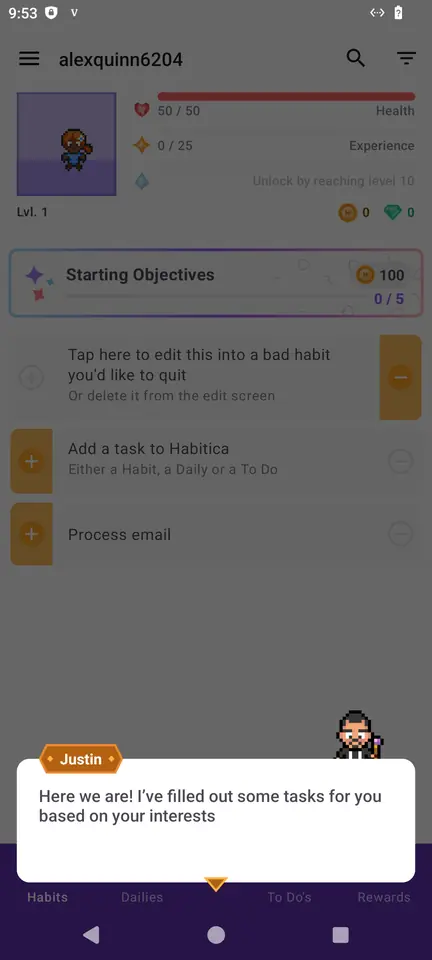
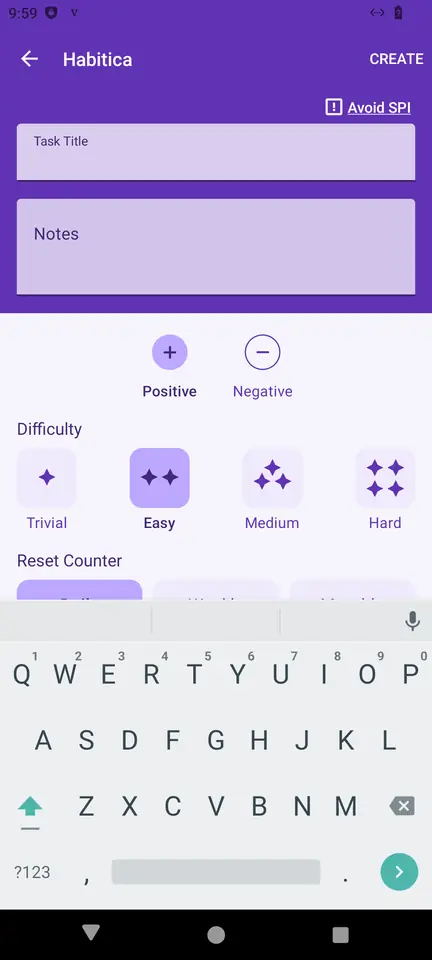
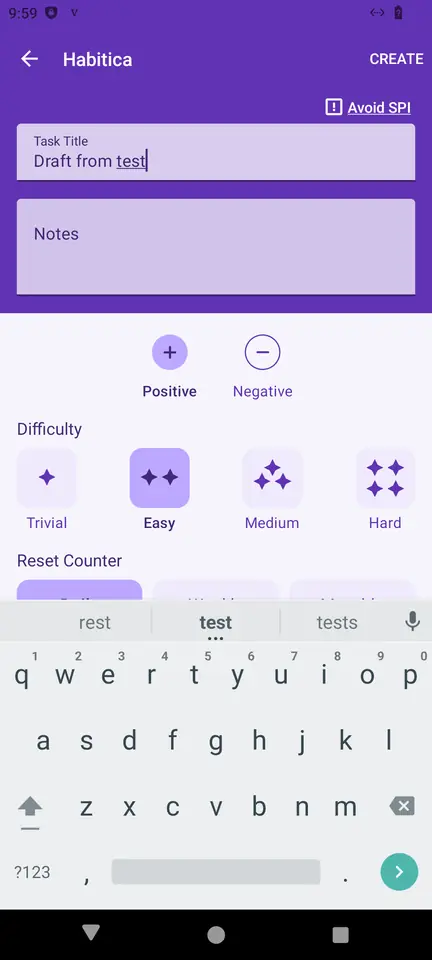
Habitica · Home & browsing
5 screens
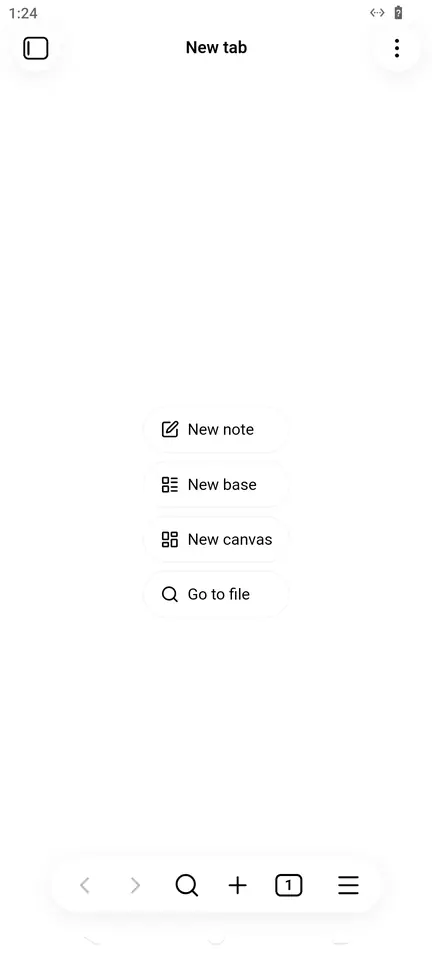
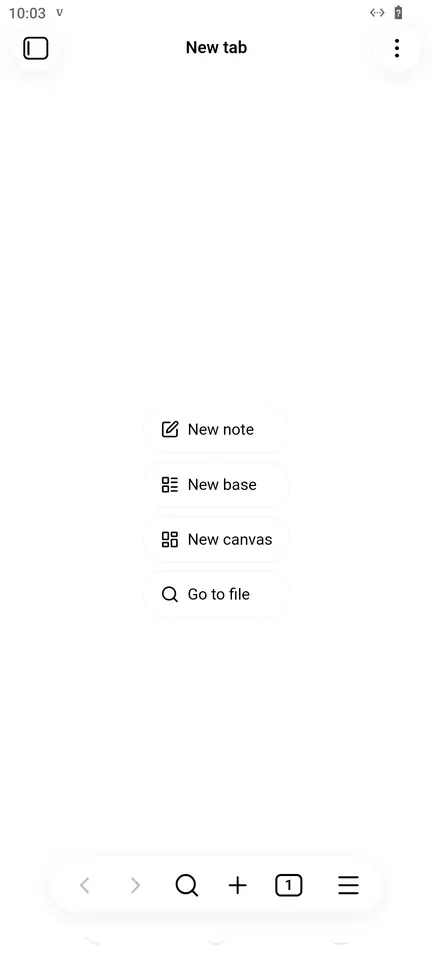
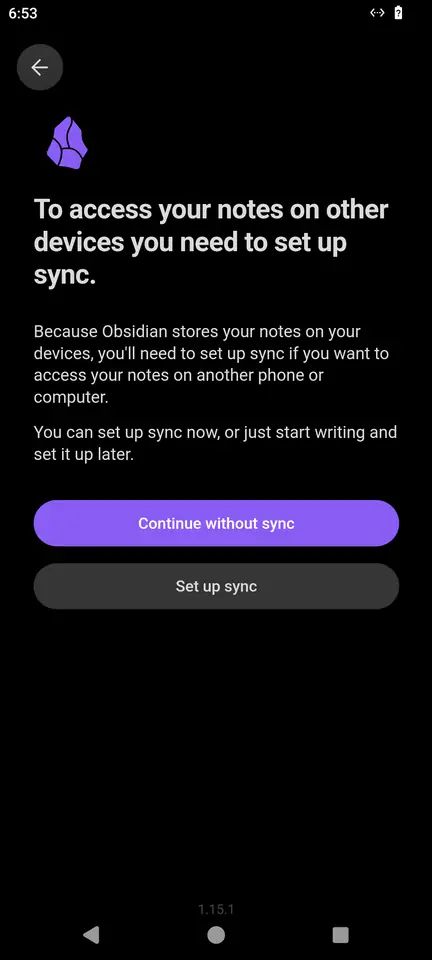
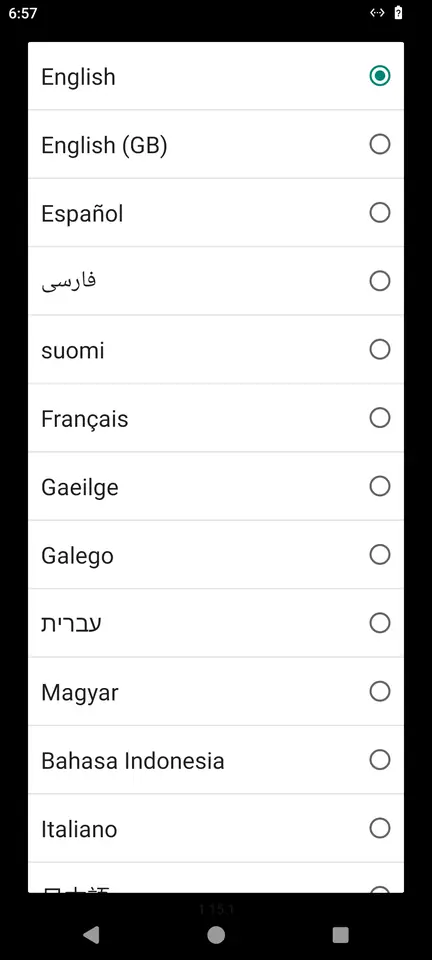
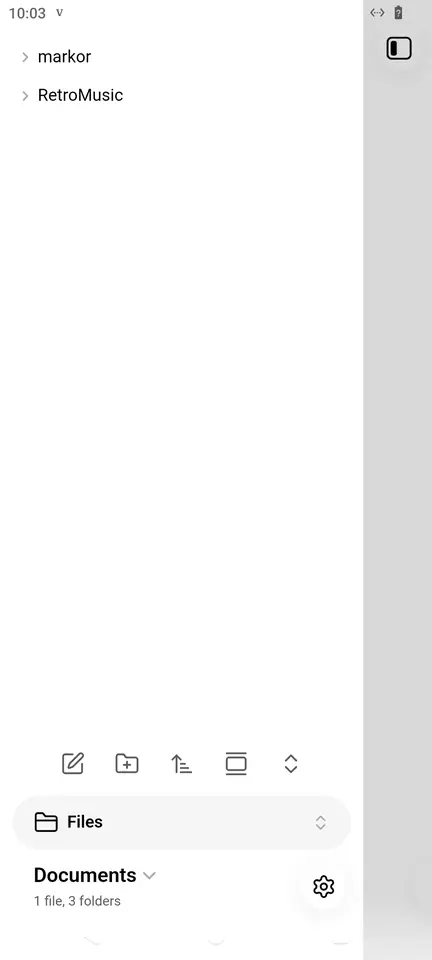
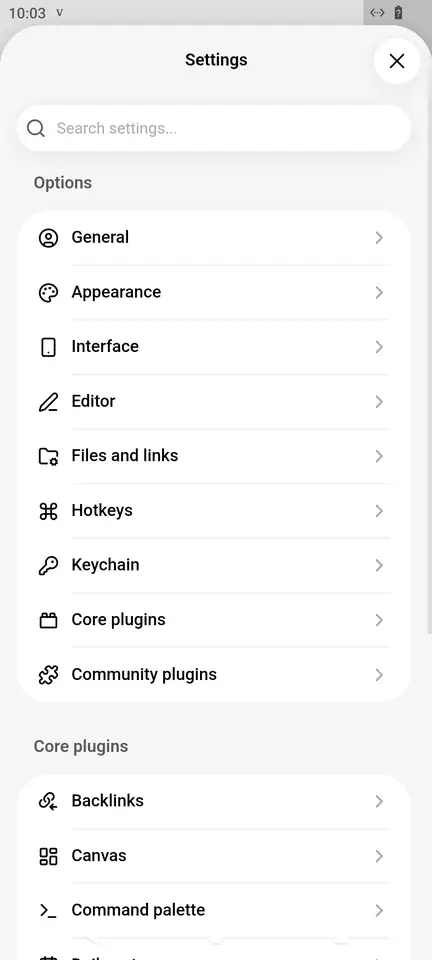
Obsidian · Home & browsing
5 screens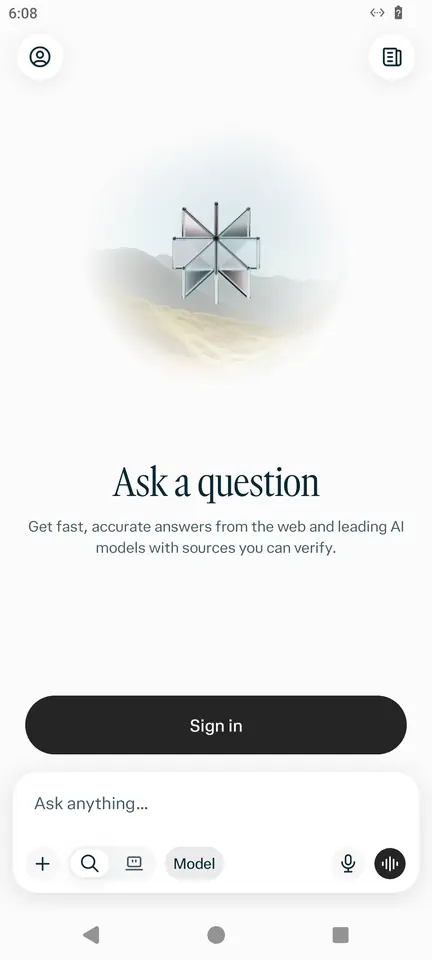
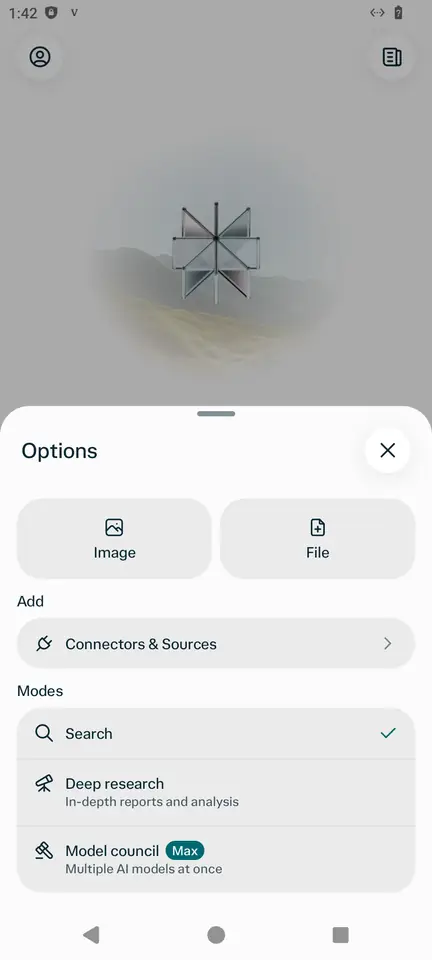
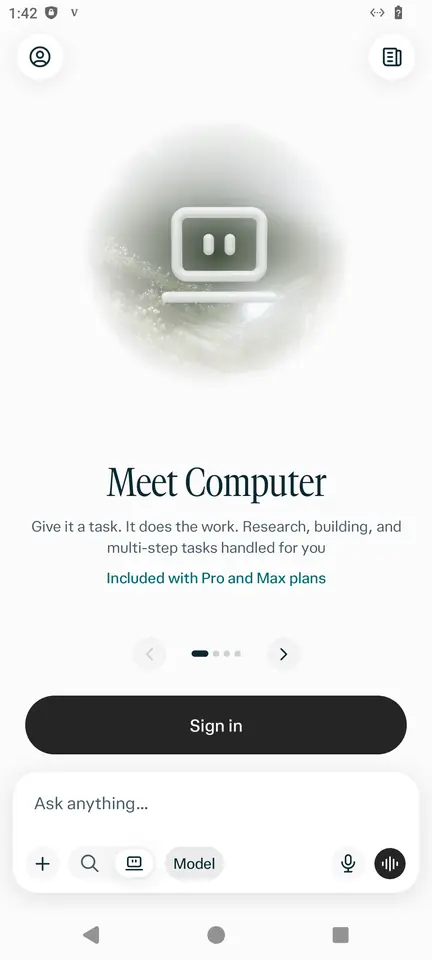
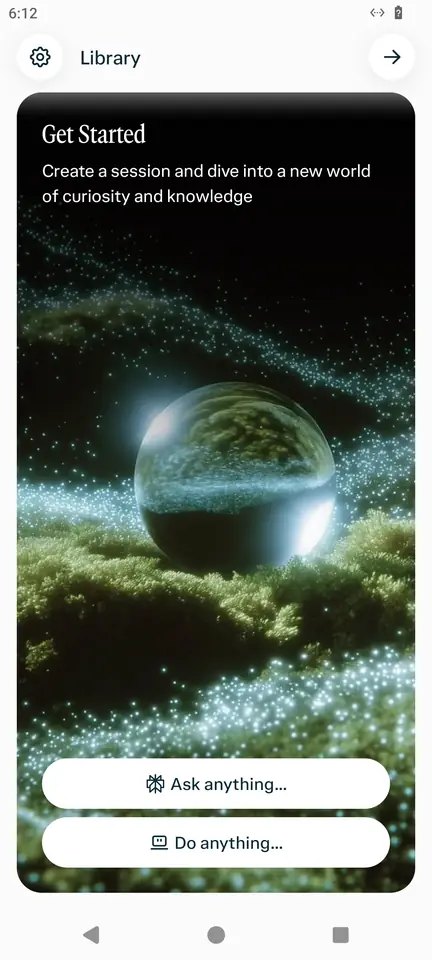
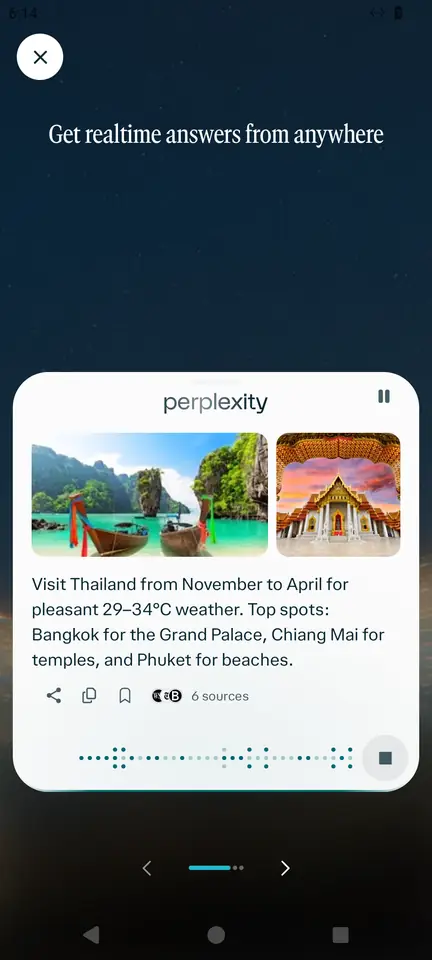
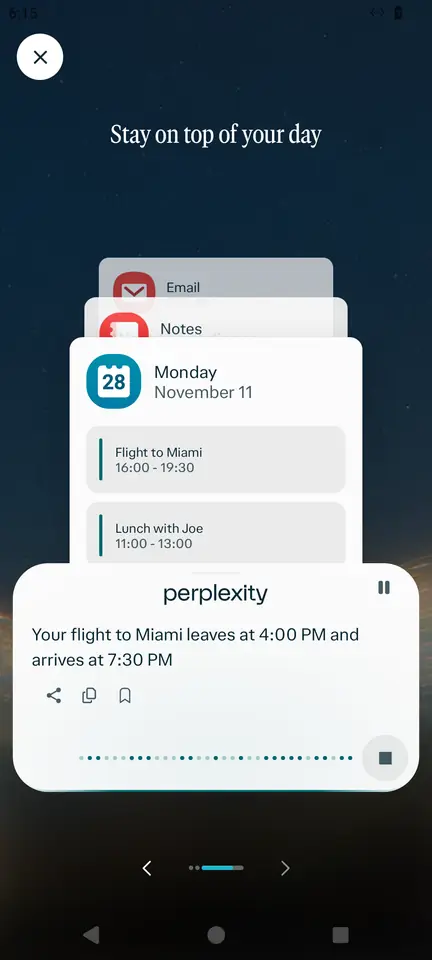
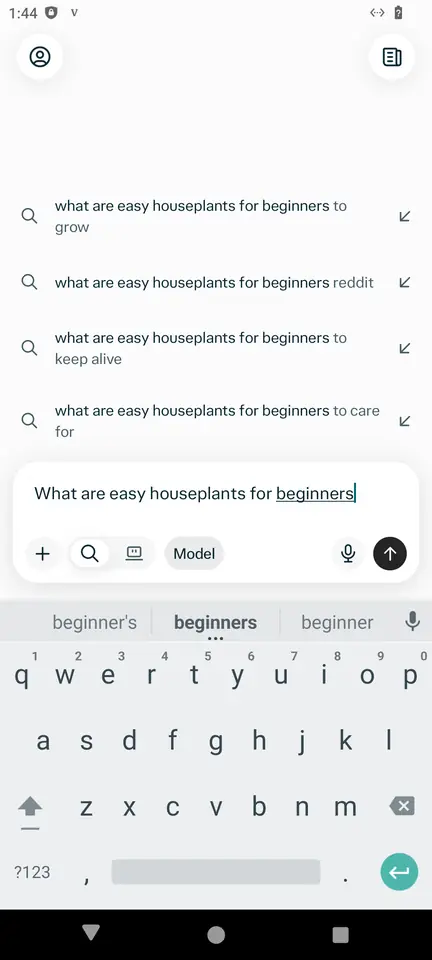
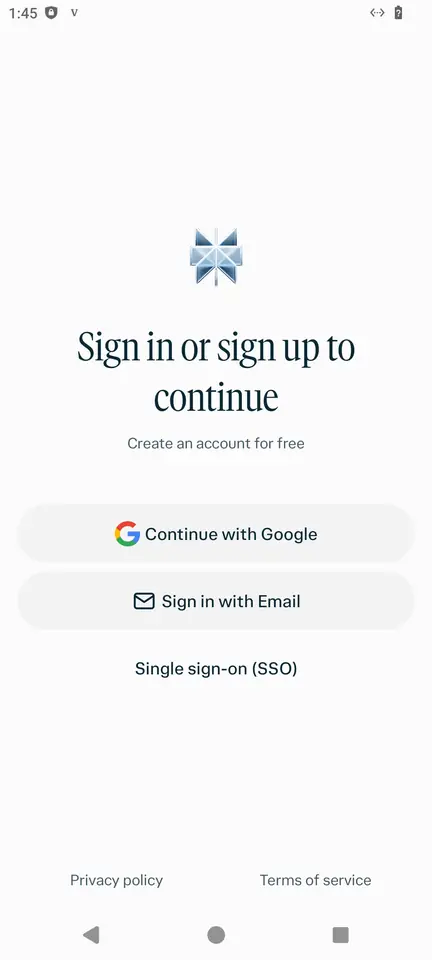
Perplexity · Home & browsing
5 screens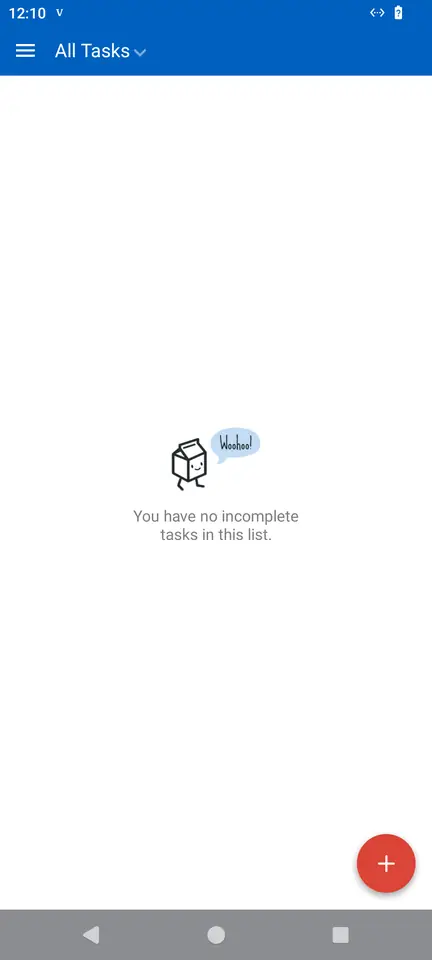
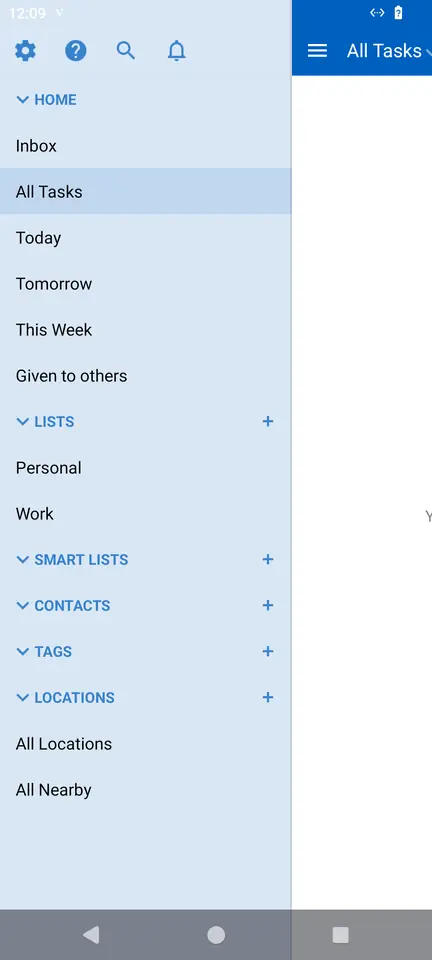
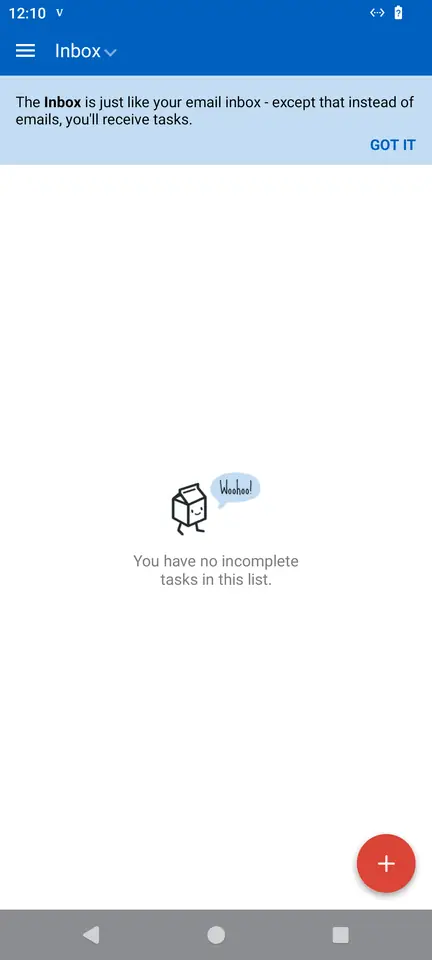
Remember The Milk · Home & browsing
5 screens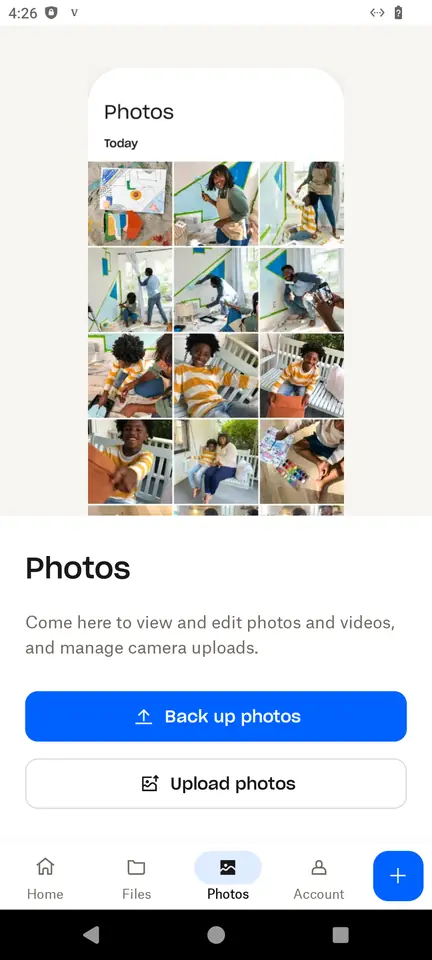
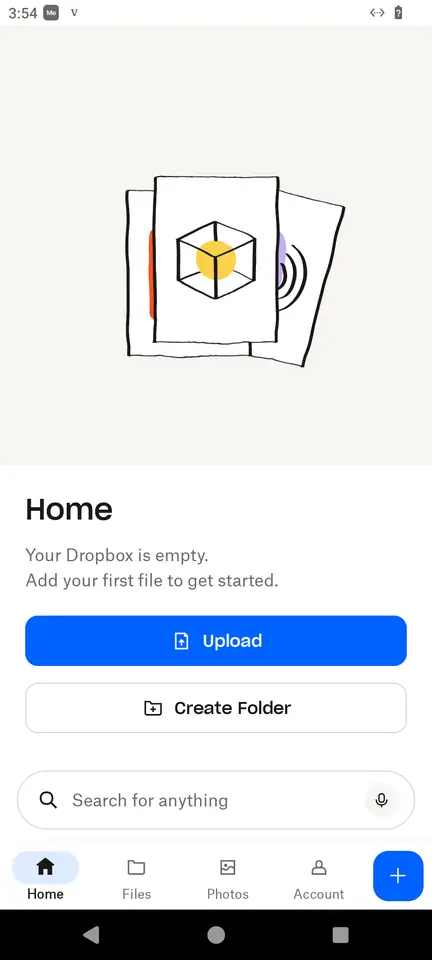
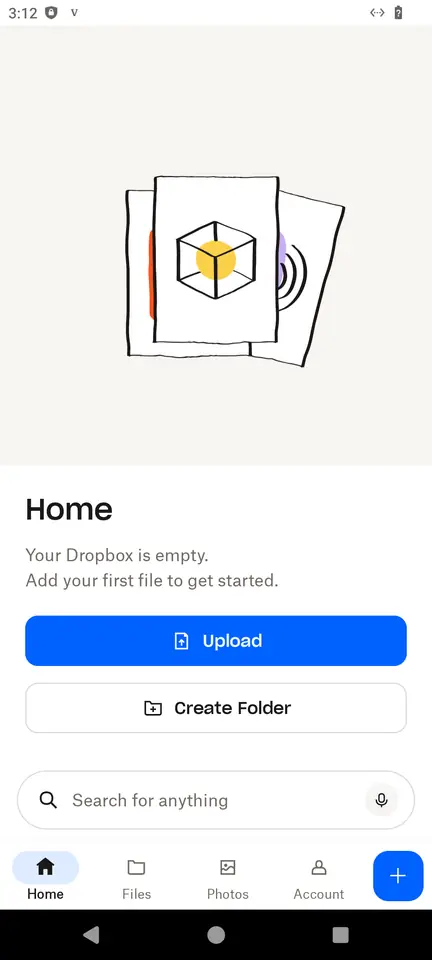
Dropbox · Home & browsing
4 screens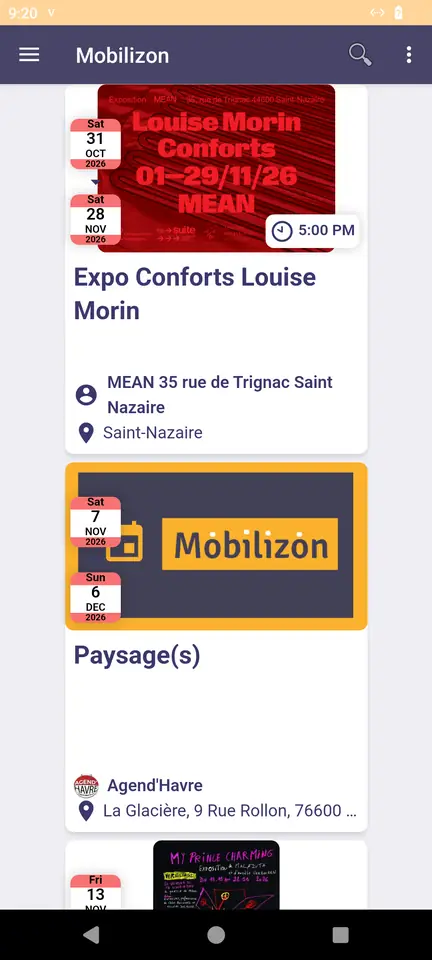
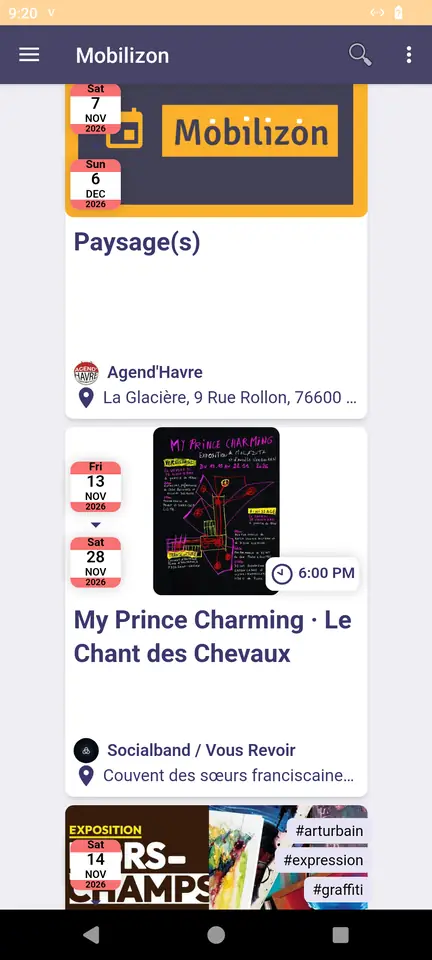
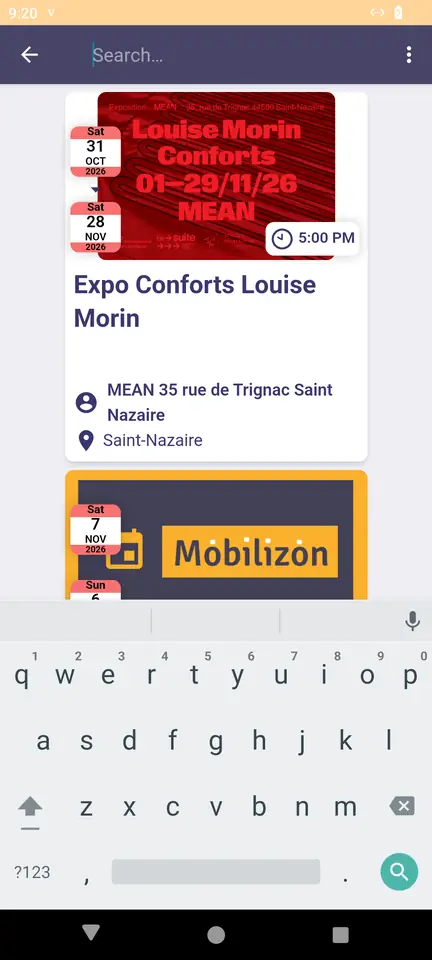
Mobilizon · Home & browsing
4 screens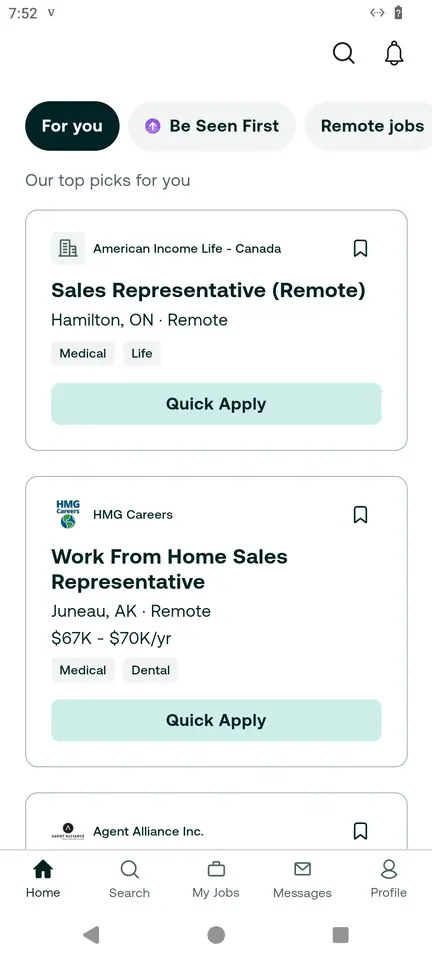
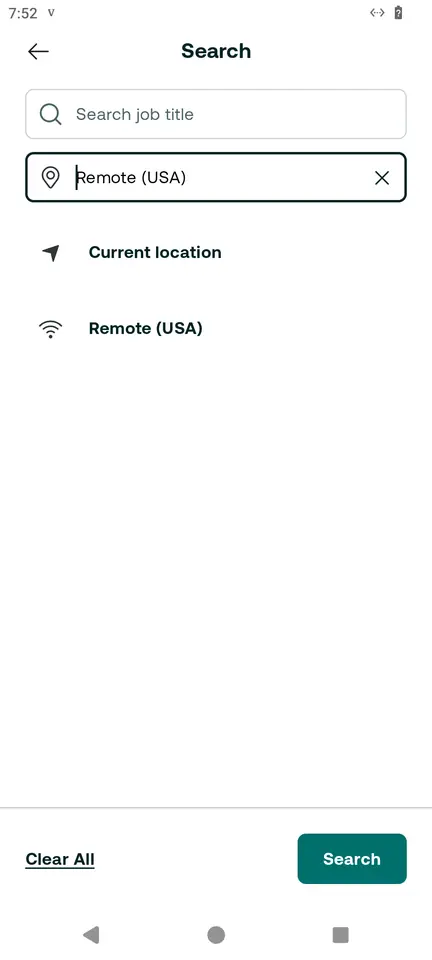
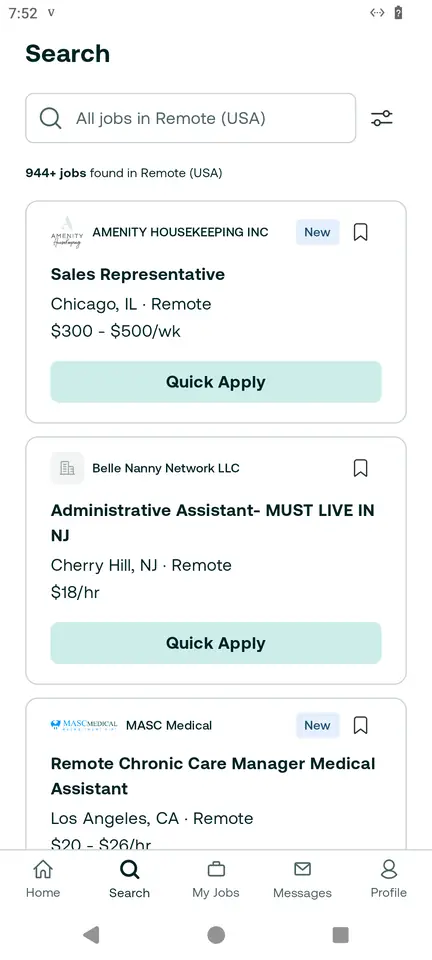
ZipRecruiter · Home & browsing
4 screens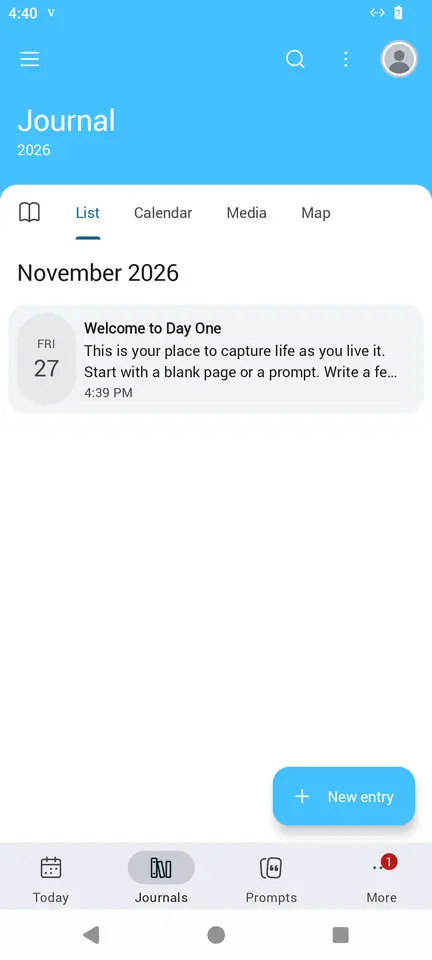
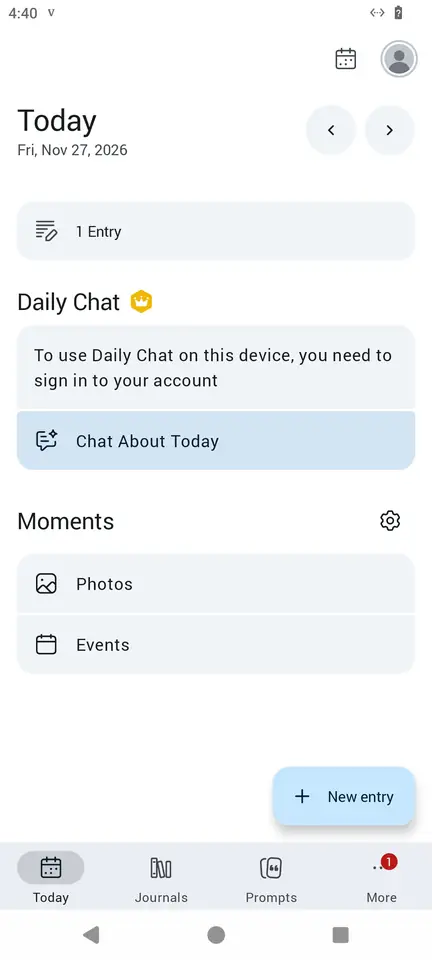
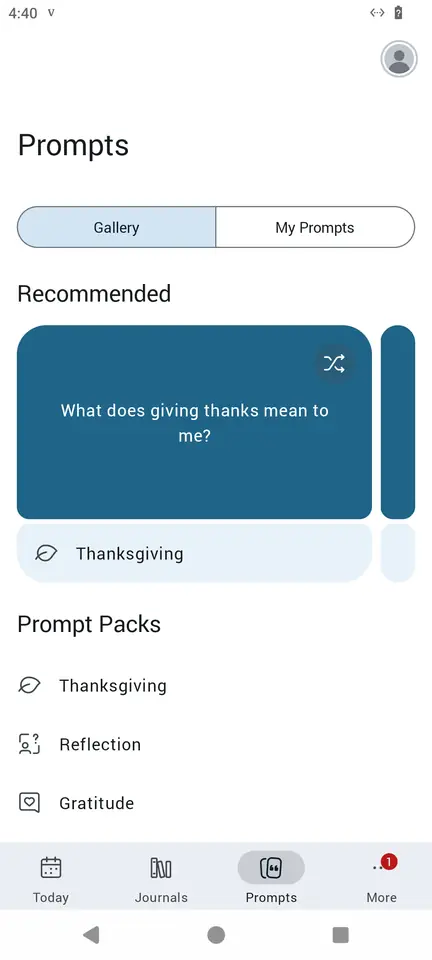
Day One · Home & browsing
3 screens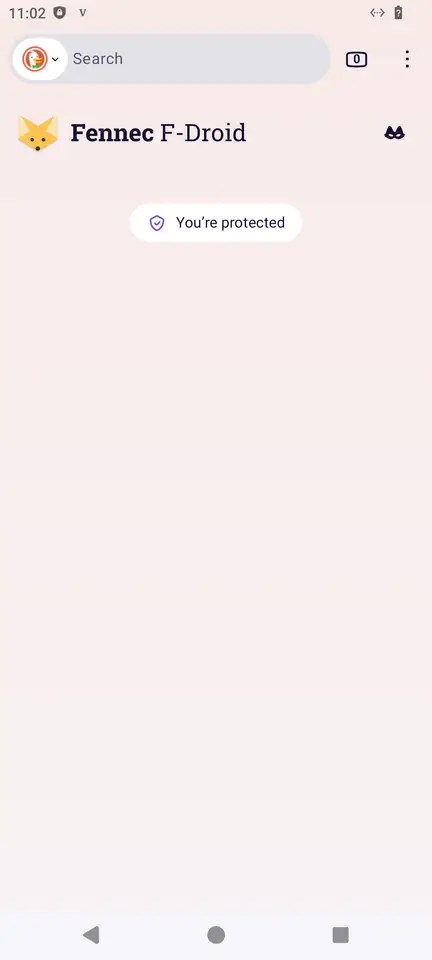
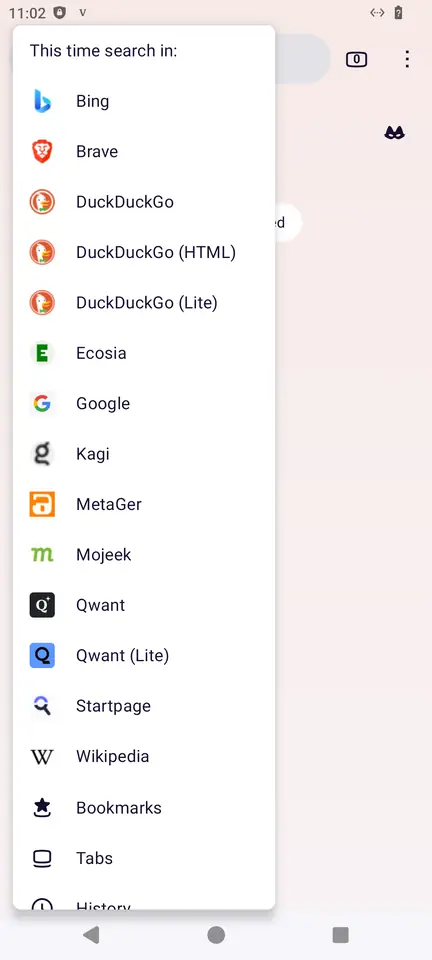
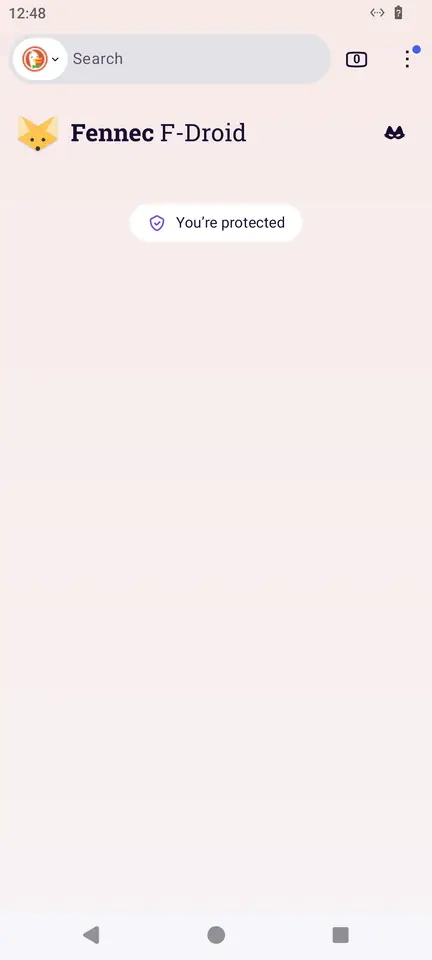
Fennec F-Droid · Home & browsing
3 screens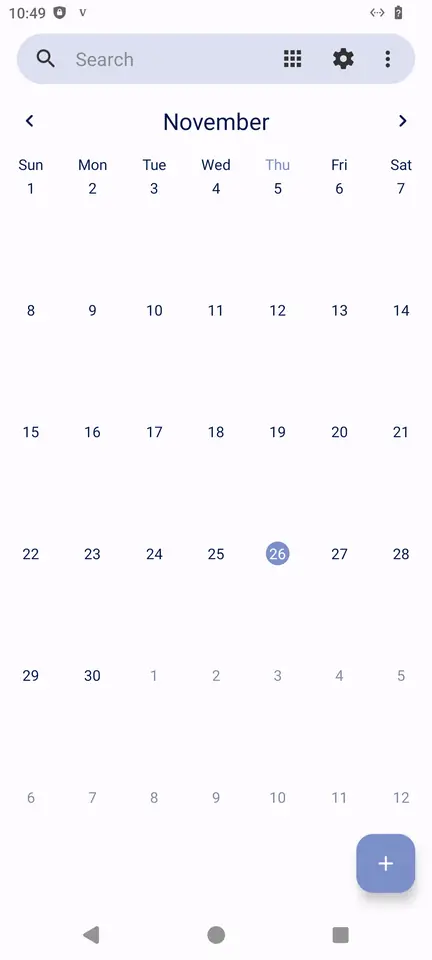
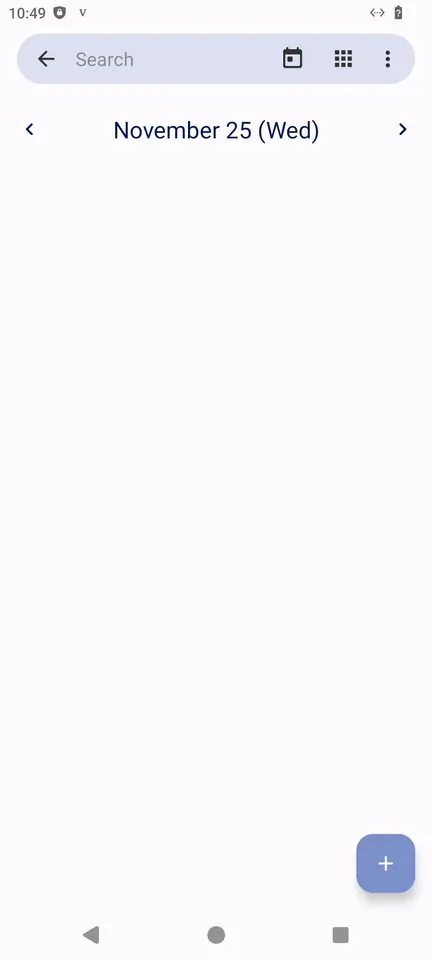
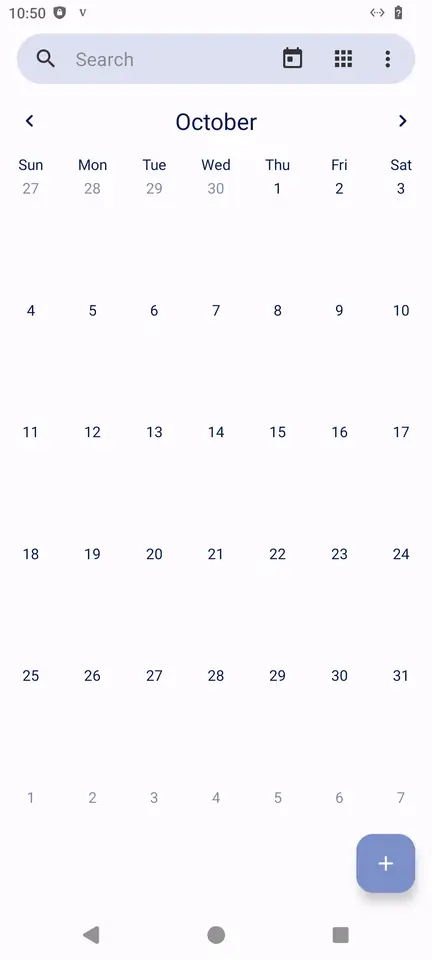
Fossify Calendar · Home & browsing
3 screens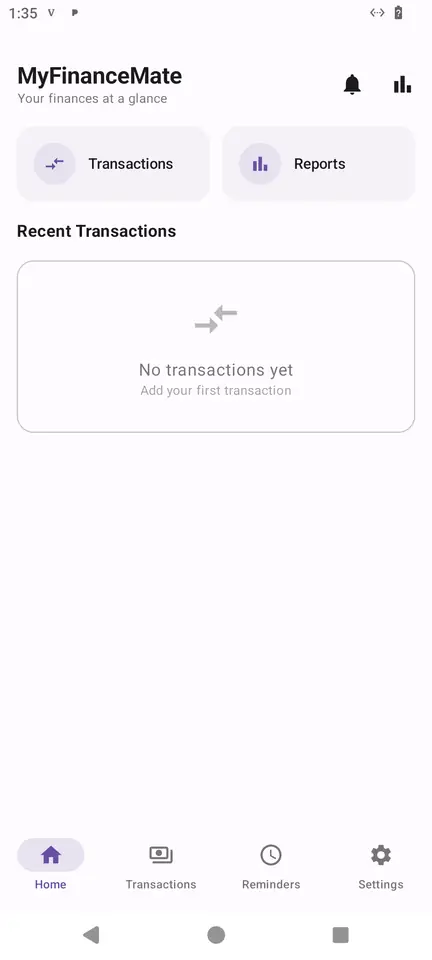
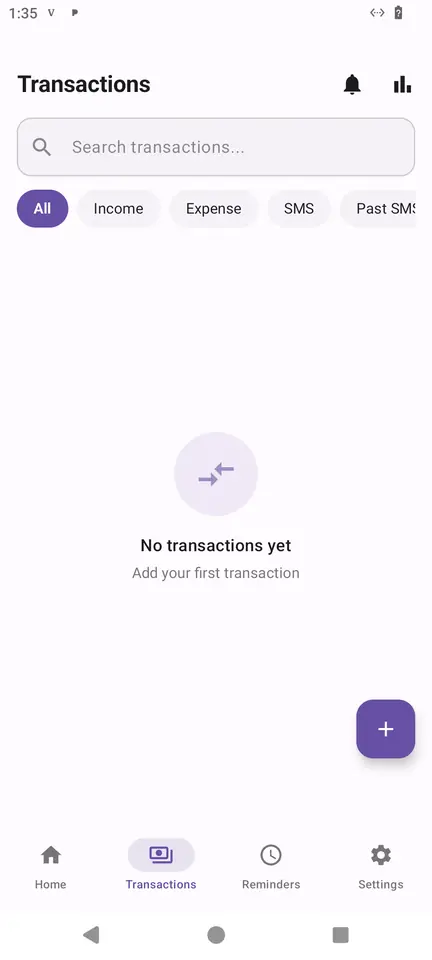
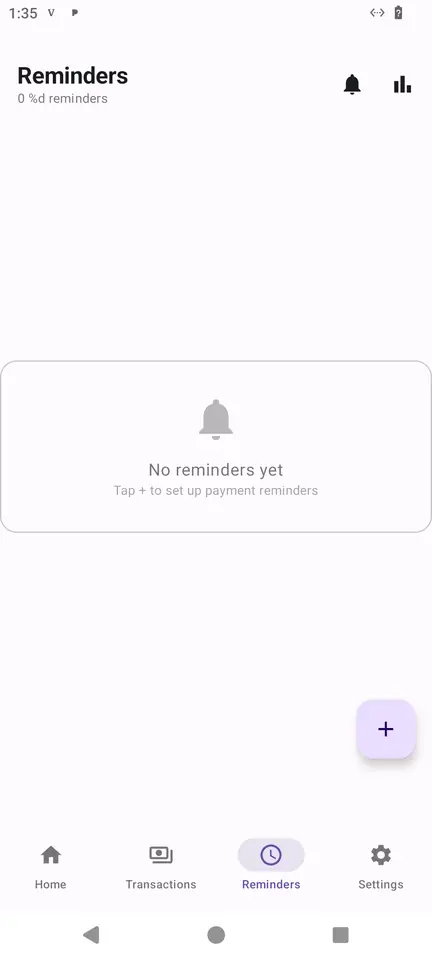
MyFinanceMate · Home & browsing
3 screens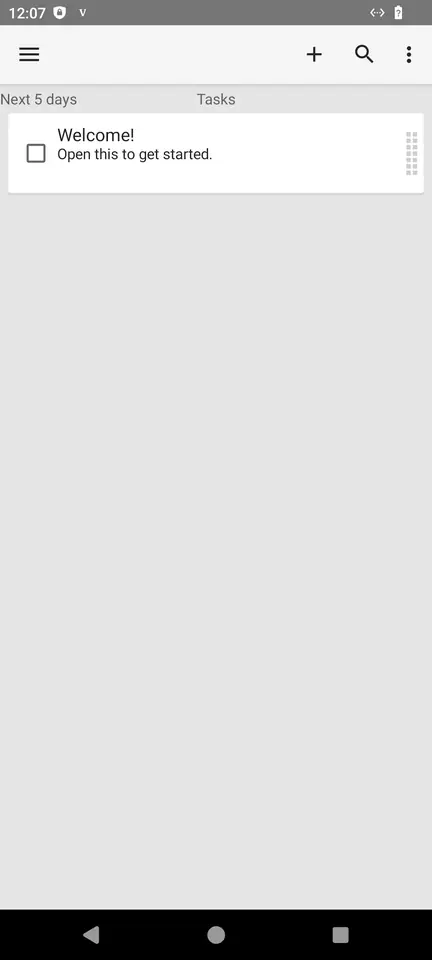
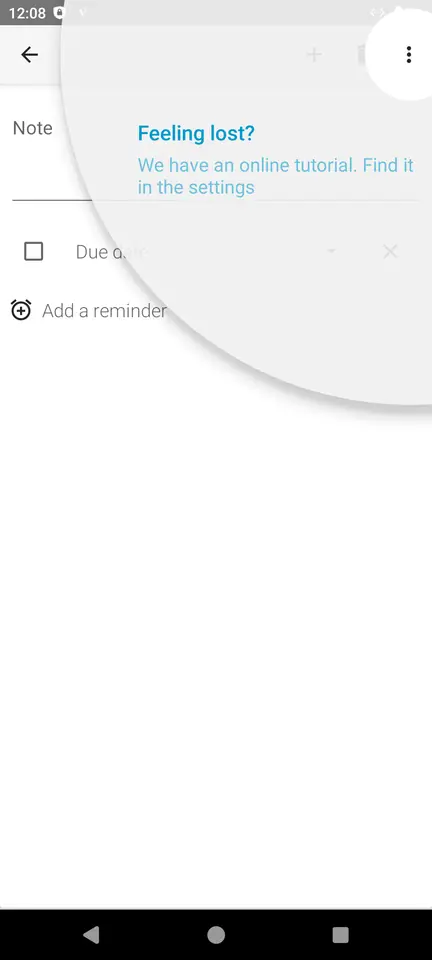
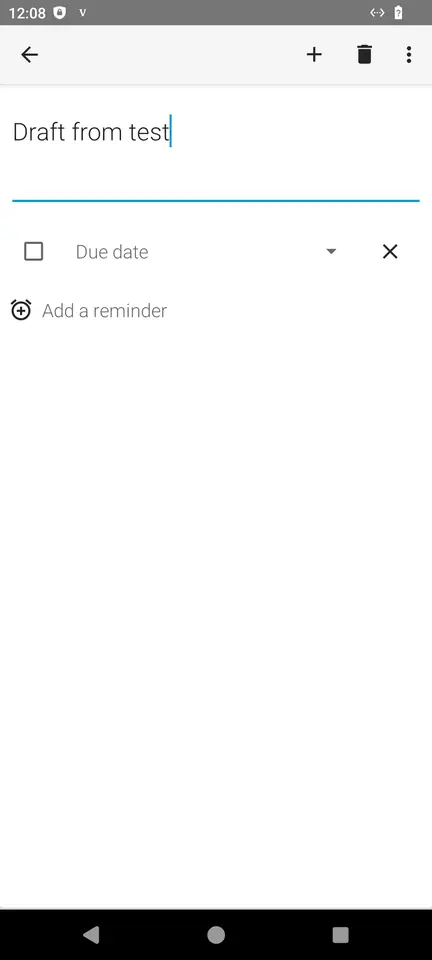
NoNonsense Notes · Home & browsing
3 screens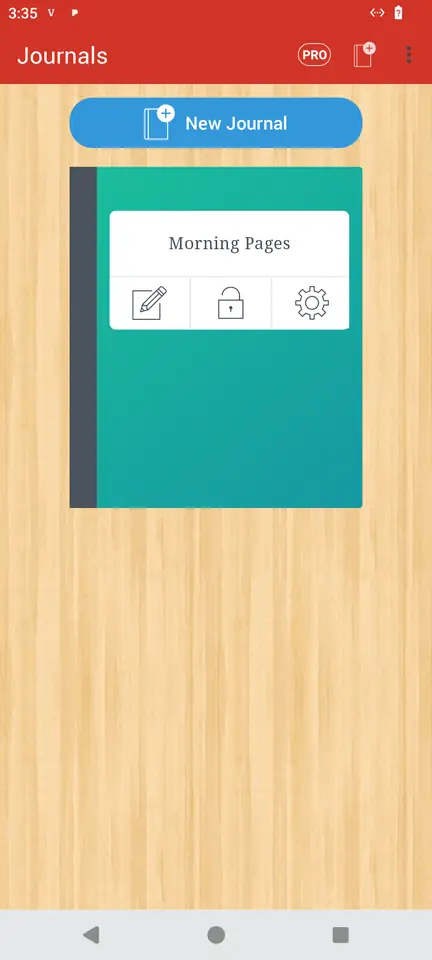
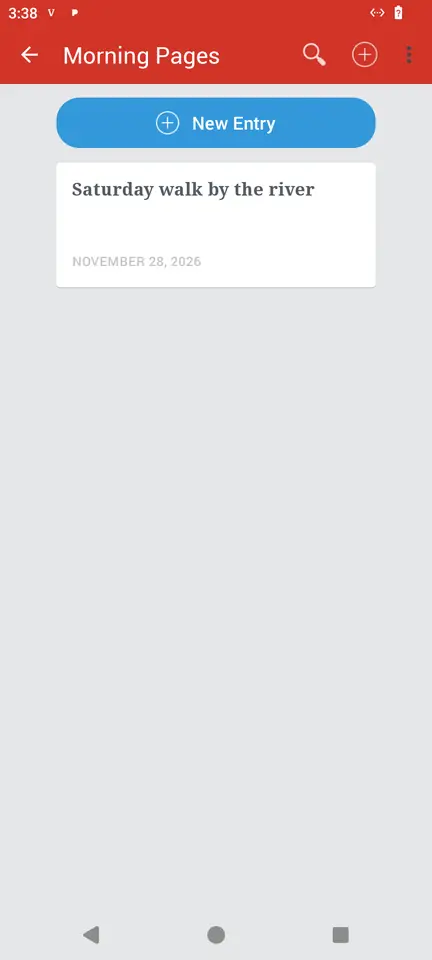
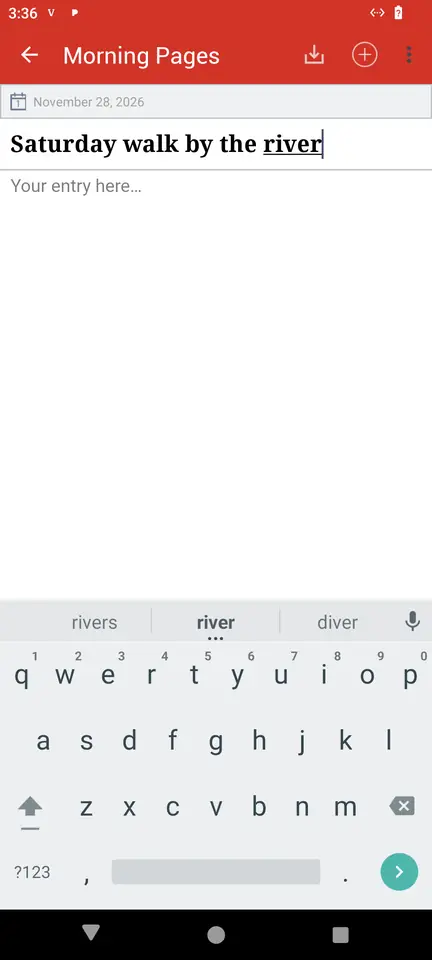
Penzu · Home & browsing
3 screens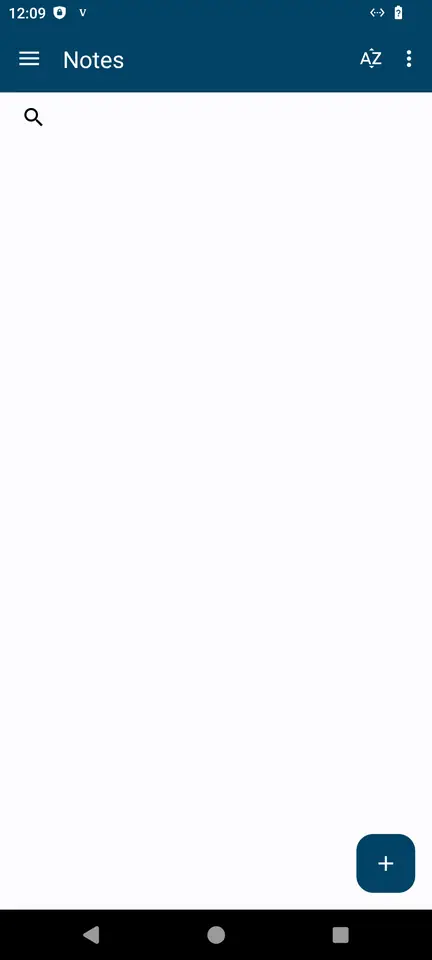
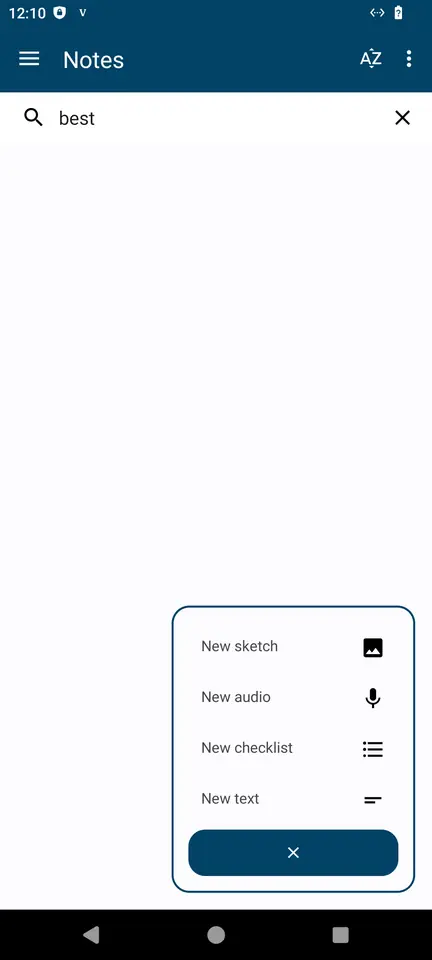
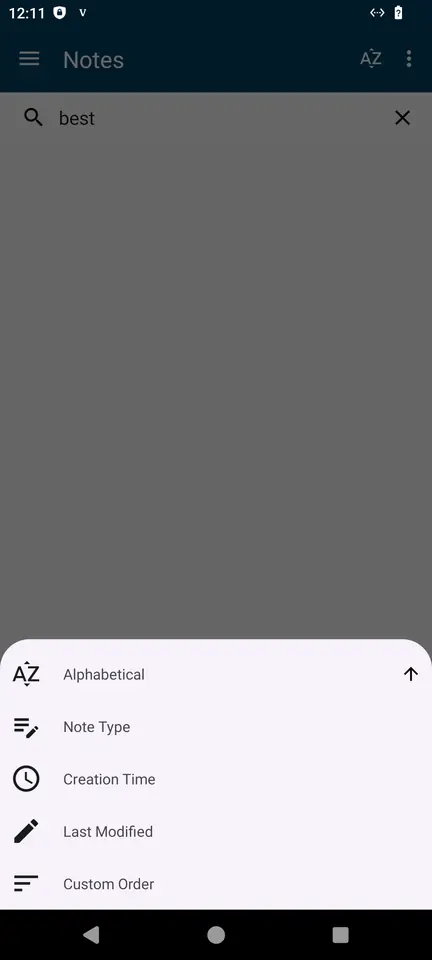
Privacy Friendly Notes · Home & browsing
3 screens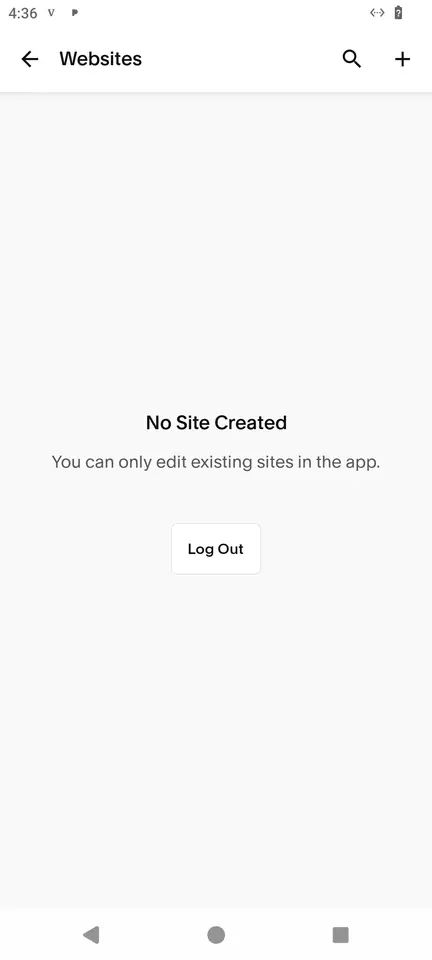
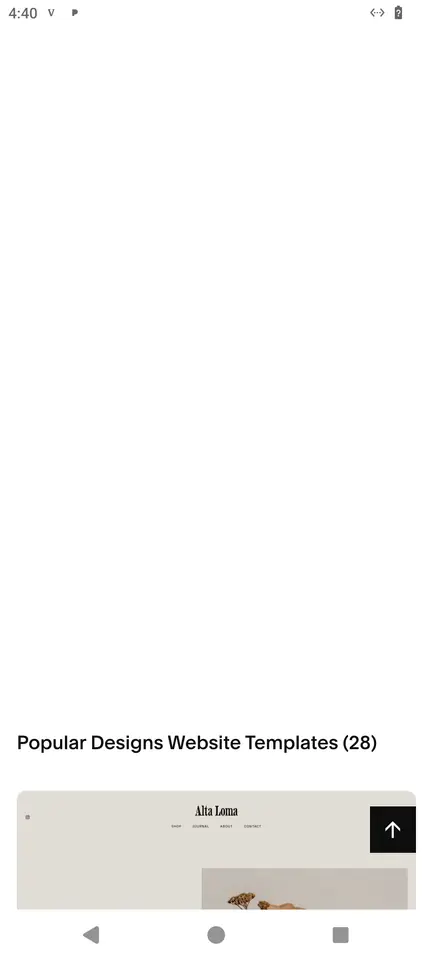
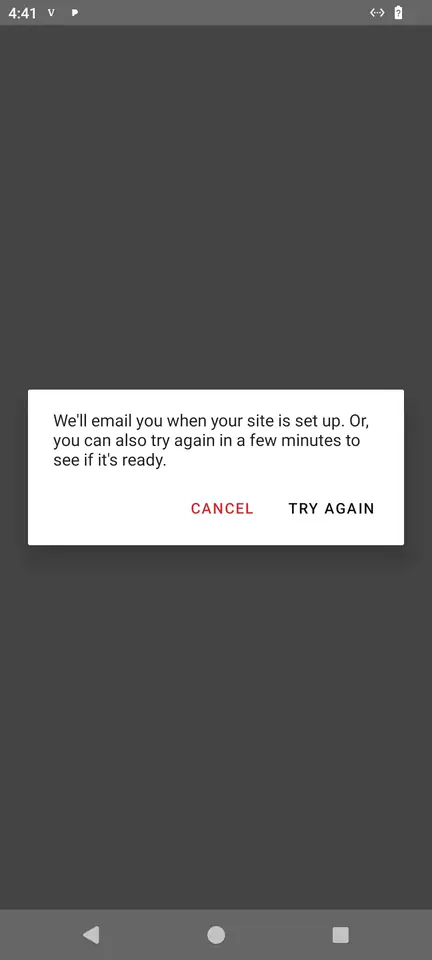
Squarespace · Home & browsing
3 screens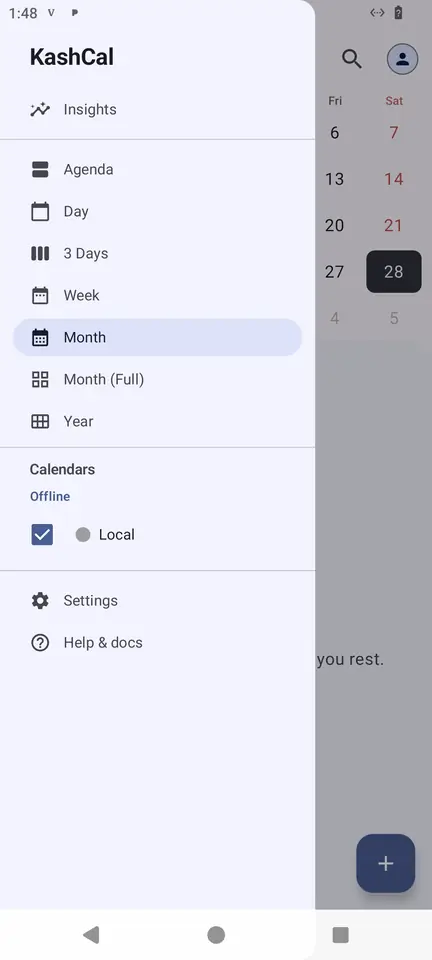
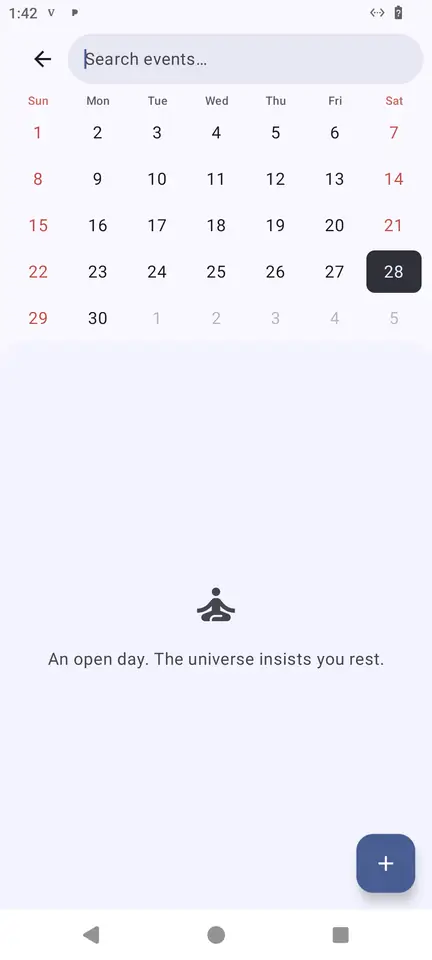
KashCal · Home & browsing
2 screens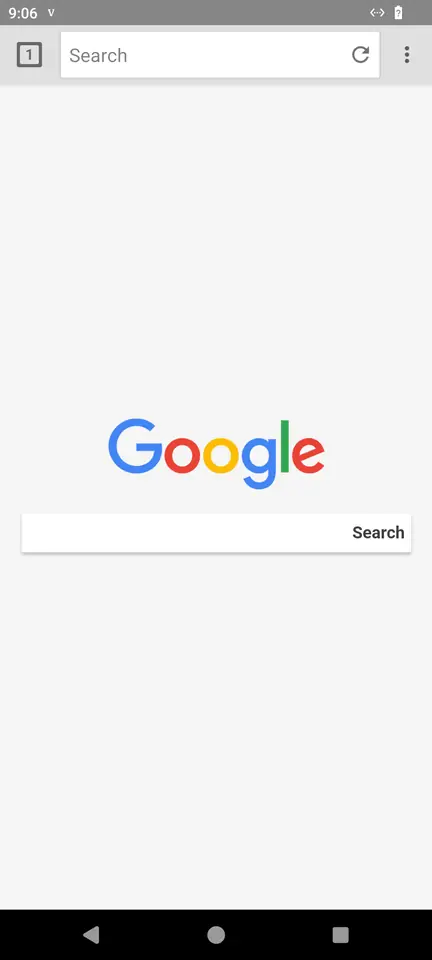
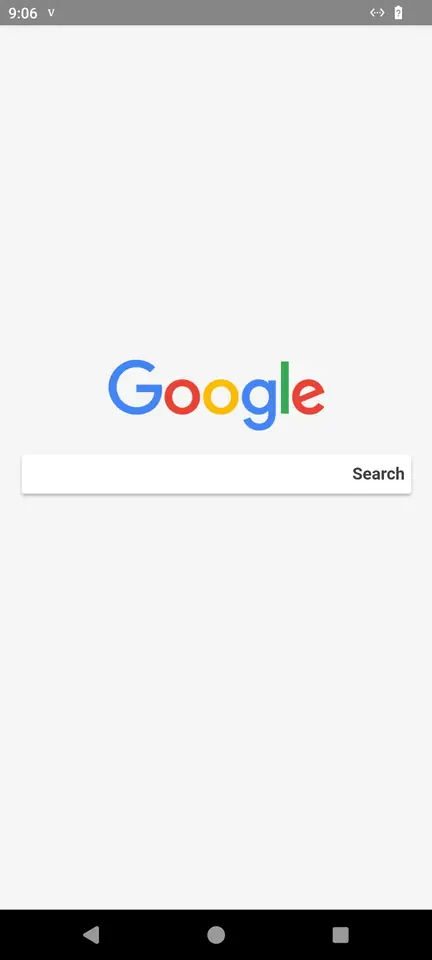
Lightning · Home & browsing
2 screens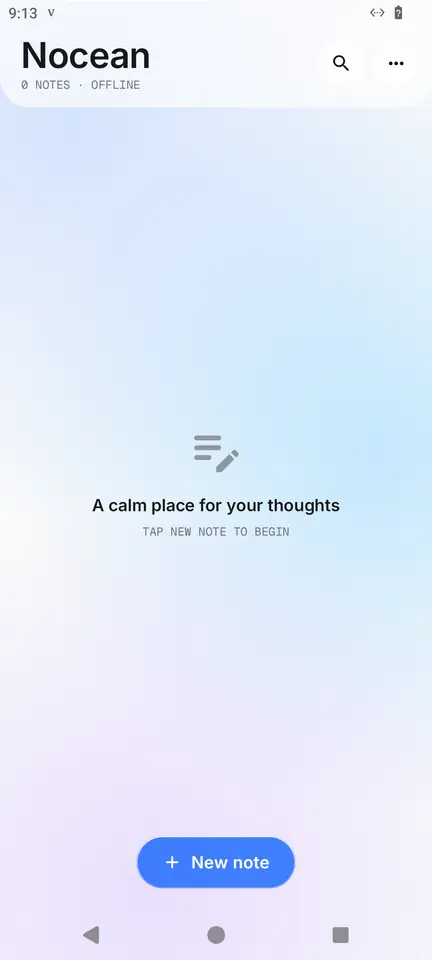
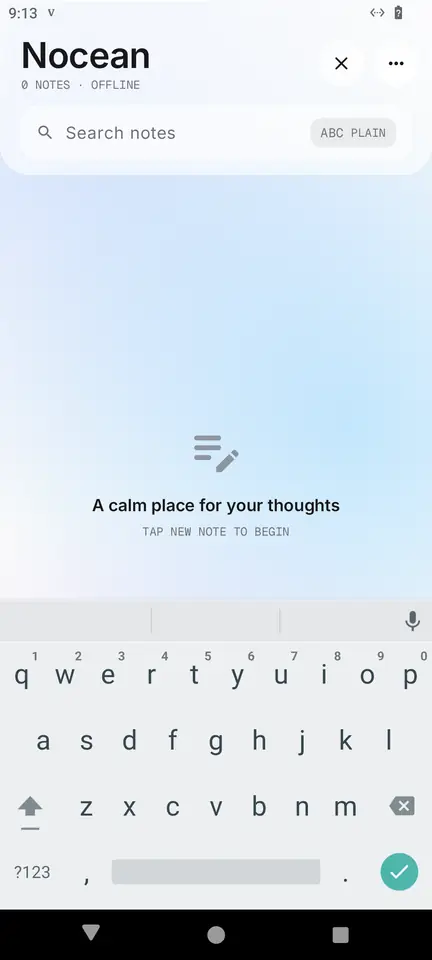
Nocean · Home & browsing
2 screens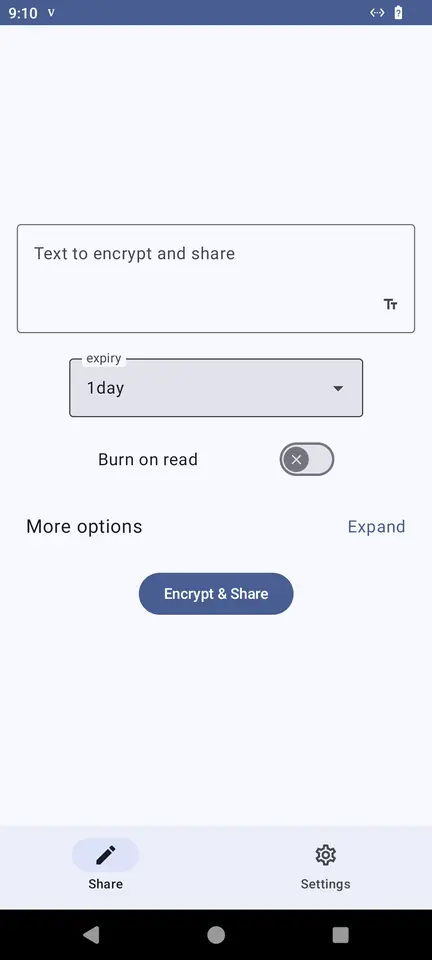
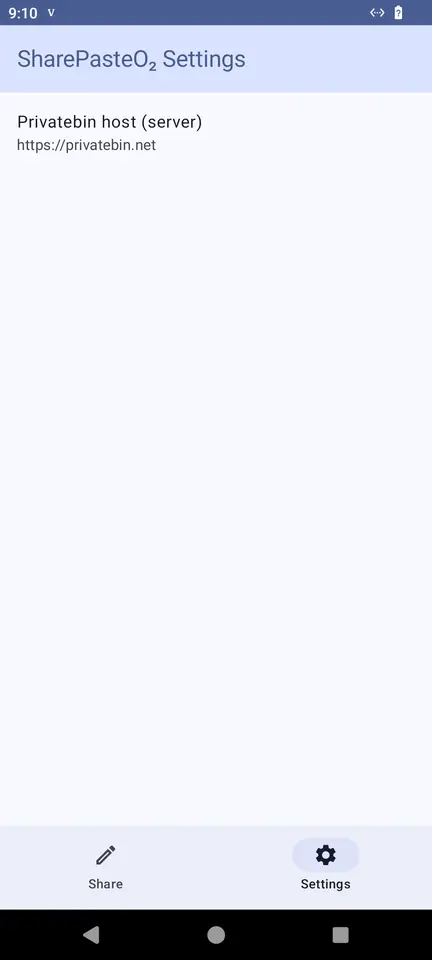
Share Paste O2 · Home & browsing
2 screens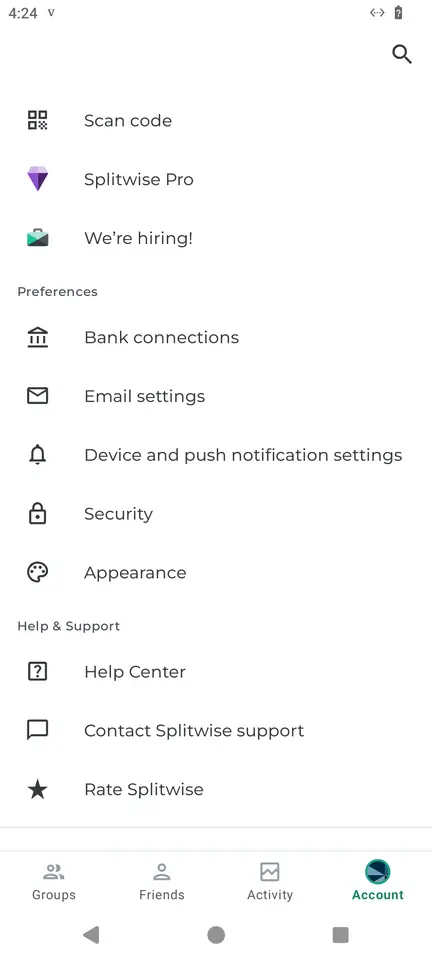
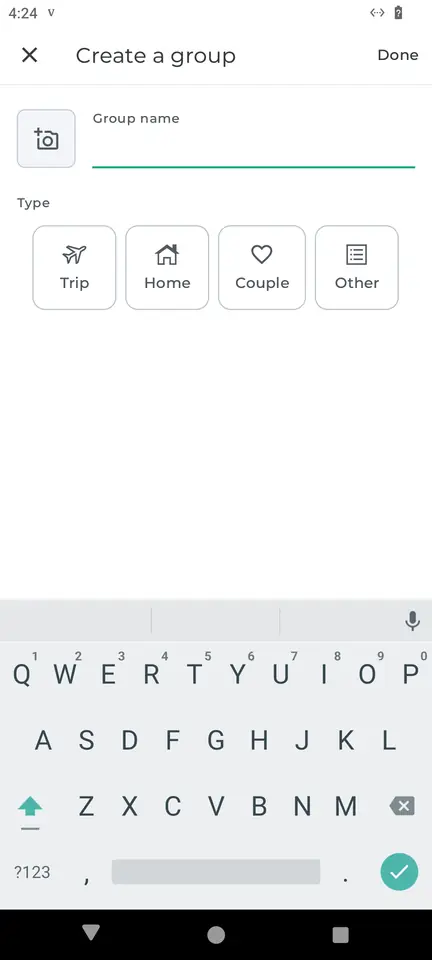
Splitwise · Home & browsing
2 screensPerplexity
10 home screens

Todoist
10 home screens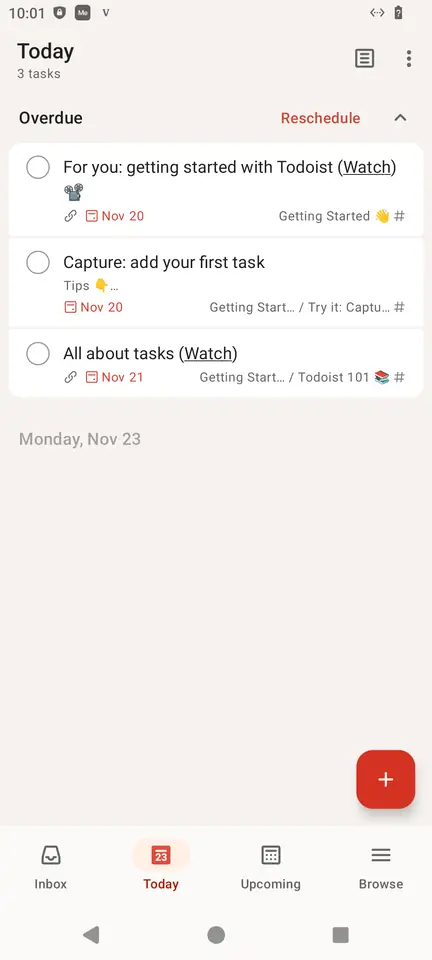
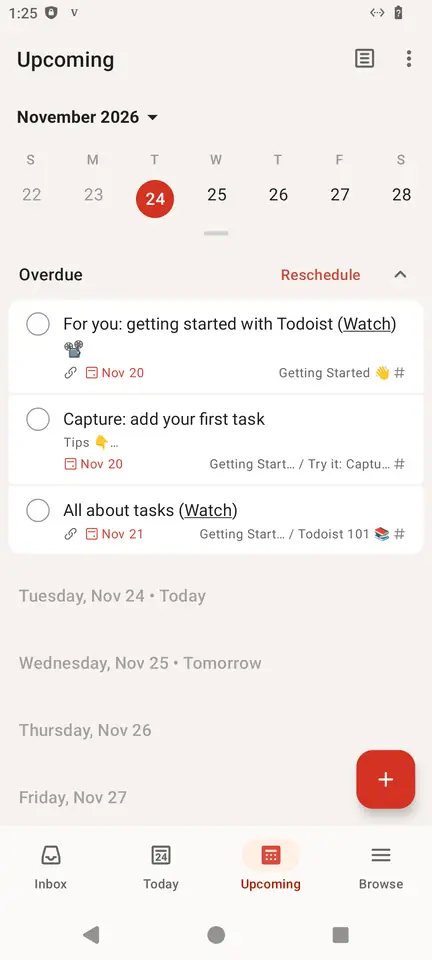
Obsidian
8 home screens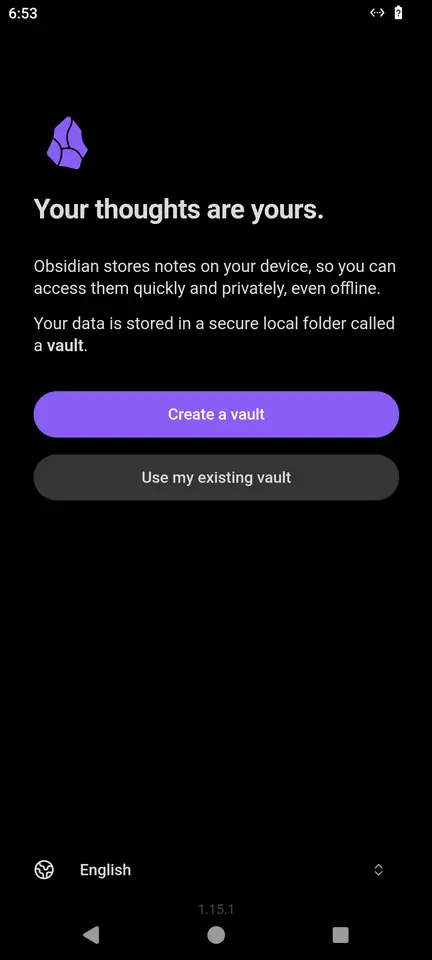
F-Droid
6 home screens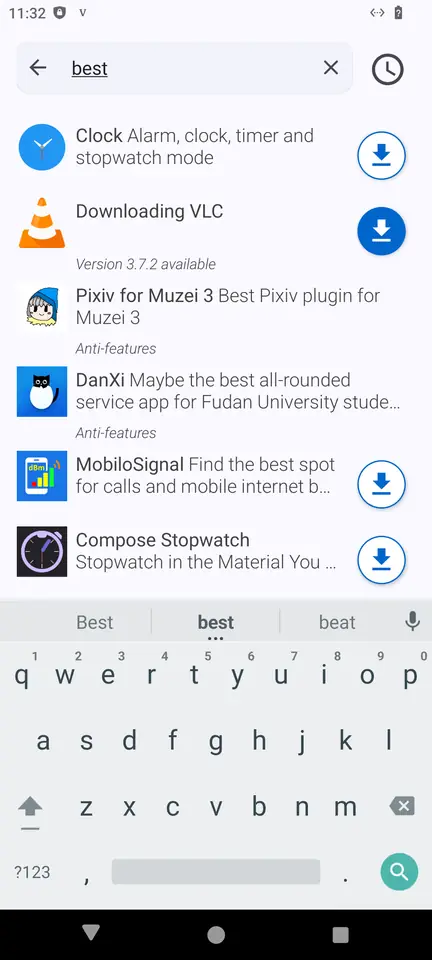
MyDyson
6 home screens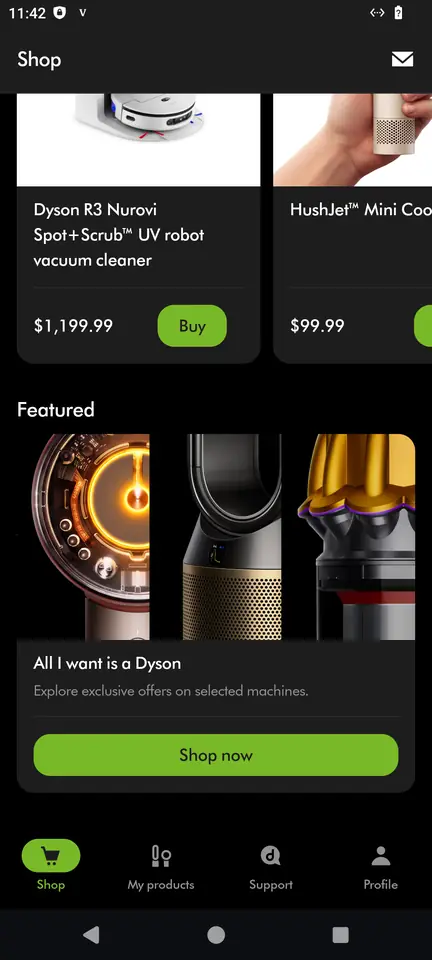
TickTick
6 home screens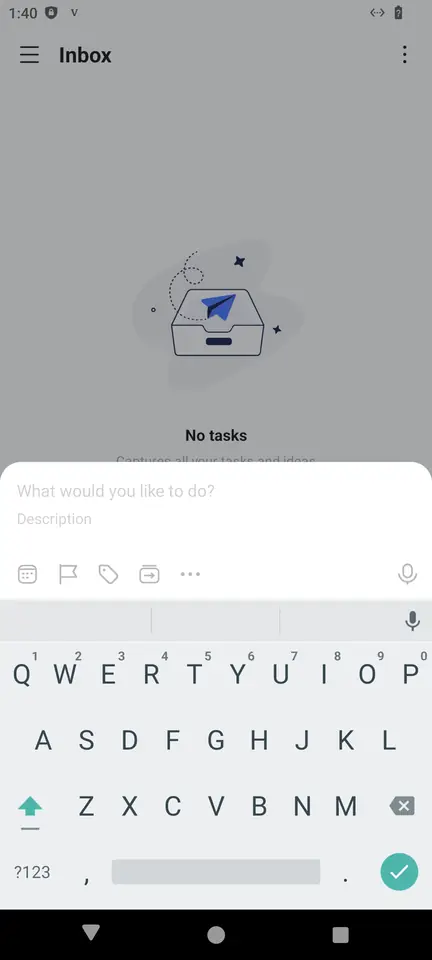
Toshl Finance
6 home screens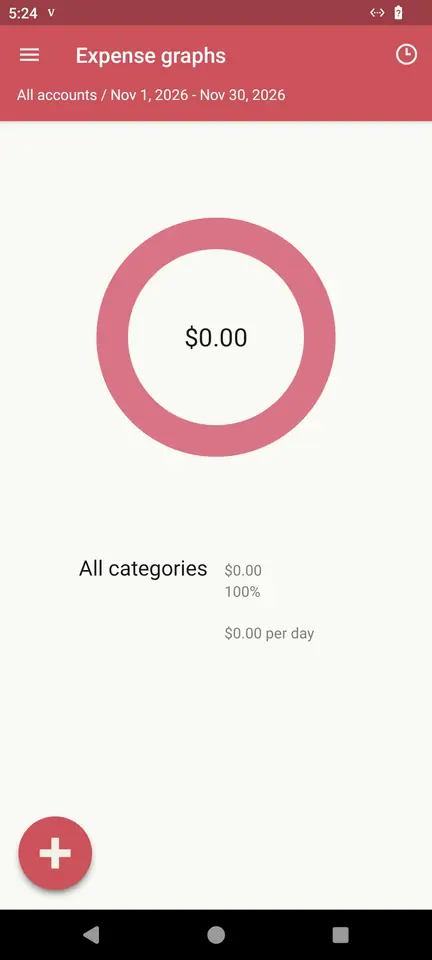
Goodbudget
5 home screens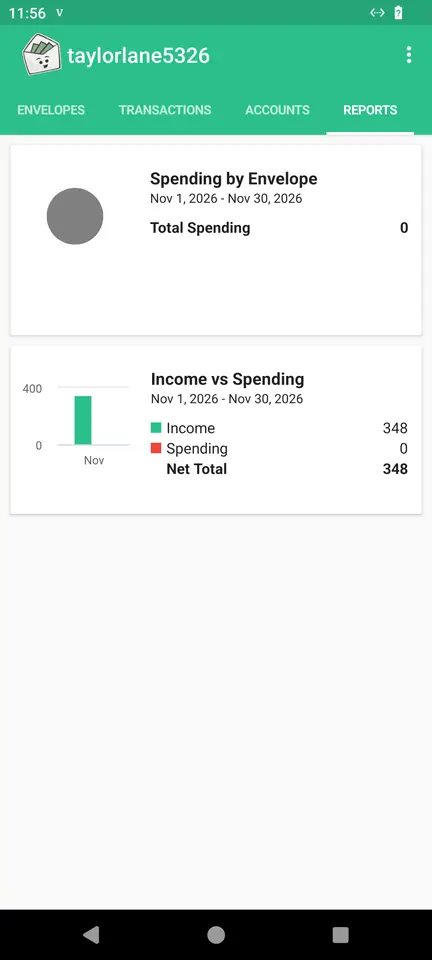
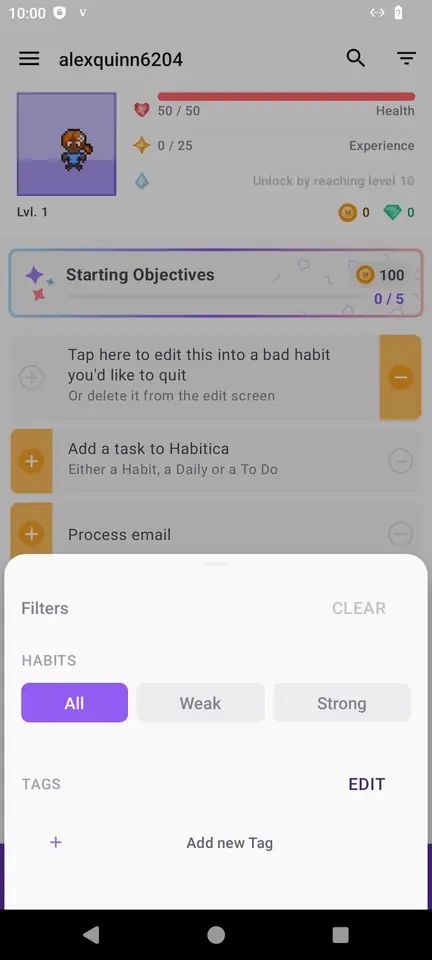
Habitica
5 home screens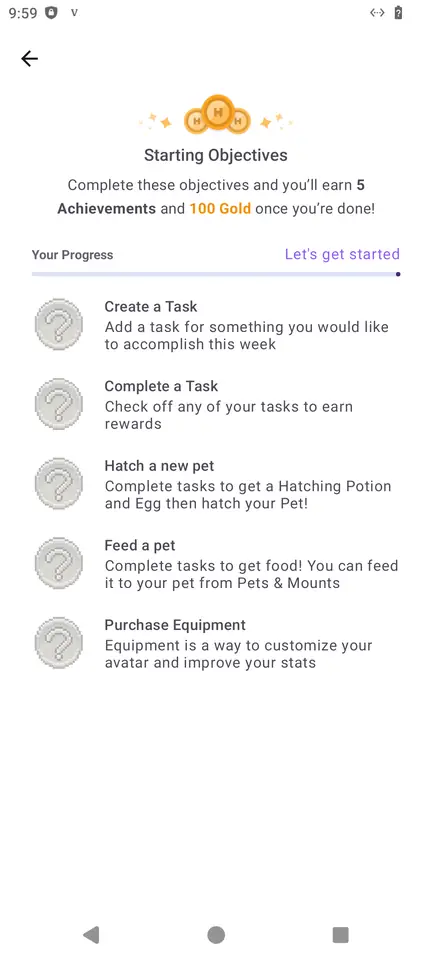
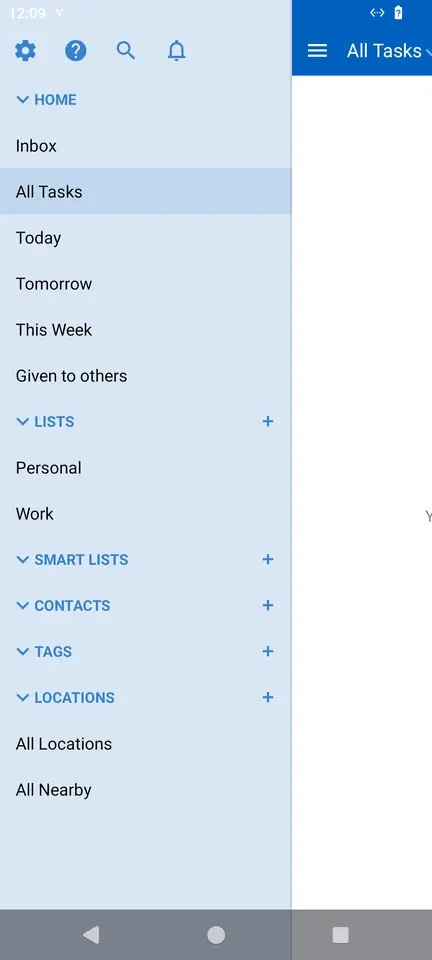
Remember The Milk
5 home screens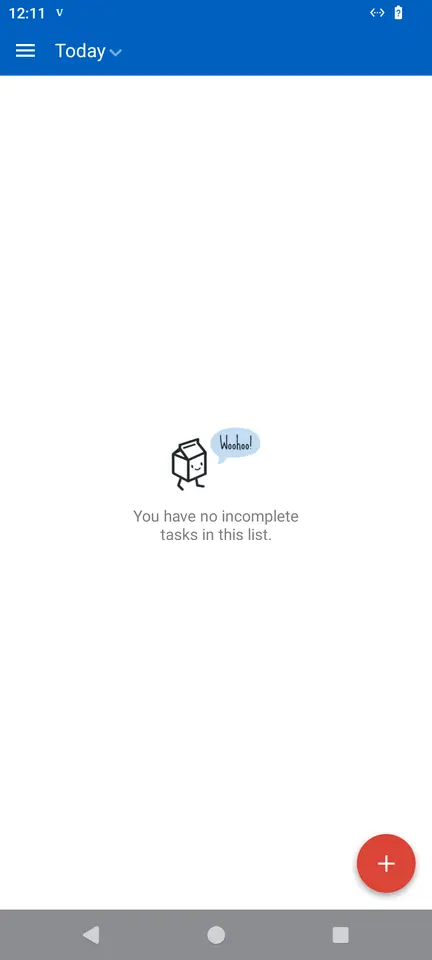
Dropbox
4 home screens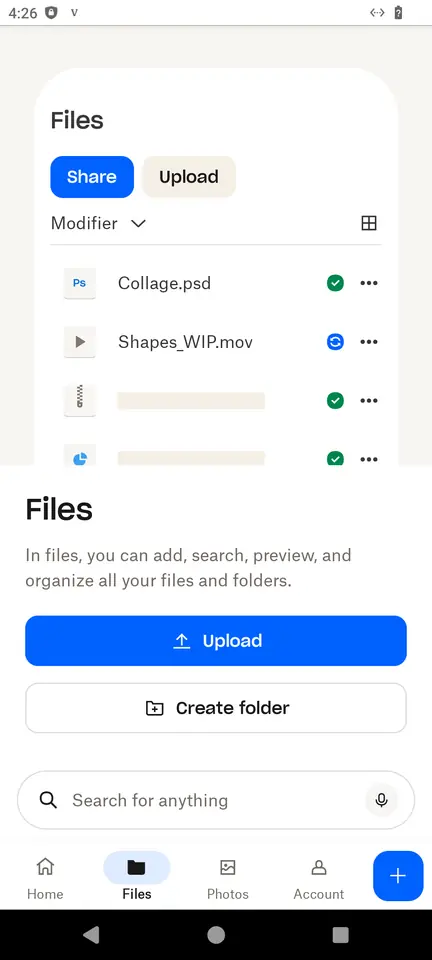
Mobilizon
4 home screens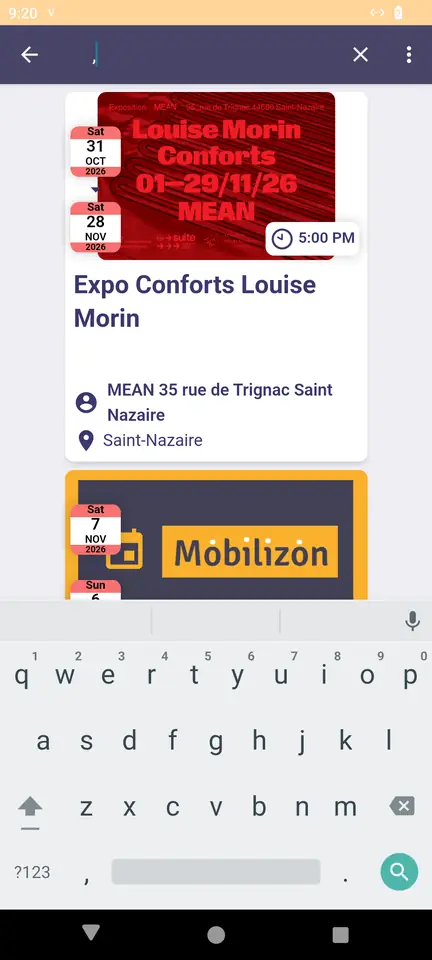
ZipRecruiter
4 home screens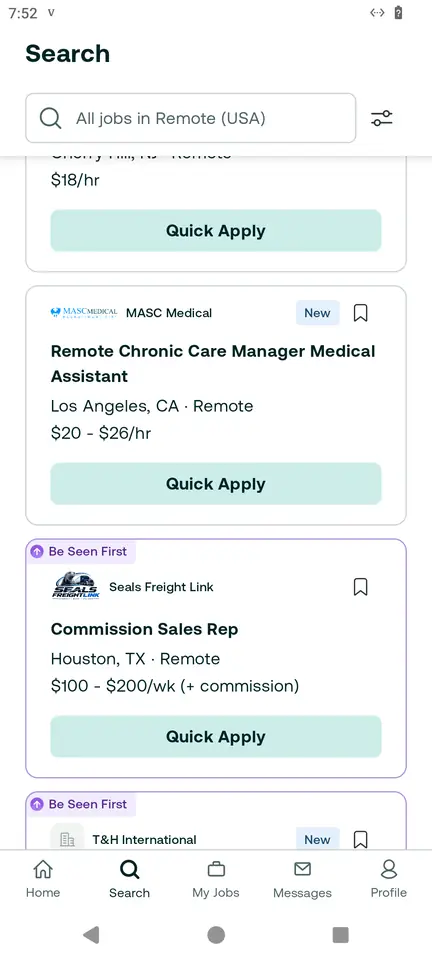
Day One
3 home screensFennec F-Droid
3 home screensFossify Calendar
3 home screensMyFinanceMate
3 home screensNoNonsense Notes
3 home screensPenzu
3 home screensPrivacy Friendly Notes
3 home screensSquarespace
3 home screensKashCal
2 home screensLightning
2 home screensNocean
2 home screensShare Paste O2
2 home screensSplitwise
2 home screensBarcode Scanner (Atharok)
1 home screen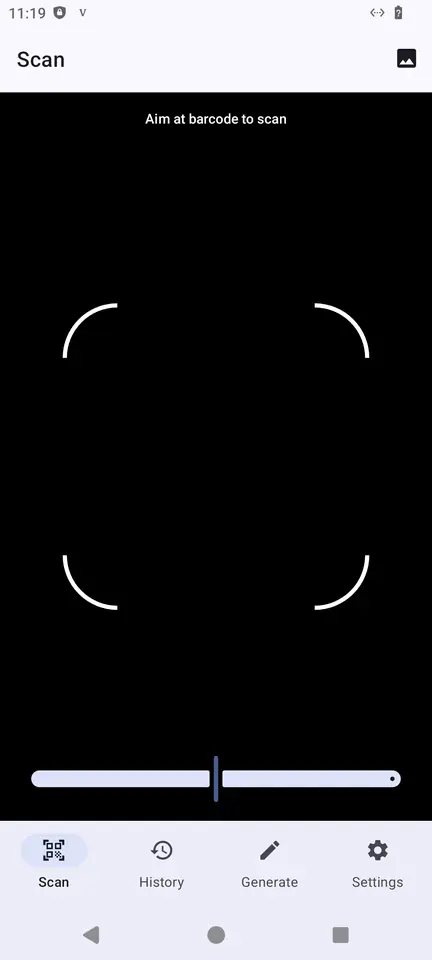
DuckDuckGo
1 home screen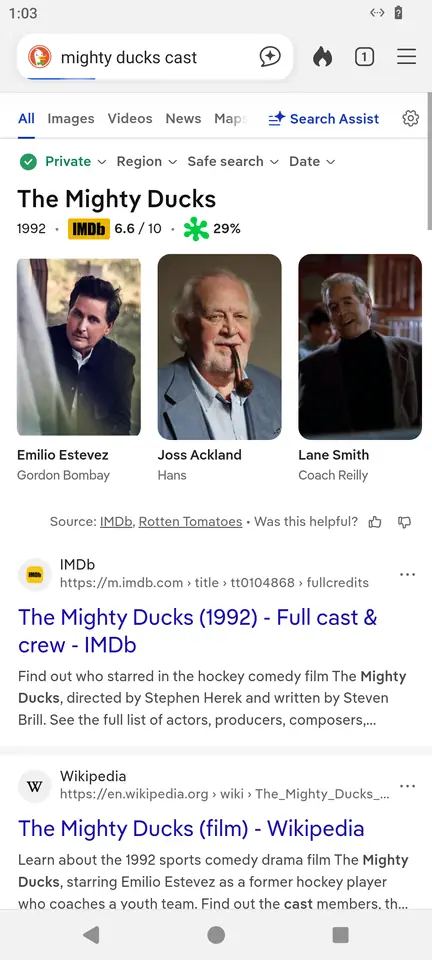
My Expenses
1 home screen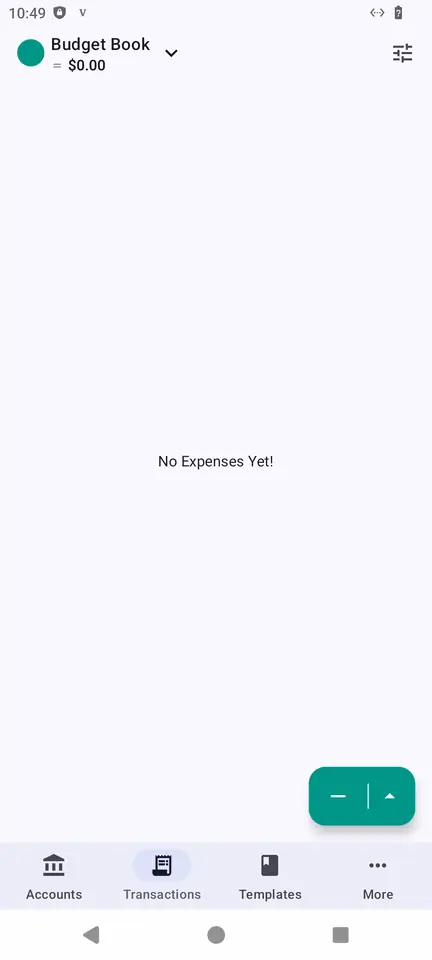
Slack
1 home screen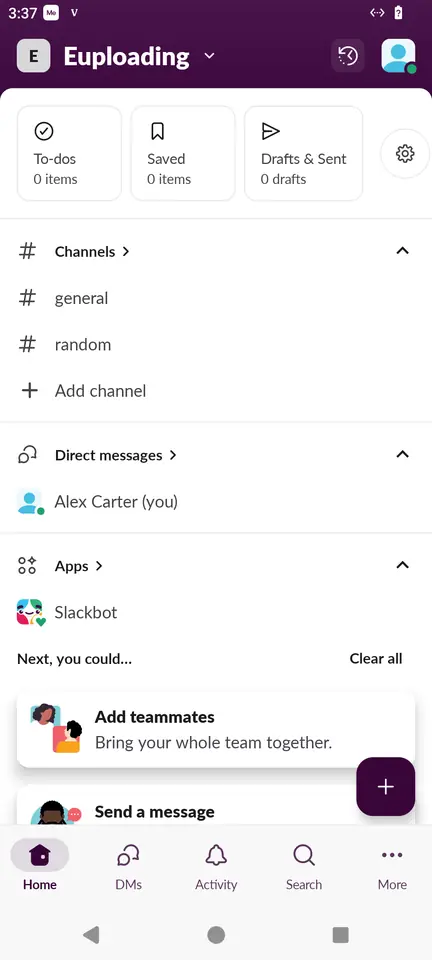
UI components on productivity & tools home screens
Share of the 117 screens where each component is in the view hierarchy and drawn on screen; the example shows it outlined.
Icon button
12 apps · example: F-Droid
Floating action button
6 apps · example: Todoist
Text field
11 apps · example: Todoist
Chip
3 apps · example: Perplexity
UI patterns on productivity & tools home screens
Search bar
example: F-Droid
Welcome screen
example: Perplexity
Empty state
example: Dropbox
Pricing plans
example: TickTick
Registration wall
example: Perplexity
Email sign-up form
example: Perplexity
Permission priming
example: Toshl Finance
Social login buttons
example: Perplexity
What productivity & tools apps say on these screens
UI copy that appears on the home screens of two or more productivity & tools apps, with the number of apps using it.
Search
15 appsMore options
12 appsSettings
6 appsBack
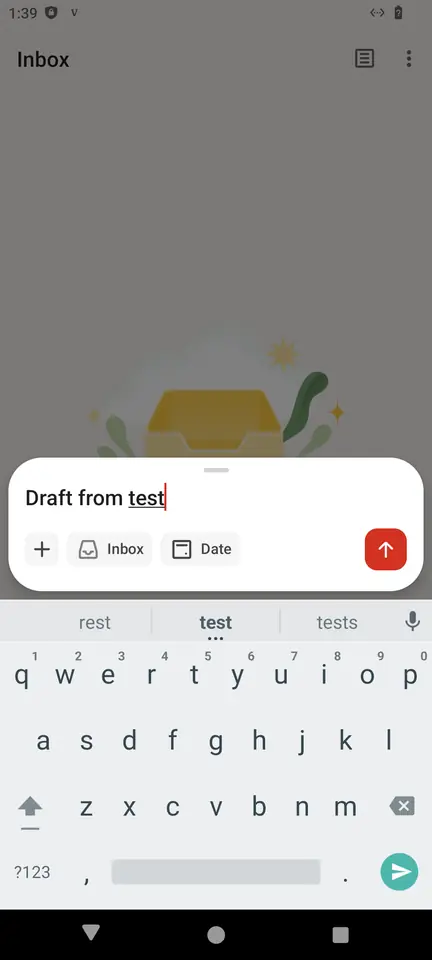
5 appsDraft from test
4 appsHome
4 appsCancel
3 appsInbox
3 appsNavigate up
3 appsNotes
3 appsNotifications
3 appsOpen navigation drawer
3 apps
Best practices for home screens
- Lead with the user's most likely next action, not a promo banner.
- Keep 3–5 top-level destinations in the bottom bar.
- Use clear section titles over horizontal shelves so users can scan.
- Put search where users expect it: top bar or a dedicated tab.
- Design the empty state for a brand-new account.
Design notes for productivity & tools apps
- Open straight into the main task (a new note, a search box, a scan) — no tour needed.
- Ask for an account only when sync or sharing needs one.
- Keep keyboard and one-handed use in mind; tools are used on the go.
- Make export and data ownership clear; users trust tools that do not lock data in.
FAQ
What do productivity & tools app home screens look like?
The UI Lane library holds 117 home screens from 30 Android productivity & tools apps (Perplexity, Todoist, Obsidian, F-Droid, MyDyson and TickTick and more). Across these 117 screens the most common detected components are toolbar (44%), floating action button (19%) and text field (15%). The most common UI patterns are search bar (7 of 30 apps), welcome screen (5 of 30 apps) and empty state (3 of 30 apps).
Which productivity & tools apps have the longest home flow?
26 of these apps have their full home flow captured step by step: the longest is Todoist (10 screens), the shortest KashCal (2 screens). Full list: Todoist (10), F-Droid (6), MyDyson (6), TickTick (6), Toshl Finance (6), Goodbudget (5), Habitica (5), Obsidian (5), Perplexity (5), Remember The Milk (5), Dropbox (4), Mobilizon (4), ZipRecruiter (4), Day One (3), Fennec F-Droid (3), Fossify Calendar (3), MyFinanceMate (3), NoNonsense Notes (3), Penzu (3), Privacy Friendly Notes (3), Squarespace (3), KashCal (2), Lightning (2), Nocean (2), Share Paste O2 (2) and Splitwise (2).
What do productivity & tools apps say on their home screens?
UI copy used by two or more of these apps: “Search” (15 apps), “More options” (12 apps), “Settings” (6 apps), “Back” (5 apps) and “Draft from test” (4 apps).
Captured on real Android devices · last updated 2026-11-14